Steps
- 1
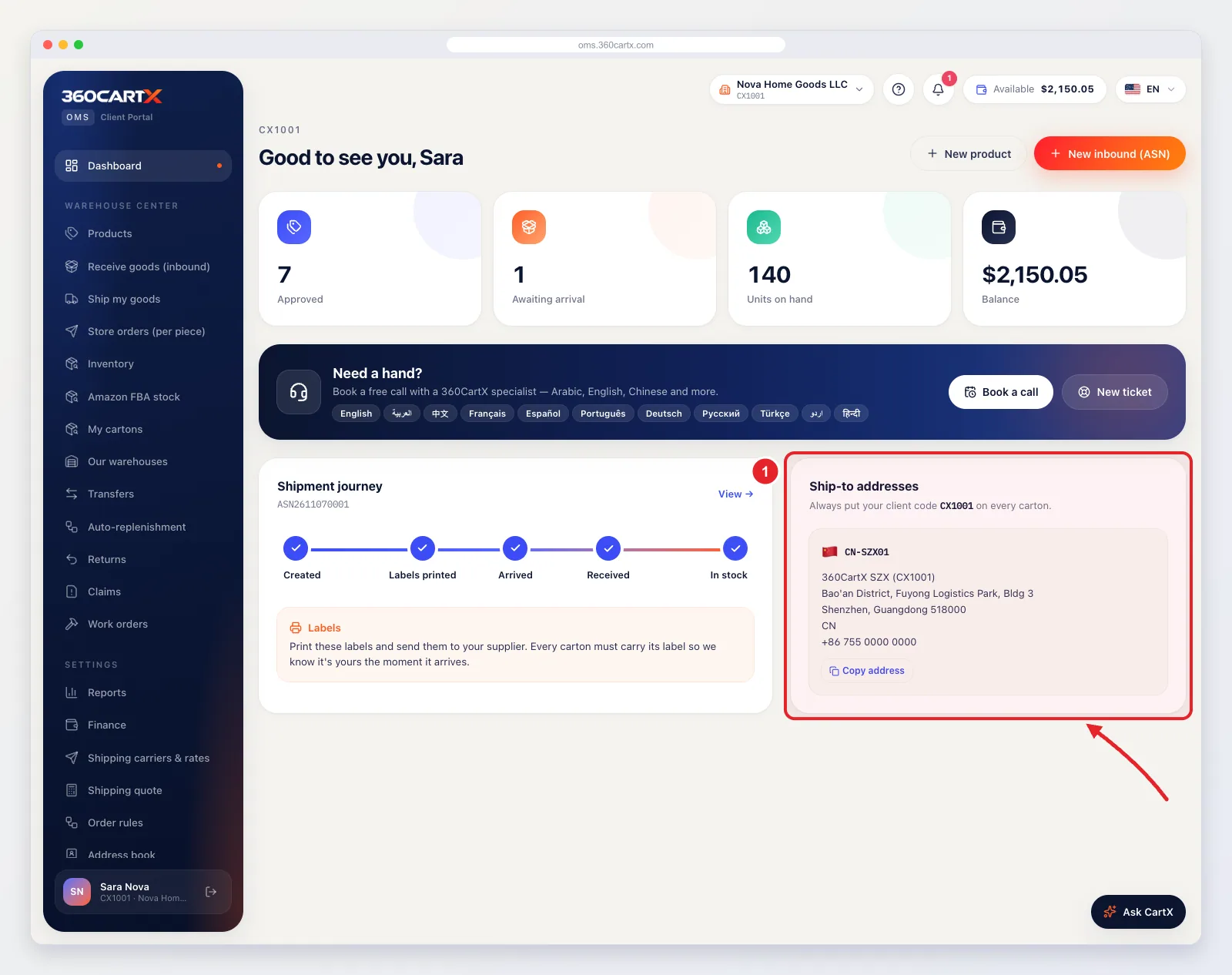
Find the Ship-to addresses card
On the dashboard, the Ship-to addresses card lists every warehouse assigned to your account, with its flag and code, for example CN-SZX01. Each warehouse shows the recipient line, the full address and the phone number to give your supplier or freight forwarder. Partner warehouses carry a Partner badge.
- 2
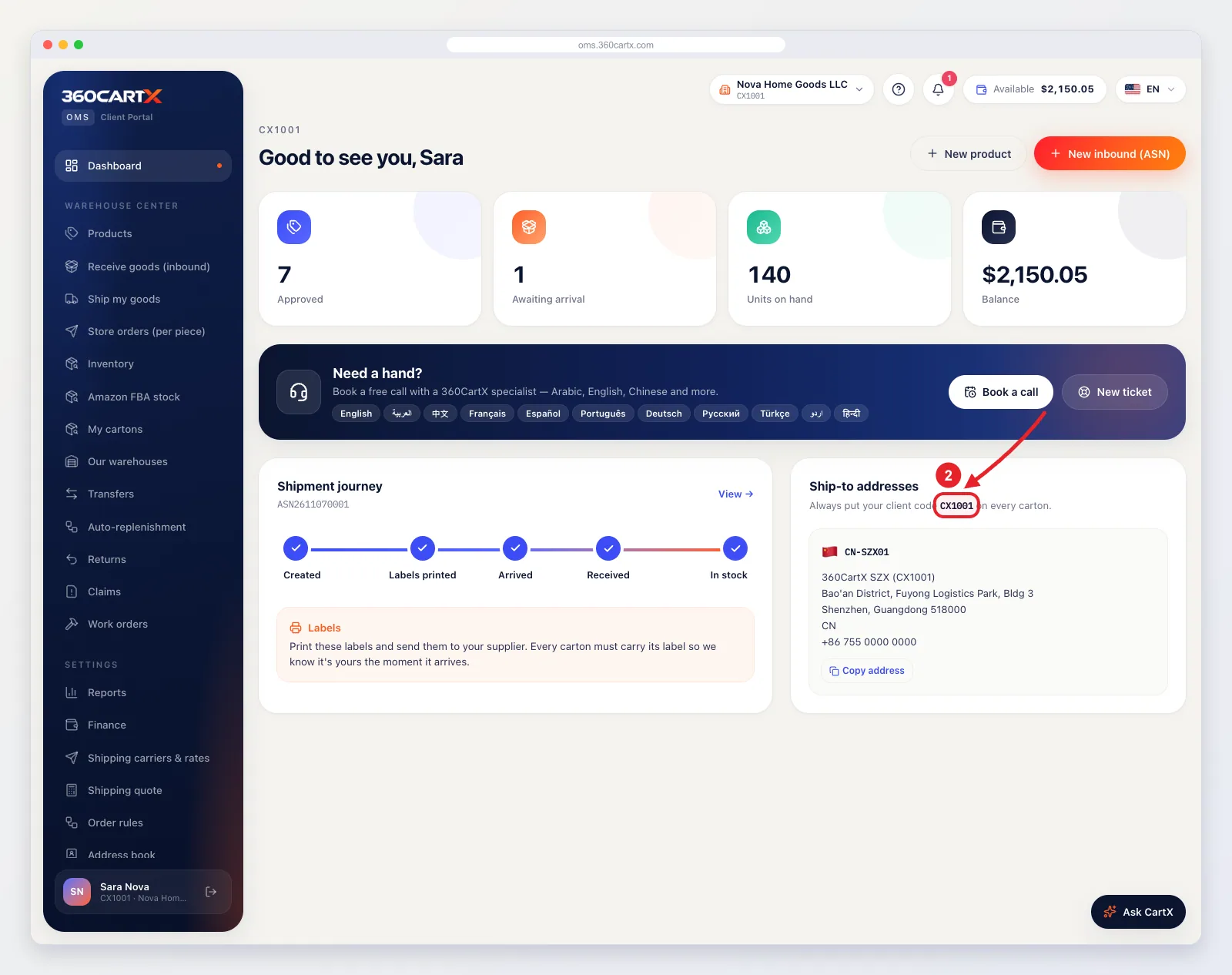
Your client code is part of the address
The recipient line ends with your client code in brackets, for example (CX1001), and the card reminds you: Always put your client code CX1001 on every carton. Ask your supplier to write it on every carton as well, next to our carton label.
- 3
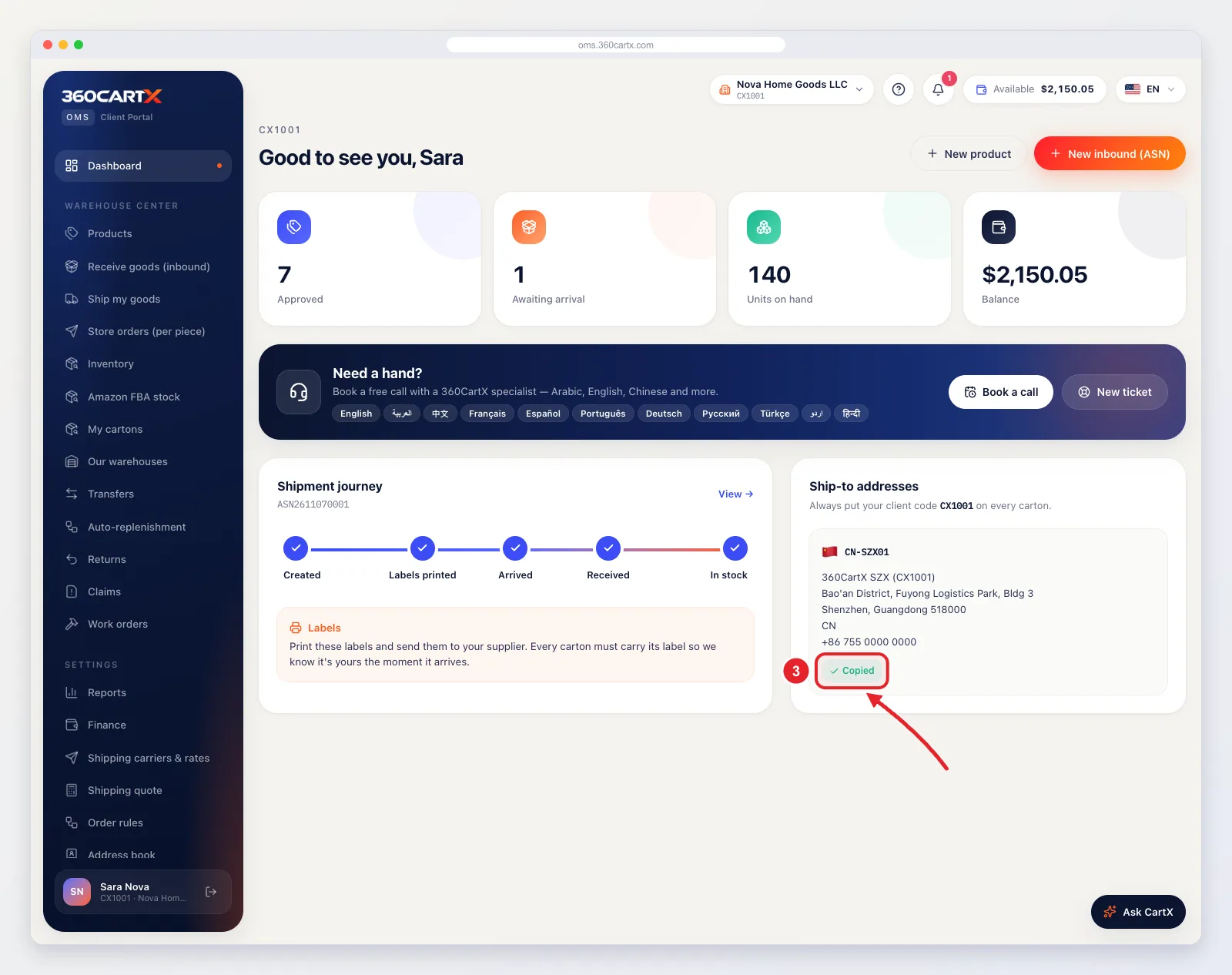
Copy the address in one click
Click Copy address under a warehouse. The recipient line, the address and the phone number are copied together and the button shows Copied for two seconds. Paste it into your email or into your supplier's shipping form.
- 4
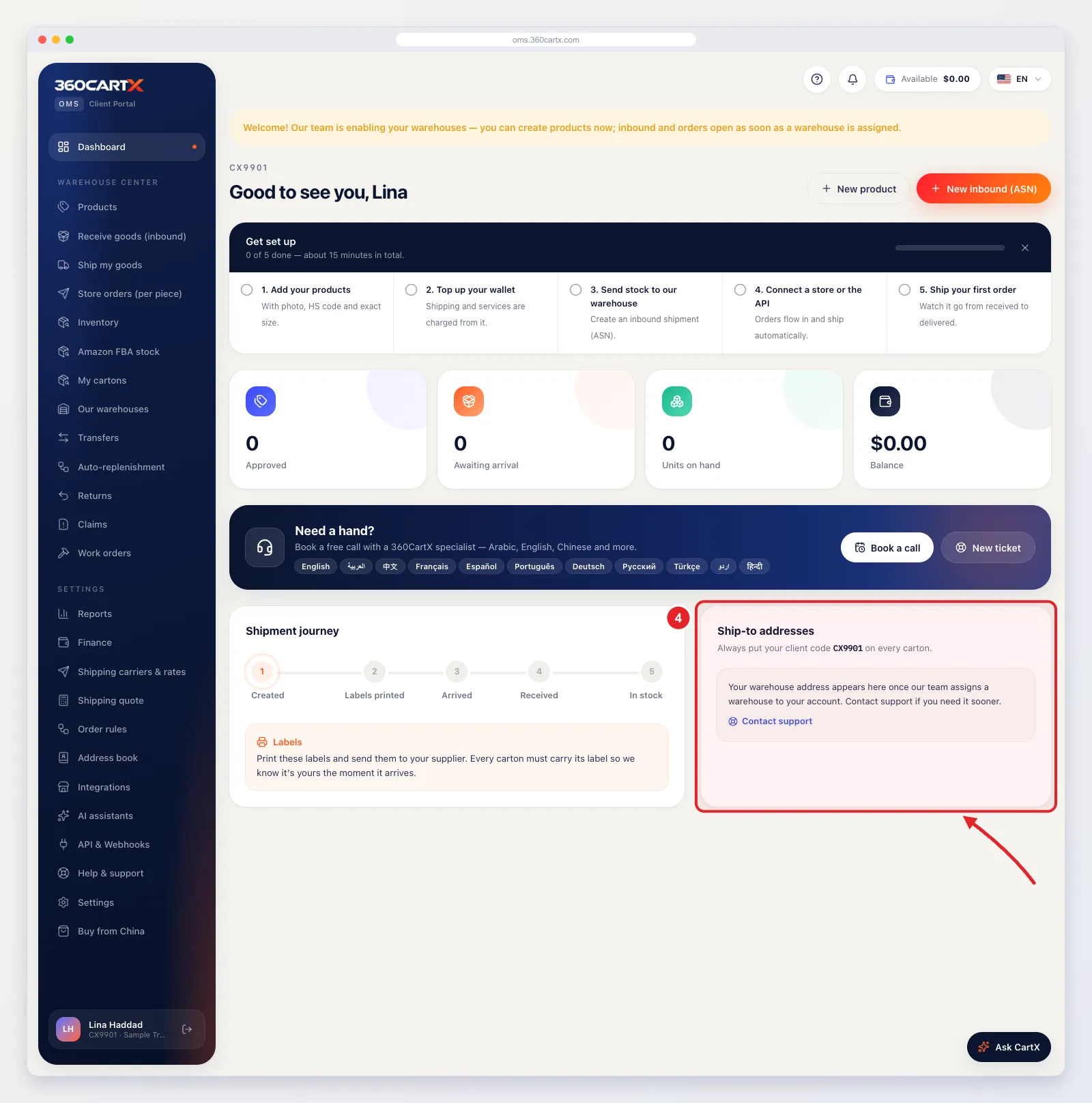
No address yet?
A new account shows: Your warehouse address appears here once our team assigns a warehouse to your account. Contact support if you need it sooner. Click Contact support to open a ticket. The yellow message at the top of the dashboard disappears once the warehouse is assigned.
Terms in this article
- Client code: Your account code, written on every carton.
Tips
- Before you send goods, create the inbound shipment (New inbound (ASN)) and print its carton labels.
- Our warehouses page in the left menu shows more about each warehouse.
Common problems
Copy address does nothing
Your browser blocked access to the clipboard. Allow clipboard access for oms.360cartx.com, or select the address text and copy it by hand.
Cartons arrived without my client code
Cartons our team cannot match to an account are registered as unidentified goods. Look for them under Receive goods (inbound) → Unidentified, or contact support with the tracking number.
Related articles
Updated 2026-11-12
Open a ticket from Support in your portal and our team will reply.