Steps
- 1
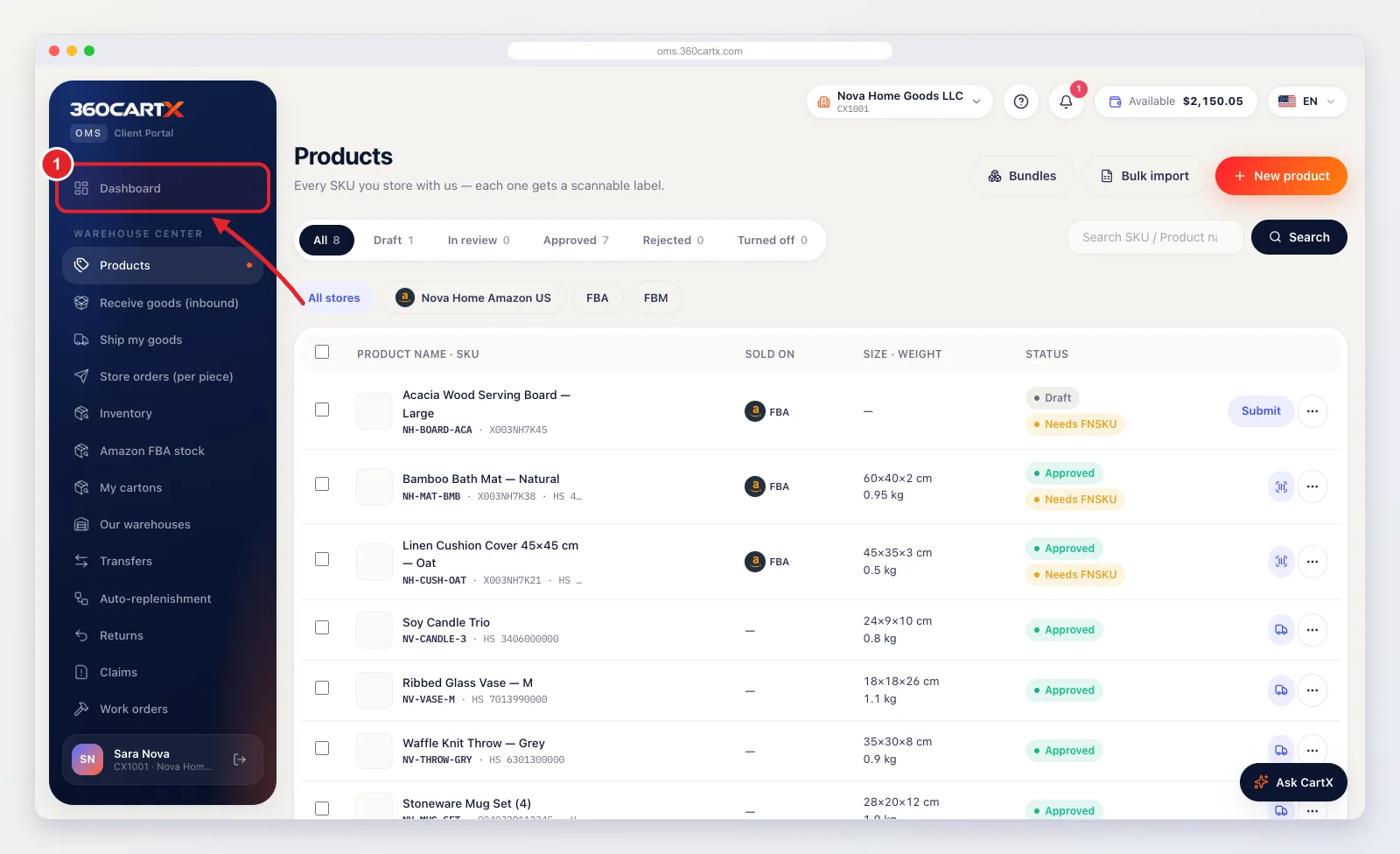
Open the dashboard
Click Dashboard at the top of the left menu from any page. It is also the page you see right after signing in.
- 2
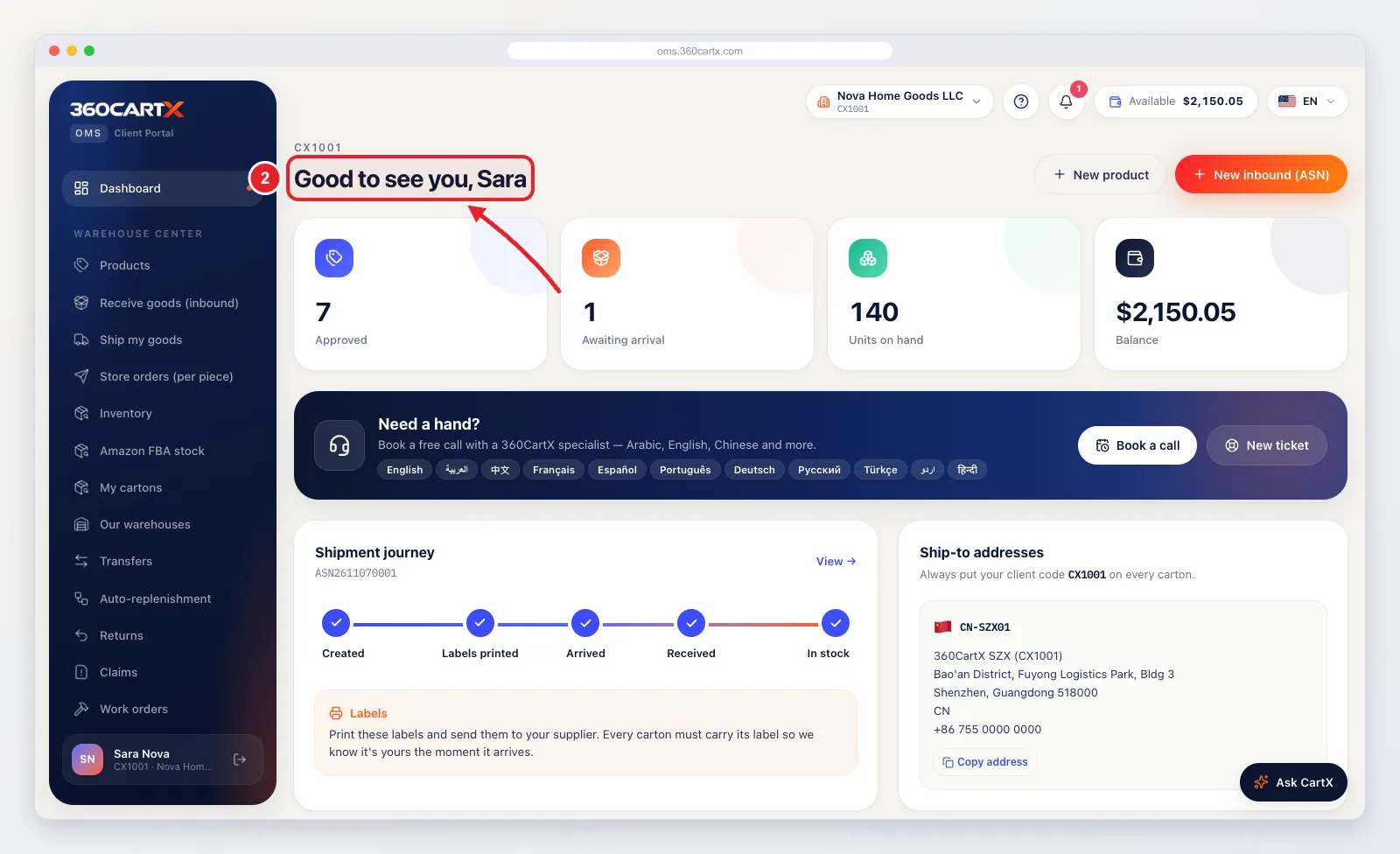
Your greeting and client code
The title greets you by first name, for example Good to see you, Sara. Above it is your client code, for example CX1001. Write this code on every carton you send us and quote it when you contact support.
- 3
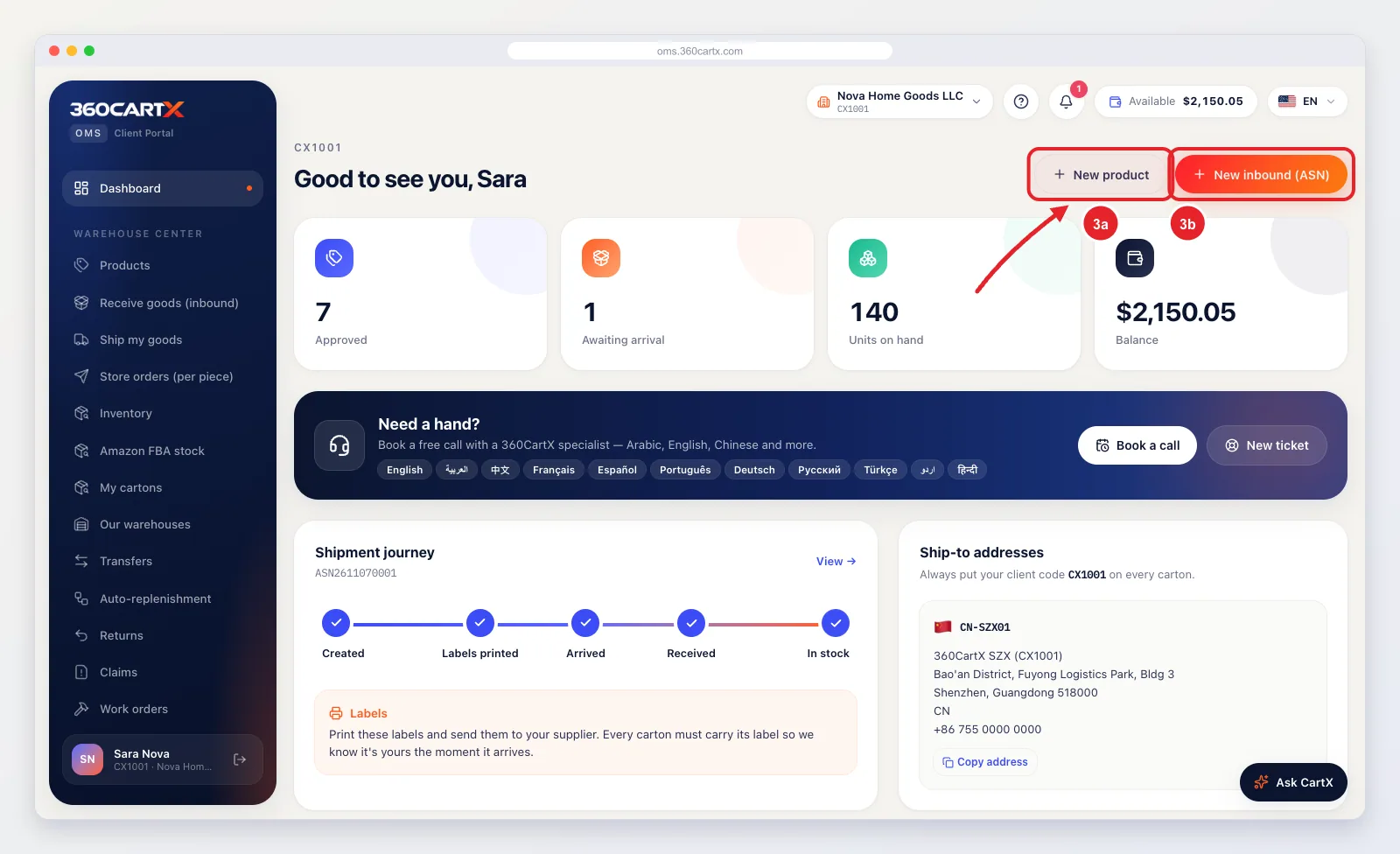
Quick buttons
New product opens the form to add a product (SKU, name, size, weight, HS code). New inbound (ASN) opens the form to tell us about goods you are sending to our warehouse.
- 3a New product
- 3b New inbound (ASN)
- 4
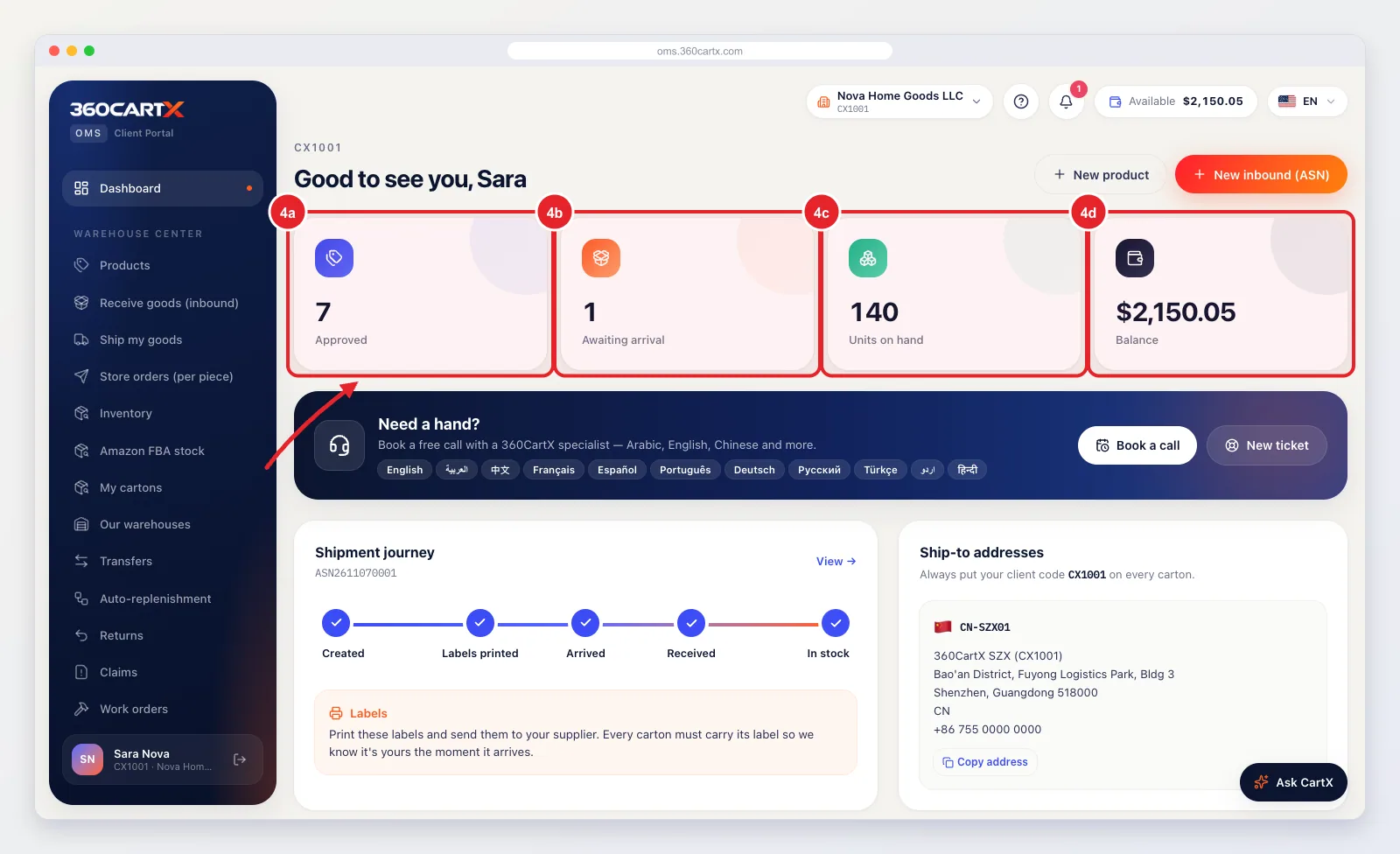
The four numbers
Approved: your single products that our team approved and that can be received and shipped (bundles are not counted). Awaiting arrival: your inbound shipments that are Submitted or being received. Units on hand: all units of all your products in our warehouses. Balance: the money in your wallet, the same amount as Available in the header. The cards show numbers only: open Products, Receive goods (inbound), Inventory or Finance in the left menu for the details.
- 4a Approved
- 4b Awaiting arrival
- 4c Units on hand
- 4d Balance
Tips
- A new account also shows the Get set up checklist above the numbers. See Your first steps after sign-up.
- Units on hand counts every unit in stock, including units already reserved for orders that are waiting to ship.
- The balance is always in US dollars (USD), for example $2,150.05.
Common problems
A product I added is not counted in Approved
Only approved products are counted. Drafts, products in review, rejected and turned-off products are not, and bundles are never counted (they have their own page). Check its status in Products.
My inbound shipment is not counted in Awaiting arrival
Drafts are not counted until you submit them, and shipments marked Action required are not counted either. Open Receive goods (inbound) to see every shipment and its status.
Units on hand did not change after my goods arrived
Units are added when our team puts the received cartons away on the shelves: the In stock step of the Shipment journey. Until then the shipment shows Arrived or Received.
Related articles
Updated 2026-11-12
Open a ticket from Support in your portal and our team will reply.