Steps
- 1
Statement: your wallet as a CSV file
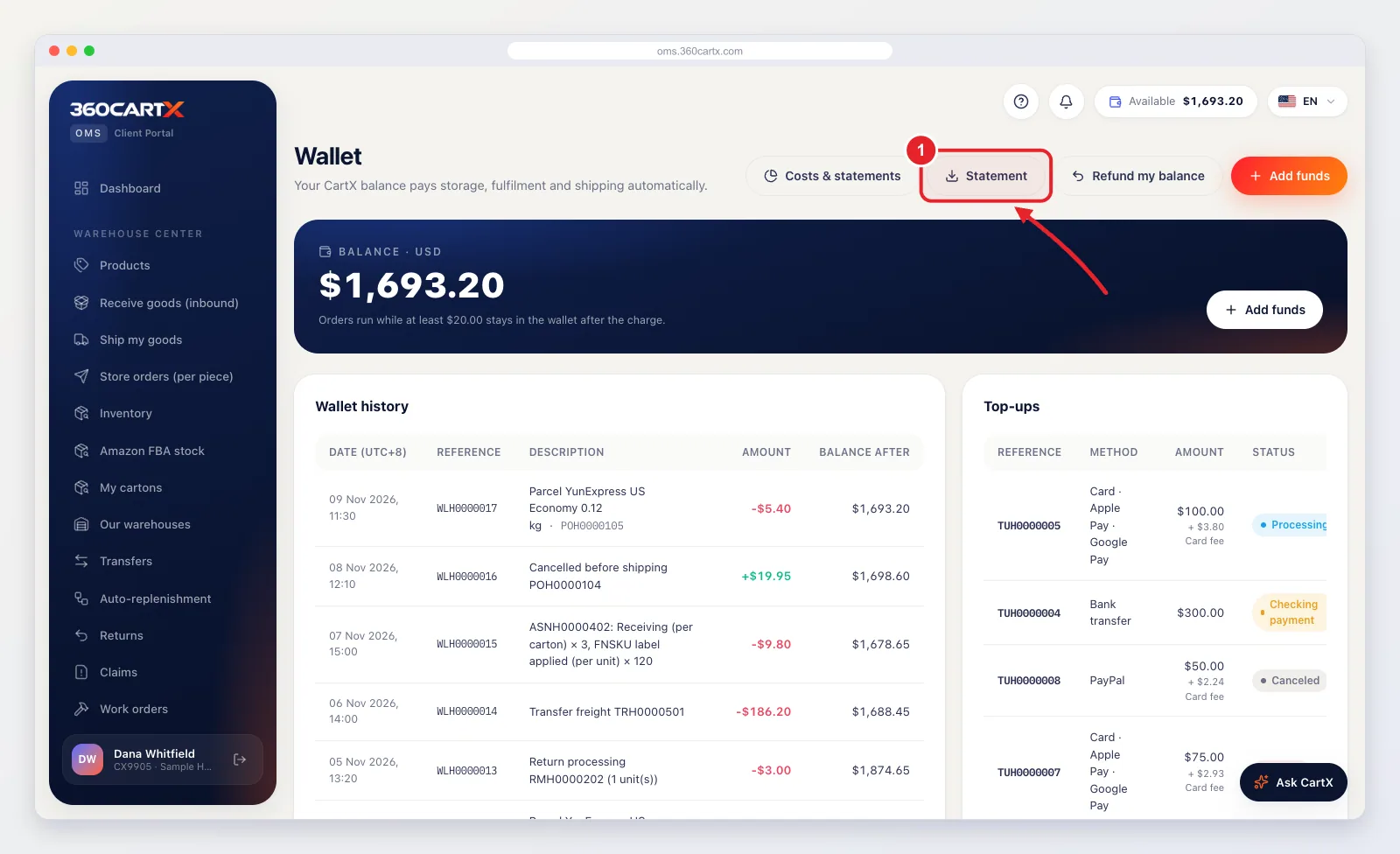
On Finance click Statement. A file such as statement-CX1001-2026-11-01-2026-11-11.csv is downloaded: your wallet movements from the first day of the current month up to today (China time, UTC+8).
- 2
What is in the CSV
The first line names your client code, currency (USD) and the period. Then come Opening balance (your balance before the first day) and one line per movement with Date (UTC+8), Reference, Type, Description, Document, Amount and Balance after, and finally Closing balance. The file opens correctly in Excel, including accents. To get another period, add the dates to the address of the download link in your browser, for example /oms/finance/statement?from=2026-10-01&to=2026-10-31 (dates as YYYY-MM-DD).
- 3
Open Costs & statements for a month
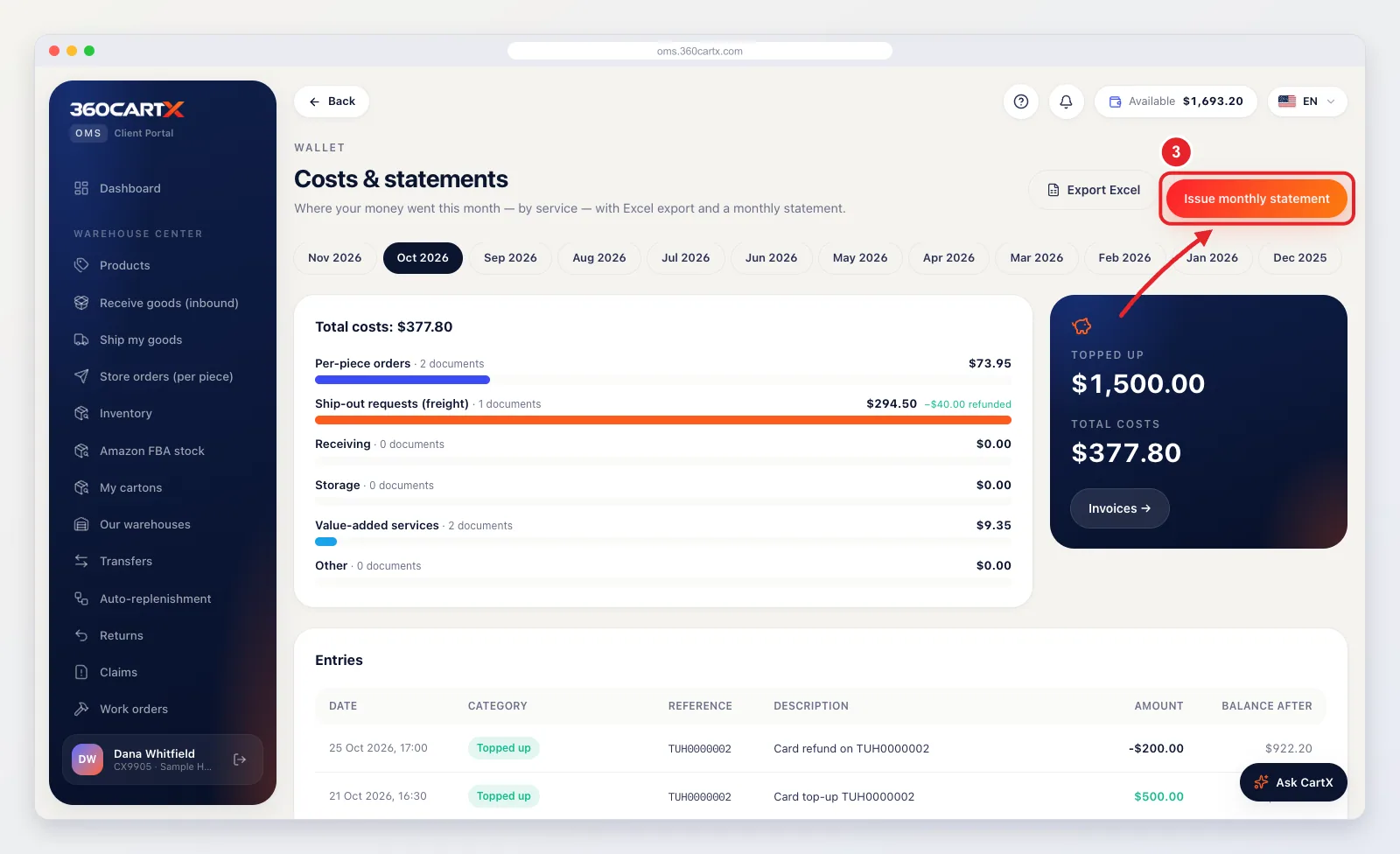
For a monthly PDF, open Costs & statements, click the month you want (here Oct 2026) and look at Issue monthly statement at the top right. You see this button if you are an owner, an admin or a finance team member.
- 4
Issue the statement
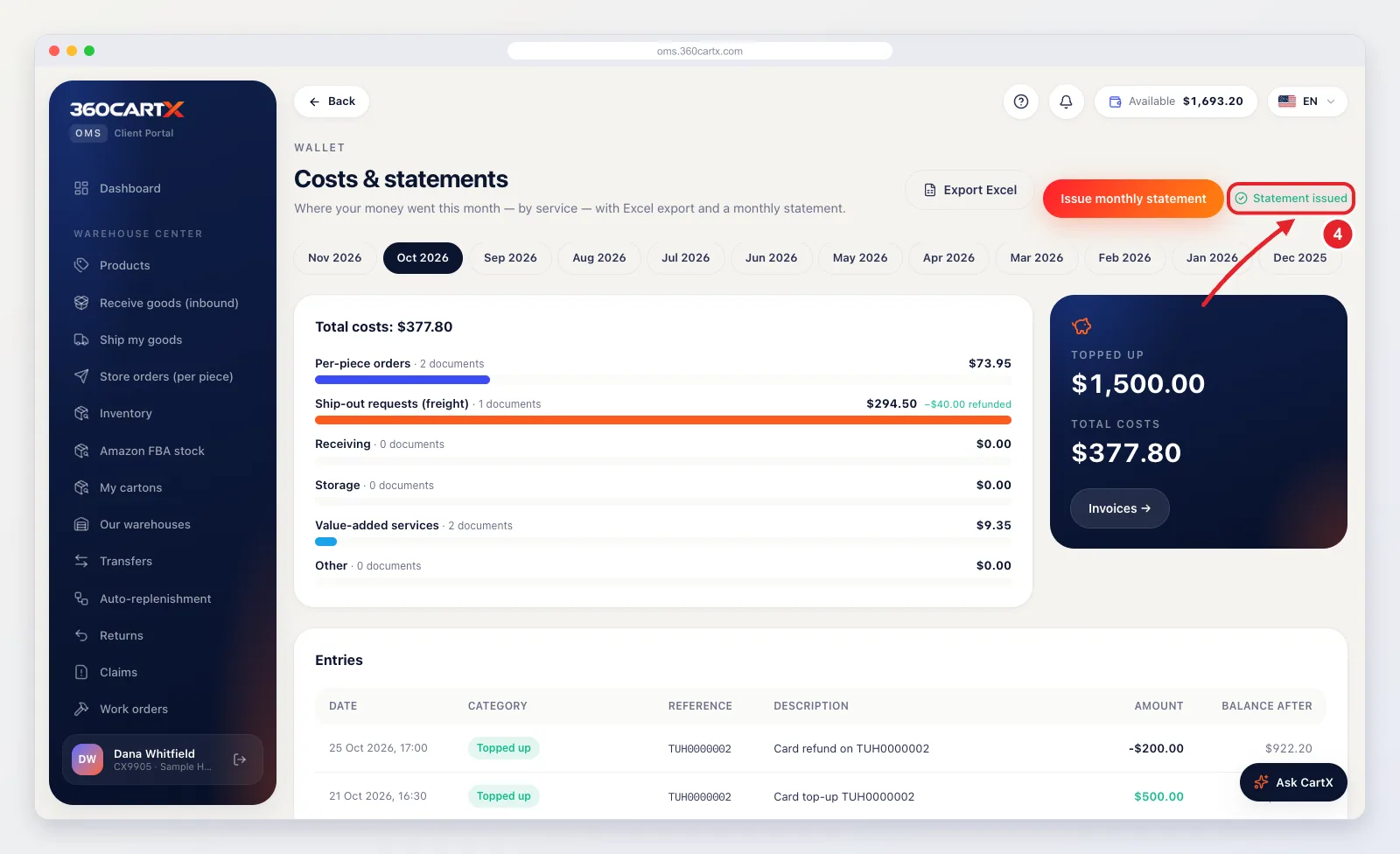
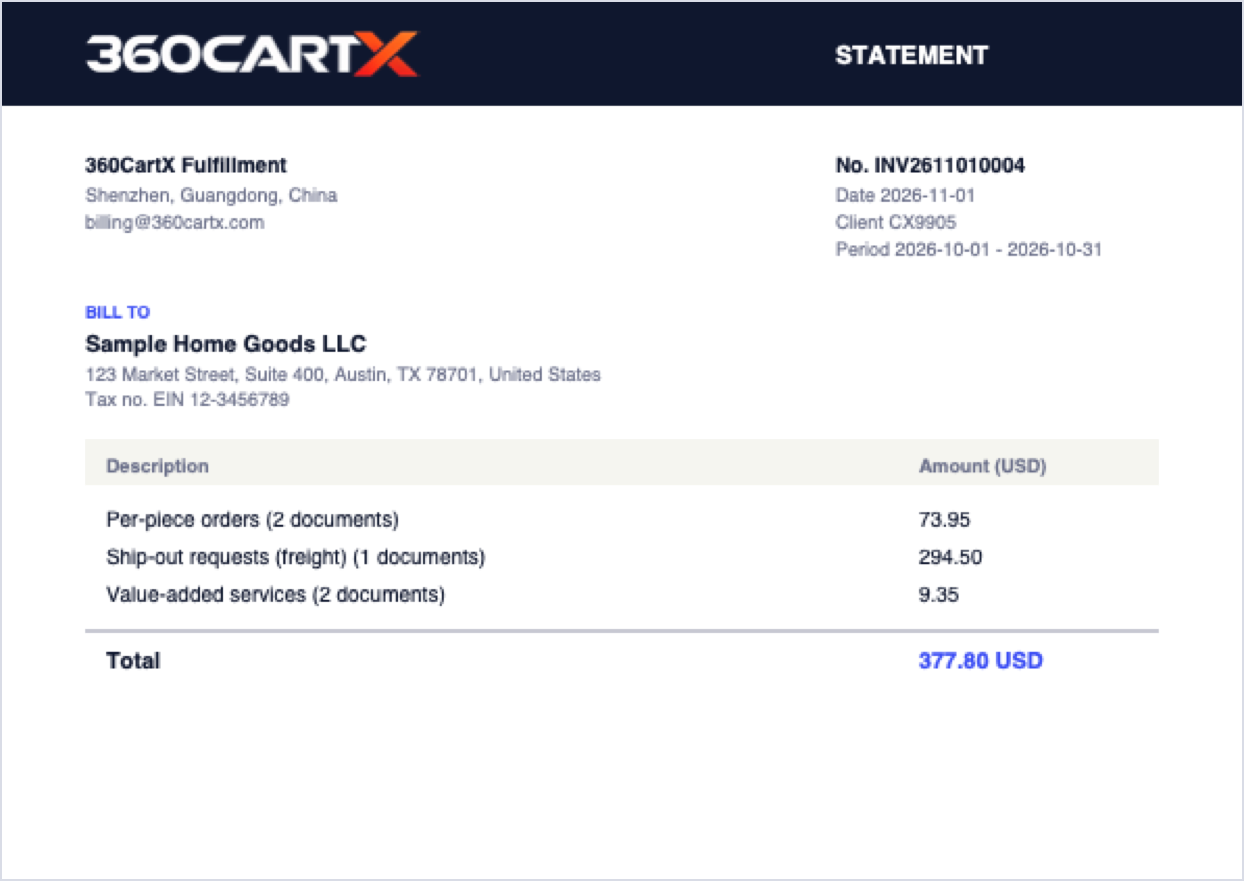
Click Issue monthly statement. A green message says Statement issued. There is one statement per month: if one already exists for that month, clicking again does not create a second one. The statement lists your net costs of that month for each service that had charges, with the number of documents, and the total.
- 5
When there is nothing to issue
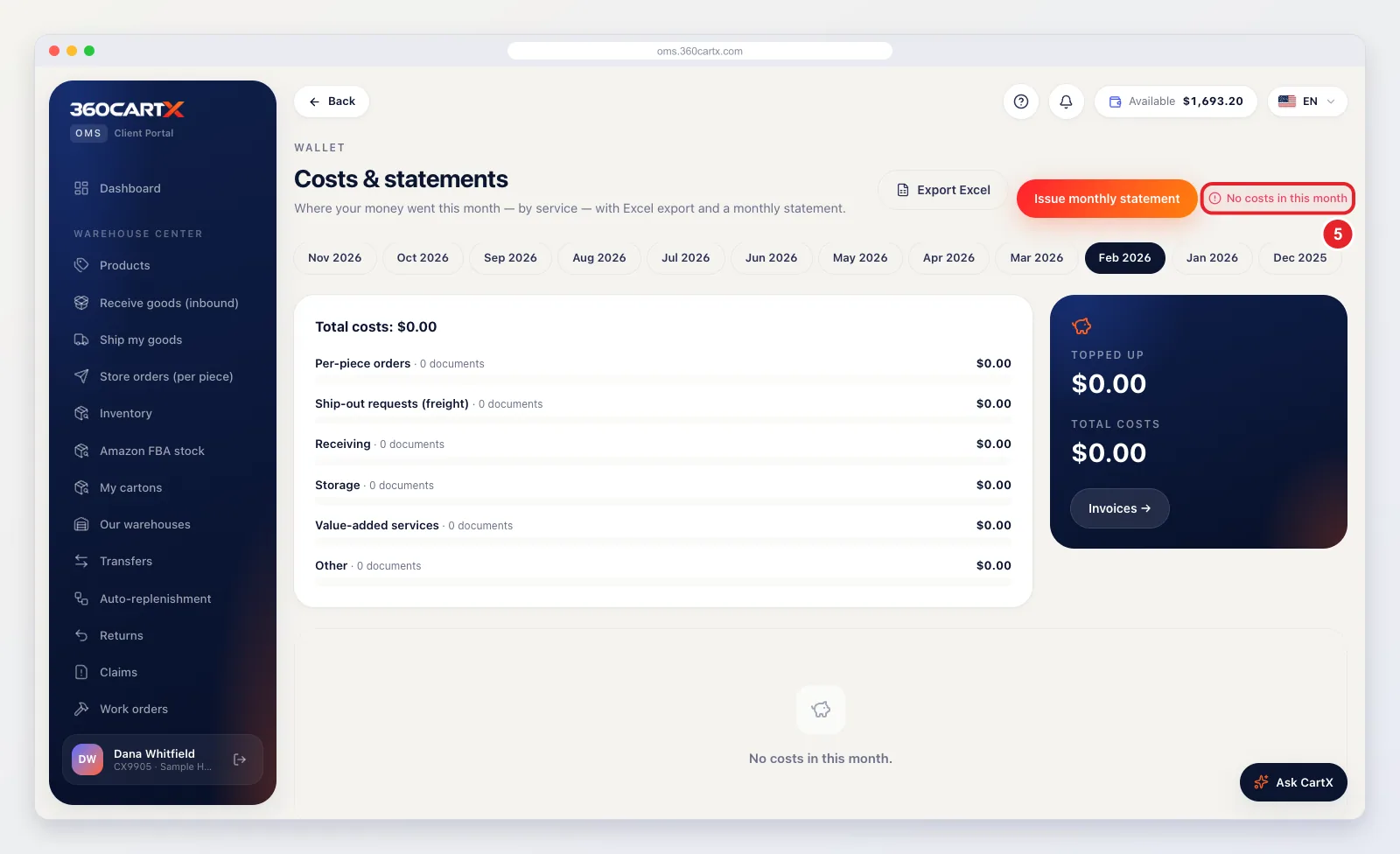
A month with no costs cannot be issued: the message is No costs in this month. A month that has not started yet gives That month has not started.
- 6
Find and download the PDF
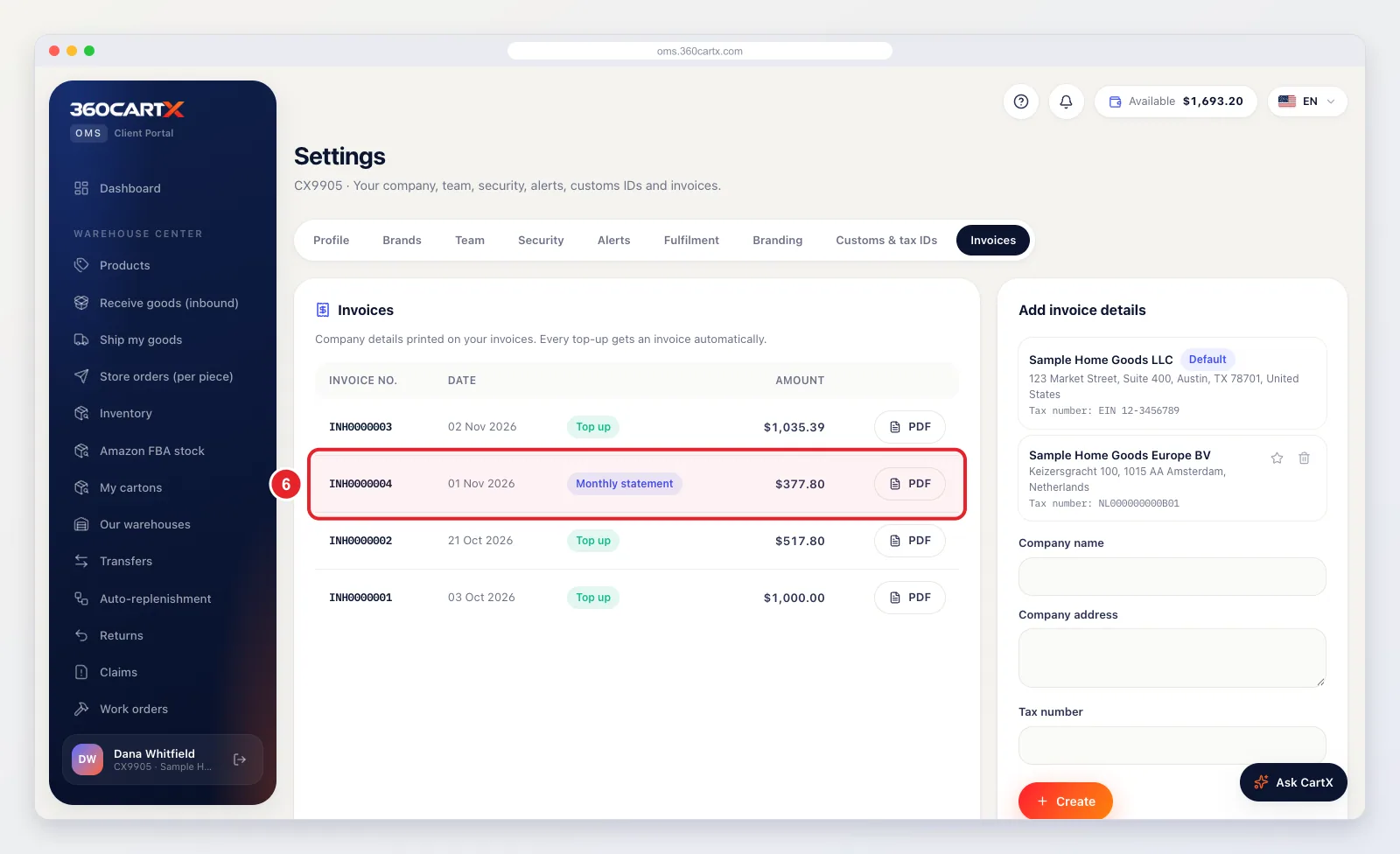
Open Settings, Invoices. The statement is in the Invoices table with the tag Monthly statement, its number (INV...), the date it was issued and its total. Click PDF to open or save it.
- 7
What the PDF shows
The PDF is headed STATEMENT. It shows our company details, the number and date, your client code, the period, Bill to (your default invoice details, see Invoices and invoice details), a line per service such as Per-piece orders (2 documents) with its amount, and the Total. A statement is issued once and never changes afterwards, so later refunds are not added to it.
Tips
- Add your company name, address and tax number in Settings, Invoices before you issue a statement: they are copied onto it when it is issued.
- Issue the statement after the month has ended, so the totals are complete. A statement issued earlier is not updated.
- The CSV Statement is for checking every line. The monthly statement PDF is for your accountant.
Common problems
No costs in this month
Nothing was charged in that month, so there is nothing to put in a statement. Choose another month.
That month has not started
You can only issue statements for the current and past months.
I do not see the Issue monthly statement button
Only owners, admins and finance team members see it. Ask one of them, or change your role in Settings, Team. Every role can use Statement on Finance.
My statement shows an old total
A statement is final when issued. Use Export Excel on Costs & statements or the Statement CSV for the current figures.
The CSV only covers this month
That is the standard period of the button. Add from and to dates to the download address, as described above, for any other period.
Related articles
Updated 2026-11-11
Open a ticket from Support in your portal and our team will reply.