Steps
- 1
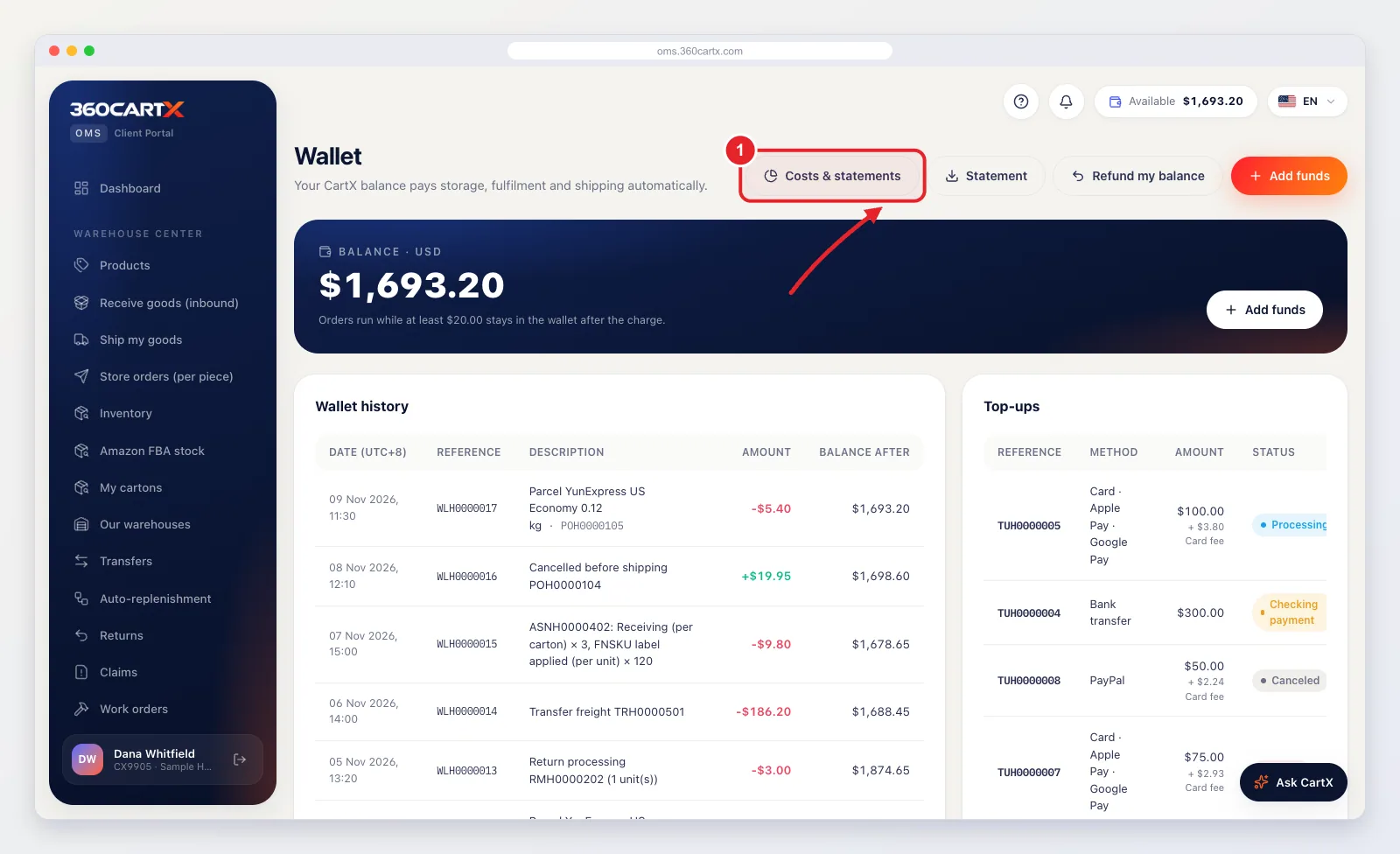
Open Costs & statements
On Finance click Costs & statements at the top right.
- 2
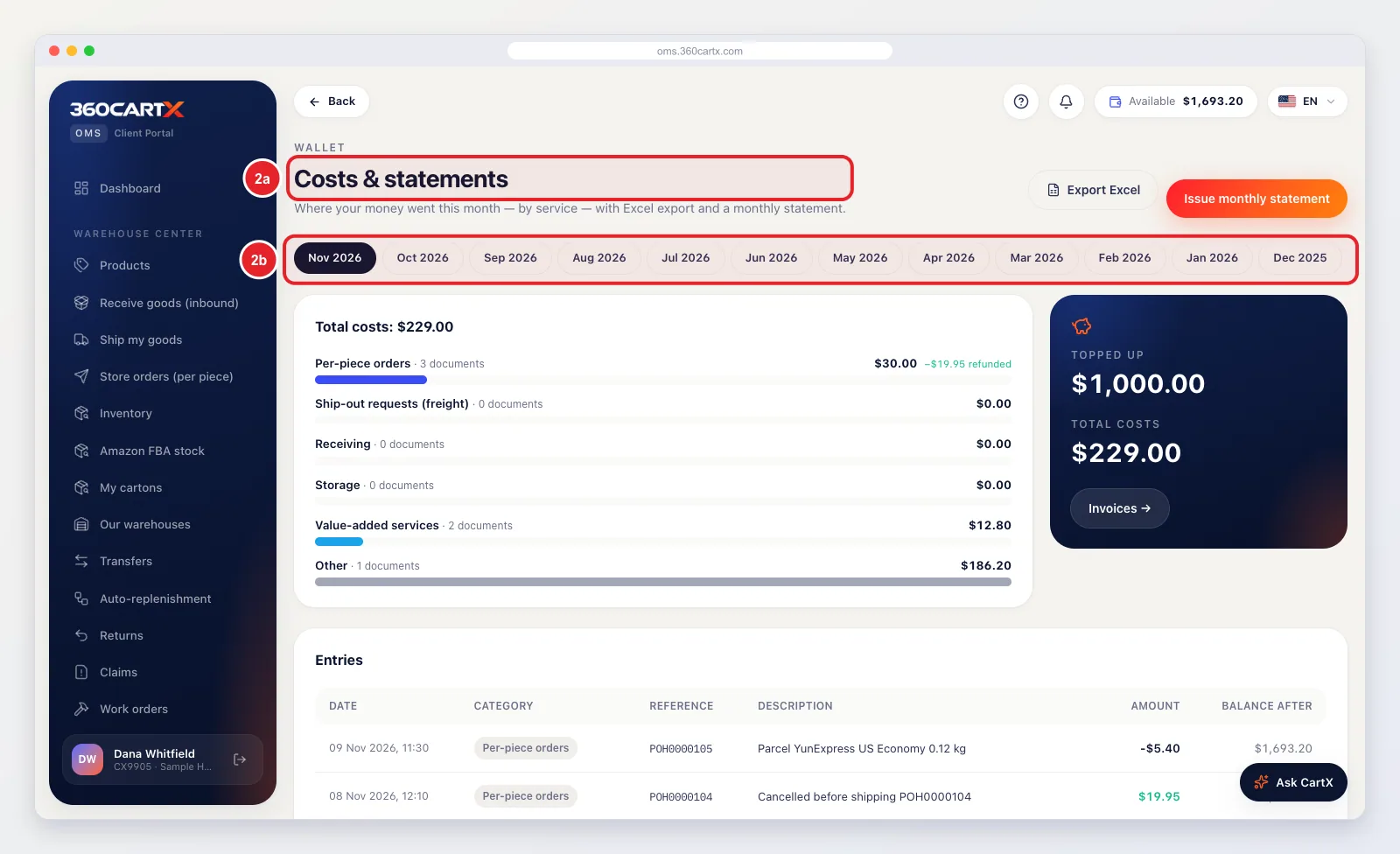
Pick the month
The page opens on the current month. Under the title a row of buttons lists the last 12 months (Nov 2026, Oct 2026, and so on): click one to see it. The chosen month is dark. Months are calendar months in China time (UTC+8), like every date in the portal.
- 2a Page title
- 2b Months
- 3
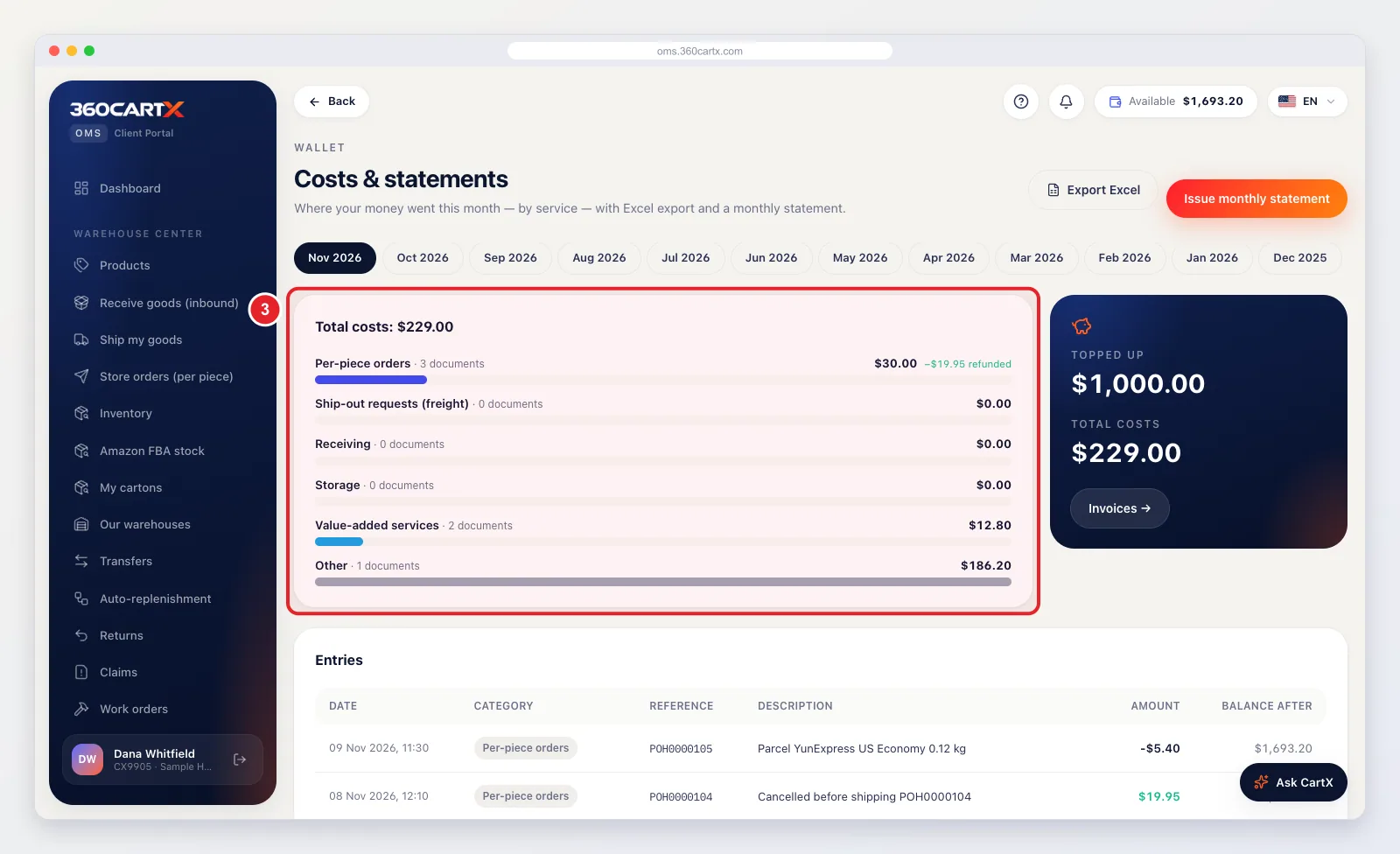
Total costs and the six services
Total costs is the sum of everything you were charged in the month, net of refunds. Underneath, every service has a line with the number of documents behind it (for example 3 documents), the amount and a bar that compares it with the biggest one. Per-piece orders: shipping of your store (parcel) orders. Ship-out requests (freight): your Amazon FBA and other ship-out requests. Receiving: charges on inbound shipments that are not service fees. Storage: storage fees. Value-added services: work orders, returns processing and extra services, including the receiving fee, FNSKU labels and repacking of your inbound shipments. Other: everything else, for example transfer freight between warehouses and manual debits.
- 4
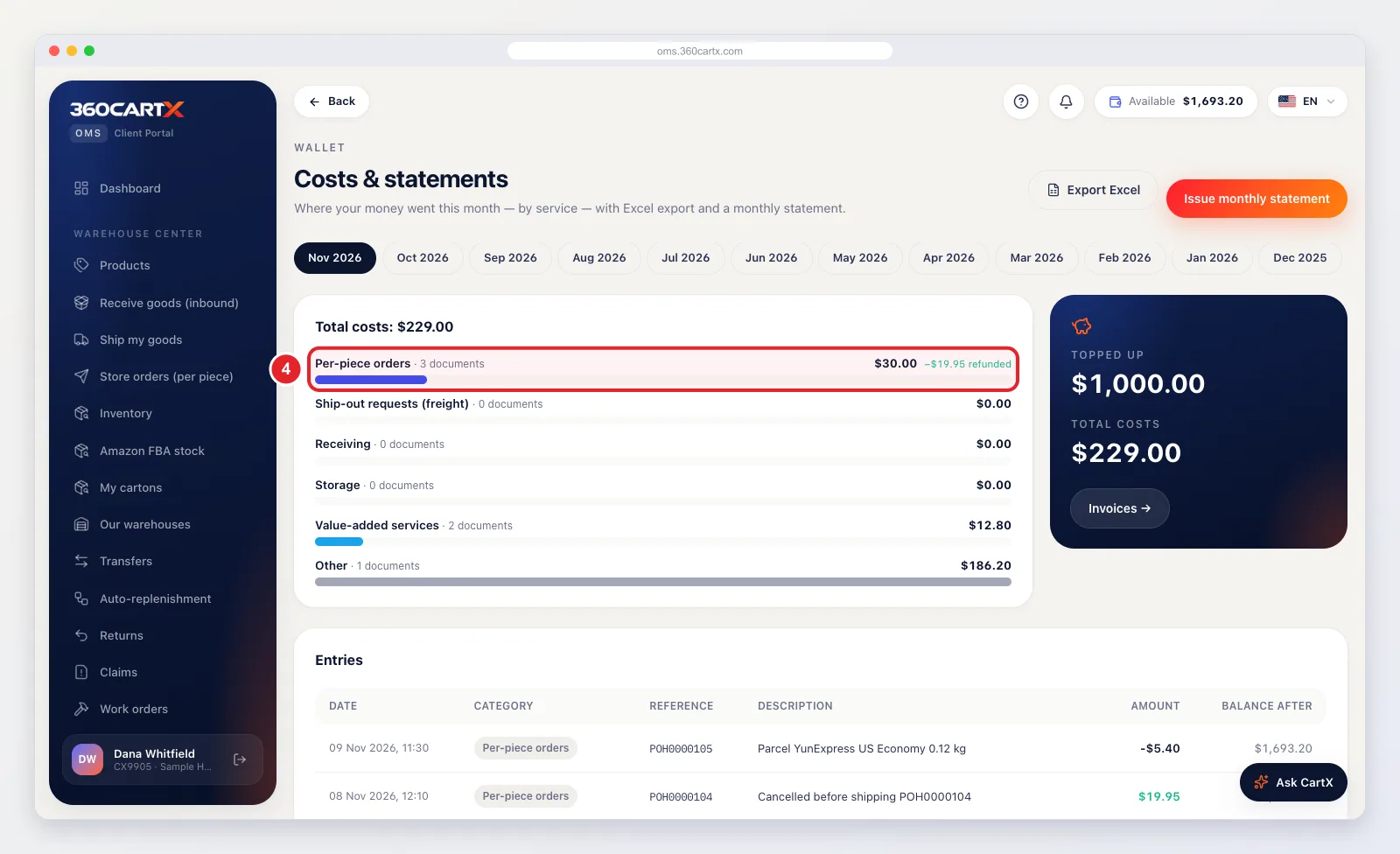
Refunds are taken off
When we give money back for a charge, for example Cancelled before shipping POH0000104, it is shown in green on the line of that service (for example −$19.95 refunded) and the amount on the right is already net of it. So Per-piece orders shows what you really paid for store orders.
- 5
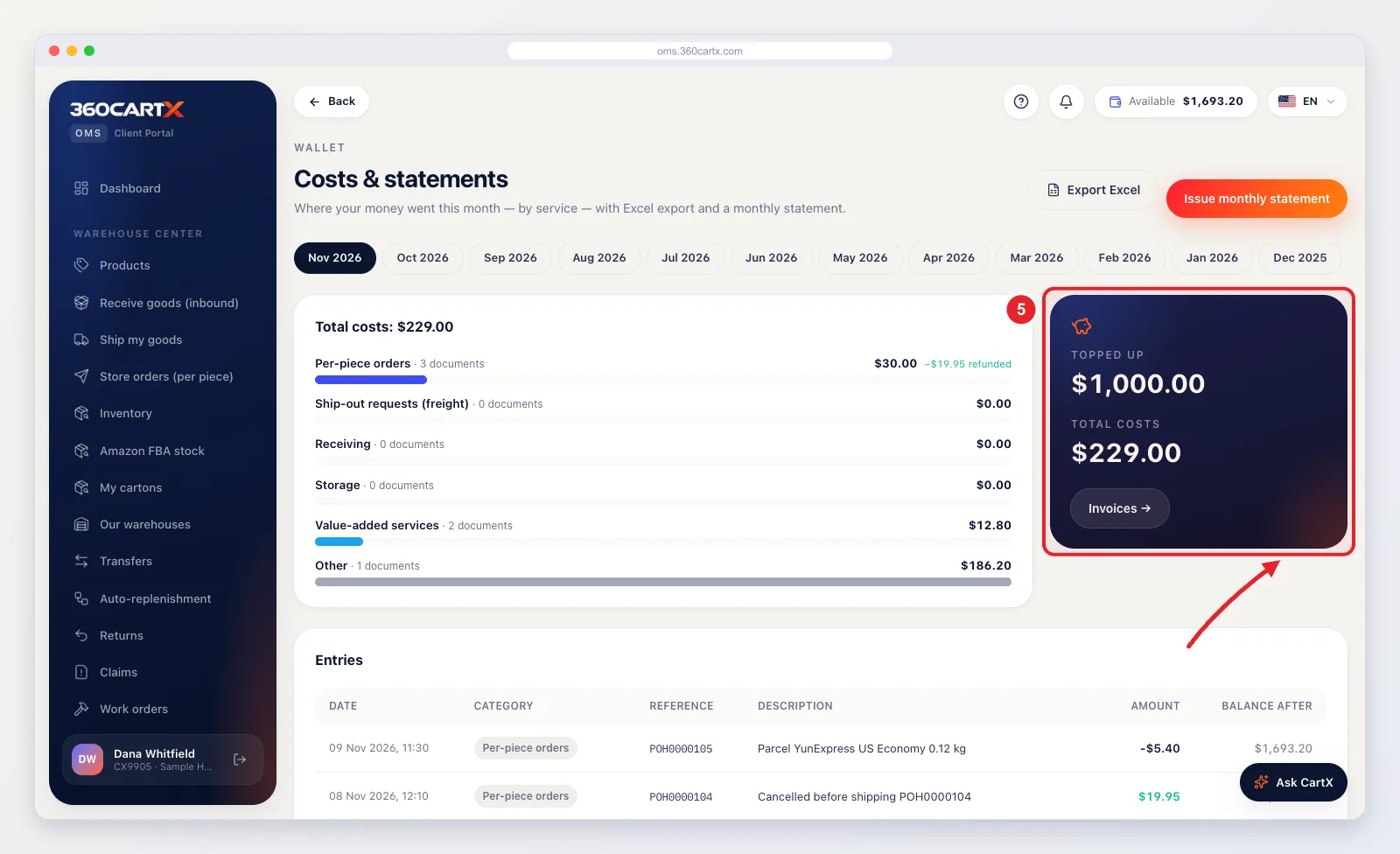
Topped up and Total
The dark card shows Topped up, all the money added to your wallet in that month (top-ups, and credits we add such as claim compensation), and Total again. Use it to compare what came in with what went out. Below the total, Invoices opens your invoices in Settings.
- 6
The entries behind the figures
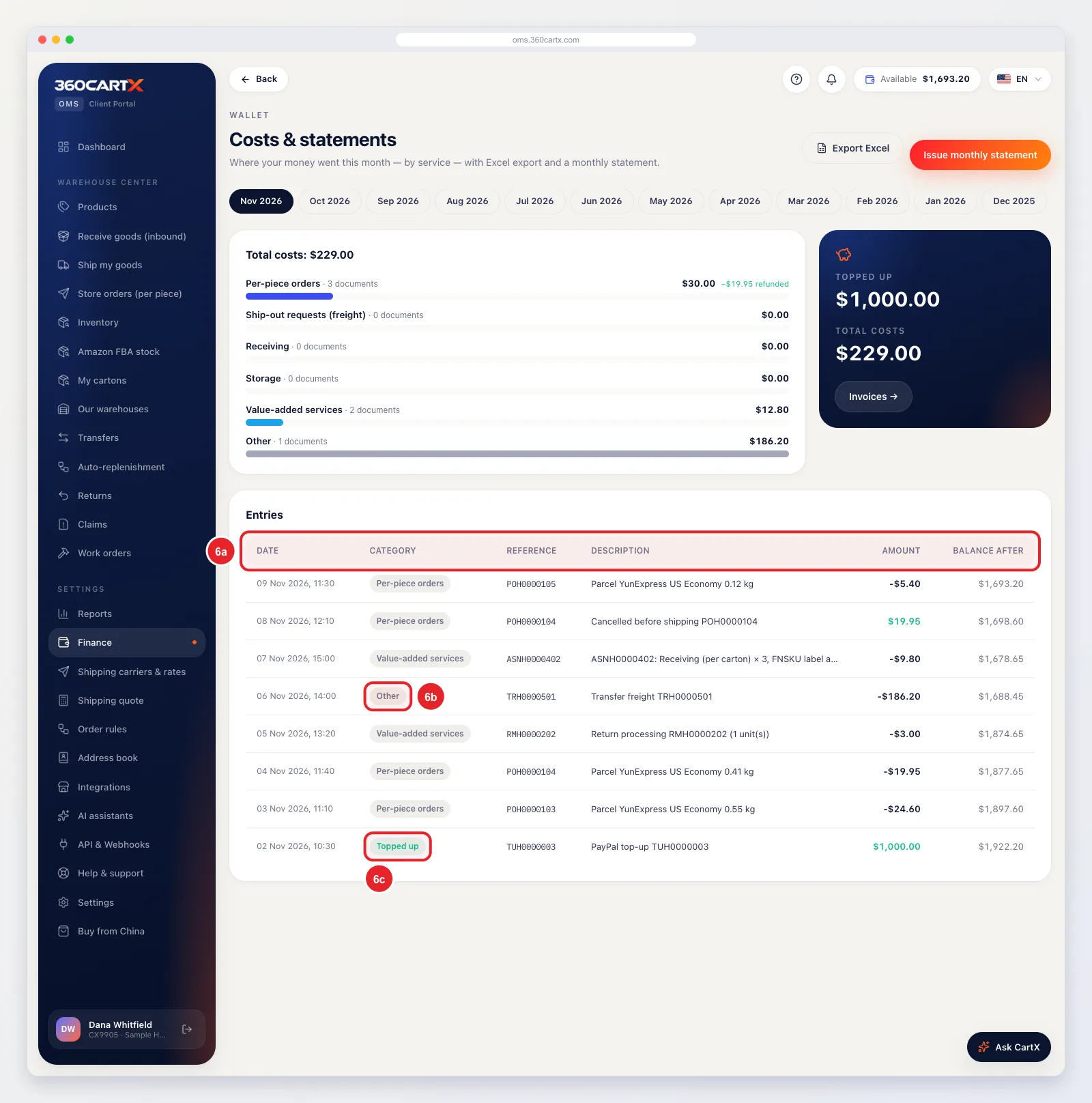
Entries lists every wallet line of the month, newest first (the first 300 are shown on the page): Date, Category (a grey tag with the service, or a green Topped up tag for money in), Reference (the order, inbound or top-up number), Description, Amount and Balance after. Debits are black and credits are green. If a month has no lines you see No costs in this month.
- 6a Column headings
- 6b Category of a charge
- 6c Money in
- 7
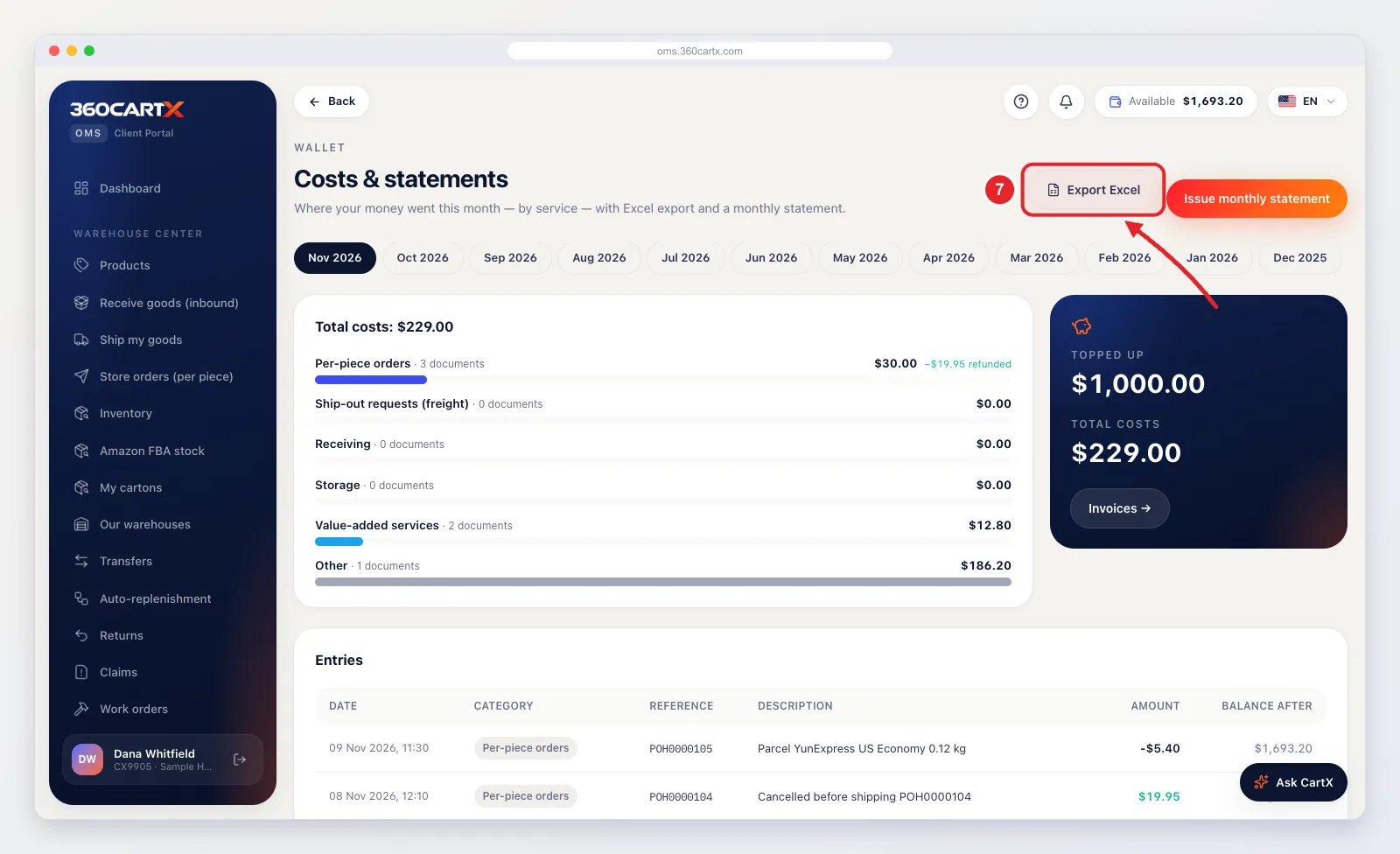
Export Excel
Export Excel downloads the lines of the month as an Excel file named wallet-<your client code>. The columns are Date, Reference, Type, Category, Document, Description, Currency, Amount and Balance after. Amounts are in dollars (not cents), and money in has the category money in. Open it in Excel or Google Sheets to filter or sum.
- 8
Look at another month
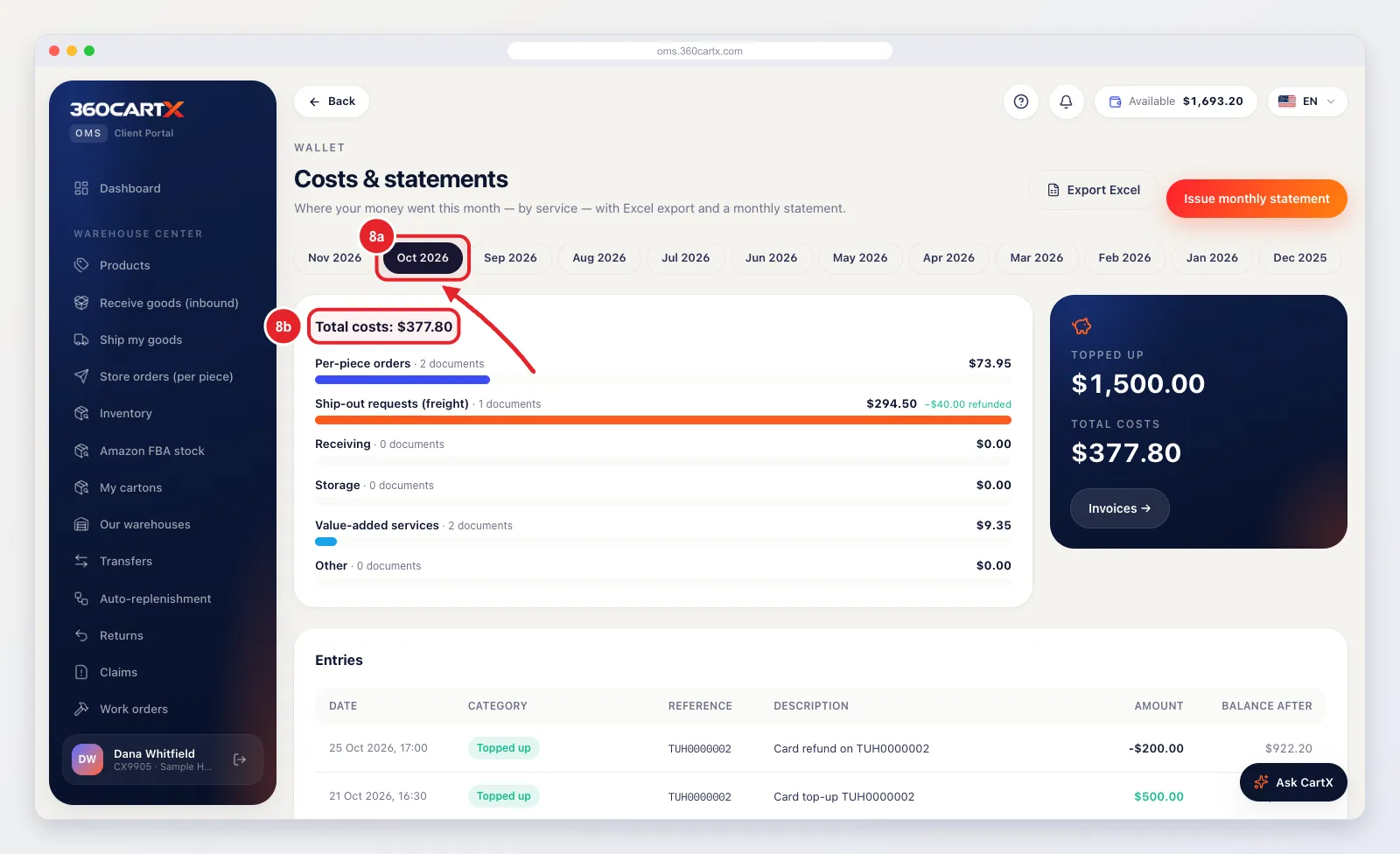
Click another month to compare it. Here October 2026 is selected: the total and every line change to that month. A month in the past never changes, except when we give money back for it later (the refund is booked in the month it happens).
- 8a Selected month
- 8b Total of the month
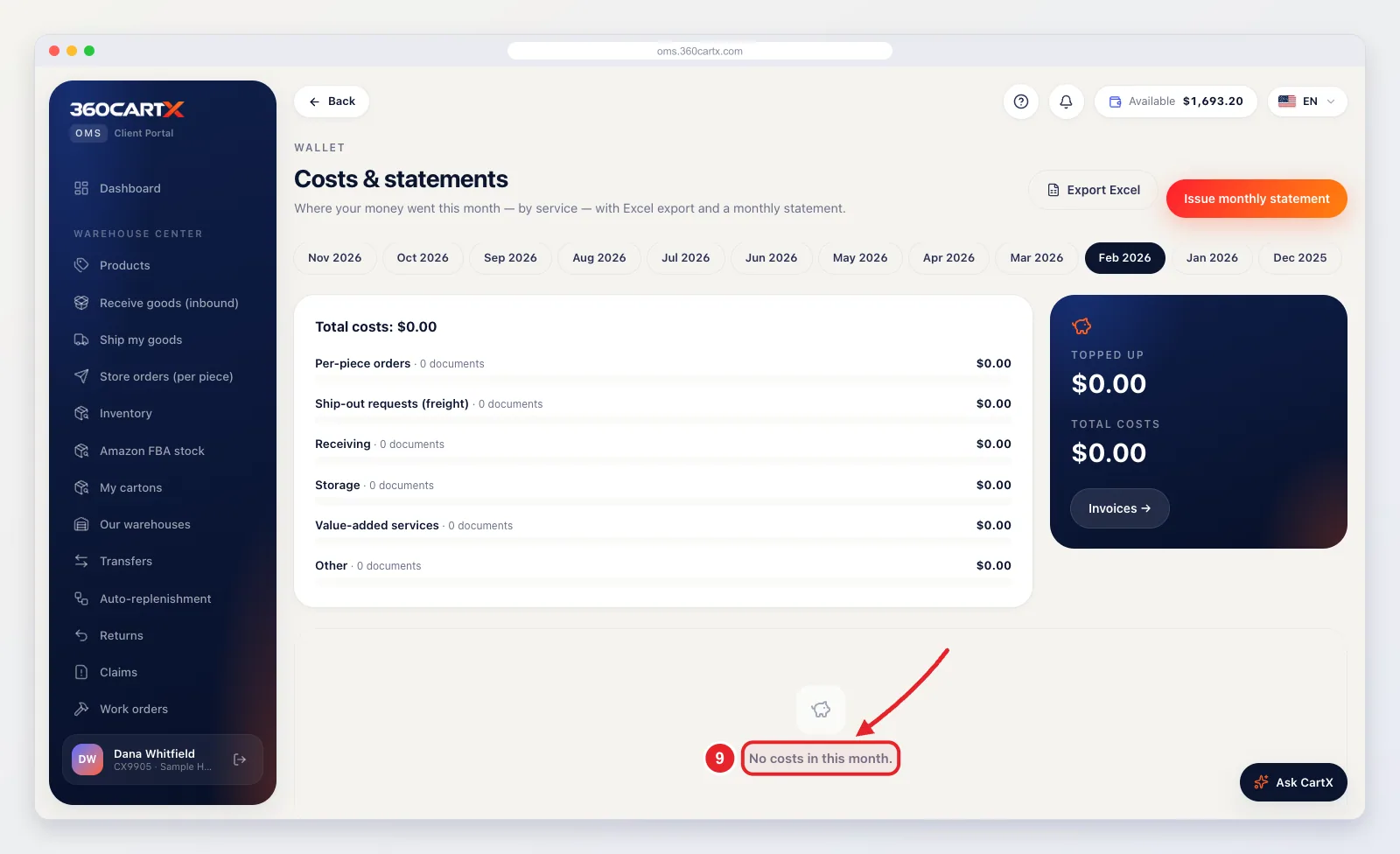
- 9
A month without costs
If nothing was charged in a month, the page shows Total costs: $0.00 and the message No costs in this month. The Issue monthly statement button then answers No costs in this month, see Download your statement.
Tips
- The amounts here are the same as in Wallet history, only grouped. Open Wallet history for the order of the lines and the balance after each one.
- For your accountant, issue the monthly statement (a PDF that lists the totals per service) and add the Excel export for the detail.
Common problems
A charge is under Value-added services but I expected Receiving
The receiving fee per carton, the FNSKU label fee and repacking are charged as services, so they are listed under Value-added services. Receiving only lists other charges on inbound shipments.
The month is empty although I shipped orders
Orders are charged when they are packed, not when you create them. Check the month in which they were packed, or open Wallet history.
The totals differ from my statement or invoice
A statement lists the totals of one month as issued on that day. Later refunds are shown in the month they were booked. Compare with Wallet history by Reference.
Only 300 entries are shown
The page shows the first 300 lines of the month. Use Export Excel to get every line.
Related articles
Updated 2026-11-11
Open a ticket from Support in your portal and our team will reply.