Steps
- 1
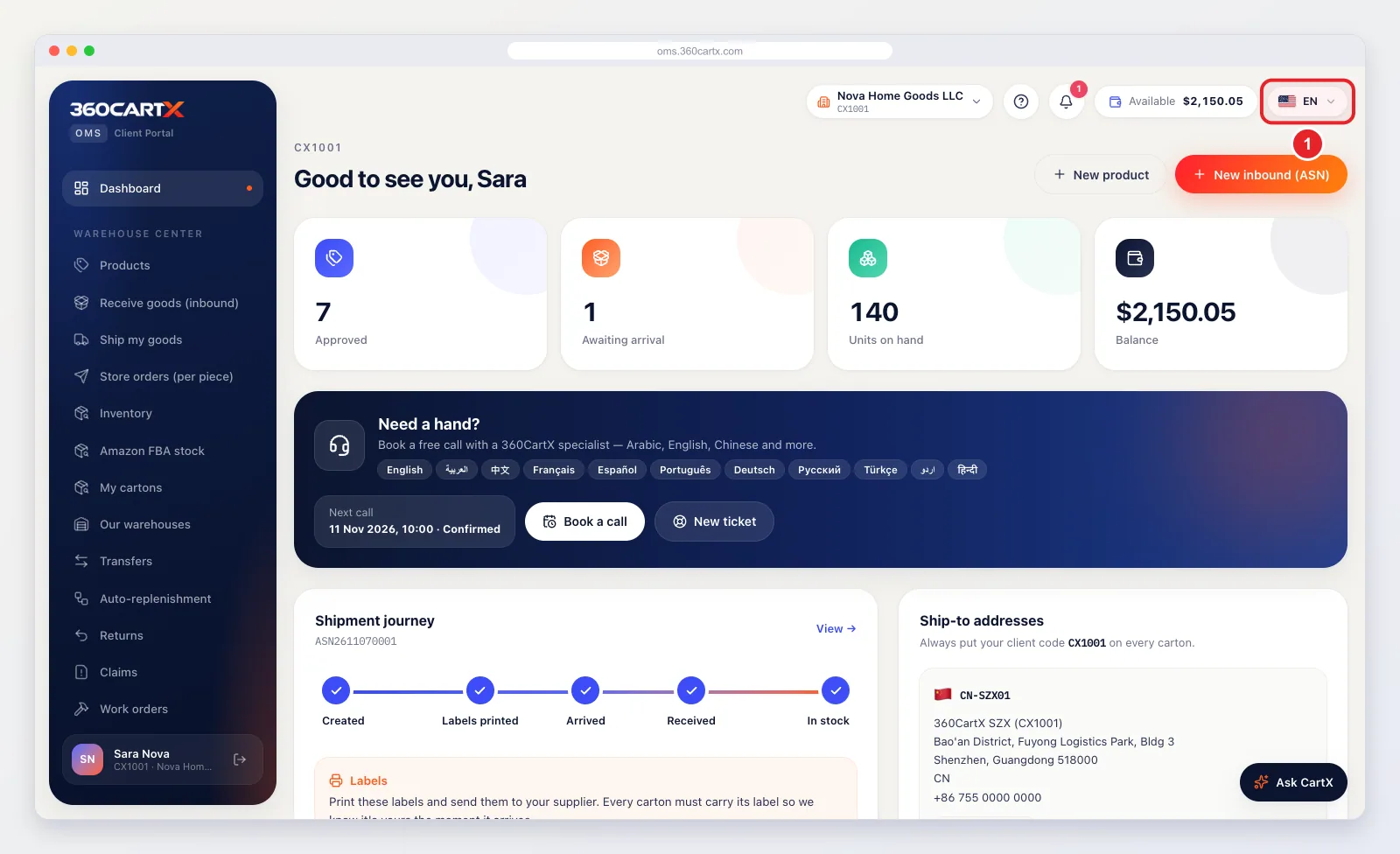
Click the language button
At the top right of every portal page, click the button with the flag and the language code (EN, AR or CN).
- 2
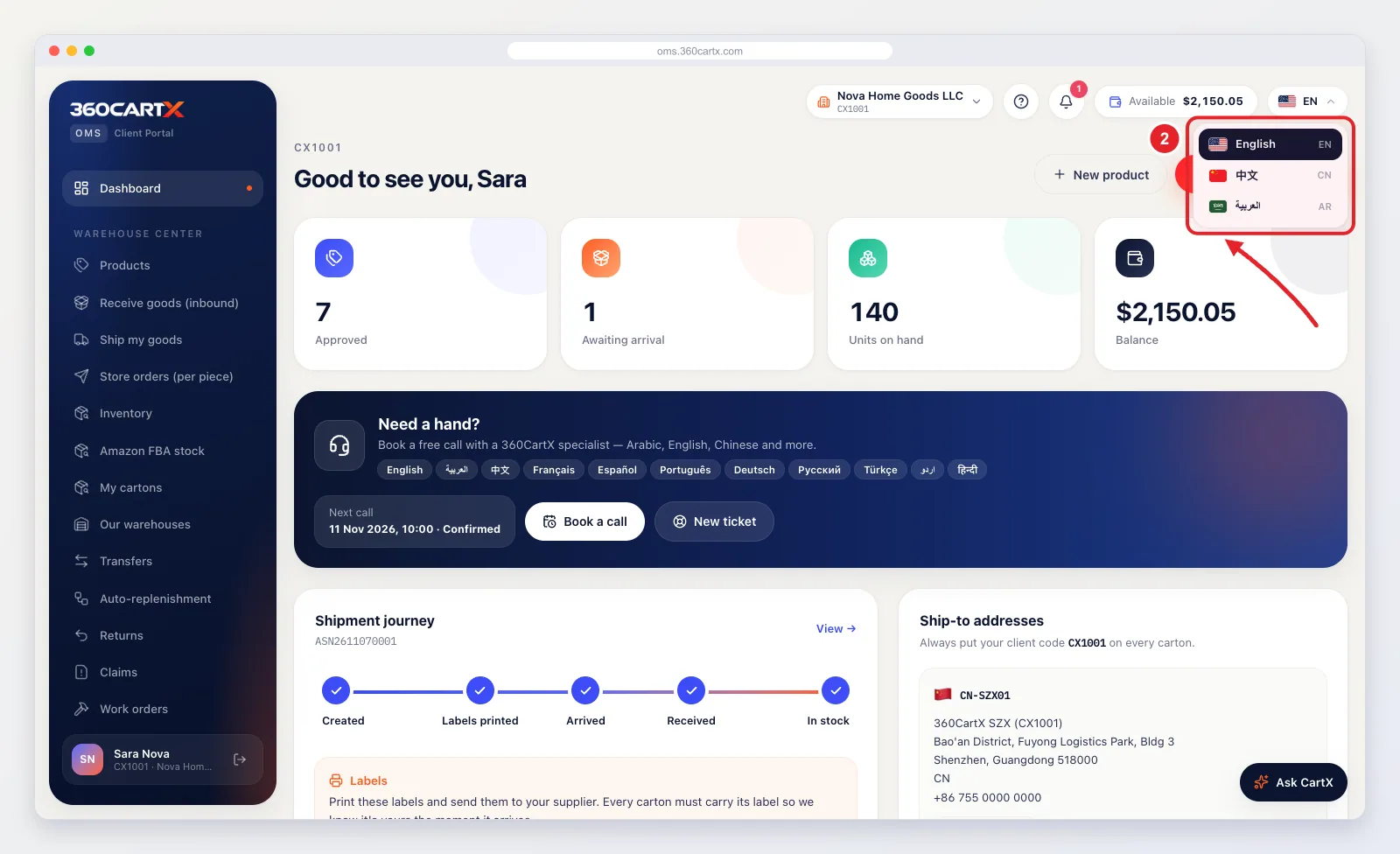
Choose your language
Click English, 中文 or العربية. The page reloads at once in that language. In Arabic the whole portal turns right-to-left: the menu moves to the right side.
- 3
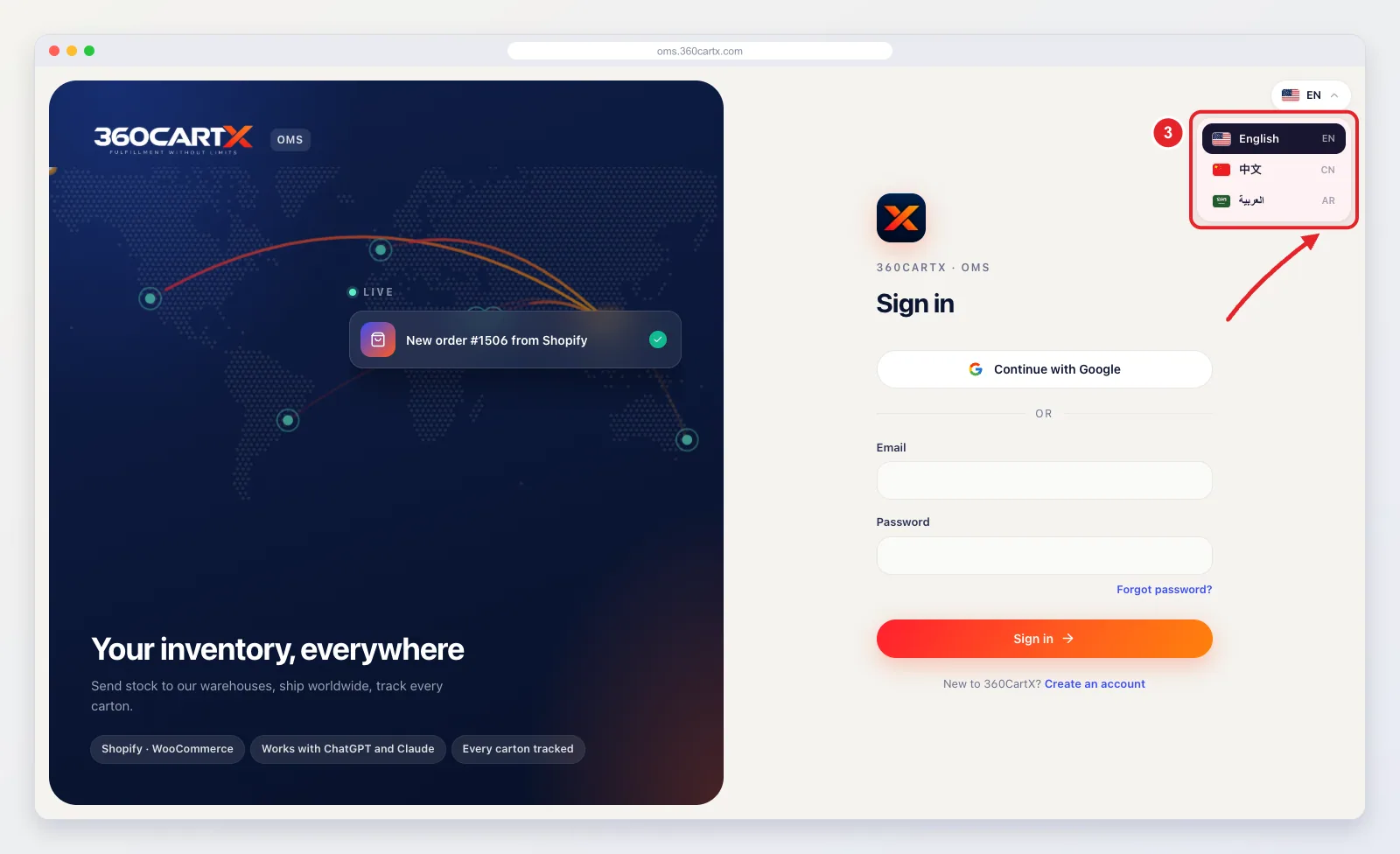
Same menu on the sign-in and sign-up pages
Before you sign in, the same button is at the top right of the sign-in, sign-up and password pages, so you can read them in your language.
Tips
- Product names, addresses and order data stay exactly as you typed them; only the portal's own labels change.
- Our support team answers in Arabic, English and Chinese whatever language the portal shows.
Common problems
The language went back to English
The choice is kept in your browser. A private window, another browser or clearing cookies starts in English again: choose the language once more.
Related articles
Was this article helpful?
Updated 2026-11-09
Still need help?
Open a ticket from Support in your portal and our team will reply.