Steps
- 1
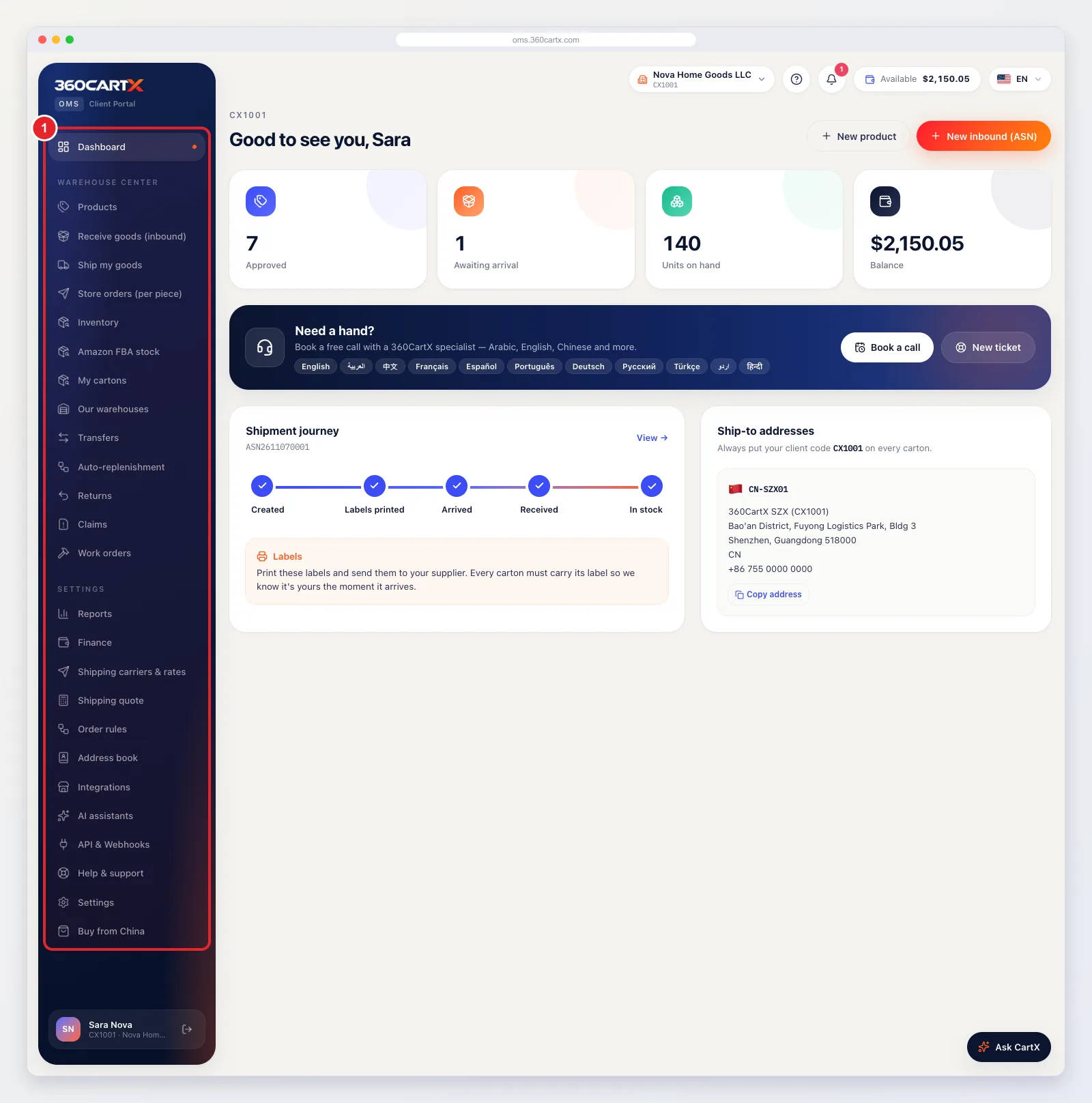
The left menu
Dashboard is at the top. Warehouse Center holds your daily work: Products, Receive goods (inbound), Ship my goods, Store orders (per piece), Inventory, Amazon FBA stock, My cartons, Our warehouses, Transfers, Auto-replenishment, Returns, Claims and Work orders. Settings holds Reports, Finance, Shipping carriers & rates, Shipping quote, Order rules, Address book, Integrations, AI assistants, API & Webhooks, Help & support, Settings and Buy from China. Your name, client code and the sign-out button are at the bottom. Team members with a custom role only see the parts they were given.
- 2
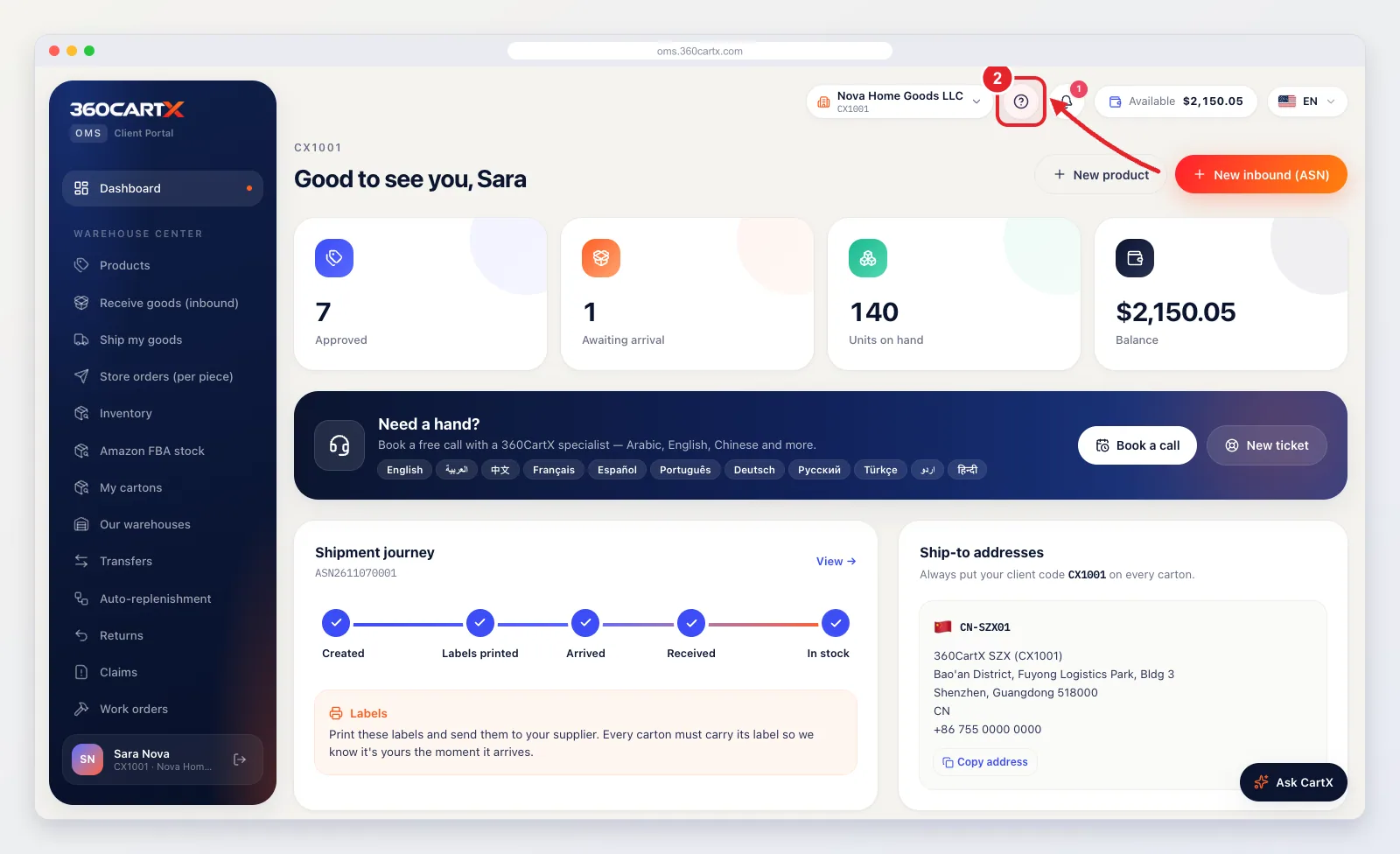
The ? button opens help for this page
Click ? at the top right to open the Help Center article for the page you are on, in a new tab. If there is no article for that page yet, the Help Center home opens.
- 3
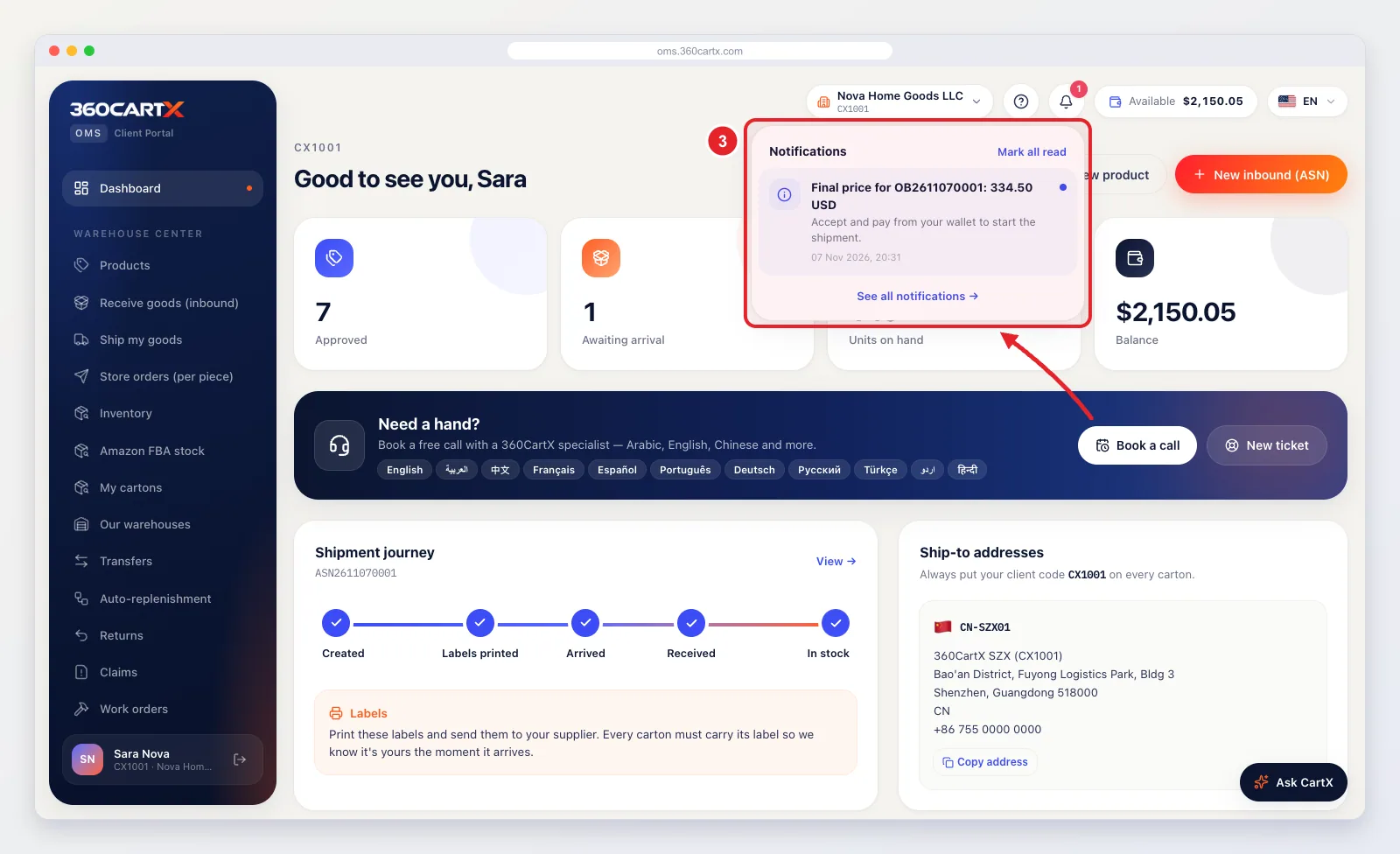
The bell shows your notifications
A red number on the bell counts unread notifications. Click it to see the latest ones: orders on hold, money received, stock alerts, support replies. Mark all read clears the number; See all notifications opens the full list. With nothing new it says You're all caught up.
- 4
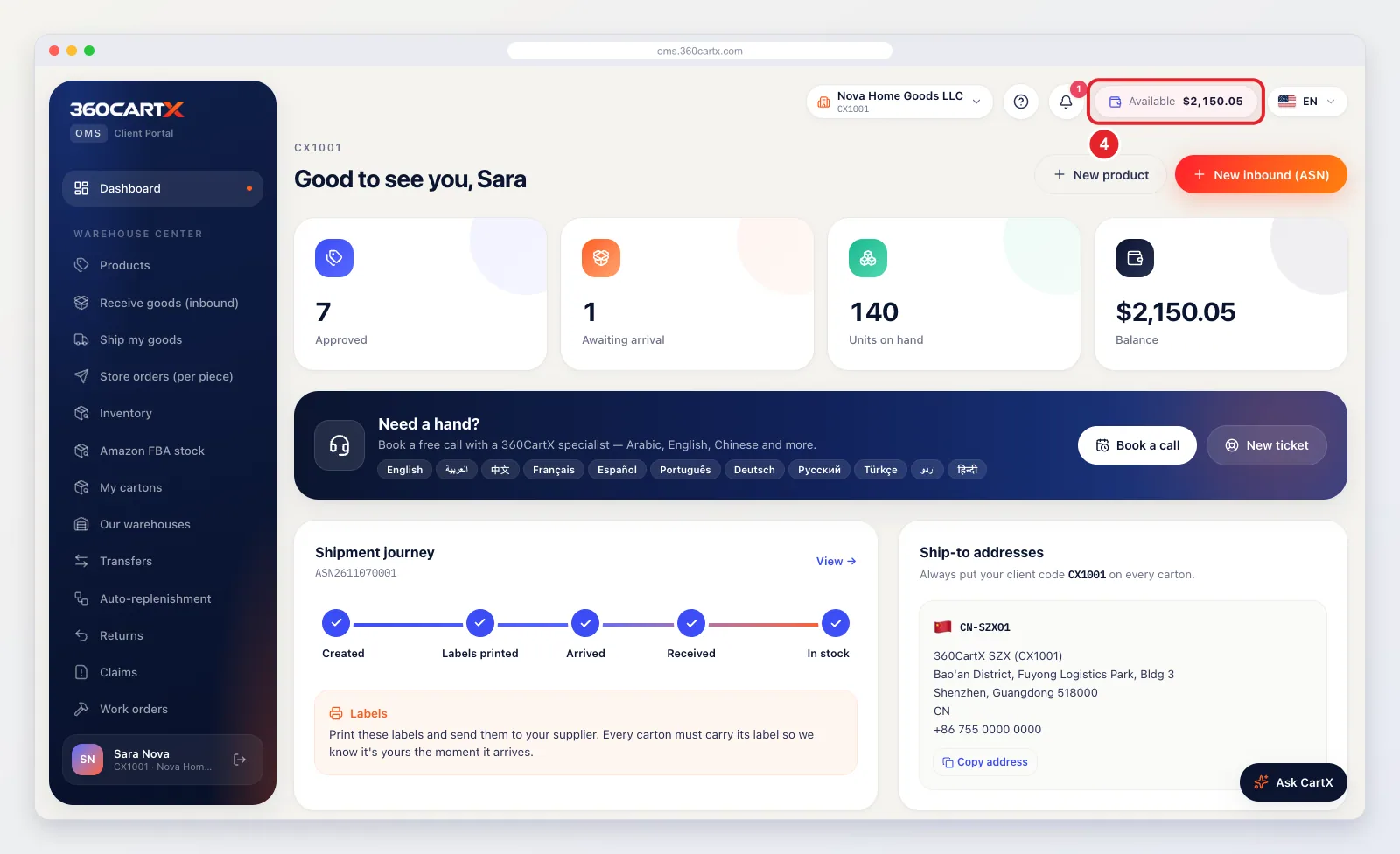
Available shows your wallet balance
Available is the money in your wallet that we use for storage, fulfilment and shipping. Team members without access to Finance do not see it. Top up in Finance → Add funds.
- 5
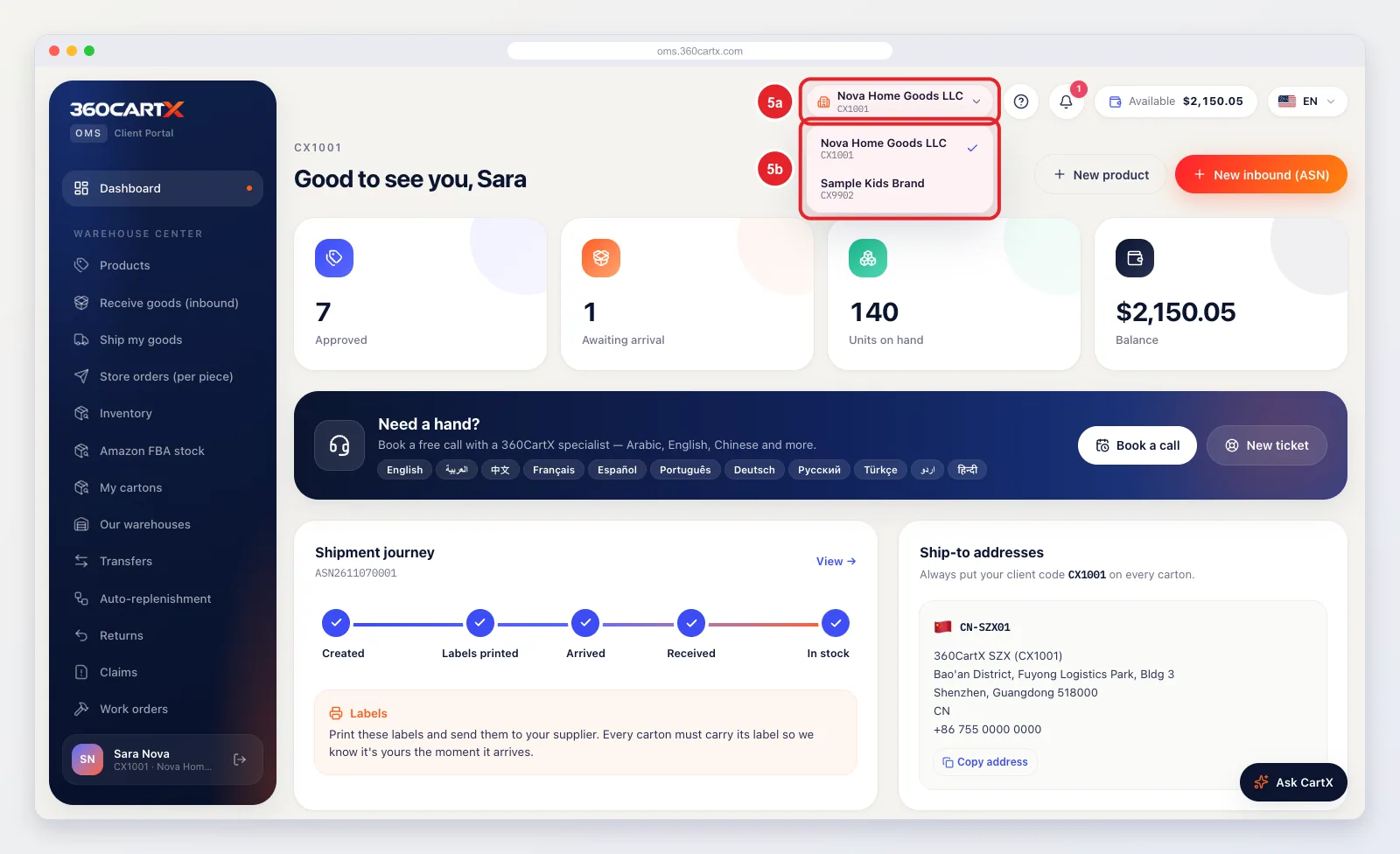
Switch between your brands
If you have subaccounts (separate brands with their own client code, wallet and stock), the header shows a button with the current brand name and its client code. Click it to open the list of your brands, then click one to switch the whole portal to it; the current brand has a tick. Pick your main account to switch back. Only owners and admins see this button.
- 5a Current brand
- 5b Your brands
- 6
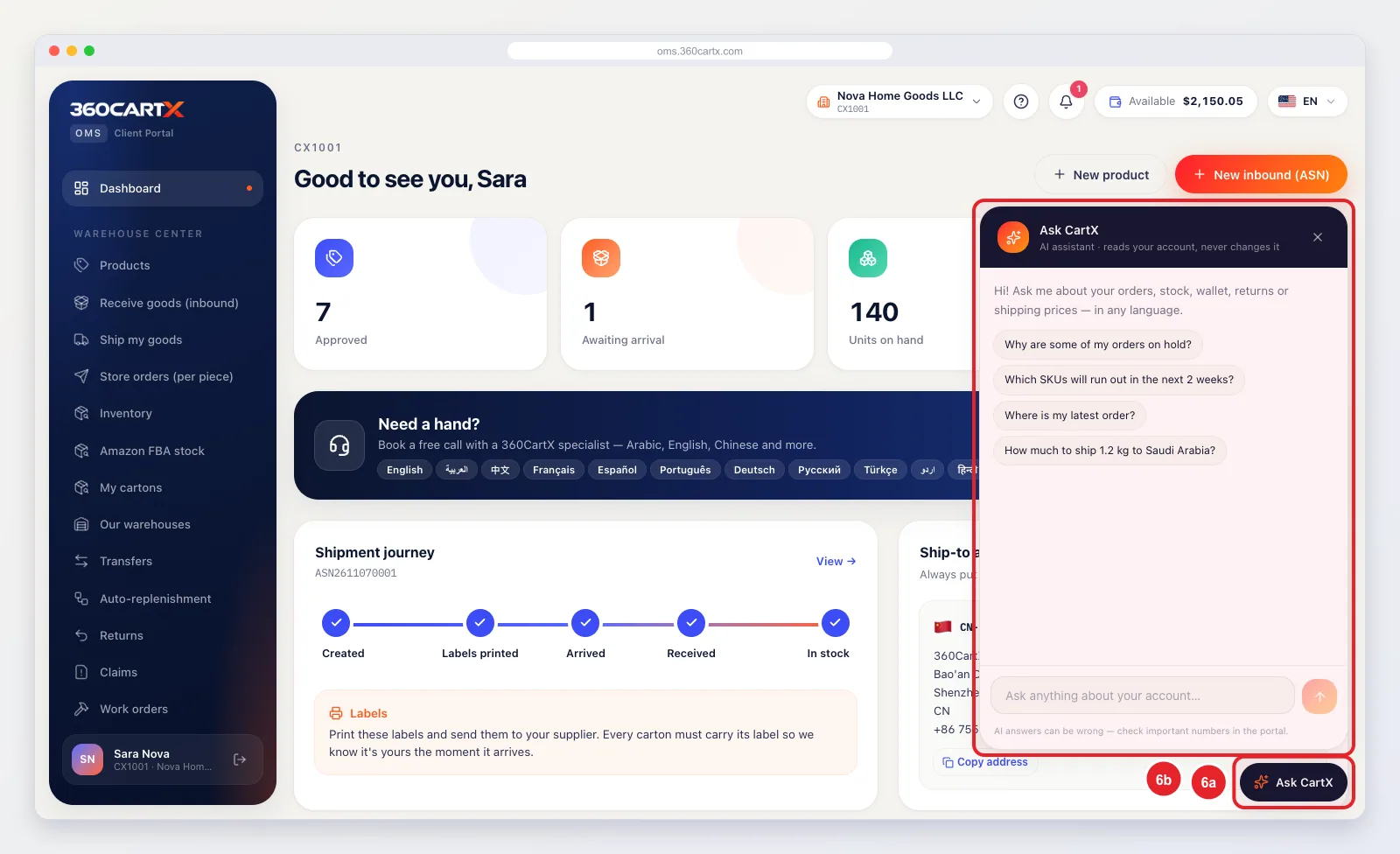
Ask CartX answers questions about your account
Click Ask CartX at the bottom right to open the assistant. Ask in your own words, for example Which orders are on hold and why? It reads your account to answer but never changes anything. Click the button again to close it.
- 6a Ask CartX
- 6b Assistant panel
Tips
- The language button (flag and EN) next to the wallet changes the portal language. See Change the portal language.
- If our team opens your portal to help you, a dark bar shows Preview of <your code> — opened by <staff name>. Read-only: nothing can be changed. Every preview is logged, and the bar disappears when they click Exit preview.
- On a phone the left menu folds away: tap the menu button at the top left to open it.
Common problems
I do not see Finance or the wallet balance
Your login has a custom role without Finance. Ask the account owner to give you access in Settings → Team.
The brand list is missing
It only shows for owners and admins of an account that has subaccounts.
Related articles
Updated 2026-11-12
Open a ticket from Support in your portal and our team will reply.