Steps
- 1
First create the bundle
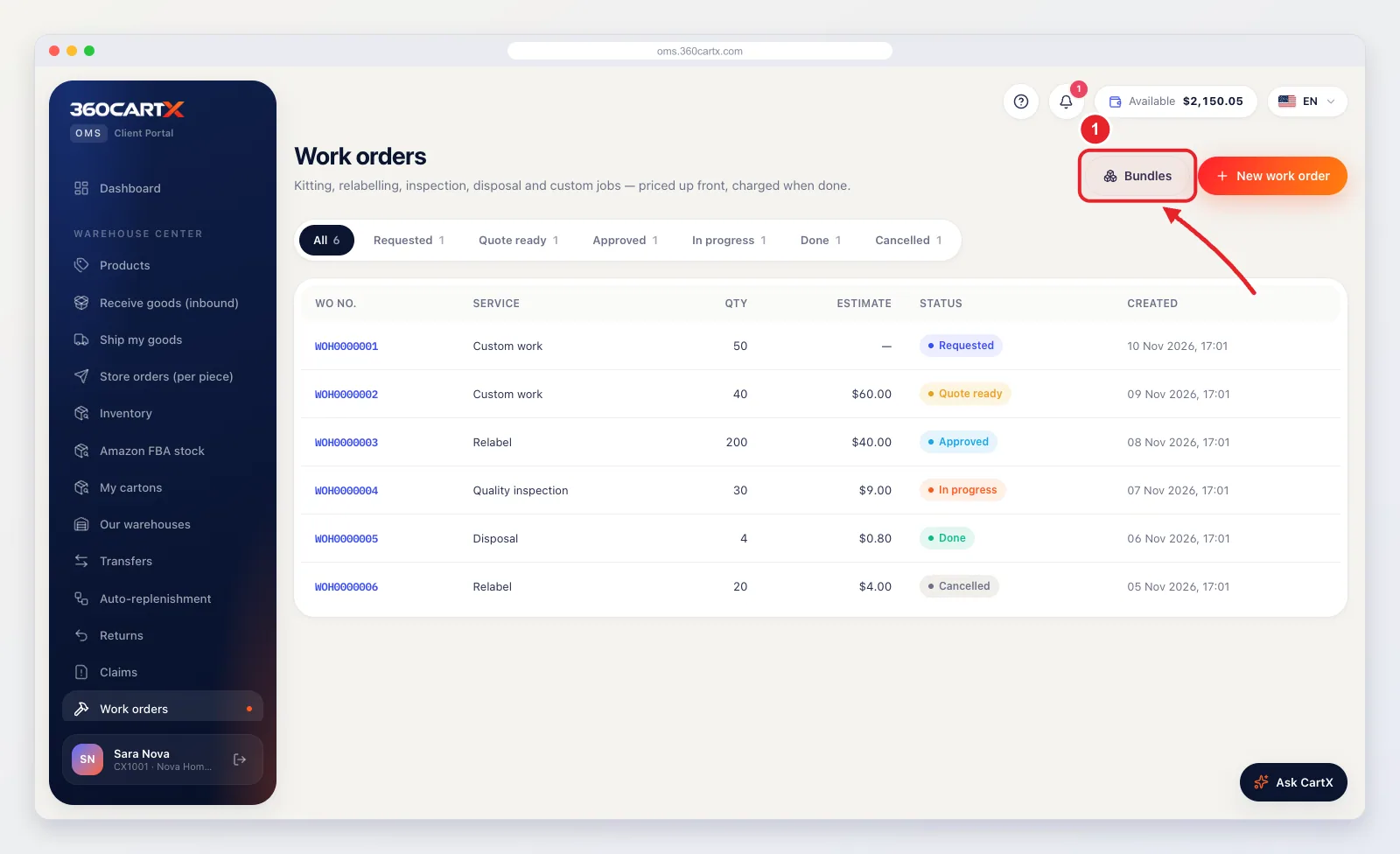
Kitting needs a bundle. On Work orders, Bundles opens your bundles where you create one (see Bundles in Products). Without a bundle the form says: Create a bundle first.
- 2
Choose Kitting or De-kitting
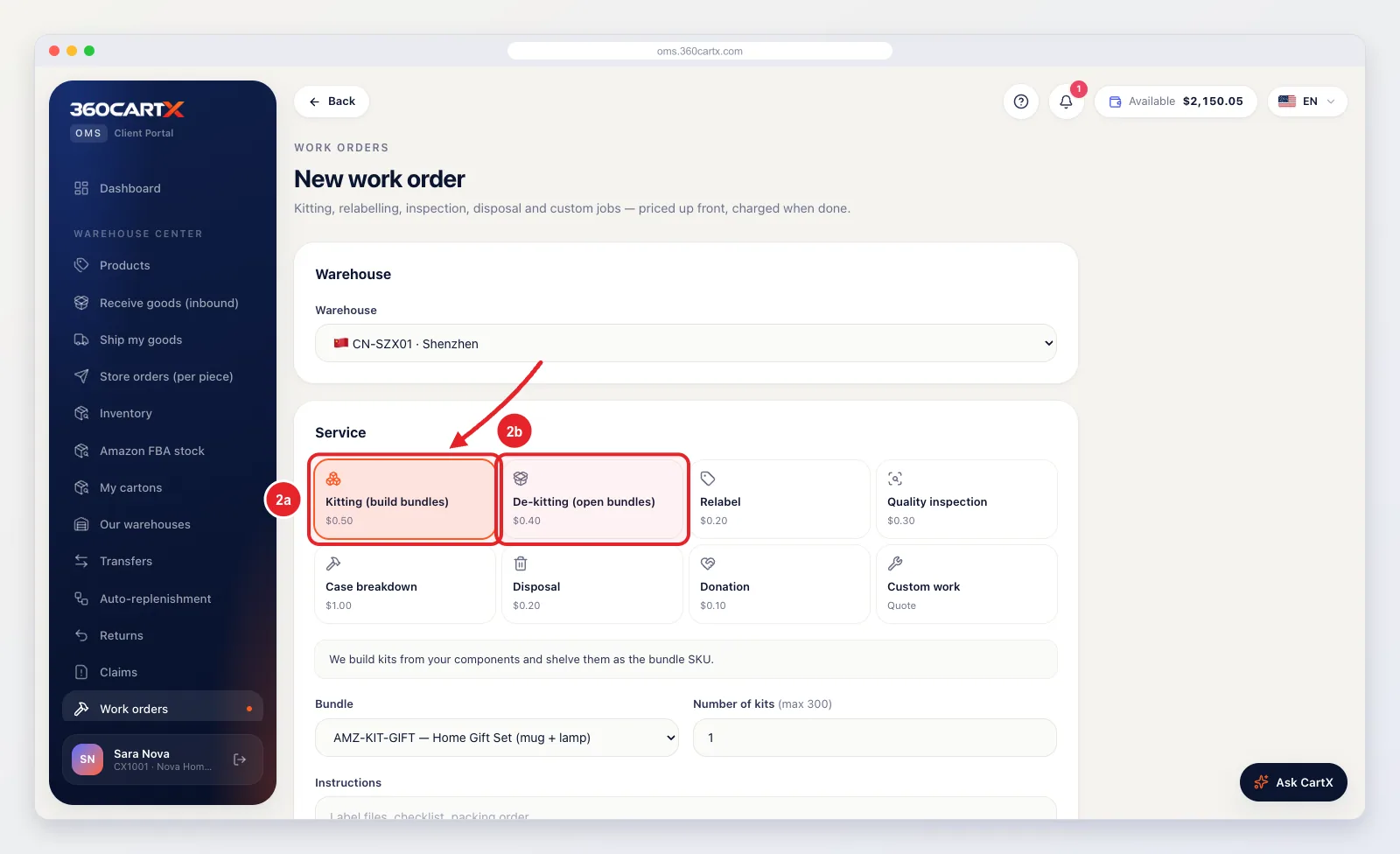
On New work order click Kitting (We build kits from your components and shelve them as the bundle SKU) or De-kitting (We open kits and put the components back to stock).
- 2a Kitting
- 2b De-kitting
- 3
Bundle and number of kits
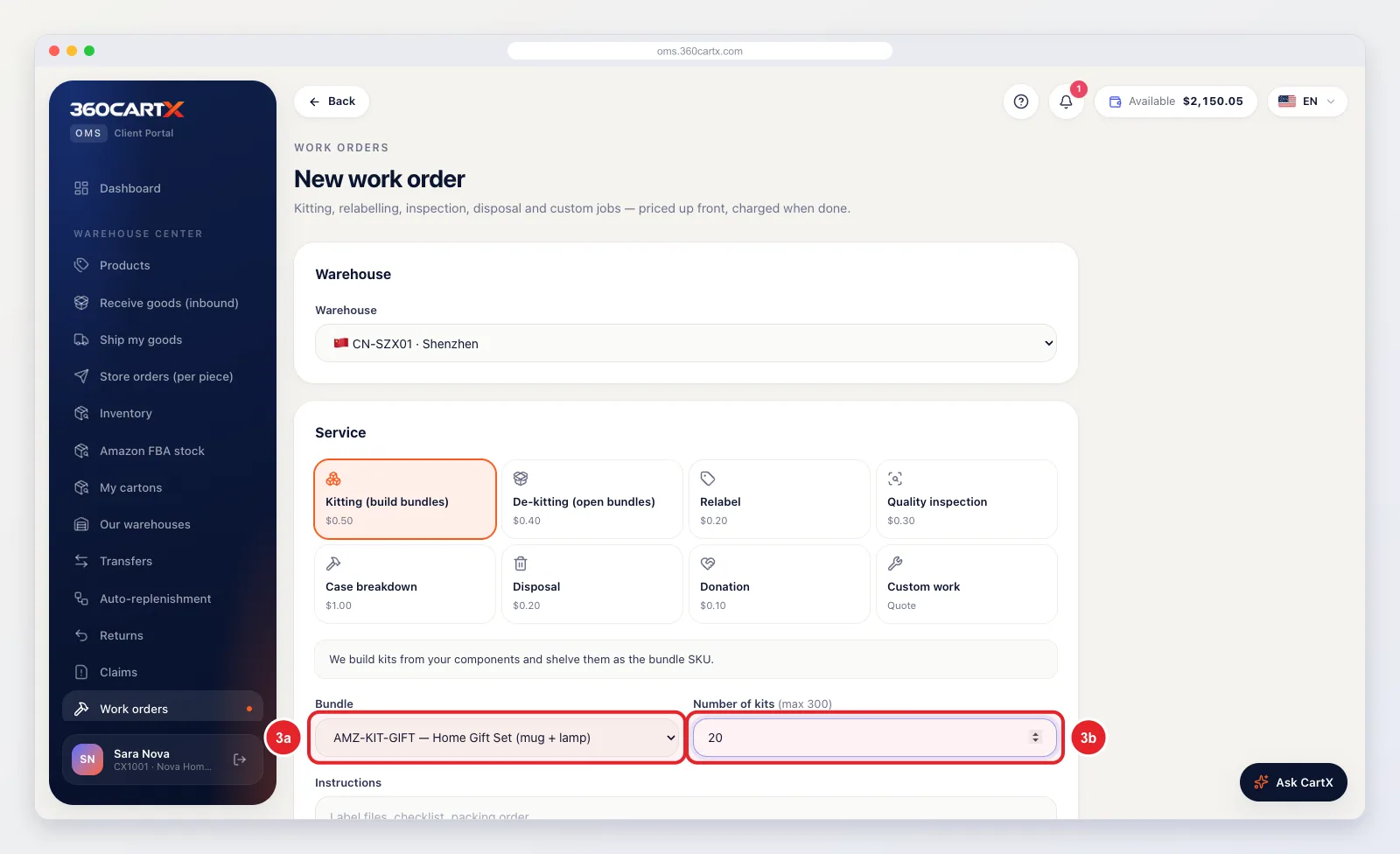
Bundle lists your bundles, for example AMZ-KIT-GIFT — Home Gift Set (mug + lamp). Number of kits shows the most you can build or open, for example (max 300): for kitting it is what your components allow, for de-kitting the kits you have in stock.
- 3a Bundle
- 3b Number of kits
- 4
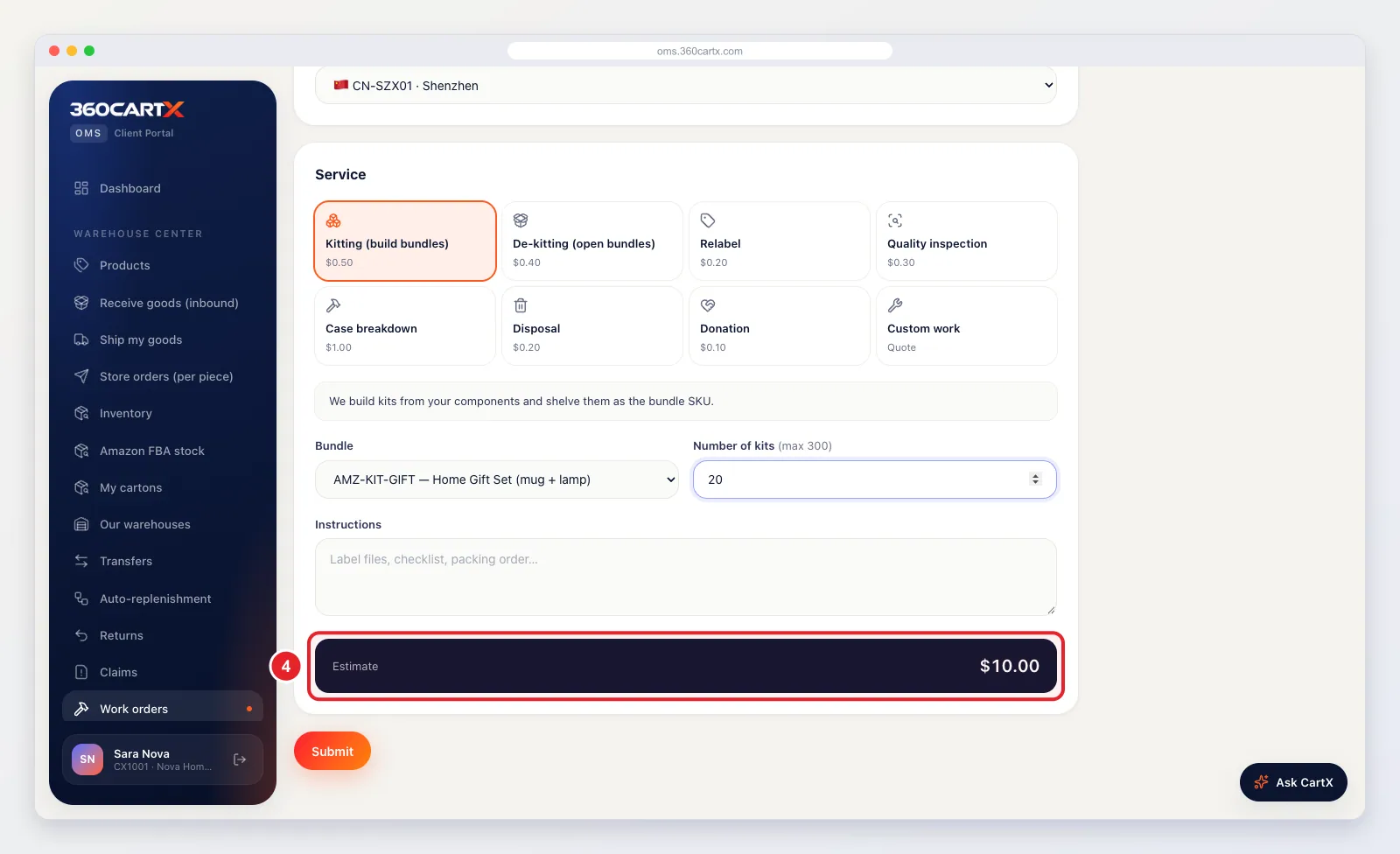
The estimate
The price is per kit: 20 kits times the price per kit. The dark bar shows it before you submit. Click Submit: the job starts as Approved and is charged when done.
- 5
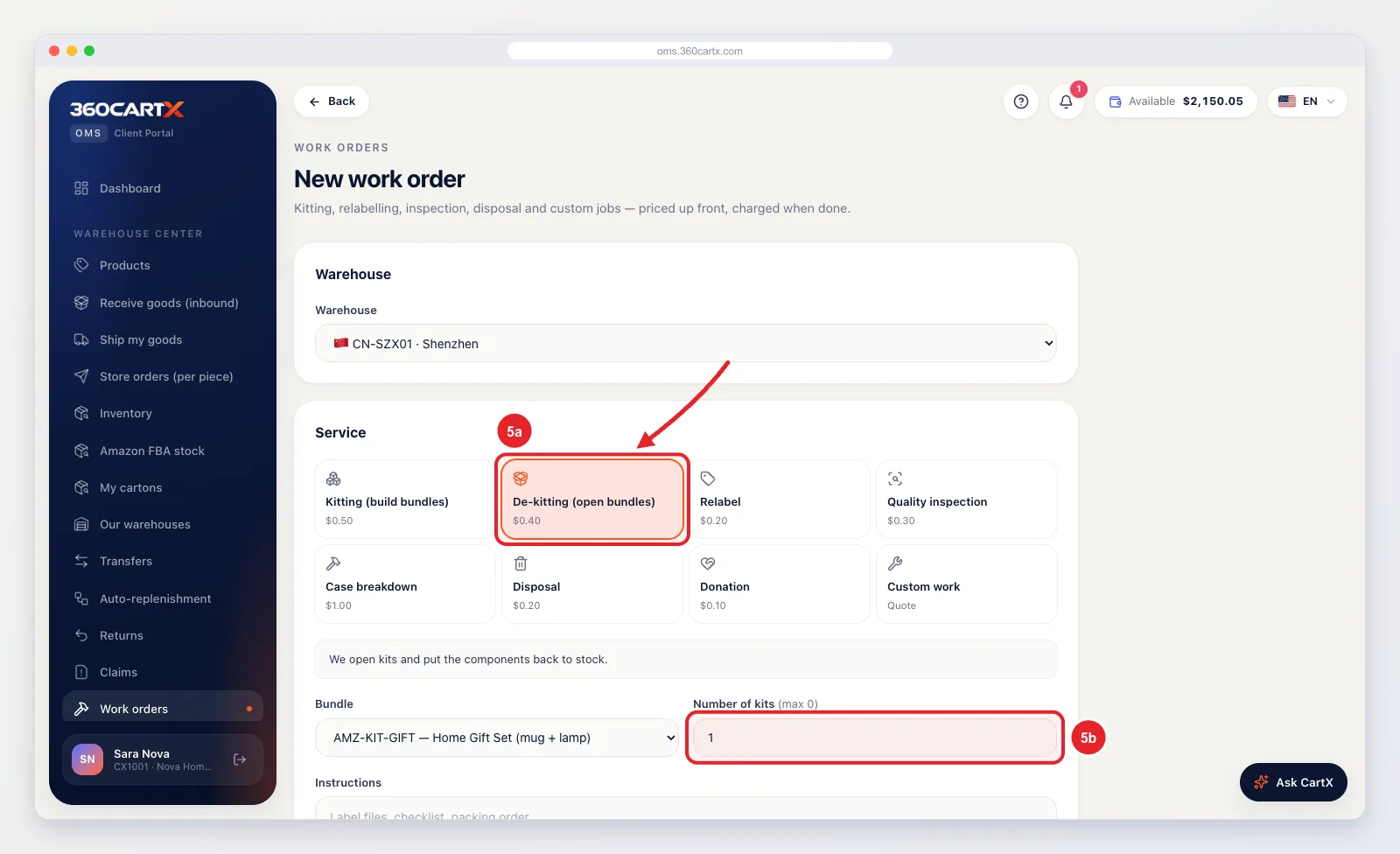
De-kitting
For De-kitting choose the bundle and how many kits to open. The kits must be in stock; otherwise Submit says Not enough kits in stock to open that many. For kitting the message is Not enough component stock to build that many kits.
- 5a De-kitting
- 5b Kits
Terms in this article
- Kitting / bundle: Building sets that sell as one SKU.
Tips
- After kitting, the kits are shelved under the bundle SKU and you can sell them. Orders for a bundle ship from built kits first, otherwise we pick the components.
- The components used are shown as Used in kit and the kits as Kit built / opened in Stock flow.
Common problems
Choose the bundle
Pick a bundle in the list before you submit.
Not enough component stock to build that many kits
One of the components is missing: lower the number of kits or send more stock.
Related articles
Updated 2026-11-11
Open a ticket from Support in your portal and our team will reply.