Steps
- 1
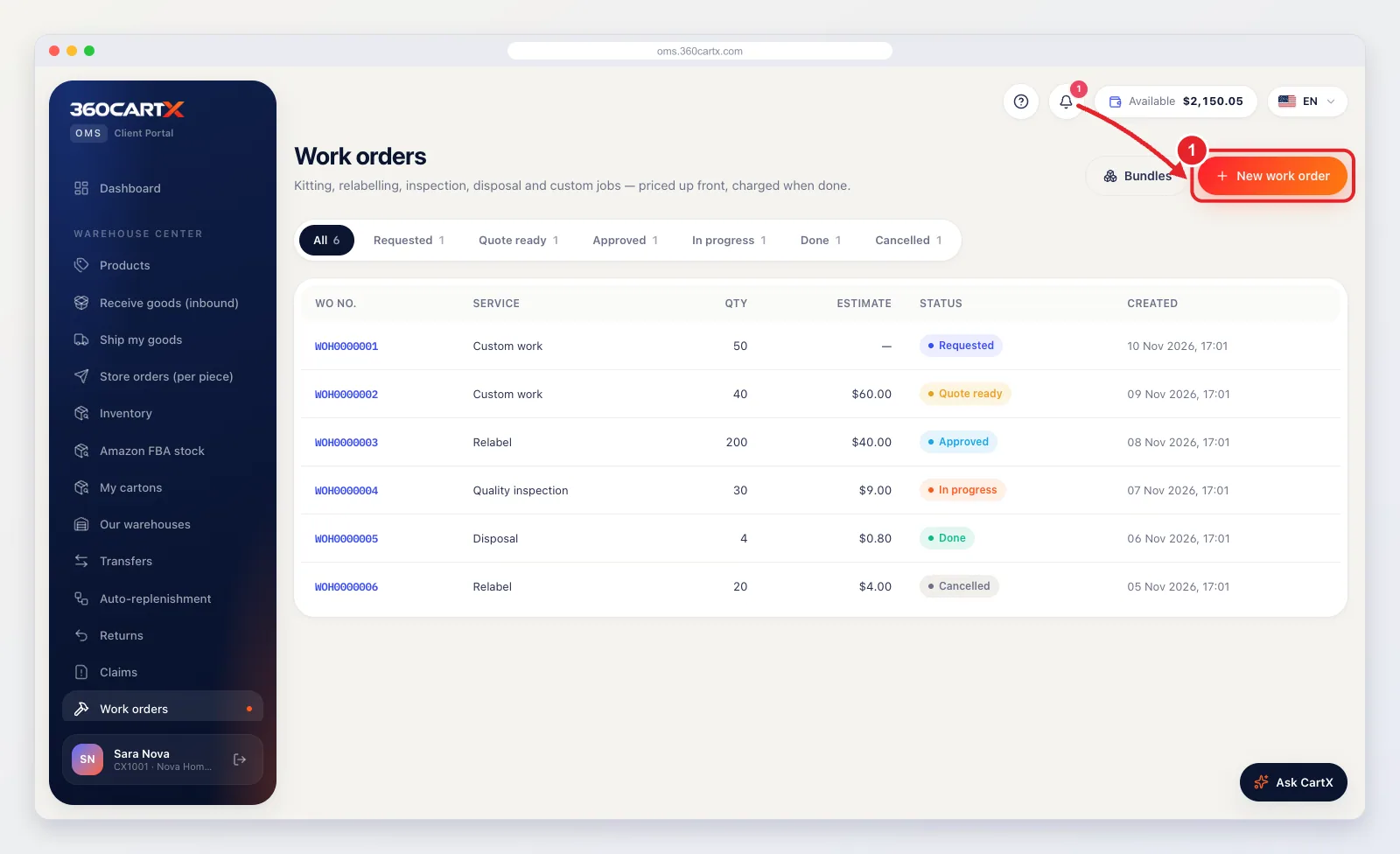
Click New work order
On Work orders click New work order at the top right.
- 2
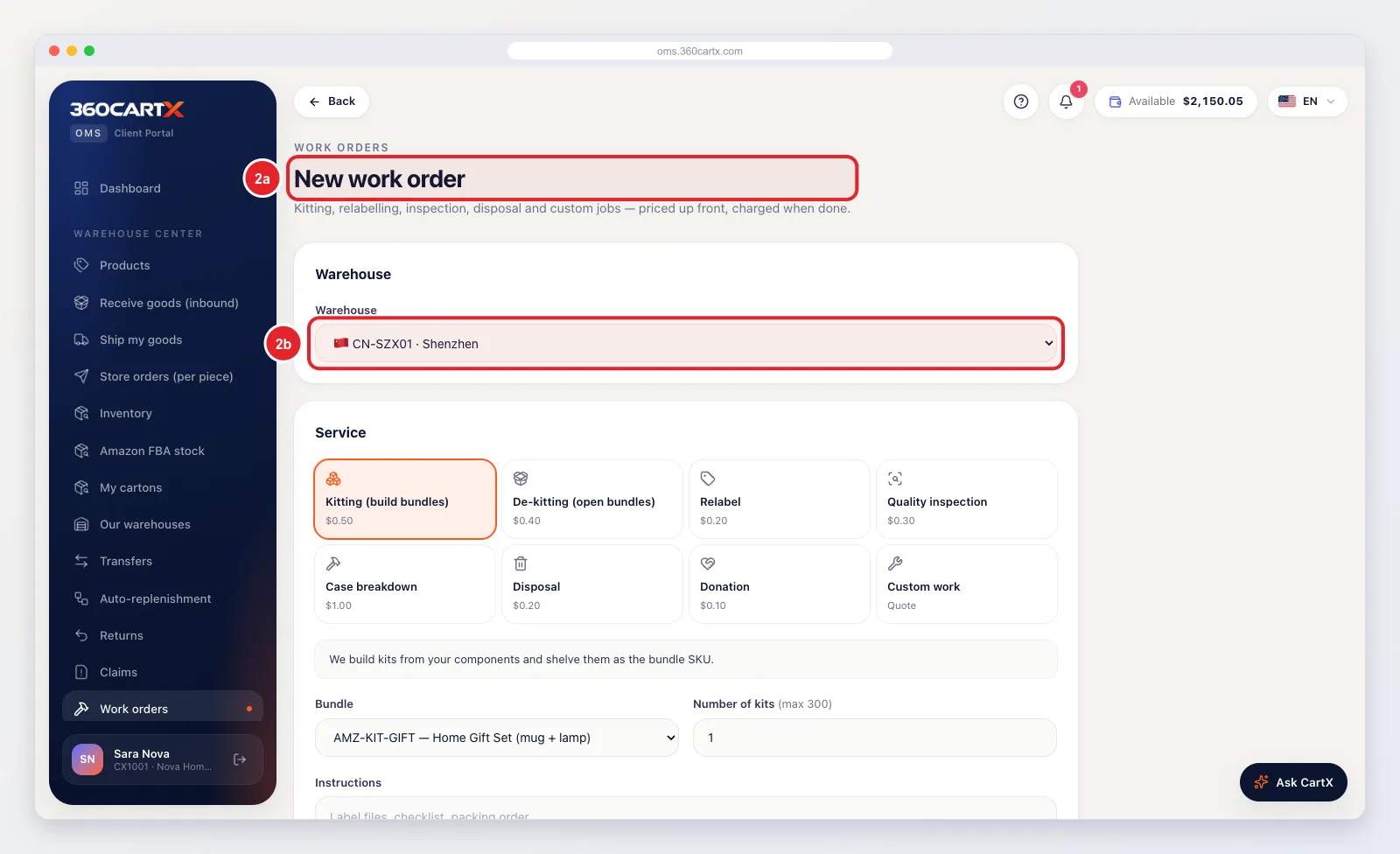
Warehouse
Under Warehouse choose the warehouse that holds the stock, for example CN-SZX01 · Shenzhen. The available units in the product lists follow it.
- 2a Page title
- 2b Warehouse
- 3
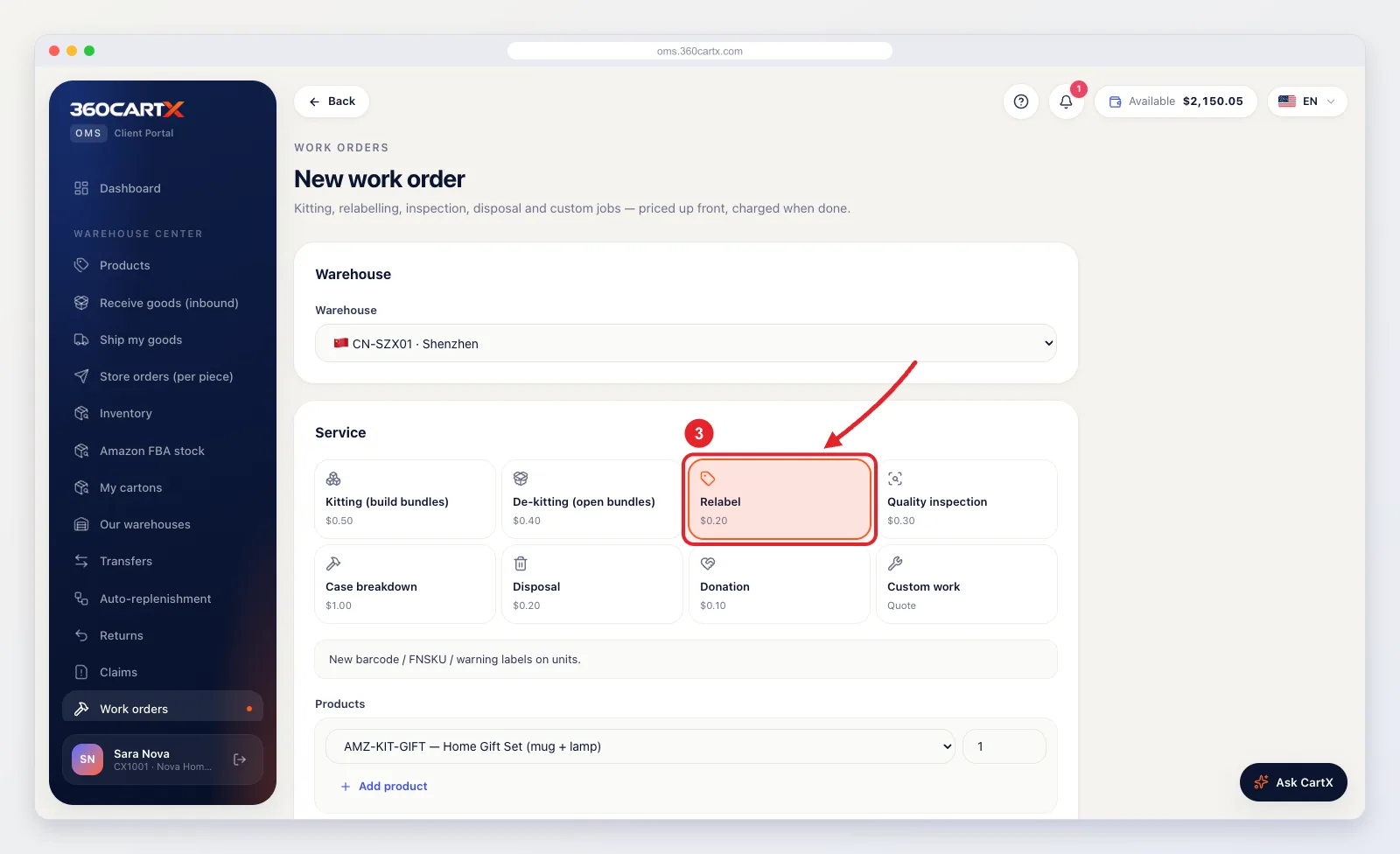
Choose the service
Under Service click a card, for example Relabel. The card turns orange and the text under the cards explains the service. See Which work order service do I need?
- 4
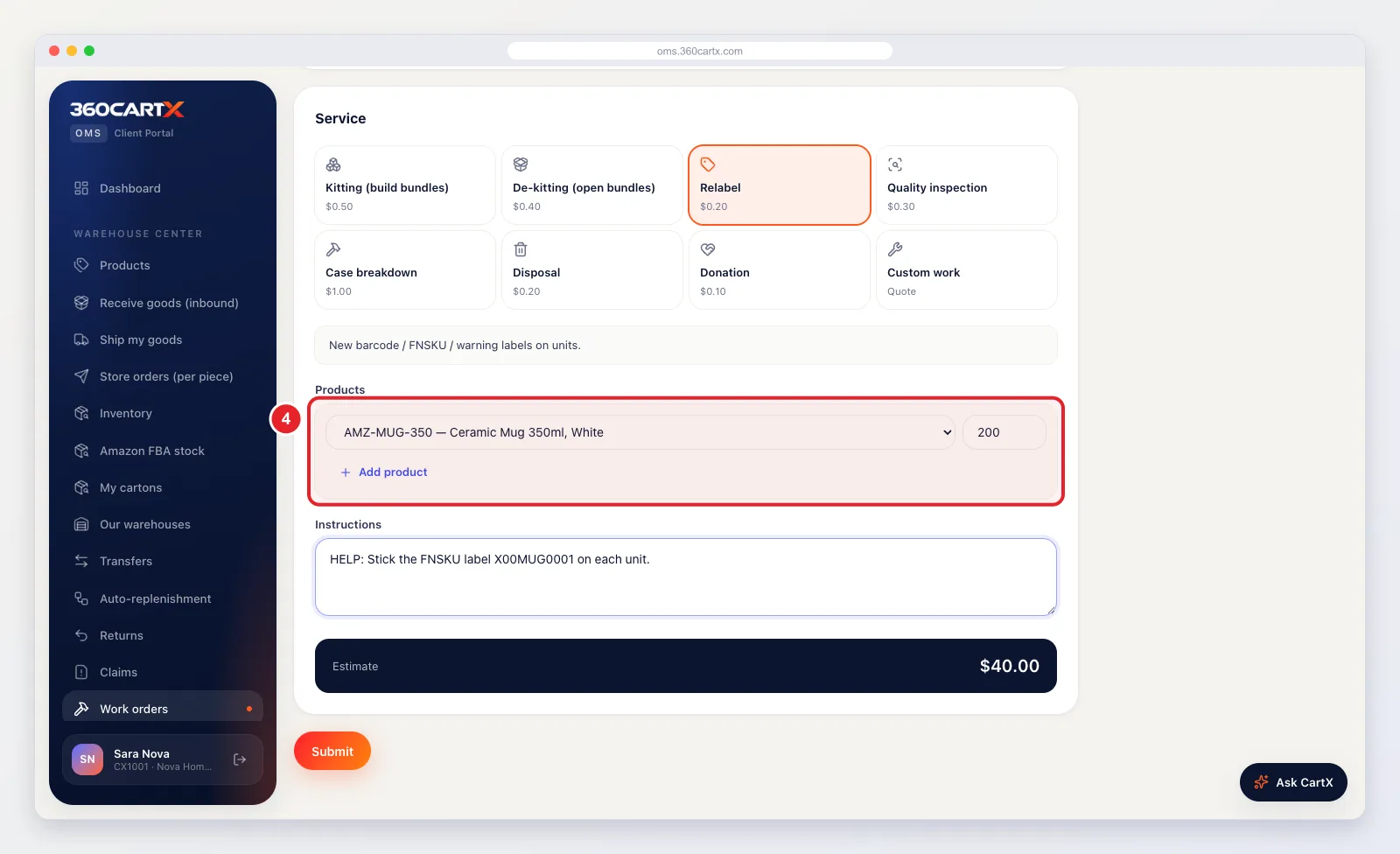
Products and quantities
Under Products choose each product and the quantity, for example AMZ-MUG-350 × 200. Add product adds a line. For Disposal and Donation the list shows the free units next to each product. Kitting and de-kitting use a bundle instead.
- 5
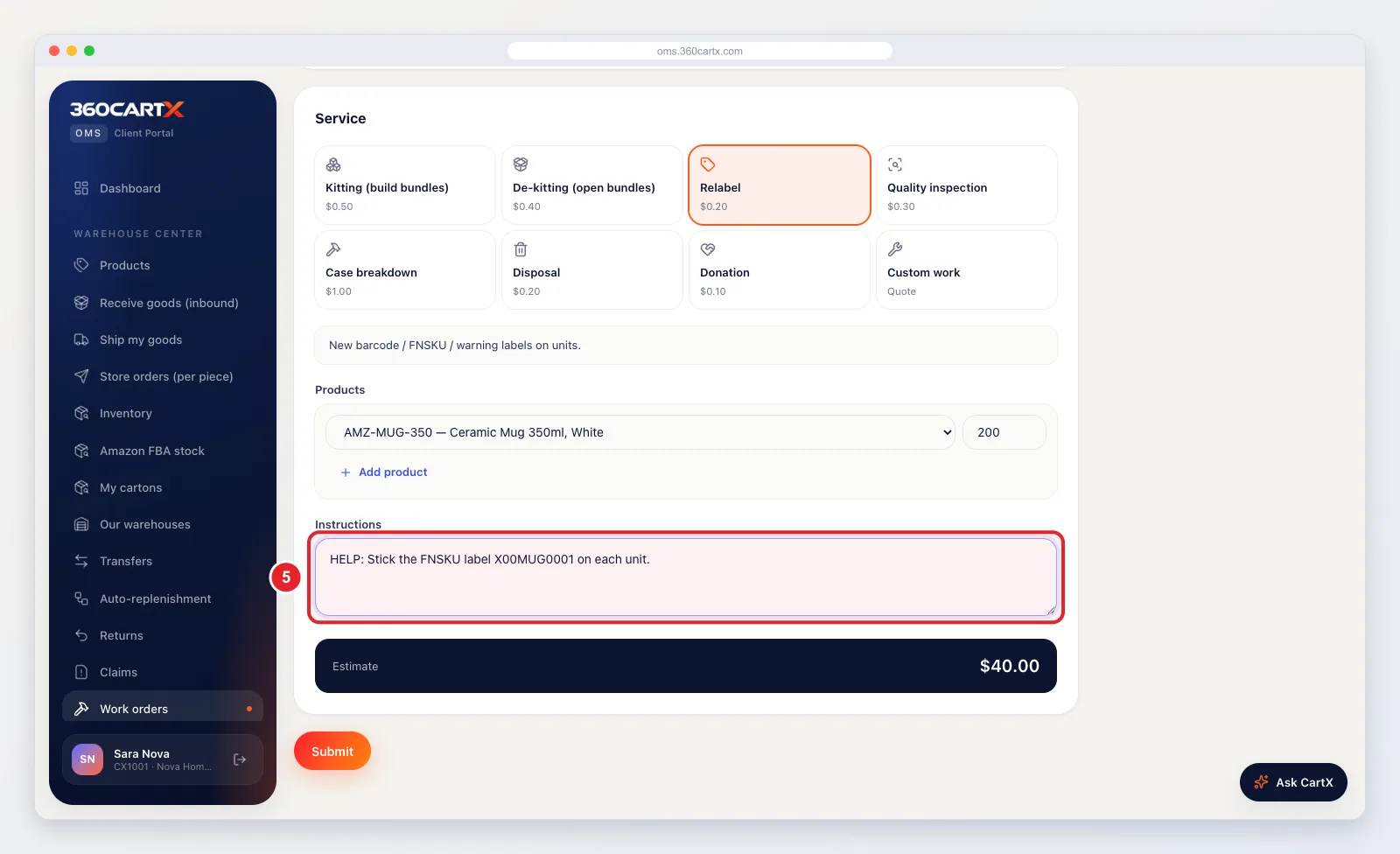
Instructions
Write what our team must do: label files, a checklist, the packing order. For Custom work the instructions are required.
- 6
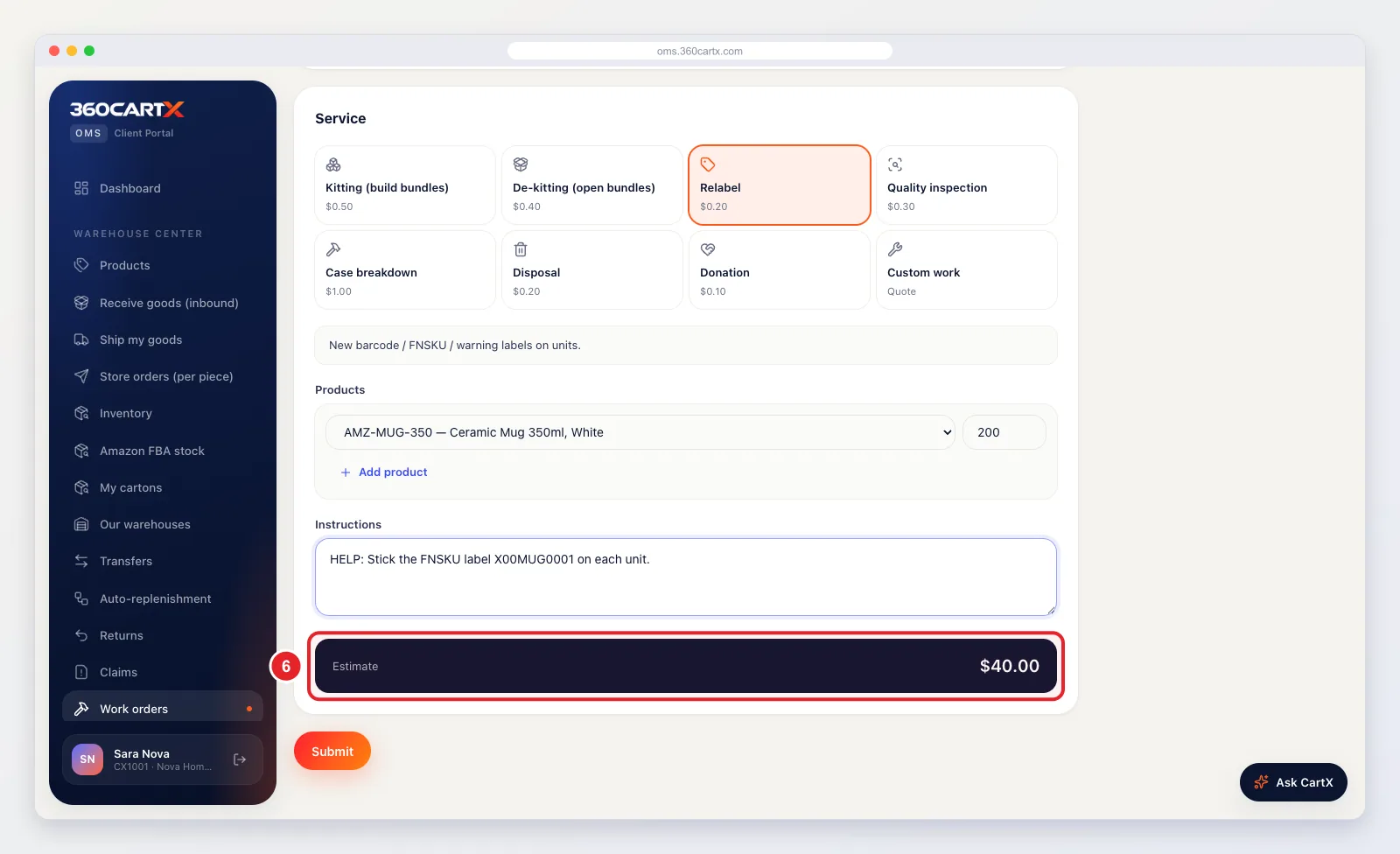
The estimate
The dark bar shows the Estimate: the price per unit times the units, for example $40.00 for 200 units at $0.20 each. It changes when you change the quantity.
- 7
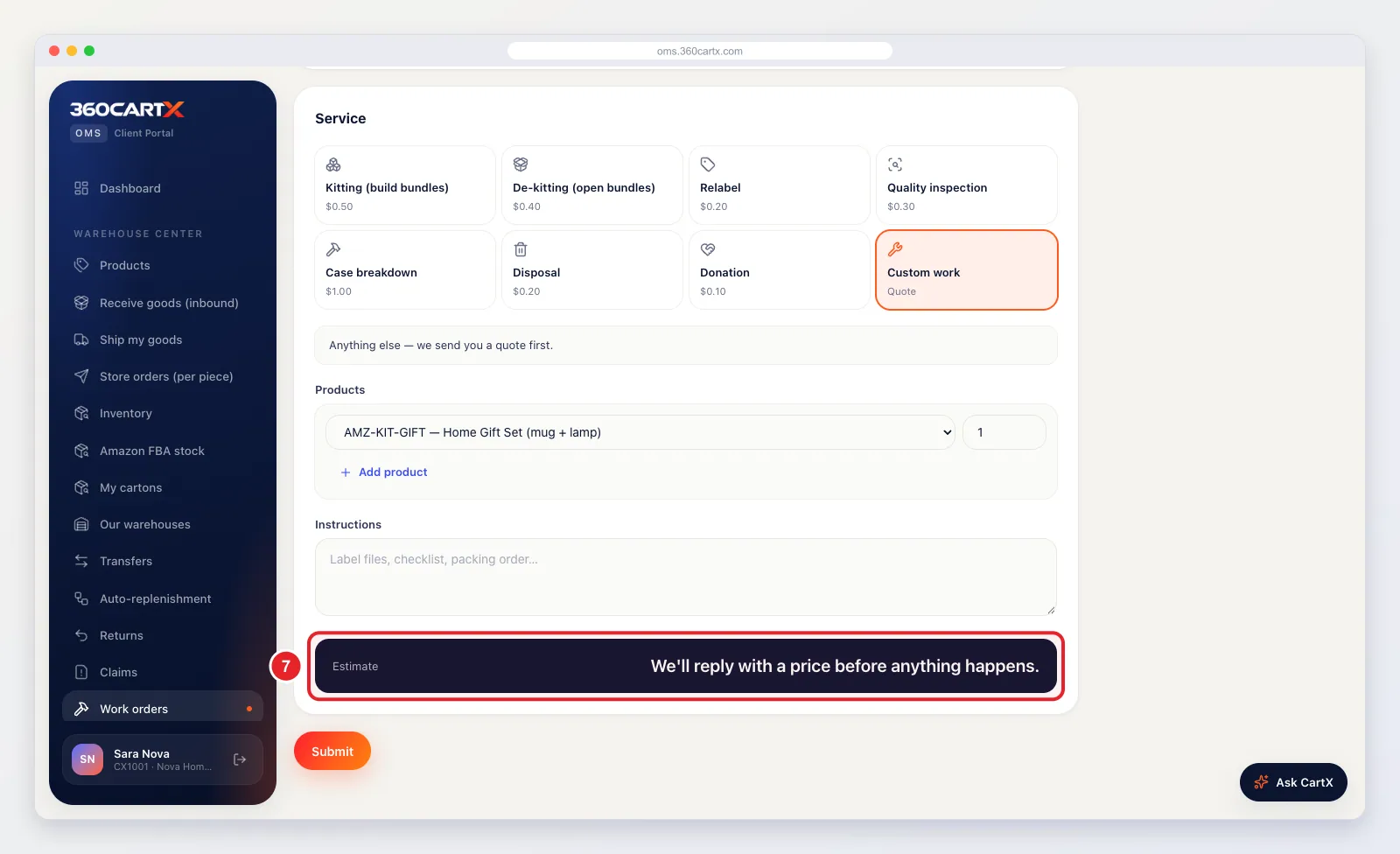
Custom work has no estimate
For Custom work the bar says: We'll reply with a price before anything happens. After you submit, our team sends a quote and you decide.
- 8
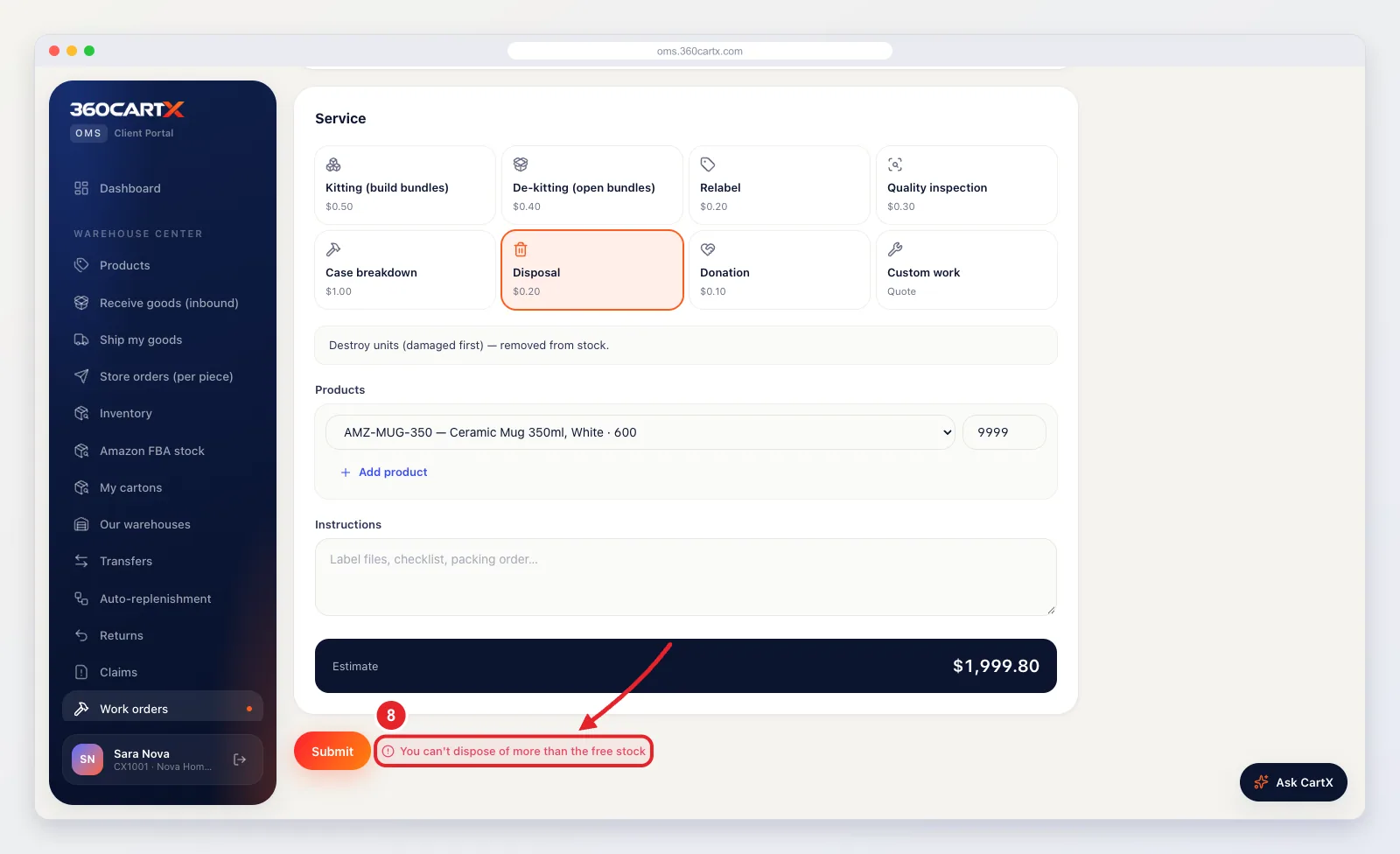
Submit and its errors
Click Submit. Messages: You can't dispose of more than the free stock, Add at least one product, Describe the work you need, Not enough component stock to build that many kits, Your wallet doesn't cover this work order (a minimum balance is kept) — top up first, and Warehouse not allowed.
- 9
After you submit
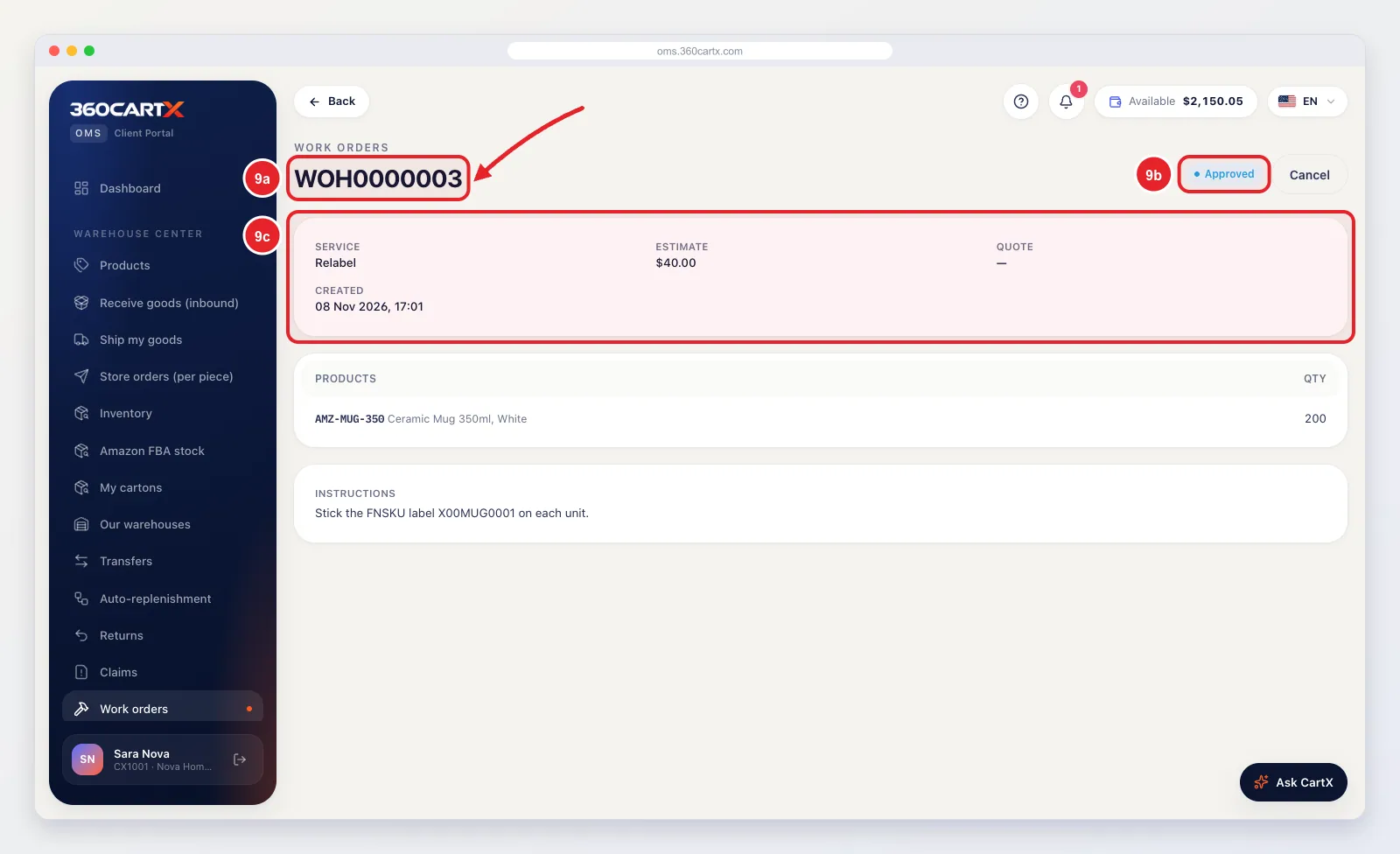
Priced services open as Approved: our team starts the job and the price is charged when it is done. Custom work opens as Requested and waits for our quote. You land on the work order, for example WOH0000003.
- 9a Work order
- 9b Status
- 9c Details
Tips
- Your wallet must cover the estimate when you submit; a minimum balance is kept aside. Top up first if not.
- You can cancel an Approved job until we start it. See Approve or cancel a work order quote.
Common problems
You can't dispose of more than the free stock
Reserved units cannot be disposed. Lower the quantity or wait until the reservation ends.
Related articles
Updated 2026-11-11
Open a ticket from Support in your portal and our team will reply.