Steps
- 1
Open AI assistants
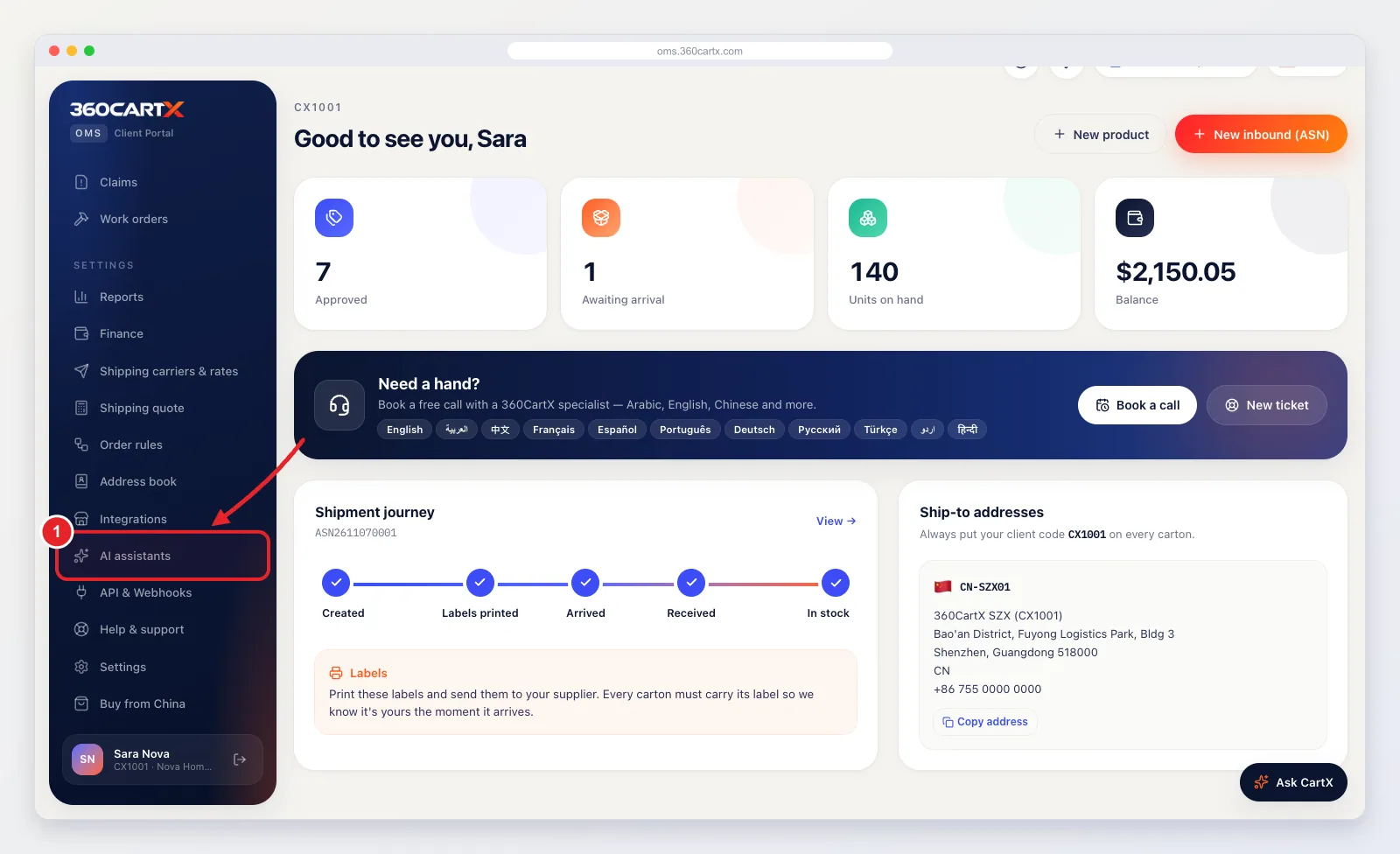
In the left menu, in the last group, click AI assistants. The page is titled Work with ChatGPT and Claude.
- 2
Copy the connector URL
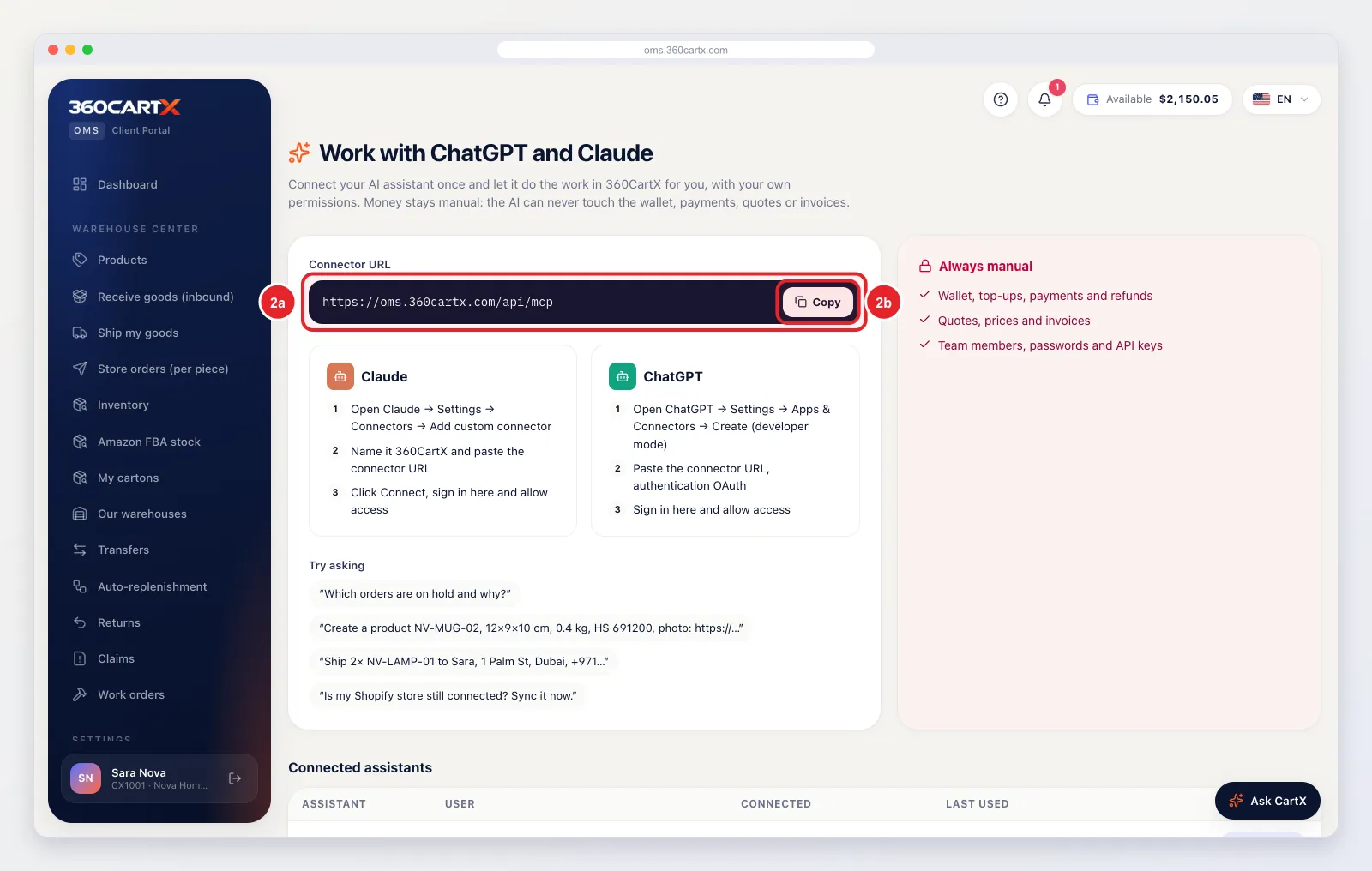
The box Connector URL shows the address of the connector, which is your portal address followed by /api/mcp, for example https://oms.360cartx.com/api/mcp. Click Copy (it changes to Copied for two seconds). You paste this address into Claude or ChatGPT in the next step.
- 2a Connector URL
- 2b Copy
- 3
Add the connector in your AI app
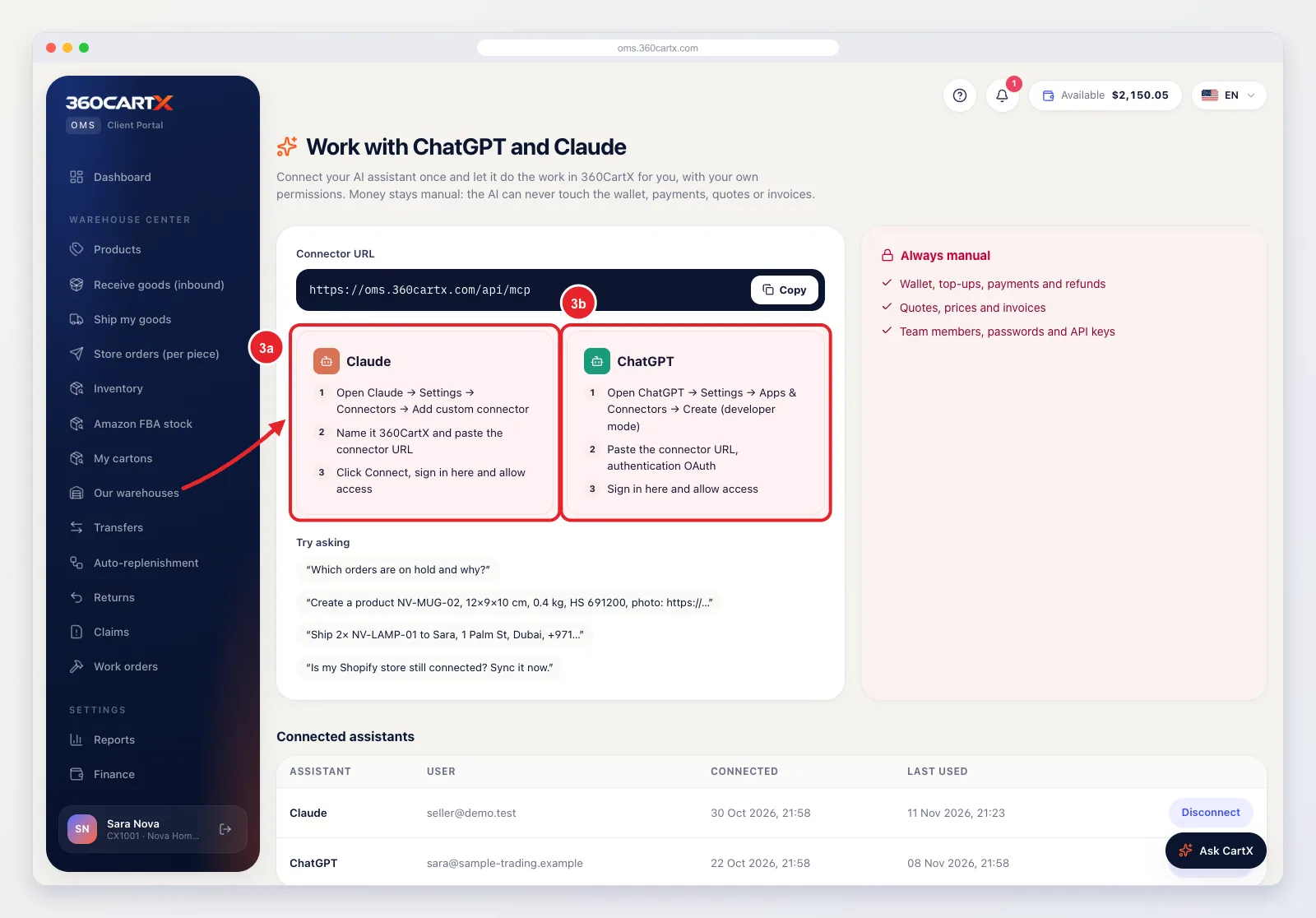
Two cards give the steps. For Claude: open Claude, then Settings, Connectors, Add custom connector; name it 360CartX and paste the connector URL; click Connect, sign in here and allow access. For ChatGPT: open ChatGPT, then Settings, Apps & Connectors, Create (developer mode); paste the connector URL and choose OAuth as the authentication; sign in here and allow access. The menu names can change a little when the AI apps are updated; what you always need is the connector URL and the sign-in.
- 3a Claude steps
- 3b ChatGPT steps
- 4
Sign in and allow access
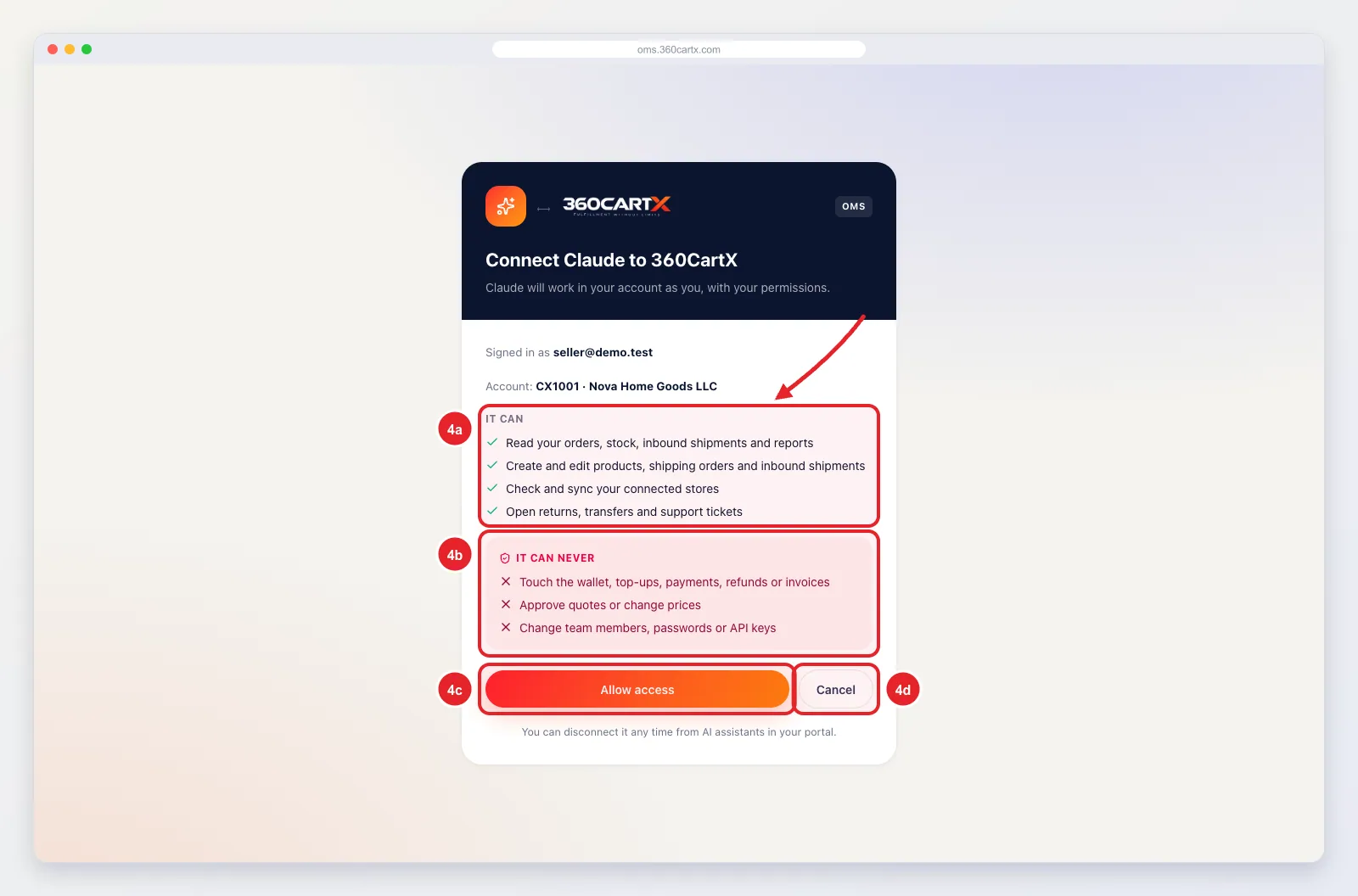
When you click Connect in the AI app, a 360CartX page opens: Connect Claude to 360CartX (or the name of the app). If you are not signed in, you sign in first. The page shows who you are signed in as and your account; owners and admins who have brands (subaccounts) can choose which account the assistant works in. It lists what the assistant can do: read your orders, stock, inbound shipments and reports; create and edit products, shipping orders and inbound shipments; check and sync your connected stores; open returns, transfers and support tickets. And what it can never do: touch the wallet, top-ups, payments, refunds or invoices; approve quotes or change prices; change team members, passwords or API keys. Click Allow access to connect, or Cancel to refuse. Below the buttons a note reminds you that you can disconnect it any time from AI assistants.
- 4a It can
- 4b It can never
- 4c Allow access
- 4d Cancel
- 5
Know the limits and what to ask
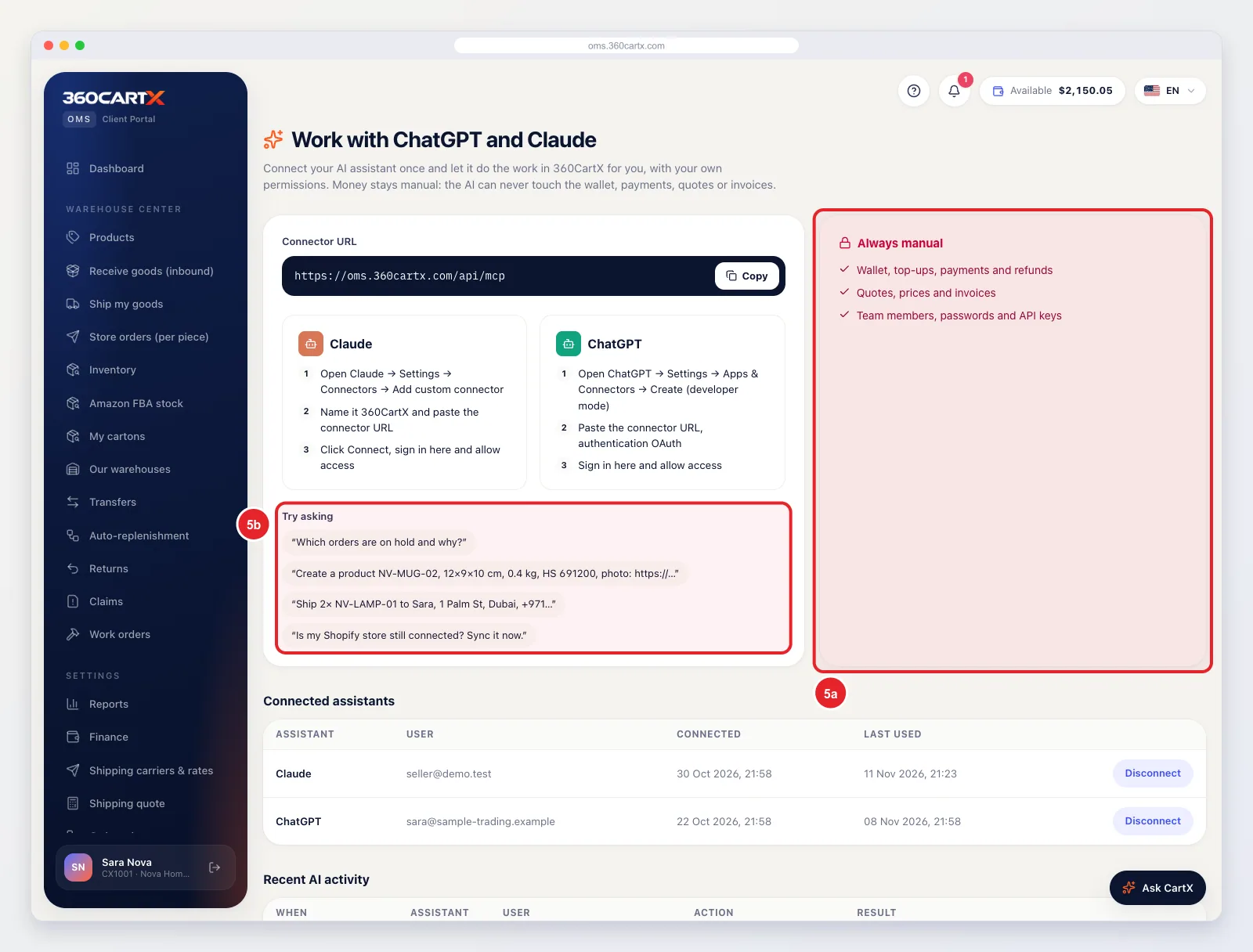
The red box Always manual repeats what an assistant can never do: wallet, top-ups, payments and refunds; quotes, prices and invoices; team members, passwords and API keys. The assistant works as you: someone with the Viewer or Finance role gets read-only tools, and the assistant never has more rights than the person who connected it. Under Try asking you find ideas, such as Which orders are on hold and why?, Create a product NV-MUG-02, 12×9×10 cm, 0.4 kg, HS 691200, photo: https://…, Ship 2× NV-LAMP-01 to Sara, 1 Palm St, Dubai, +971… and Is my Shopify store still connected? Sync it now.
- 5a Always manual
- 5b Try asking
- 6
Connected assistants
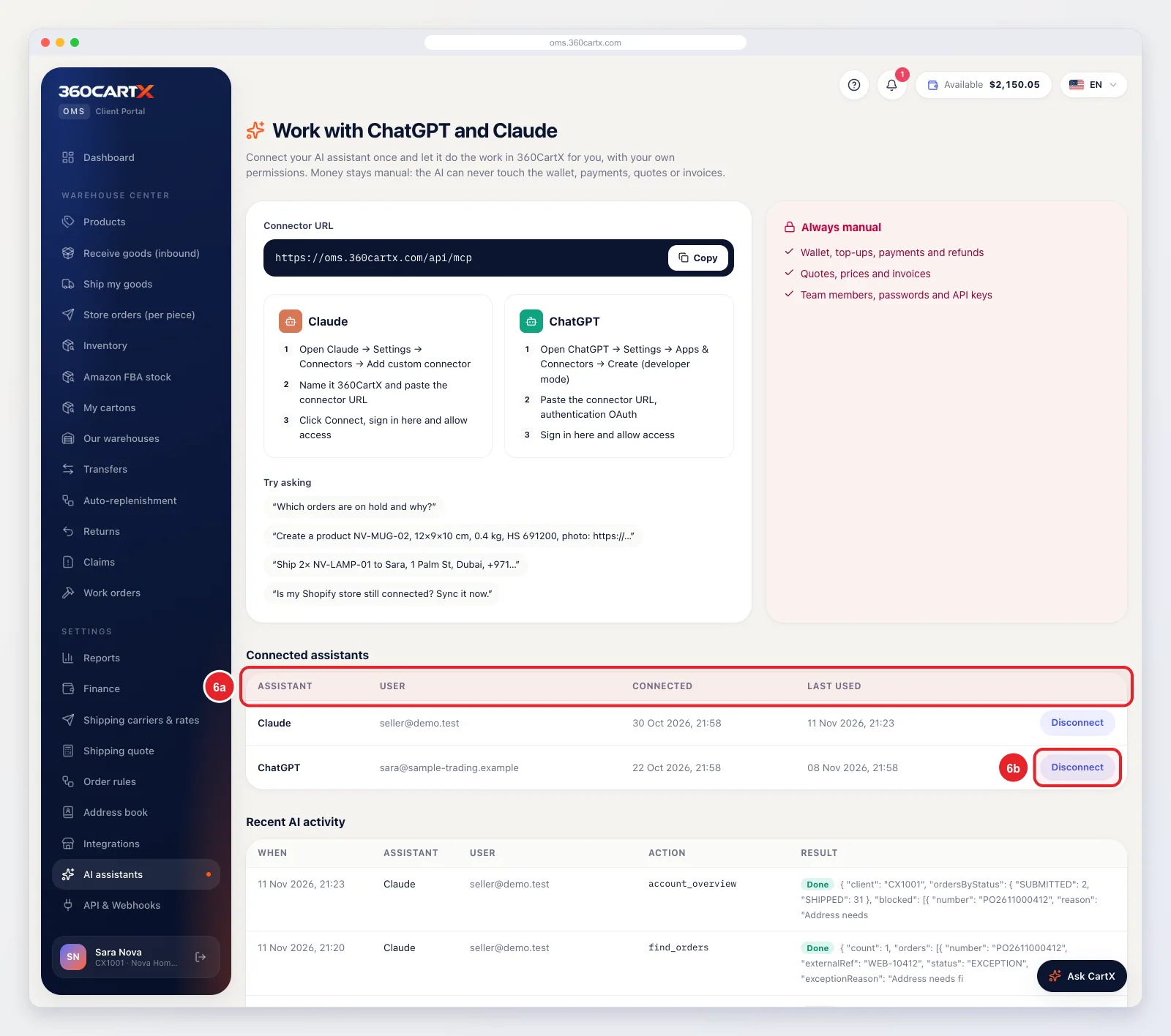
The table Connected assistants lists every sign-in that is active: Assistant (the app name), User (the e-mail of the person who connected it), Connected (the date) and Last used. The AI app signs in again by itself every hour, and the connection ends 60 days after the last time it was renewed or when you disconnect it. Click Disconnect to remove one. You can disconnect your own connections; owners and admins also see and can disconnect the connections of their team members. Dates and times are China time (UTC+8). An empty table says No assistant connected yet.
- 6a Columns
- 6b Disconnect a team member
- 7
Recent AI activity
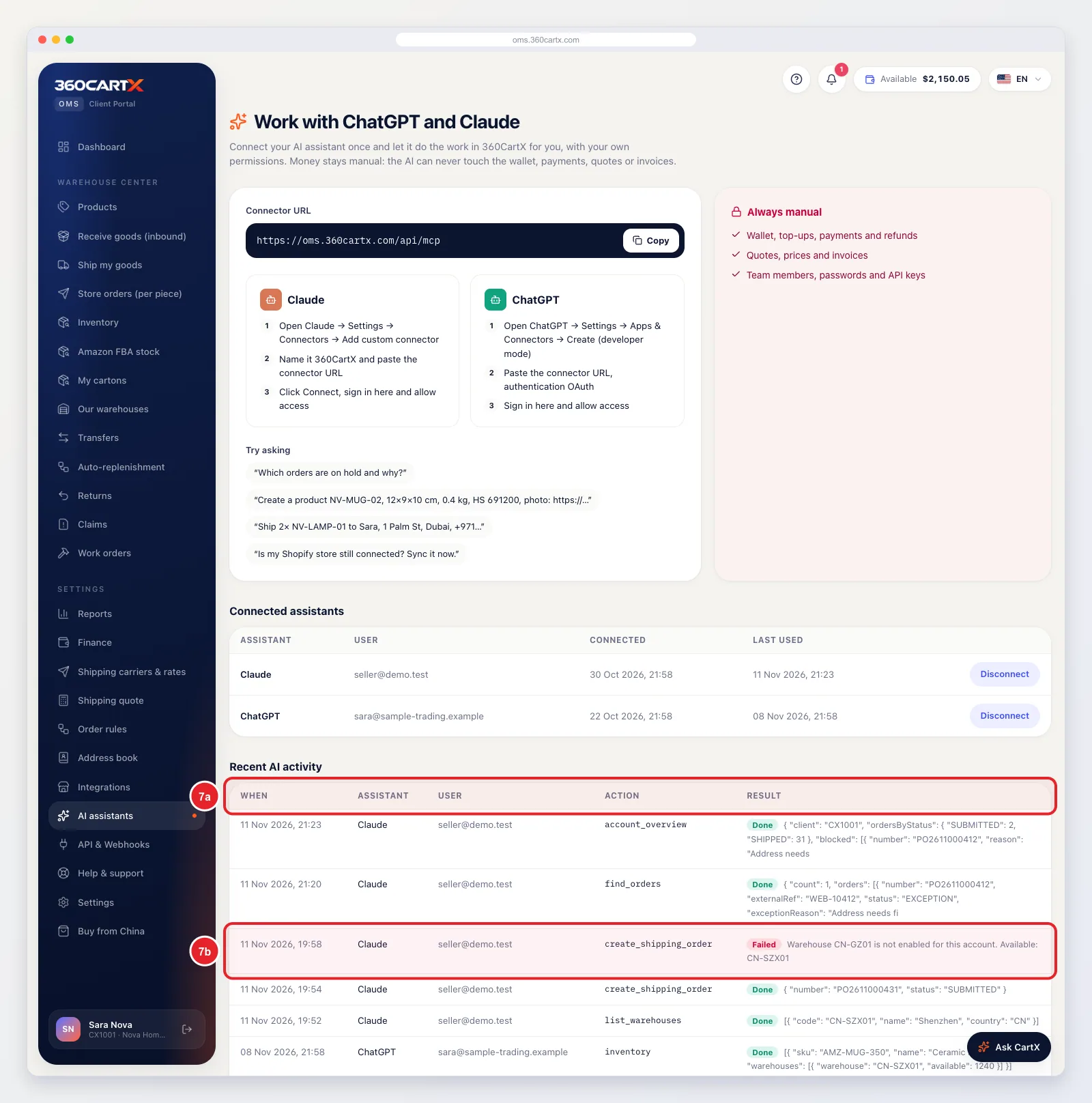
Under Recent AI activity you see the last 30 things assistants did in your account: When, Assistant, User, Action (the name of the tool, for example create_shipping_order or find_orders) and Result. The Result starts with a green Done or a red Failed and the beginning of the answer, so you see why a call failed, for example a warehouse that is not enabled for the account. The list shows the whole account, not only your own assistant. Without activity it says No AI activity yet.
- 7a Columns
- 7b A failed action
- 8
Disconnect an assistant
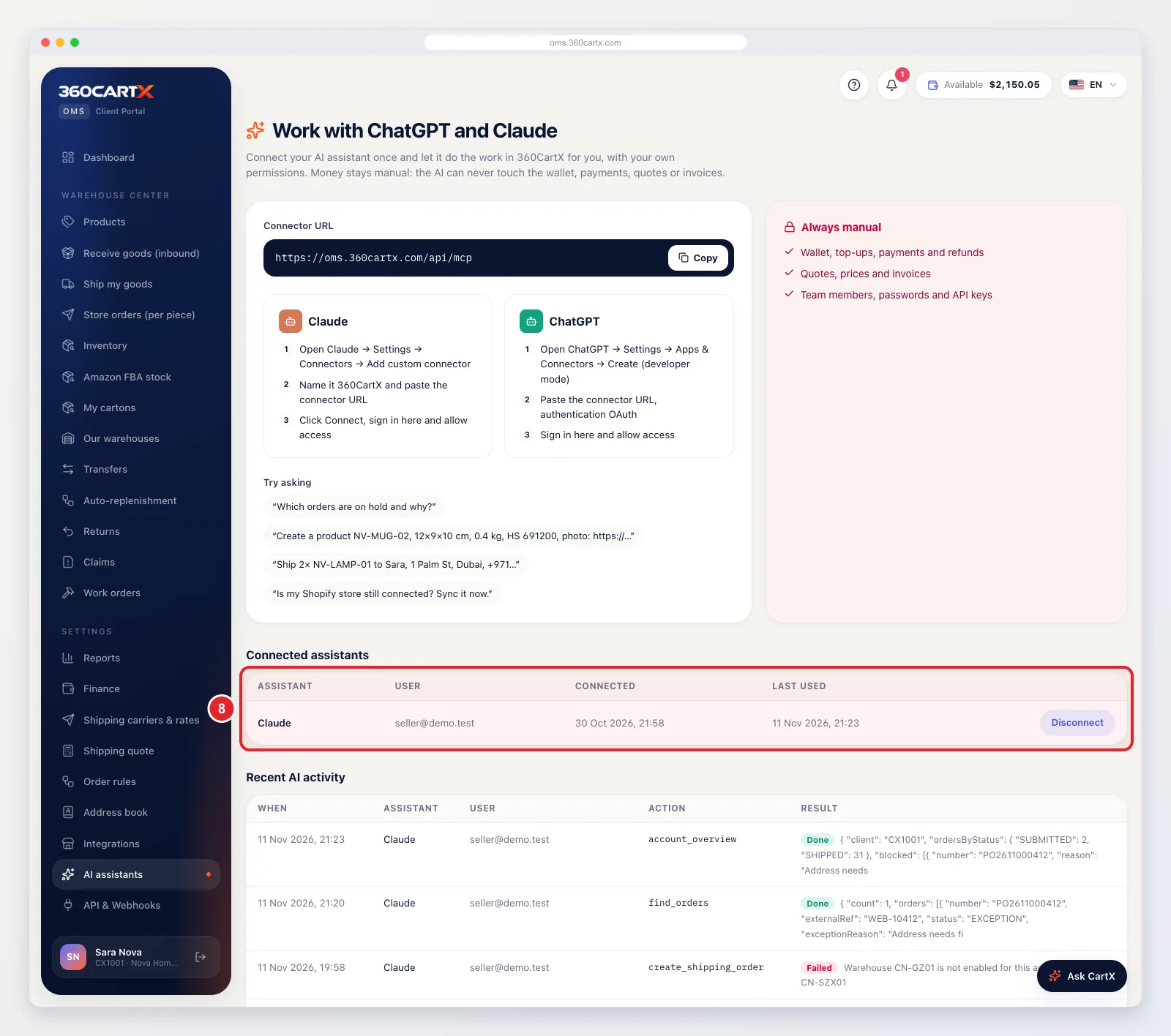
Click Disconnect on a row. The connection ends at once: the next thing that assistant tries is refused with the message that the sign-in expired or was disconnected, and it has to be connected again from step 3. What the assistant already did stays in Recent AI activity. Do this when someone leaves the team, when you do not use the assistant any more, or when you lost control of the AI account.
Terms in this article
- MCP: Lets AI apps such as Claude and ChatGPT use your account.
Tips
- Check Recent AI activity after you try a new request. It shows exactly which actions ran.
- Ask the assistant to confirm before it cancels or disconnects anything. It is told to do this, but say it in your request too.
- Everything the assistant does is done with the same checks as in the portal, so a wrong SKU or a missing address is refused the same way.
- To let a read-only tool or script use your data without a sign-in, use an API key instead (see Use the MCP server).
Common problems
This connection link is not valid. Start again from your AI app.
The link from the AI app is old or incomplete. Go back to the AI app and click Connect again.
The assistant says the sign-in expired or was disconnected
It was disconnected here, it was not used for 60 days, or your account is not active. Connect it again from your AI app.
The assistant says it cannot do something
Money, prices, team and keys are never available. For other actions check your role: Viewer and Finance roles only read.
I do not see my team member's assistant
Only owners and admins see the assistants of the whole team. Other roles see only their own.
Create shipping order failed with Warehouse … is not enabled for this account
The assistant chose a warehouse your account does not use. Tell it which warehouse code to use, or ask it to list your warehouses first.
Related articles
Updated 2026-11-11
Open a ticket from Support in your portal and our team will reply.