Steps
- 1
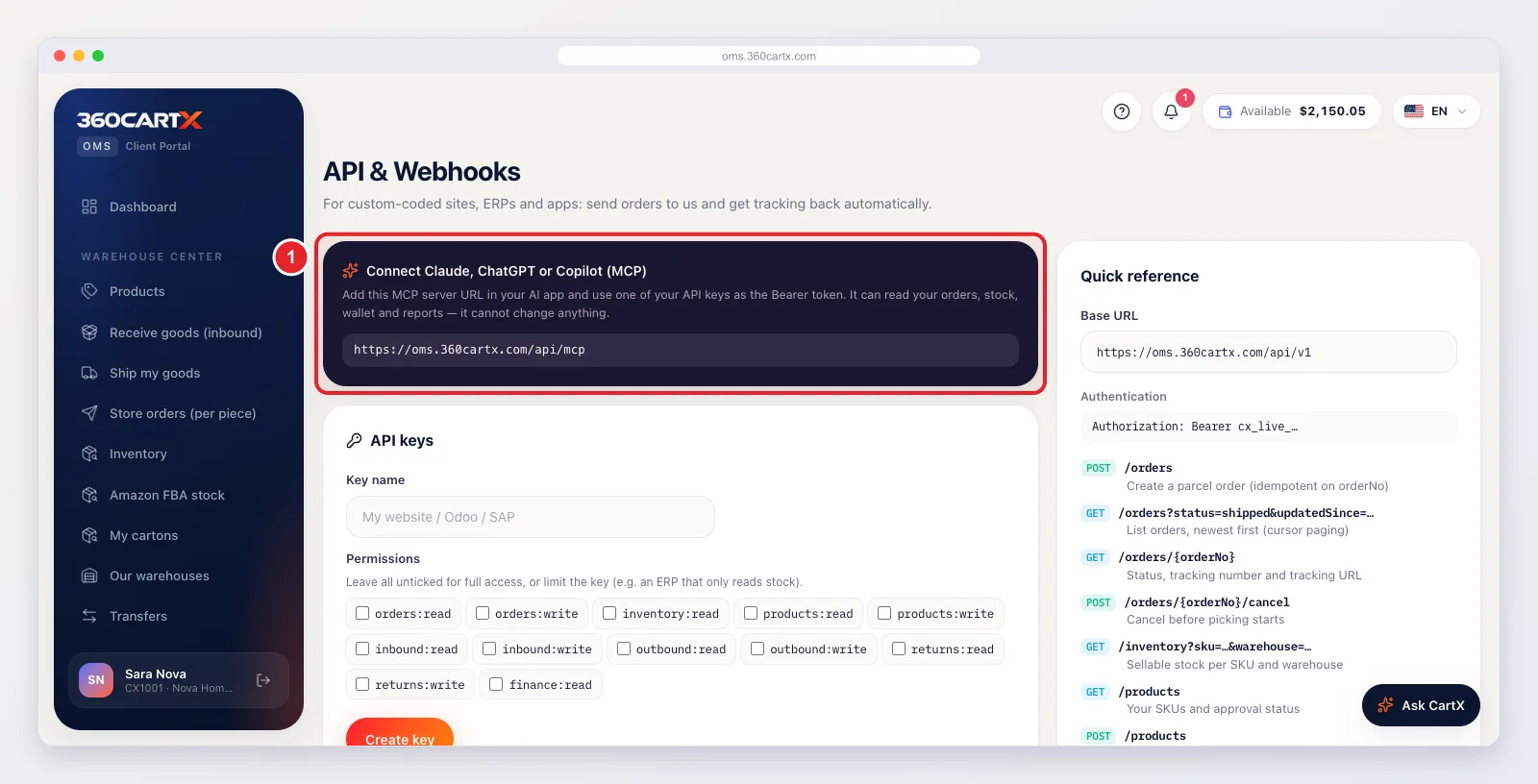
Find the address
At the top of the API & Webhooks page, the dark card Connect Claude, ChatGPT or Copilot (MCP) shows the MCP server address: https://oms.360cartx.com/api/mcp. It says to add this address in your AI app and use one of your API keys as the Bearer token, and that the AI can read your orders, stock, wallet and reports but cannot change anything. You can select the address and copy it.
- 2
Create a key for it
Create a separate API key just for the AI (see Create and revoke API keys), for example named AI assistant. Copy the key when it is shown, because it is shown only once. Having its own key means you can see in the list when it was last used and revoke only that one.
- 3
Add it to Claude Code
In an AI app that lets you add a remote MCP server with a header, give it the address and the header Authorization: Bearer with your key. In Claude Code, one command does it:
claude mcp add --transport http 360cartx https://oms.360cartx.com/api/mcp \ --header "Authorization: Bearer cx_live_…" - 4
Add it to another AI app
Many apps take a small settings file. The field names differ a little from app to app, but they all need the same two things: the address and the Authorization header. A typical file looks like this. If your AI app has no place for a custom header (for example a connector screen that only asks for a URL and a sign-in), use the sign-in connector described in Connect ChatGPT or Claude instead; the key way is not for those apps.
{ "mcpServers": { "360cartx": { "url": "https://oms.360cartx.com/api/mcp", "headers": { "Authorization": "Bearer cx_live_…" } } } } - 5
Test the connection with curl
You can talk to the server without an AI app. MCP messages are JSON-RPC posted to the address. First initialize, then list the tools, then call one. The answers look like these (shortened). The header X-API-Key: cx_live_… works instead of Authorization.
curl -s -X POST https://oms.360cartx.com/api/mcp \ -H "Authorization: Bearer cx_live_…" -H "Content-Type: application/json" \ -d '{"jsonrpc":"2.0","id":1,"method":"initialize","params":{"protocolVersion":"2025-06-18","capabilities":{},"clientInfo":{"name":"test","version":"1"}}}' # {"jsonrpc":"2.0","id":1,"result":{"protocolVersion":"2025-06-18","capabilities":{"tools":{"listChanged":false}}, # "serverInfo":{"name":"360cartx","title":"360CartX","version":"2.0.0"}, # "instructions":"Read-only access to one 360CartX client account. Start with account_overview."}} curl -s -X POST https://oms.360cartx.com/api/mcp \ -H "Authorization: Bearer cx_live_…" -H "Content-Type: application/json" \ -d '{"jsonrpc":"2.0","id":2,"method":"tools/list"}' curl -s -X POST https://oms.360cartx.com/api/mcp \ -H "Authorization: Bearer cx_live_…" -H "Content-Type: application/json" \ -d '{"jsonrpc":"2.0","id":3,"method":"tools/call","params":{"name":"inventory","arguments":{"sku":"MUG"}}}' - 6
The tools a key can use
With a key the AI sees eight read-only tools. account_overview: a snapshot with wallet balance, store orders by status, blocked orders and why, open returns, claims and work orders, low-stock SKUs (the AI should call it first). find_orders: search store orders by our PO number, your order number, tracking number or recipient name, with an optional status and limit. order_details: everything about one order, including the latest tracking events. inventory: stock per SKU and warehouse (on hand, reserved, available, defective), with an optional SKU or name filter. service_requests: recent returns, claims, work orders or inbound shipments. wallet_activity: the latest wallet movements with the running balance. quote_shipping: price one parcel to a country by weight and size on every service that serves it. run_report: analytics for the last days (on-time shipping, velocity, stock-outs, undelivered, order lines, receiving). The answer to a tool call is text, cut at 60,000 characters.
- 7
Limits and errors
The server only answers POST; opening the address in a browser gives 405. A call with a missing, wrong or revoked key gets 401 with an invalid_token error (Invalid or revoked API key, or Sign in to 360CartX when no key was sent). Inside a call: an unknown tool name gives Unknown tool, a wrong argument gives a result with isError true and the text Invalid arguments and the field name, and an unknown method gives Method not found. Web pages from other sites are refused with Origin not allowed. Supported protocol versions are 2025-11-25, 2025-06-18 and 2025-03-26. Money is never reachable: there is no tool that tops up, pays, approves a quote or issues an invoice.
- 8
Stop the access
To cut the AI off, revoke its key on API & Webhooks: the next call gets 401. Calls made with a key do not appear in the Recent AI activity table of the AI assistants page; that table lists assistants connected by sign-in. The Last used date of the key tells you when it was last used.
Terms in this article
- MCP: Lets AI apps such as Claude and ChatGPT use your account.
Tips
- Use a separate key for each AI tool, so you can revoke one without breaking the others.
- Keep the key out of chats: do not paste it into a prompt. Put it in the settings of the AI app.
- Ask for what you need in plain words, for example Which SKUs will run out in the next two weeks? The AI picks the tool.
- If you want the AI to create products, orders or shipments, use the sign-in connector instead of a key.
Common problems
401 invalid_token, Sign in to 360CartX
The request had no key. Check that your AI app sends the Authorization header or X-API-Key.
401 invalid_token, Invalid or revoked API key
The key was revoked or mistyped. Create a new key.
My AI app only asks for a URL and cannot send a header
Use the sign-in connector (see Connect ChatGPT or Claude): you sign in with your portal login and allow access.
The AI says it cannot create or change anything
That is how a key works: it is read-only. Use the sign-in connector for actions.
Invalid arguments in a tool result
The AI sent a wrong value, for example text where a number is needed. Ask again with clearer details.
Related articles
Updated 2026-11-11
Open a ticket from Support in your portal and our team will reply.