Steps
- 1
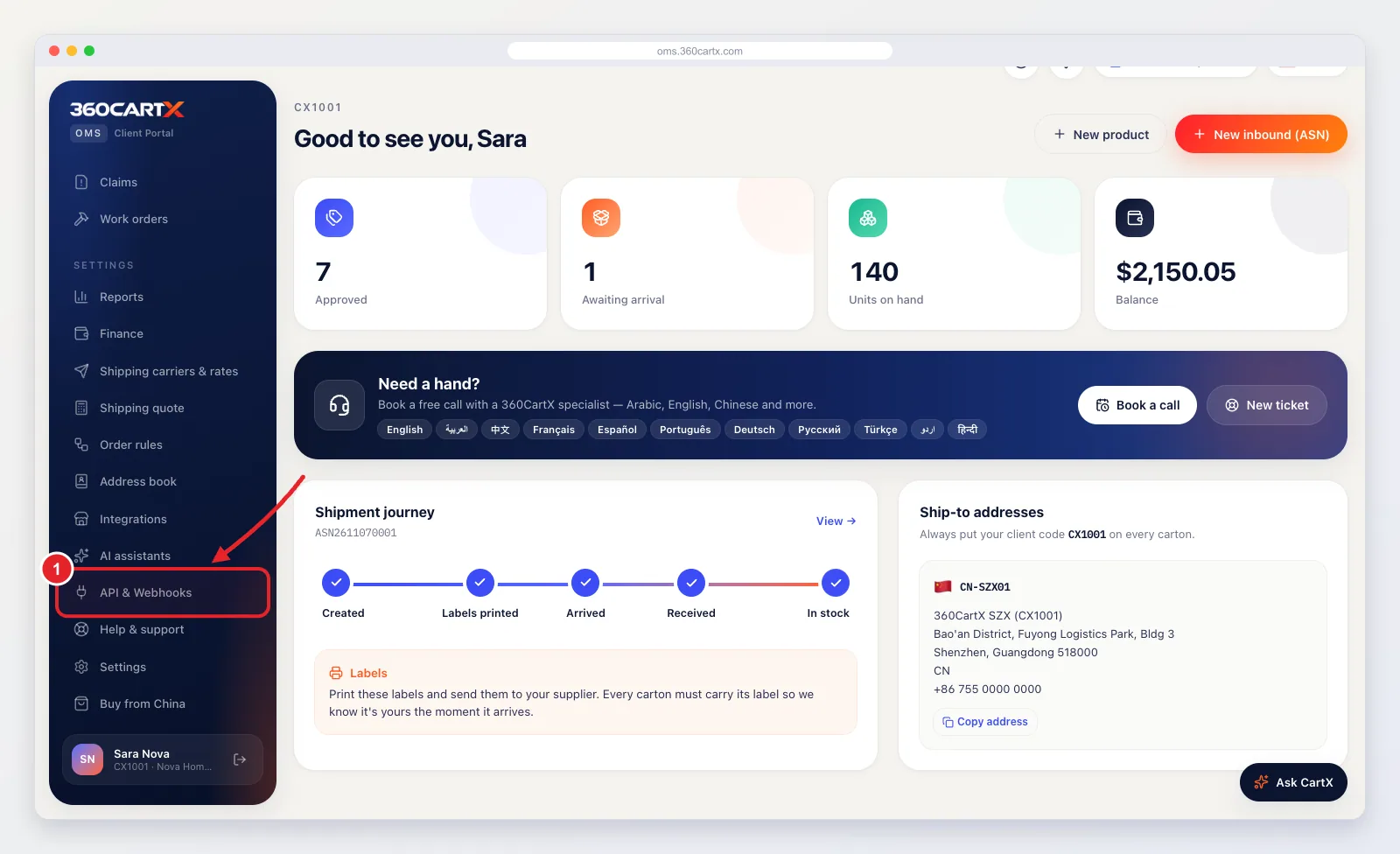
Open API & Webhooks
In the left menu, under the last group, click API & Webhooks. The page subtitle says it is for custom-coded sites, ERPs and apps: send orders to us and get tracking back automatically. Everyone who can open the page sees the keys list, but creating or revoking a key needs the Owner or Admin role.
- 2
Know the page
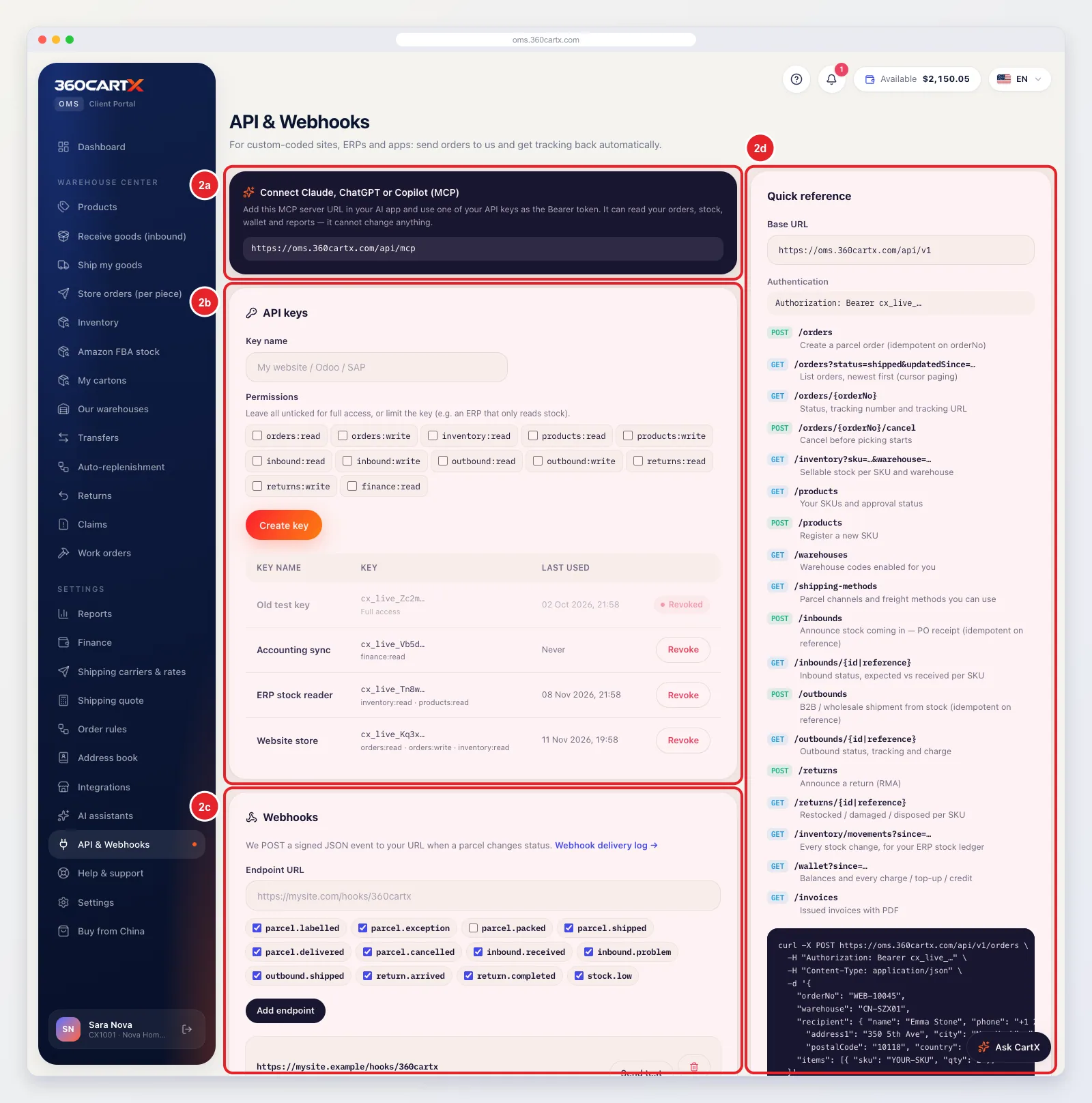
The page has four parts. The dark card at the top gives the address of the MCP server for AI apps (see Use the MCP server). API keys is where you make and revoke keys. Webhooks is where you tell us where to send events. The Quick reference box on the right lists the API address, the endpoints and examples (see API quick reference).
- 2a MCP server address
- 2b API keys
- 2c Webhooks
- 2d Quick reference
- 3
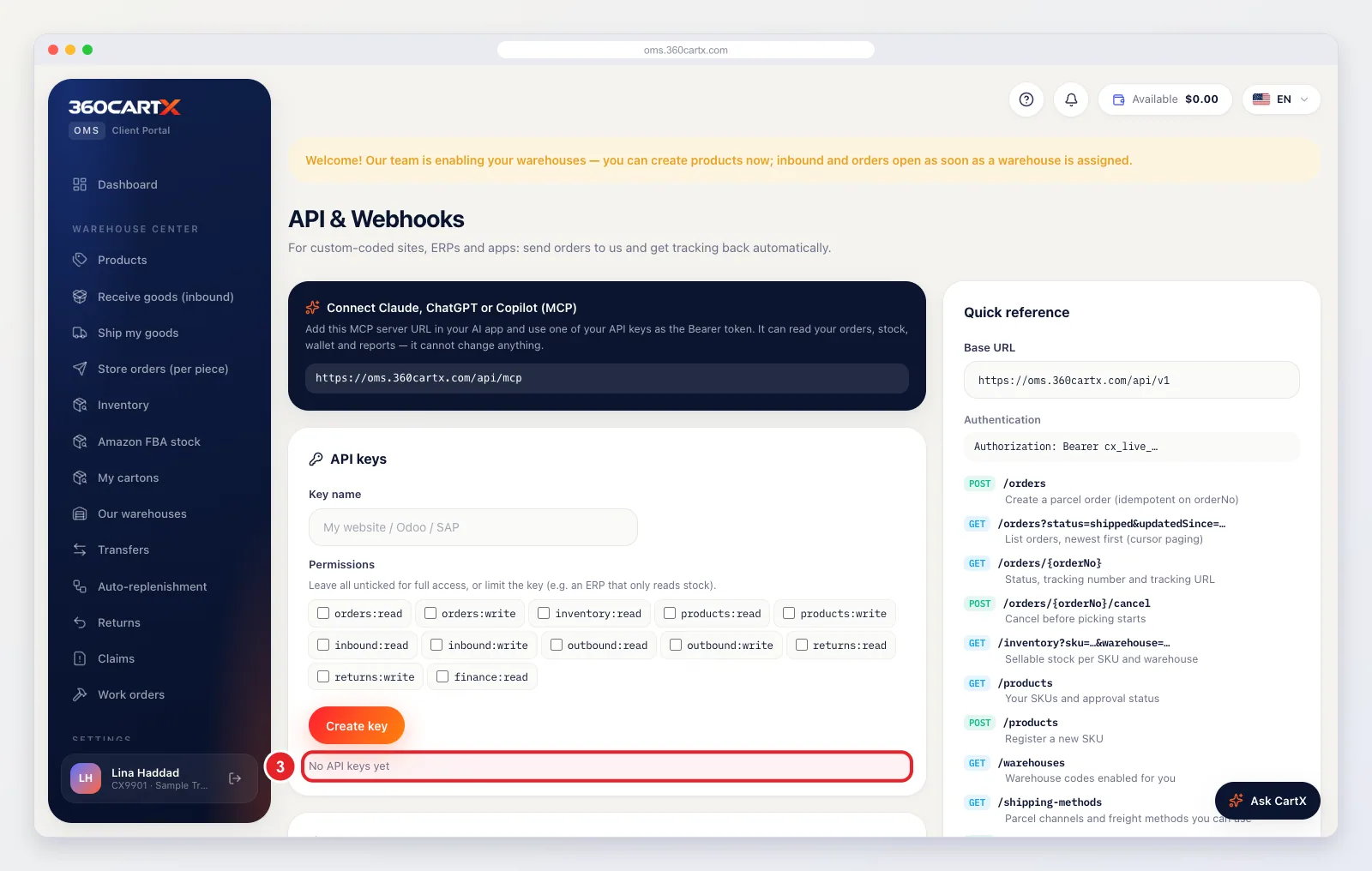
Start from an empty list
A new account has no keys yet and the list says No API keys yet. You can have at most 10 active keys, so give each system its own key: one for your website, one for your ERP and so on. If one system is compromised you revoke only its key.
- 4
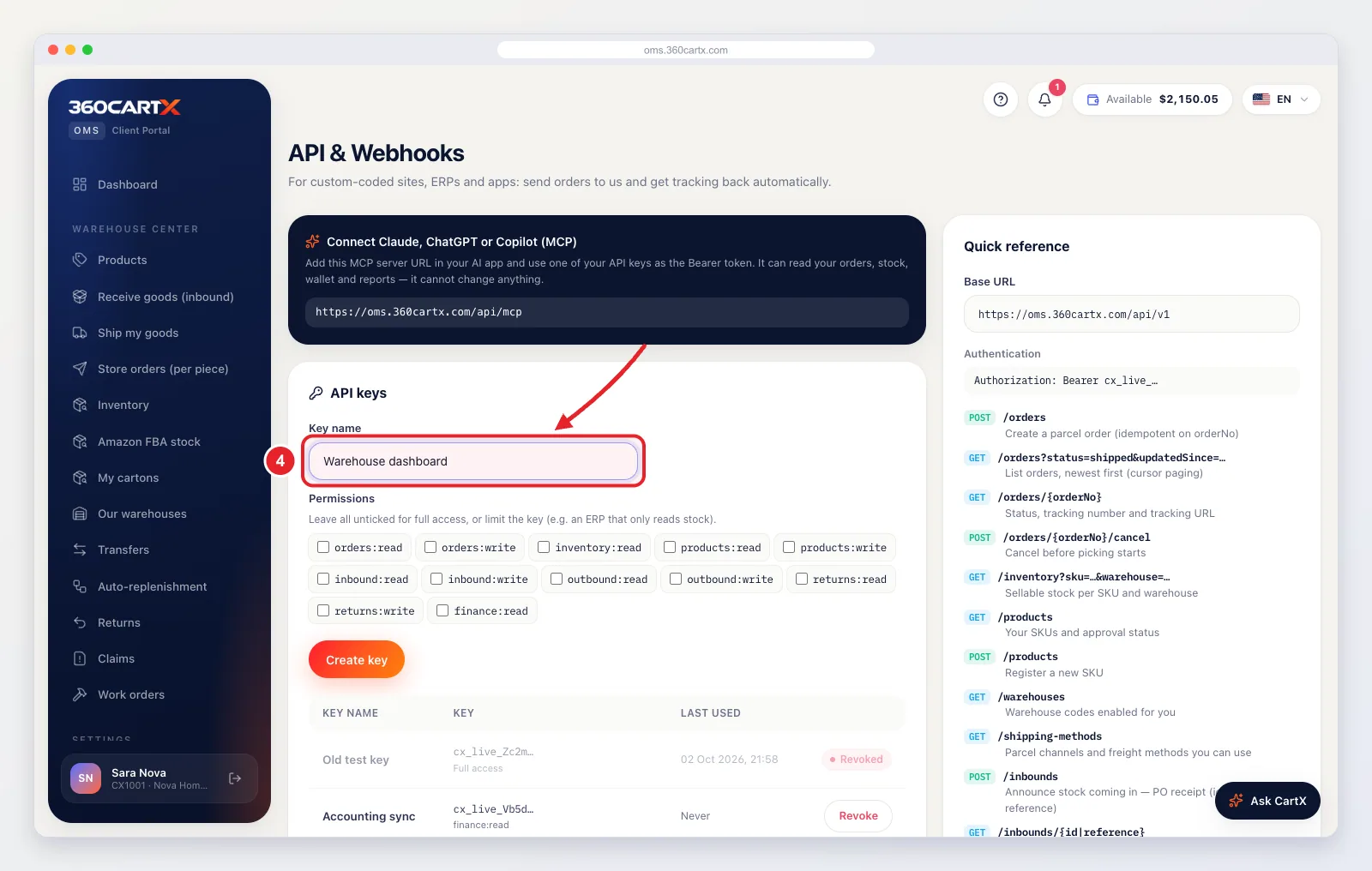
Name the key
Type a Key name, up to 60 characters. The field suggests My website / Odoo / SAP. The name is only for you: it shows in the keys list and tells you later which system uses the key. In this example the key is called Warehouse dashboard.
- 5
If the name is empty
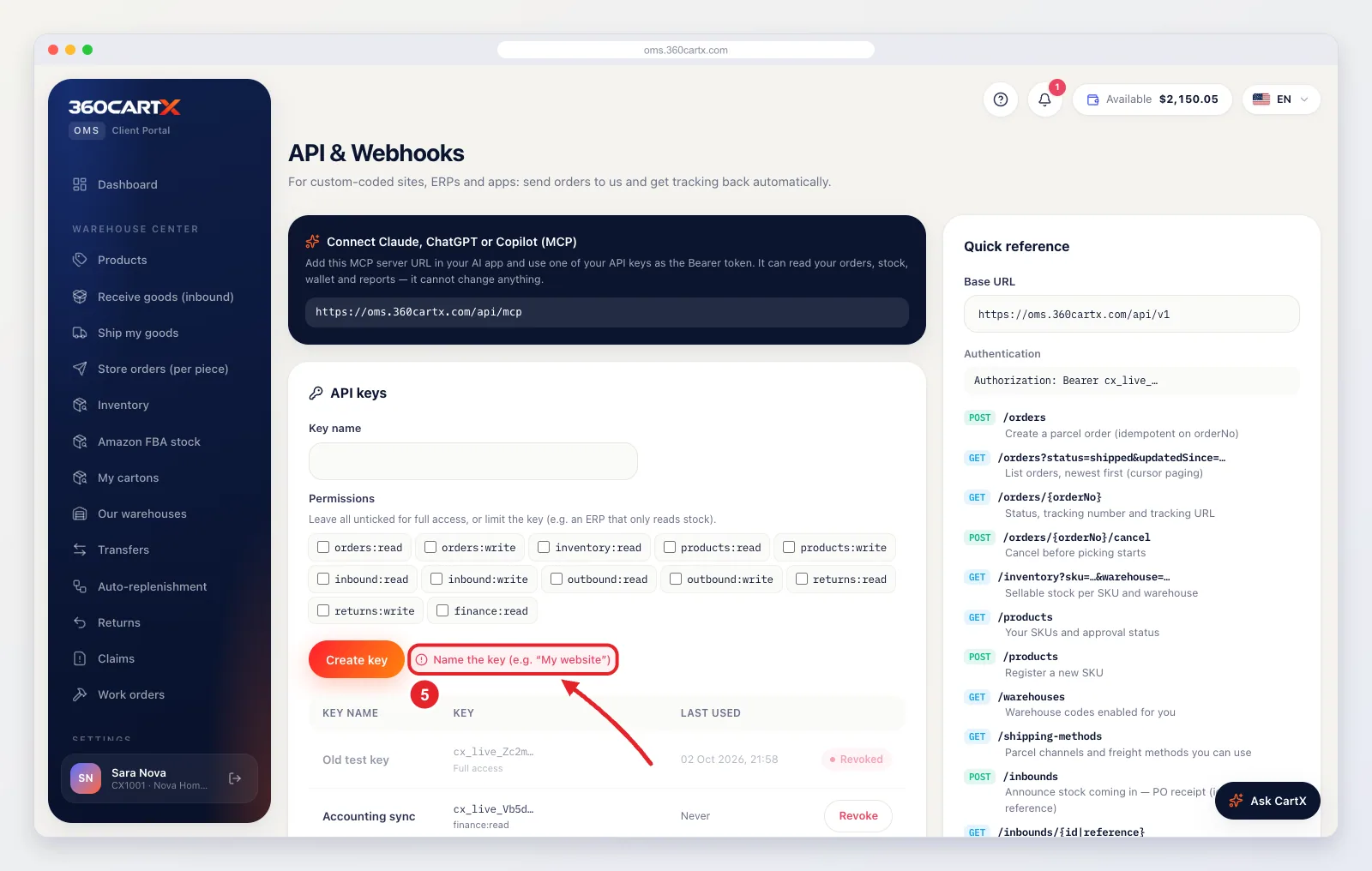
A name made of spaces is refused with Name the key (e.g. “My website”), shown in red next to the Create key button. Type a real name and try again.
- 6
Choose the permissions
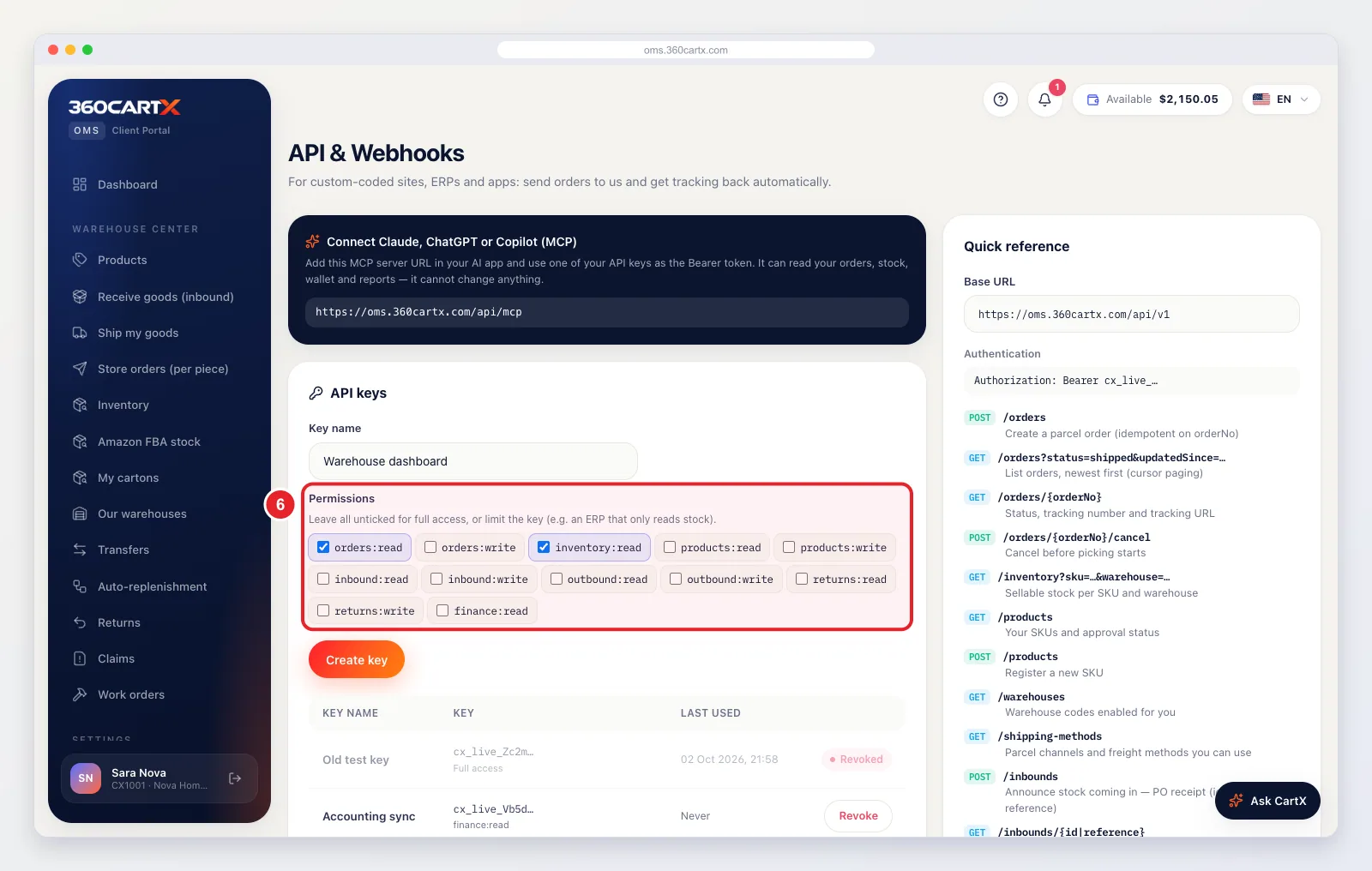
Under Permissions, tick what the key may do. The hint says: leave all unticked for full access, or limit the key, for example an ERP that only reads stock. The choices are orders:read, orders:write, inventory:read, products:read, products:write, inbound:read, inbound:write, outbound:read, outbound:write, returns:read, returns:write and finance:read. The word before the colon is the area, read lets the key look, write lets it create or cancel. This example ticks orders:read and inventory:read, so the key can read orders and stock and change nothing.
- 7
Create the key and copy it now
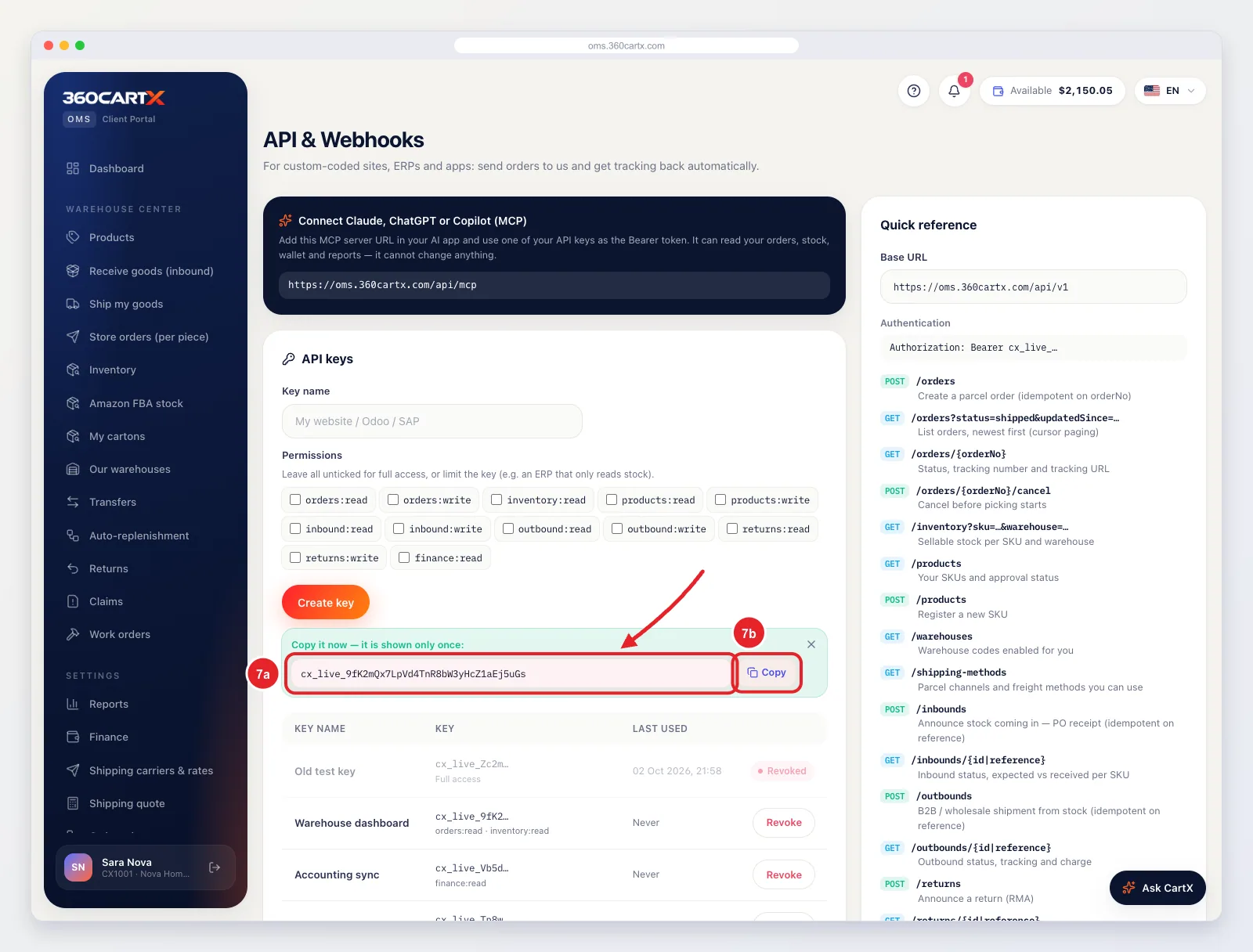
Click Create key. A green box appears with the full key, which starts with cx_live_, a Copy button and a close button. It tells you to copy the key now because it is shown only once. We store only a one-way fingerprint of the key, so nobody, including our staff, can show it to you again. Click Copy and paste the key into a safe place such as your password manager or the settings of your system. The values in this screenshot are fake.
- 7a The key, shown once
- 7b Copy
- 8
Read the keys list
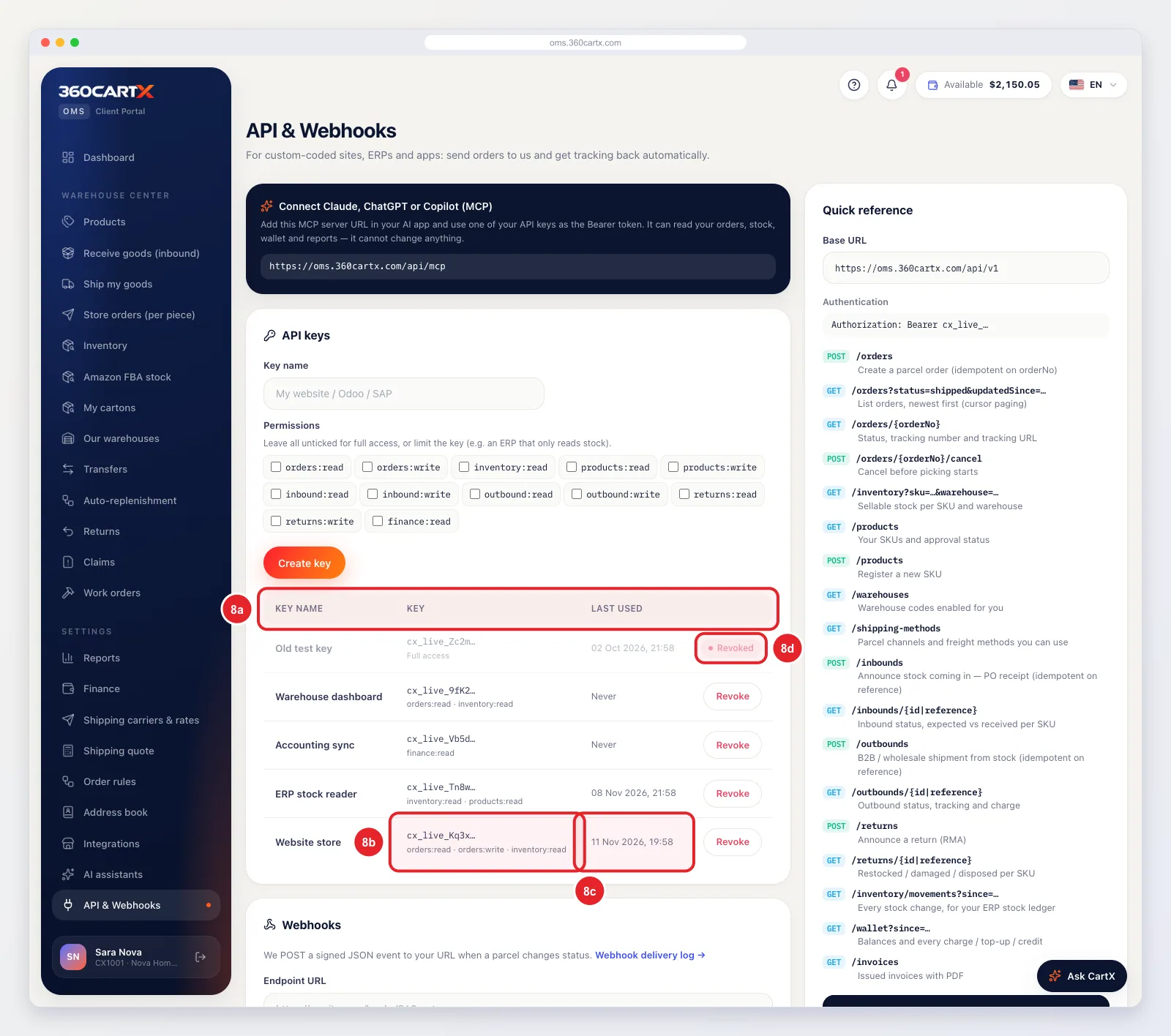
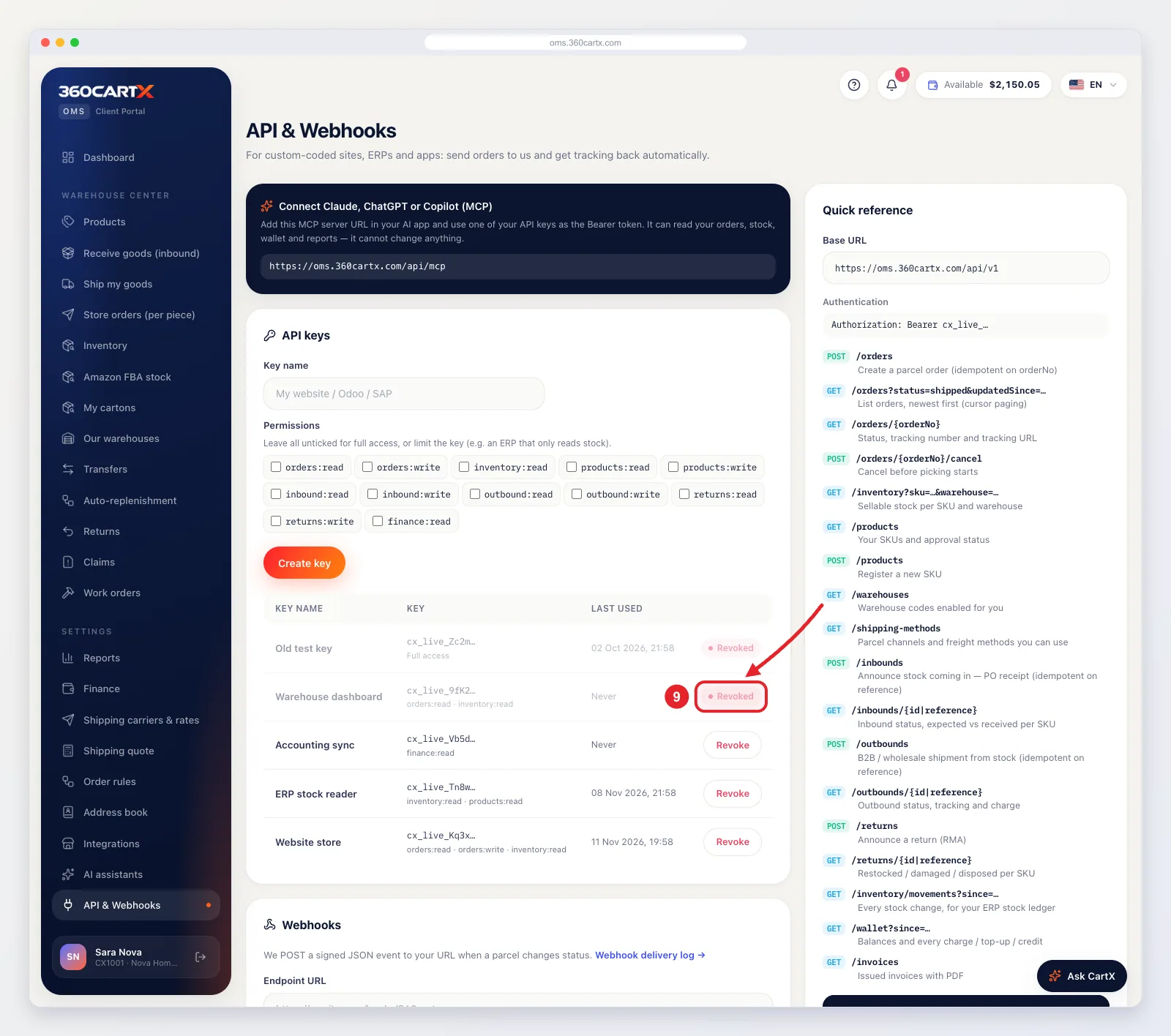
Each key is one row. The column Key name is the name you chose. The column Key shows the first characters of the key (for example cx_live_Kq3x…) and under it the permissions, or Full access when none were ticked. Last used shows the date and time of the last request that used the key, or Never; it is refreshed at most once a minute. A revoked key stays in the list with a red Revoked badge and faded text, and its row has no Revoke button.
- 8a Columns
- 8b Key and permissions
- 8c Last used
- 8d Revoked badge
- 9
Revoke a key
Click Revoke at the end of the row. There is no confirmation question: the key stops working at once, and the next request with it gets the answer 401 Invalid or revoked API key. Use it when a key leaked, when a developer leaves, or when a system is retired. A revoked key cannot be turned on again; create a new one instead.
Tips
- Give each system its own key and the fewest permissions it needs. An ERP that only reads stock should have inventory:read and nothing else.
- Never put a key in the code of a web page or a mobile app that your customers can open. Keep it on your server.
- To replace a key without downtime: create the new key, change your system to use it, check Last used on the new key, then revoke the old one.
- Revoking frees a place: the limit of 10 counts only active keys.
- A request the key is not allowed to make gets the answer 403, for example This API key does not have the orders:write permission. The text names the permission that is missing.
Common problems
Max 10 active keys
You already have 10 keys that are not revoked. Revoke the ones you no longer use, then create the new key.
Your role can't do this
Only the Owner and Admin roles can create or revoke keys. Ask the account owner to do it or to change your role.
I closed the box before copying the key
The key cannot be shown again. Revoke that key and create a new one.
401 Missing or malformed API key
The request had no key, or the key does not start with cx_live_. Send the header Authorization: Bearer cx_live_… exactly, with the word Bearer and a space.
401 Invalid or revoked API key
The key was revoked or mistyped, or the account is not active. Check the list on this page and create a new key if needed.
The key is in the list but Last used says Never
No request has used it yet. Check that your system sends the key and uses the address from the Quick reference box.
Related articles
Updated 2026-11-11
Open a ticket from Support in your portal and our team will reply.