Steps
- 1
Find the Ask CartX button
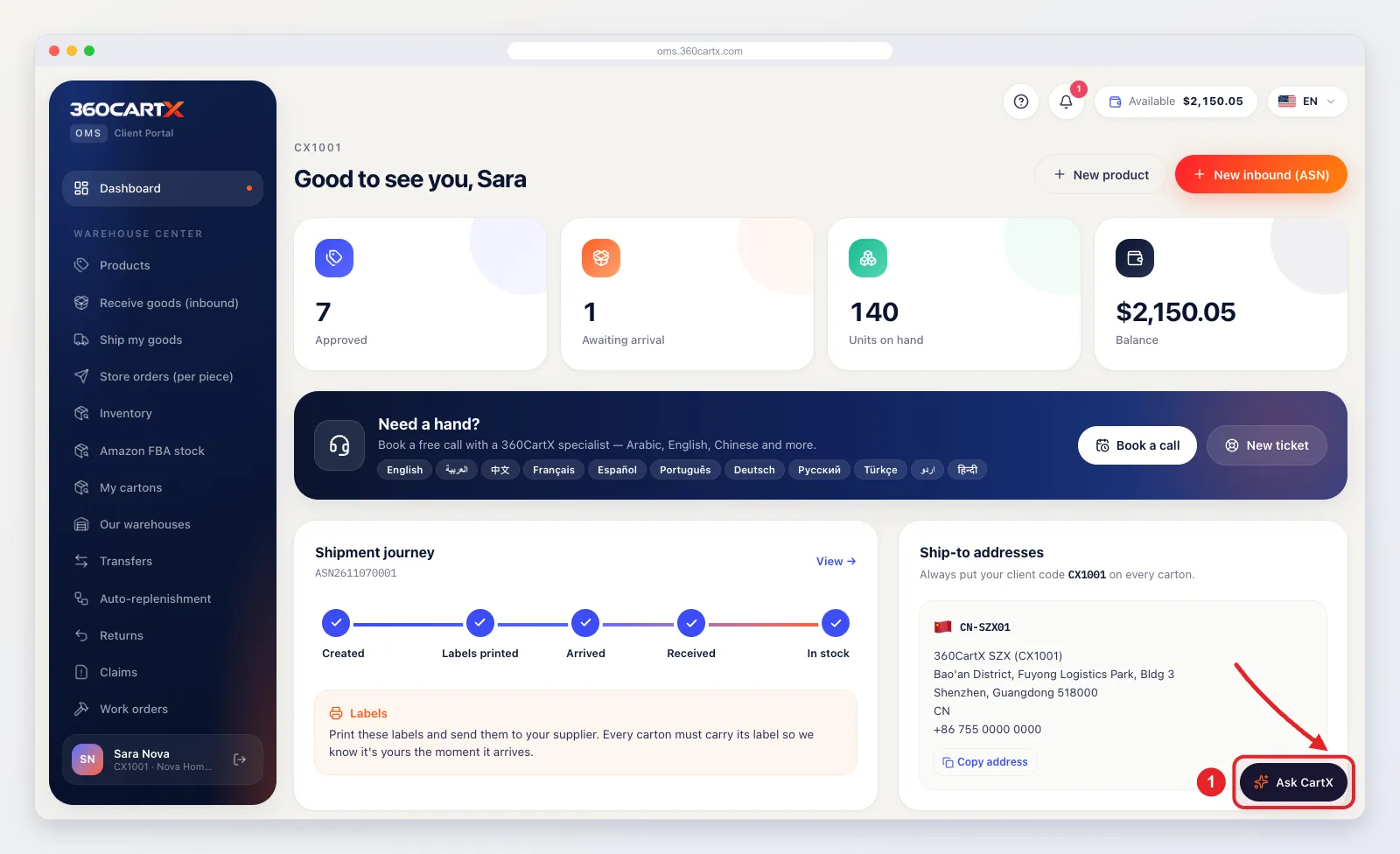
At the bottom right corner of every portal page there is a dark round button with a sparkle and the words Ask CartX. Click it to open the assistant and click it again to close it.
- 2
Open the assistant
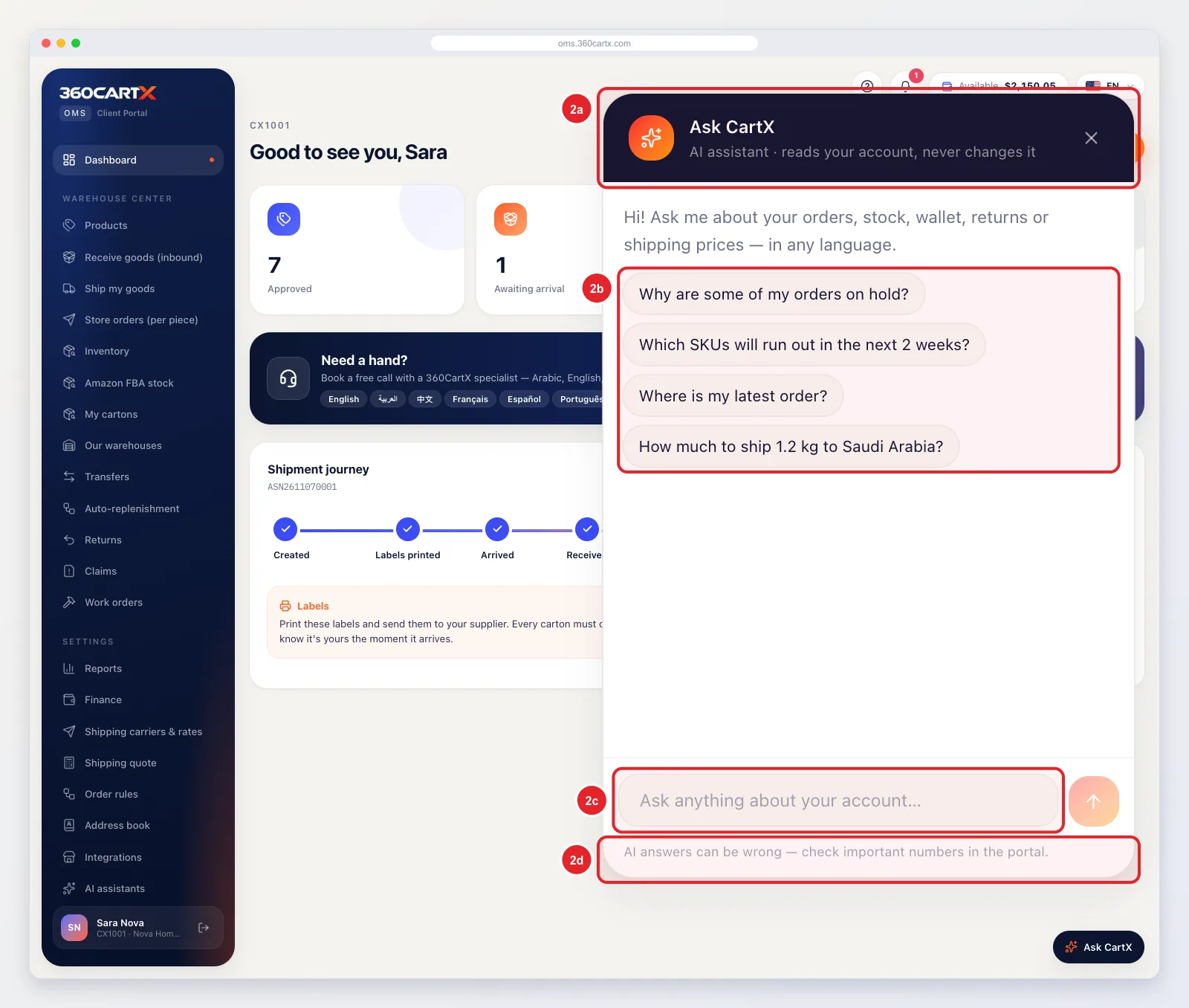
A panel opens above the button. Its title bar says Ask CartX and, under it, AI assistant · reads your account, never changes it; the X closes the panel. The first screen gives a greeting and four suggestions: Why are some of my orders on hold? Which SKUs will run out in the next 2 weeks? Where is my latest order? How much to ship 1.2 kg to Saudi Arabia? Click one to ask it at once. Or type your own question in the box that says Ask anything about your account… and press Enter (Shift and Enter start a new line), or click the round arrow button. At the bottom, a small note says that AI answers can be wrong and that you should check important numbers in the portal.
- 2a Title
- 2b Suggestions
- 2c Question box
- 2d Warning note
- 3
What you can ask
Ask CartX can look up: an overview of your account (wallet and what can be spent, store orders by status, orders that are blocked and why, open returns, claims and work orders, low-stock SKUs); orders by our PO number, your order number, tracking number or the buyer's name, with their items, carrier, cost and latest tracking events; stock per SKU and warehouse (on hand, reserved, available, defective); recent returns, claims, work orders and inbound shipments; the latest wallet movements; the price of shipping one parcel to a country by weight and size; and reports such as the on-time shipping rate, stock cover per SKU, out-of-stock SKUs and parcels stuck in transit. You can write in any language and it answers in the language you used.
- 4
Read the answer
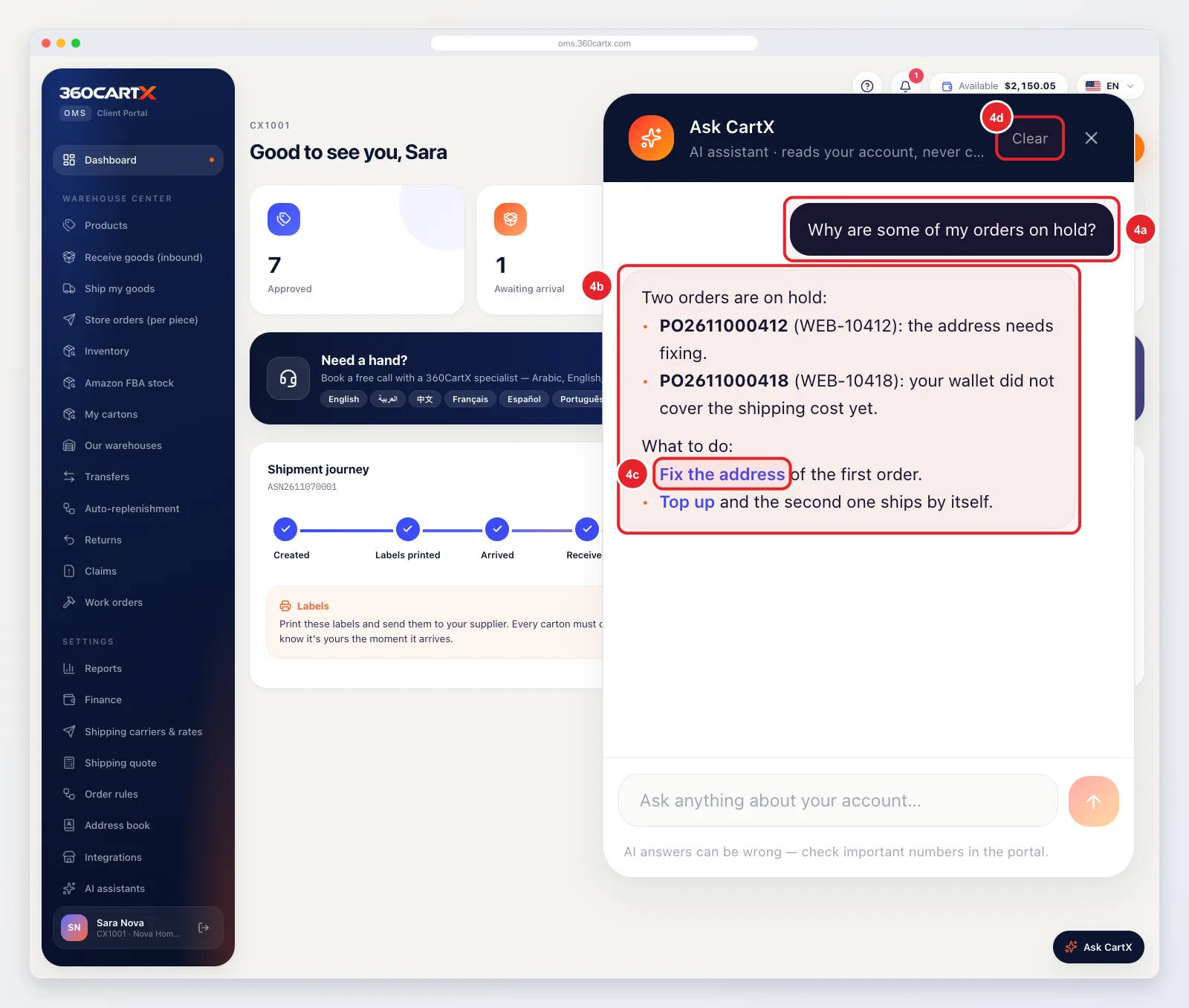
While it looks things up you see Looking it up…. The answer comes in a grey bubble under your question, with the answer first and then the next step. Words in bold are the important values, such as order numbers. Blue links open the right portal page, for example the orders list or Add funds. Because it cannot act, it points you to the page where you do the action yourself. Click Clear in the title bar to empty the conversation.
- 4a Your question
- 4b The answer
- 4c A link to the portal page
- 4d Clear
- 5
How long the conversation stays
The conversation you see on screen is kept in your browser tab only, so it is still there when you open another portal page. It is gone when you close the tab or click Clear. The last 30 messages are kept, and the assistant is given the last 12 of them as context for your next question, so you can ask follow-ups such as And which of them is oldest?
- 6
Limits
Your account can ask 80 questions in any 24 hours, counted for the whole account. After that the assistant says You reached today's limit of 80 questions and that it resets within 24 hours. A question can have up to 2000 characters. If the assistant has not been switched on for the system yet, it answers that it is being set up and will be available soon. If something fails you see Something went wrong, try again. If a request is one it cannot help with, it sends you to a new support ticket.
Tips
- Be specific: a PO number, a SKU or a country gets a better answer than a general question.
- Always check important numbers in the portal, as the note says. The assistant reads the same data as the portal, but it can misread a question.
- To do things by voice or chat, such as creating products or orders, connect ChatGPT or Claude (see Connect ChatGPT or Claude).
- For a decision that needs a person, such as a damaged shipment or a special price, open a support ticket or book a call.
Common problems
The button is not there
Ask CartX is not shown while staff preview your account. For you it is on every portal page; if you use a very small window it still sits at the bottom right.
The assistant is being set up
The assistant is not switched on in the system yet. Try again later, or use the portal pages directly.
You reached today's limit of 80 questions
Your account used all 80 questions of the last 24 hours. It starts working again within 24 hours of the first question.
Something went wrong, try again
The assistant could not answer this time. Ask again, or shorten the question.
The answer does not match what I see
Tell it the exact number or SKU and ask again. If it still differs, trust the portal page and contact support.
Related articles
Updated 2026-11-11
Open a ticket from Support in your portal and our team will reply.