Steps
- 1
Enter your email and password, then Sign in
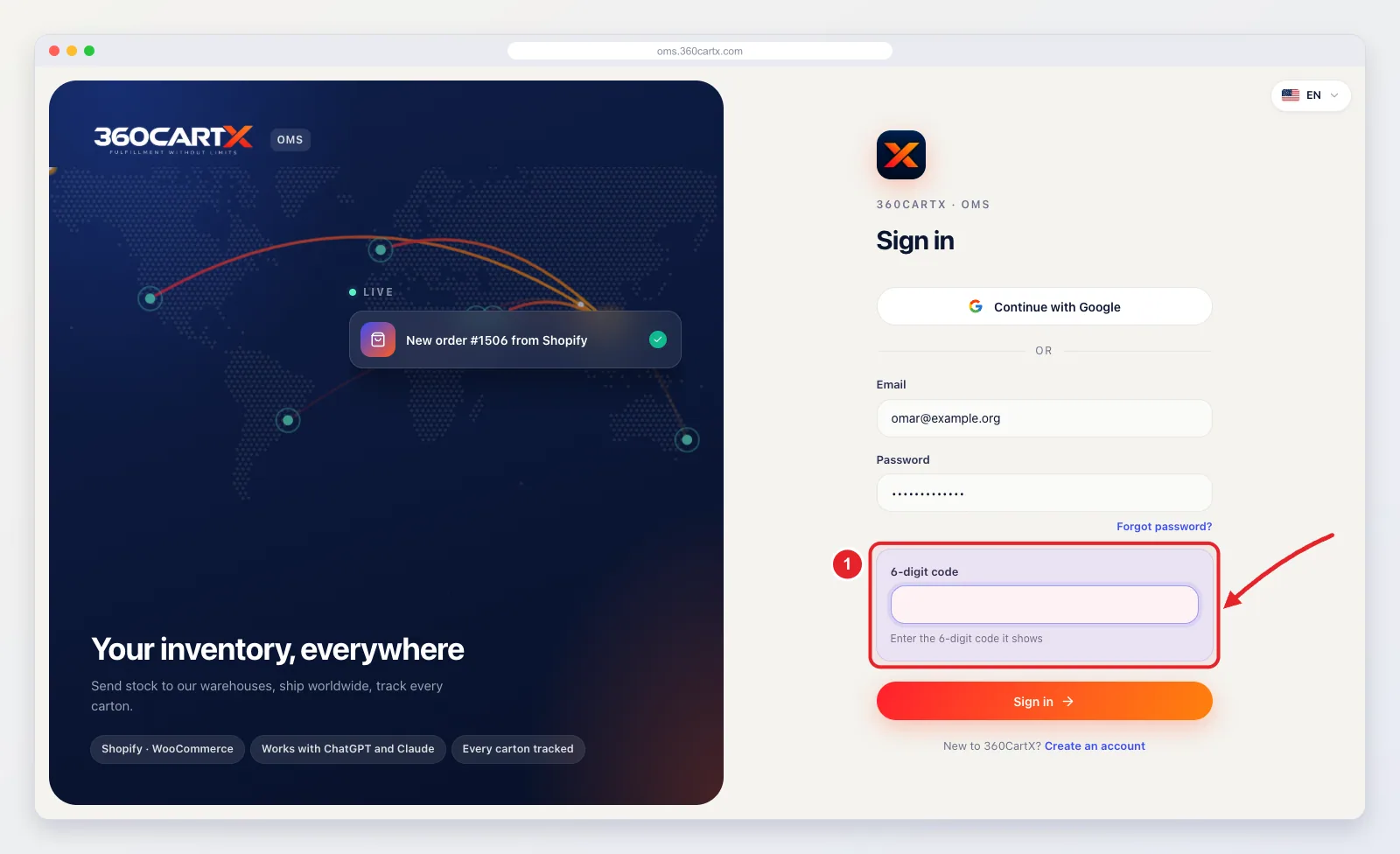
Sign in as usual. Because your account uses two-step sign-in, a blue box appears under the password: 6-digit code, with the hint Enter the 6-digit code it shows.
- 2
Type the code from your app and click Sign in
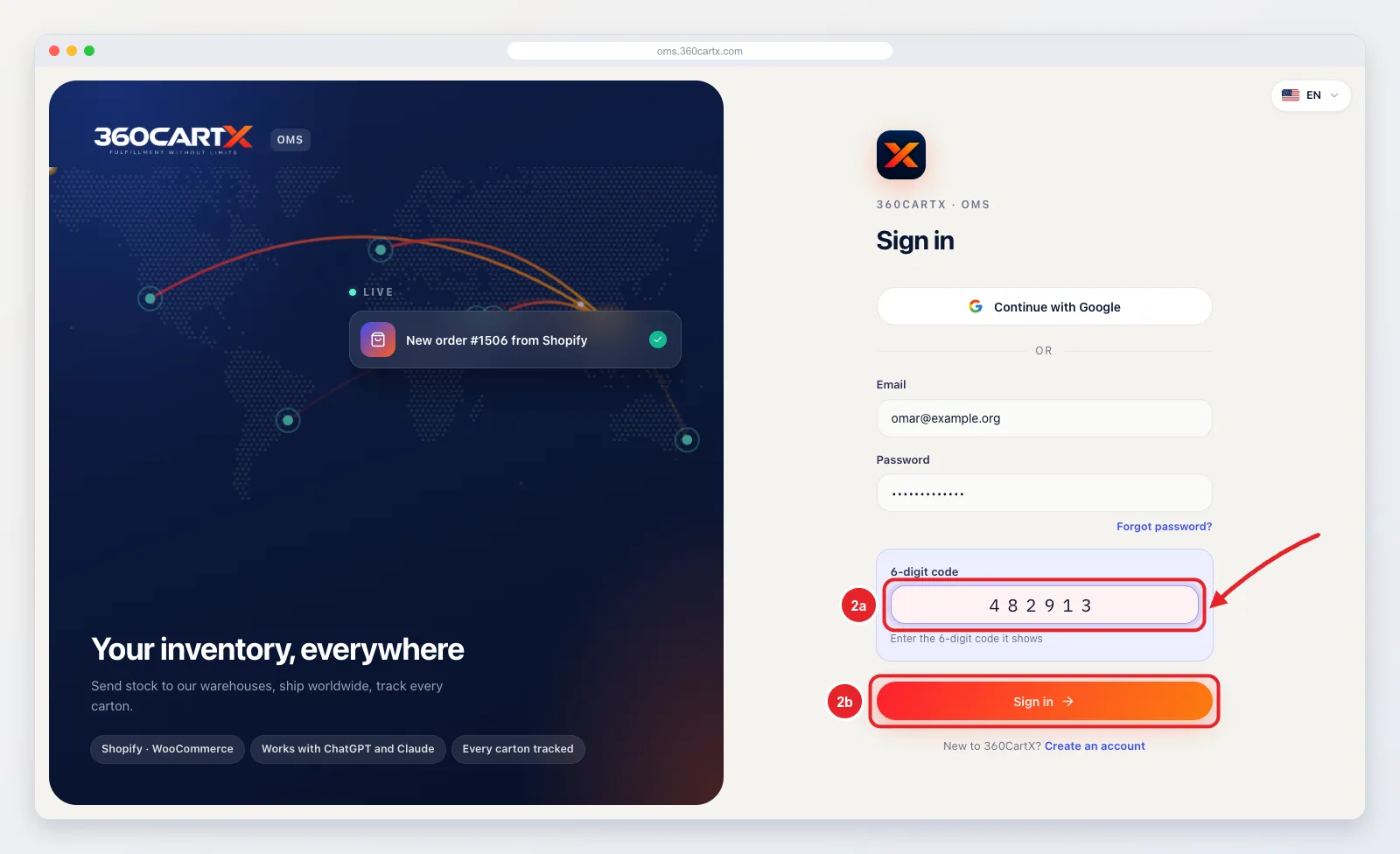
Open your authenticator app, find 360CartX and type the 6 digits it shows now, for example 482913 (no spaces). Click Sign in. If the code changes while you type, use the new one.
- 2a 6-digit code
- 2b Sign in
- 3
If your company requires it, turn it on
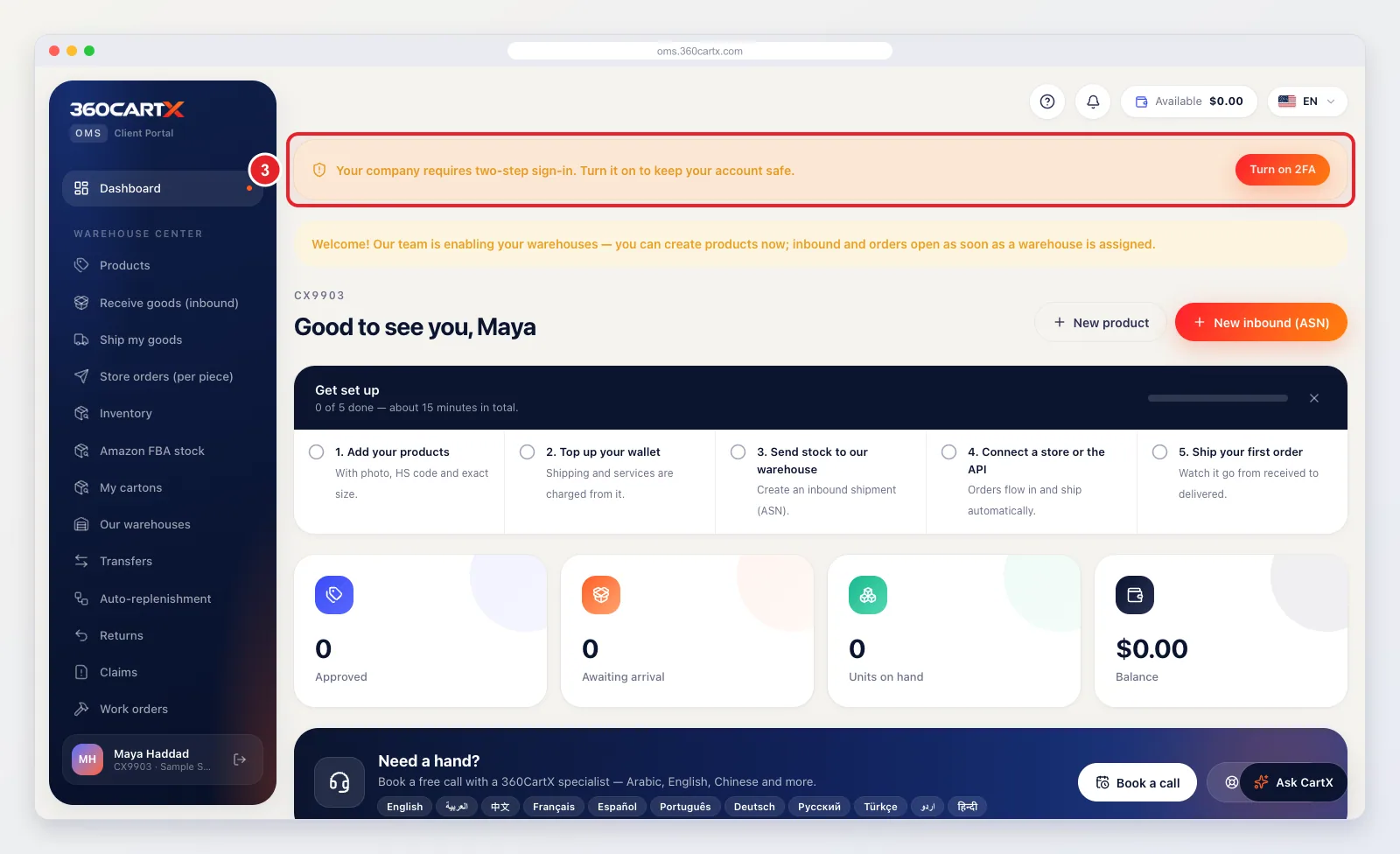
An account owner can require two-step sign-in for the whole team. Until you set it up, every page shows: Your company requires two-step sign-in. Turn it on to keep your account safe. Click Turn on 2FA in that message: it opens Settings → Security, where you scan the QR code with your app and confirm with a code.
Tips
- Keep your phone's time set automatically: codes are based on the clock, and a wrong time makes every code fail.
- Got a new phone? Move your authenticator accounts before you reset the old phone. If you lost it, contact support to turn two-step sign-in off for your login.
- Signing in with Google? The same code is asked after Google.
Common problems
That code is not right — use the newest one from your app.
The code was old or mistyped. Wait for a fresh code and type it at once. If every code fails, check that your phone's time is set automatically.
Too many attempts. Try again in … min.
After 5 wrong codes the sign-in is paused for up to 15 minutes. Wait, then try again with a fresh code.
I do not see 360CartX in my authenticator app
Two-step sign-in was set up on another phone or app. Ask your account owner or contact support to reset it for your login.
Related articles
Updated 2026-11-09
Open a ticket from Support in your portal and our team will reply.