Steps
- 1
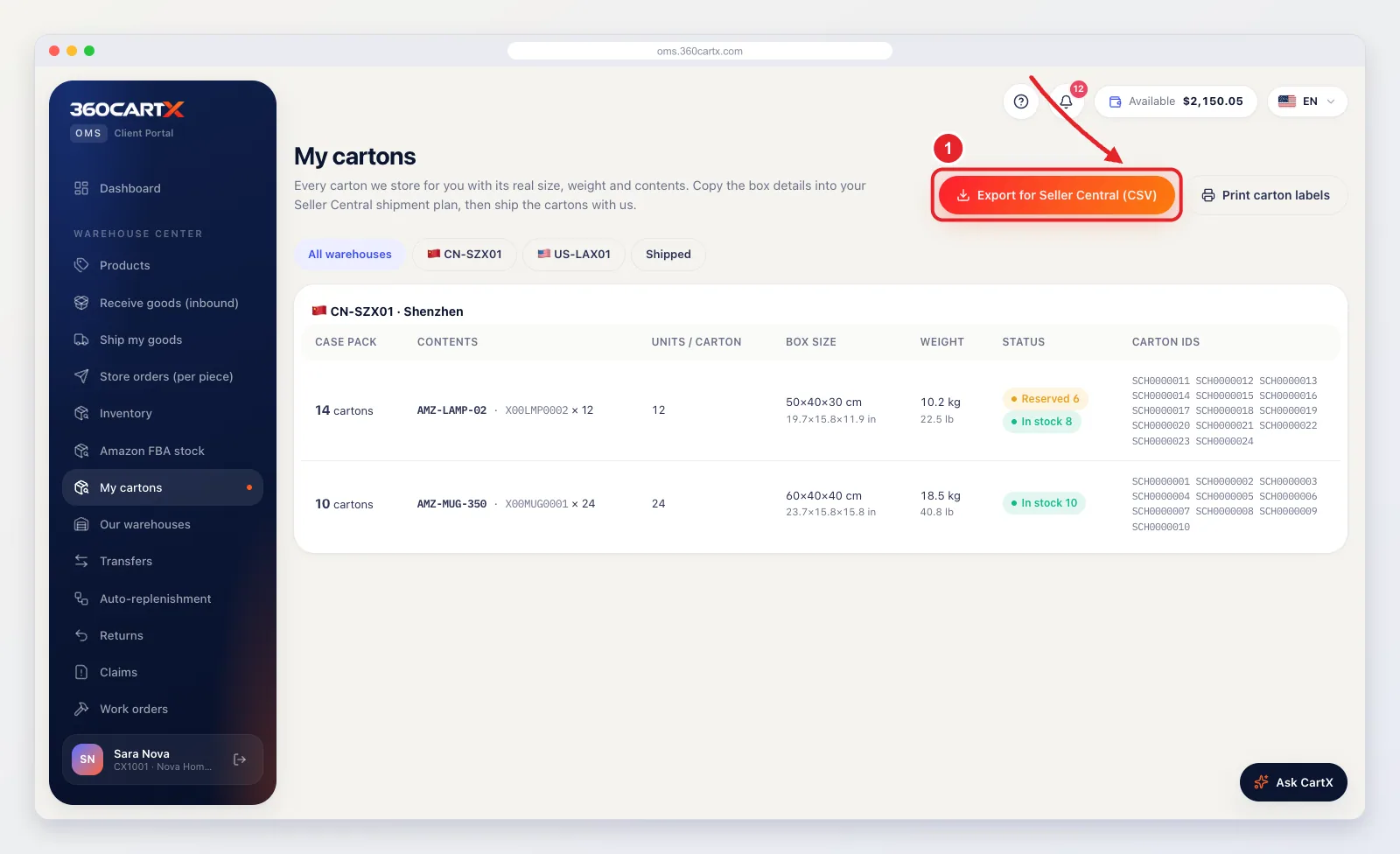
Click Export for Seller Central (CSV)
On My cartons click Export for Seller Central (CSV) at the top right. A file named 360cartx-cartons-2026-11-11.csv (with today's date) is downloaded.
- 2
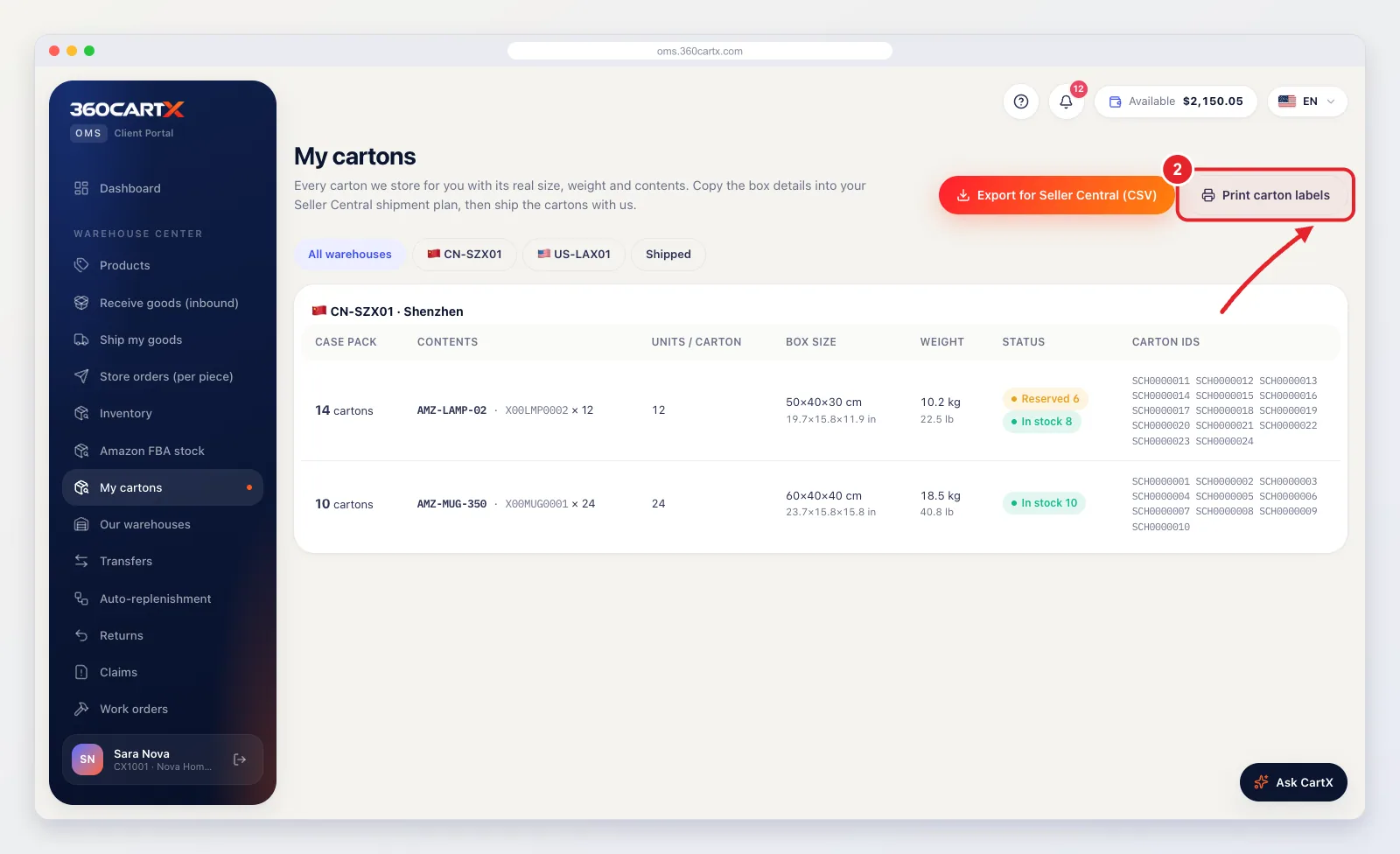
Export one warehouse only
Choose a warehouse button first and then export: the file only has the cartons of that warehouse. The export takes only the cartons that are In stock; the Shipped filter and Reserved cartons are not included, so reserved cartons are not offered twice.
- 3
What is in the file
One row per case pack and product: the SKU, the FNSKU, the packing type (Case-packed, or Mixed box when a carton holds several products), the units per box, the number of boxes and the total units, then the box length, width and height and the weight in inches and pounds, then in centimetres and kilograms, and finally the carton IDs. The file opens in Excel with the right characters.
- 4
Use it in Send to Amazon
In Seller Central, in the packing step, choose to enter box information per product and type or paste the numbers from the file. Then create the shipping plan, take the Shipment ID and the box labels and create the ship-out request. See Shipment details: the Amazon shipping plan.
Terms in this article
Tips
- Use the same box numbers in Seller Central as in the file: our carton labels, the real weight and the plan must agree or Amazon may refuse the boxes.
- The button is hidden when you have no stored cartons.
Common problems
The file is empty or has fewer boxes than I expect
Reserved or shipped cartons are not in it. Cancel the request that reserved them to free them.
Related articles
Updated 2026-11-11
Open a ticket from Support in your portal and our team will reply.