Steps
- 1
Copy the box details into Seller Central
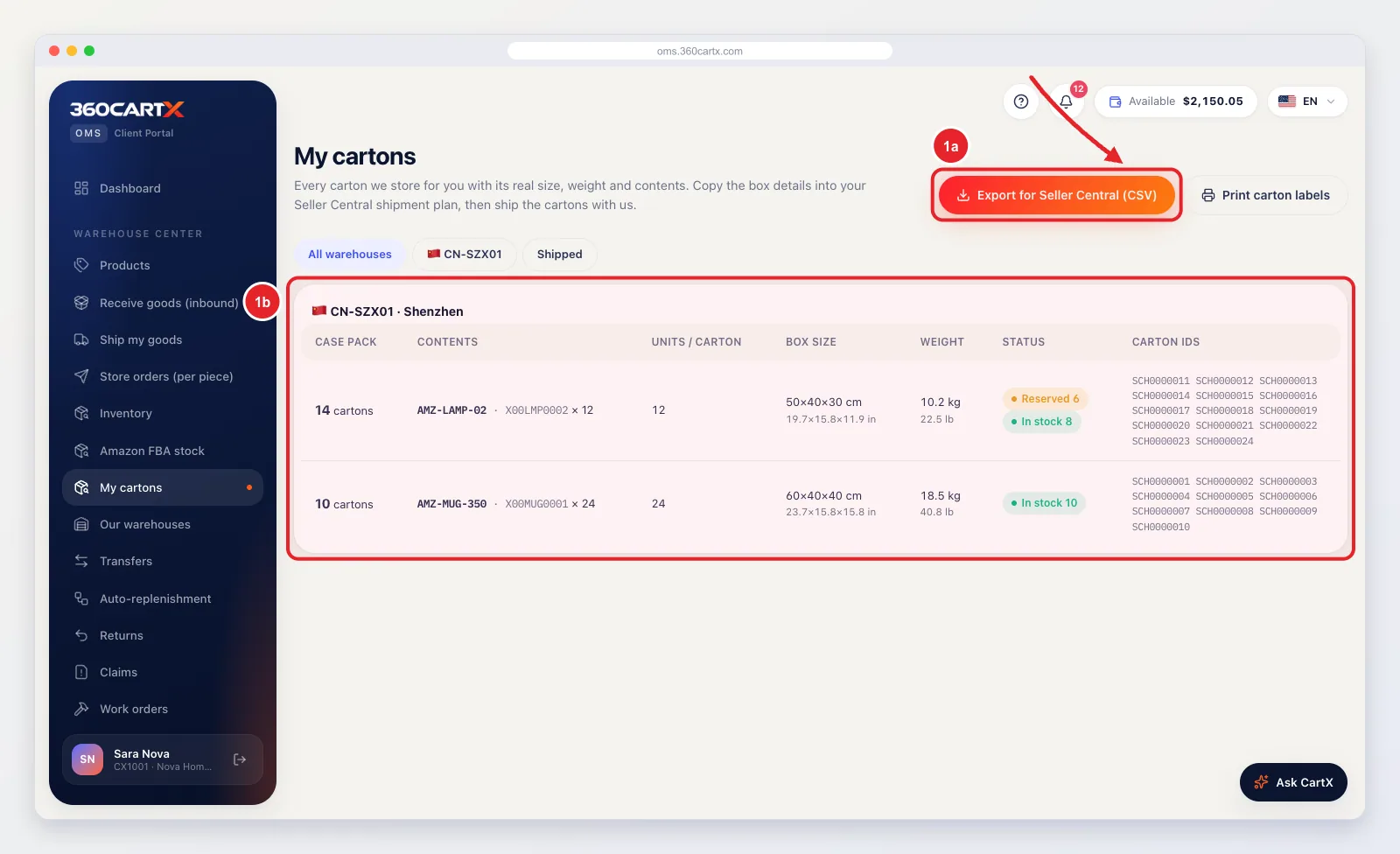
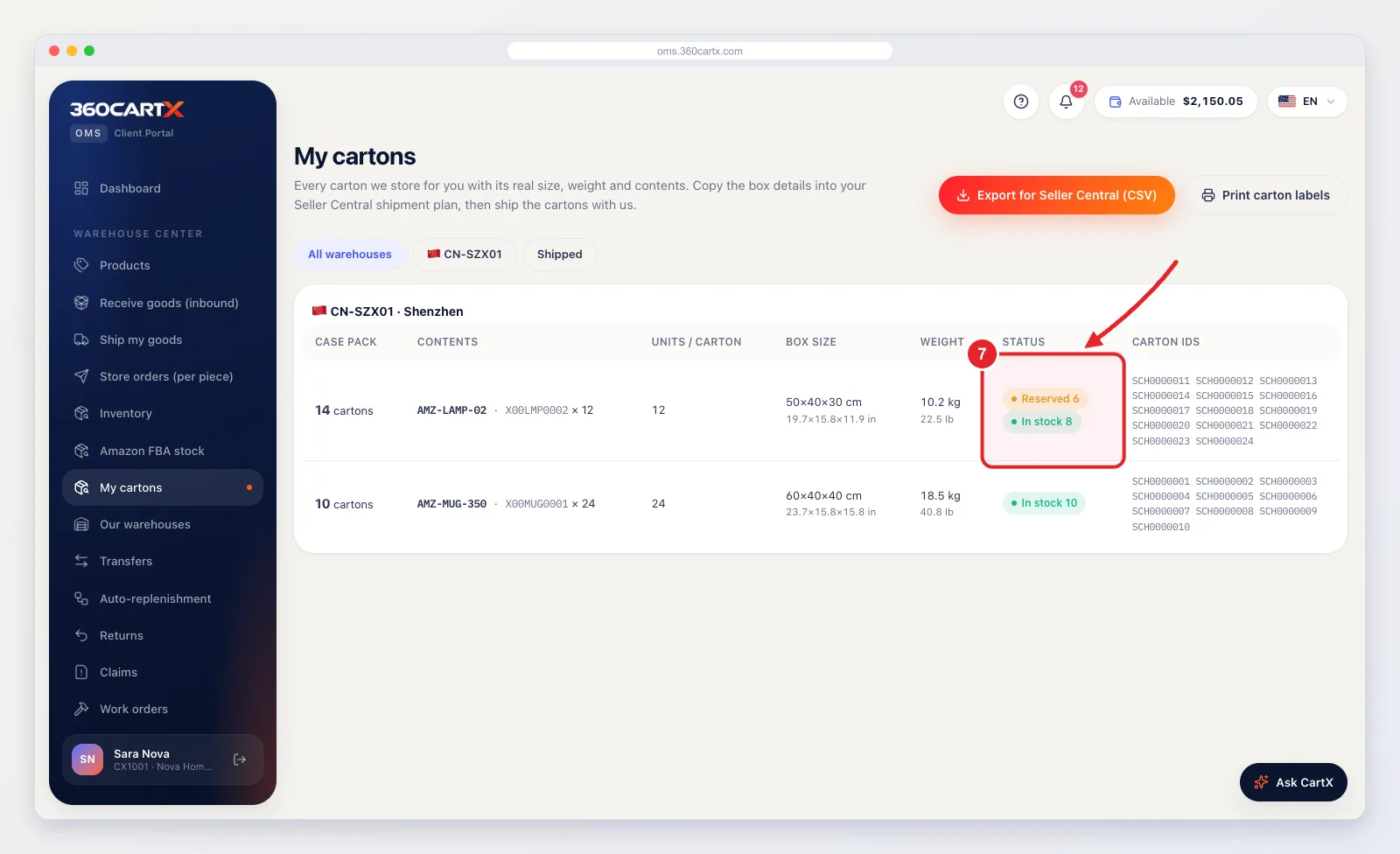
Open My cartons. Cartons with the same contents and size are grouped in a case pack: the number of cartons, the contents with the FNSKU, the units per carton, the box size and the weight in cm and kg and in inch and pound. Export for Seller Central (CSV) downloads the case packs in the layout of the box information step of Send to Amazon: units per box, number of boxes, size and weight. Use it to fill in your shipping plan.
- 1a Export for Seller Central (CSV)
- 1b Case packs
- 2
Choose Use my stored cartons
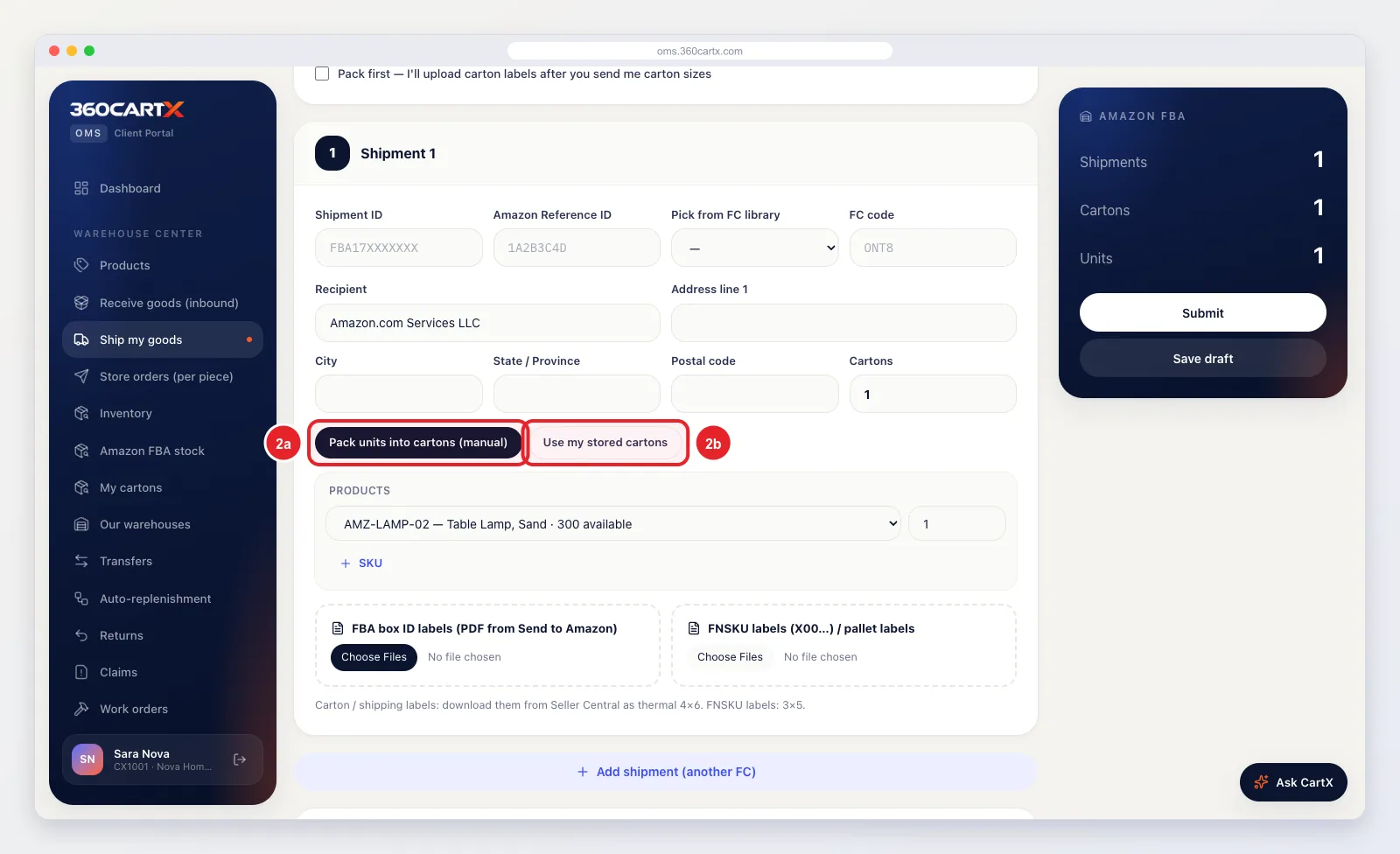
In the form, each Shipment block has two buttons: Pack units into cartons (manual), the usual way, and Use my stored cartons. Click the second one for the shipment that goes with stored cartons. You decide shipment by shipment.
- 2a Manual
- 2b Stored cartons
- 3
Pick the case packs
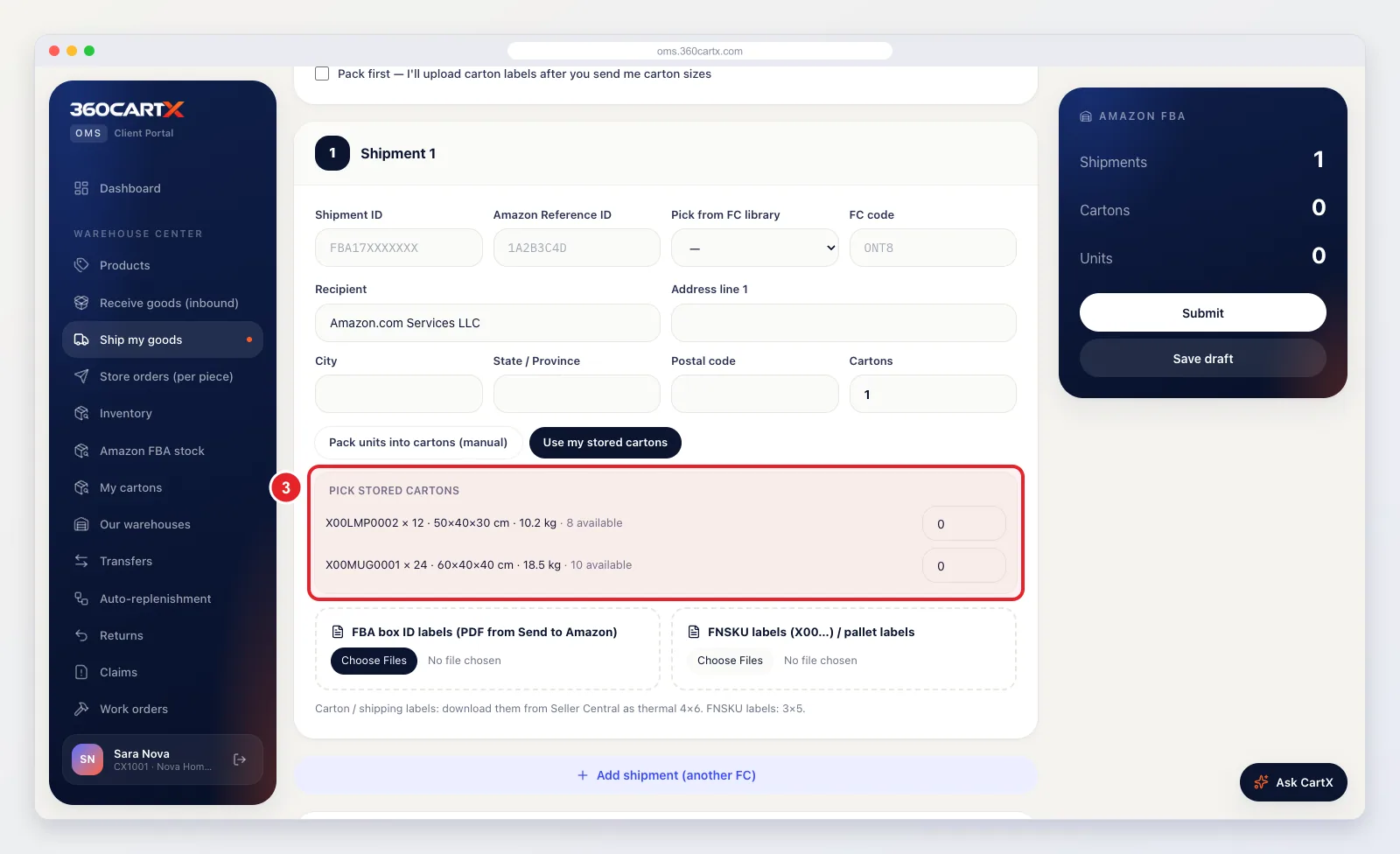
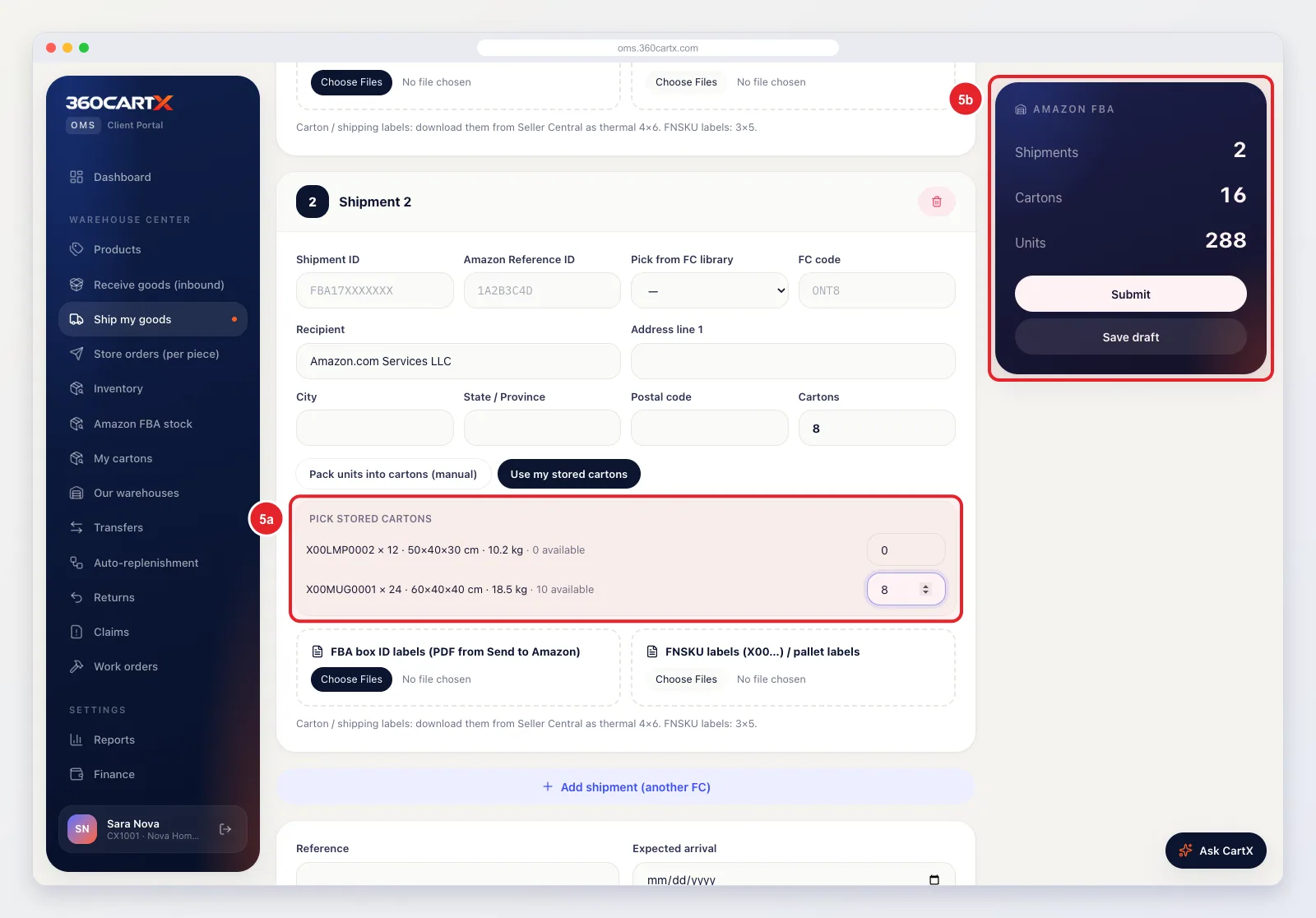
The block shows Pick stored cartons and a line for every case pack of the chosen warehouse: the contents, the box size and weight and how many cartons are available, for example X00MUG0001 × 24 · 60×40×40 cm · 18.5 kg · 10 available. If you have none there, it says No free stored cartons in this warehouse. The Products part is hidden because the contents come from the cartons.
- 4
Enter how many cartons to ship
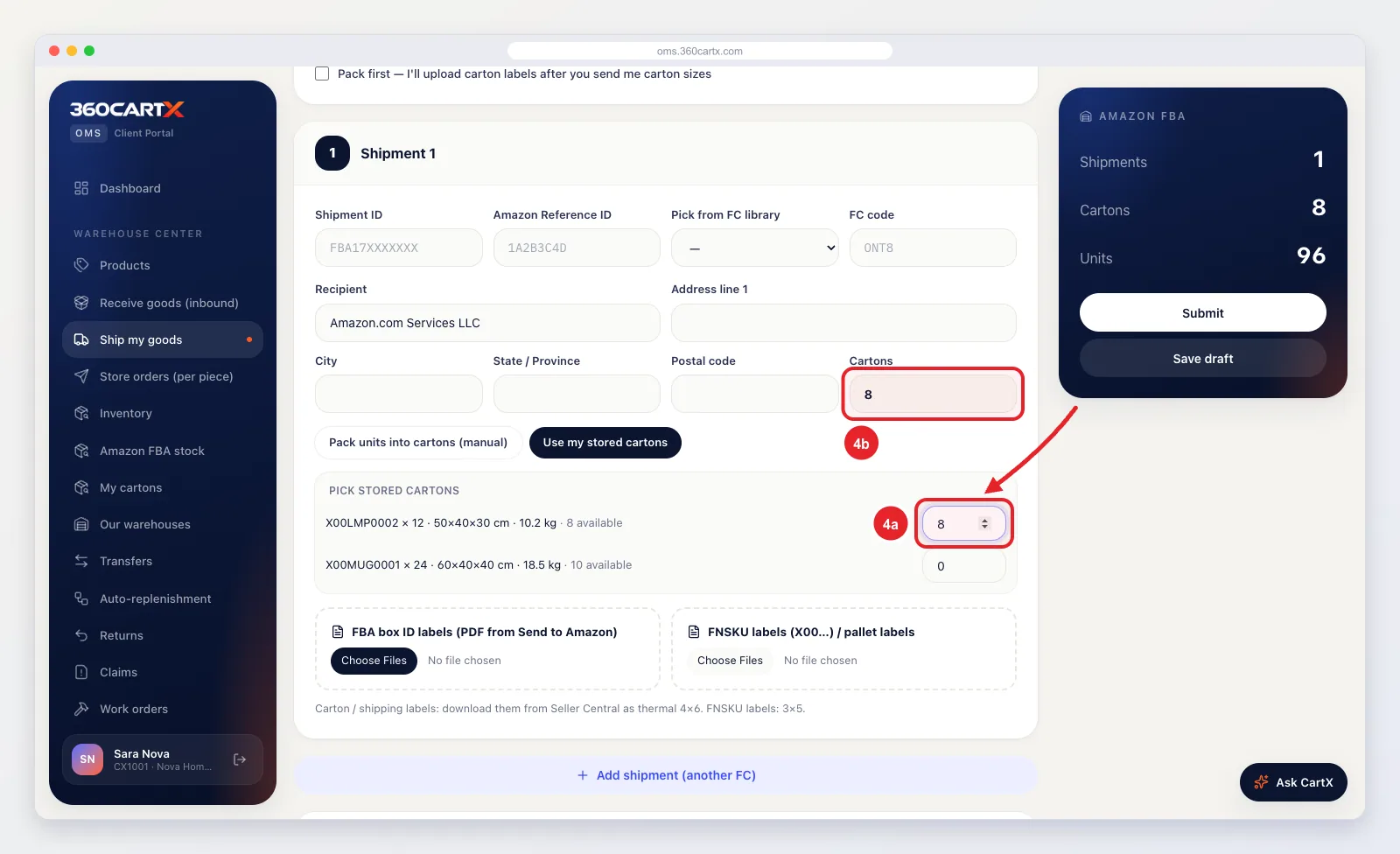
Next to each case pack type the number in Cartons to ship (not more than available), for example 10. The Cartons field of the shipment turns to the total and can no longer be changed, and the dark panel counts the units: 10 cartons of 24 mugs are 240 units.
- 4a Cartons to ship
- 4b Total cartons
- 5
Several shipments
A carton can only be used once. When you add Shipment 2 and also choose stored cartons, the numbers available are reduced by what Shipment 1 takes, for example the mugs show 0 available and the lamps 8 available.
- 5a Pick stored cartons
- 5b Totals
- 6
Carton labels are still needed
Everything else is as for any Amazon request: Shipment ID, FC, and the carton labels from Seller Central, one page per carton. See Shipment details: the Amazon shipping plan and Upload carton, FNSKU and pallet labels.
- 7
After Submit the cartons are reserved
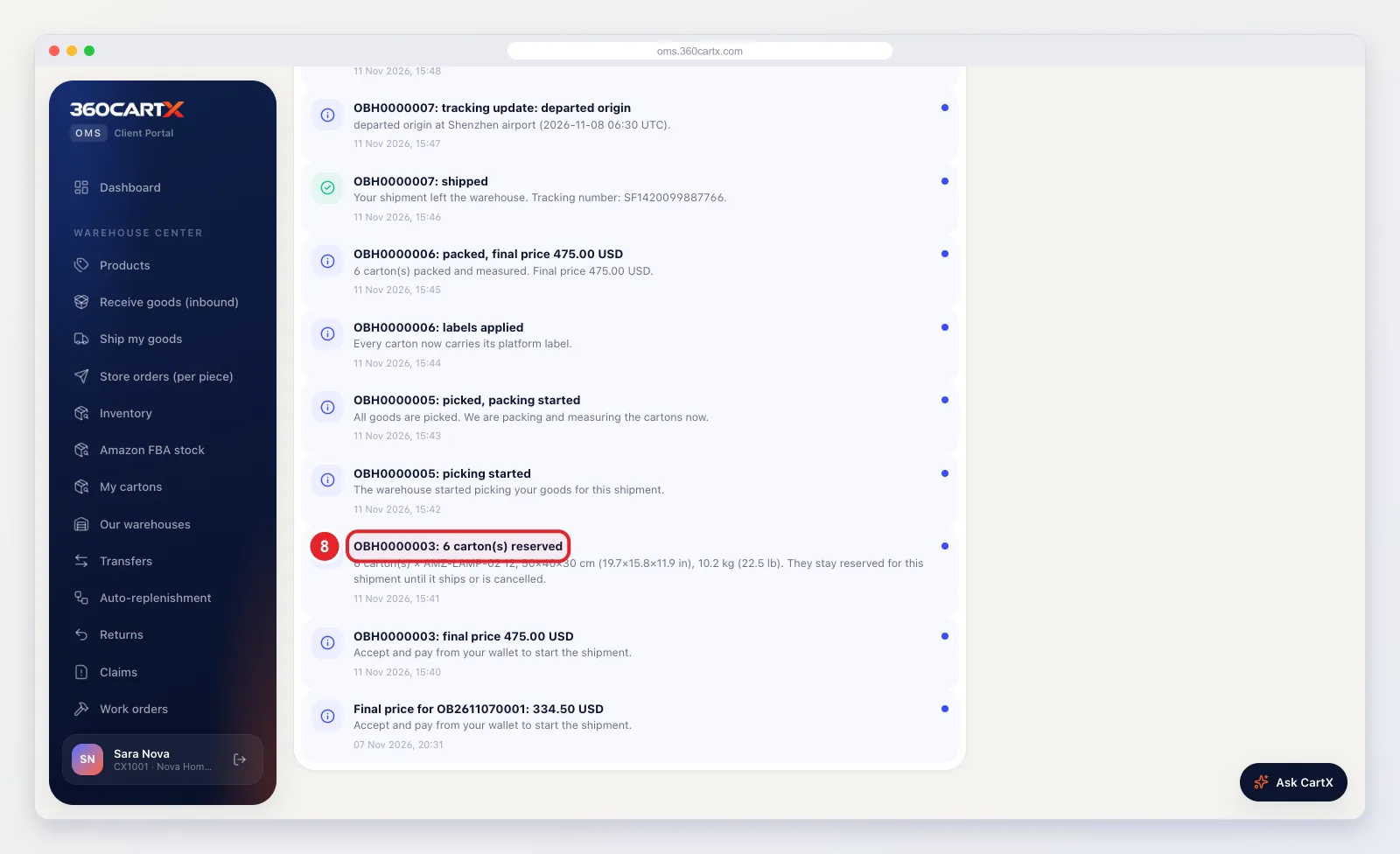
In My cartons the chosen cartons change from In stock to Reserved for this request; they cannot be picked again. You get the notification OBH…: 6 carton(s) reserved with the contents and sizes, and the message that they stay reserved for this shipment until it ships or is cancelled.
- 8
When the request ships or is cancelled
When the shipment leaves our warehouse the cartons become Shipped and you are told: N stored carton(s) shipped. The cartons left our warehouse with this shipment and are no longer in your carton stock. If you cancel the request, the cartons are in stock again.
Terms in this article
Tips
- Stored cartons are only for platform requests. A request to your own address cannot use them.
- The stock check still applies: the units of the cartons must be available in the warehouse.
- Cartons appear in My cartons after we receive and measure your goods. See Receive goods.
Common problems
No free stored cartons in this warehouse.
Your cartons are all reserved or shipped, or none has been recorded yet. Check My cartons and the Warehouse chosen at the top.
Each shipment needs products or cartons
You chose Use my stored cartons but left every Cartons to ship at 0. Enter at least one carton.
Some cartons are no longer available (already reserved or shipped). Reload and pick again.
Another request took them while you filled in the form. Reload the page and pick again.
A carton is picked twice
Reload the page and pick again.
Related articles
Updated 2026-11-11
Open a ticket from Support in your portal and our team will reply.