Steps
- 1
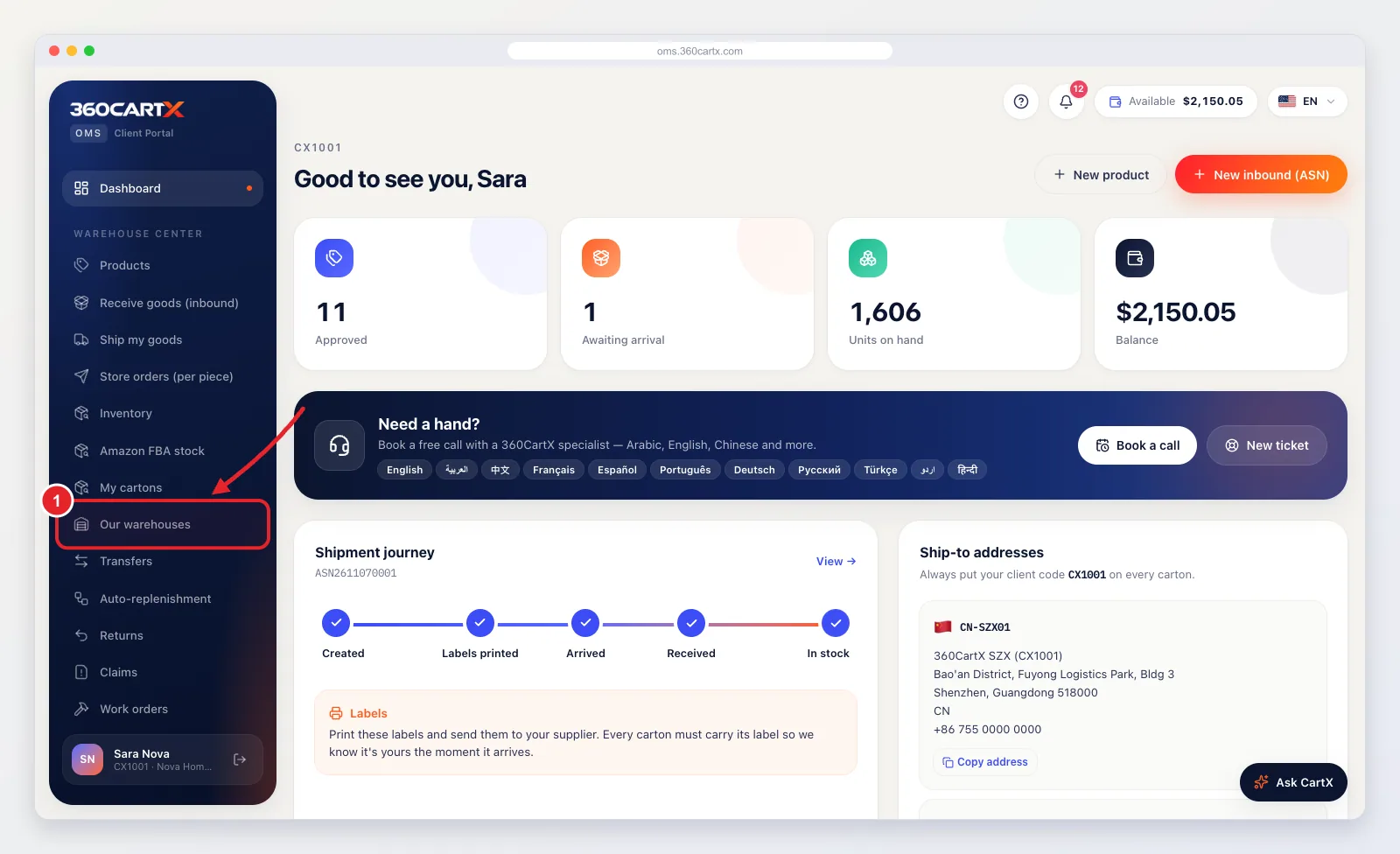
Open Our warehouses
Click Our warehouses under Warehouse Center in the left menu.
- 2
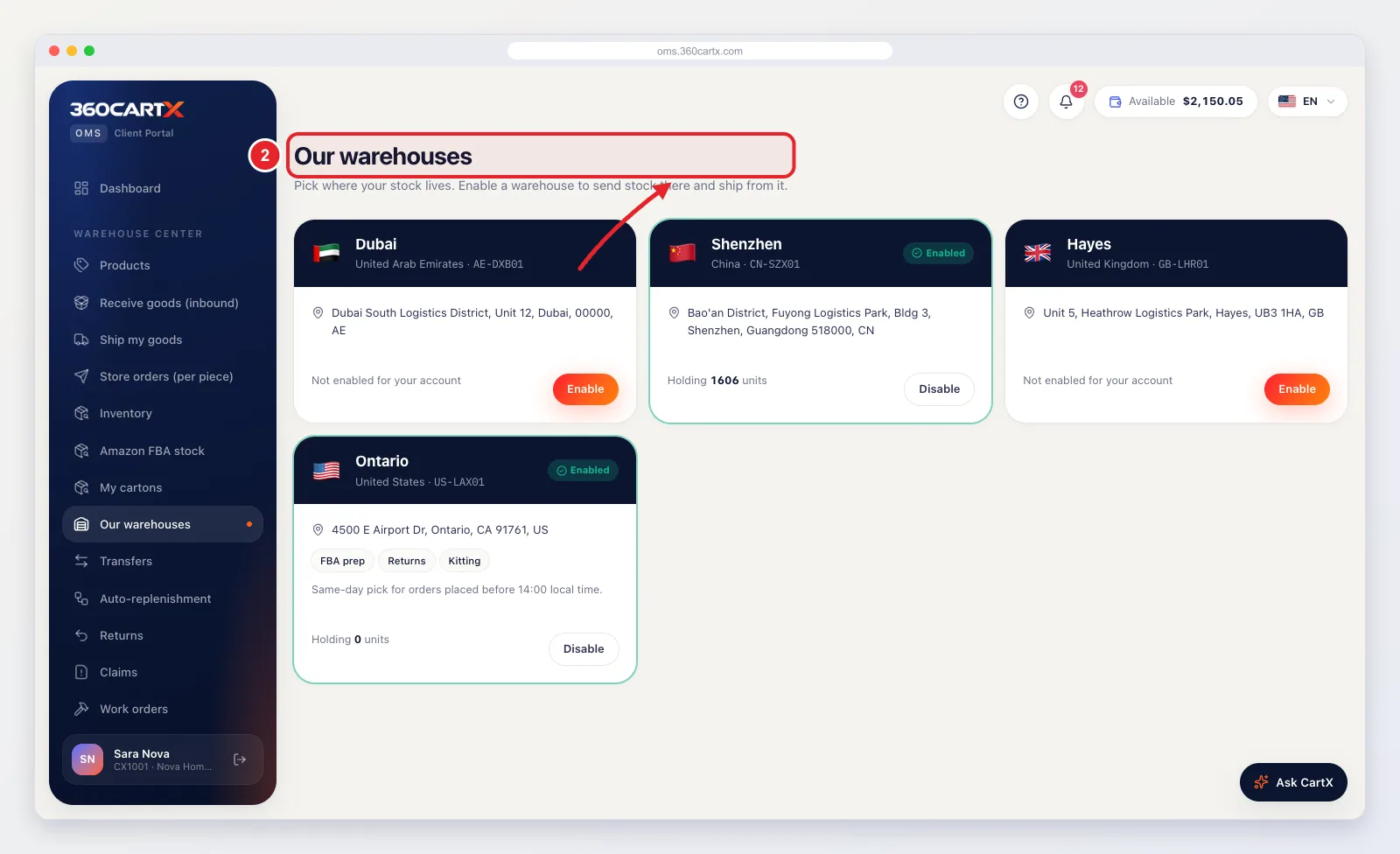
The page
The page says: Pick where your stock lives. Enable a warehouse to send stock there and ship from it. Every warehouse has a card.
- 3
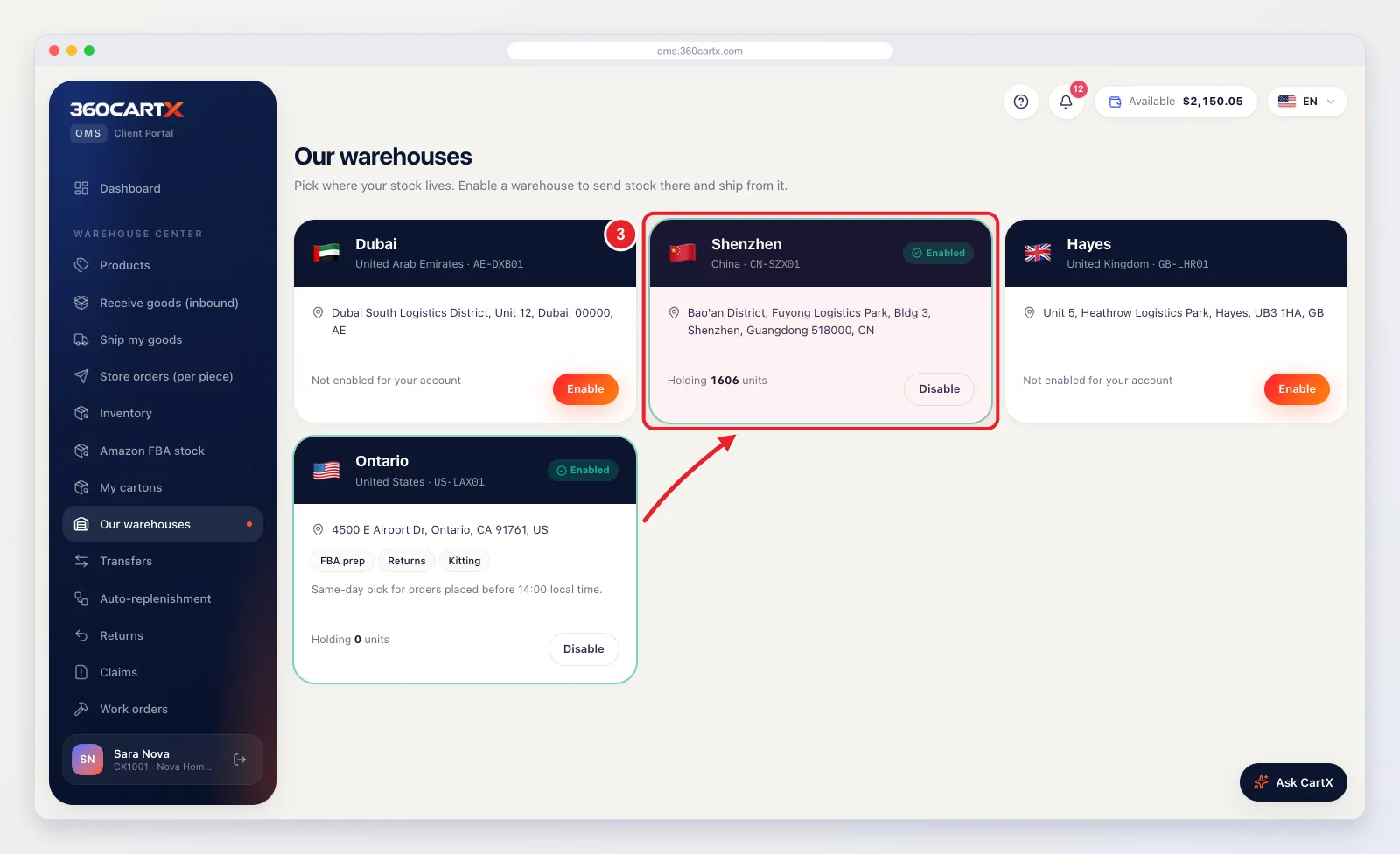
A card
The dark top shows the flag, the city, the country and the code (for example Shenzhen, China · CN-SZX01). A card with a green frame is enabled for your account.
- 4
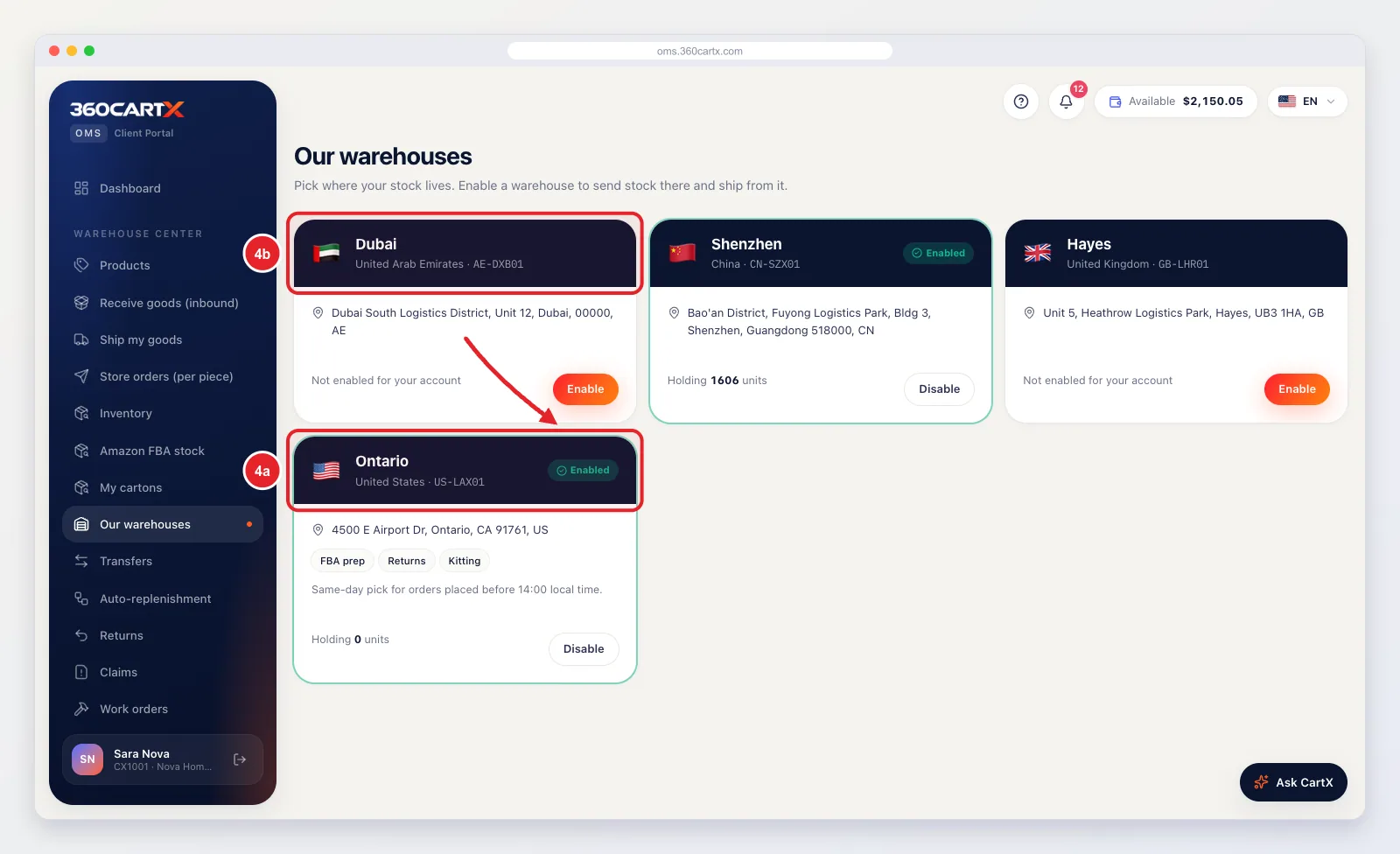
Enabled and Opening soon
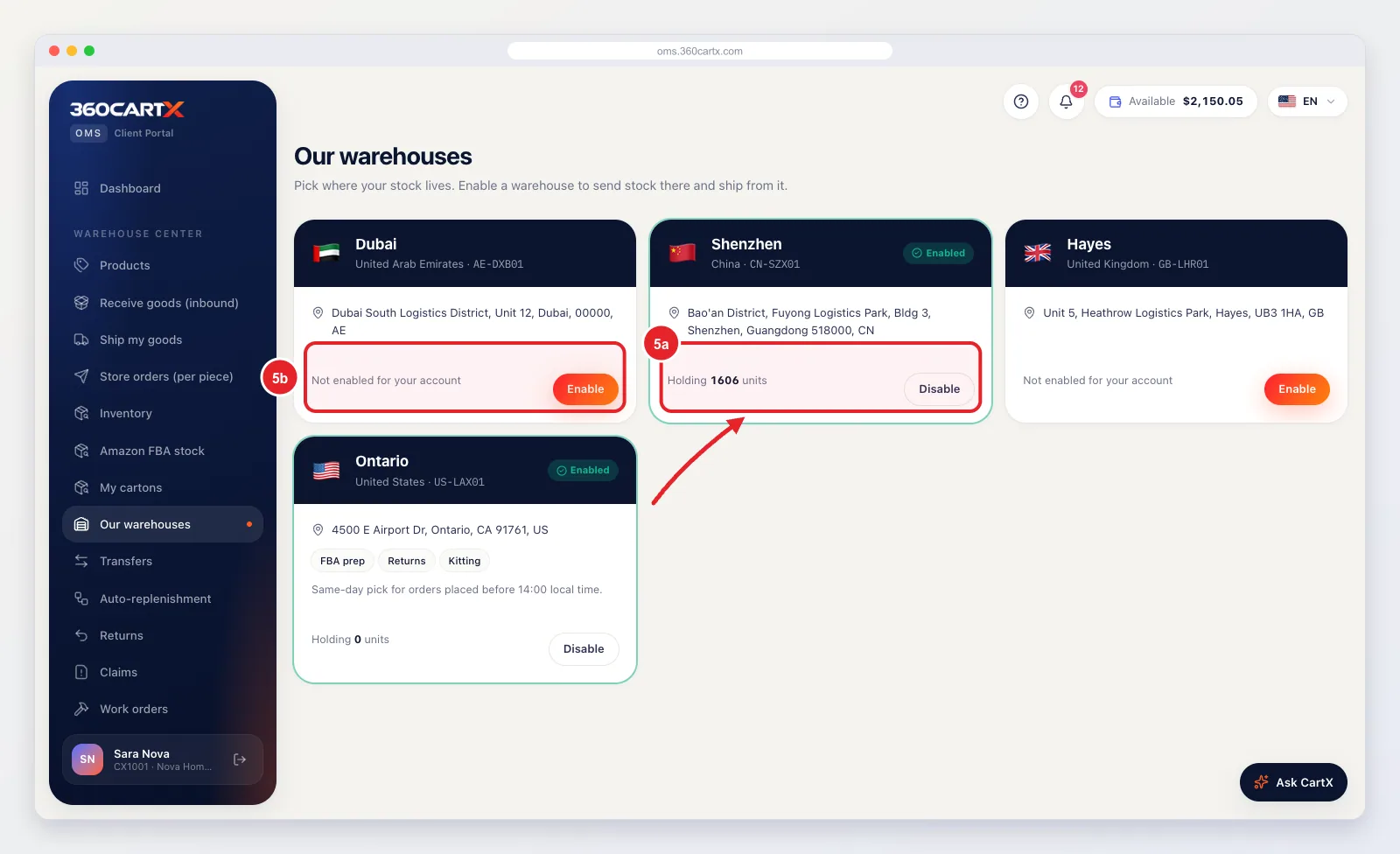
A green Enabled badge: you can send stock there and ship from it. An orange Opening soon badge: the warehouse is not open yet. A card with neither badge is open but not enabled for your account.
- 4a Enabled badge
- 4b No badge
- 5
Holding
At the bottom of a card: Holding 1606 units for an enabled warehouse (the stock you have there), Not enabled for your account for an open warehouse you did not enable, and We'll tell you when it opens for an Opening soon one.
- 5a Holding
- 5b Not enabled
- 6
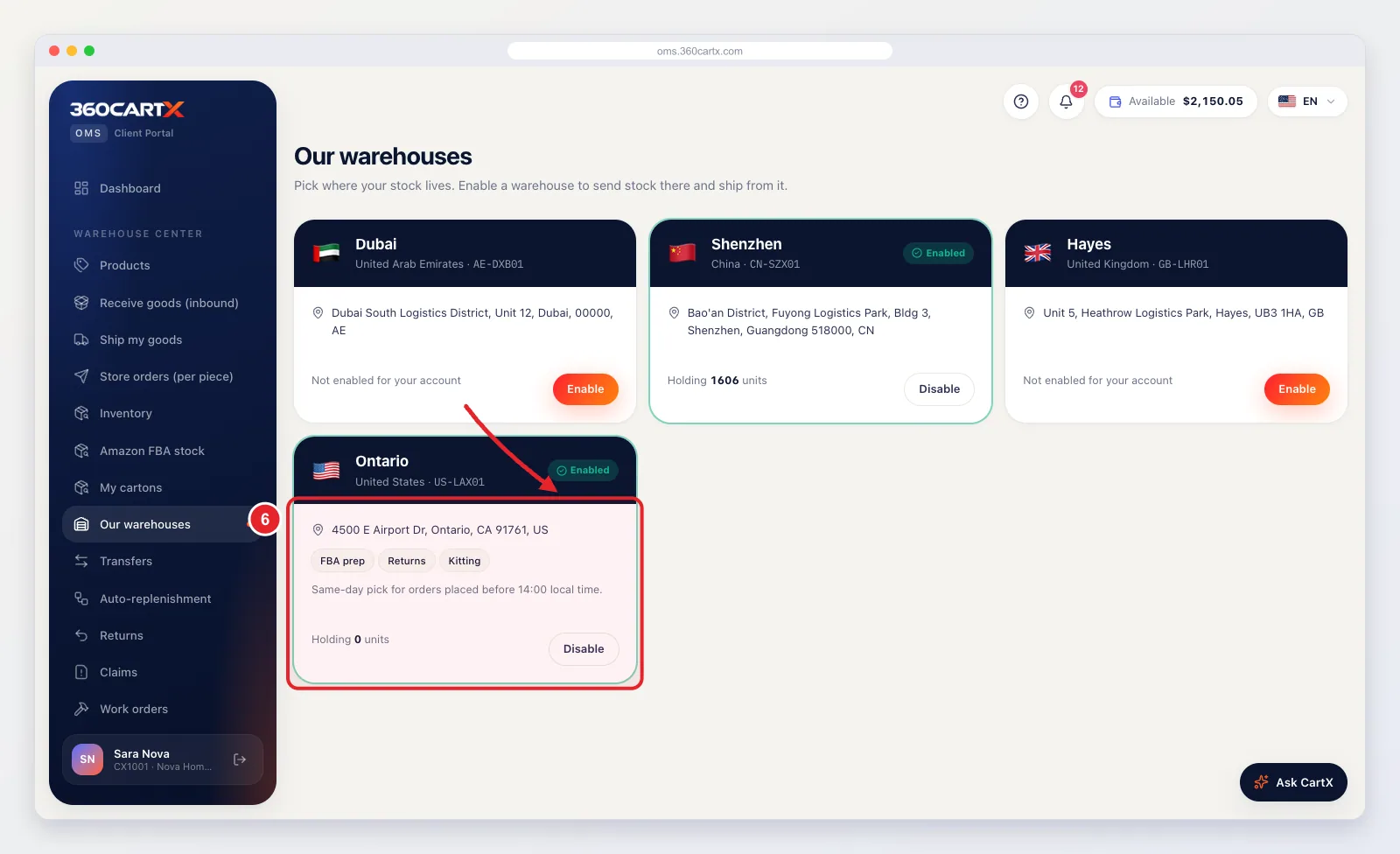
Address, services and notes
An open warehouse shows its address, services as small tags (for example FBA prep, Returns, Kitting) and a note, for example about cut-off times. Use the address of the warehouse you ship to with your client code on every carton: see Ship-to addresses and your client code.
Tips
- Stock in different warehouses is separate. Move it with Stock transfers.
- Your ship-to address with your client code is on the dashboard.
Common problems
I do not see Enable or Disable
Only owners and admins can enable or disable a warehouse.
Related articles
Updated 2026-11-11
Open a ticket from Support in your portal and our team will reply.