Steps
- 1
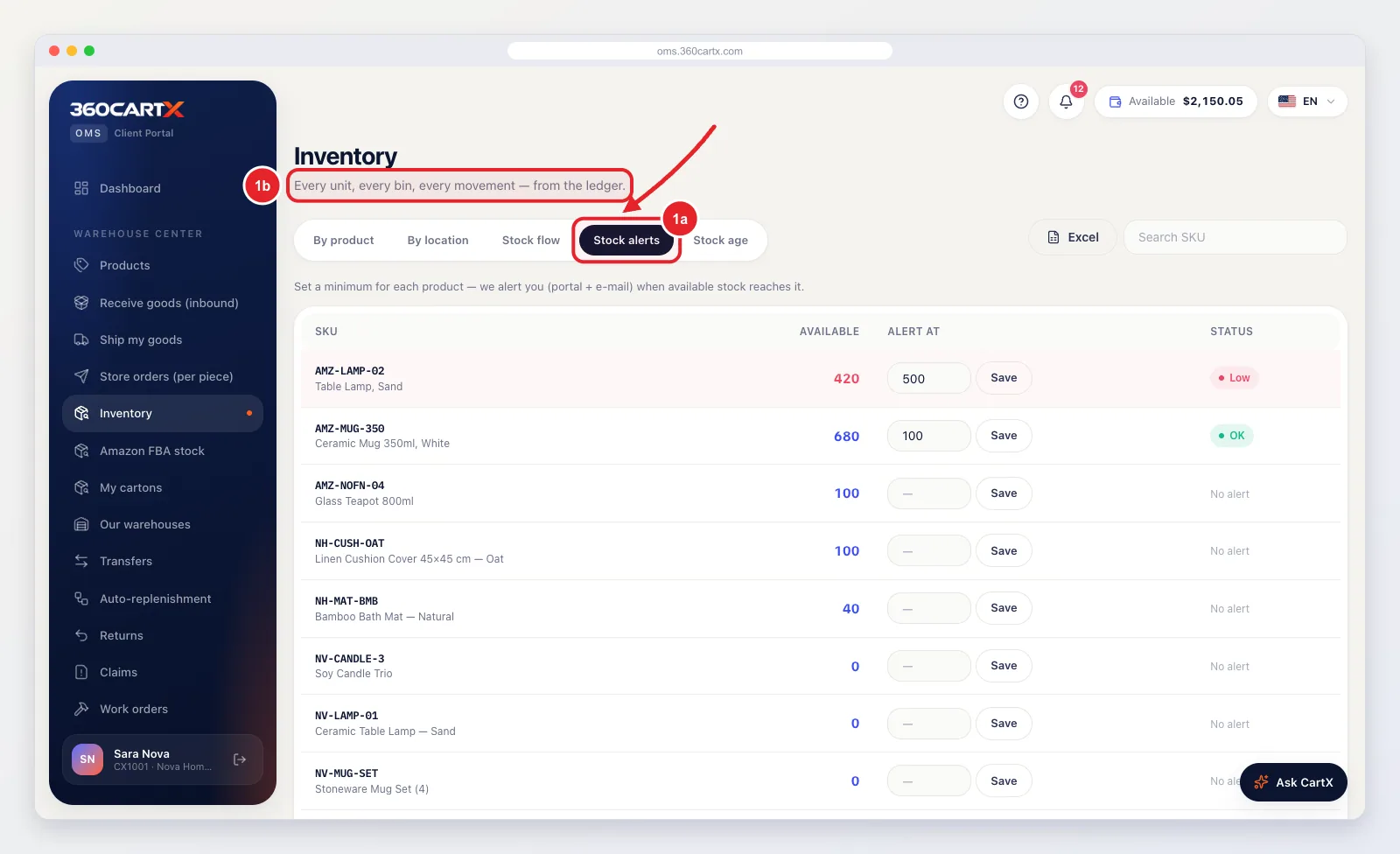
Open Stock alerts
In Inventory click the Stock alerts tab. The text says: Set a minimum for each product — we alert you (portal + e-mail) when available stock reaches it.
- 1a Stock alerts
- 1b Explanation
- 2
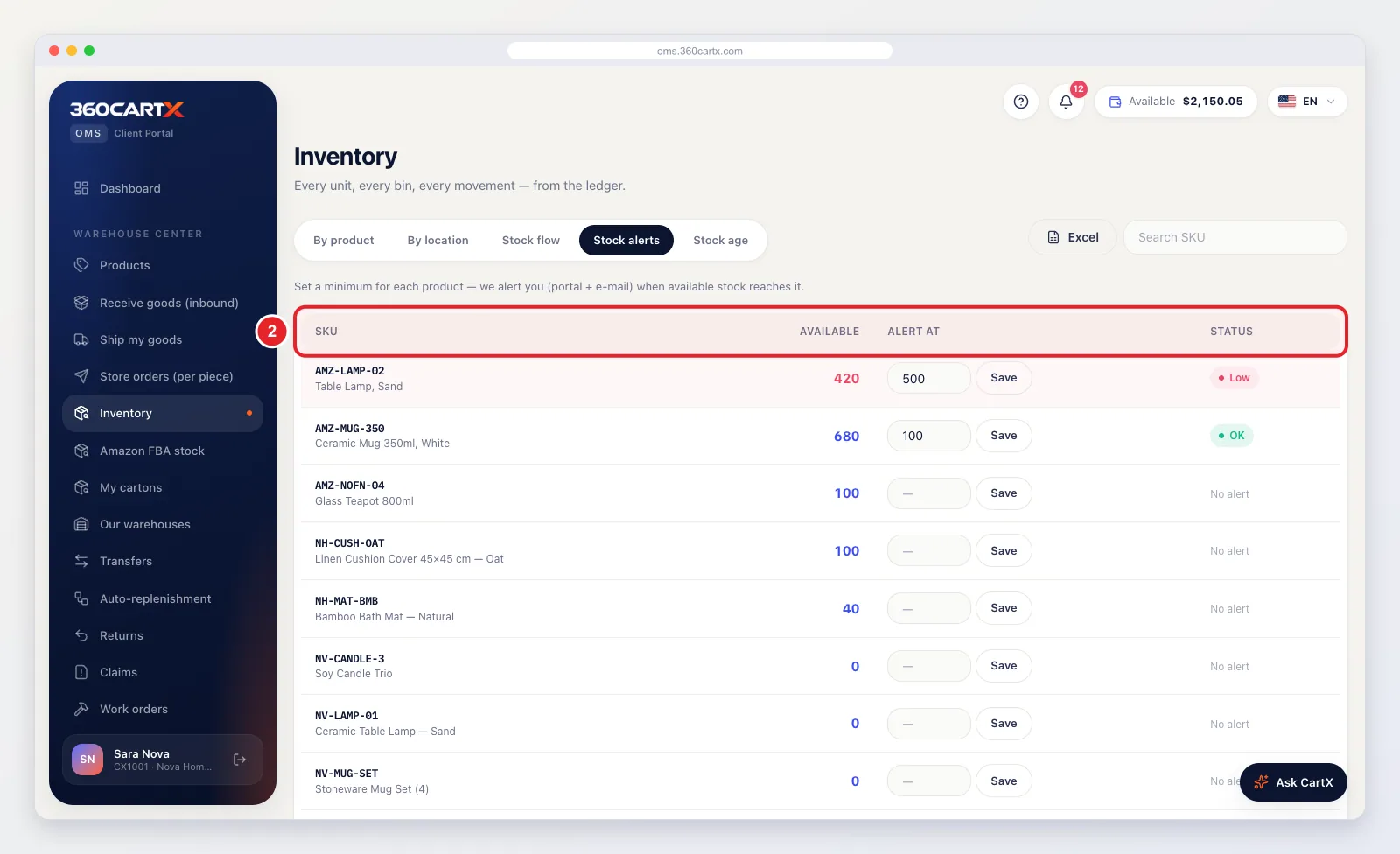
The columns
SKU (with the product name), Available (the units you can still use), Alert at (your minimum) and Status. Every approved product is listed, also those with no stock. Products below their minimum are listed first, on a red background.
- 3
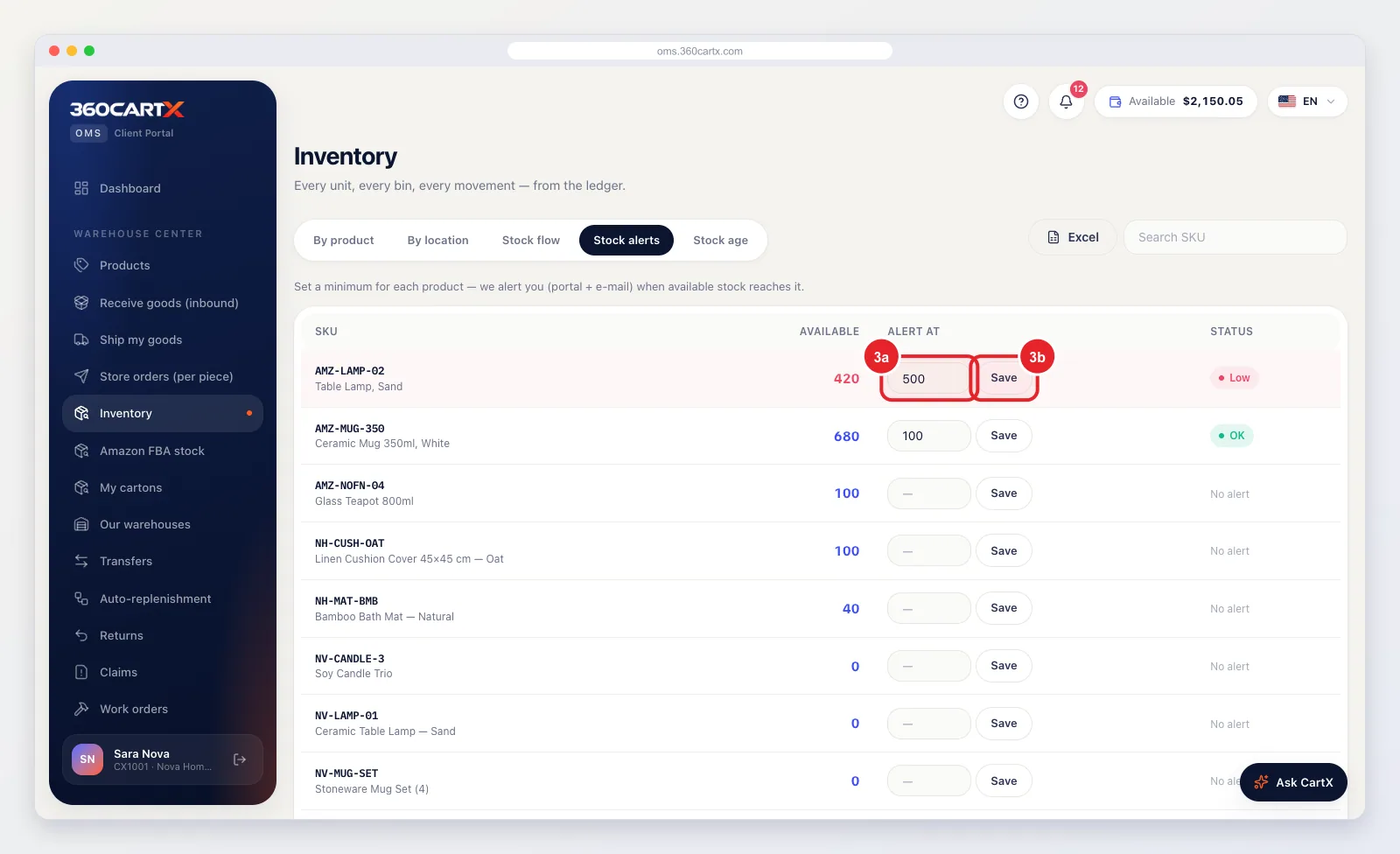
Set the minimum
Type the minimum in Alert at, for example 500 for AMZ-LAMP-02, and click Save. Leave it empty and save to remove the alert. Only whole numbers from 0 to 1,000,000 are kept. Only owners and admins and people with edit rights for inventory see the field.
- 3a Alert at
- 3b Save
- 4
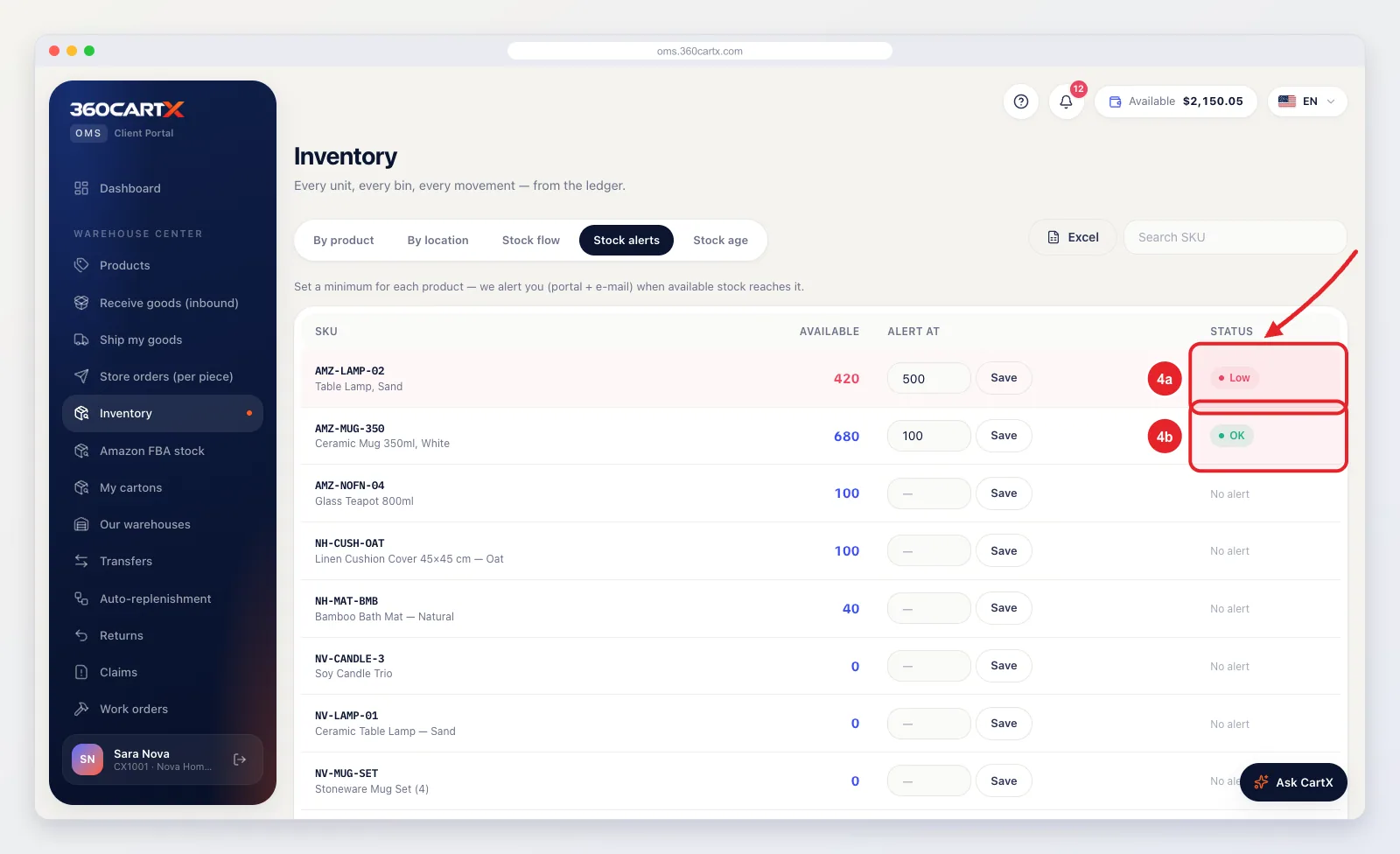
Read the status
Low (red): Available is at or below the minimum. OK (green): above it. No alert: no minimum is set. In the example the lamps (300 available, minimum 500) are Low and the mugs (680 available, minimum 100) are OK.
- 4a Low
- 4b OK
- 4c No alert
Tips
- Set the minimum to the units you sell during the time goods need to reach us, plus a margin.
- A minimum of 0 alerts you only when the product is out of stock.
Common problems
I do not get the email
Check Settings → Alerts for the email address and the alert types. The alert is also in the portal notifications.
Related articles
Updated 2026-11-11
Open a ticket from Support in your portal and our team will reply.