Steps
- 1
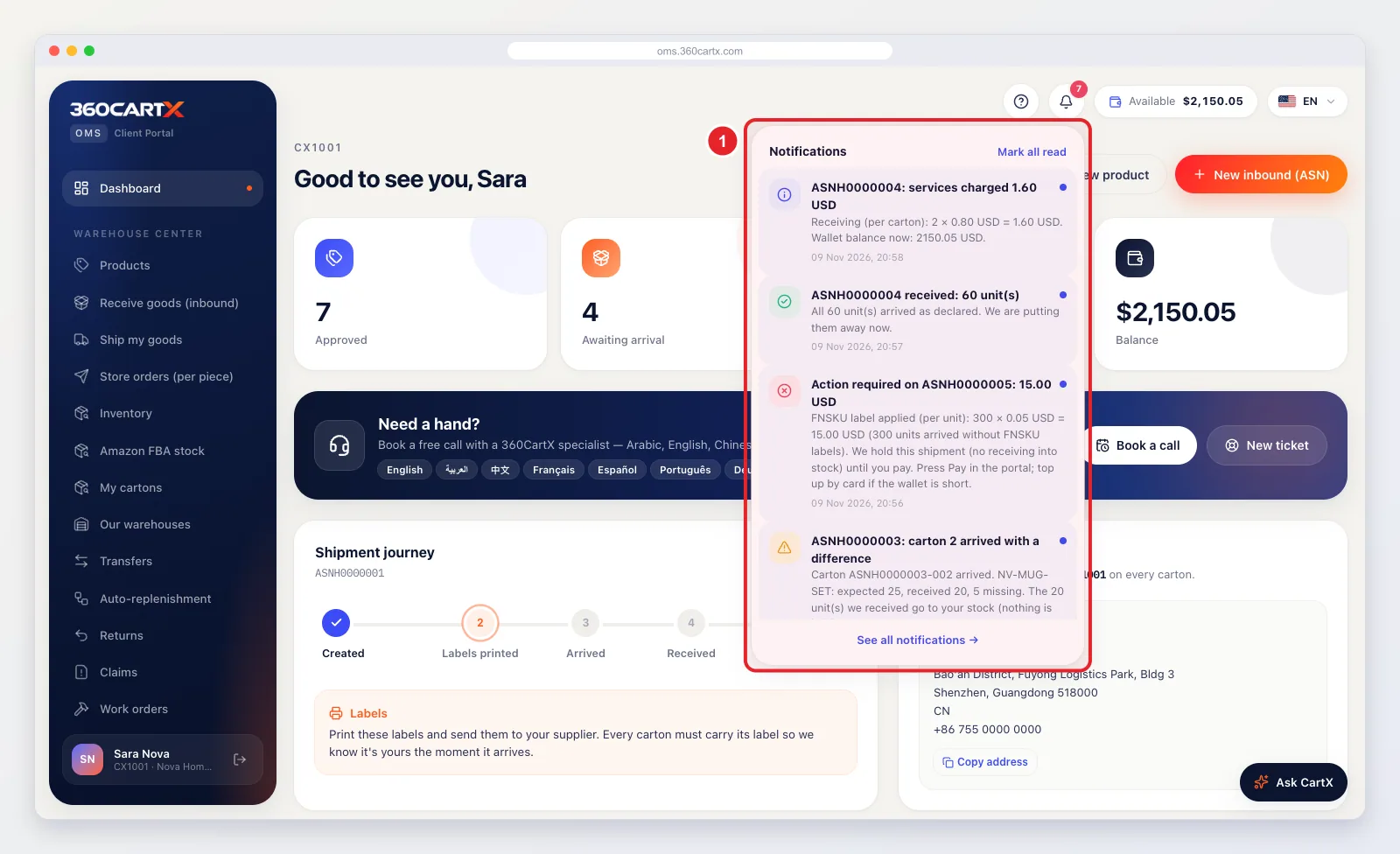
Open the bell
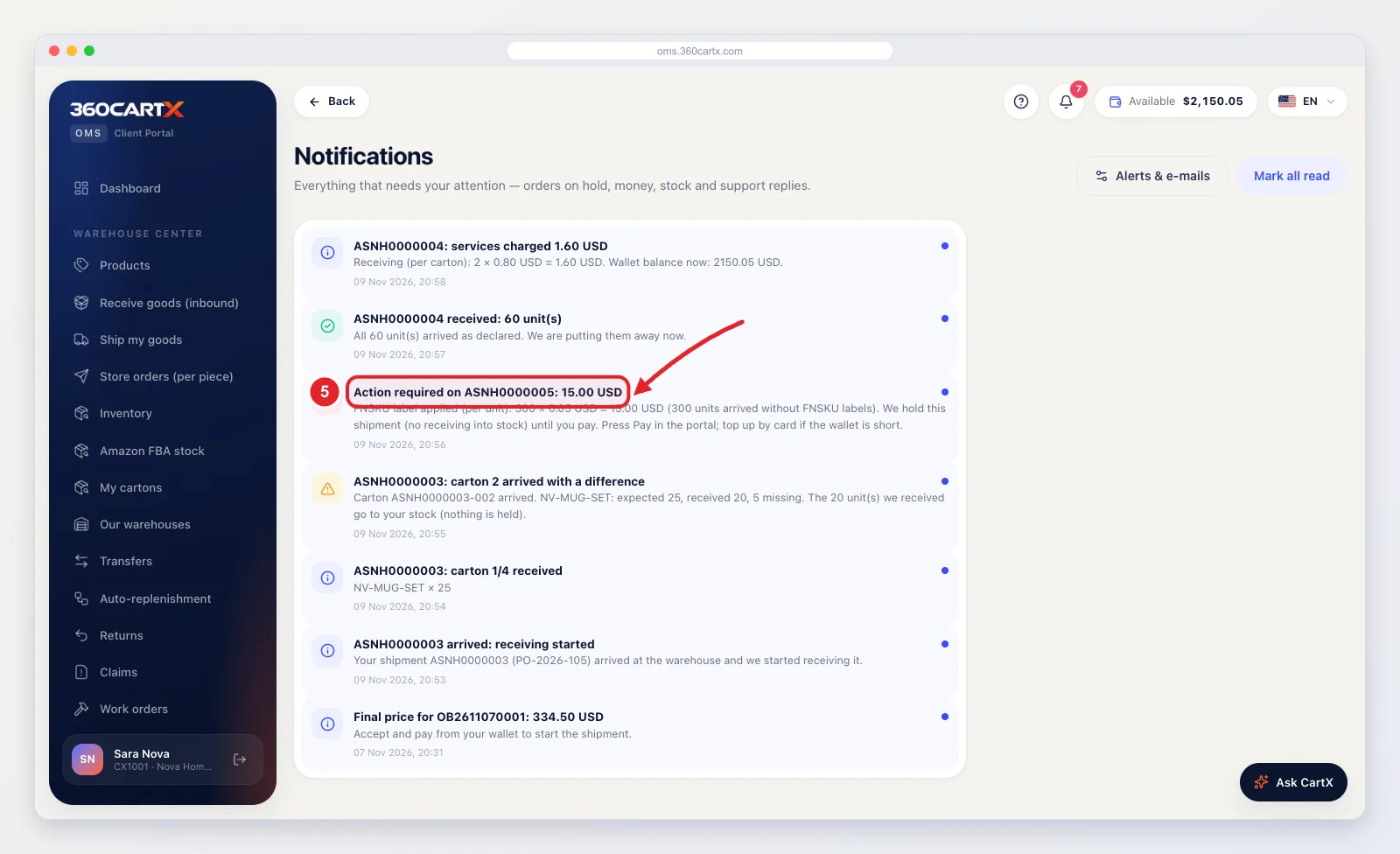
Click the bell at the top right. The red number counts unread notifications. Click a notification to open its shipment, or See all notifications for the full list.
- 2
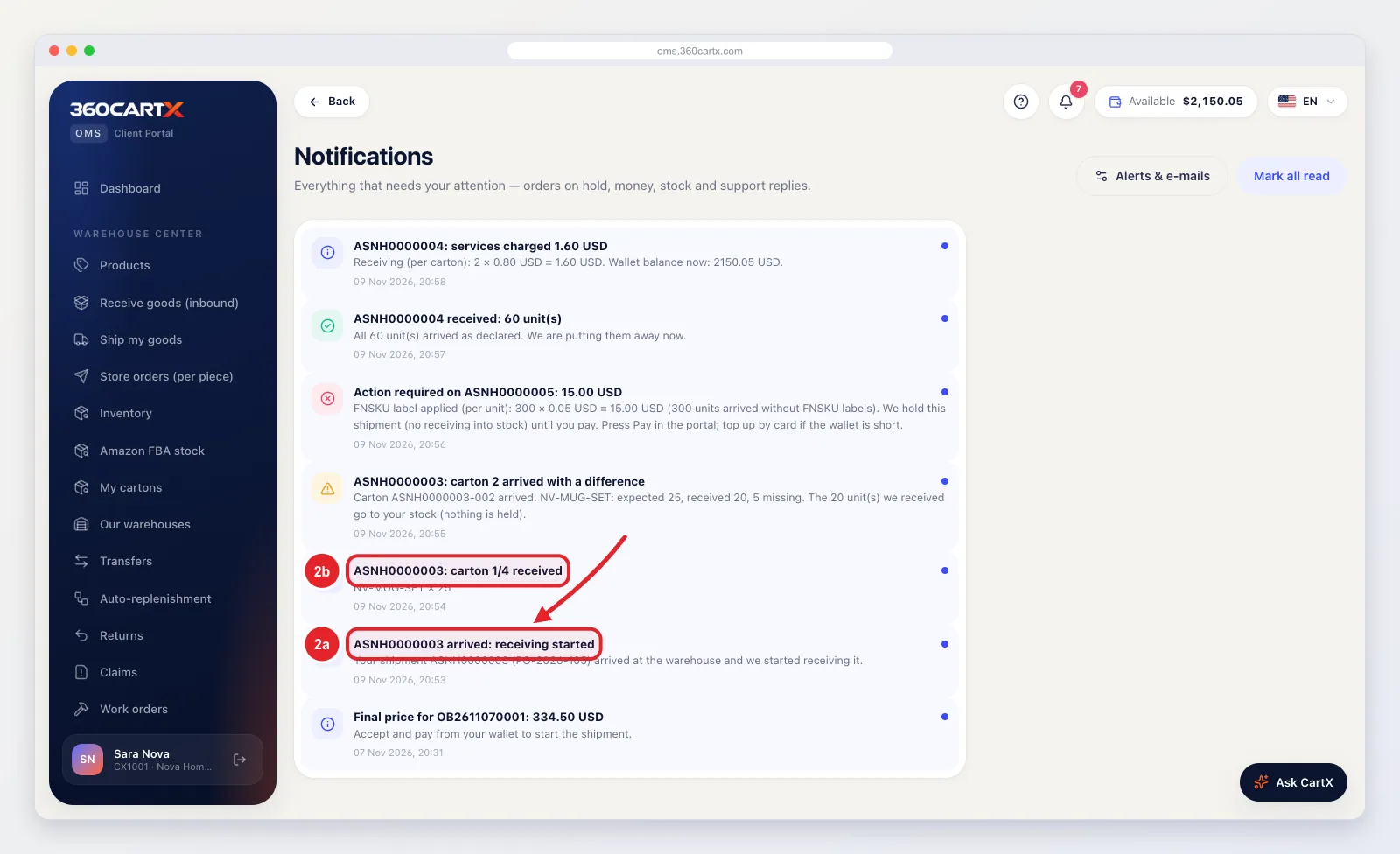
Arrived and each carton received
When the first carton is scanned you get: ASN… arrived: receiving started. Then, for every carton counted exactly as declared: ASN…: carton 1/4 received, with the SKUs and units inside, for example NV-MUG-SET × 25.
- 2a Arrived
- 2b Carton received
- 3
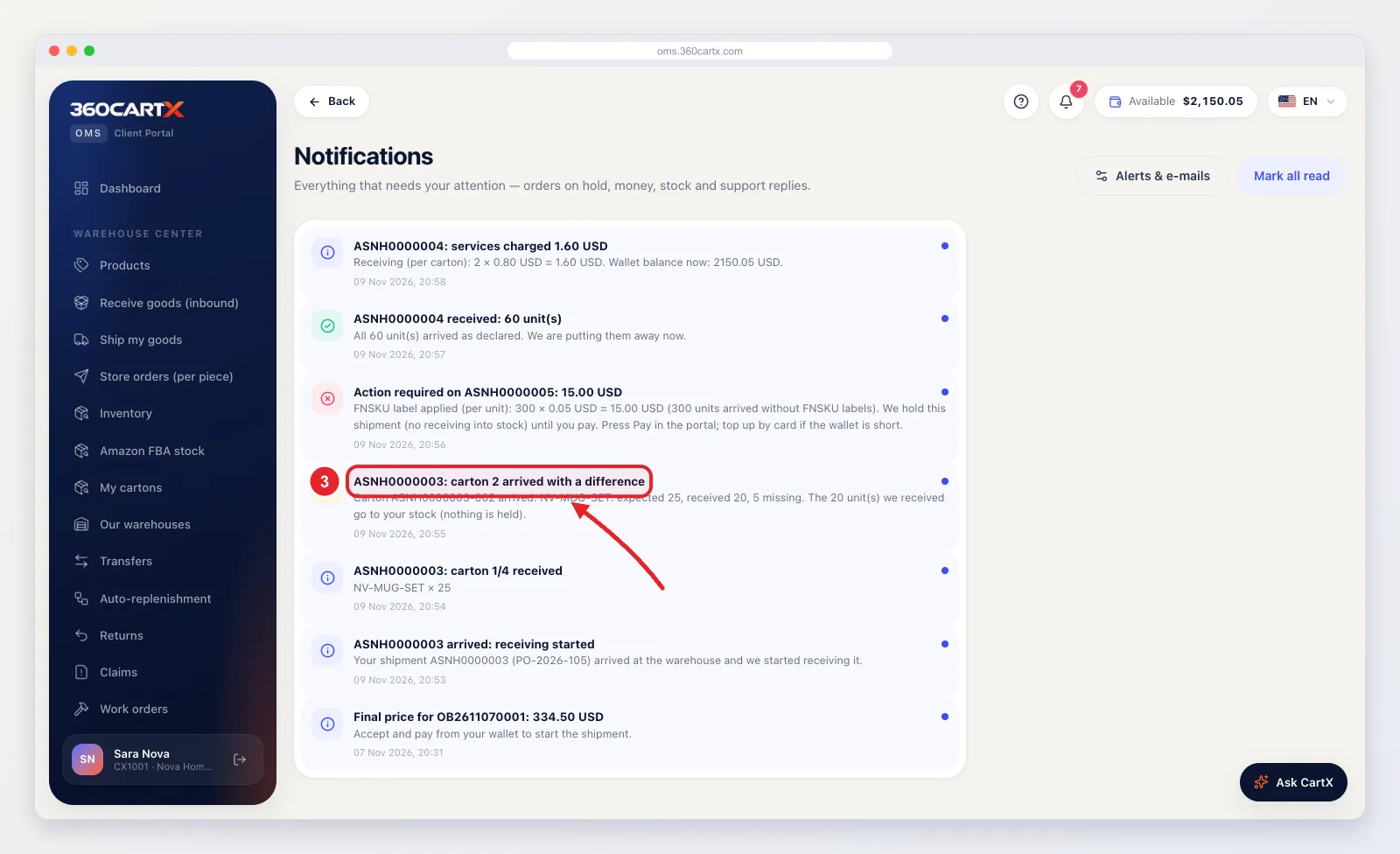
A carton with a difference
When we count something different from what you declared, for example: ASN…: carton 2 arrived with a difference. NV-MUG-SET: expected 25, received 20, 5 missing. The 20 unit(s) we received go to your stock (nothing is held). We never hold your stock for a difference: what we counted becomes available, and a receiving problem lets you tell us what to do.
- 4
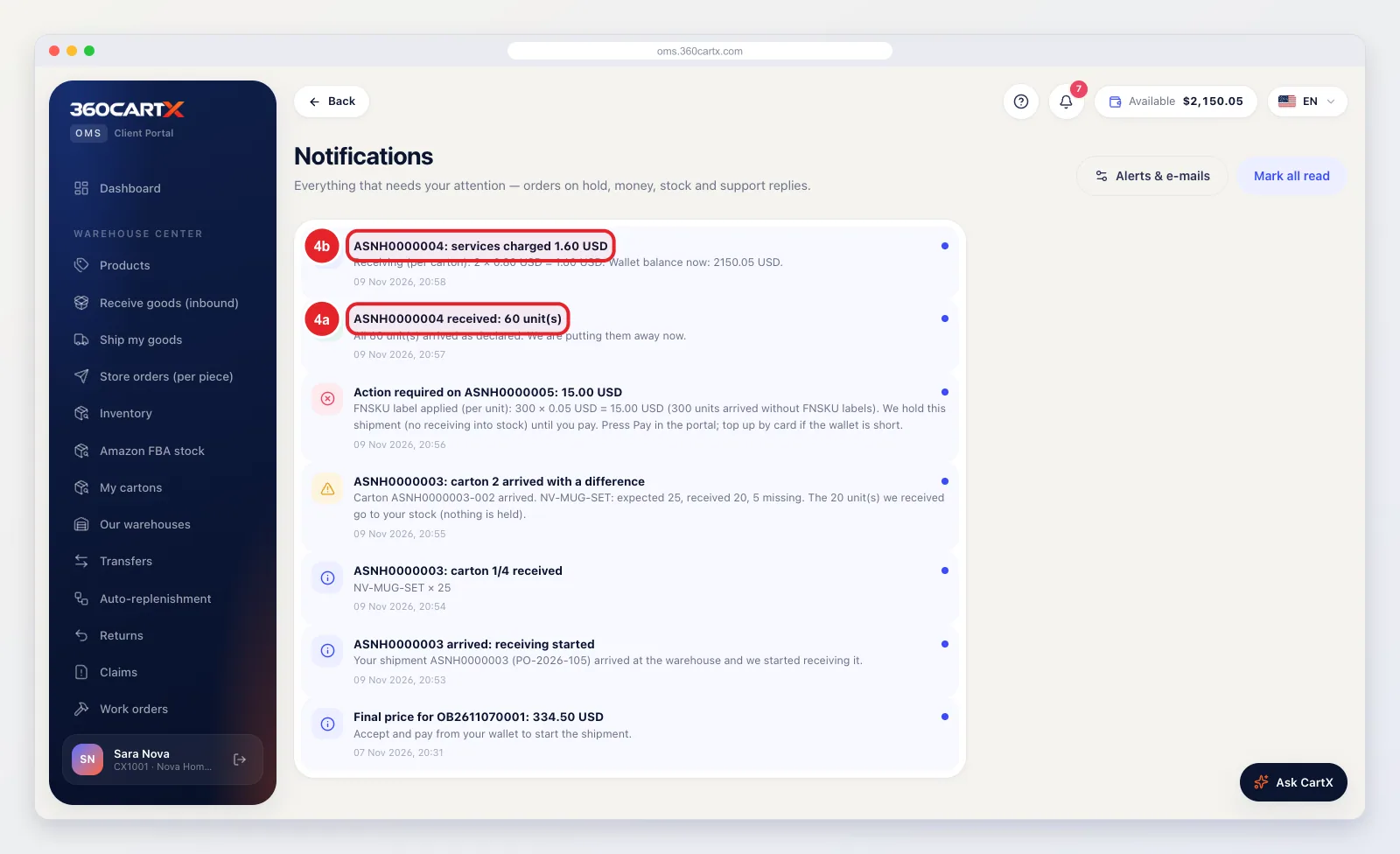
Fully received and charged
When every carton is counted: ASN… received: 60 unit(s), with All 60 unit(s) arrived as declared or the list of differences. The service fees (receiving per carton, labels we applied) are then charged from your wallet: ASN…: services charged 1.60 USD, with your new wallet balance. If the wallet is too low the message says services to pay instead, and you pay on the shipment page. Finally ASN… is in stock tells you everything is put away and ready to ship.
- 4a Fully received
- 4b Services charged
- 5
Action required
If our team needs extra work you did not order, you get Action required on ASN…: 15.00 USD with the reason, for example 300 units arrived without FNSKU labels. Until you pay, a reminder follows once a day. See Inbound on hold: Action required.
Tips
- If some cartons never arrive and we close the shipment, you get ASN… closed with … carton(s) missing.
- Choose which notifications also reach you by e-mail, and add e-mail addresses (for example your warehouse manager), in Settings → Alerts.
Common problems
I don't receive the e-mails
Check Settings → Alerts and your spam folder. The notifications are always in the portal under the bell.
Related articles
Updated 2026-11-09
Open a ticket from Support in your portal and our team will reply.