Steps
- 1
Open the shipment
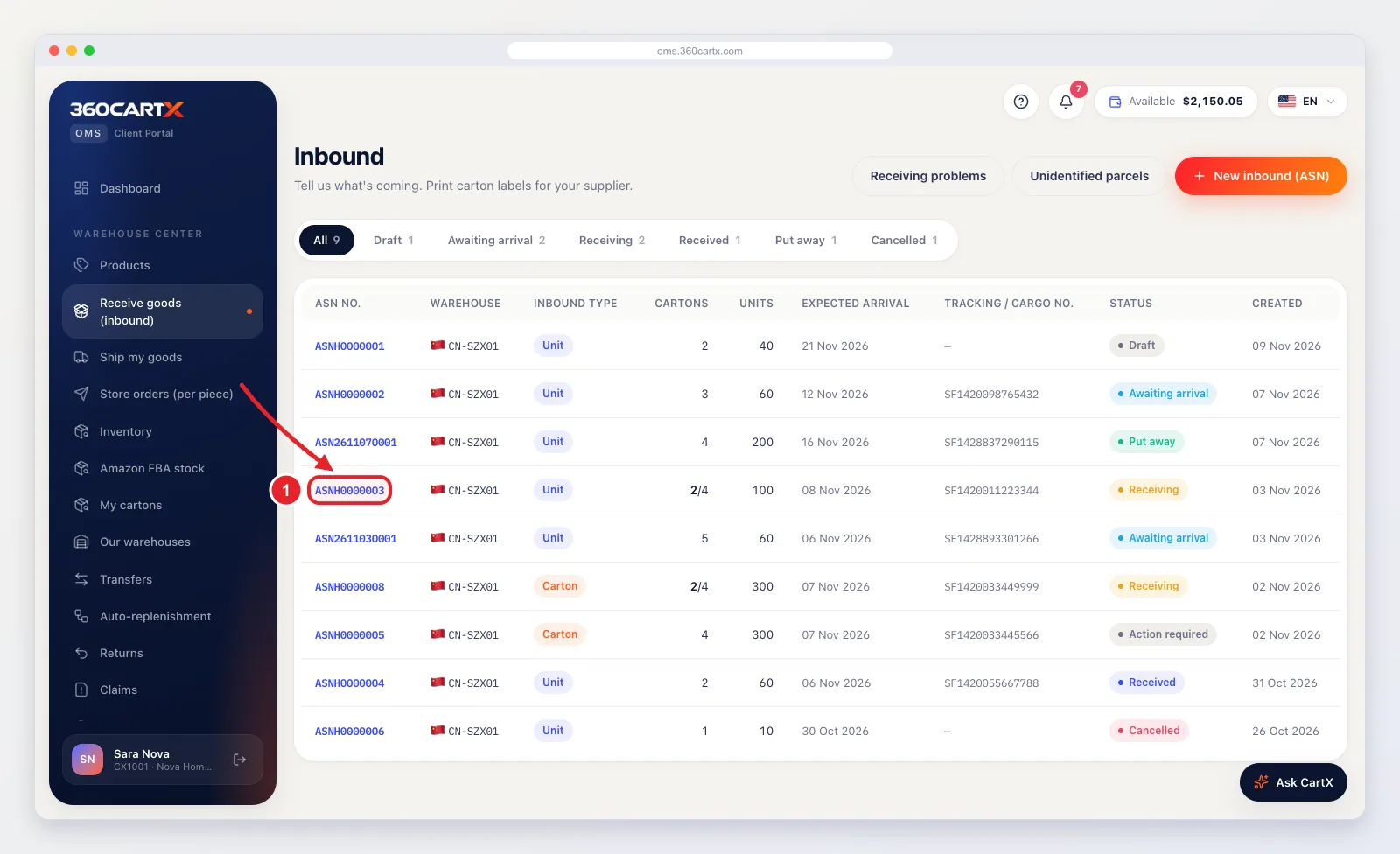
In Receive goods (inbound) click the ASN number, for example ASNH0000003. Notifications about the shipment open the same page.
- 2
Number, status and buttons
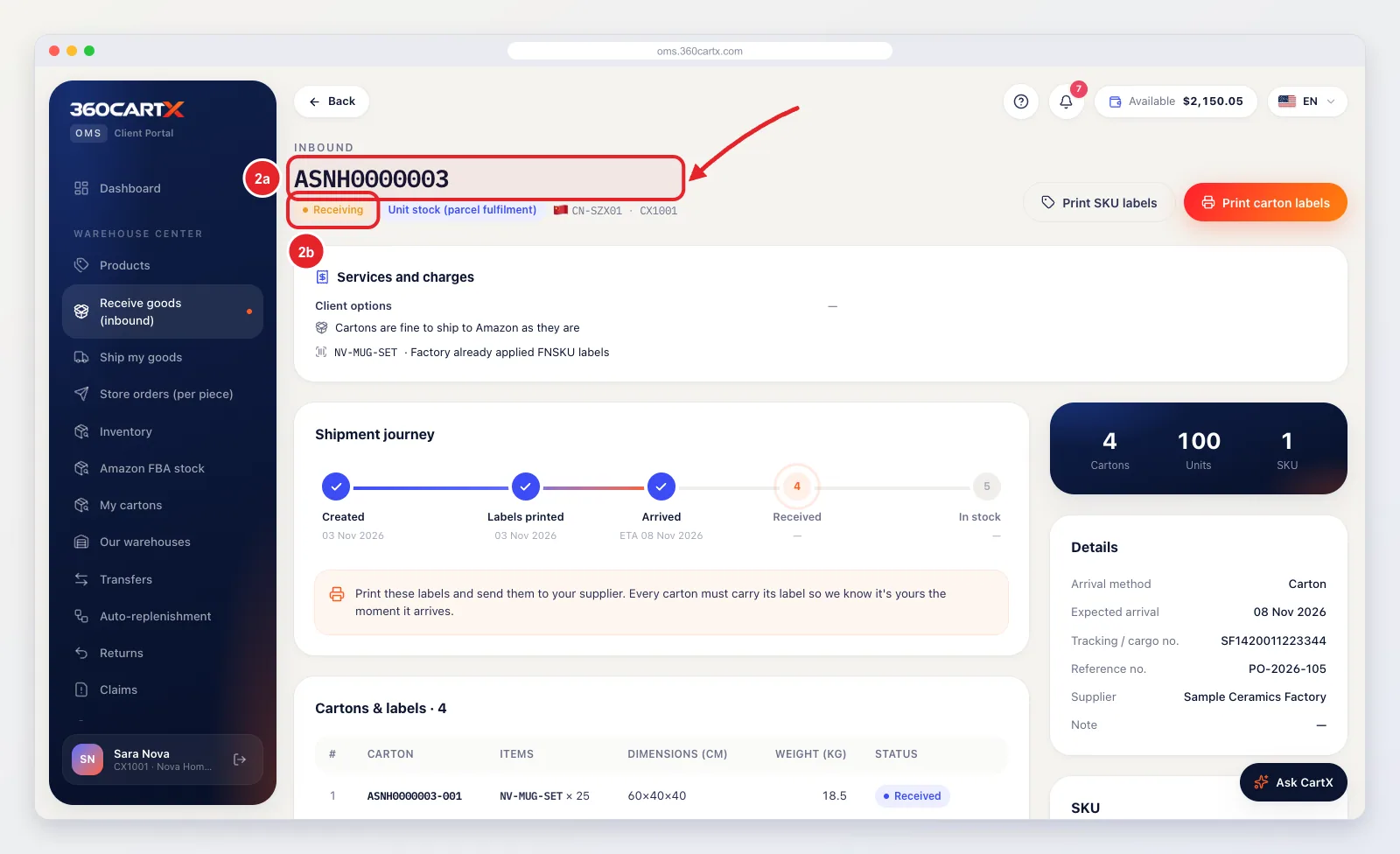
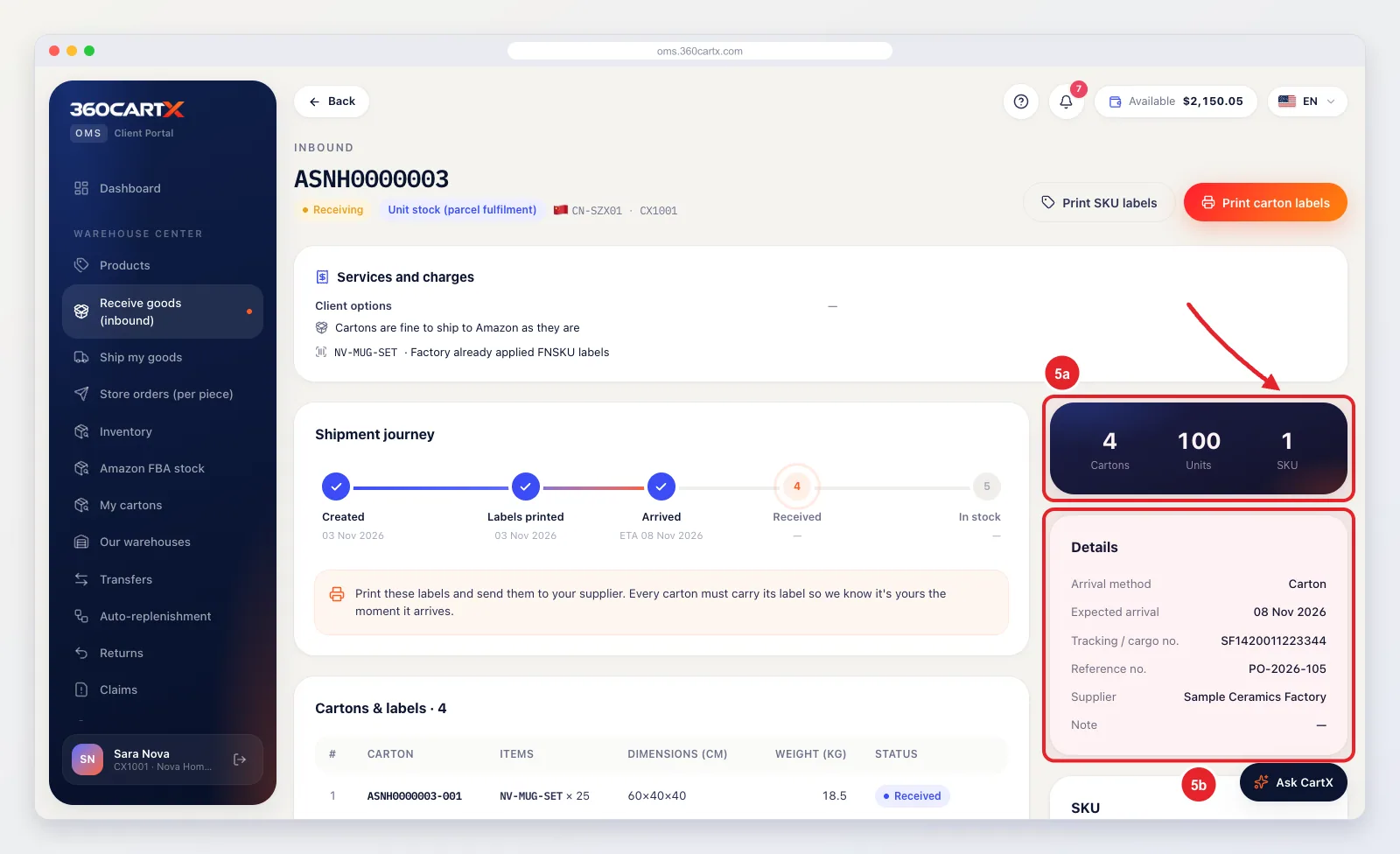
The title is the ASN number. Under it: the status (for example Receiving), the inbound type (Unit stock or Carton stock), the warehouse and your client code. The buttons Print SKU labels and Print carton labels are always at the top right.
- 2a ASN number
- 2b Status
- 3
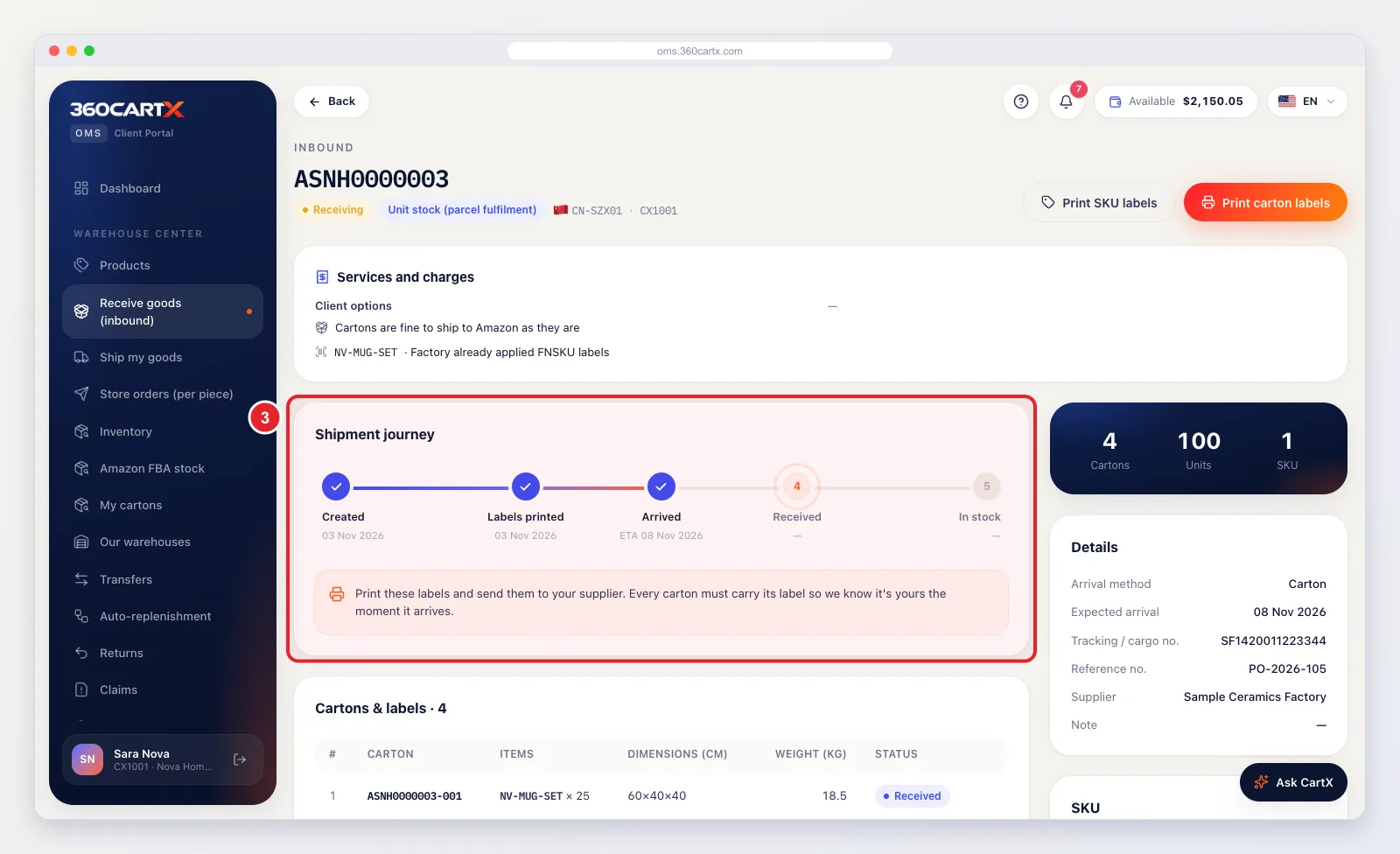
The shipment journey
Five steps with their dates: Created, Labels printed (the shipment was submitted), Arrived (with the expected arrival date), Received and In stock. Reached steps are highlighted. Until the goods are put away, a reminder asks you to send the carton labels to your supplier.
- 4
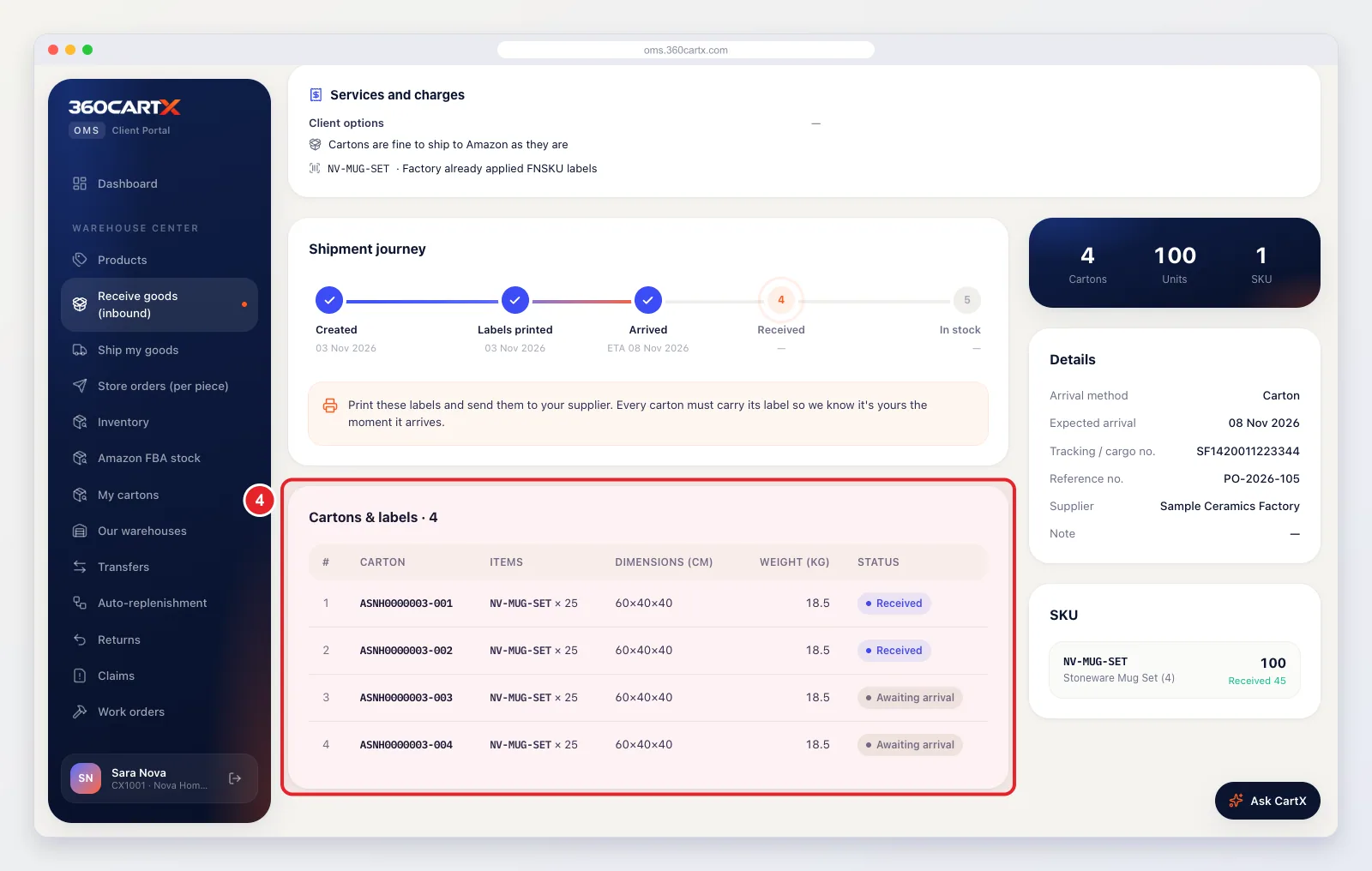
Cartons & labels
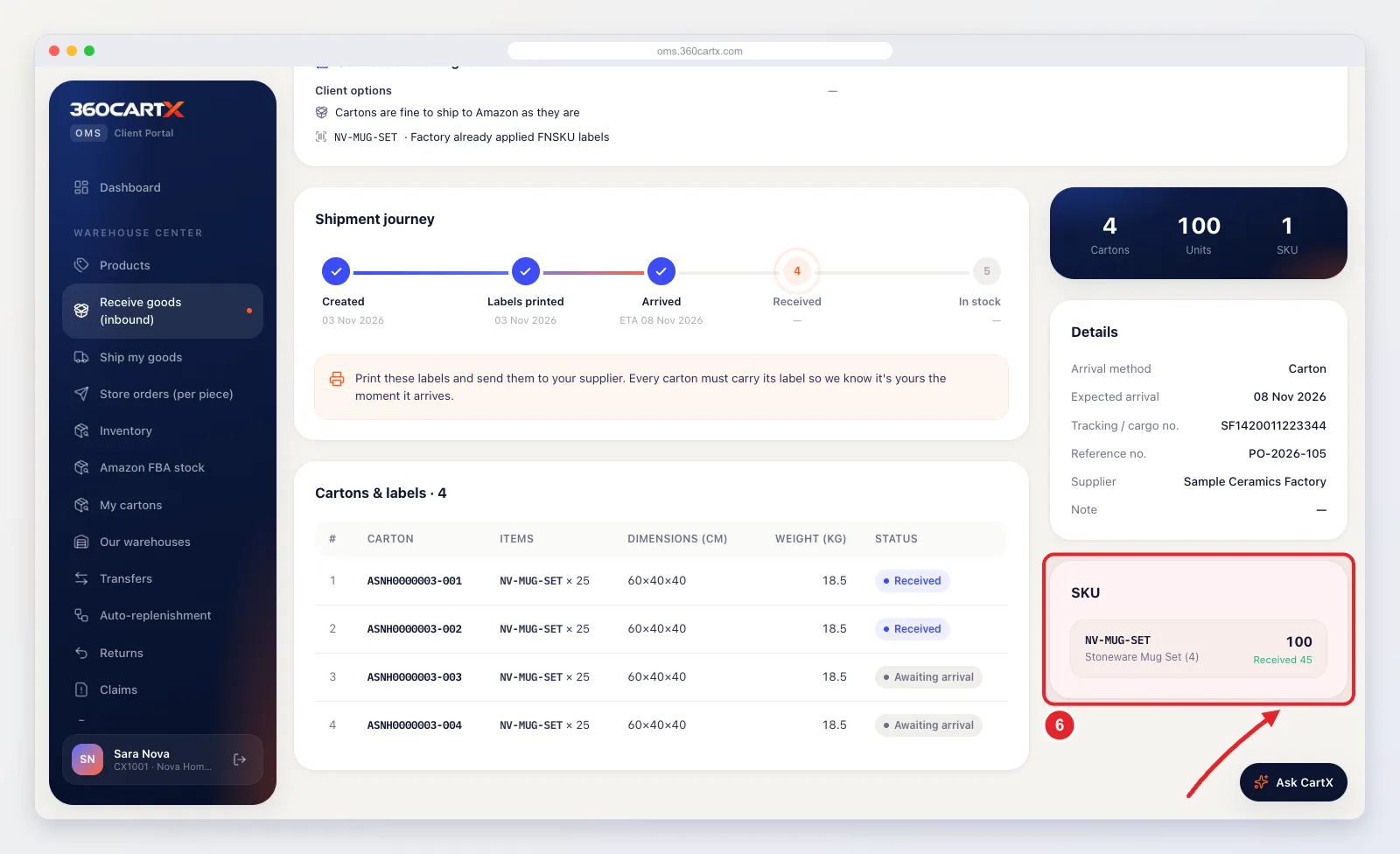
One row per carton: its number, the carton label code (for example ASNH0000003-002), the SKUs and units inside, the size, the weight and the carton status: Awaiting arrival, Received, or Put away with the shelf location.
- 5
Totals and details
The dark box shows the number of Cartons, Units and SKU in the shipment. Details lists the Arrival method, Expected arrival, Tracking / cargo no., Reference no., Supplier and Note you entered.
- 5a Totals
- 5b Details
- 6
Quantities received per SKU
The SKU box lists each product with the declared quantity in bold and, once cartons are counted, Received with the number we counted, for example 100 declared and Received 45 while two cartons are still on the way.
Terms in this article
Tips
- Services and charges, near the top of the page, shows the prep options you chose, the fee estimate and every charge with its status (To pay, Charged, Cancelled).
- A difference between declared and counted creates a receiving problem you can answer. See Receiving problems.
Common problems
A carton shows Awaiting arrival but it was delivered
It has not been scanned at our dock yet. If the carrier shows it as delivered and the carton stays on Awaiting arrival, open a ticket in Help & support with the carton label code.
Related articles
Updated 2026-11-09
Open a ticket from Support in your portal and our team will reply.