Steps
- 1
Find Scheduled reports
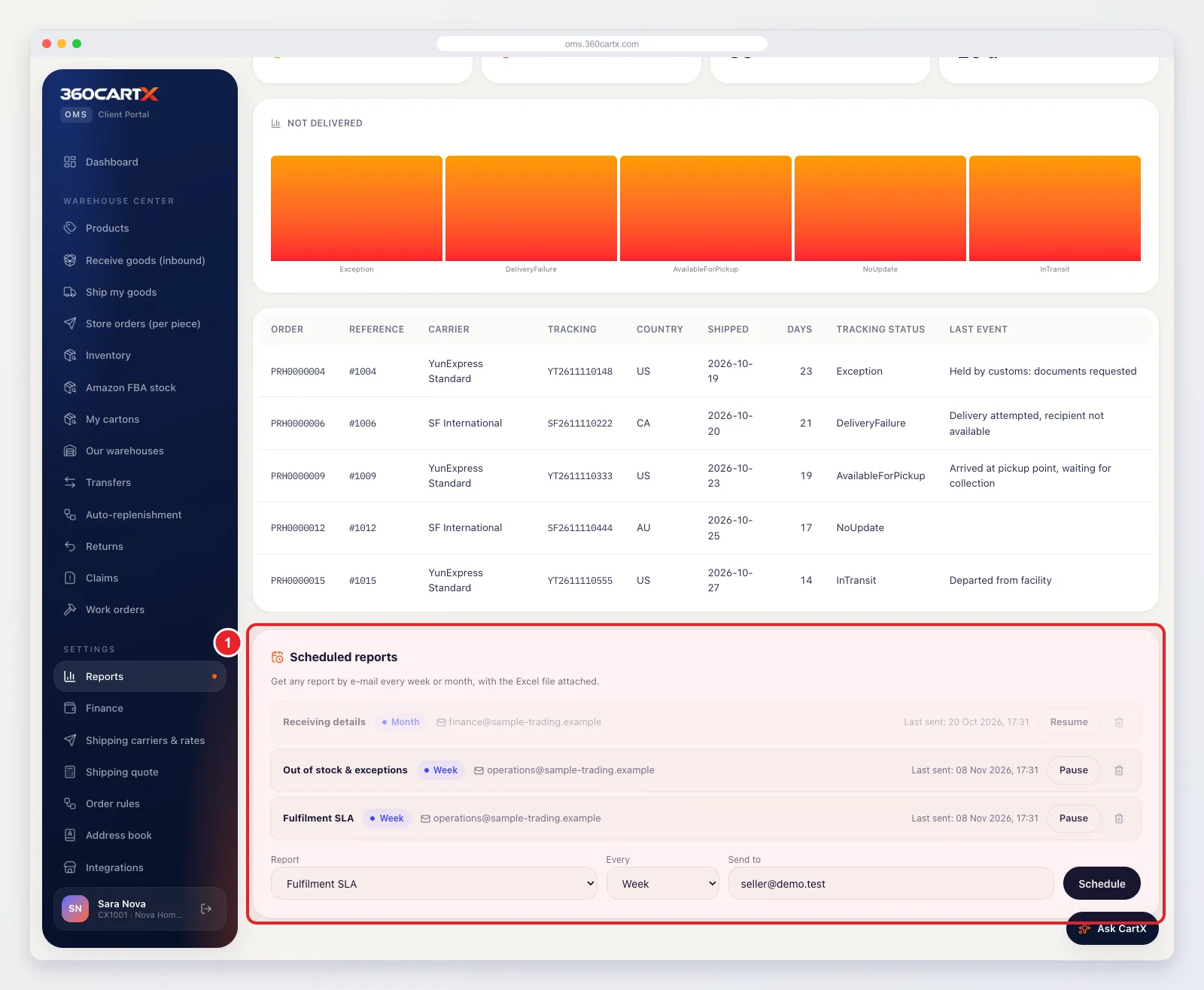
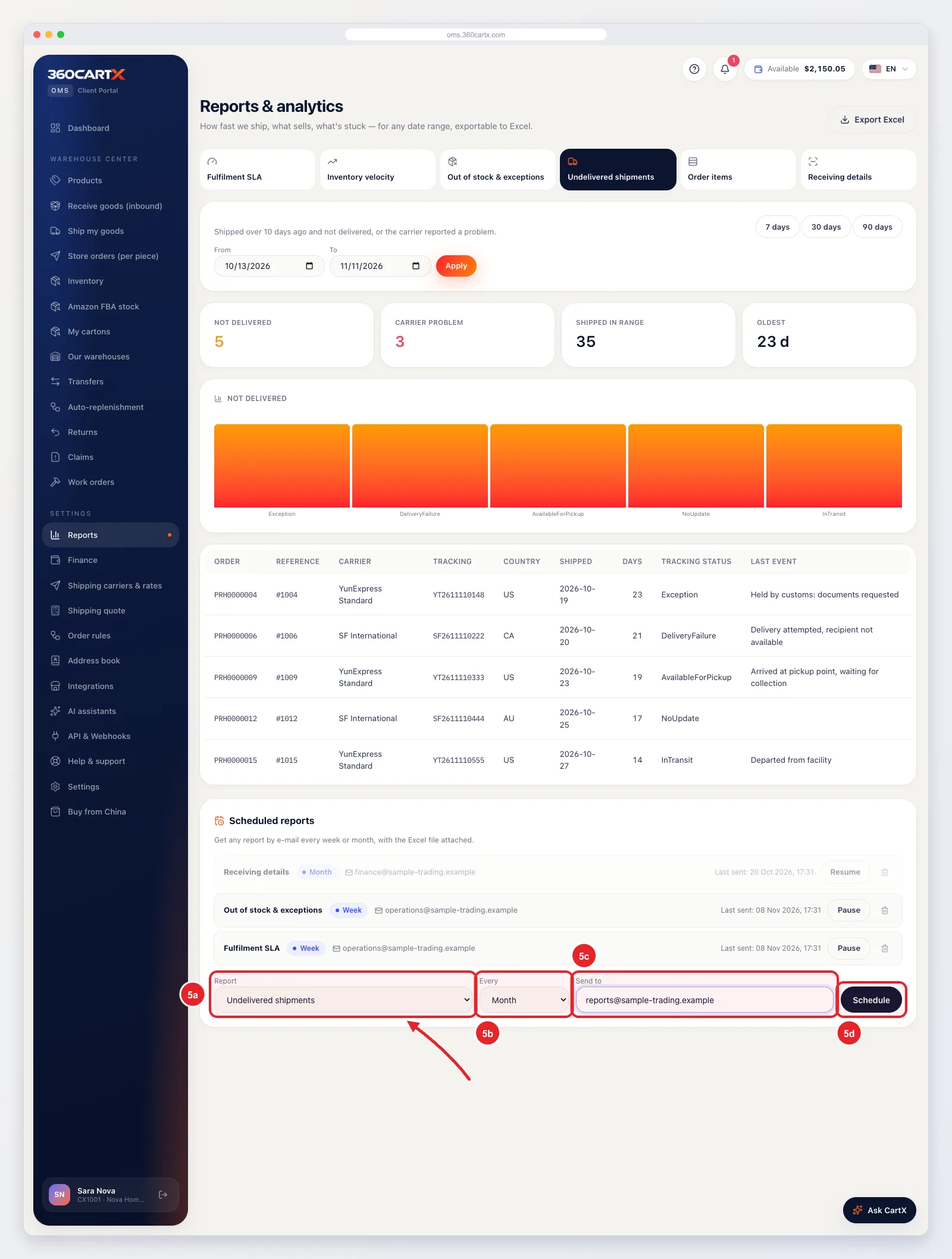
Scroll to the bottom of the Reports page. The Scheduled reports box says: Get any report by e-mail every week or month, with the Excel file attached. It shows your saved schedules and a form to add one. It sits below every report, so it is the same wherever you are.
- 2
Read a saved schedule
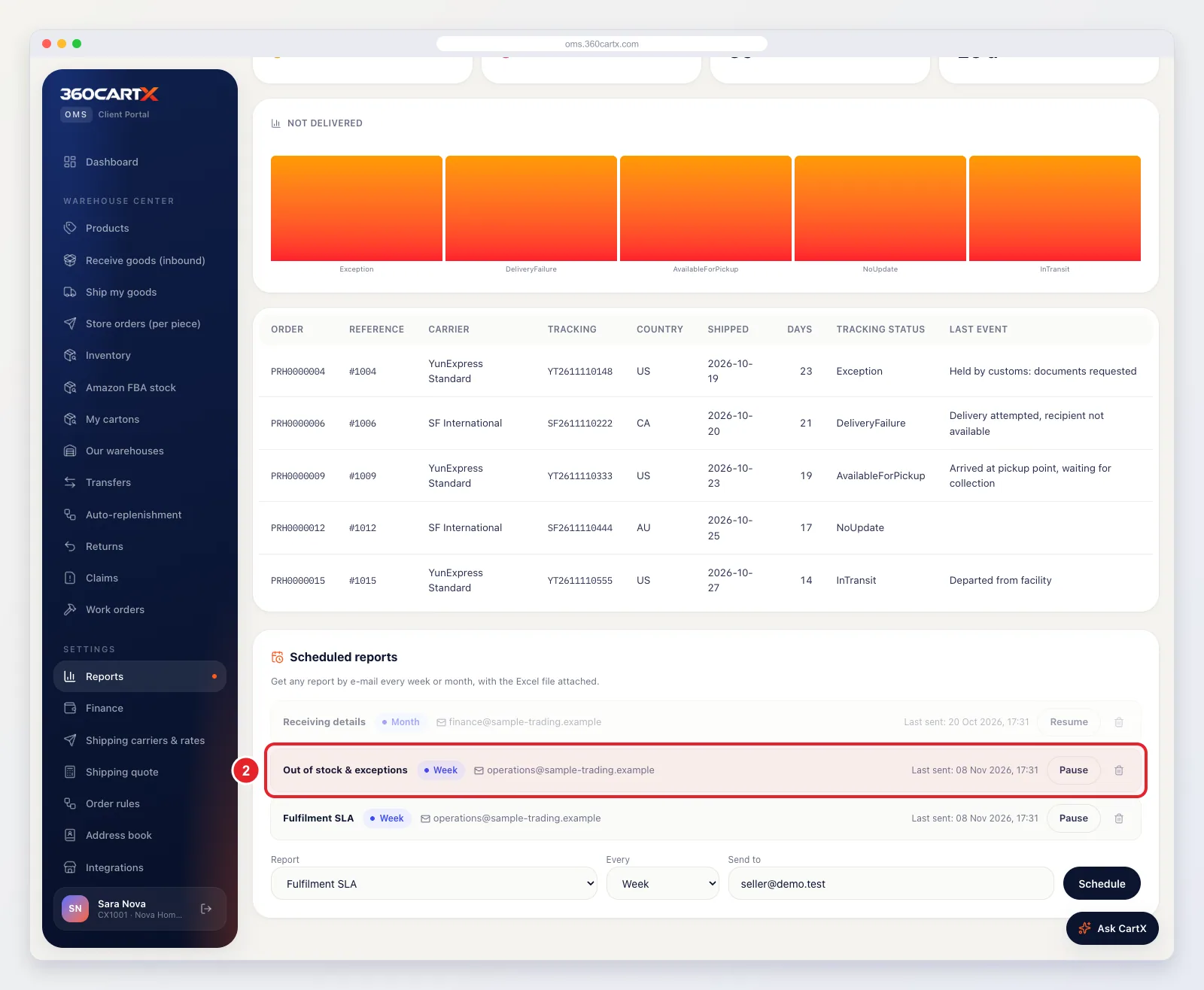
Each schedule is one line: the report name in bold, Week or Month, the e-mail address that receives it, and Last sent with the date and time of the latest e-mail (a dash if nothing was sent yet). The newest schedule is first.
- 3
Pause and resume
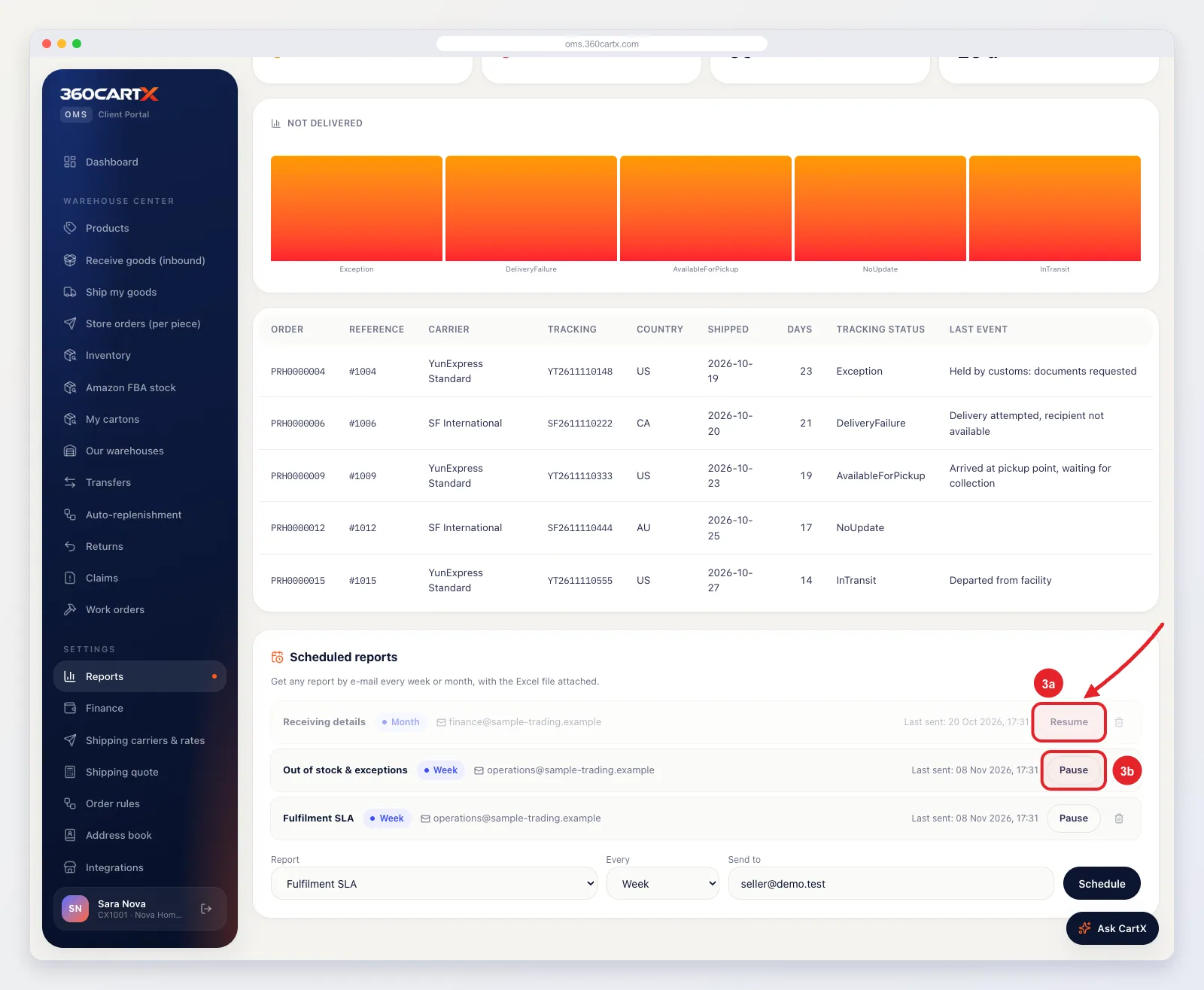
Pause stops the e-mails and greys the line out; the button then reads Resume. Click Resume to start again. Nothing is deleted, so you can pause for a holiday and resume later.
- 3a Resume
- 3b Pause
- 4
Delete a schedule
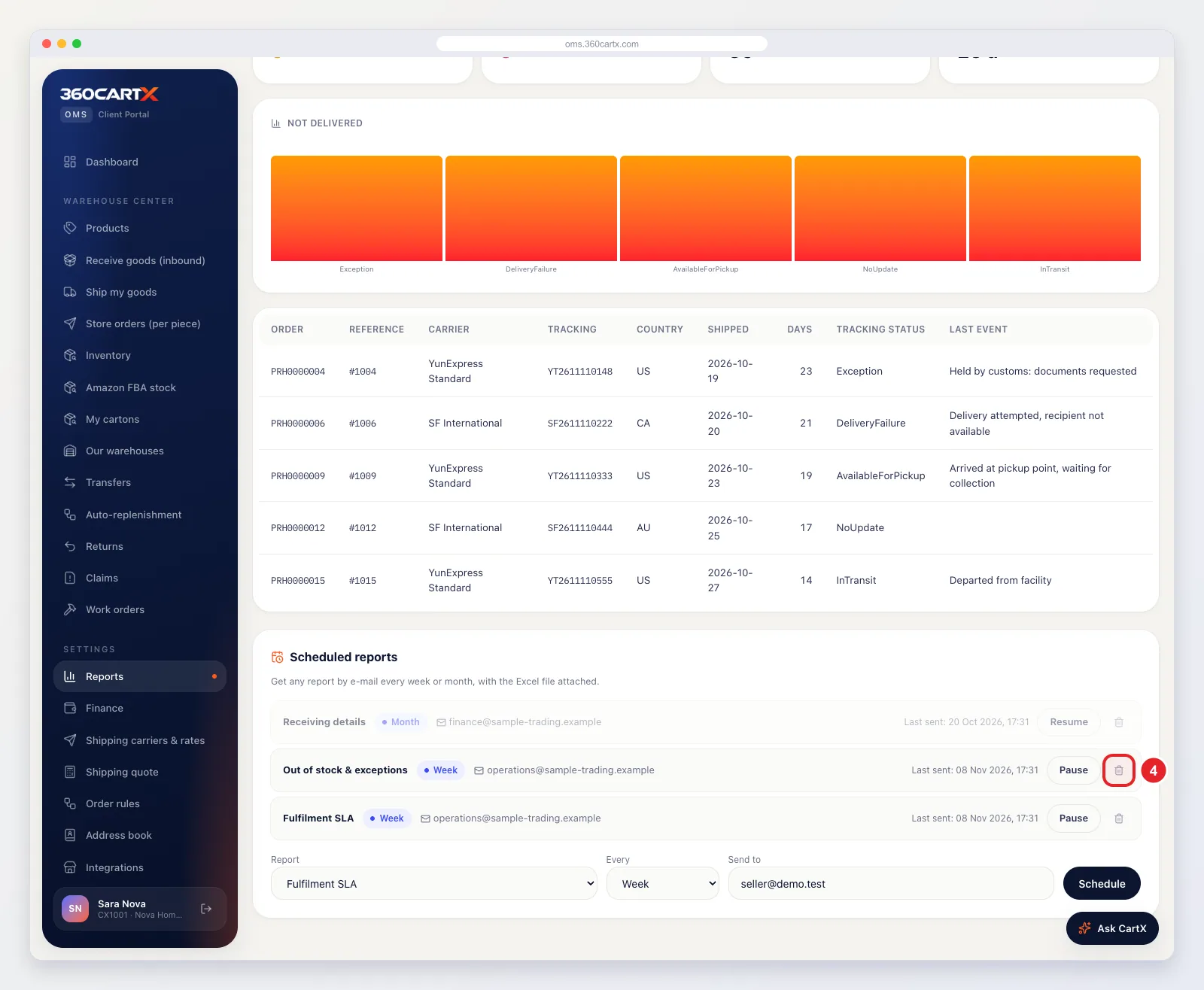
The bin icon at the end of the line deletes the schedule at once, without asking for confirmation. Add it again if you deleted it by mistake.
- 5
Add a schedule
Choose the Report (any of the six), Every Week or Month, and who to Send to; the address of your own login is filled in. Example: Undelivered shipments, Month, reports@sample-trading.example. Click Schedule. The message Scheduled appears and the form clears; your new schedule is first in the list.
- 5a Report
- 5b Every
- 5c Send to
- 5d Schedule
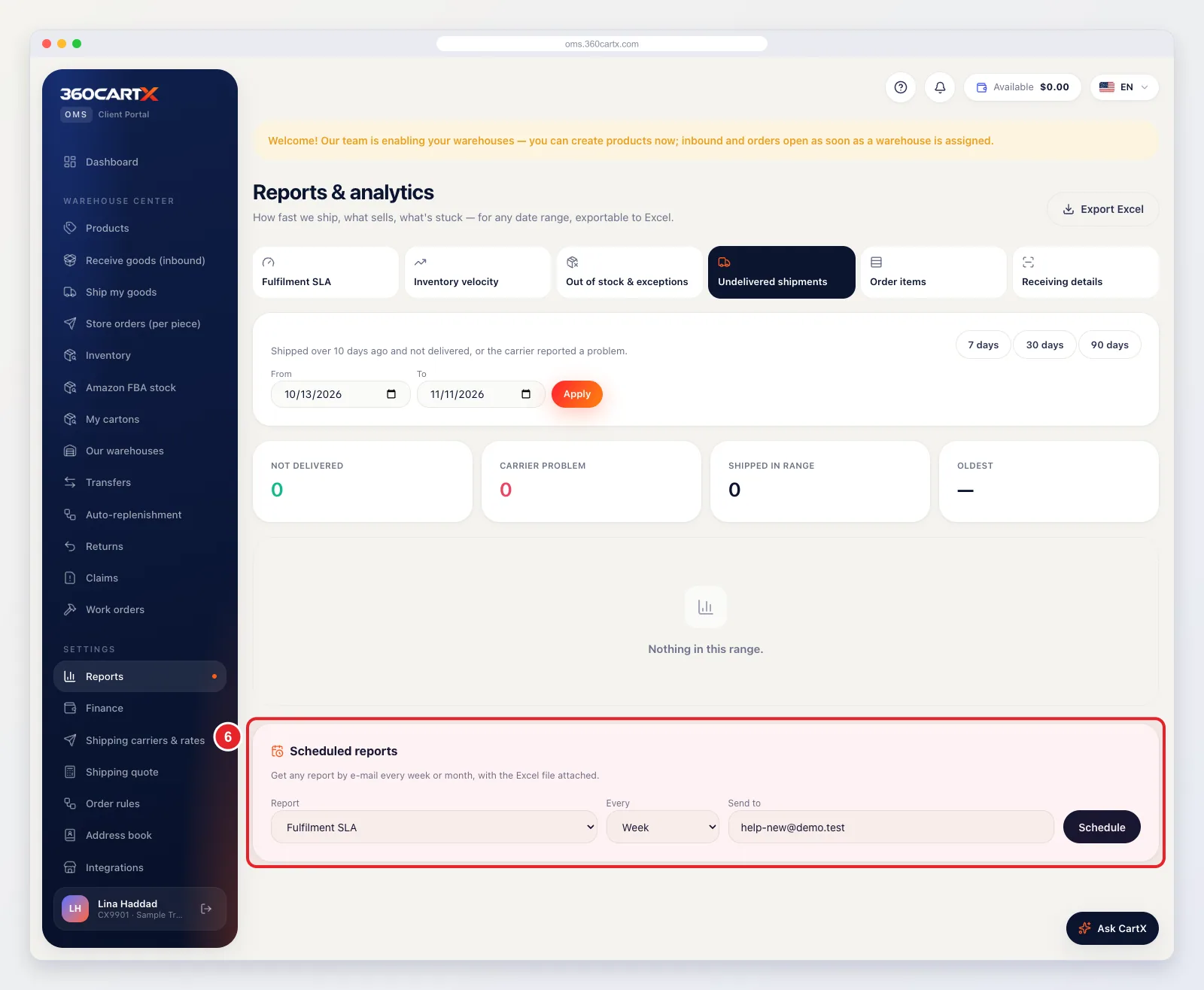
- 6
Before you add the first one
A new account has no schedules yet, so you see only the form. The first e-mail is sent shortly after you save (we check every few minutes), and the next ones follow every week or month.
Tips
- What you receive: an e-mail with a subject such as 360CartX · Fulfilment SLA (weekly), a short summary of the four key figures, and the full report as an Excel file (named like 360cartx-sla-2026-11-11.xlsx). The Excel file is the same as Export Excel on the report.
- The period is the last 7 days for Week and the last 30 days for Month, ending when the e-mail is sent. Month means every 30 days, not the calendar month.
- After the first e-mail, the next one comes about 7 days (Week) or 30 days (Month) later, at about the same time of day.
- The e-mail address can be anyone's: your accountant, a teammate or a shared mailbox. Add one schedule per recipient.
- You can have up to 20 schedules.
- Out of stock & exceptions is a good one to schedule weekly: it always shows what is stuck right now.
Common problems
Enter a valid e-mail
The Send to box needs a full address such as name@company.com.
Up to 20 scheduled reports
You reached the limit. Delete schedules you no longer need and add the new one.
Read-only preview
You are looking at the account in a read-only view, which cannot change schedules. Sign in as the account user.
I did not get the e-mail
Check the spam folder and the address on the line. A paused schedule sends nothing. Last sent shows when the latest e-mail left our system.
I want to change the address or the report
A schedule cannot be edited. Delete it and add a new one.
Related articles
Updated 2026-11-11
Open a ticket from Support in your portal and our team will reply.