Steps
- 1
Open the report
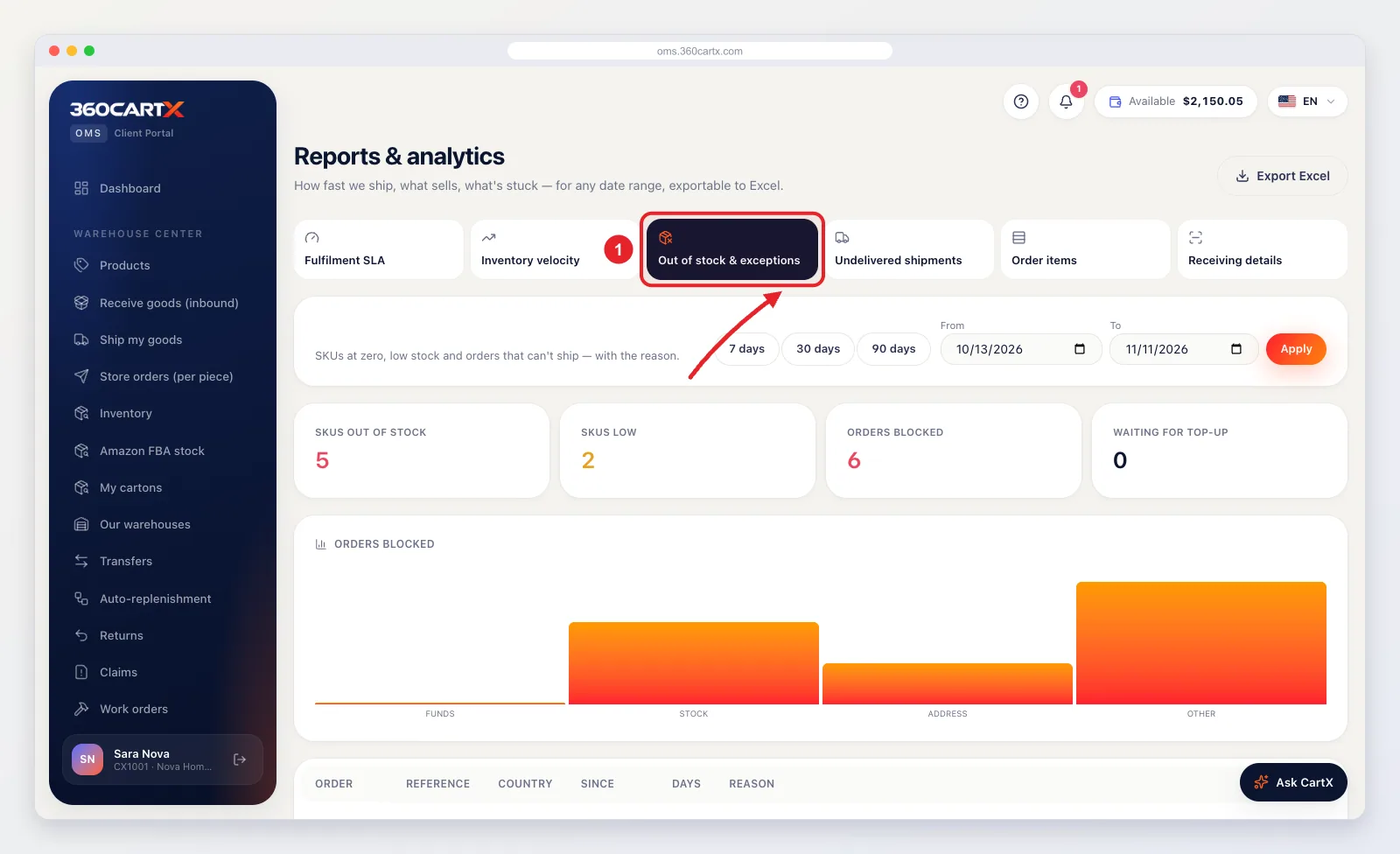
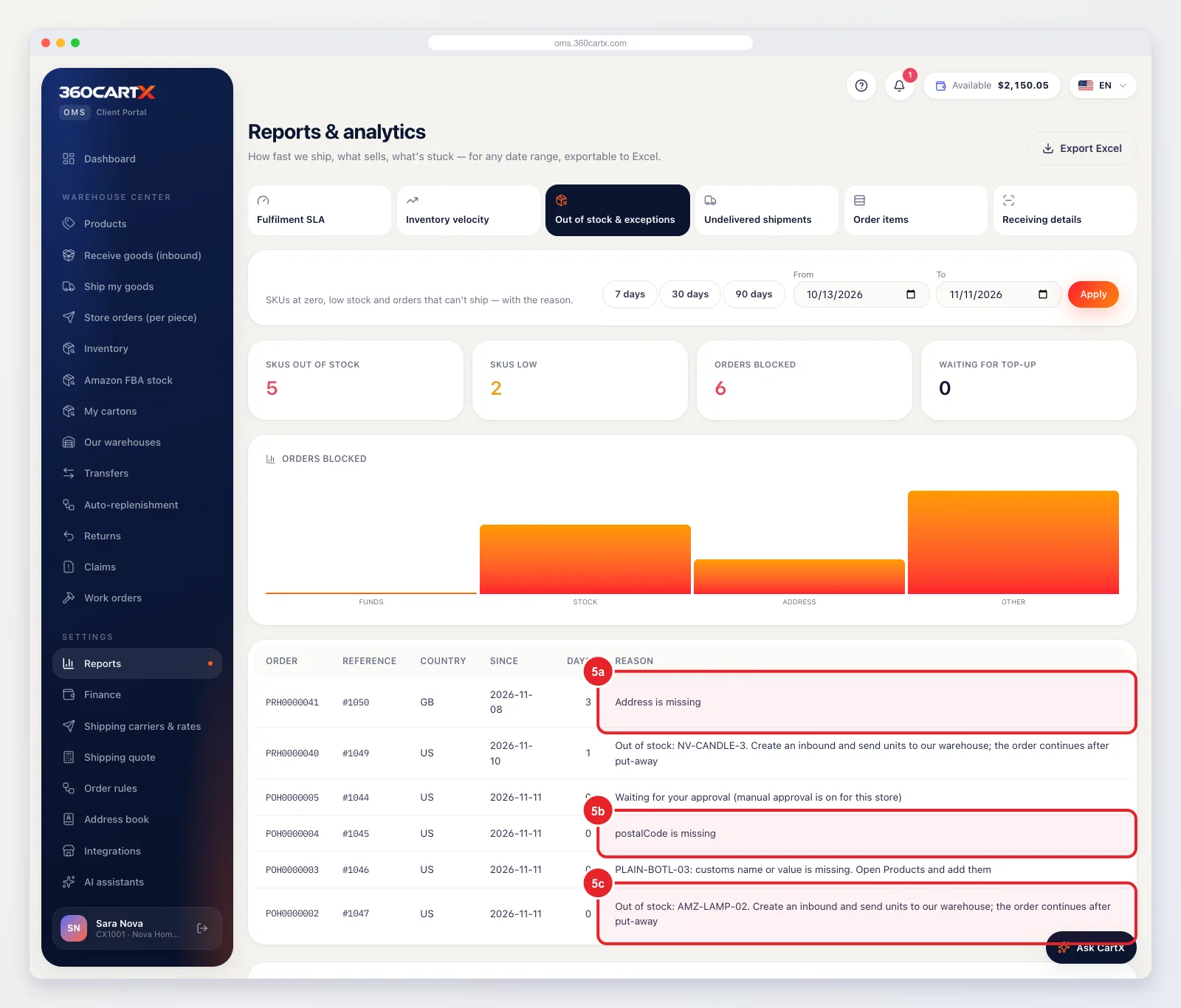
On the Reports page click Out of stock & exceptions. The line under the cards says: SKUs at zero, low stock and orders that can't ship, with the reason.
- 2
The four figures
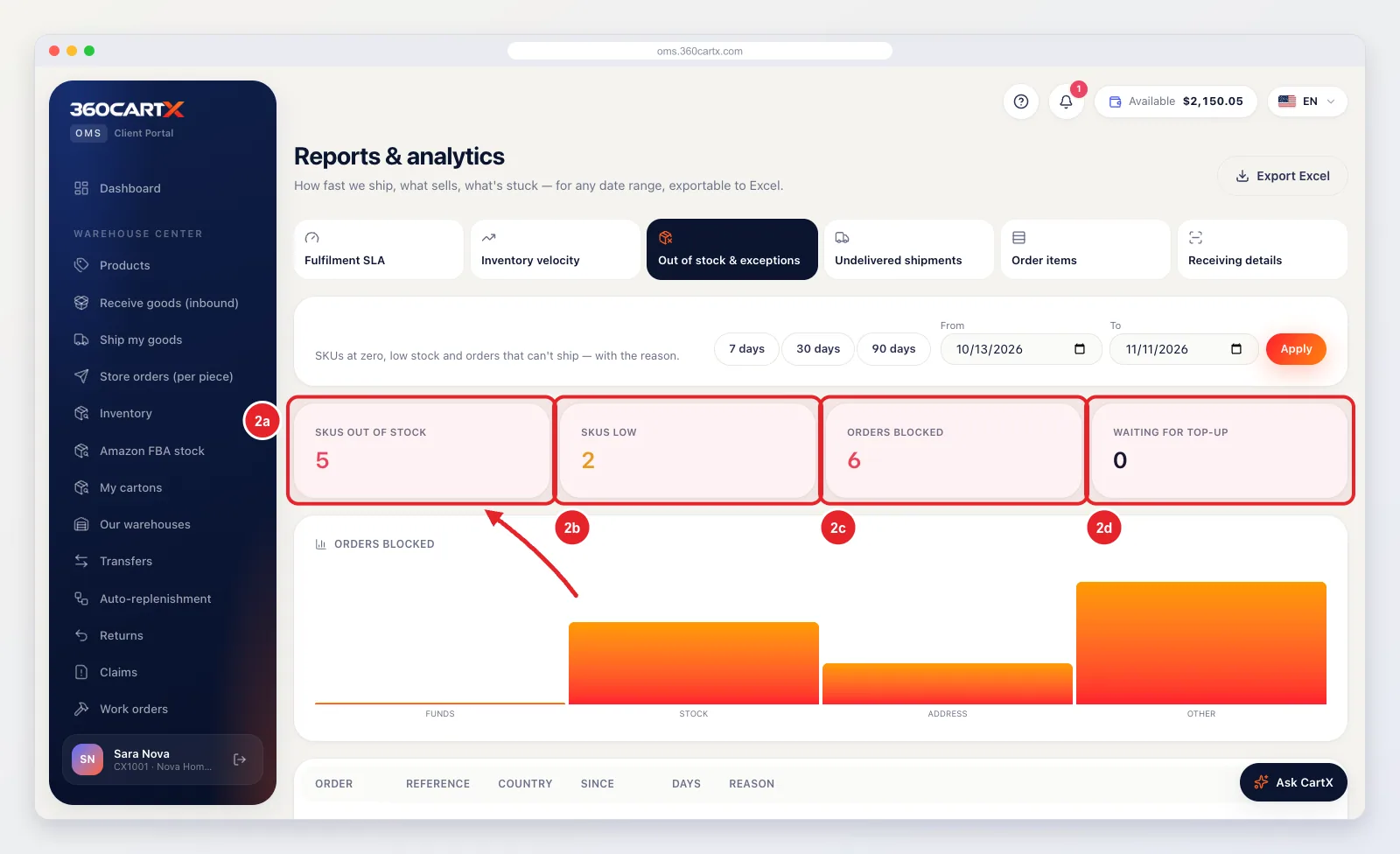
SKUs out of stock: your approved products with no available stock (red when there are any, green when none). SKUs low: products with a low-stock alert level whose available stock is at or below that level but not zero (amber). Orders blocked: orders on hold in the Needs attention state. Waiting for top-up: how many of those wait for money in your wallet.
- 2a SKUs out of stock
- 2b SKUs low
- 2c Orders blocked
- 2d Waiting for top-up
- 3
The chart
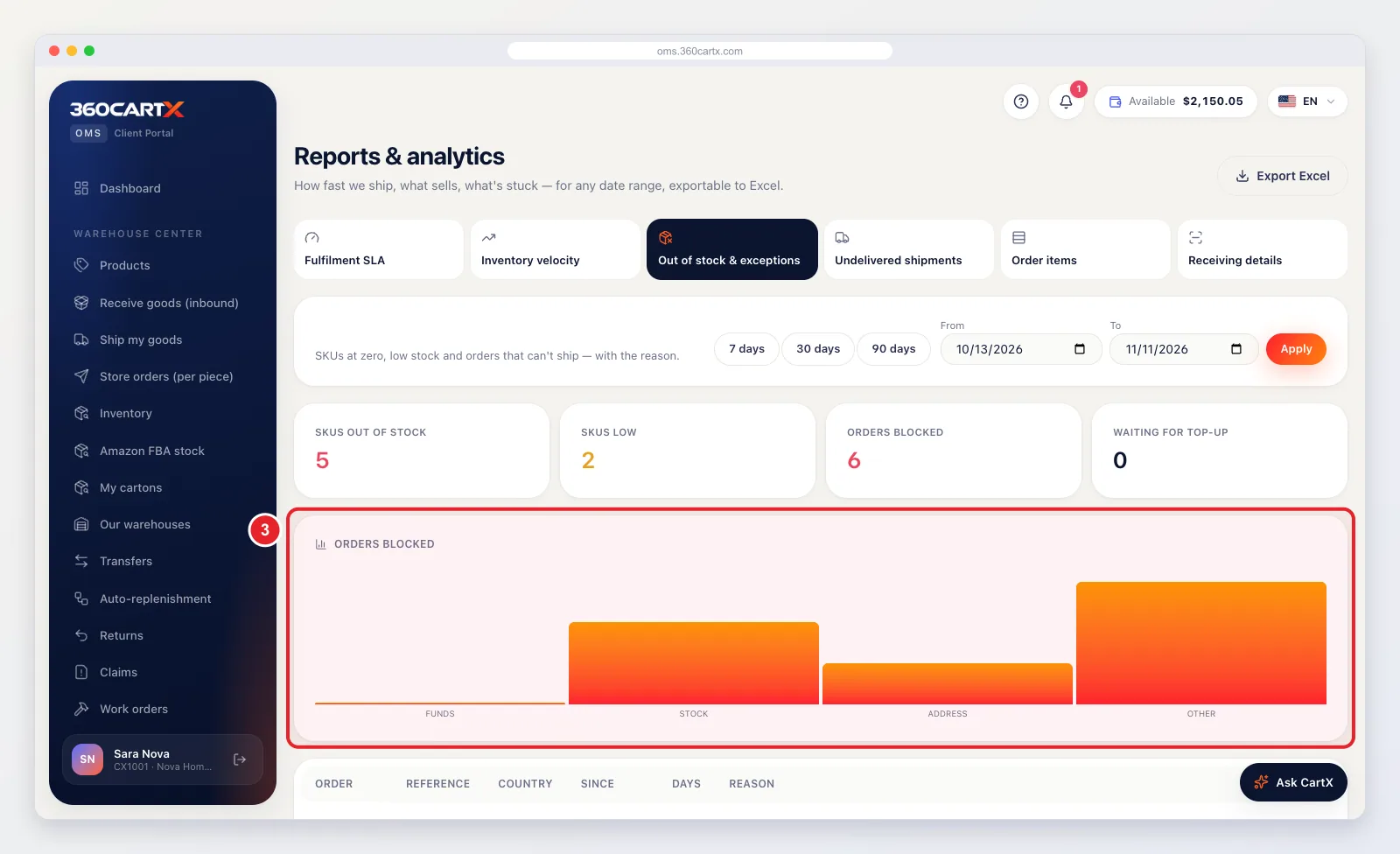
The chart is titled Orders blocked. It sorts the blocked orders into four bars: FUNDS (waiting for a wallet top-up), STOCK (a product is out of stock), ADDRESS (a problem with the delivery address) and OTHER (anything else, such as missing customs data, a missing postal code or waiting for your approval). Hold the mouse over a bar to read the count.
- 4
The columns
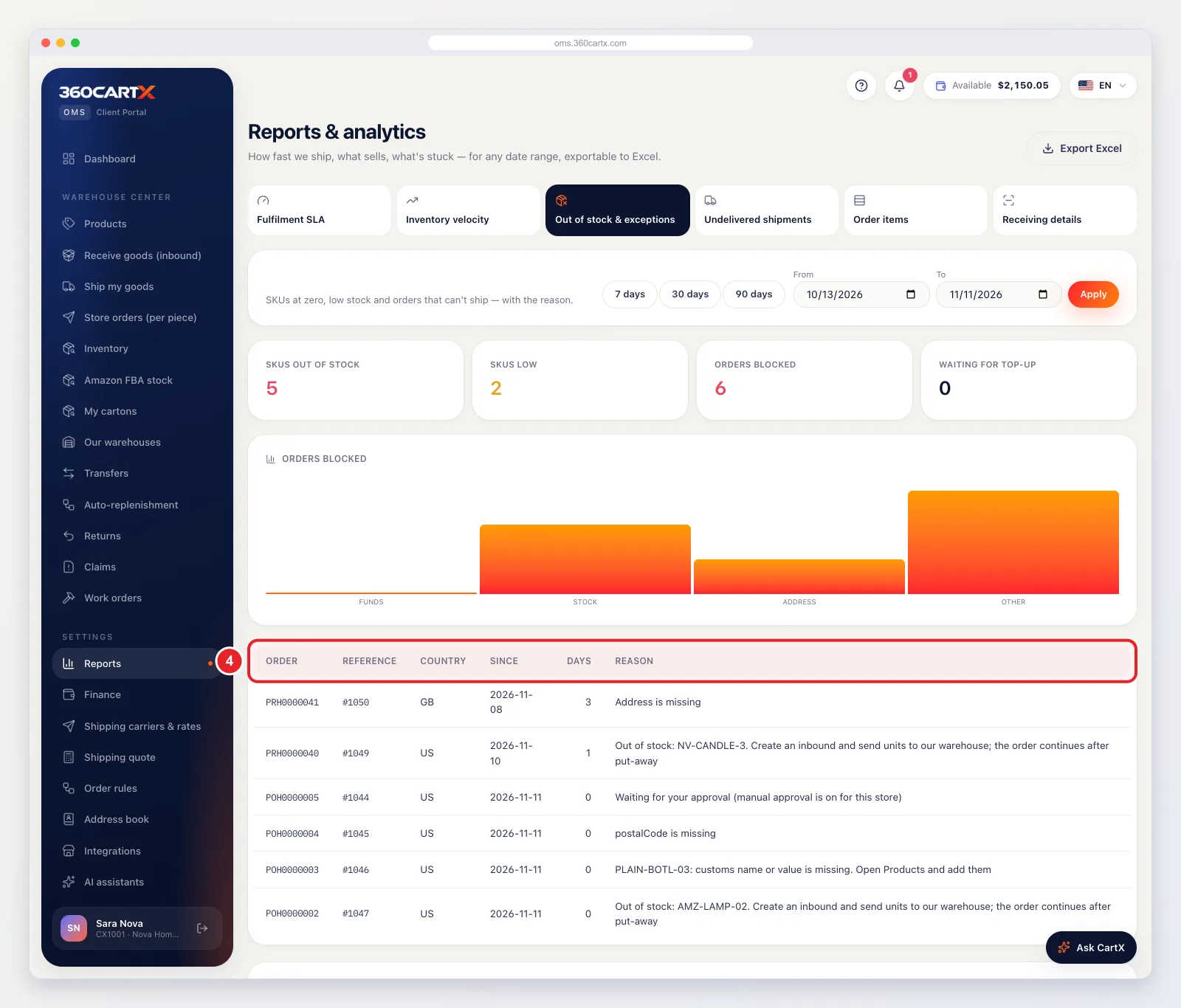
The table lists every blocked order, the longest-waiting first. Order (our parcel number), Reference (your own order number), Country, Since (the day the order was created), Days (how many days it has been waiting) and Reason.
- 5
The reasons
Reason is the text from the order itself. Examples: Address is missing, postalCode is missing, Out of stock: AMZ-LAMP-02 with what to do about it, or Waiting for your approval. An order that waits for money starts with Wallet:. Open the order from Store orders to fix it.
- 5a Address problem
- 5b Missing information
- 5c Out of stock
Tips
- The dates above the report do not change this report. It lists what is blocked today, whatever the range.
- The SKU figures are numbers only. To see which SKUs they are, open Inventory. Products with a low-stock alert level show up there when they fall below it.
- Bundles are not counted in the SKU figures: their stock comes from the products inside.
- Orders only appear here when they are blocked. A blocked order disappears from the list as soon as it is fixed and moves on.
Common problems
SKUs low is 0 but I have products running out
A product counts as low only if you set a low-stock alert level on it. Set the level on the product, see Low-stock alerts.
An order is blocked for stock but I have units in the warehouse
The units may be reserved for other orders, damaged, or not put away yet. Check On hand, reserved and available in Inventory. The order continues by itself after the stock is put away.
Waiting for top-up is more than 0
Those orders wait for your wallet balance. They ship automatically after you top up. See Orders waiting for money.
The Days number keeps growing
Days counts from the day the order was created, not from the day it was blocked.
Related articles
Updated 2026-11-11
Open a ticket from Support in your portal and our team will reply.