Steps
- 1
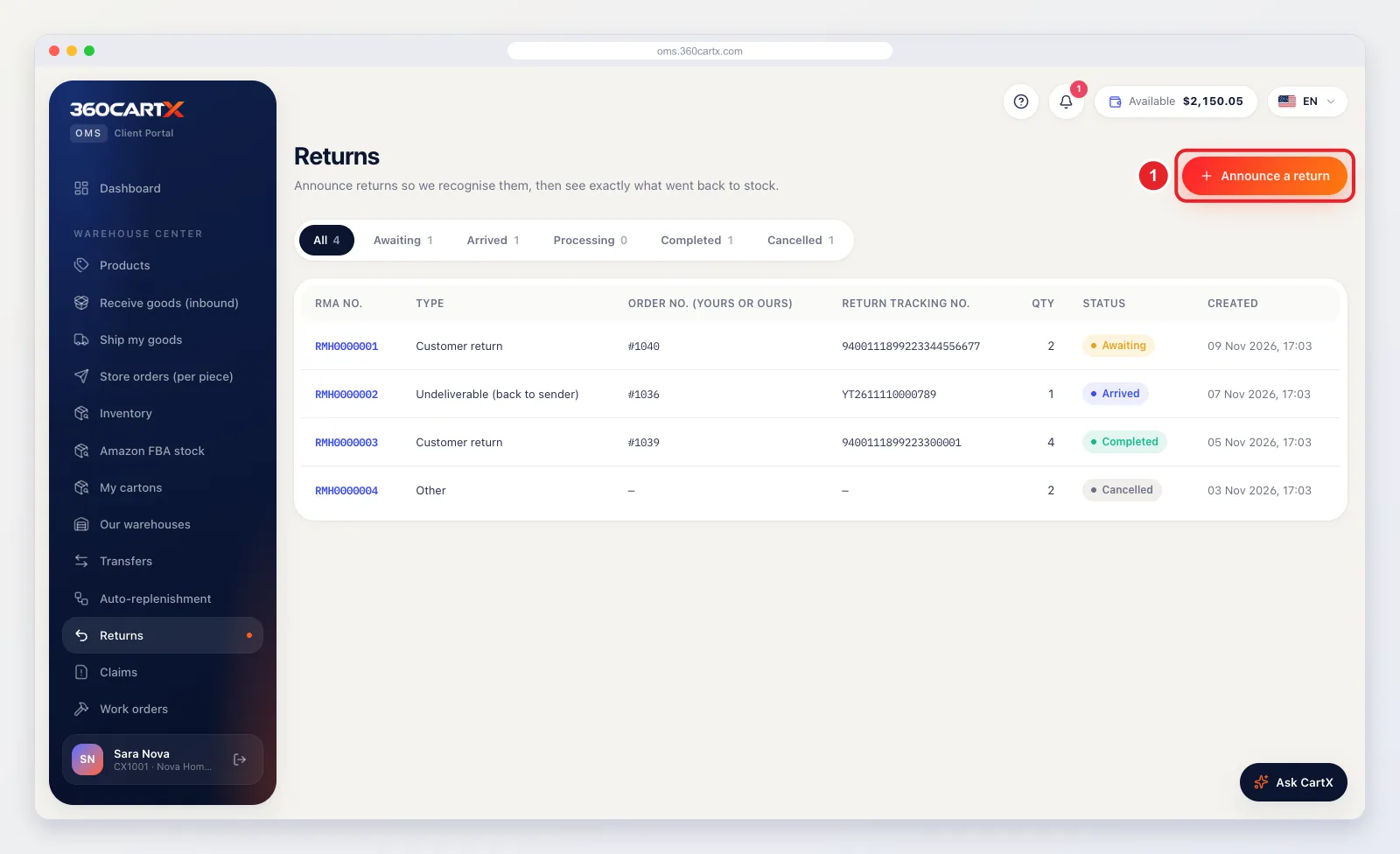
Click Announce a return
On Returns click Announce a return at the top right.
- 2
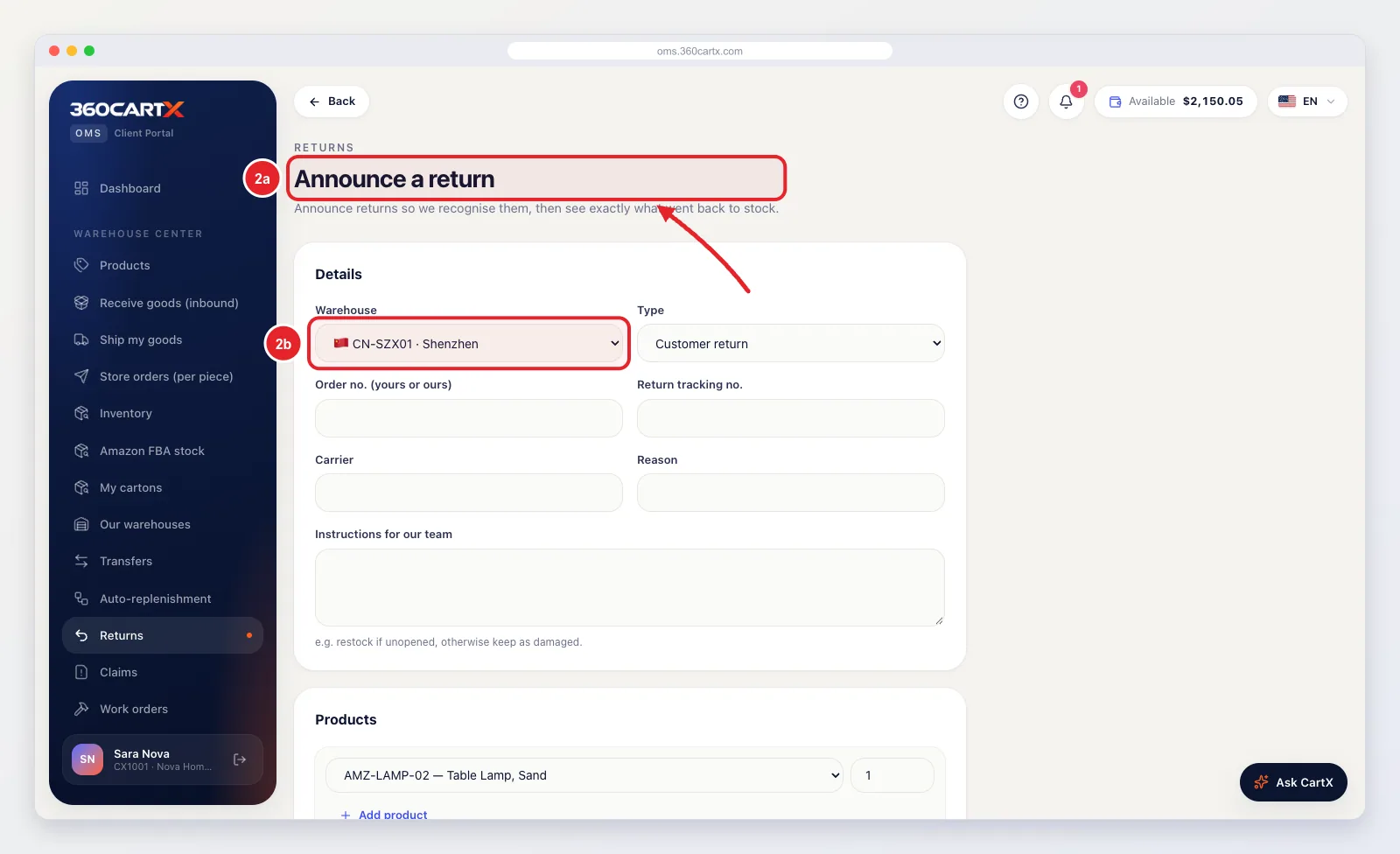
Warehouse
Under Details choose the Warehouse the parcel comes back to, for example CN-SZX01 · Shenzhen. When you come from an order it is the warehouse that shipped it.
- 2a Page title
- 2b Warehouse
- 3
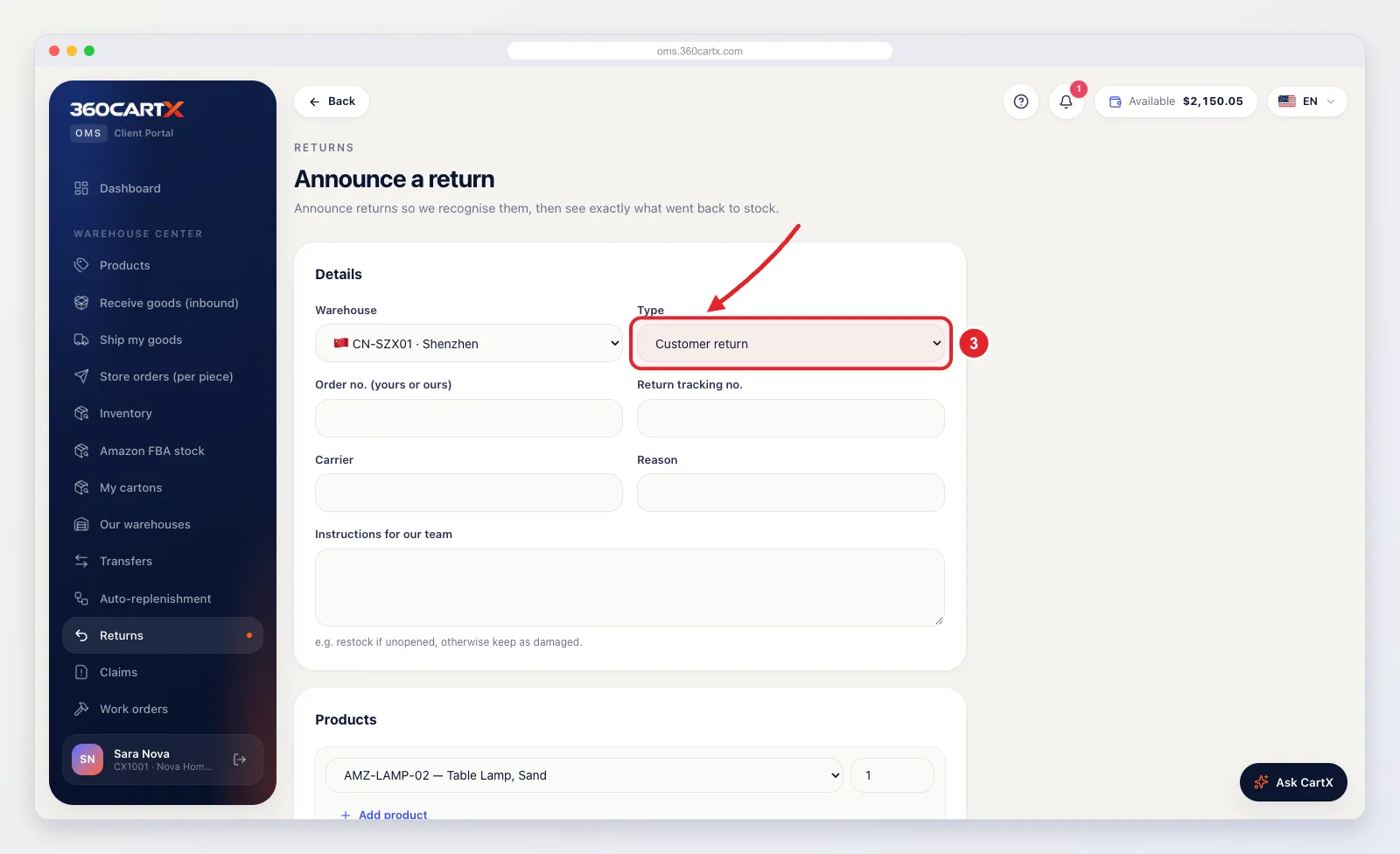
Type
Customer return: a buyer sends something back. Undeliverable (back to sender): the carrier could not deliver and returns the parcel. Other: anything else.
- 4
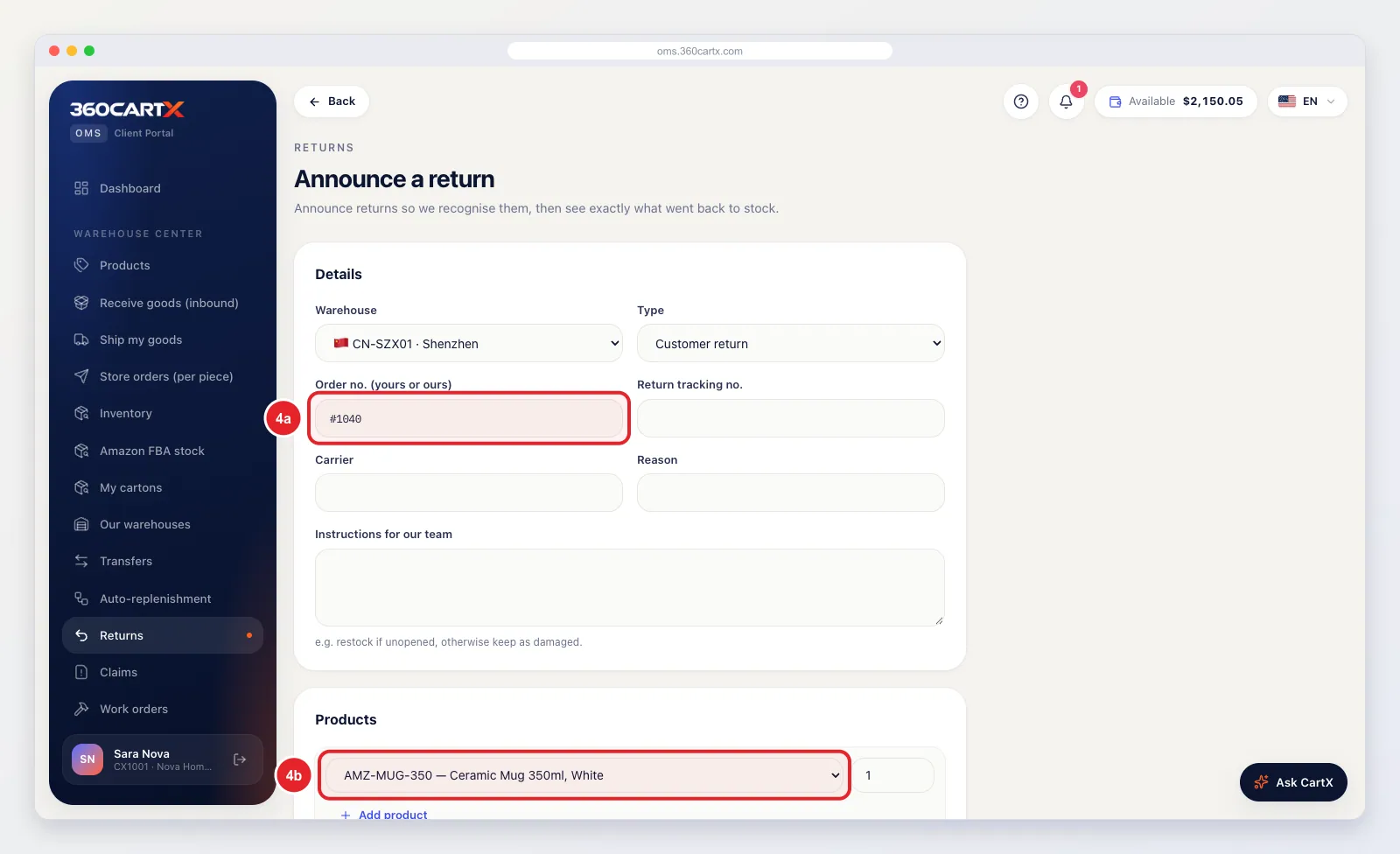
Order no.
Order no. (yours or ours): your order number or our parcel number, for example #1040. We find the order and link the return to it. You can also open the form from an order with the number already filled in and the products of that order added.
- 4a Order no.
- 4b Products of the order
- 5
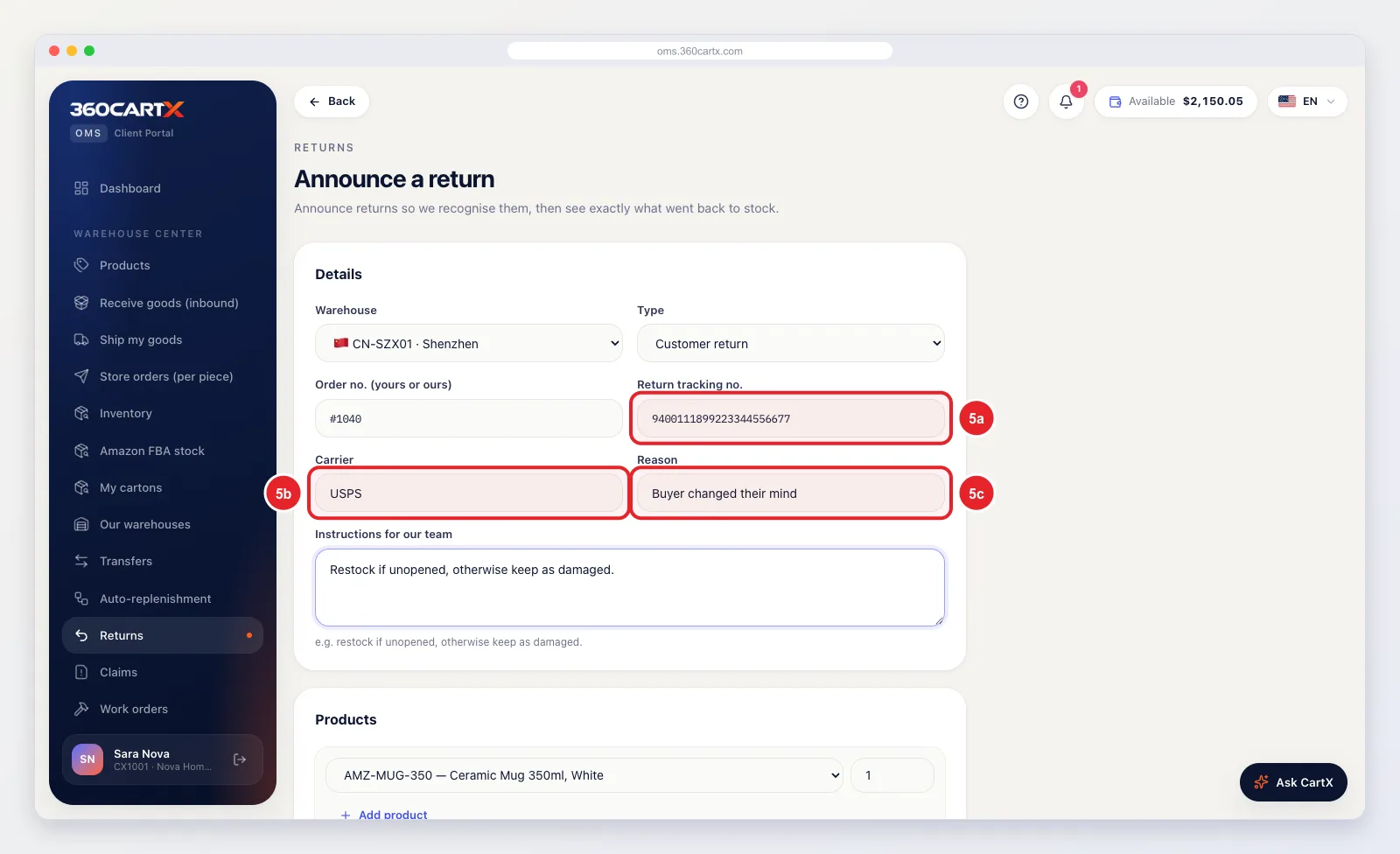
Tracking, carrier and reason
Return tracking no. (for example 9400111899223344556677) and Carrier (USPS) help us recognise the parcel. Reason (Buyer changed their mind) is for your own records and ours. All three are optional.
- 5a Return tracking no.
- 5b Carrier
- 5c Reason
- 6
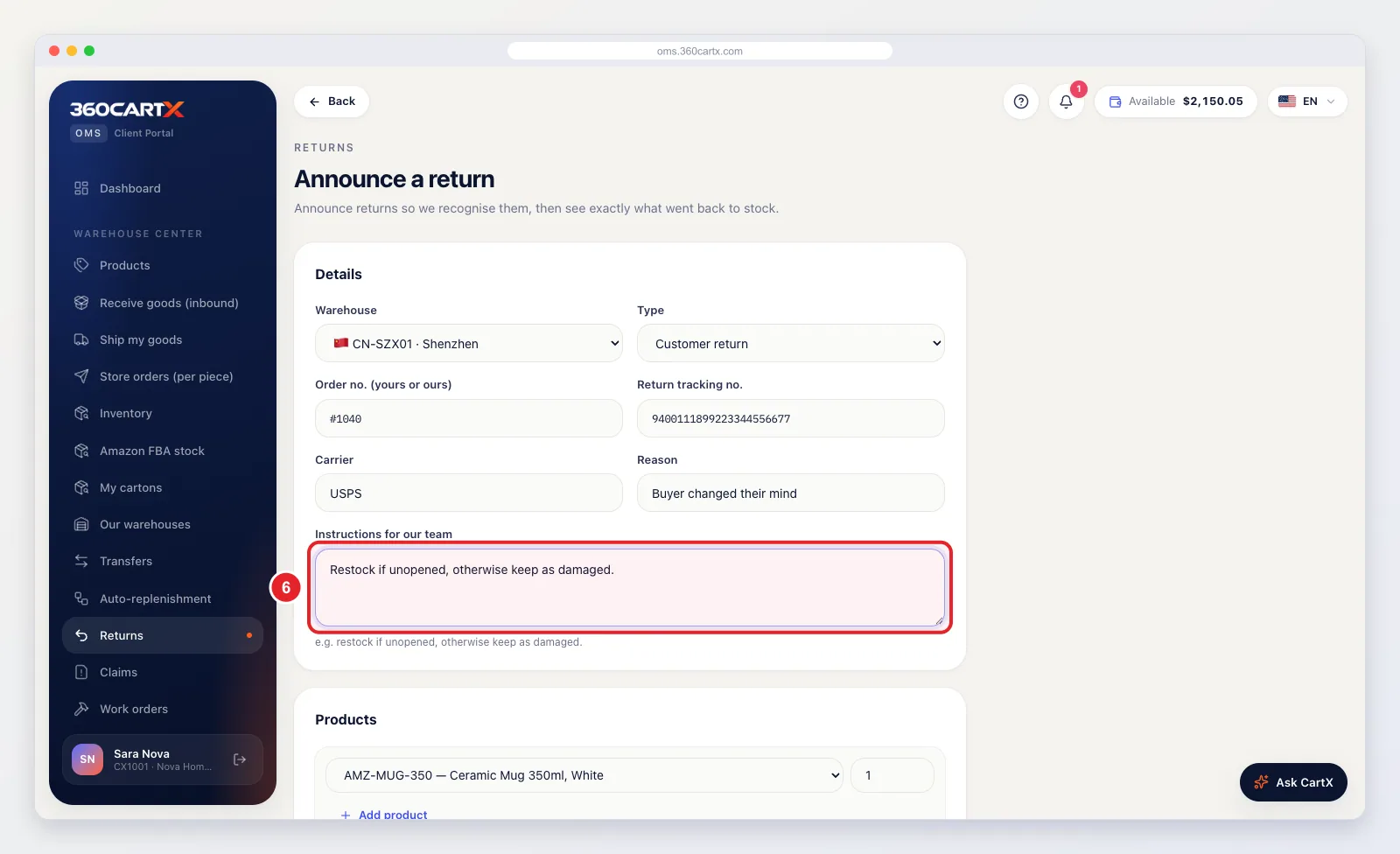
Instructions for our team
Say what to do, for example: Restock if unopened, otherwise keep as damaged. You can write up to 1,000 characters.
- 7
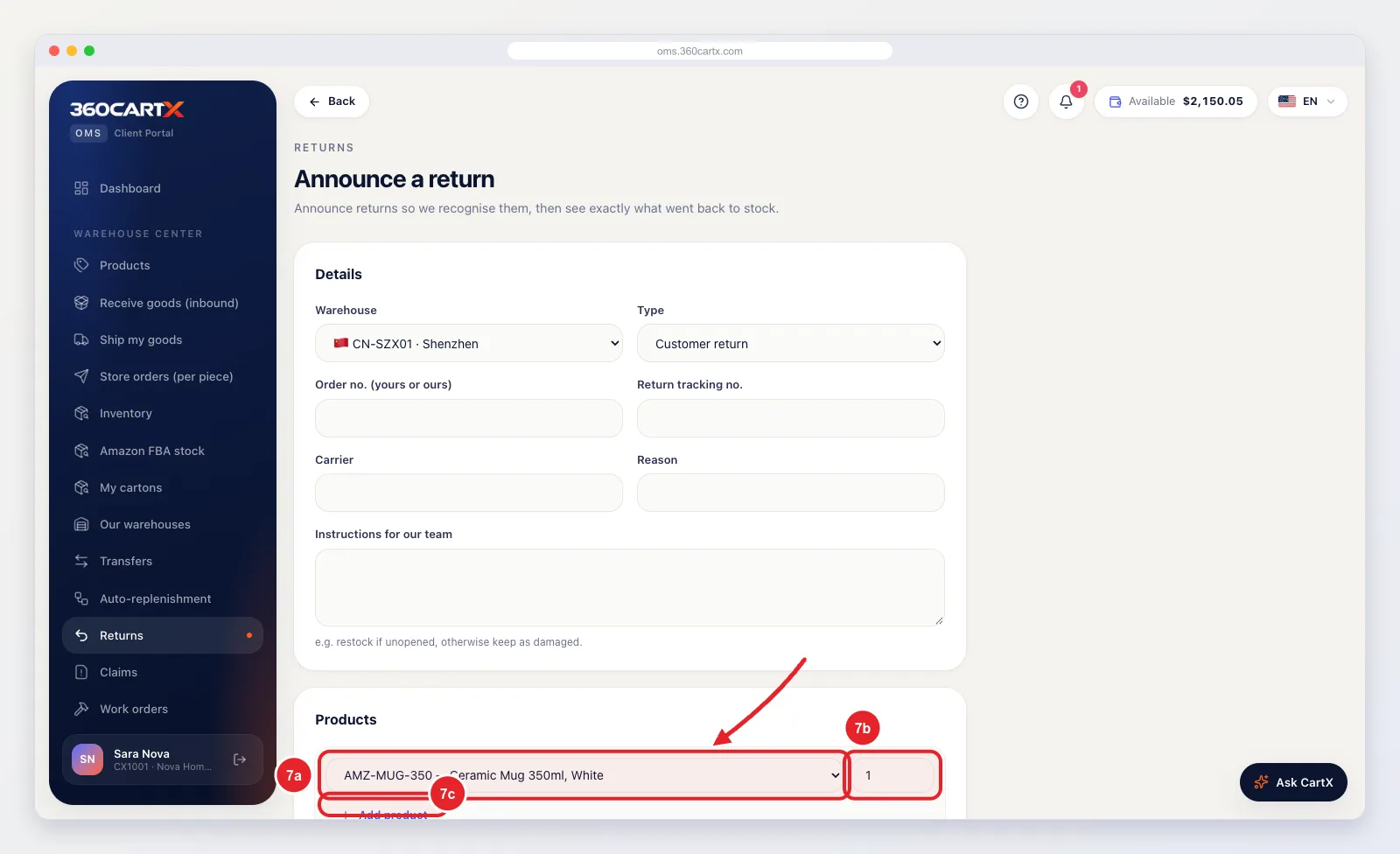
Products and quantities
Under Products choose each product that comes back and the quantity, for example AMZ-MUG-350 × 2. Add product adds a line and the bin removes one.
- 7a Product
- 7b Qty
- 7c Add product
- 8
Submit and errors
Click Submit. Possible messages: Add at least one product, Unknown product (the product is not yours) and Warehouse not allowed.
- 9
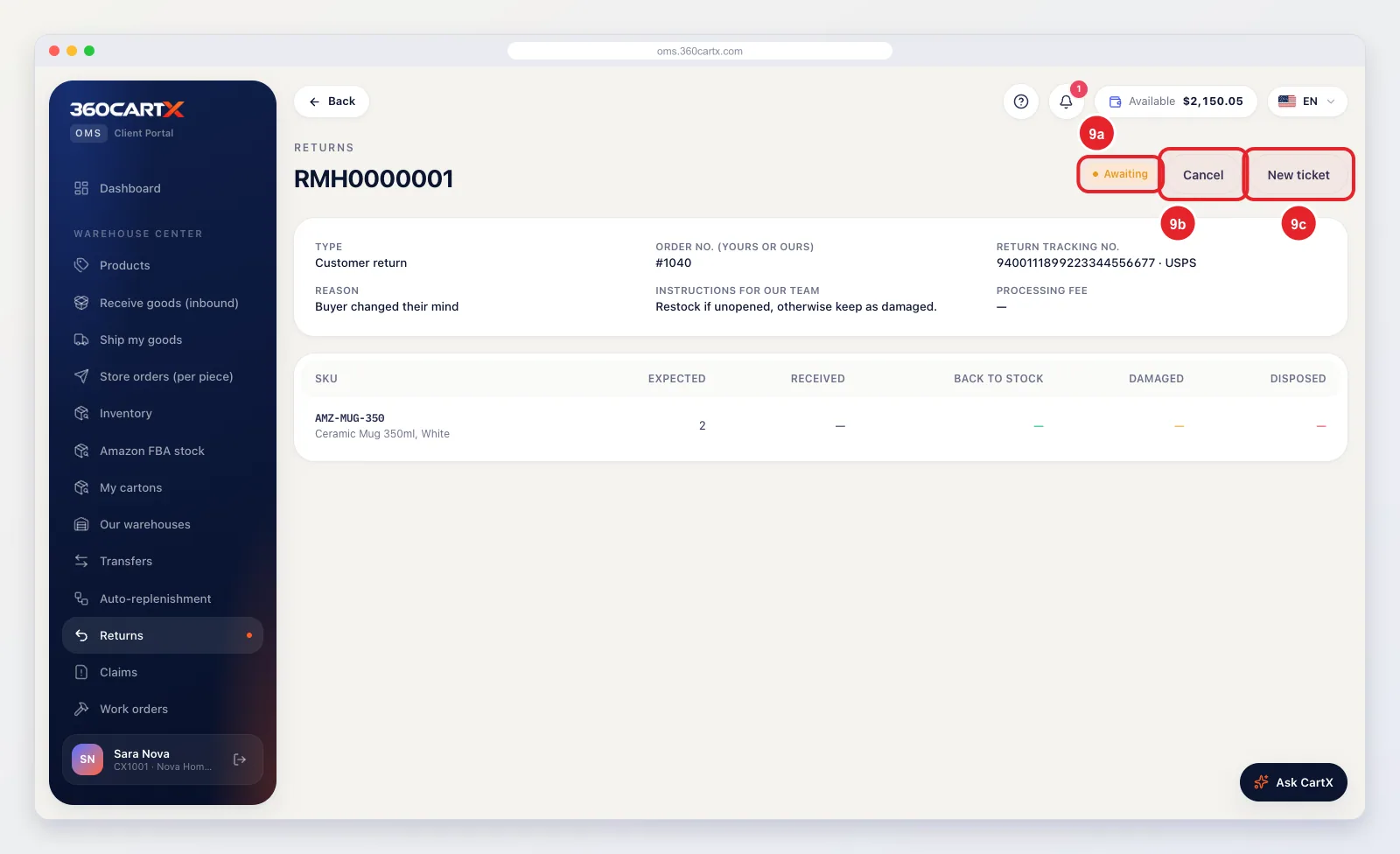
After you announce
You land on the return, for example RMH0000001, with the status Awaiting. While it is Awaiting you can click Cancel (no confirmation). New ticket opens a support ticket about this return. Our team is told about your return.
- 9a Awaiting
- 9b Cancel
- 9c New ticket
Terms in this article
- RMA: The number of a return you announced.
Tips
- Announce the return as soon as the buyer sends it. Parcels that arrive without an announcement take longer to match.
- The charge for processing a return, if any, is shown on the return when it is completed.
Common problems
Add at least one product
A return needs at least one product line.
I cannot cancel the return
Cancel is only offered while the status is Awaiting. After the parcel arrived, open a ticket.
Related articles
Updated 2026-11-11
Open a ticket from Support in your portal and our team will reply.