Steps
- 1
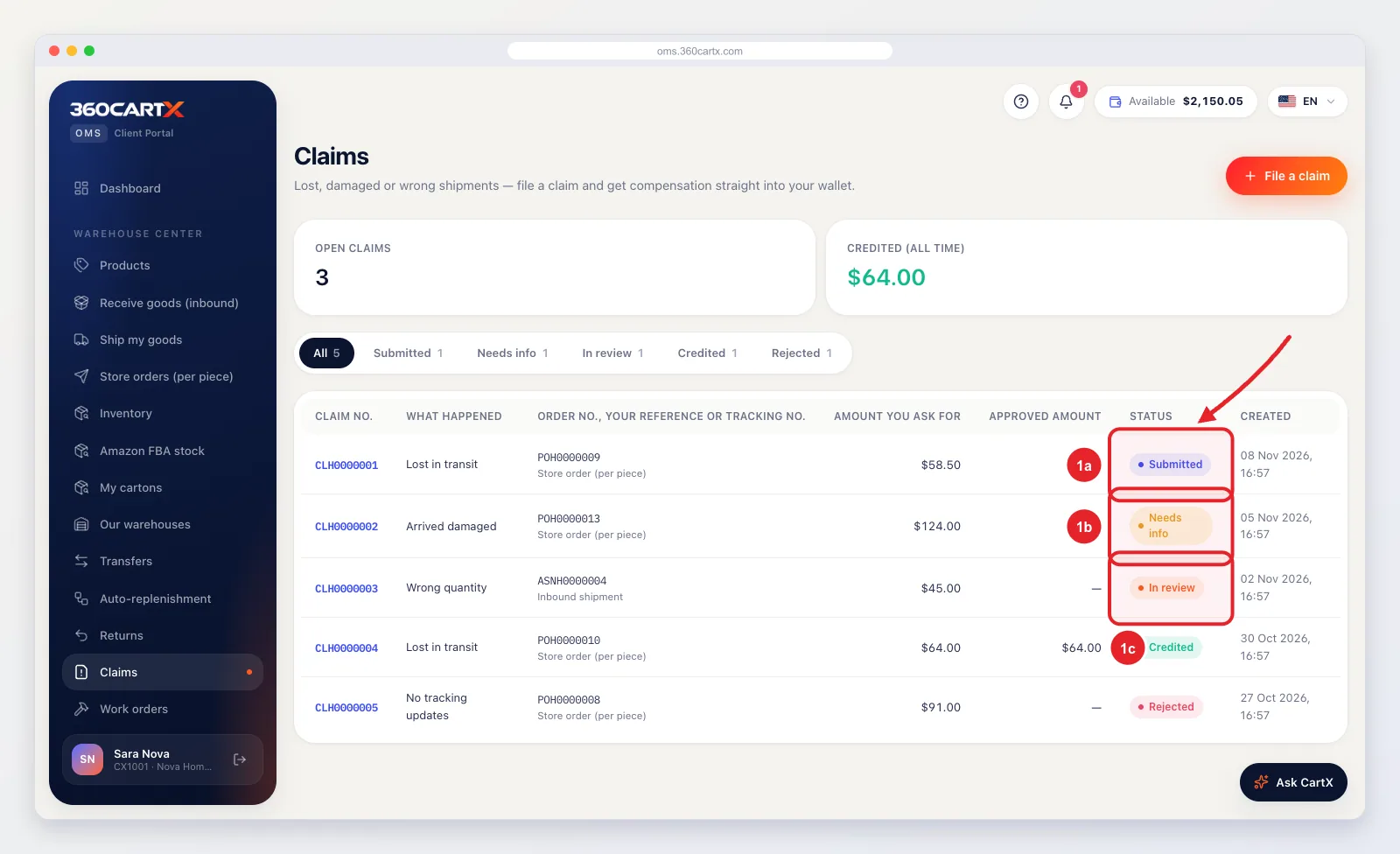
Submitted, Needs info and In review
Submitted: we received your claim. Needs info: we asked you a question and wait for your answer. In review: our team is checking the evidence and the carrier.
- 1a Submitted
- 1b Needs info
- 1c In review
- 2
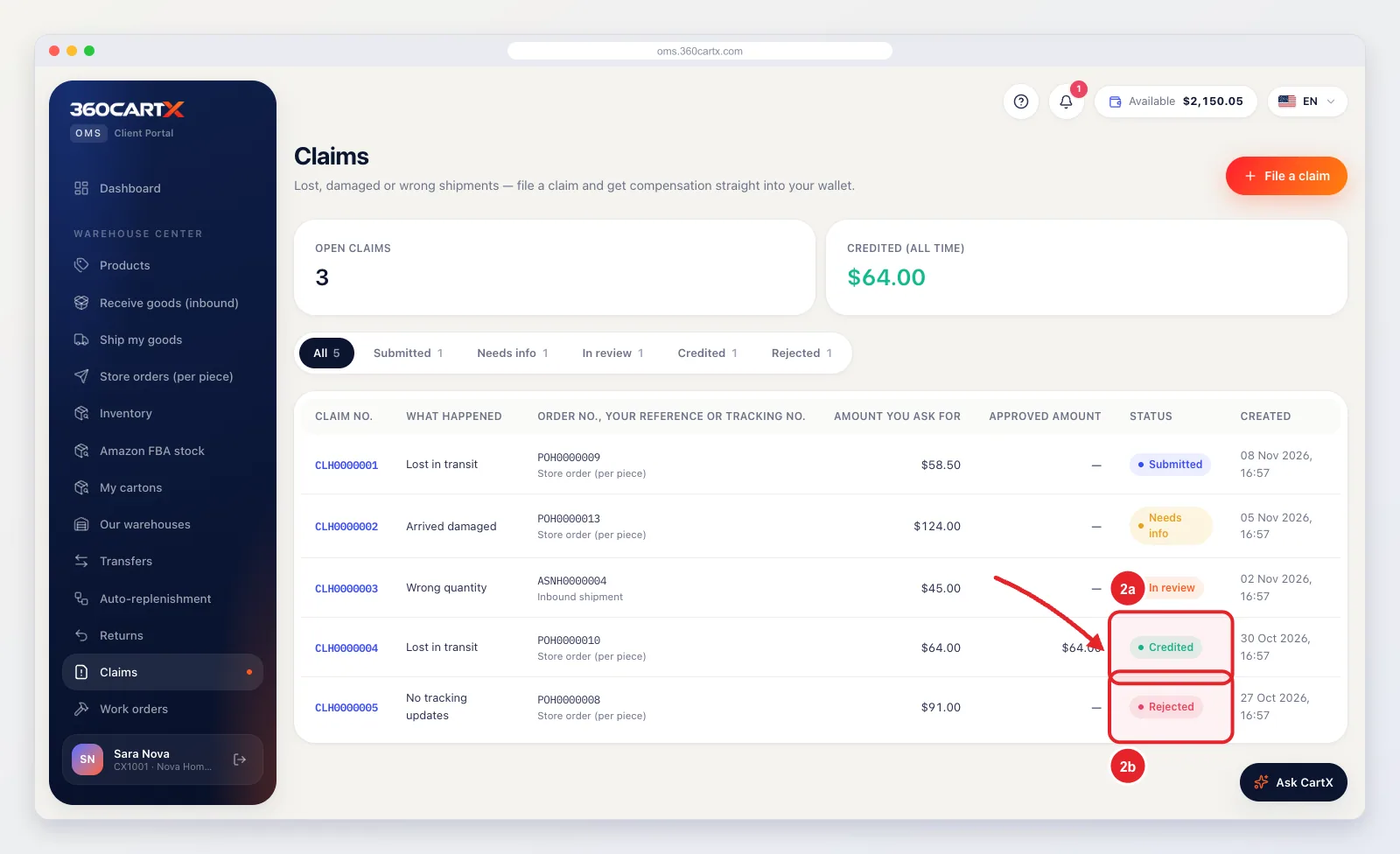
Credited and Rejected
Credited: the claim was approved and the approved amount is already in your wallet. Rejected: it was not accepted; our note says why. There is also an Approved tab, but approving a claim credits the wallet in the same moment, so you normally see Credited.
- 2a Credited
- 2b Rejected
- 3
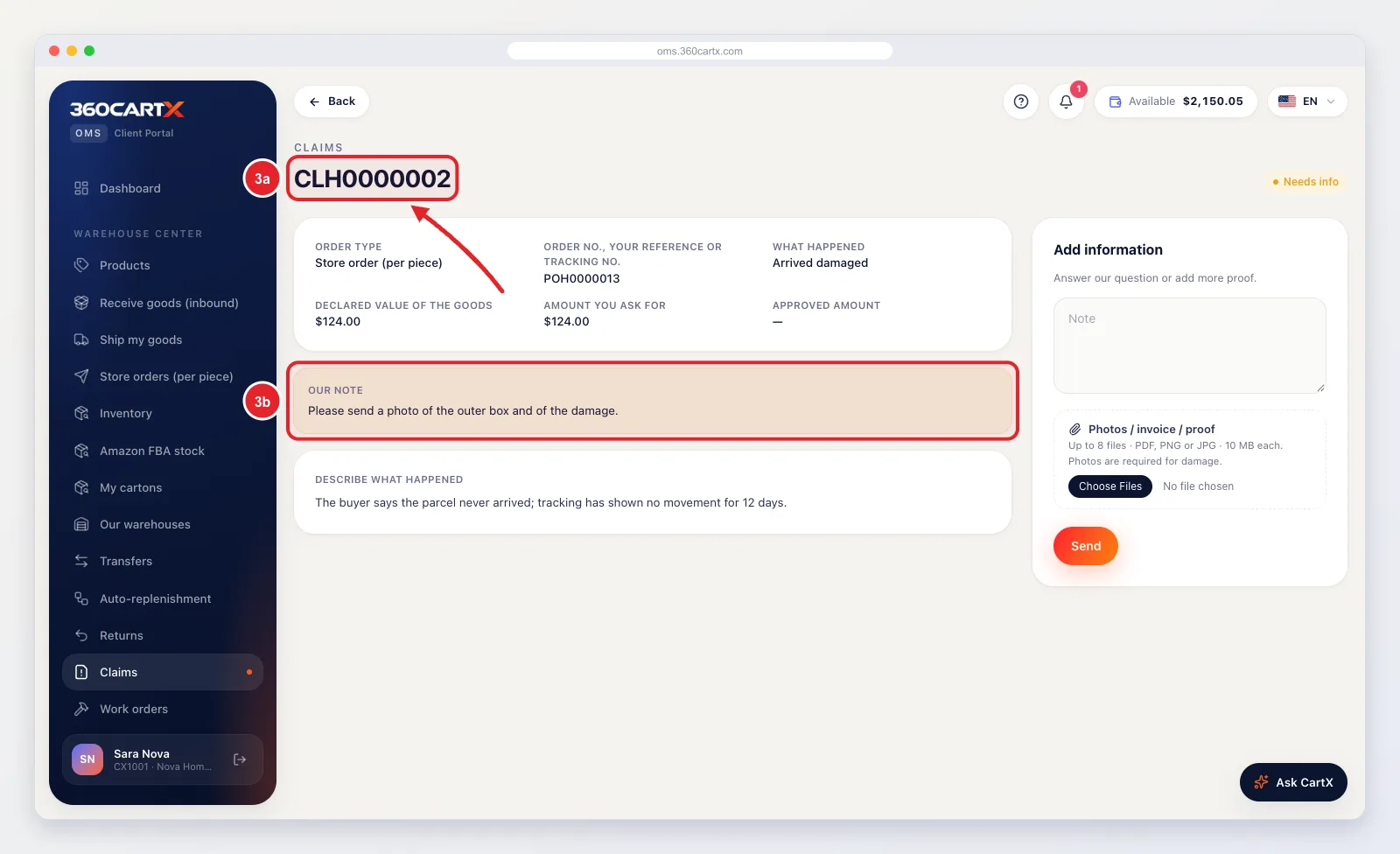
Read our question
Open a claim that needs information. A yellow box Our note shows what we need, for example: Please send a photo of the outer box and of the damage.
- 3a Claim no.
- 3b Our note
- 4
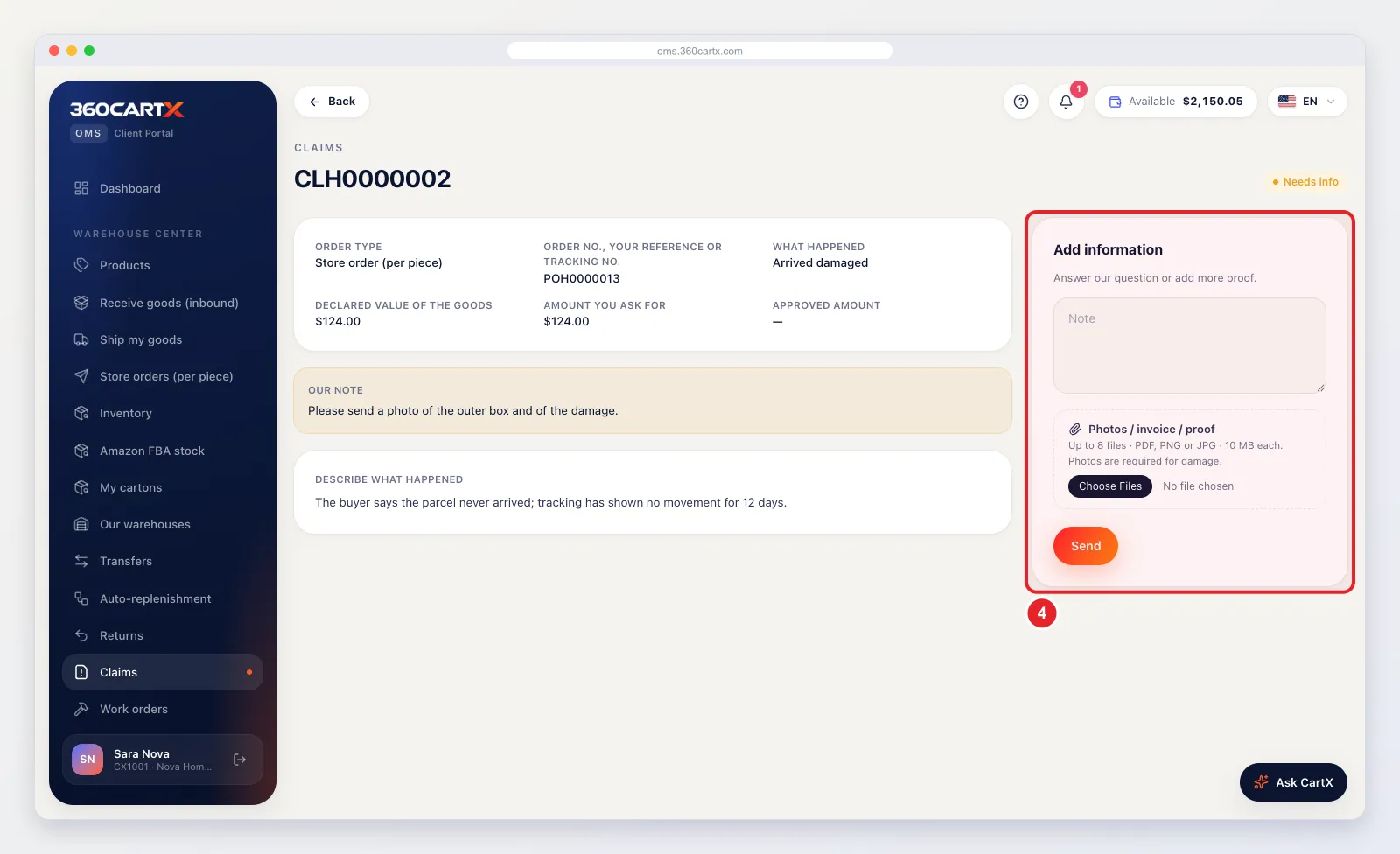
Add information
While the claim is Submitted, Needs info or In review the box Add information is on the right: write a Note and attach files (up to 8, PDF, PNG or JPG, 10 MB each), then click Send. Your answer reaches our team at once.
- 5
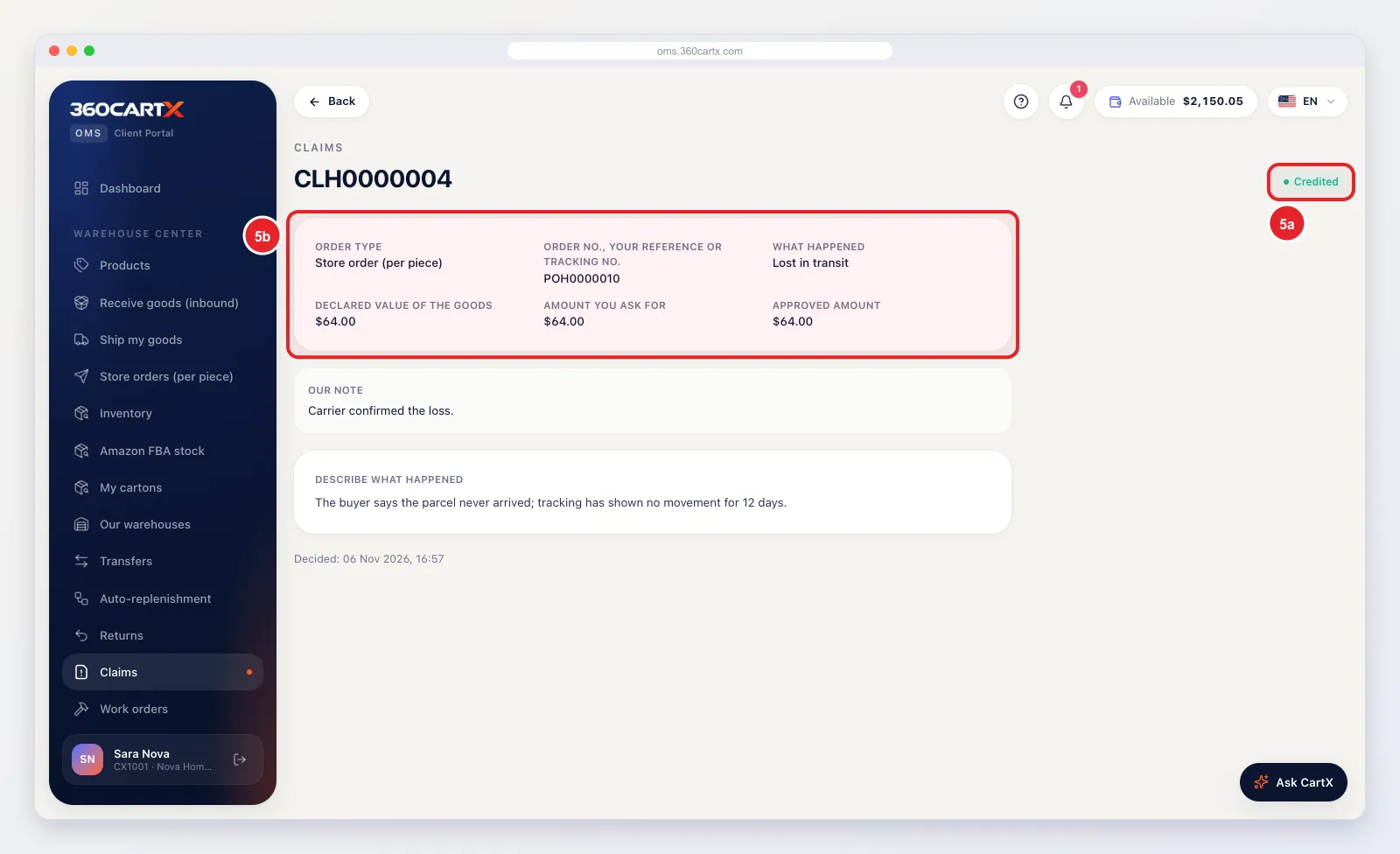
A credited claim
The claim shows the Approved amount, for example $64.00, and the amount is added to your wallet. Credited (all time) on the Claims page counts it.
- 5a Credited
- 5b Approved amount
- 6
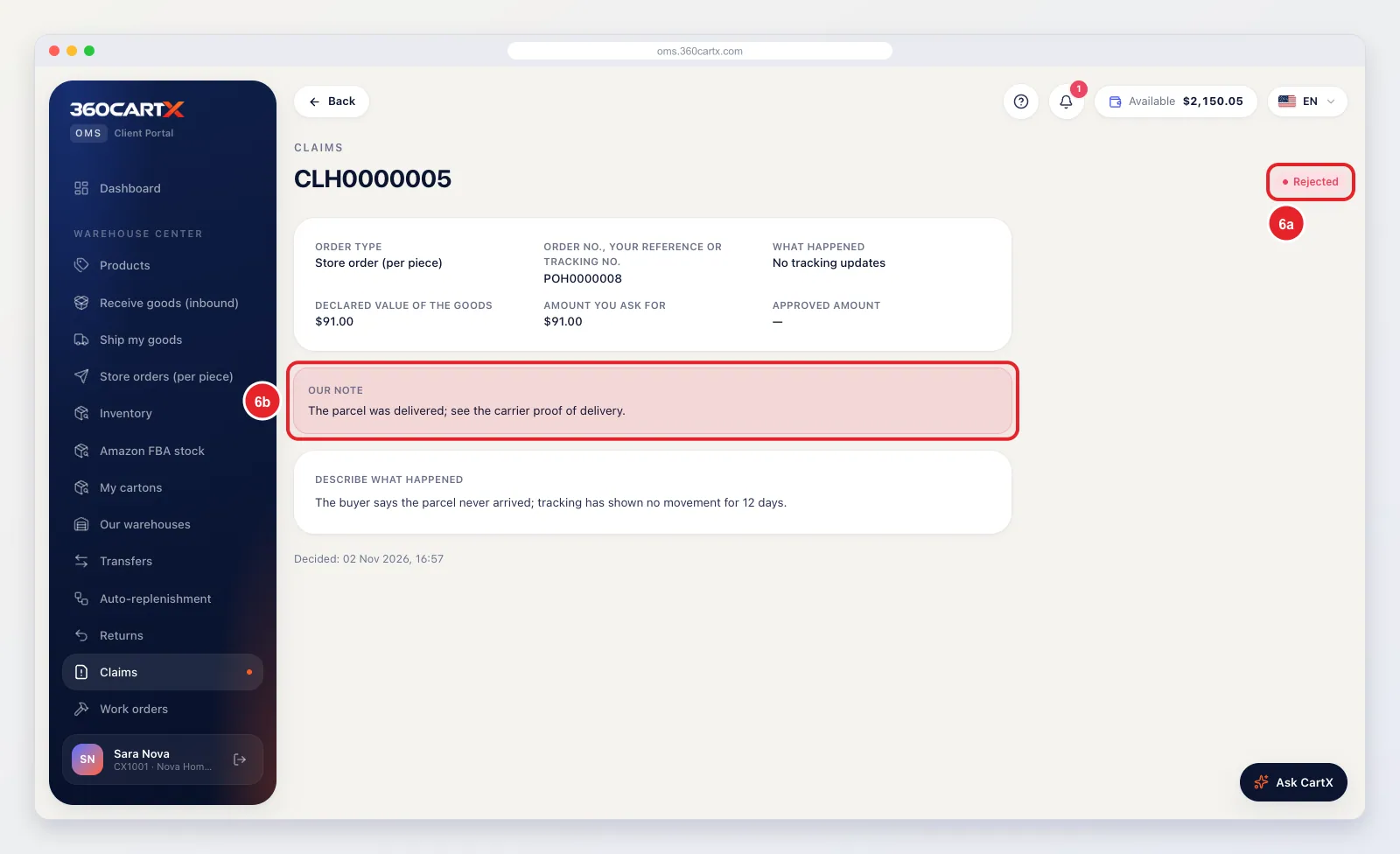
A rejected claim
The claim shows a red Our note with the reason, for example: The parcel was delivered; see the carrier proof of delivery. You can file a new claim for the same order and issue if you have new proof.
- 6a Rejected
- 6b Our note
Tips
- Answer a Needs info claim quickly: it waits for you.
- The approved amount can be lower than the amount you asked for.
Common problems
I cannot see Add information
The box is shown only while the claim is Submitted, Needs info or In review. After a decision, file a new claim or open a ticket.
Related articles
Updated 2026-11-11
Open a ticket from Support in your portal and our team will reply.