Steps
- 1
Open Claims
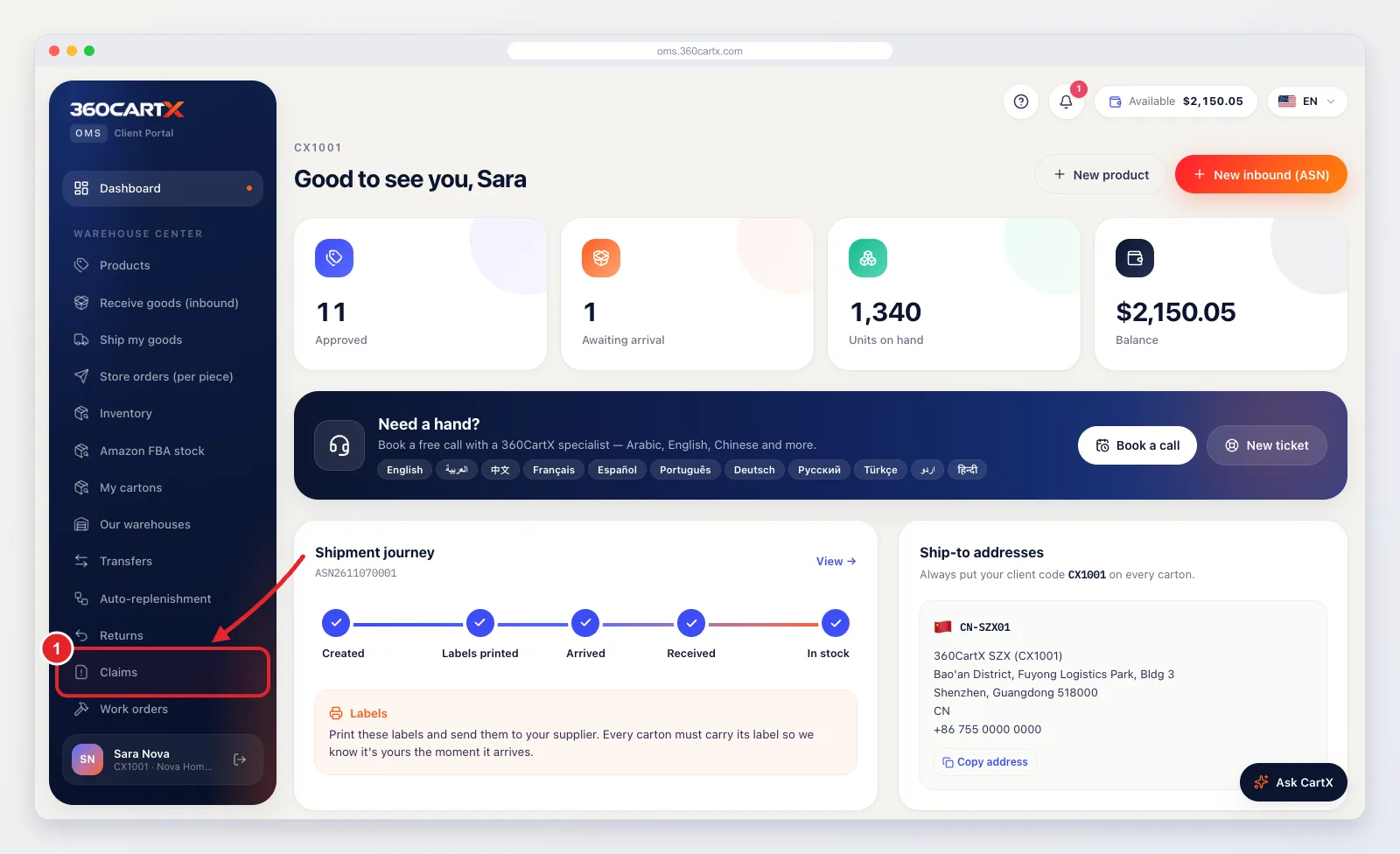
Click Claims under Warehouse Center in the left menu.
- 2
The page
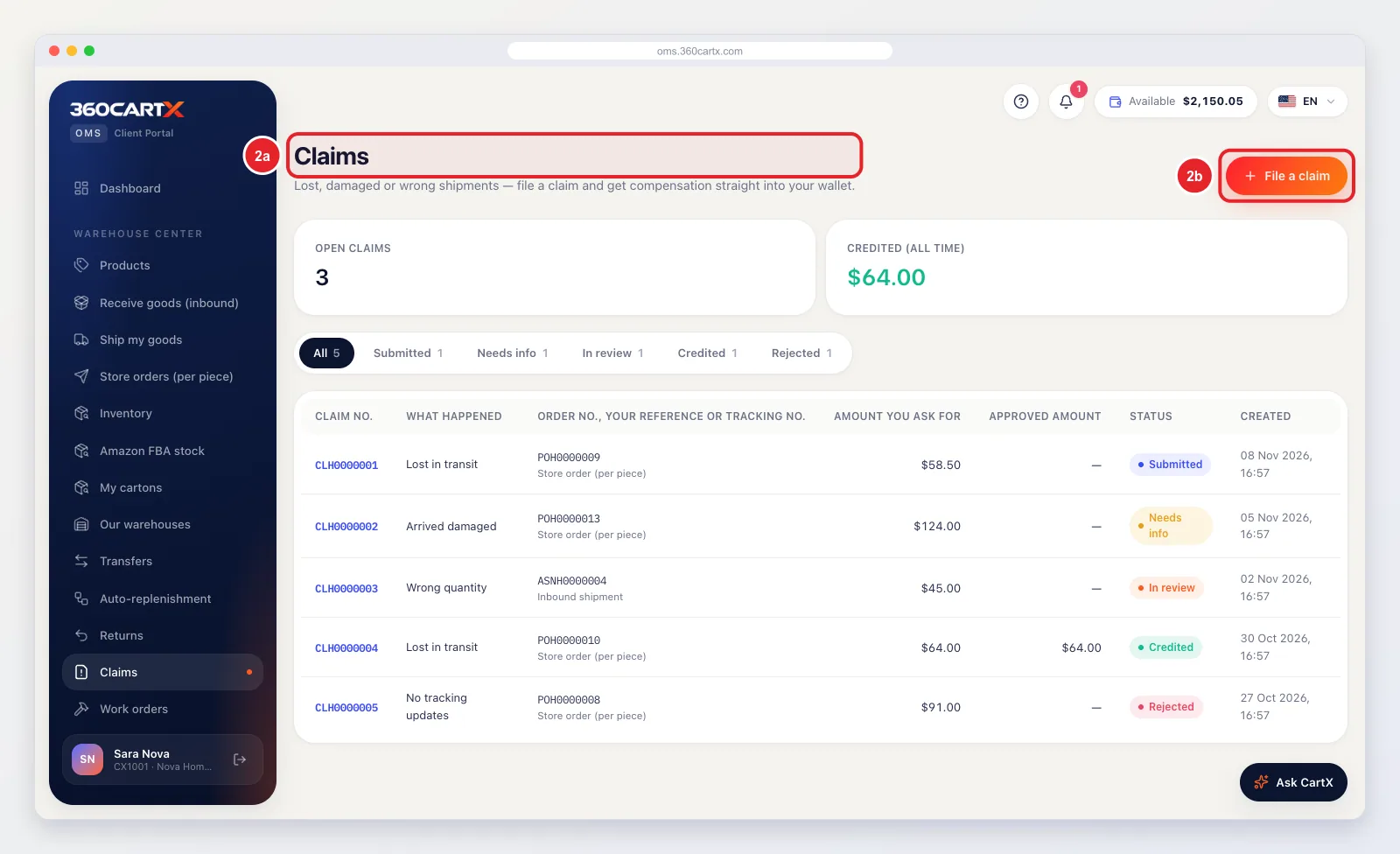
The page says: Lost, damaged or wrong shipments — file a claim and get compensation straight into your wallet. File a claim at the top right opens the form.
- 2a Page title
- 2b File a claim
- 3
The two totals
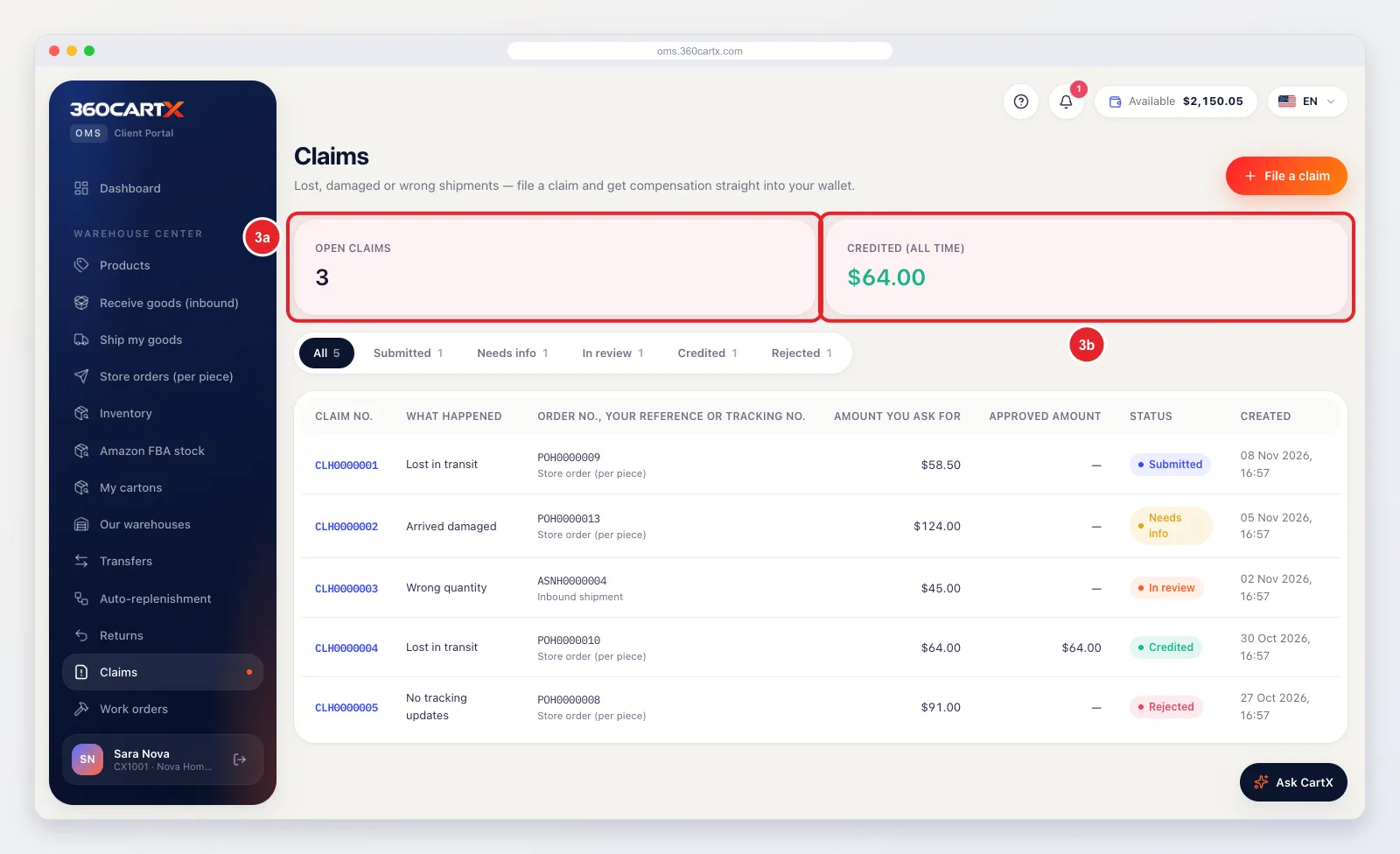
Open claims is the number of claims we are still working on. Credited (all time) is the total that was added to your wallet from approved claims, in US dollars.
- 3a Open claims
- 3b Credited
- 4
The tabs
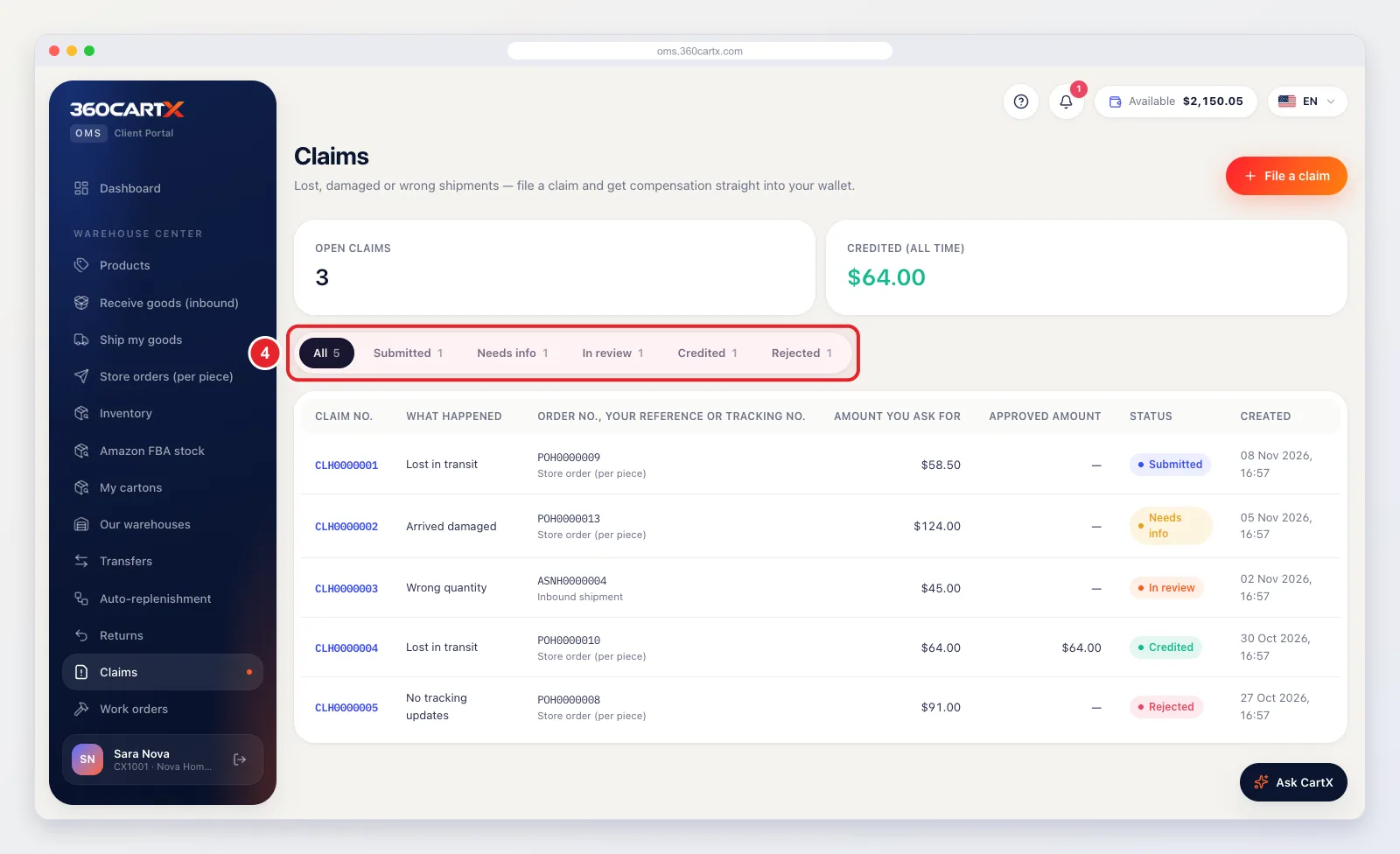
All, Submitted, Needs info, In review, Approved, Rejected and Credited, each with a number. Click one to filter.
- 5
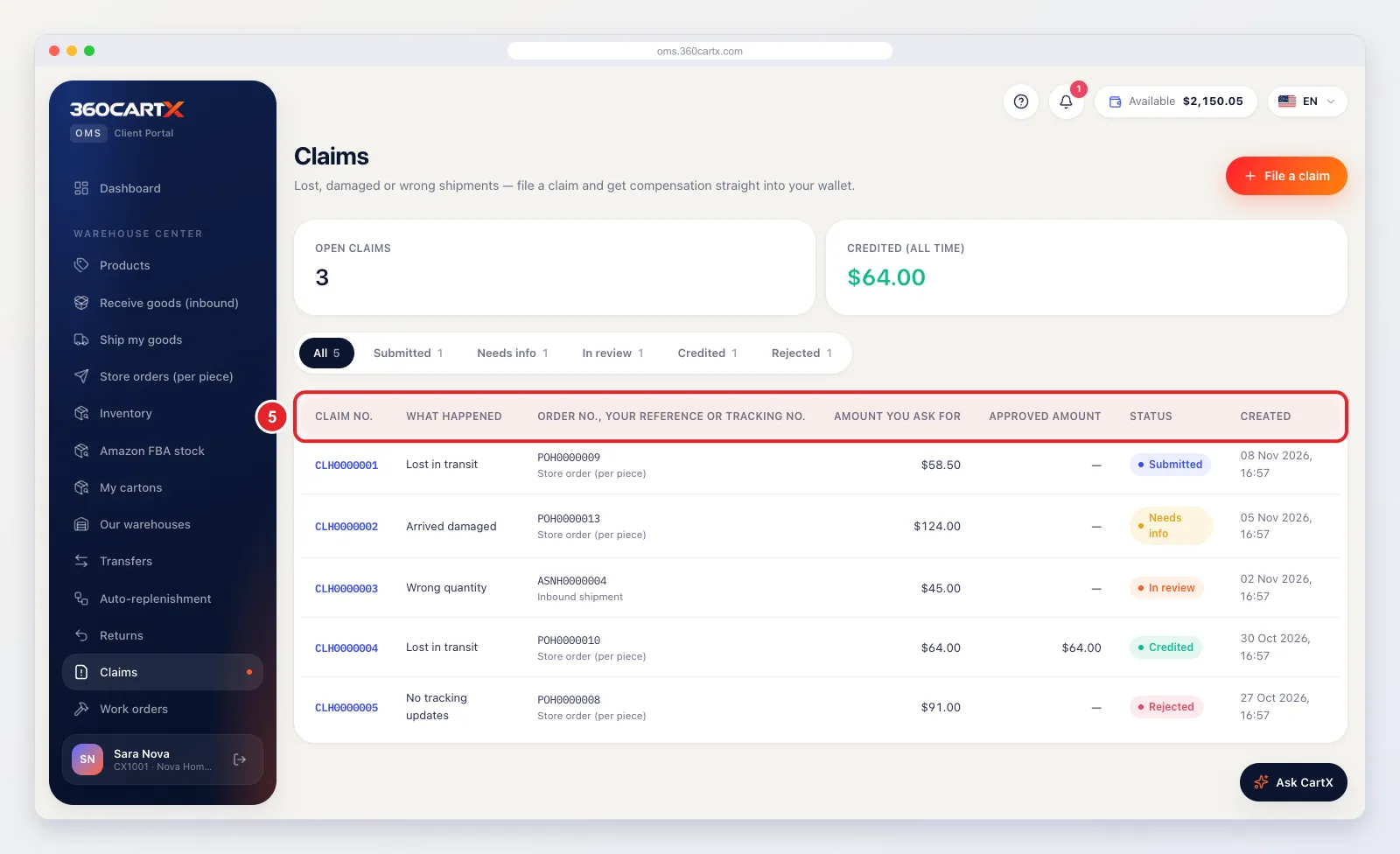
The columns
Claim no. (click to open), What happened, Order no. (or tracking number), Amount you ask for, Approved amount, Status and Created.
- 6
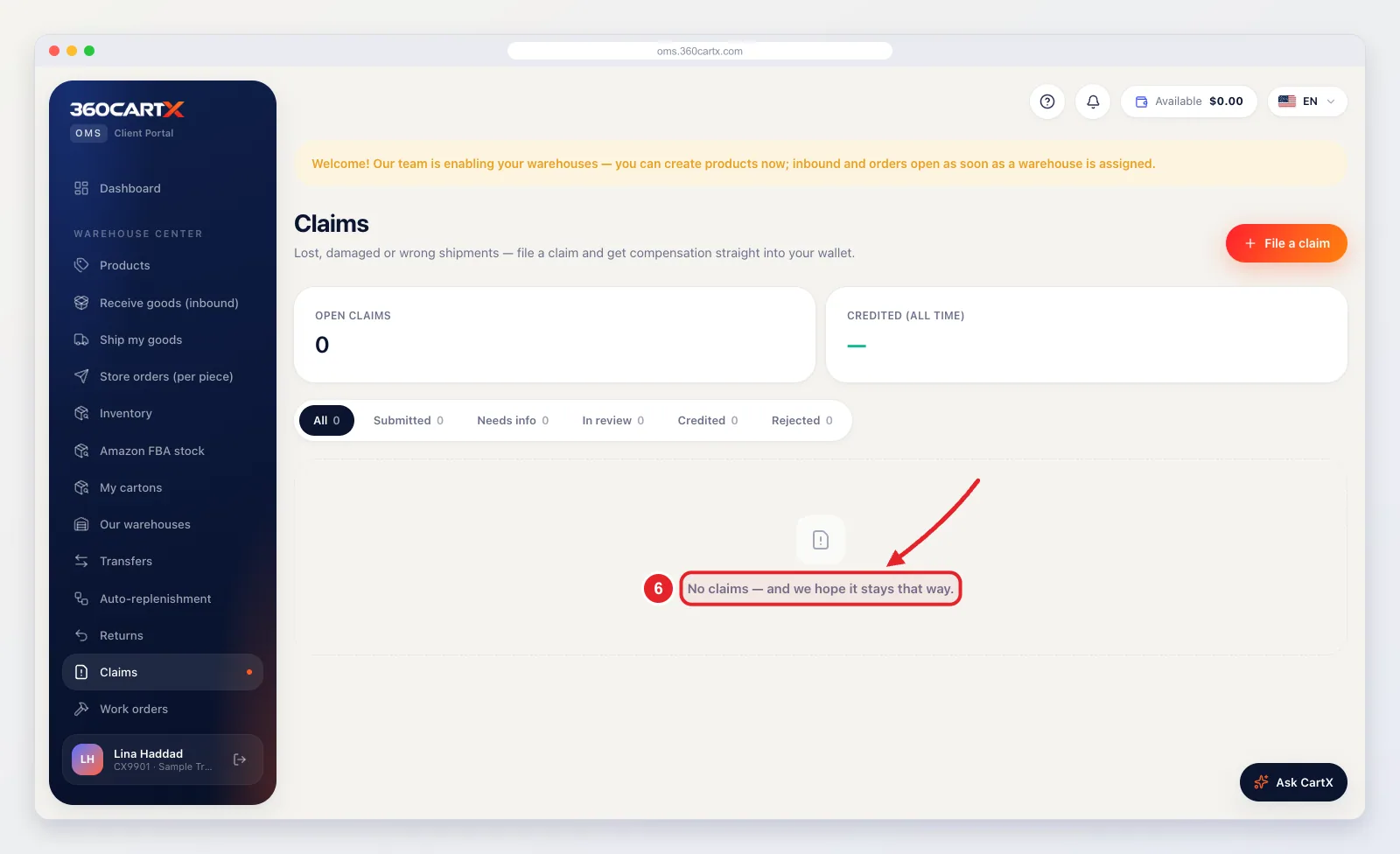
No claims yet
Before your first claim the page says: No claims — and we hope it stays that way.
Tips
- Read File a claim for a lost or damaged shipment before you start: some issues need photos.
Common problems
I cannot find my claim
Open the All tab. A claim appears under its own status tab only while it has that status.
Related articles
Updated 2026-11-11
Open a ticket from Support in your portal and our team will reply.