Steps
- 1
What every Amazon product needs
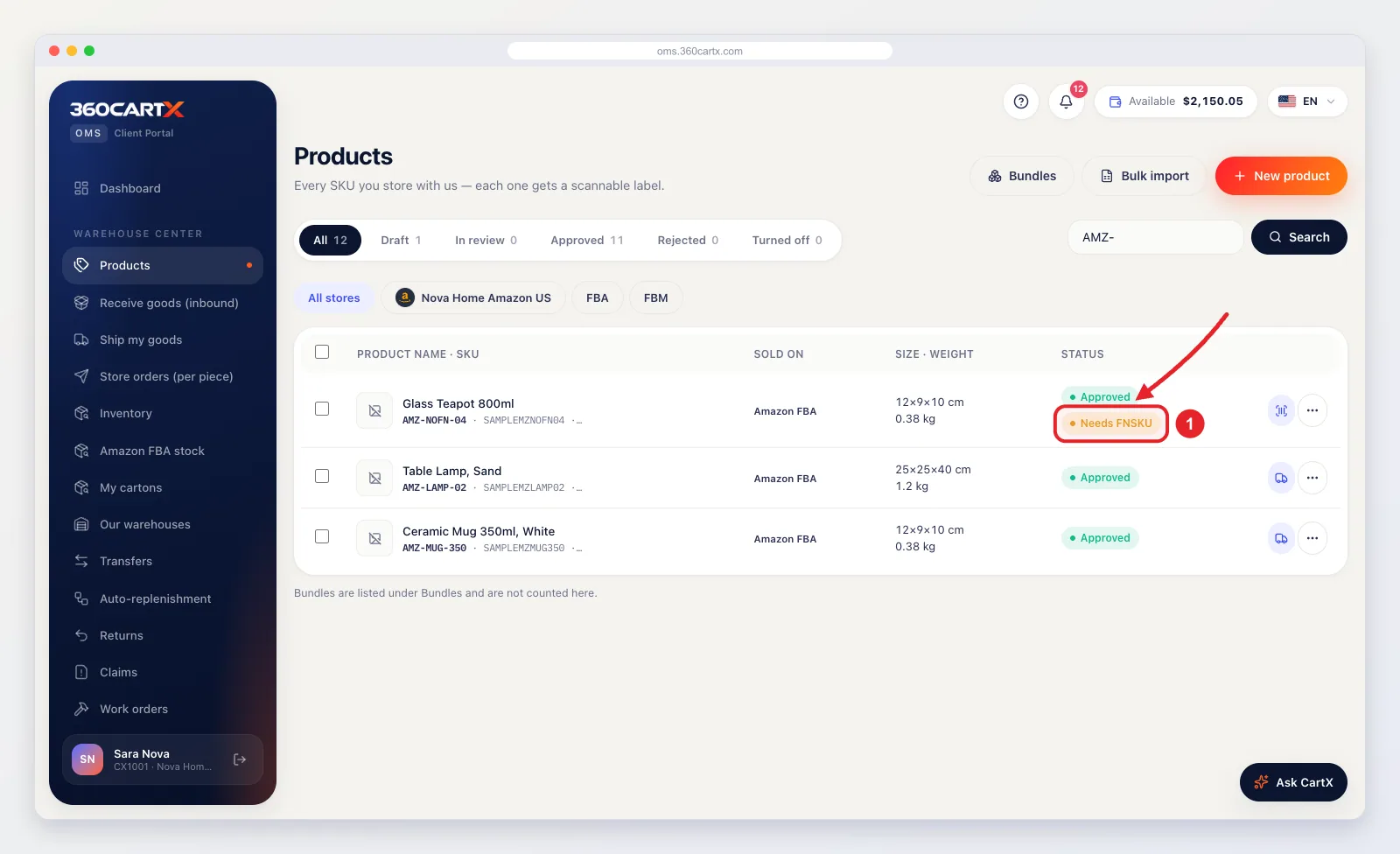
Two things, both on the product: its FNSKU (exactly 10 characters, capital letters and digits, starting with X00 or B0, for example X00MUG0001) and the FNSKU label file in 3×5 format that you download from Seller Central. A product marked for Amazon that has neither shows the badge Needs FNSKU in Products. This applies to every product in the request, also to products you have never put on Amazon before.
- 2
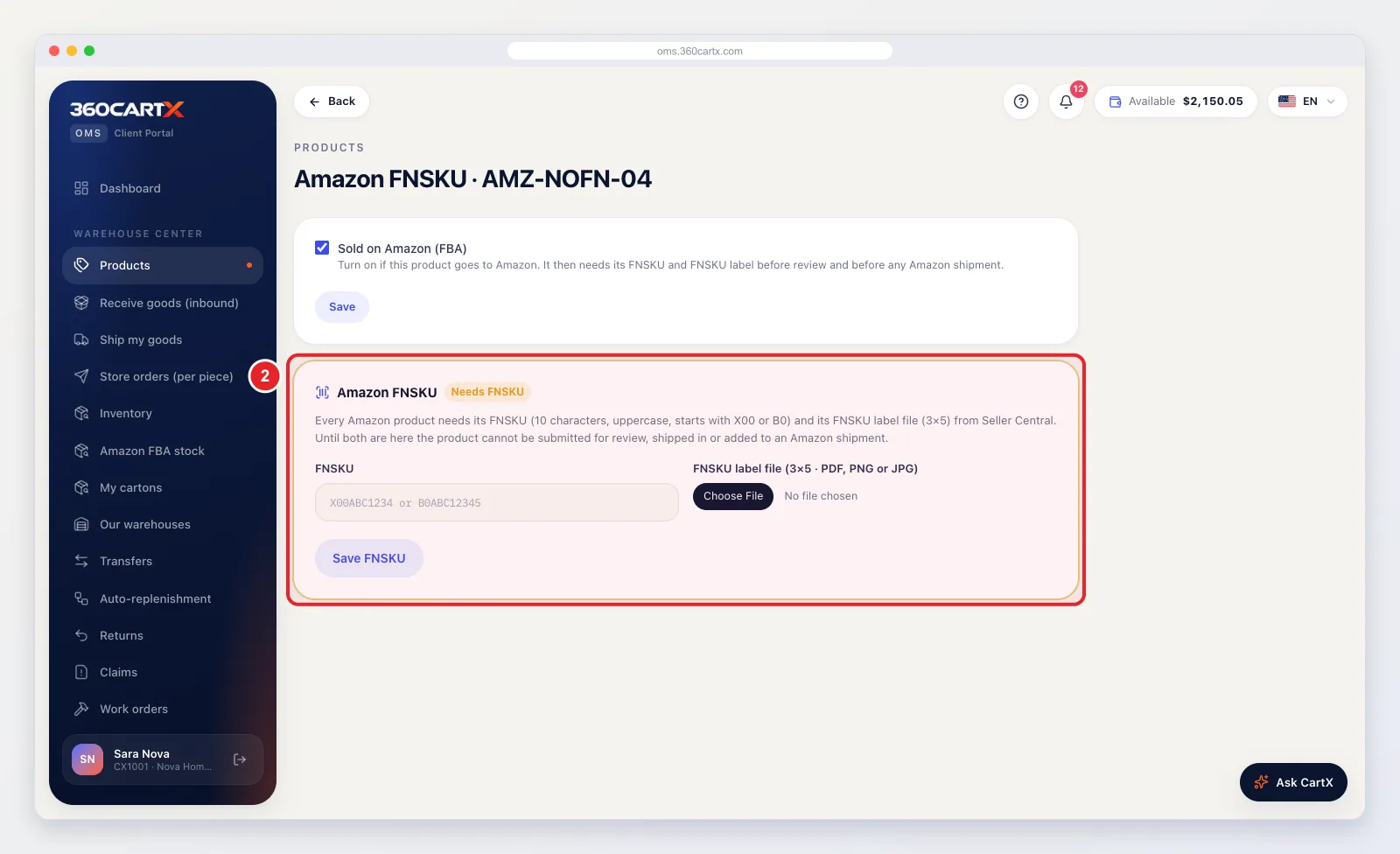
Where you add them
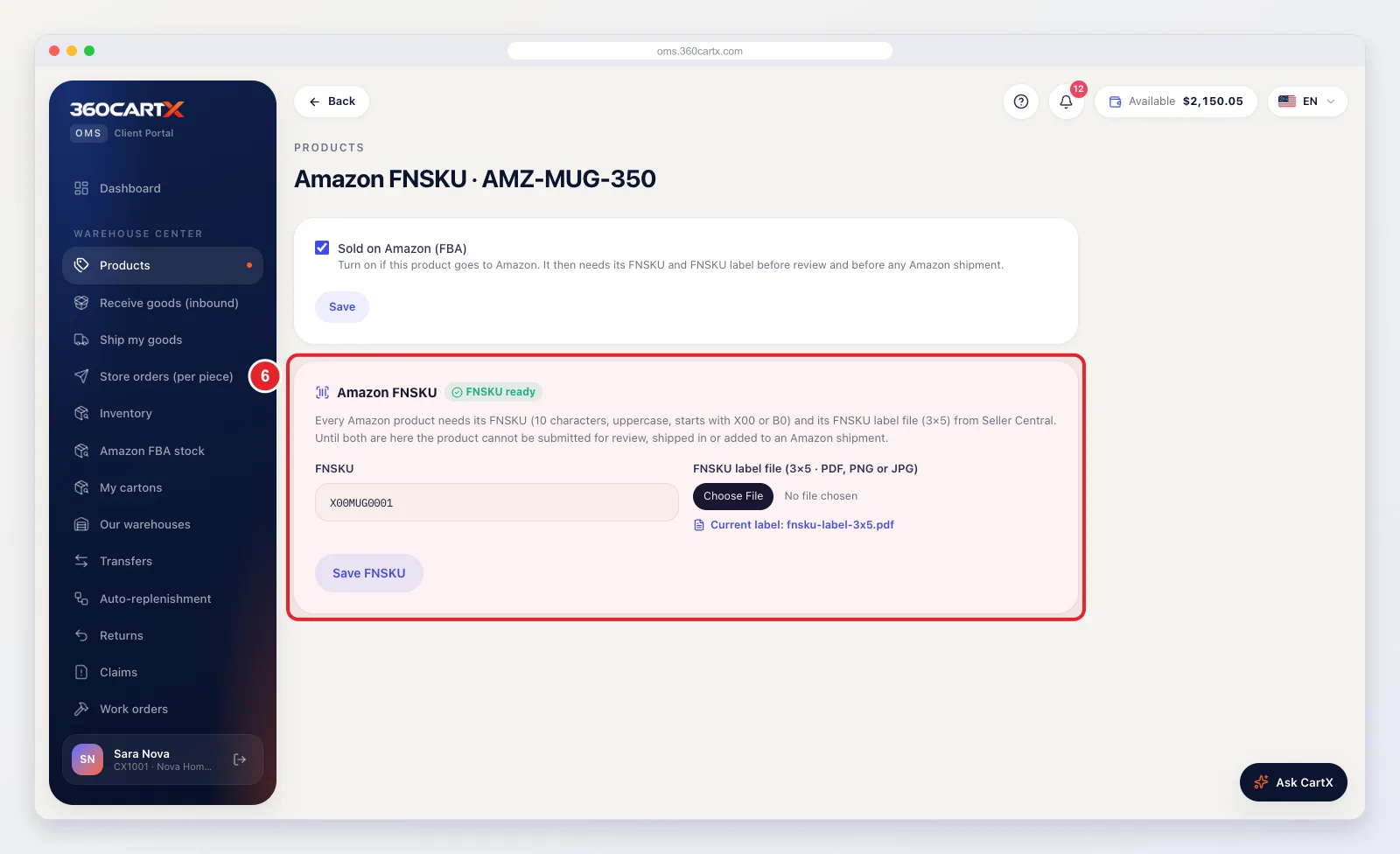
Open the product from Products. The Amazon FNSKU box has the FNSKU field and the FNSKU label file field; click Save FNSKU. Both are required: the code alone is not enough. See Add the FNSKU and label file to an Amazon product.
- 3
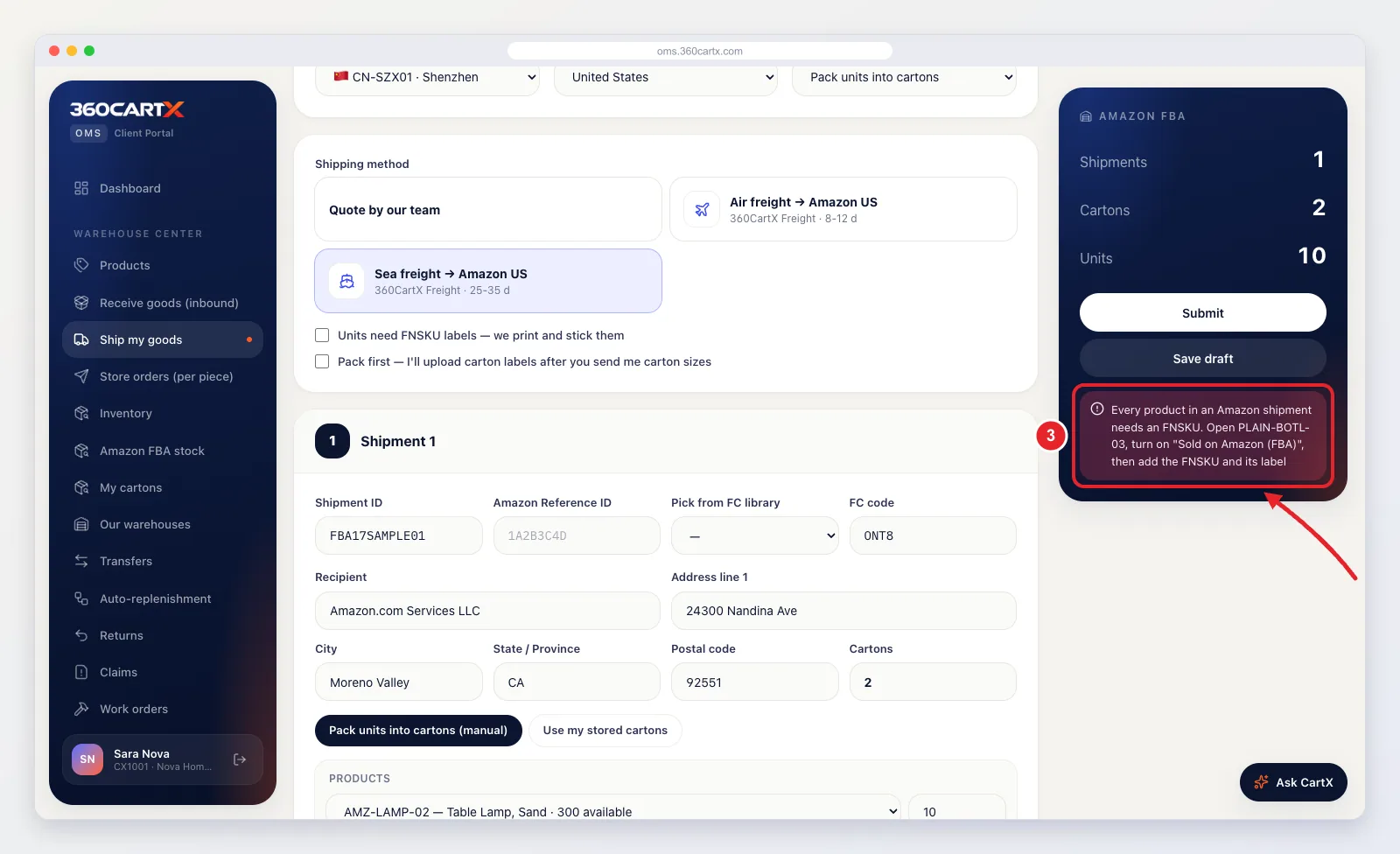
Error 1: the product is not marked for Amazon
If a product in the request is not marked as an Amazon product, both Submit and Save draft show: Every product in an Amazon shipment needs an FNSKU. Open PLAIN-BOTL-03, turn on "Sold on Amazon (FBA)", then add the FNSKU and its label. The request is not created.
- 4
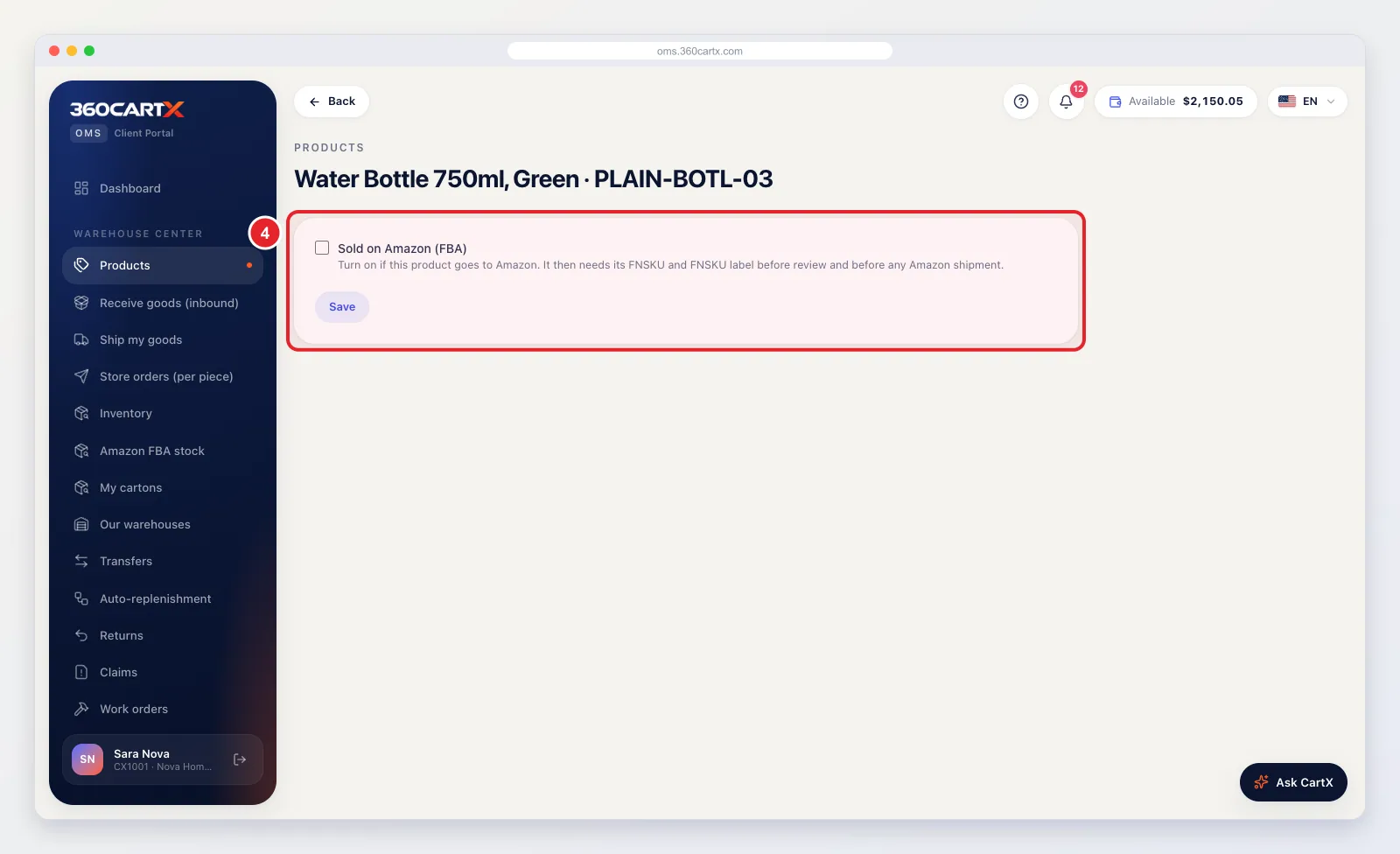
Fix error 1: turn on Sold on Amazon (FBA)
Open the product named in the message. The switch Sold on Amazon (FBA) says: Turn on if this product goes to Amazon. It then needs its FNSKU and FNSKU label before review and before any Amazon shipment. Turn it on, save it, and the FNSKU box appears: then add the FNSKU and its label.
- 5
Error 2: the FNSKU or its label is missing
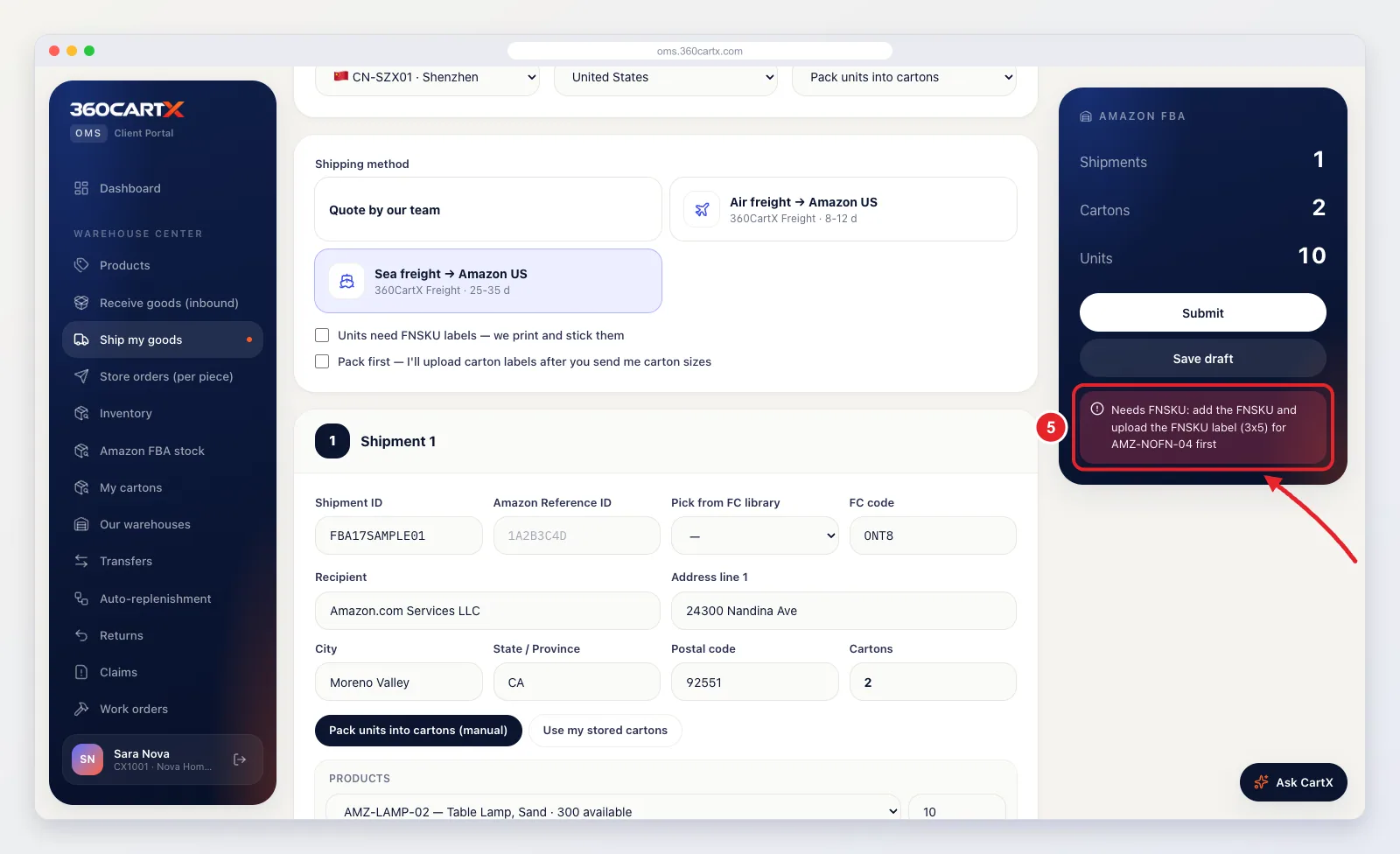
If the product is marked for Amazon but lacks the FNSKU or the label file, the message is: Needs FNSKU: add the FNSKU and upload the FNSKU label (3x5) for AMZ-NOFN-04 first. It names up to 5 products; with more it ends with and N more. Fix every product named, then try again.
- 6
When it is fixed
The product page shows the green badge FNSKU ready and Current label with the file you uploaded. The product can now be added to Amazon FBA requests, inbound shipments and the review.
Terms in this article
Tips
- The check runs when you click Submit or Save draft on the form, and again when you click Submit on a draft you saved earlier.
- Walmart WFS, TikTok Shop FBT, noon FBN, Temu and eBay requests do not need an FNSKU.
- FNSKU rules: 10 characters, capital letters, starts with X00 or B0, and one FNSKU cannot be used by two of your products.
Common problems
Every product in an Amazon shipment needs an FNSKU. Open …, turn on "Sold on Amazon (FBA)", then add the FNSKU and its label
See error 1 above: the product is not marked for Amazon yet.
Needs FNSKU: add the FNSKU and upload the FNSKU label (3x5) for … first
See error 2 above: add the missing FNSKU or label file on each product named.
FNSKU must be exactly 10 characters / must be uppercase / must start with X00 or B0 and contain only letters and digits
The FNSKU you typed on the product is wrong. Copy it from Seller Central, Manage FBA Inventory.
Upload the FNSKU label file (3x5, PDF, PNG or JPG)
Choose the label file on the product before you click Save FNSKU.
Related articles
Updated 2026-11-11
Open a ticket from Support in your portal and our team will reply.