Steps
- 1
Download the labels in Seller Central
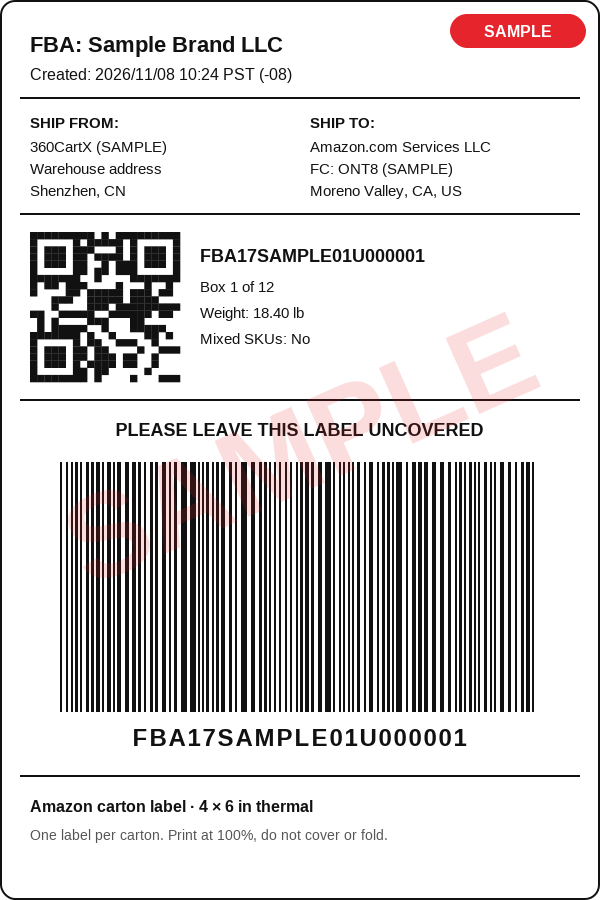
In Seller Central, in Send to Amazon, print the box labels (also called box ID labels) of the shipment in the thermal 4×6 inch format and save them as one PDF: one label per carton, like the sample below. If you also want us to label the units, print the FNSKU labels in the 3×5 format. Keep one PDF per Amazon shipment.
- 2
Add the carton labels when you create the request
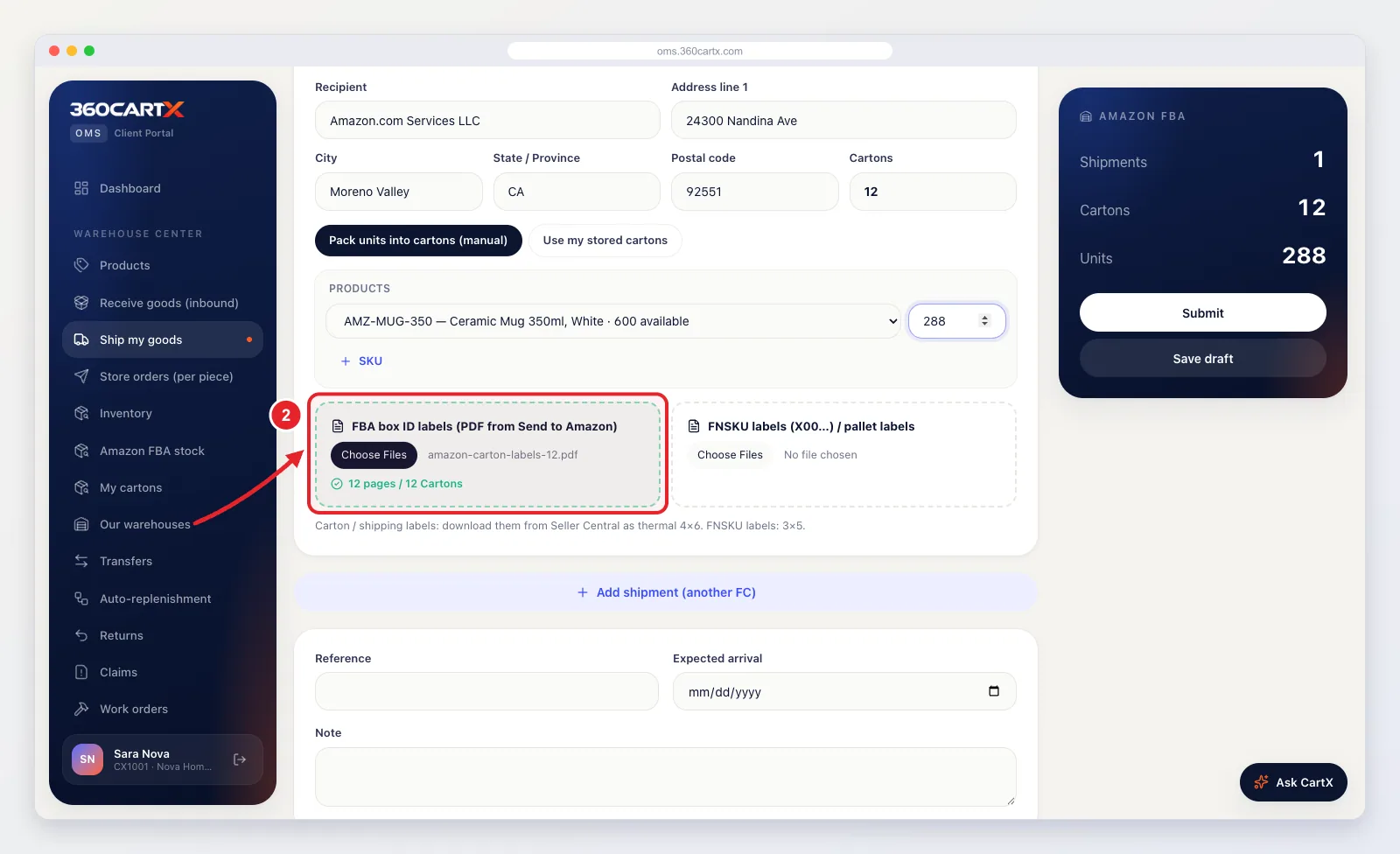
In the Shipment block choose the file in the first box, FBA box ID labels (PDF from Send to Amazon). The form counts the pages and shows in green, for example 12 pages / 12 cartons. PDF, PNG and JPG are accepted, and you can pick several files: every PDF page and every image counts as one label.
- 3
Pages and cartons must match
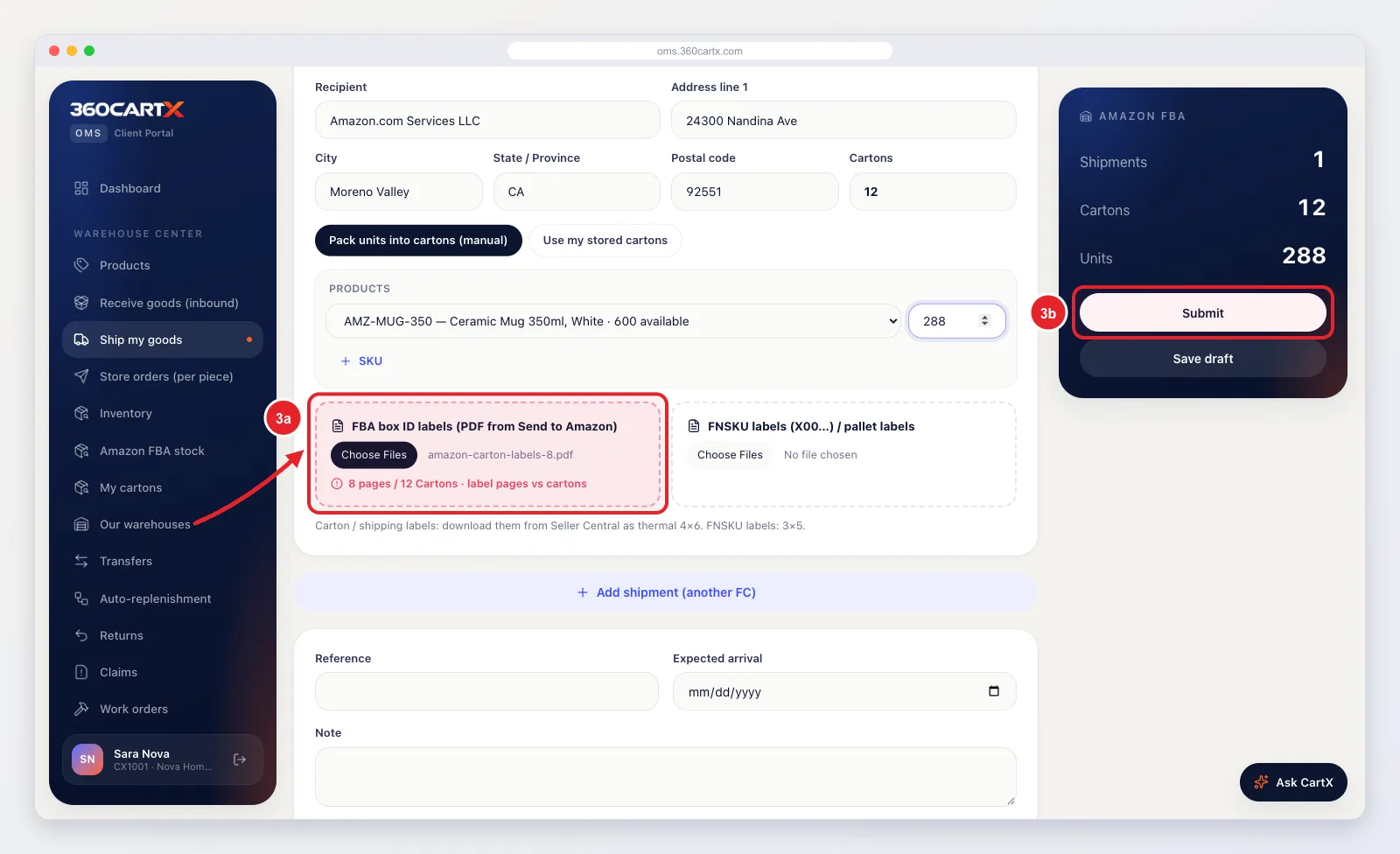
If the number of label pages is different from the number in Cartons, the form shows it in red, for example 8 pages / 12 cartons · label pages vs cartons, and Submit refuses with Shipment 1: 8 label page(s) but 12 carton(s). Download the labels again or correct the number of cartons.
- 3a Pages vs cartons
- 3b Submit
- 4
FNSKU labels in the second box
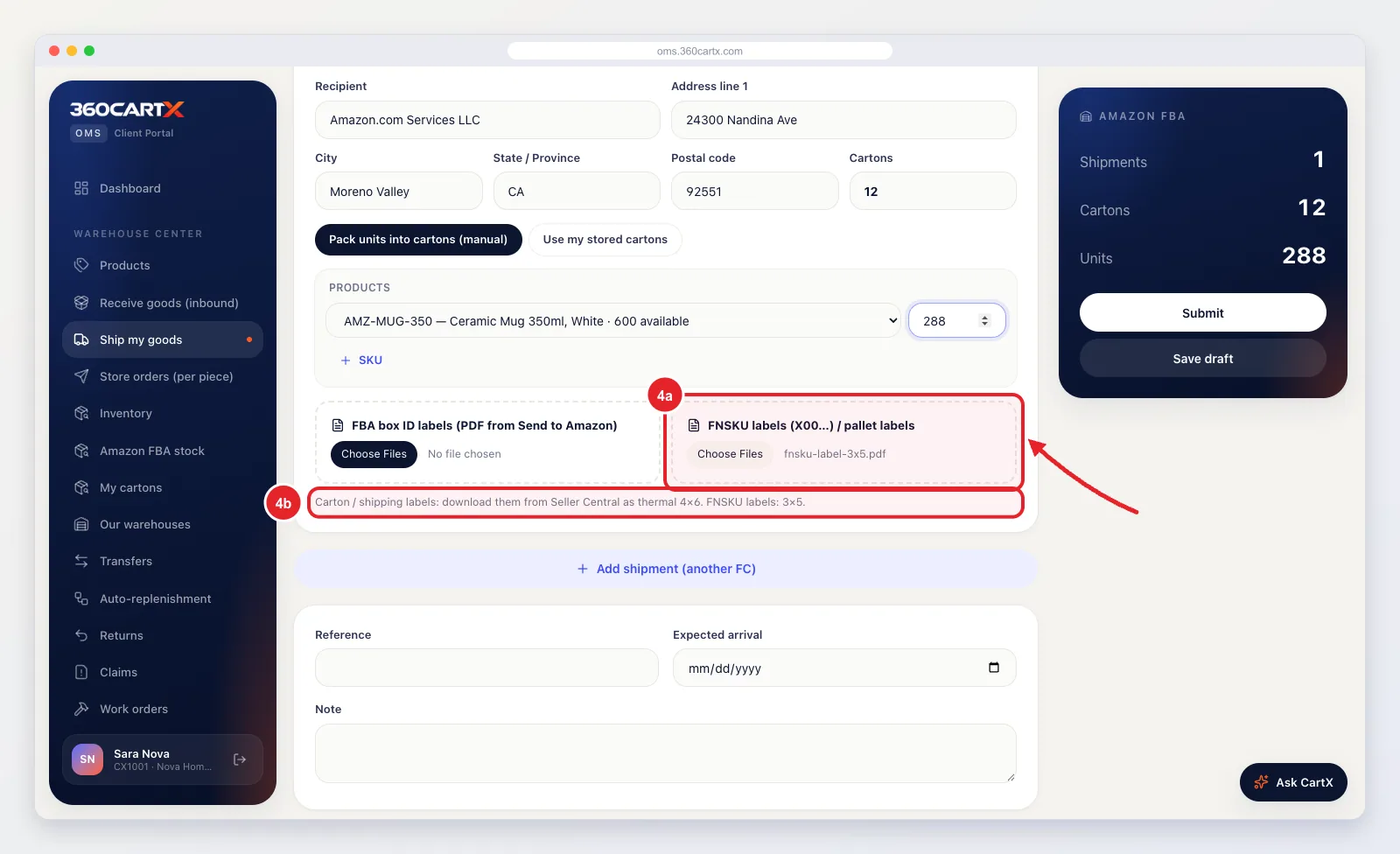
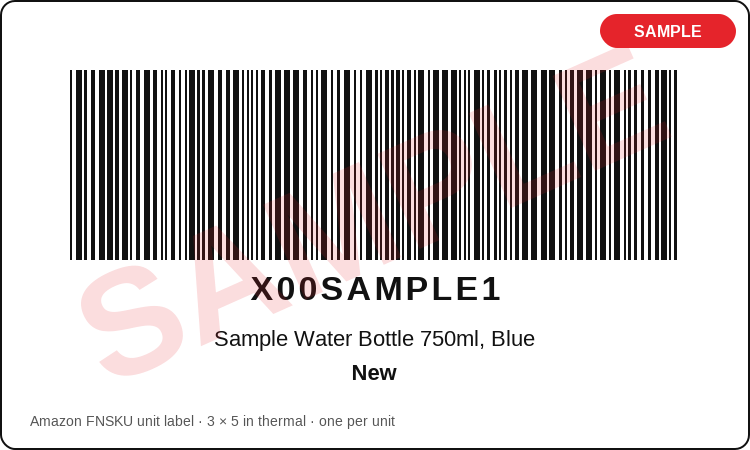
The second box, FNSKU labels (X00…) / pallet labels, takes the unit labels in the 3×5 format (sample below). They are optional here and, when you create the request, every file of this box is saved as FNSKU labels: add pallet labels on the request page afterwards (step 6). The hint under the boxes repeats the sizes: Carton / shipping labels: download them from Seller Central as thermal 4×6. FNSKU labels: 3×5.
- 4a FNSKU labels
- 4b Size hint
- 5
Add labels later, on the request page
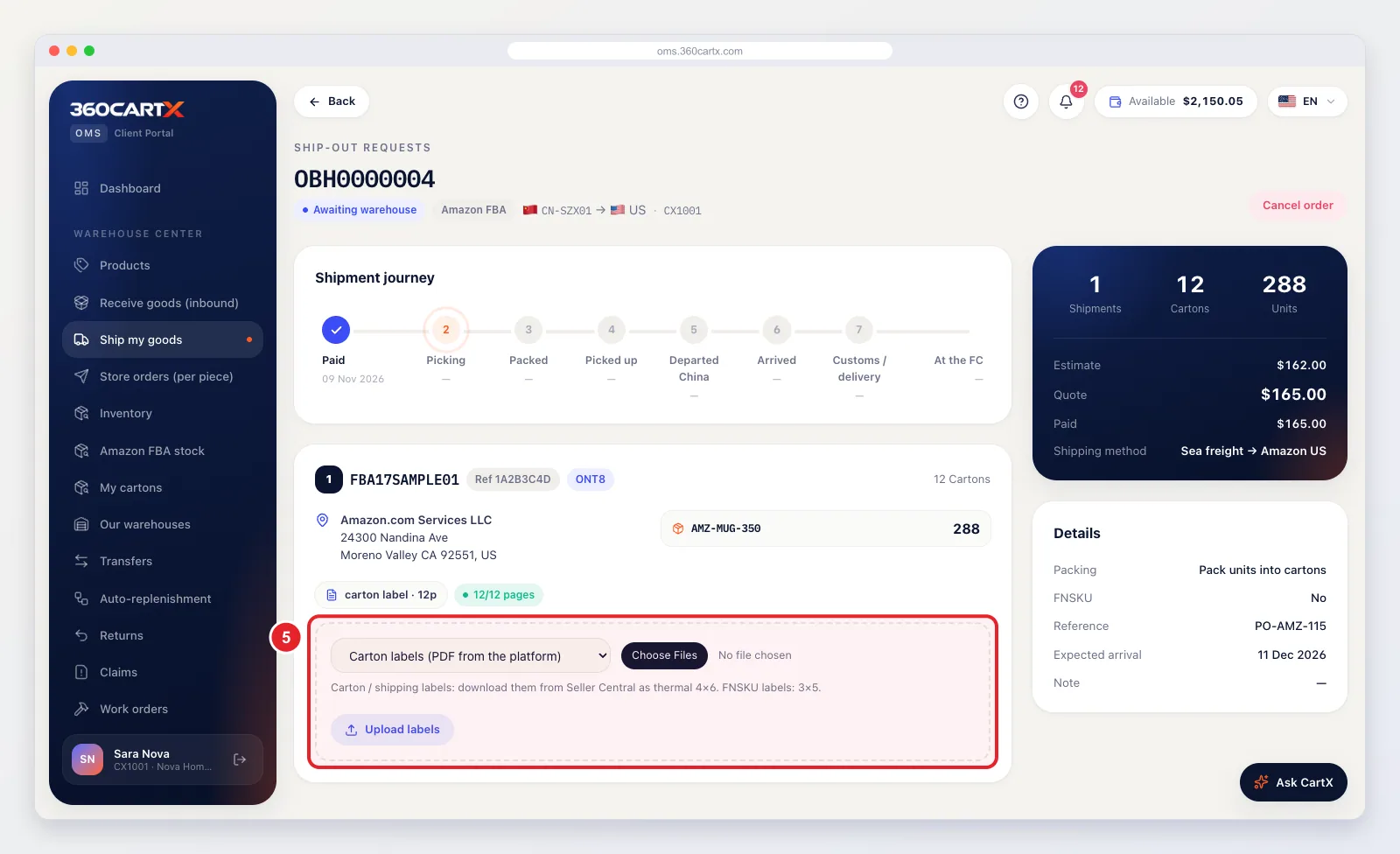
Open the request: each shipment has its own dashed Upload labels box with a type list, a file field and the Upload labels button. Use it when you forgot a file, for a shipment you saved as draft, or when you ticked Pack first. You can add labels in every status up to Picking & packing.
- 6
Choose the label type
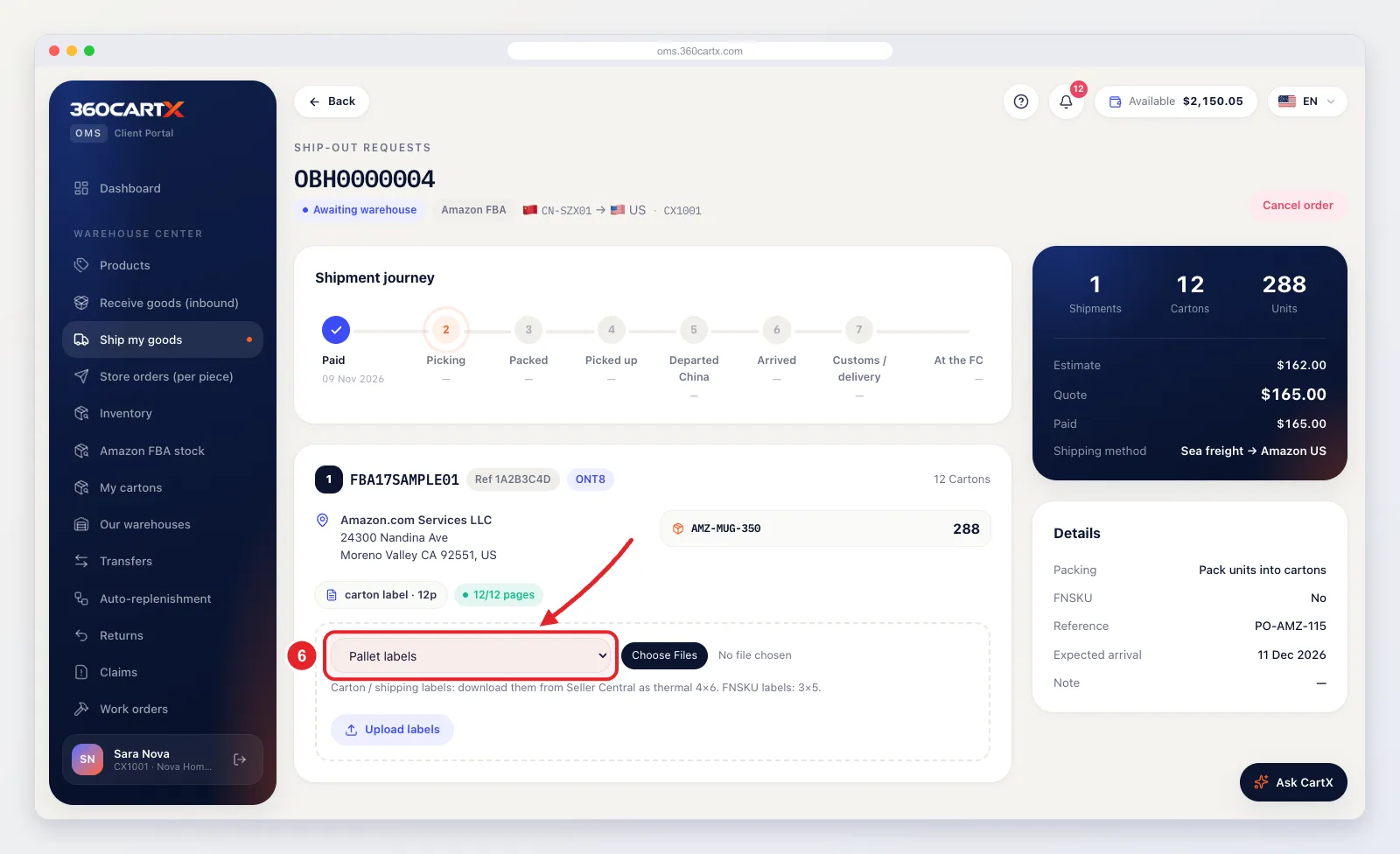
Open the list and choose Carton labels (PDF from the platform), FNSKU labels or Pallet labels. Pallet labels are for pallet shipments, which Amazon asks for when you send by pallet.
- 7
Upload the file
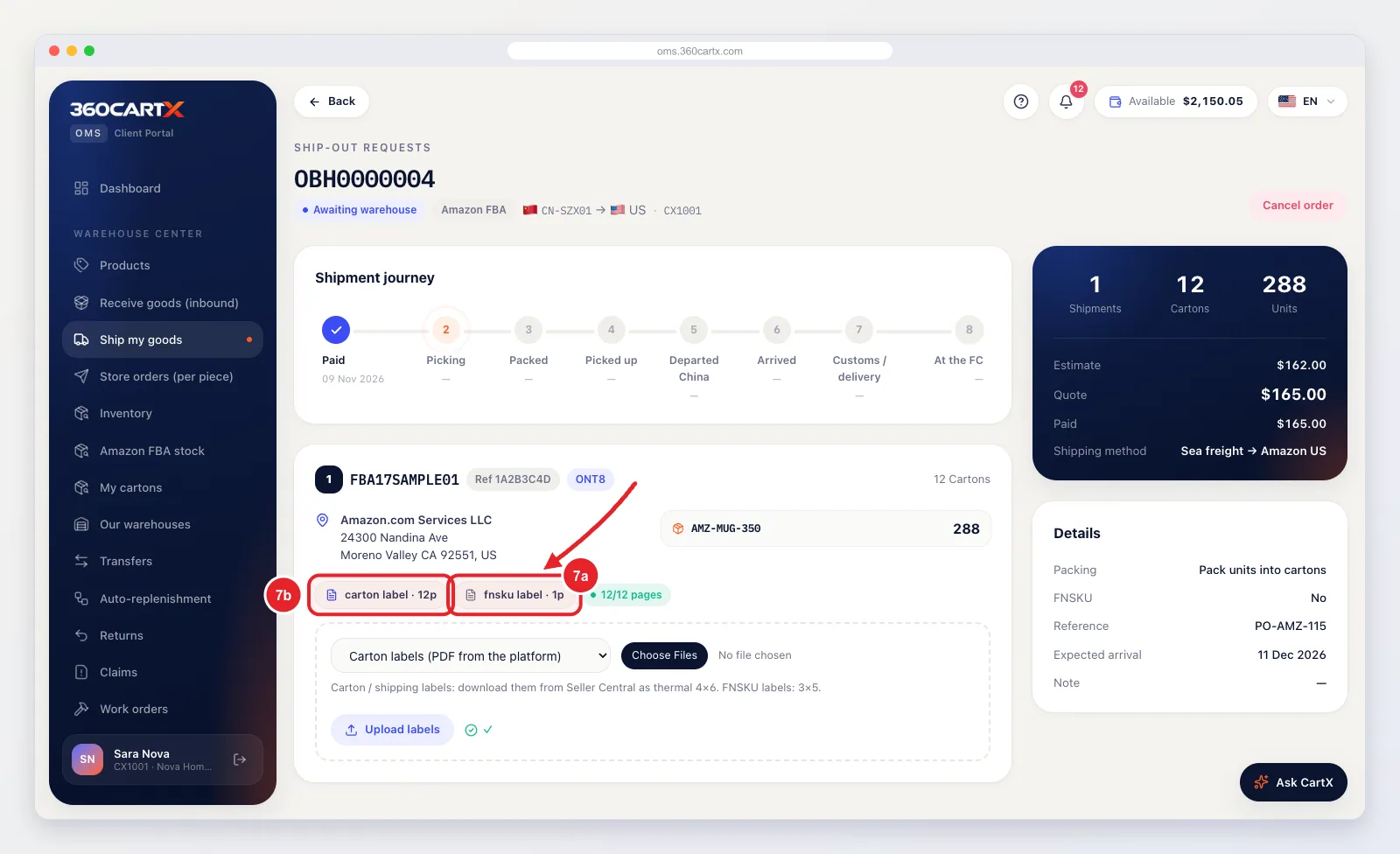
Click Choose files, select one or more PDF, PNG or JPG files (up to 30 MB each) and click Upload labels. A tick confirms it, and the file appears as a chip under the shipment, for example fnsku label · 1p next to carton label · 12p, with the pages counter 12/12 pages in green when they match the cartons.
- 7a New file
- 7b Existing file
- 8
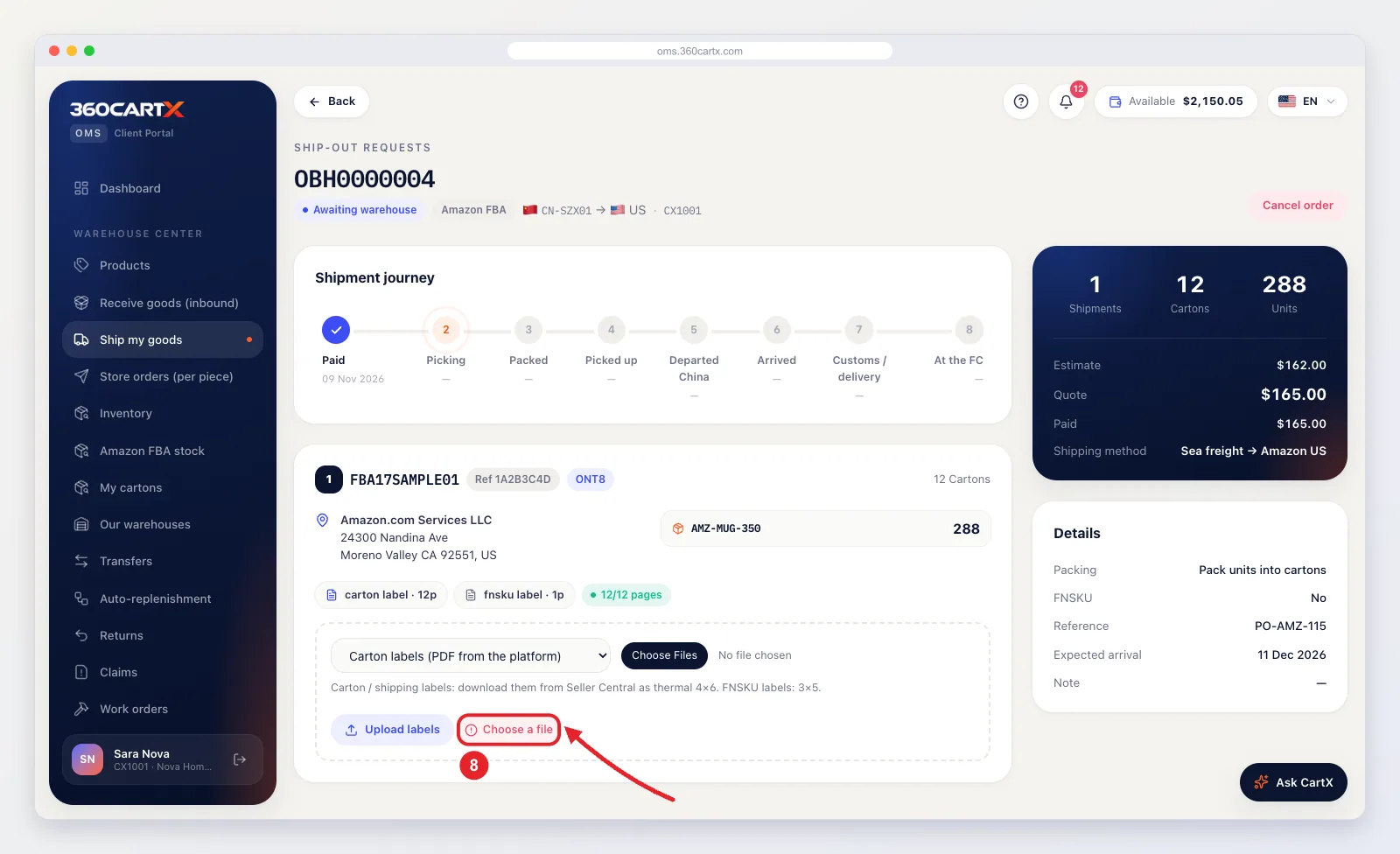
If you click Upload without a file
You see Choose a file. Other messages: the file name followed by only PDF, PNG or JPG, larger than 30 MB, or could not read this PDF.
- 9
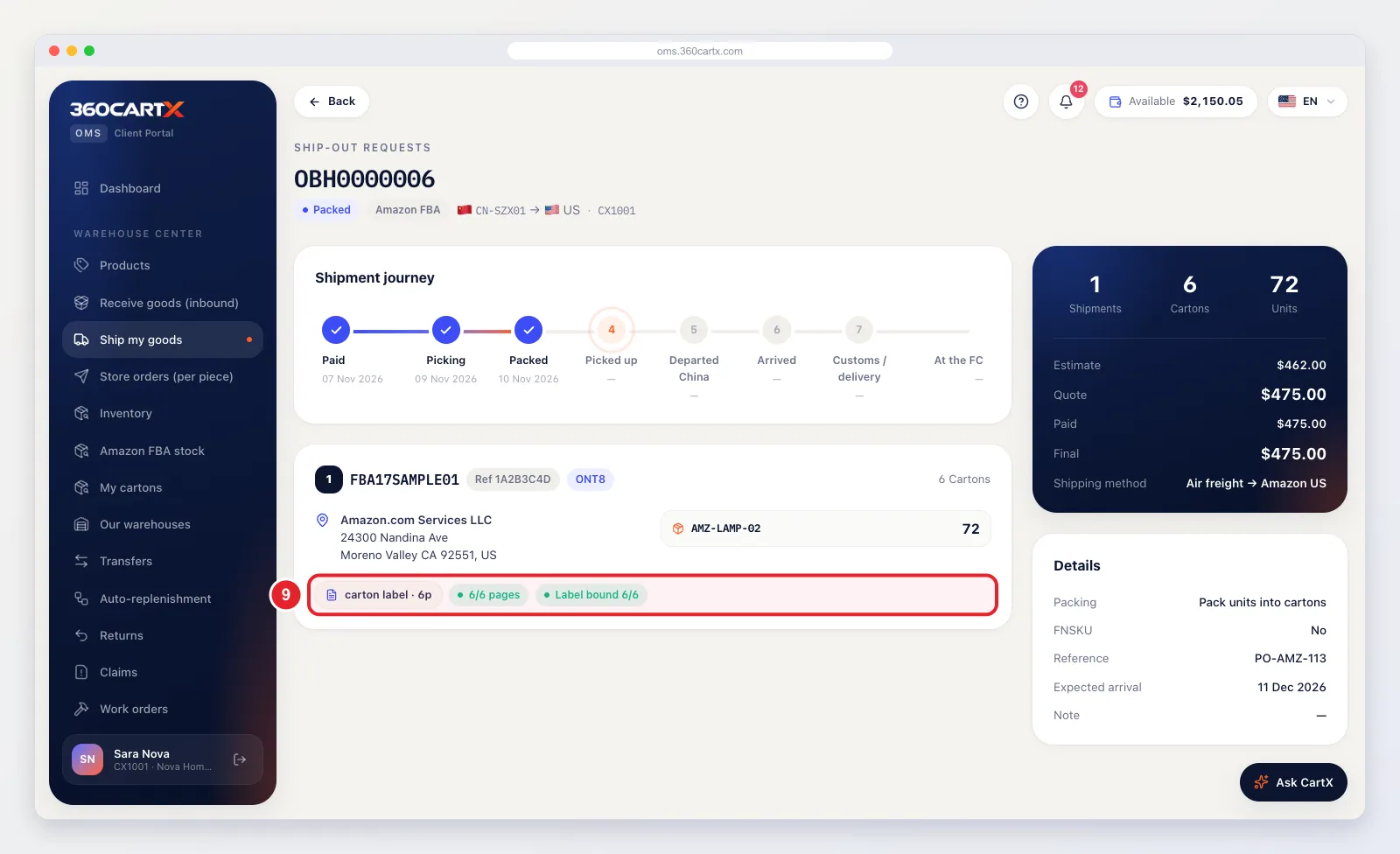
Until when, and Label bound
Once the request is Packed the Upload labels box disappears: labels are locked for the order. While we pack, we stick a label on each carton and scan it: once the first label is scanned, the chip Label bound 12/12 shows how many cartons already carry their label, in green when all of them do.
- 10
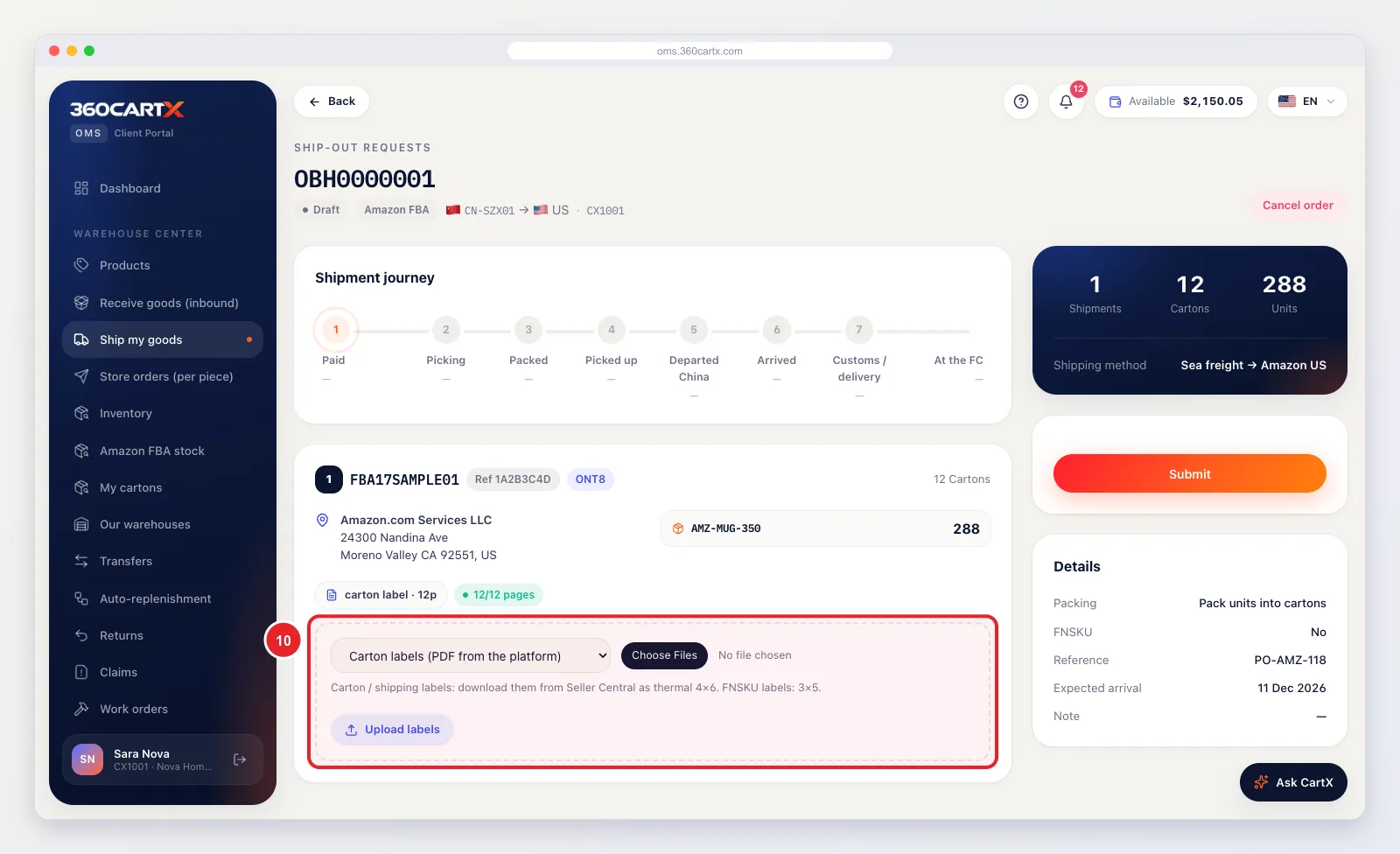
Replacing a file
Files cannot be removed, and a new file does not replace the old one: it is added next to it. If you uploaded the wrong file, upload the correct one and open a ticket in Help & support naming the file we must ignore. Do this before the request is Packed.
Terms in this article
- FNSKU: Amazon's 10-character label code for each unit.
- Shipment ID: The marketplace's number for one shipment to one FC.
- FC: Fulfilment centre, e.g. Amazon's warehouse ONT8.
Tips
- Download all labels again if you change the number of cartons in Seller Central: the old file no longer matches.
- Use the thermal sizes: 4×6 for cartons, 3×5 for units. Barcodes print sharp at full size and scan first time at the FC.
- Pack first (a tick box on the form) removes the carton label check at Submit only. Labels cannot be added once the request is Packed, so add them before.
- A draft can receive labels too: open it and use Upload labels, then Submit.
Common problems
Shipment 1: upload the carton labels
Submit needs the carton label file for every shipment. Add it in the form, or save a draft and add it on the request page, then click Submit.
Shipment 1: 10 label page(s) but 12 carton(s)
The carton label PDF does not have one page per carton. Check the number of boxes in Seller Central.
Labels are locked for this order
The request is already Packed, in transit, delivered or cancelled. Open a ticket in Help & support.
label.pdf: only PDF, PNG or JPG / larger than 30 MB / could not read this PDF
Download the label again from Seller Central as PDF. Do not scan or screenshot paper labels.
The Upload labels box is not on my request
It is shown only until the request is Packed. A packed, shipped, delivered or cancelled request has no upload box.
Related articles
Updated 2026-11-11
Open a ticket from Support in your portal and our team will reply.