Steps
- 1
First create the shipping plan in Seller Central
In Seller Central open Send to Amazon, choose the products and the quantities you want to send, and give Amazon your packing details (units per box, number of boxes, box size and weight; the My cartons export helps if you use stored cartons). Amazon may split the plan into several shipments, each going to a different fulfilment center (FC). For every shipment note three things: the Shipment ID (it starts with FBA, for example FBA17XXXXXXX), the FC code with its address (for example ONT8, 24300 Nandina Ave, Moreno Valley CA 92551) and the Amazon Reference ID (8 characters, used to book the delivery appointment of pallet shipments). Seller Central screens change from time to time: look for these three values on the shipment pages.
- 2
Shipment ID and Amazon Reference ID
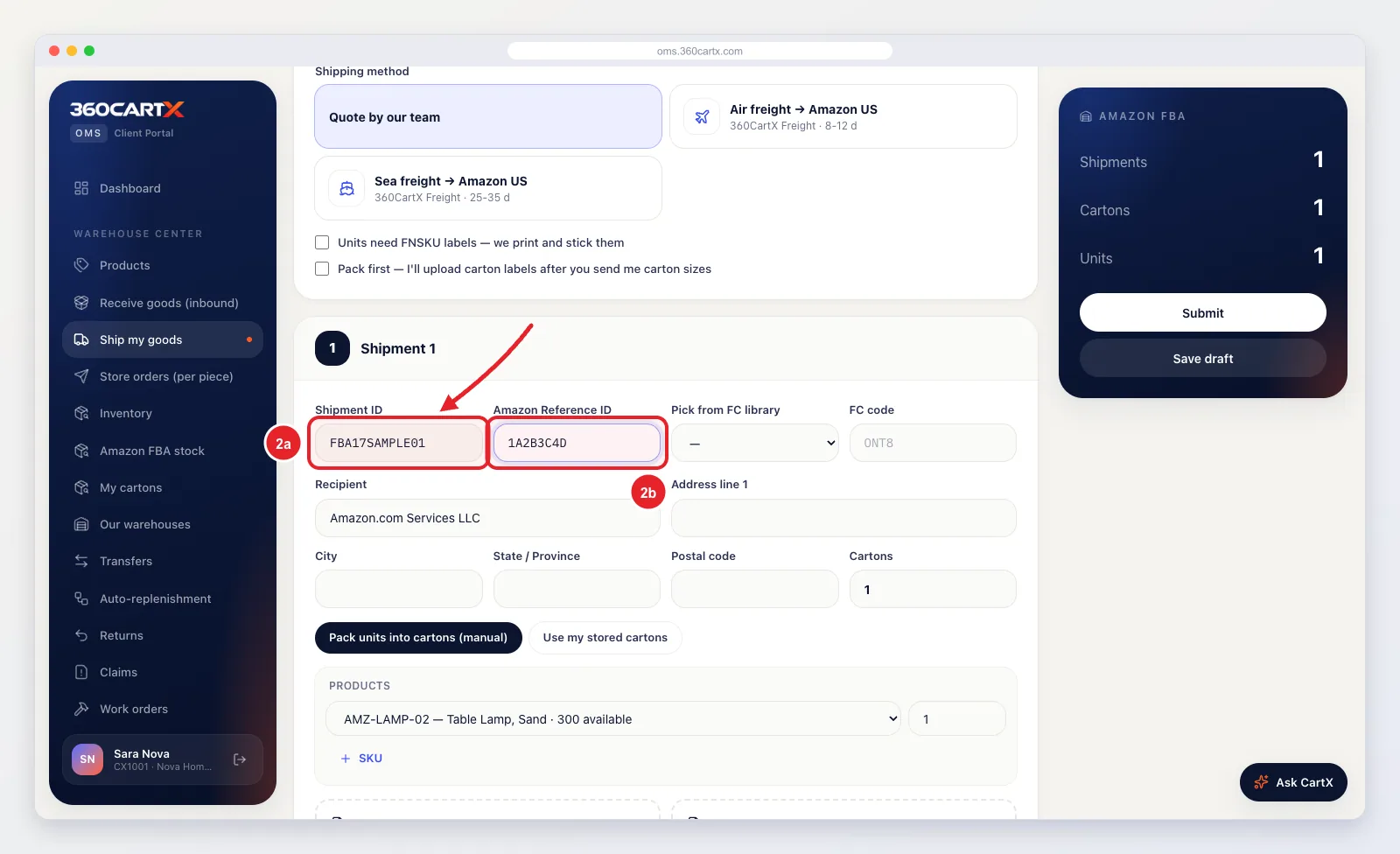
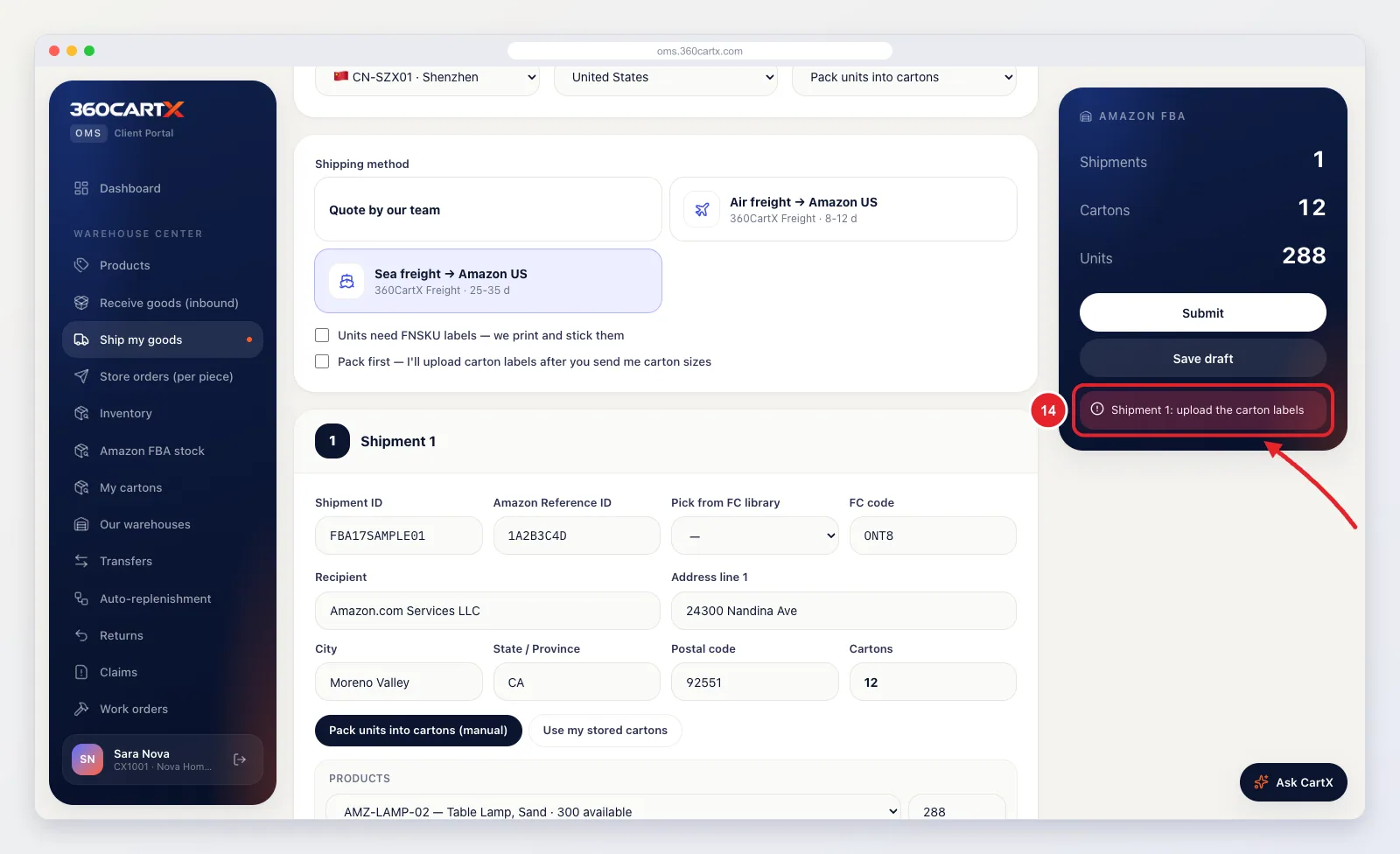
In Shipment 1 type the Shipment ID, for example FBA17SAMPLE01, and the Amazon Reference ID, for example 1A2B3C4D. Both are saved in capital letters. The Shipment ID must be exactly the one printed on your carton labels: our warehouse scans every carton label and checks it starts with this Shipment ID.
- 2a Shipment ID
- 2b Amazon Reference ID
- 3
A Shipment ID that looks wrong
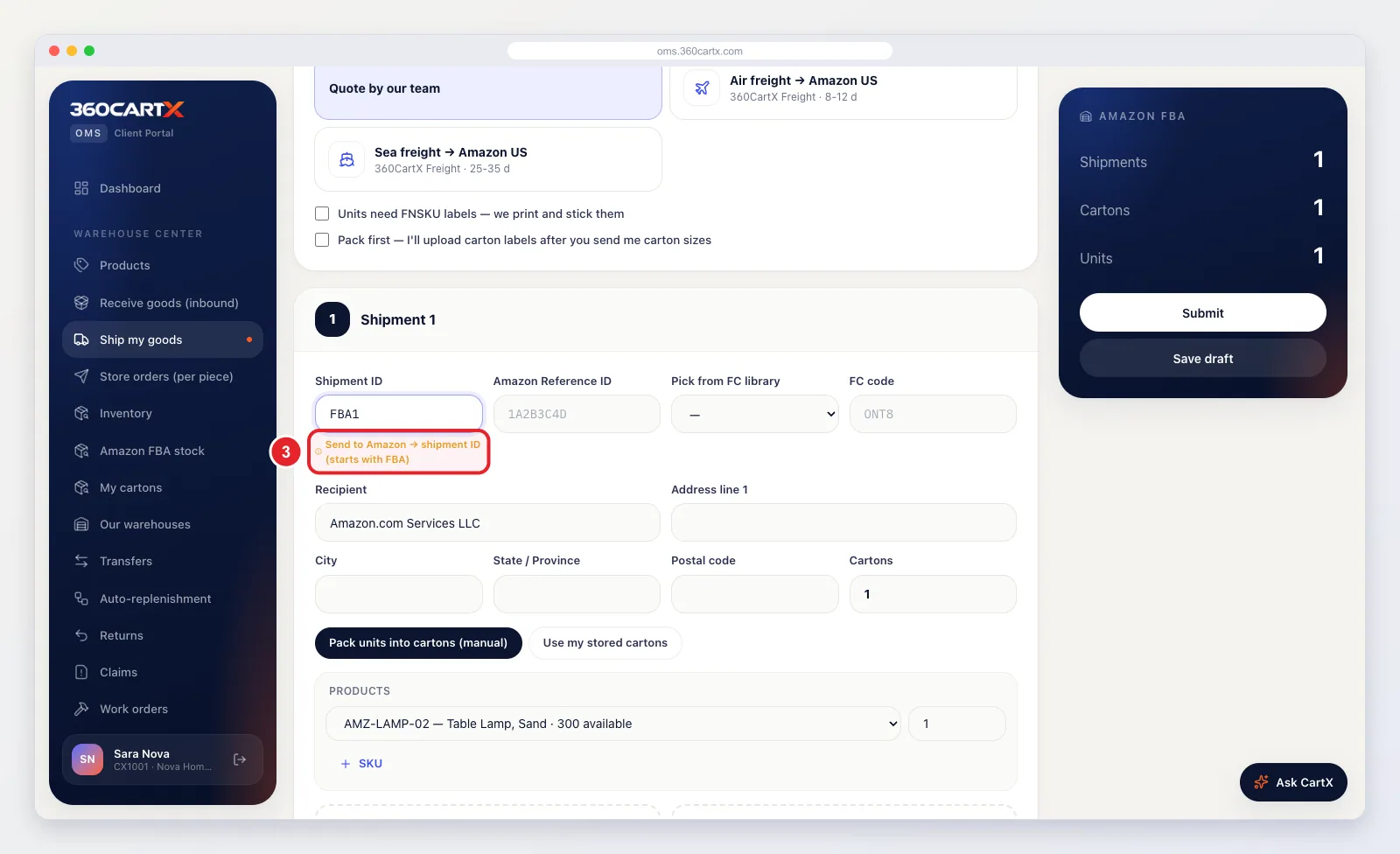
If what you type does not look like an Amazon Shipment ID (FBA followed by 6 to 12 letters or digits), an amber hint appears under the field: Send to Amazon → shipment ID (starts with FBA). It is only a warning: you can still go on, but check the ID in Seller Central first.
- 4
Pick the FC from the FC library
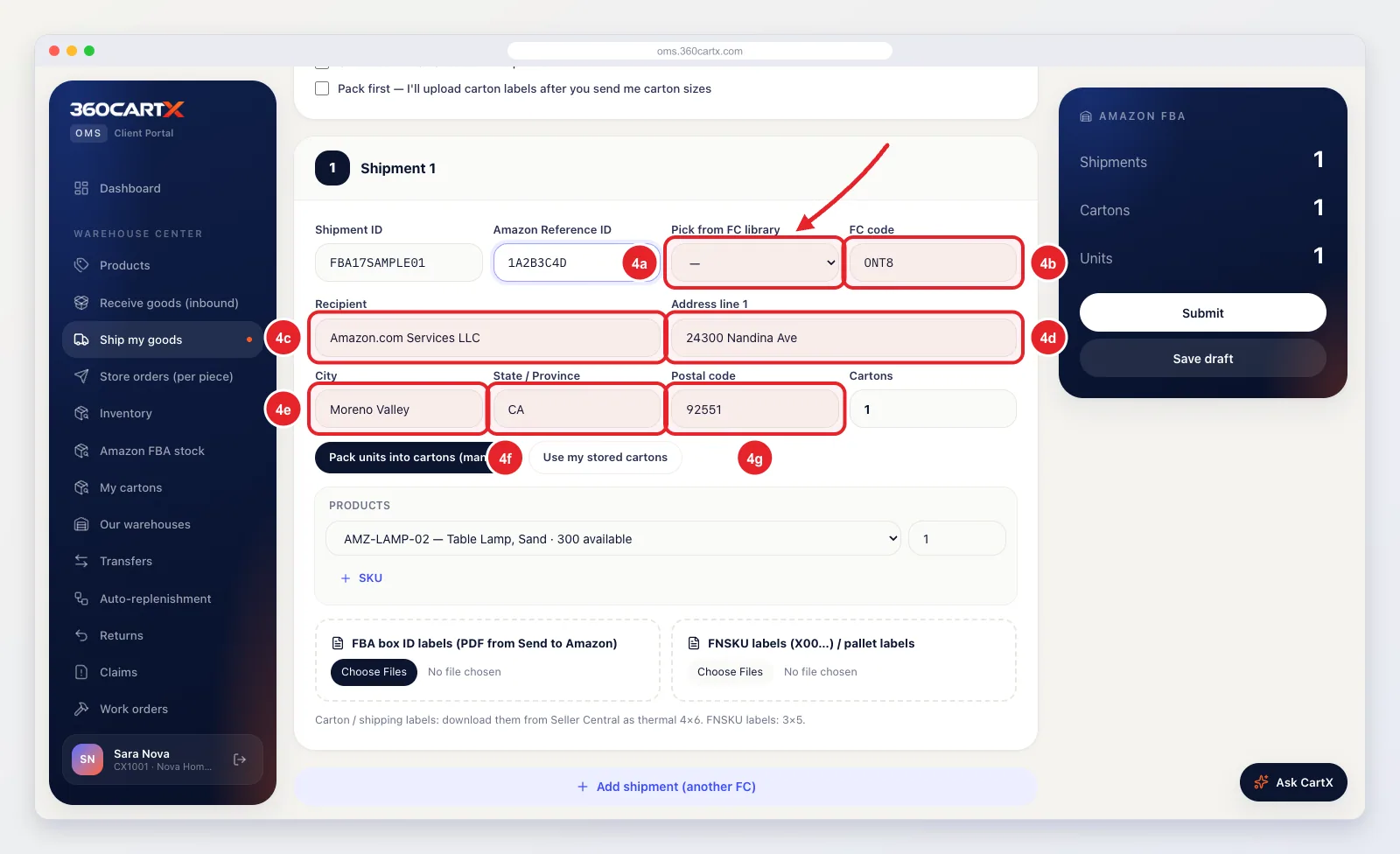
Open Pick from FC library and choose the FC of this shipment, for example ONT8 · Moreno Valley. The FC code, the address line, City, State / Province and Postal code are filled in for you, and Recipient shows Amazon.com Services LLC for the United States (Amazon.com.ca ULC for Canada, Amazon UK Services Ltd. for the United Kingdom, otherwise Amazon). The library lists the FCs of the chosen platform and destination country; if there is none the list shows ∅.
- 4a FC library
- 4b FC code
- 4c Recipient and address
- 5
An FC that is not in the library
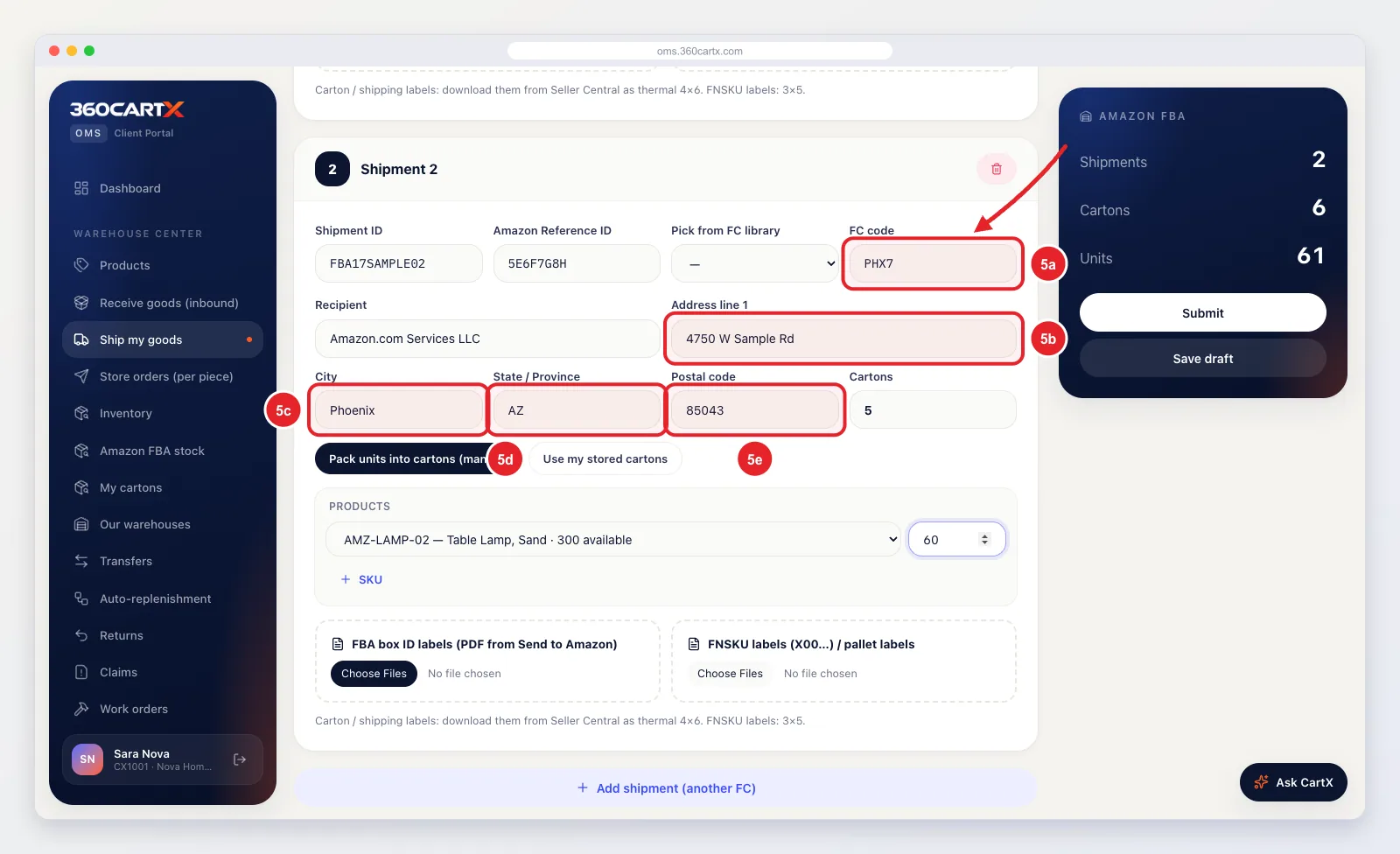
Type the FC code yourself, for example PHX7, and copy the address from Seller Central into Address line 1, City, State / Province and Postal code. Address, City and Postal code are required: if one is missing you see Address is required, City is required or Postal code is required when you submit. The Recipient is required too.
- 5a FC code
- 5b Address
- 6
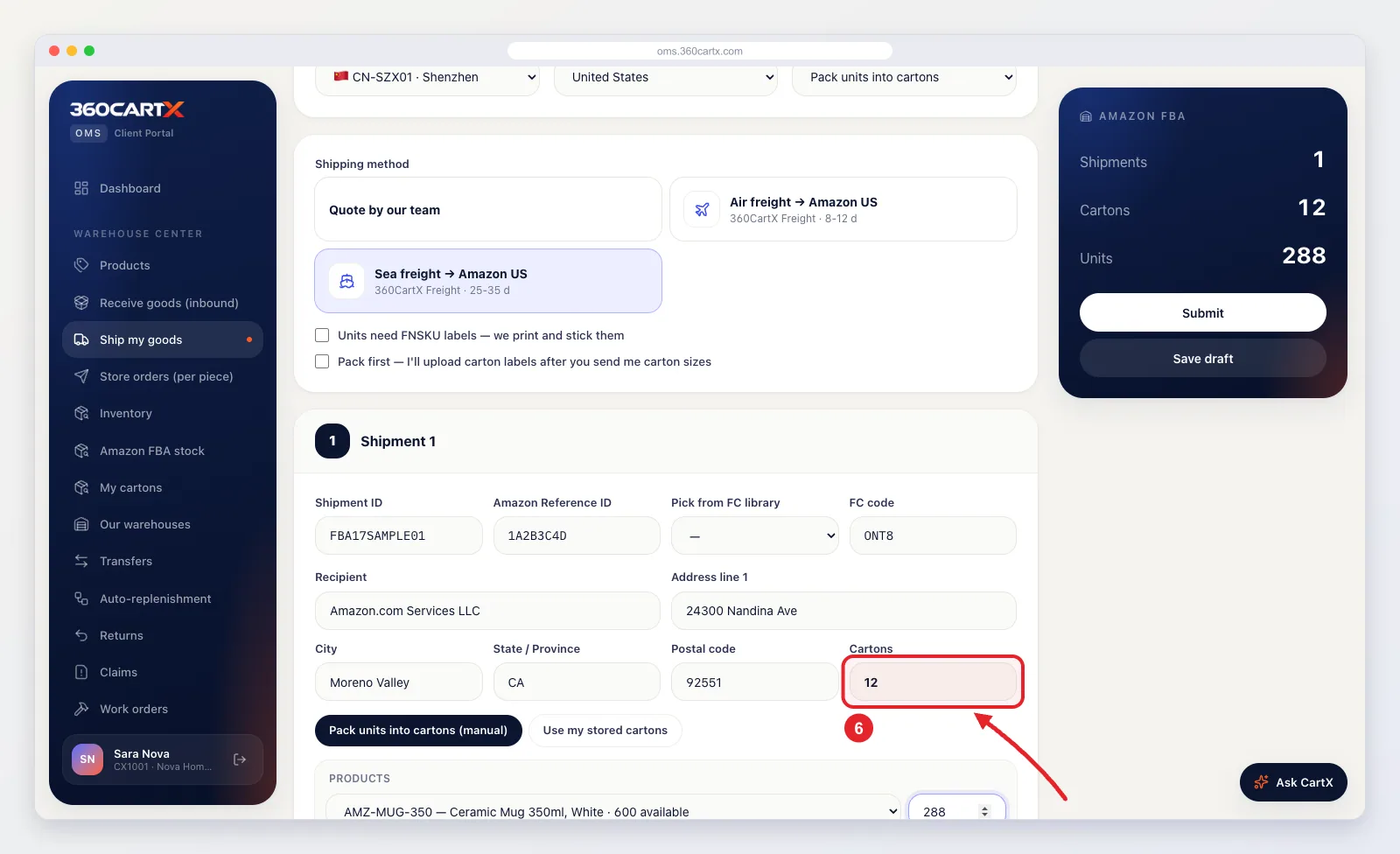
Number of cartons
Cartons is the number of boxes of this shipment, for example 12: the number in your Seller Central plan, and the number of pages of the carton label file. At least 1 and at most 999 per shipment.
- 7
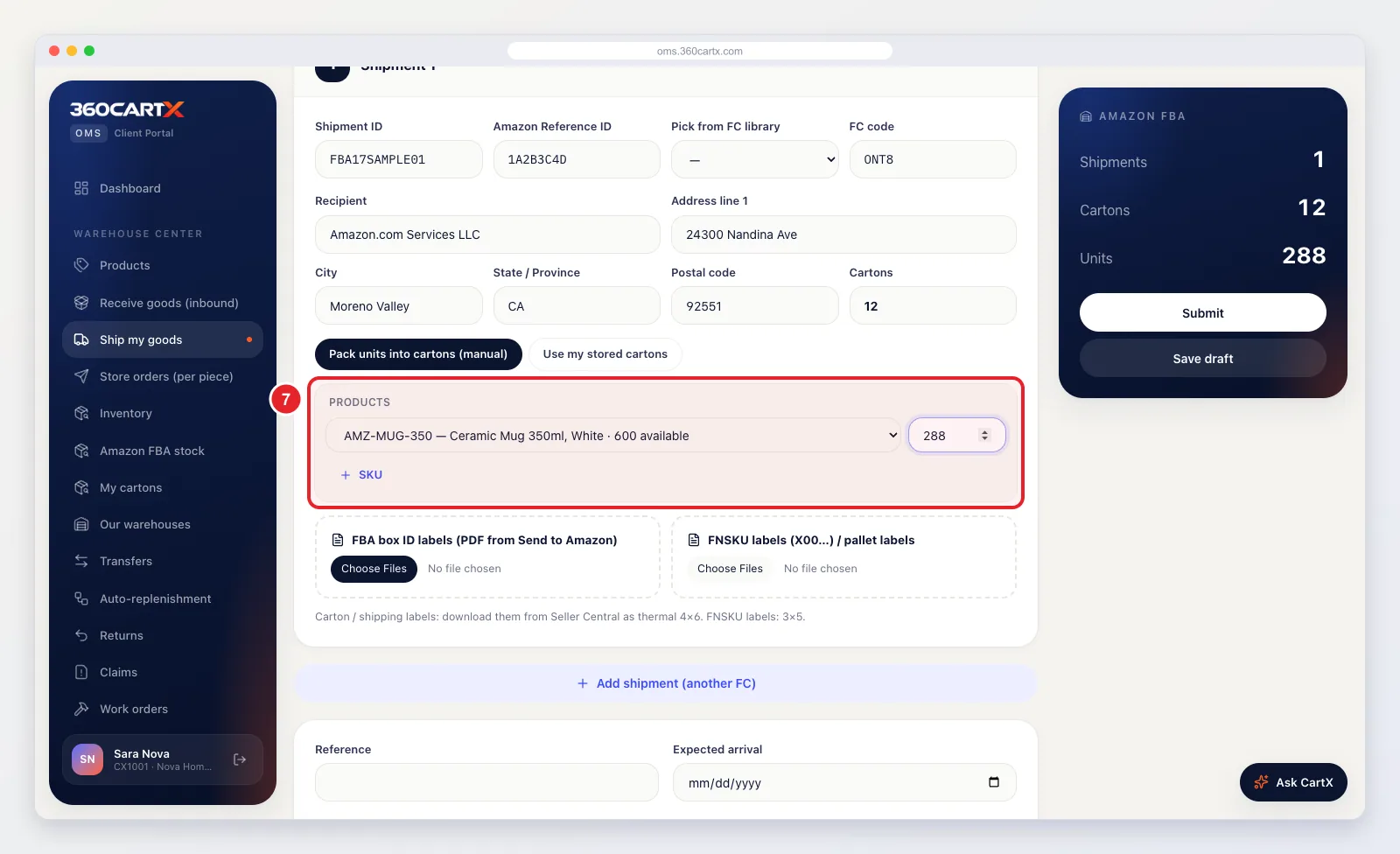
Products and quantities
Under Products choose each product and the number of units of this shipment, for example AMZ-MUG-350 × 288. The list shows how many units of each product are available. + SKU adds another product line and the bin icon removes a line. All units of all shipments together must be available.
- 8
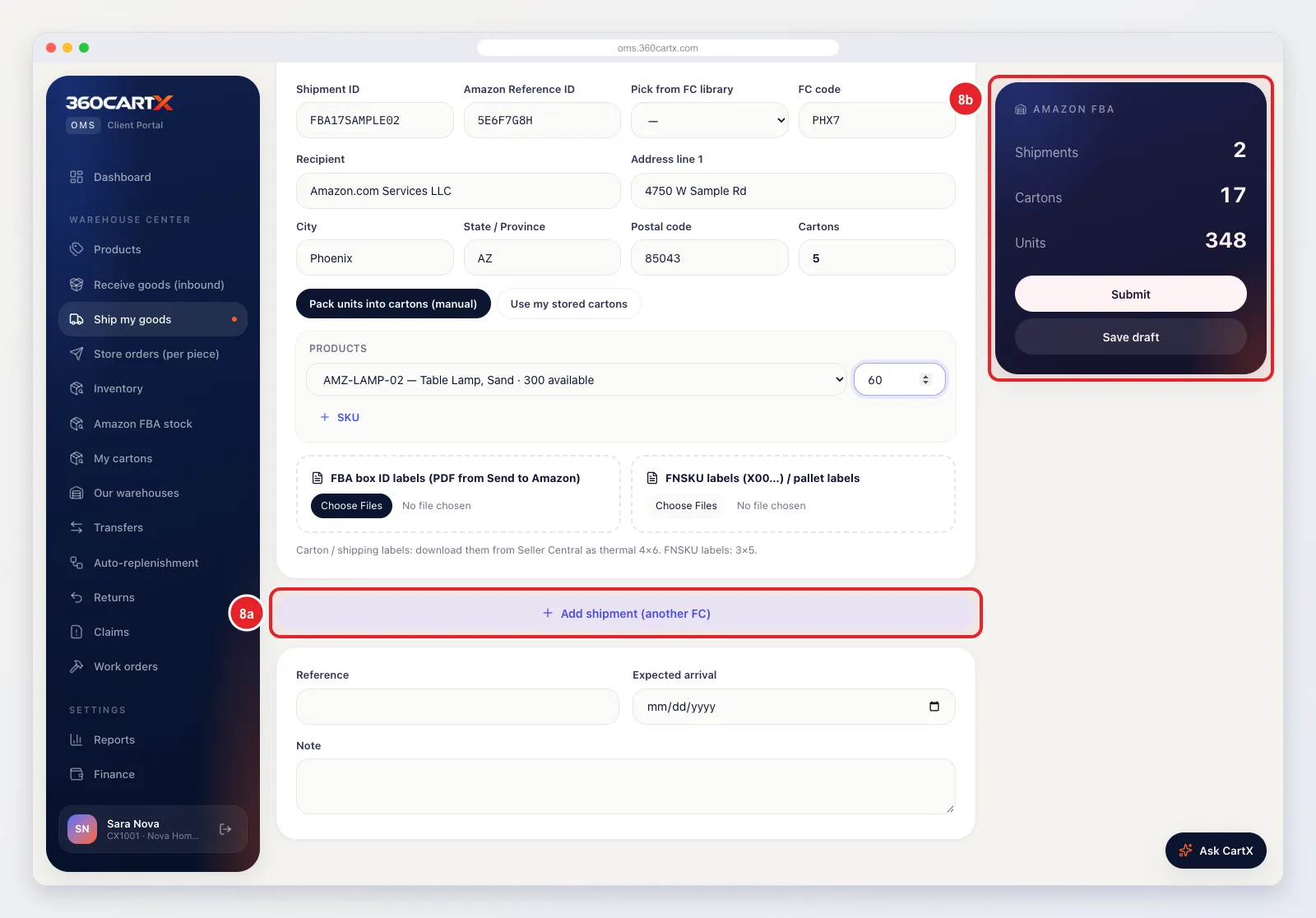
Add another shipment for another FC
Click Add shipment (another FC) for every further shipment of the Amazon plan: a new block, Shipment 2, starts with the platform's recipient and the destination country. The bin icon in the title of a block removes it. One request can hold up to 20 shipments. The dark panel on the right counts the Shipments, Cartons and Units of the whole request.
- 8a Add shipment
- 8b Totals
- 9
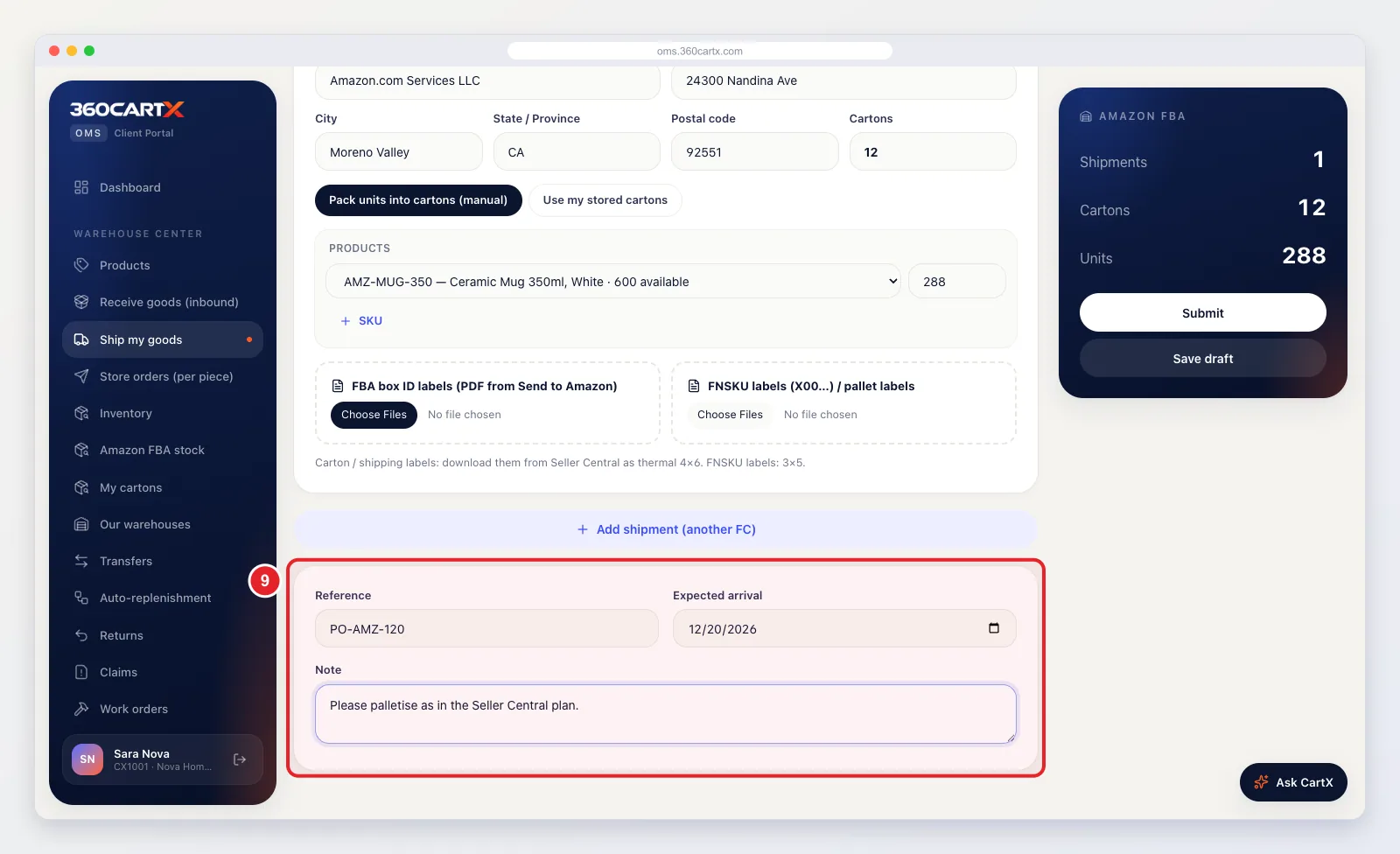
Reference, expected arrival and note
At the bottom: Reference (your own PO or order number, shown on the request), Expected arrival (the date you expect the goods at the FC, for our information) and Note for our team, for example Please palletise as in the Seller Central plan.
- 10
Stock check
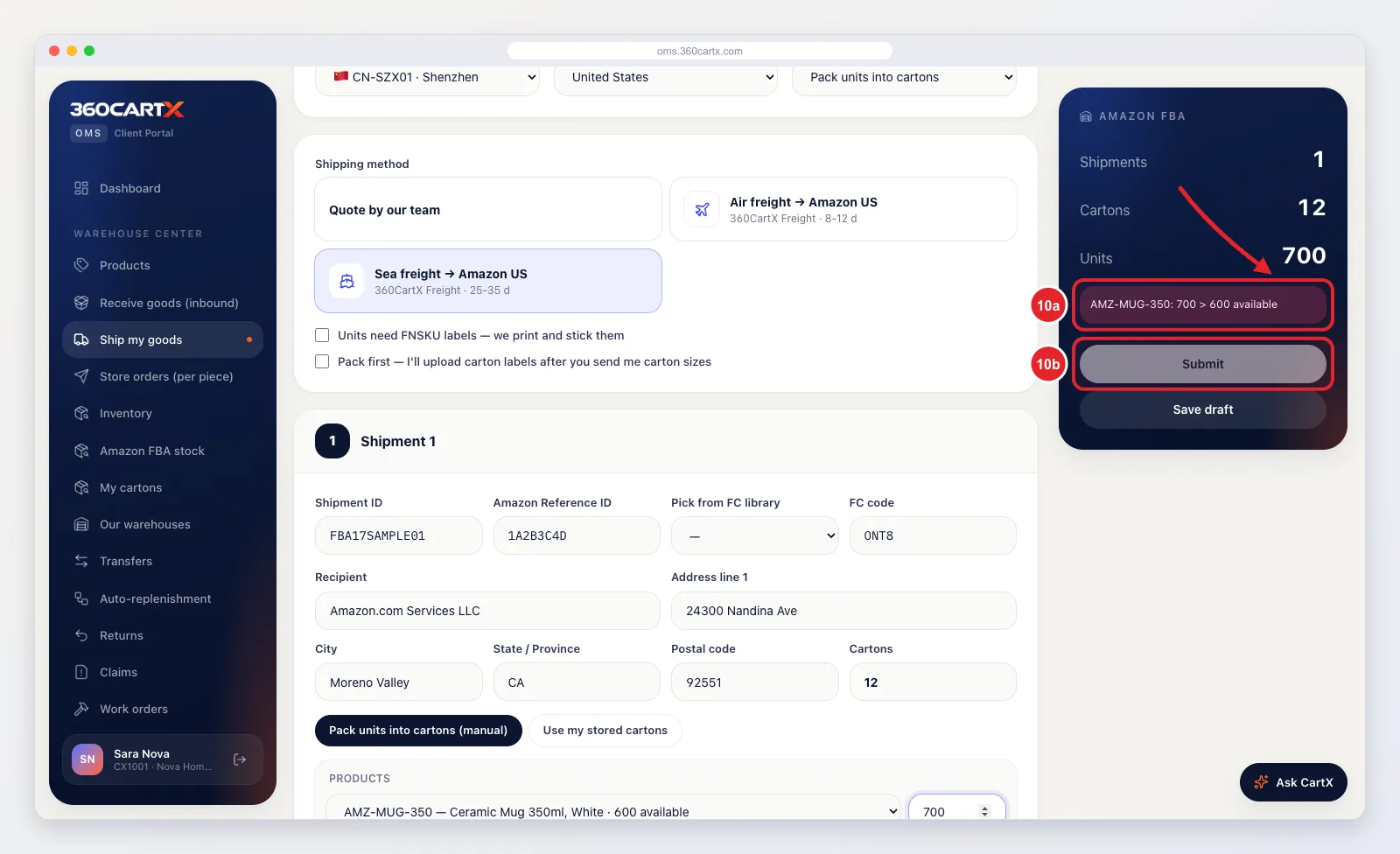
If you ask for more than is available, the dark panel shows a red line such as AMZ-MUG-350: 700 > 600 available and the Submit button is disabled. Lower the quantity. If you click Save draft anyway, the server refuses it too: Not enough stock for AMZ-MUG-350: need 700, available 600.
- 10a Not enough stock
- 10b Submit disabled
- 11
Submit or Save draft
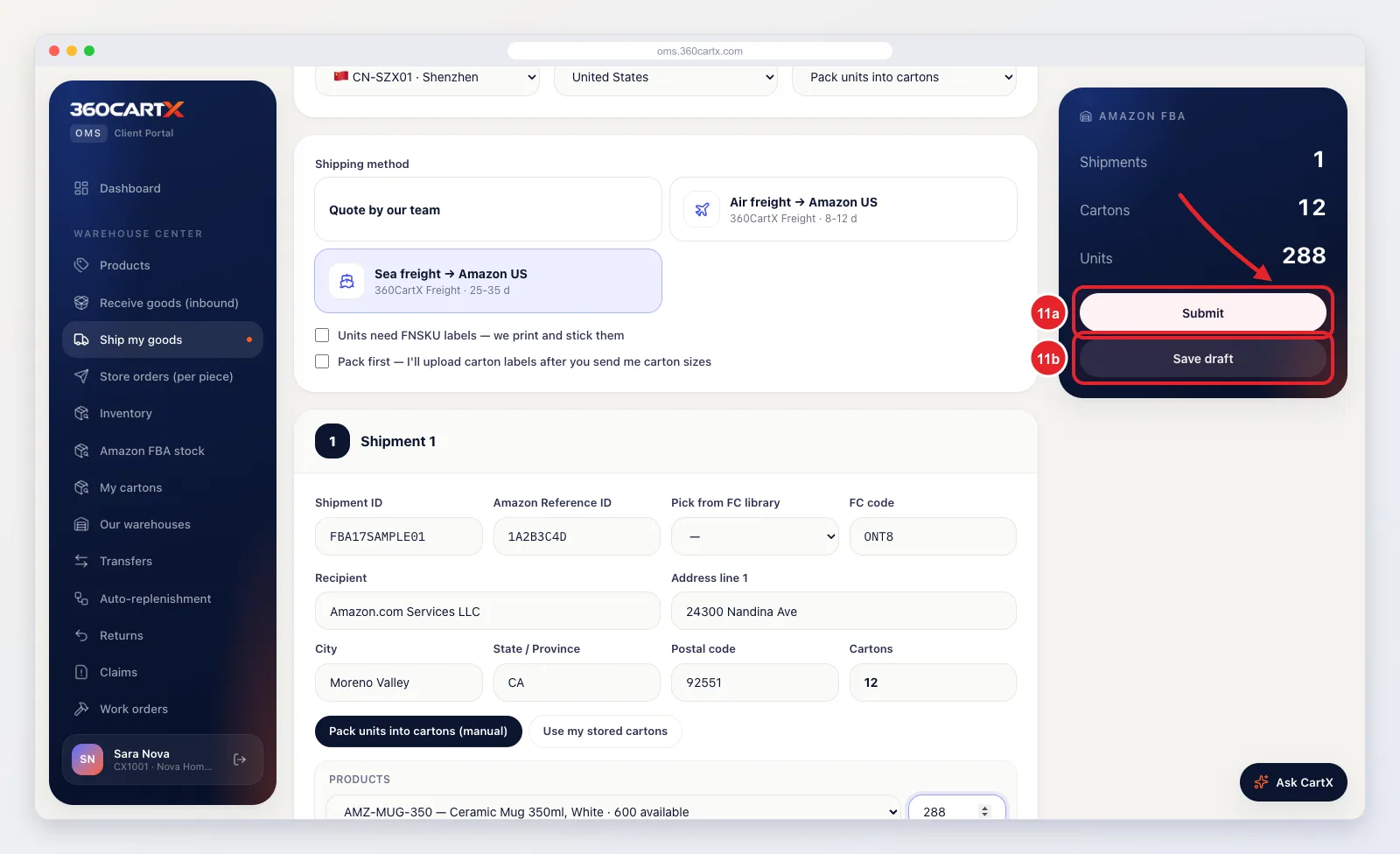
Before you submit, add the carton labels from Seller Central (see Upload carton, FNSKU and pallet labels). Submit sends the request to us; Save draft keeps it as a Draft for later.
- 11a Submit
- 11b Save draft
- 12
After Submit: Awaiting quote
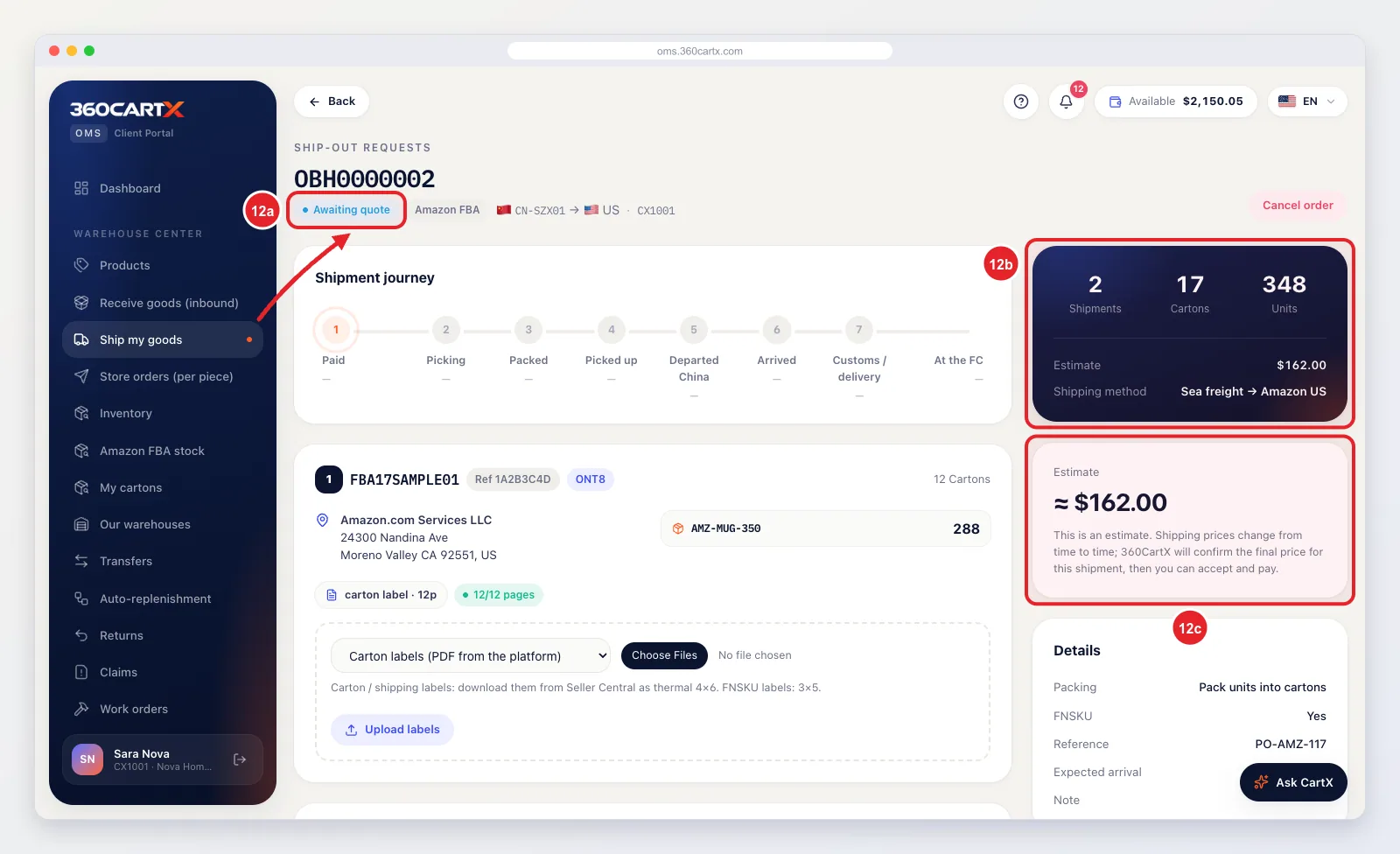
The request page opens with the status Awaiting quote and your stock is reserved for it. With a shipping method you also see the Estimate (for example $162.00) and the note that 360CartX will confirm the final price. See Accept and pay the final price.
- 12a Status
- 12b Estimate
- 12c Estimate note
- 13
After Save draft: Draft
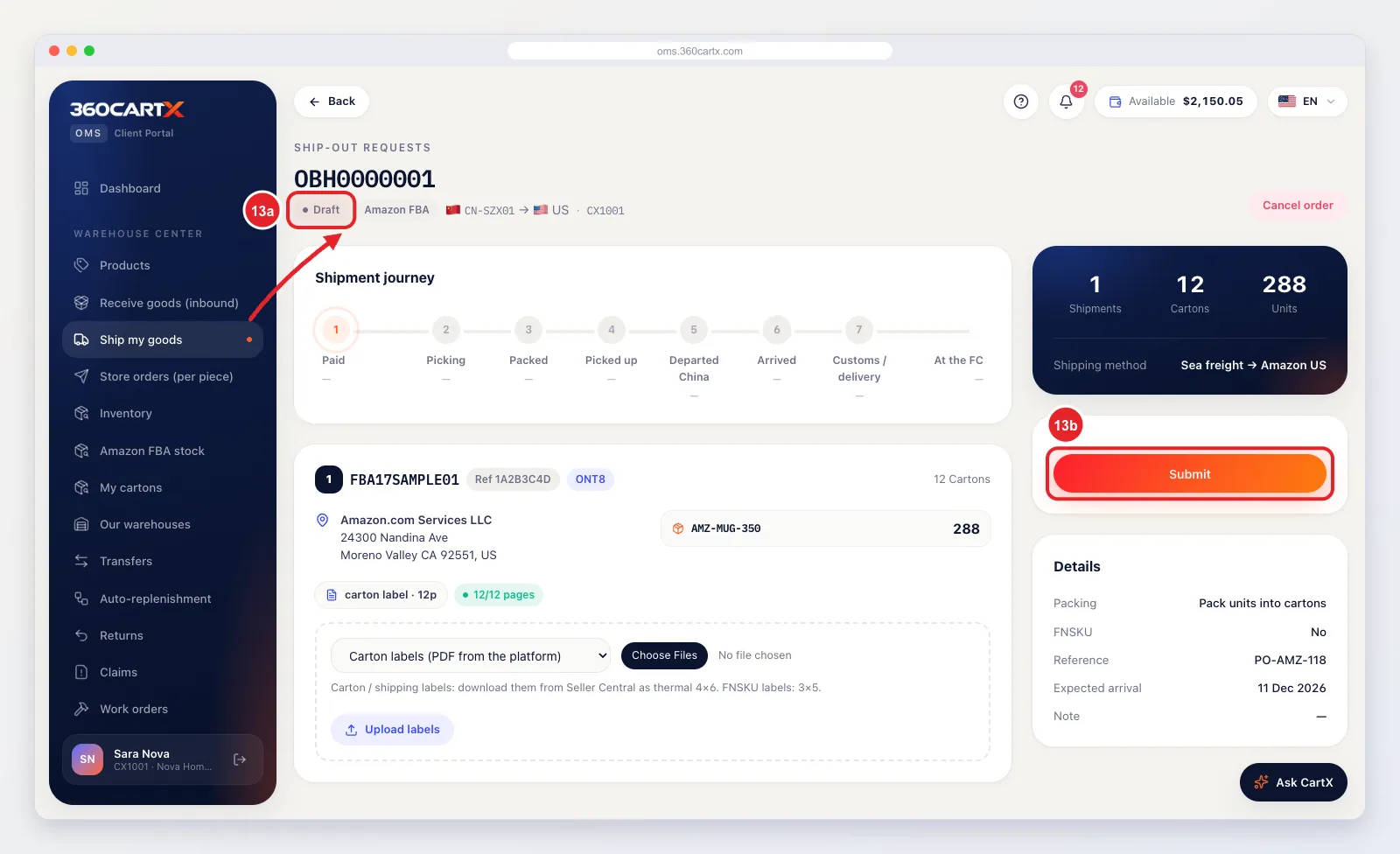
A draft has the status Draft and nothing is reserved. Its page has a Submit button, Cancel order and the Upload labels box. A draft cannot be edited: to change it, cancel it and create a new request.
- 14
If Submit refuses
Submit checks every shipment before it sends the request. The message appears in the dark panel, for example Shipment 1: upload the carton labels. The checks are listed in the problems below.
Terms in this article
- FC: Fulfilment centre, e.g. Amazon's warehouse ONT8.
- Shipment ID: The marketplace's number for one shipment to one FC.
- FBA / FBM: Fulfilled by Amazon vs fulfilled by you.
Tips
- One request can mix several Amazon shipments, but all of them go to the same destination country and use the same method.
- Create the Seller Central plan only after you know the quantities that really are in our warehouse.
Common problems
Shipment 1: upload the carton labels
Submit needs the carton label file of every shipment (4×6 labels from Seller Central). Choose it in Carton labels, or tick Pack first at the top if you really need to add them later.
Shipment 1: 8 label page(s) but 12 carton(s)
The carton label file has a different number of pages than the number in Cartons. Download all labels again from Seller Central, or correct Cartons. The form already warns you in red: 8 pages / 12 cartons · label pages vs cartons.
Each shipment needs products or cartons
Same problem found by the server: every shipment needs at least one product, or stored cartons.
Recipient is required / Address is required / City is required / Postal code is required
Fill in the missing field of the shipment. With an FC from the library they are already filled in.
Not enough stock for AMZ-MUG-350: need 700, available 600
The units in your shipments are more than the available stock. Lower the quantity, or ship in more goods first.
Unknown product in the order
A product in the request is not approved (any more). Check its status in Products.
Needs FNSKU: add the FNSKU and upload the FNSKU label (3x5) for … first
An Amazon product has no FNSKU or no label file. See Amazon FBA: the FNSKU is required.
Related articles
Updated 2026-11-11
Open a ticket from Support in your portal and our team will reply.