Steps
- 1
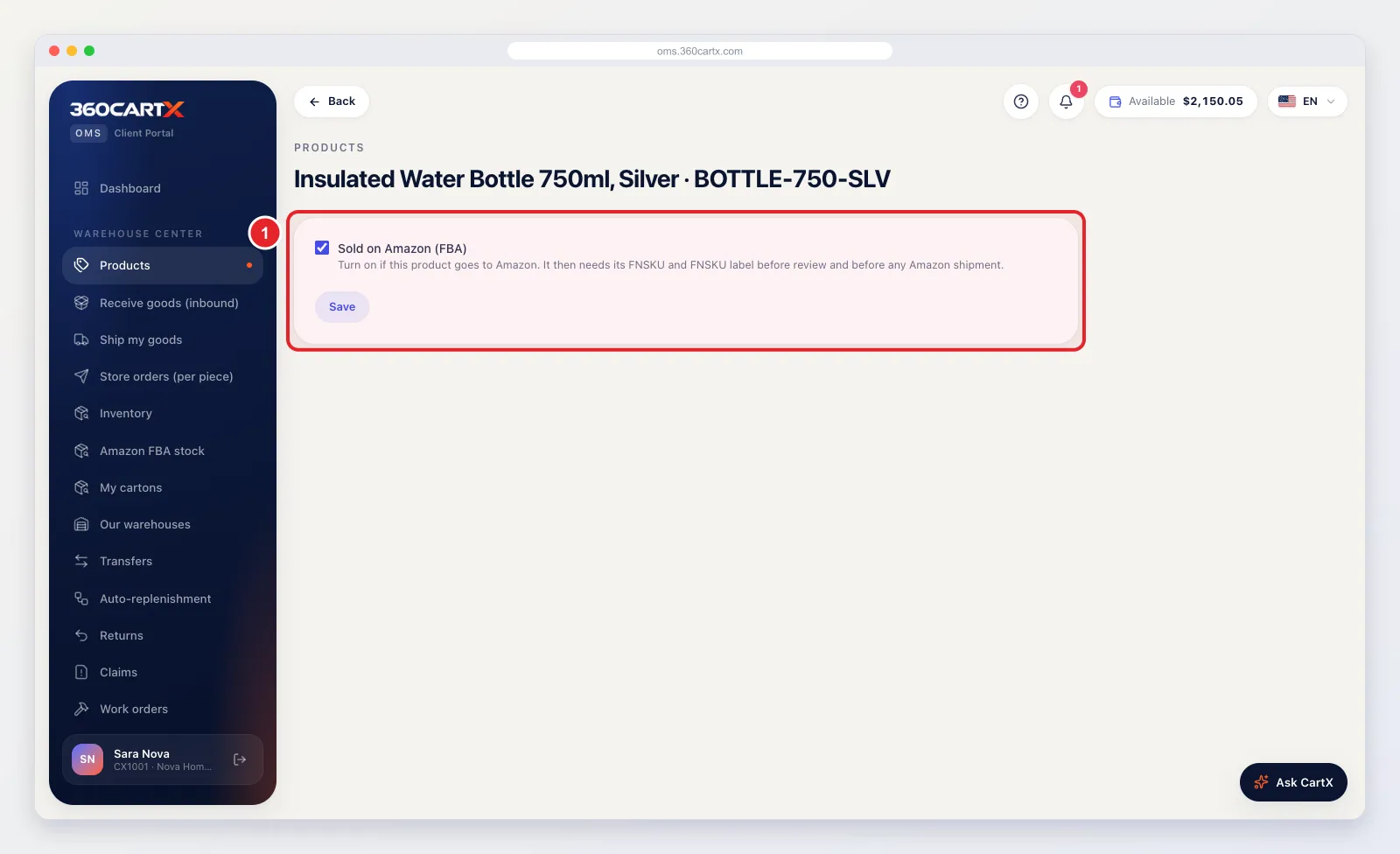
Tell us the product is sold on Amazon
A product is an Amazon product when it was imported from your Amazon store, when it is listed on Amazon (FBA or FBM), or when you turn on Sold on Amazon (FBA). On a new or draft product the switch is a tick box in the form (under Category). On a product in review or approved, the product page shows it as a card at the top: tick Sold on Amazon (FBA) and click Save. Turn it on for any product you plan to send to Amazon; it then needs its FNSKU and FNSKU label before review and before any Amazon shipment.
- 2
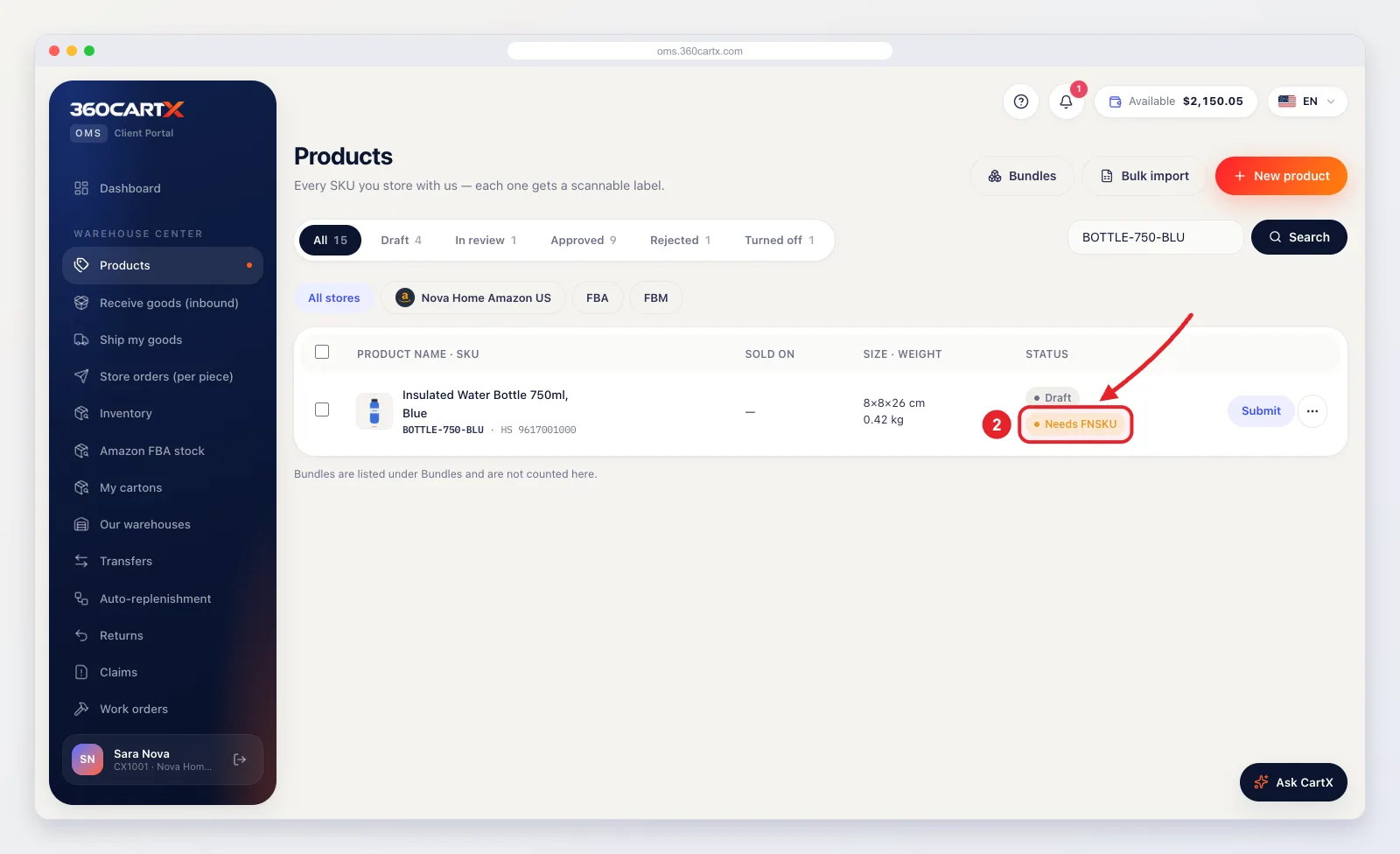
Spot the Needs FNSKU badge
Until the FNSKU and label file of an Amazon product are saved, the product list shows a yellow Needs FNSKU badge under its status. Click the badge to open the FNSKU box. Approved Amazon products show the barcode icon Save FNSKU instead of the truck icon Send to warehouse.
- 3
Why it is required
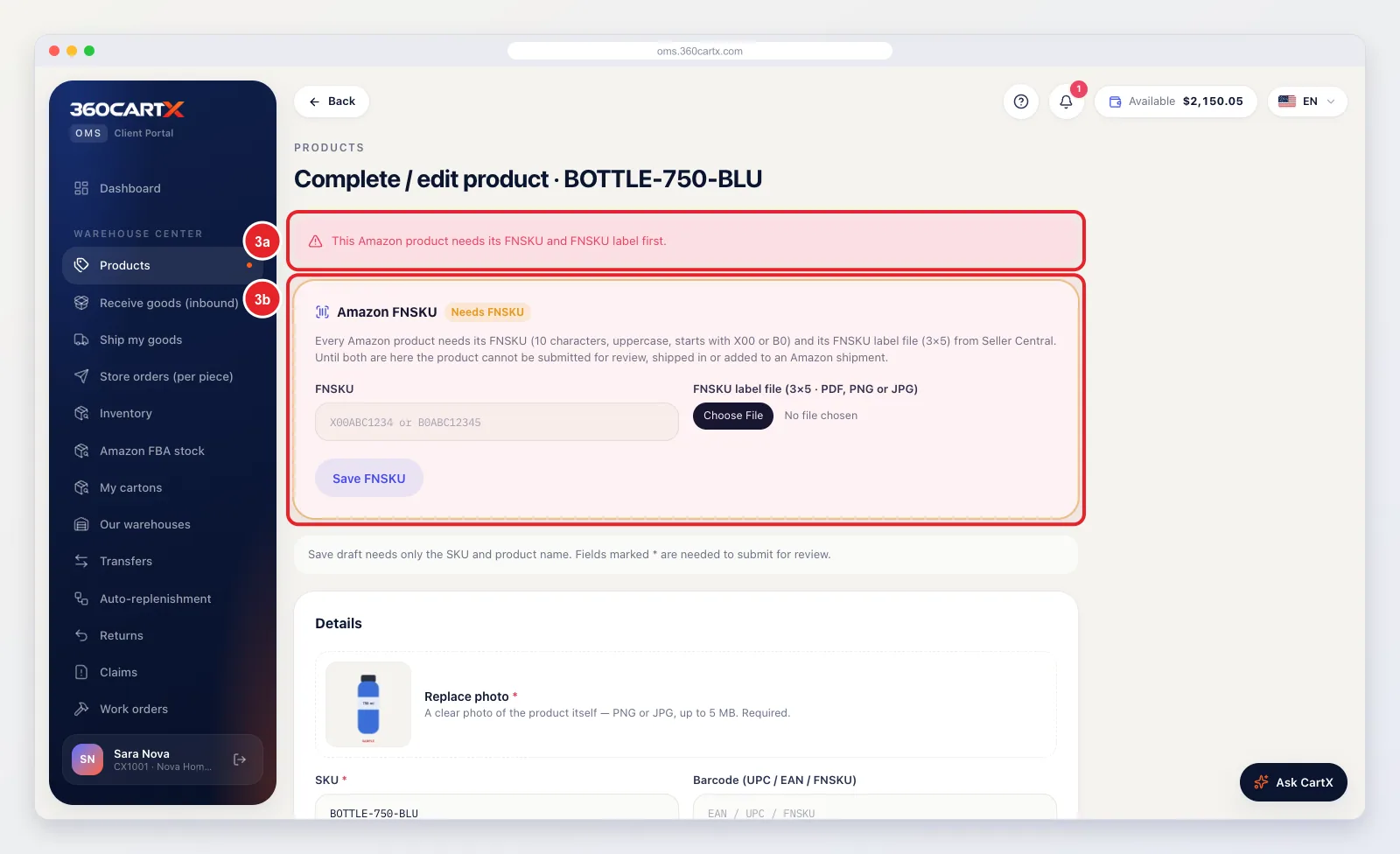
Without the FNSKU and label, the product cannot be submitted for review, cannot be added to an inbound shipment and cannot go into an Amazon FBA shipment. If you try, you are sent to the product page with: This Amazon product needs its FNSKU and FNSKU label first. The Amazon FNSKU box is at the top of the product page with the Needs FNSKU badge.
- 3a Blocked message
- 3b Amazon FNSKU box
- 4
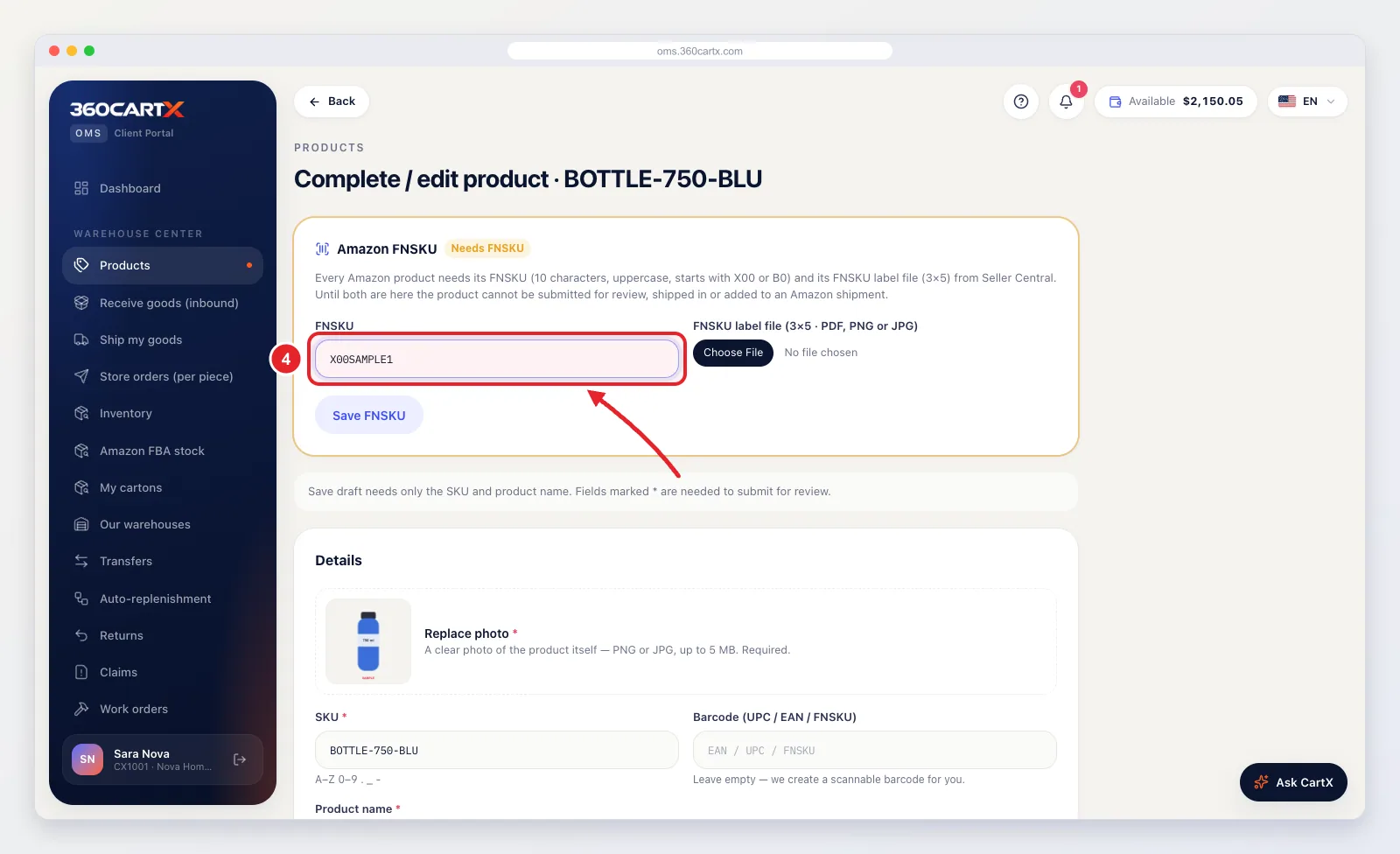
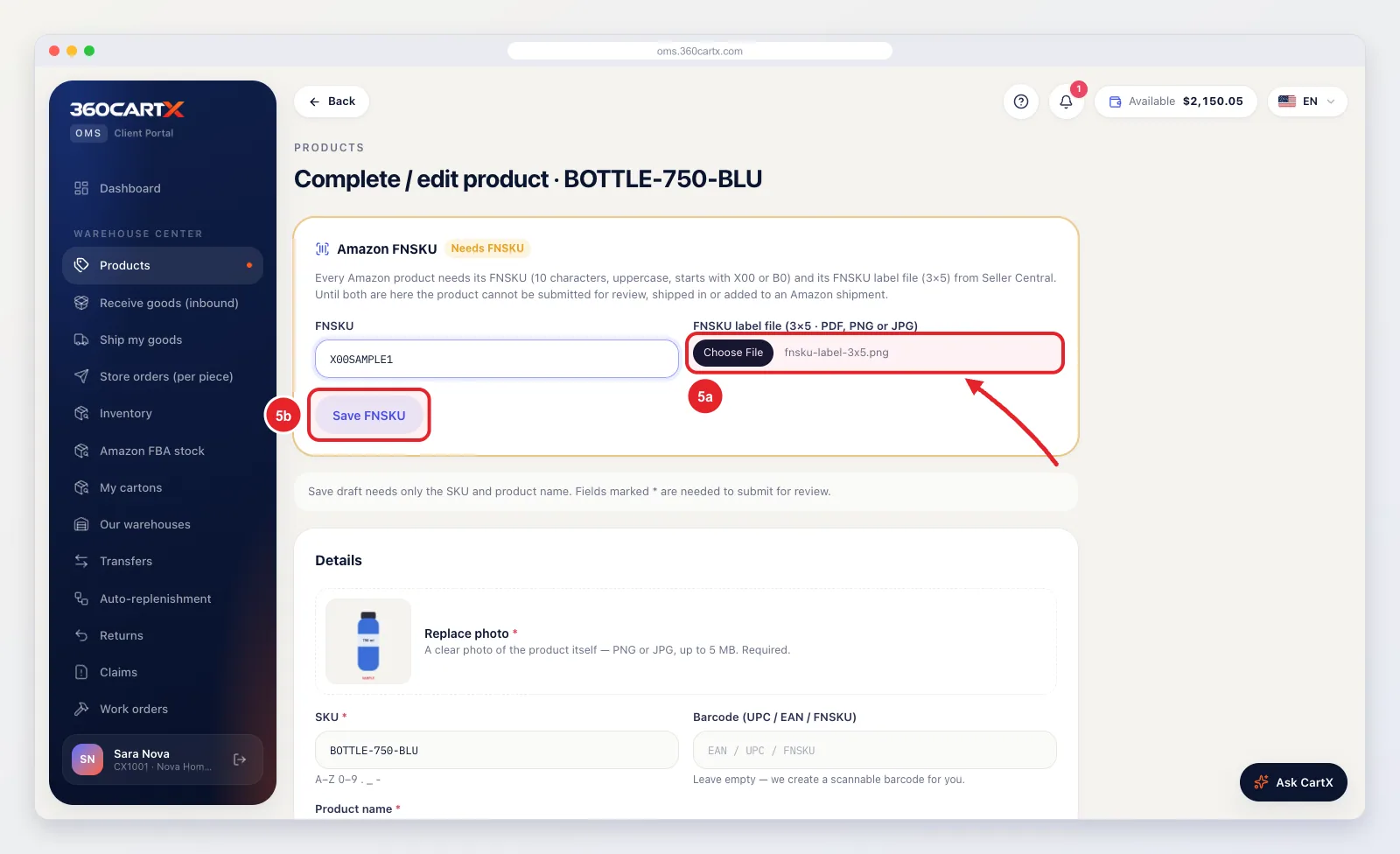
Type the FNSKU
In Seller Central open Inventory → Manage FBA Inventory and copy the FNSKU of the product. Paste it in FNSKU, for example X00SAMPLE1. It is exactly 10 characters, uppercase, and starts with X00 (or with B0 when Amazon uses the ASIN as FNSKU). Spaces are removed automatically.
- 5
Attach the 3×5 label file and save
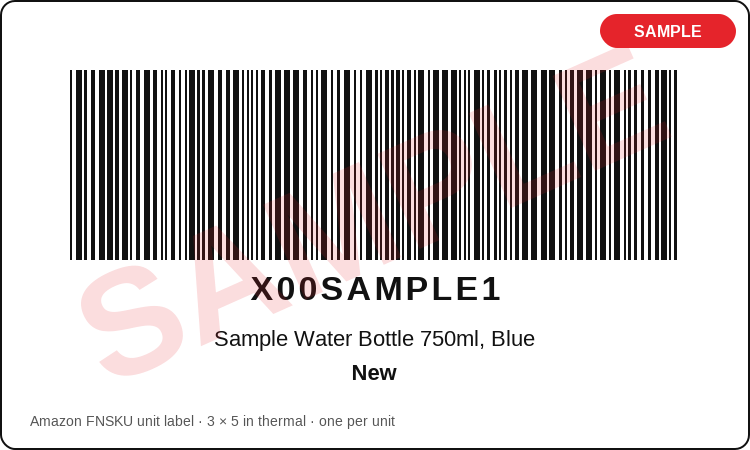
In Seller Central print the product labels (Print item labels) and choose the 3×5 inch thermal format; save the PDF (it looks like the sample below). In FNSKU label file (3×5 · PDF, PNG or JPG) choose that file, then click Save FNSKU.
- 5a FNSKU label file
- 5b Save FNSKU
- 6
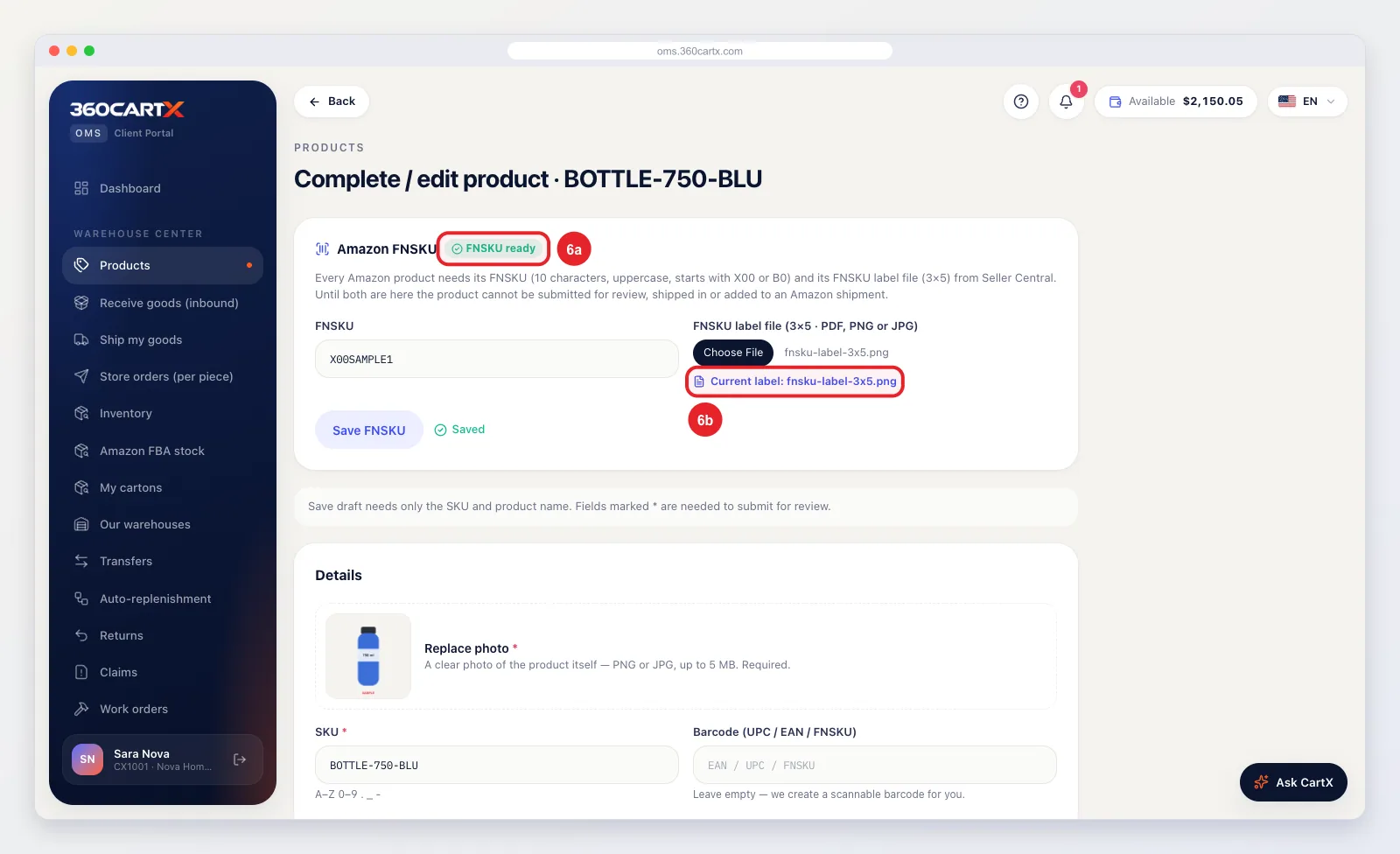
FNSKU ready
The badge turns green: FNSKU ready, and Current label links to the file you uploaded so you can check it. You can replace the file later by choosing a new one and saving again.
- 6a FNSKU ready
- 6b Current label
- 7
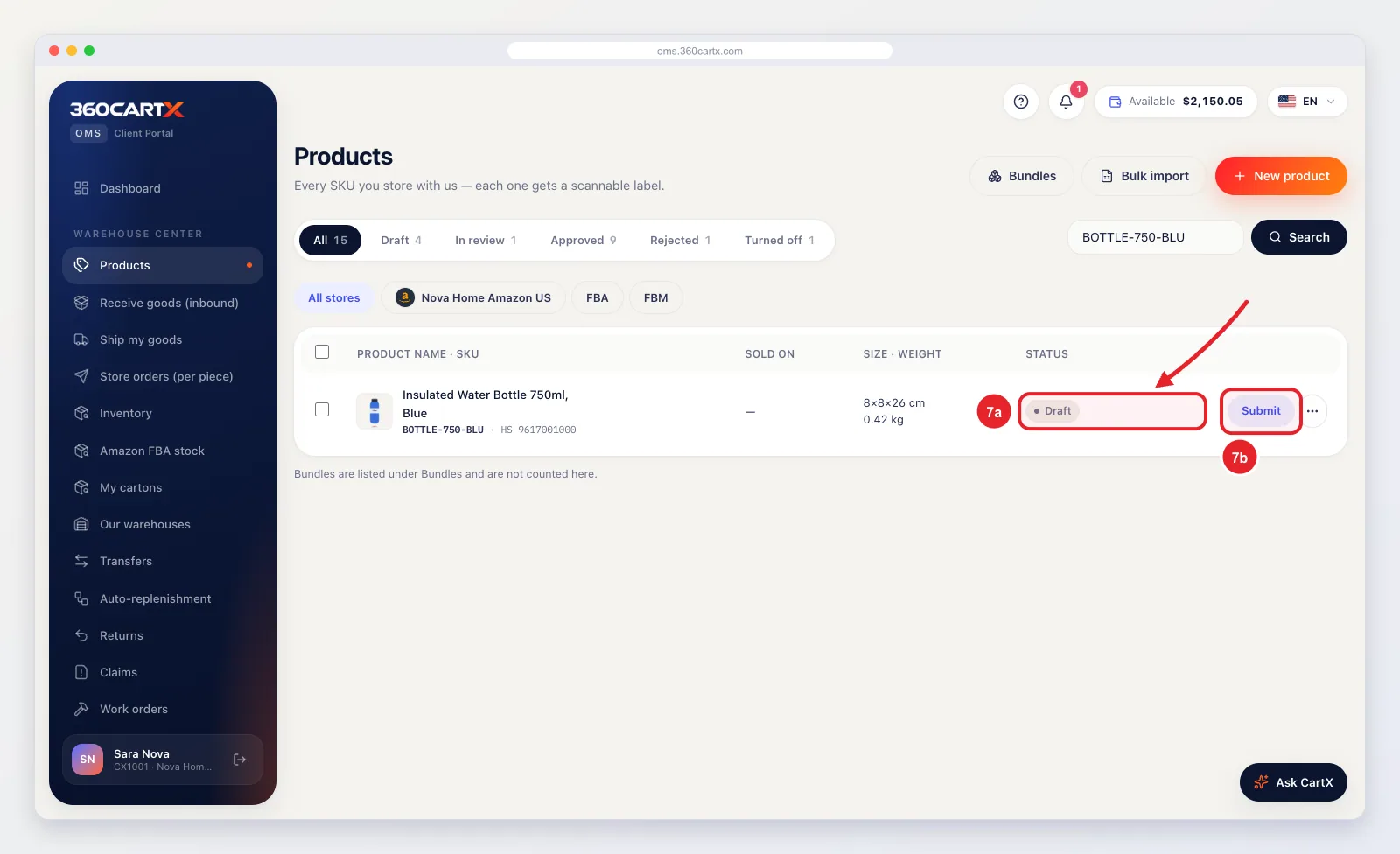
Submit the product
Back in the product list the Needs FNSKU badge is gone. A draft can now be submitted with Submit; an approved product shows the truck icon Send to warehouse again.
- 7a Status without Needs FNSKU
- 7b Submit
Terms in this article
- FNSKU: Amazon's 10-character label code for each unit.
- ASIN: Amazon's ID of a listing.
- Barcode (UPC / EAN): The scannable code printed on a product.
- SKU: Your own product code.
Tips
- Products imported from your Amazon store often get their FNSKU filled in automatically; you then only need to add the label file.
- Amazon products never get our own SKU barcode label: when you print SKU labels, Amazon products are skipped because they carry their FNSKU label.
- For an FBA shipment you also upload the carton labels on the shipment itself. See Upload carton labels and FNSKU labels for an Amazon FBA shipment.
Common problems
FNSKU must be exactly 10 characters
Copy the full code from Seller Central, without the product name or condition.
FNSKU must be uppercase
Type the letters in capitals, for example X00SAMPLE1.
FNSKU must start with X00 or B0 and contain only letters and digits
You may have pasted the ASIN of another marketplace, the SKU or the barcode. Use the FNSKU column in Manage FBA Inventory.
FNSKU X00SAMPLE1 is already used by …
Another of your products already has this FNSKU. Each Amazon listing has its own FNSKU: check you are on the right product.
Upload the FNSKU label file (3x5, PDF, PNG or JPG)
The code alone is not enough: choose the label file before clicking Save FNSKU.
Every product in an Amazon shipment needs an FNSKU. Open …, turn on "Sold on Amazon (FBA)", then add the FNSKU and its label
Shown when you add a product without an FNSKU to an Amazon shipment. Open the product it names, tick Sold on Amazon (FBA), save, and add the FNSKU and label.
Needs FNSKU: add the FNSKU and upload the FNSKU label (3x5) for … first
Shown when you submit, ship in or add to an Amazon shipment a product without FNSKU. The message lists up to 5 SKUs: add the FNSKU and label to each of them.
Related articles
Updated 2026-11-12
Open a ticket from Support in your portal and our team will reply.