Steps
- 1
Open the ticket
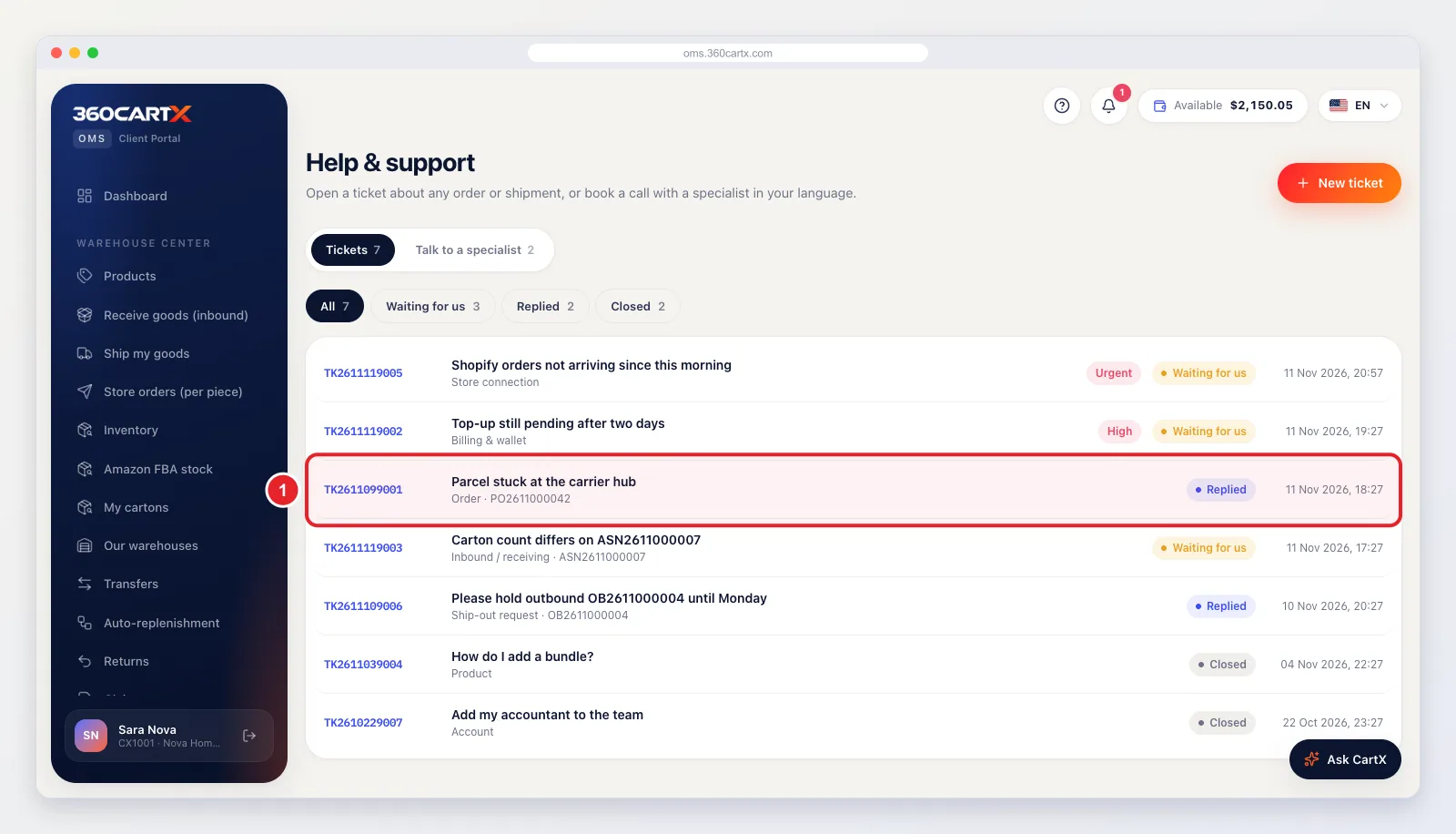
In Help & support click the ticket's row. A ticket with a new answer from our team shows the blue Replied badge, and you also get a notification (the bell) when we answer.
- 2
Know the ticket page
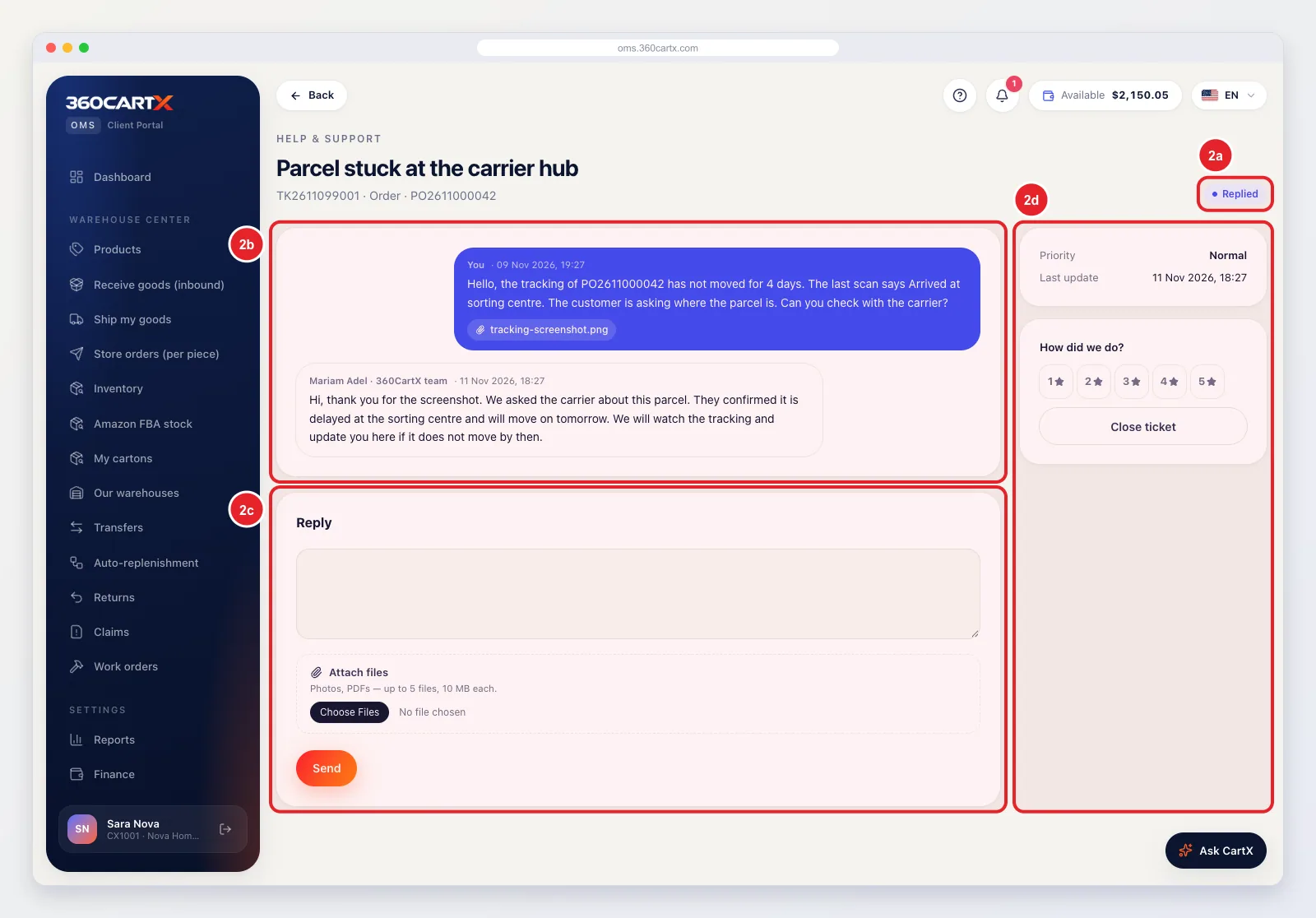
At the top are the subject, a line with the ticket number, the topic and your order number, and the status badge. Below on the left is the conversation, and under it the Reply box. On the right is a small box with Priority, Last update and Reply expected by, and under it the box to rate and close.
- 2a Status
- 2b Conversation
- 2c Reply box
- 2d Side panel
- 3
Read the conversation
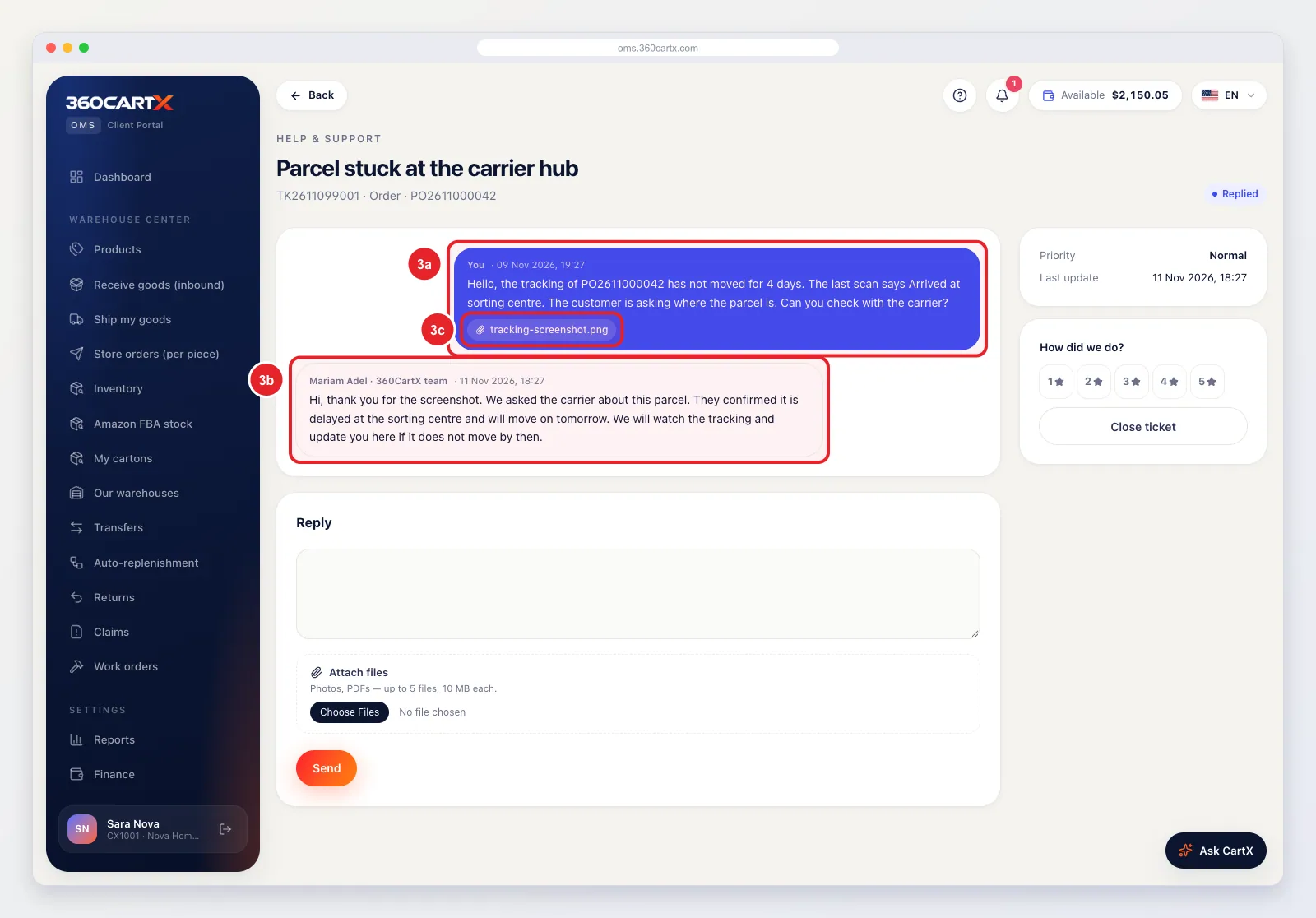
Your own messages are blue and sit on the right, headed You. Messages from our team are white and sit on the left, headed with the name of the person and 360CartX team. Each message shows its date and time in China time (UTC+8). Files that were attached appear as small buttons with a paperclip; click one to open it in a new tab. Notes that our team keeps for itself are never shown to you.
- 3a Your message
- 3b Our answer
- 3c Attached file
- 4
Write a reply
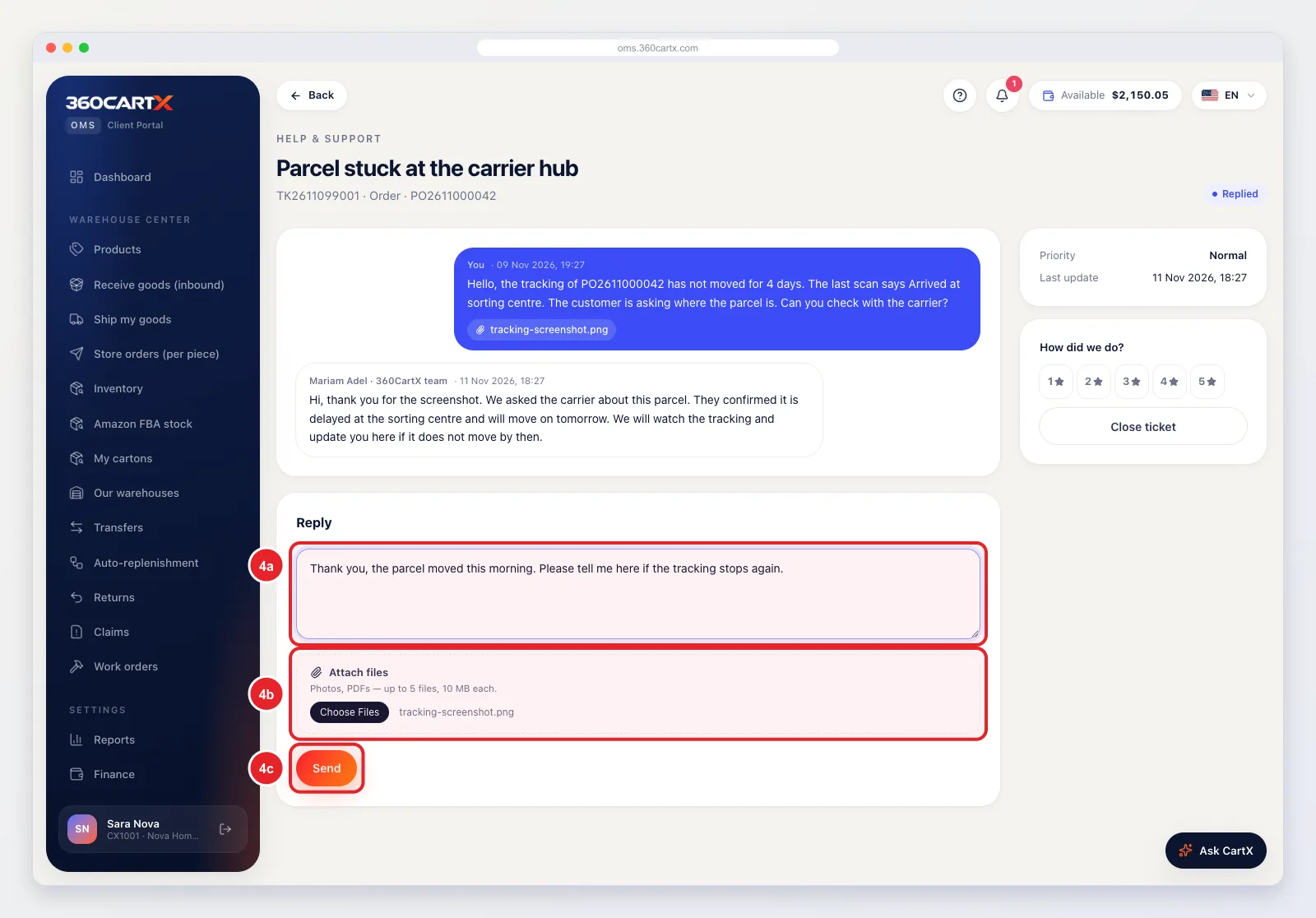
Type your answer in the box under Reply (up to 5000 characters), optionally add up to 5 PNG, JPG or PDF files of 10 MB each, and click Send. The message appears in the conversation, the box empties and the status changes to Waiting for us. Our team is notified and a new Reply expected by time starts, counted from now with the priority of the ticket. The limits and error messages for files are the same as in Open a support ticket.
- 4a Message
- 4b Attach files
- 4c Send
- 5
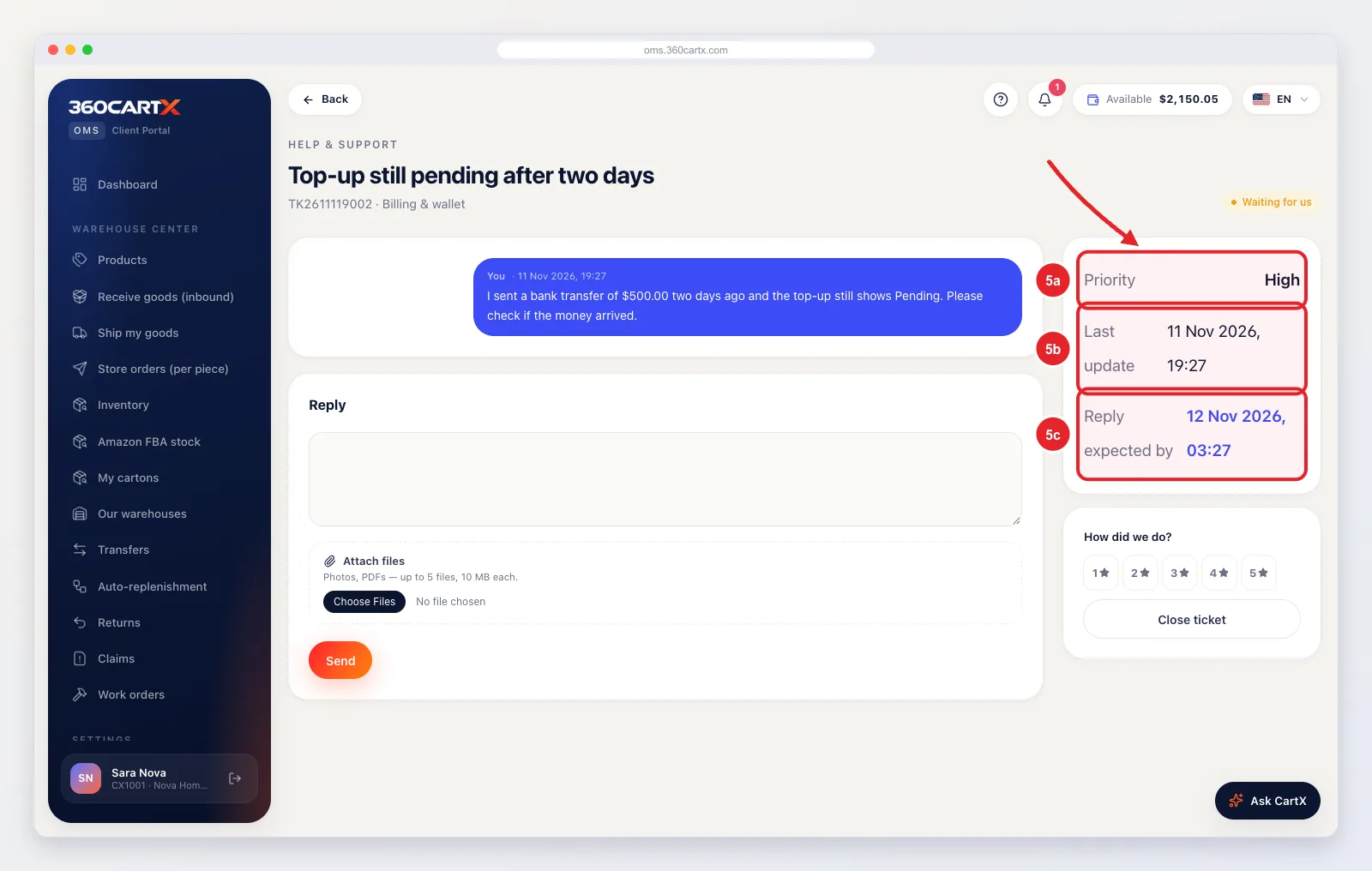
Read the side panel
Priority is the level chosen when the ticket was opened. Last update is the date and time of the most recent message. Reply expected by is shown only while the ticket is Waiting for us, and is the time we aim to answer by, in blue. Once we have replied the line disappears, because now we are waiting for you.
- 5a Priority
- 5b Last update
- 5c Reply expected by
- 6
Rate and close
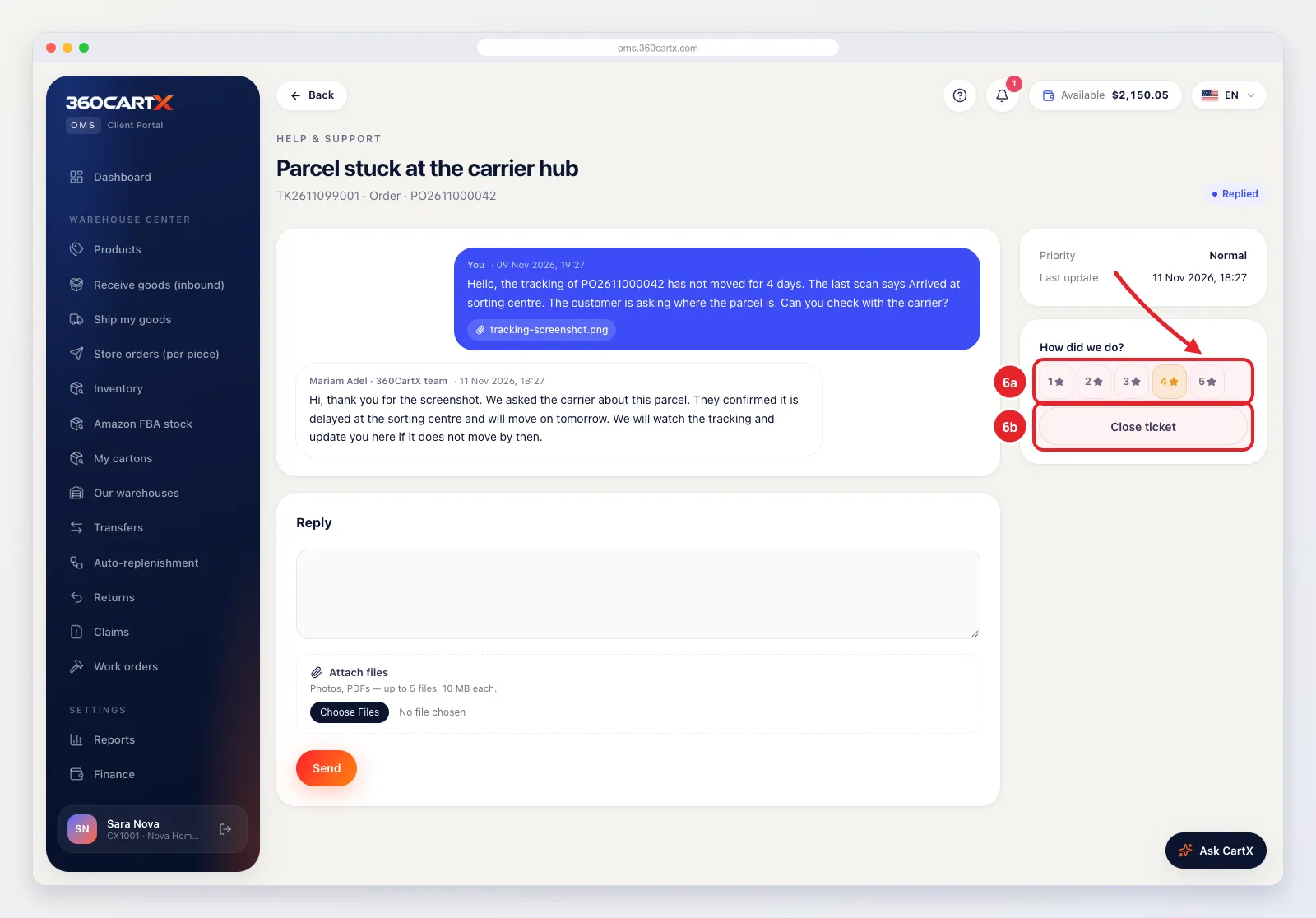
When the question is solved, rate our help under How did we do? by clicking 1 to 5 (the chosen number turns yellow), then click Close ticket. The rating is optional: you can close without choosing one. Closing is immediate, there is no confirmation question, and the rating can only be given at this moment. You can close a ticket at any time, even before we have answered.
- 6a Rating 1 to 5
- 6b Close ticket
- 7
A closed ticket
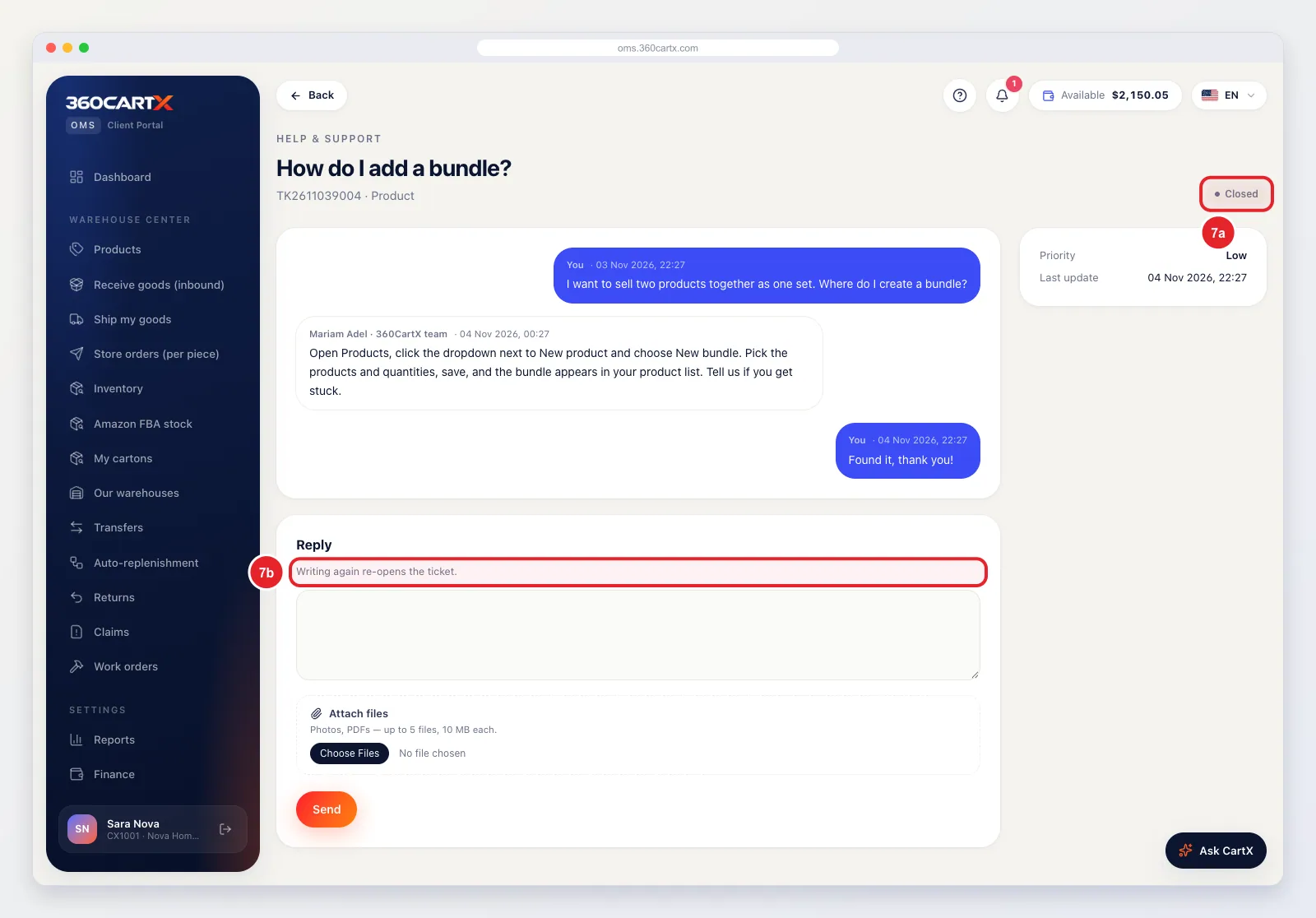
The status shows Closed and the rating box is gone. The Reply box now says Writing again re-opens the ticket. If the problem comes back or you forgot something, write a message there: the ticket returns to Waiting for us with a fresh Reply expected by time, so you do not need to open a new ticket for the same subject.
- 7a Closed
- 7b Re-open hint
Tips
- Reply on the same ticket instead of opening a new one: our team then sees the whole history at once.
- Answer our questions in one message, with the files together. Each message you send starts the reply timer again.
- The ticket page is the only place for the whole conversation. The notification shows only the first 200 characters of our answer.
- Tickets belong to the account (or brand), not to one person. A teammate with access to Help & support can read and answer your ticket too. Every message from your side is headed You, whichever teammate wrote it.
Common problems
Write a message
The reply box is empty or contains only spaces. Type your answer and click Send.
The ticket page says it cannot be found
The ticket belongs to another brand of your account, or the link is wrong. Switch to the right brand in the header, or open the ticket from the list in Help & support.
I closed the ticket by mistake
Write a message on the same ticket. It re-opens at once and our team sees it again.
I closed the ticket without a rating
The rating can only be sent together with Close ticket, so it cannot be added later. Your next closed ticket can have one.
The Reply expected by time has passed
Our answer is late. Write a short message on the same ticket asking for an update, and say if something is blocked. Your message goes to our team again.
Related articles
Updated 2026-11-11
Open a ticket from Support in your portal and our team will reply.