Steps
- 1
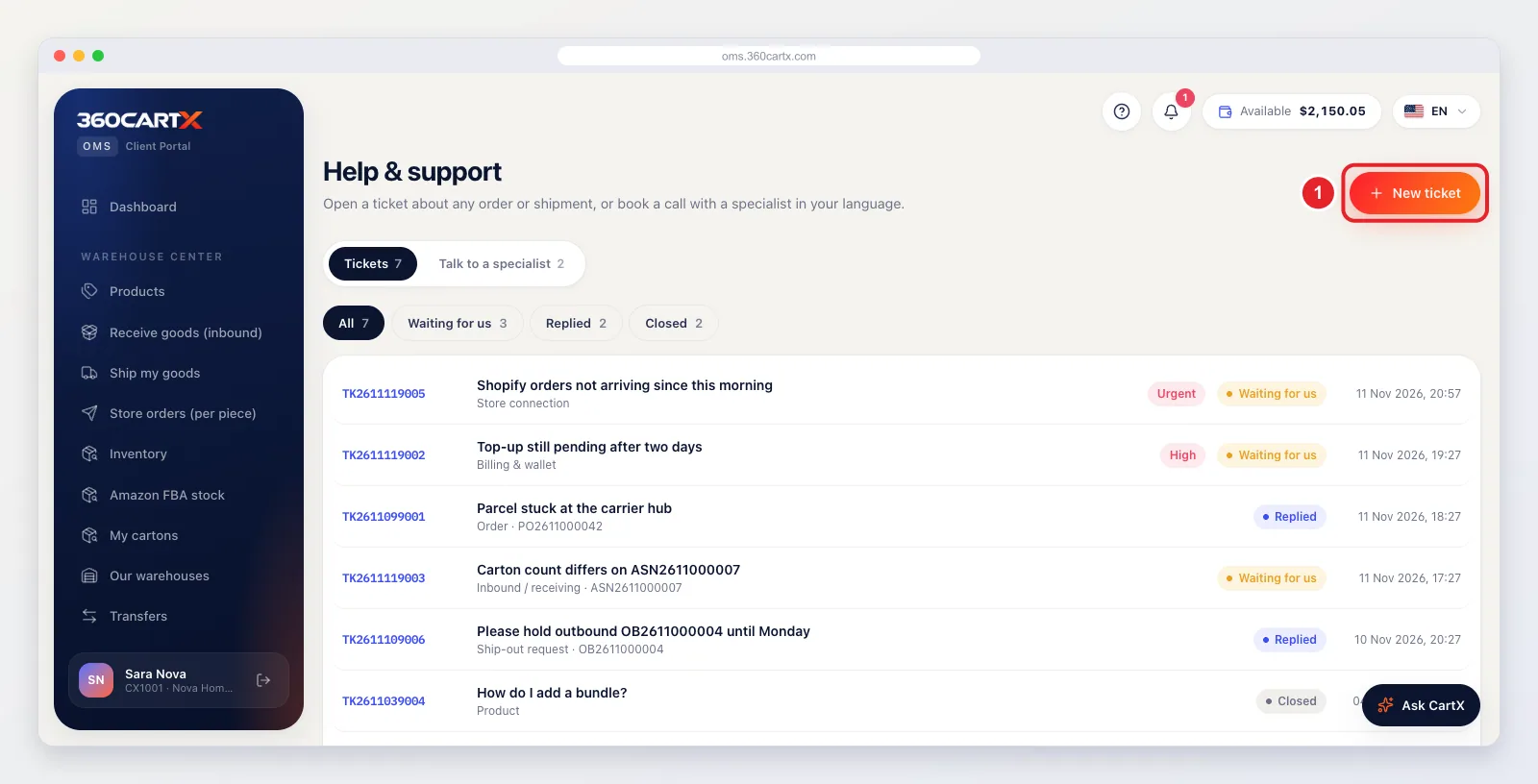
Click New ticket
Open Help & support and click New ticket at the top right. You can also start from the dashboard (the Need a hand? card) or from a return, where the New ticket button already chooses the topic Order and fills in the return number.
- 2
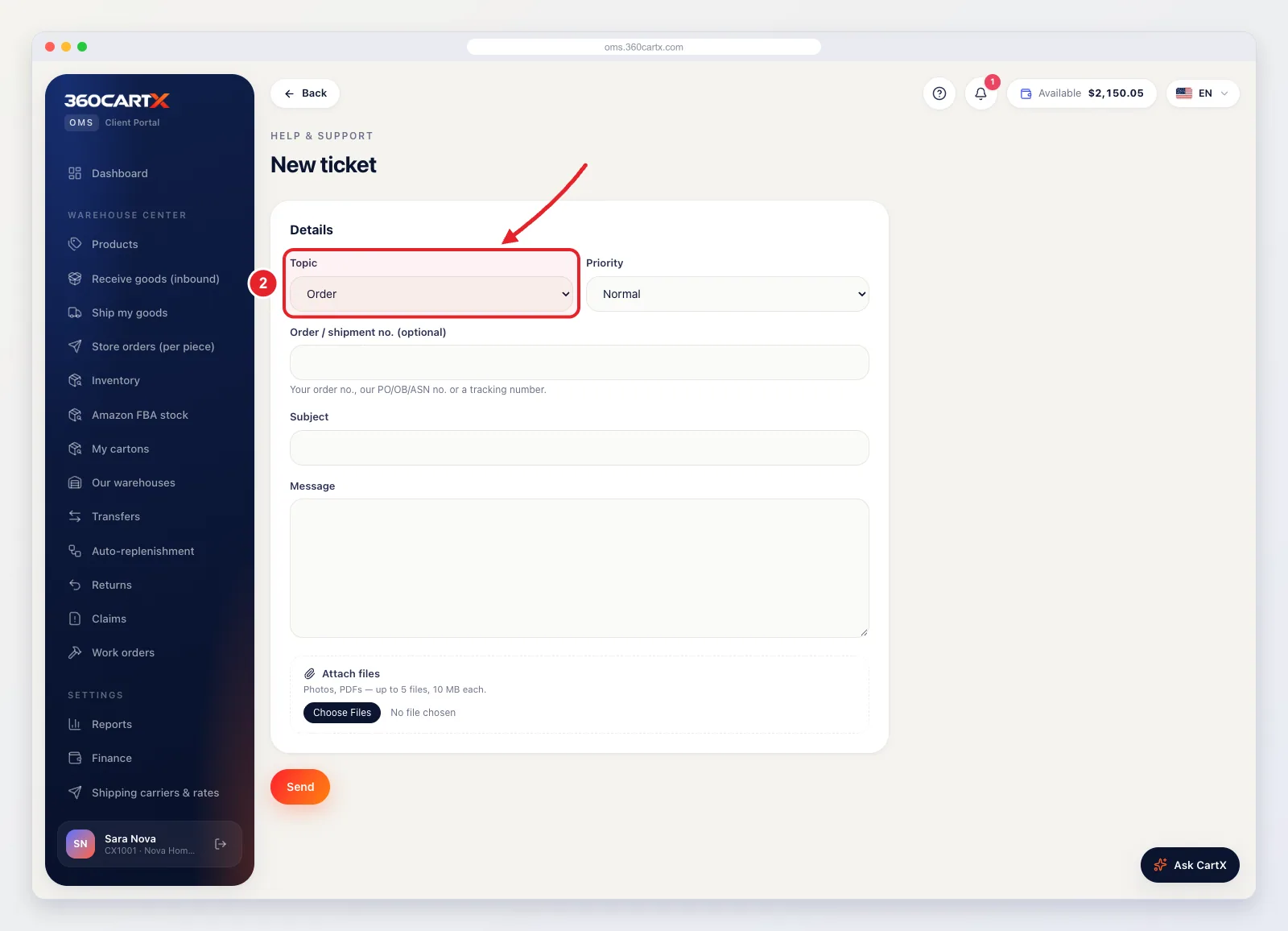
Choose the topic
The page is called New ticket and the first box is Topic. Pick the one that fits best so the right person gets it: Order, Inbound / receiving, Ship-out request, Billing & wallet, Product, Store connection, Account or Other. It starts on Order. The topic is shown under the subject in your ticket list.
- 3
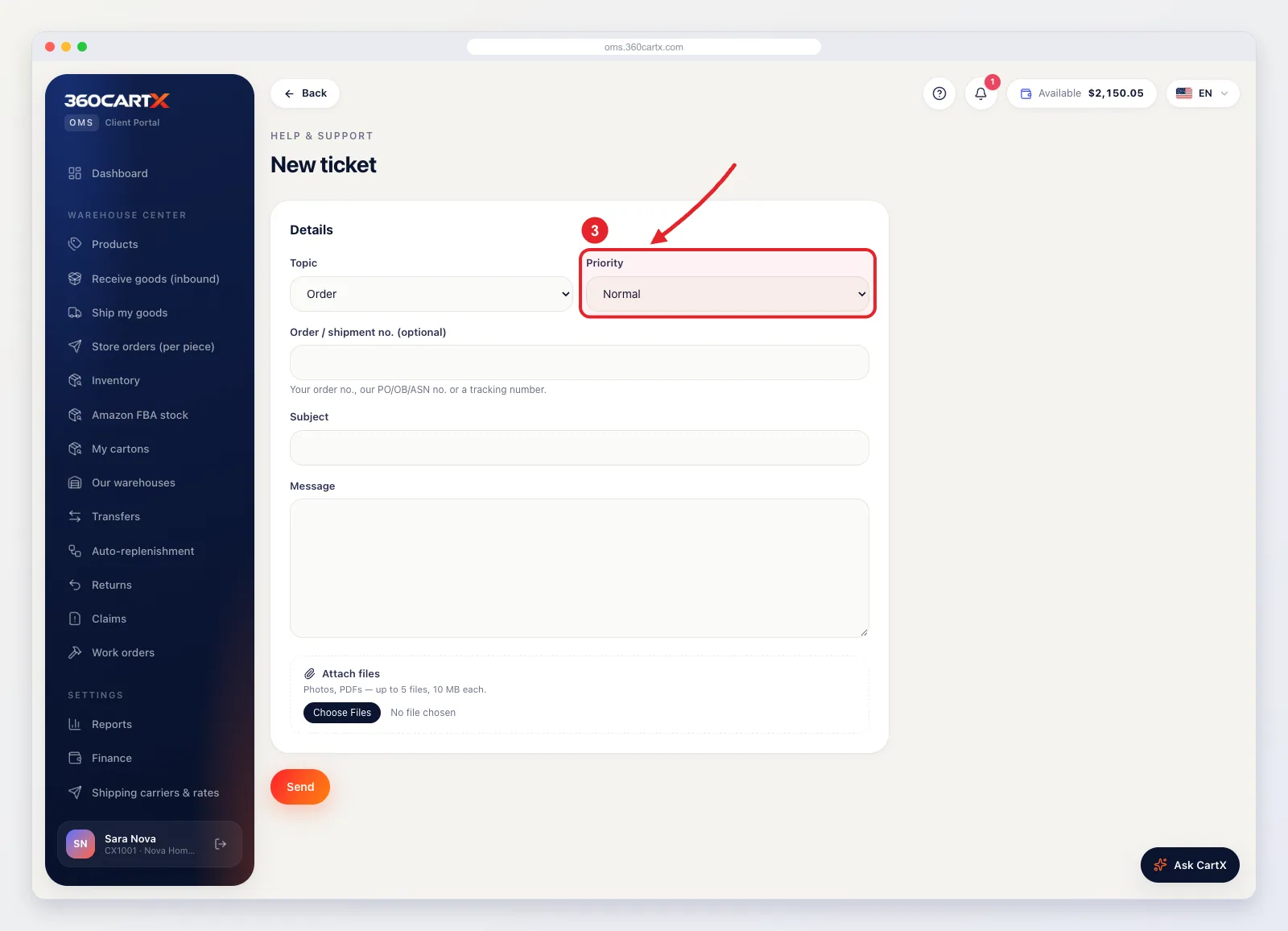
Choose the priority
Priority starts on Normal. Low, Normal, High and Urgent tell us how fast you need an answer, and the ticket will show a Reply expected by time: Low 48 hours, Normal 24 hours, High 8 hours, Urgent 4 hours after you send it. High and Urgent tickets also get a red badge in your list and raise a warning for our team, so use them only when something blocks your business, for example orders that cannot ship.
- 4
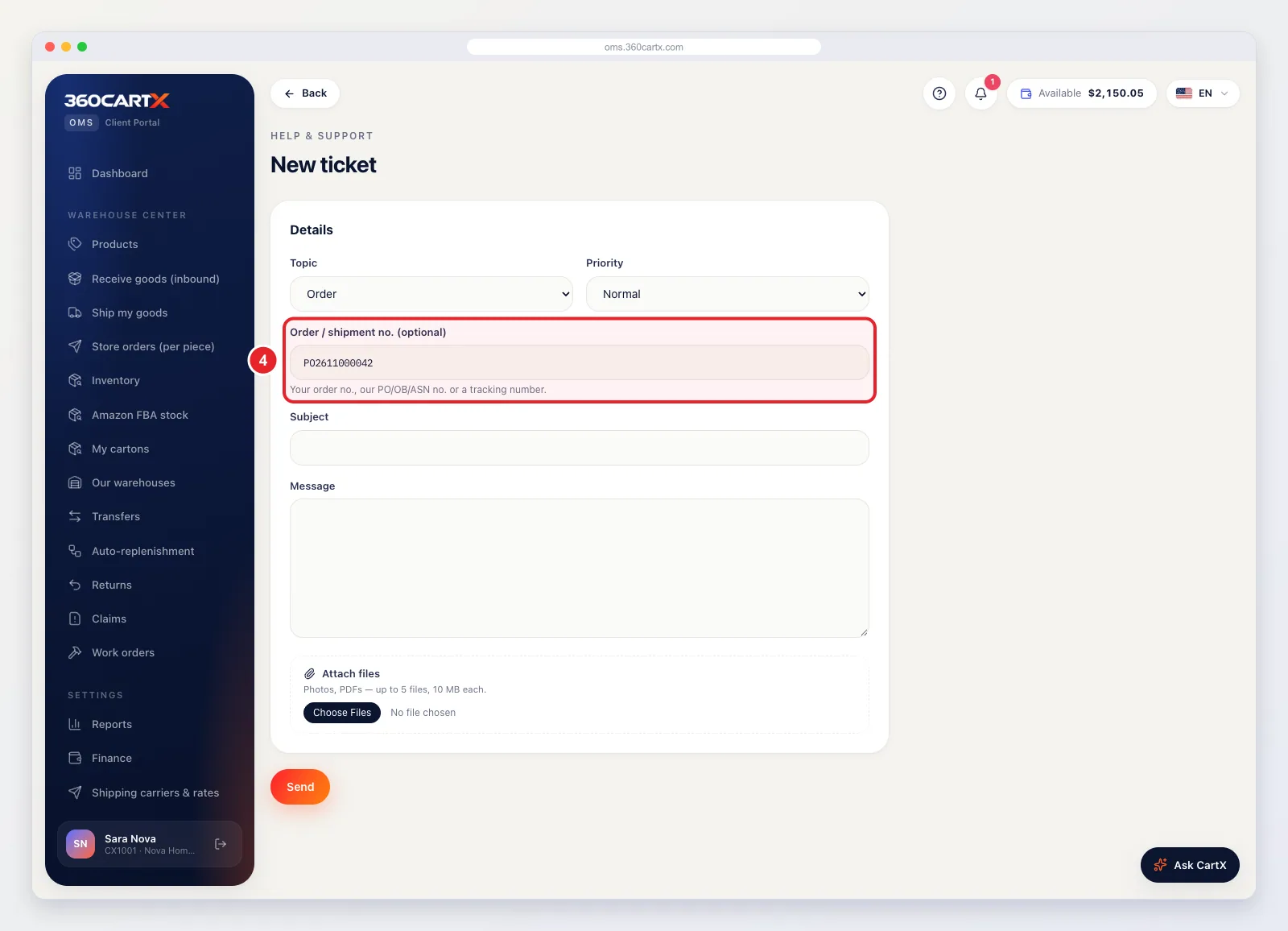
Add the order or shipment number
Order / shipment no. (optional) takes your order number, our PO, OB or ASN number, or a tracking number, up to 60 characters. It is shown next to the topic in the list, and helps our team find the right record at once. Here PO2611000042 is typed as an example. When you open the form from a return, the box is already filled with the return number.
- 5
Write the subject and the message
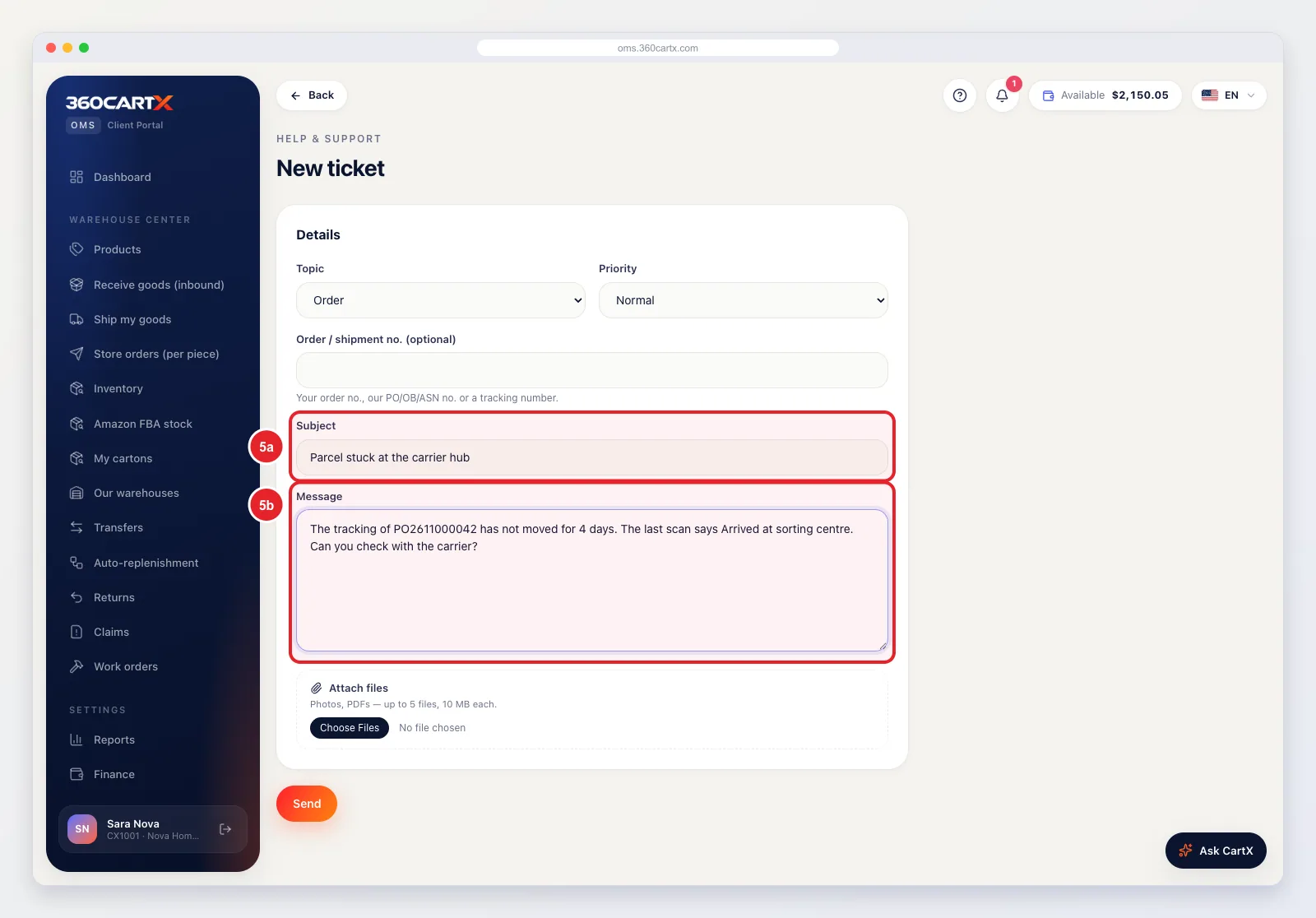
Subject is required: at least 4 and at most 140 characters, a short title such as Parcel stuck at the carrier hub. Message is required: describe what happened, what you expected and what you already tried, in up to 5000 characters. Include the order number, the carrier and the dates; it saves a round of questions.
- 5a Subject
- 5b Message
- 6
Attach photos or PDFs
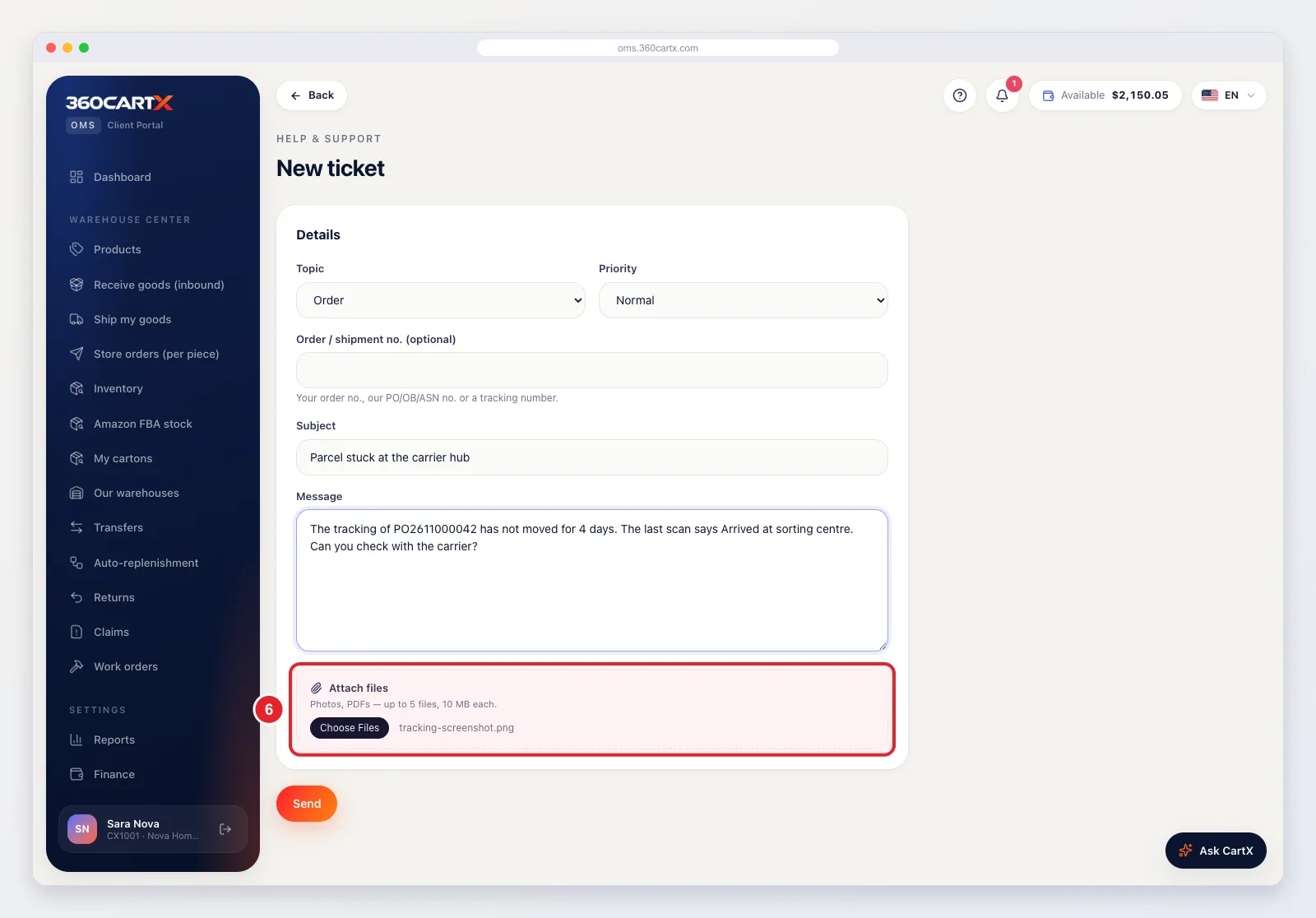
Under Attach files you can add up to 5 files of 10 MB each. Only PNG, JPG and PDF files are accepted. The picked file names are listed next to Choose files. Good attachments are a photo of the damaged parcel, a screenshot of the error or the carrier tracking page, or the invoice as a PDF.
- 7
If the subject is too short
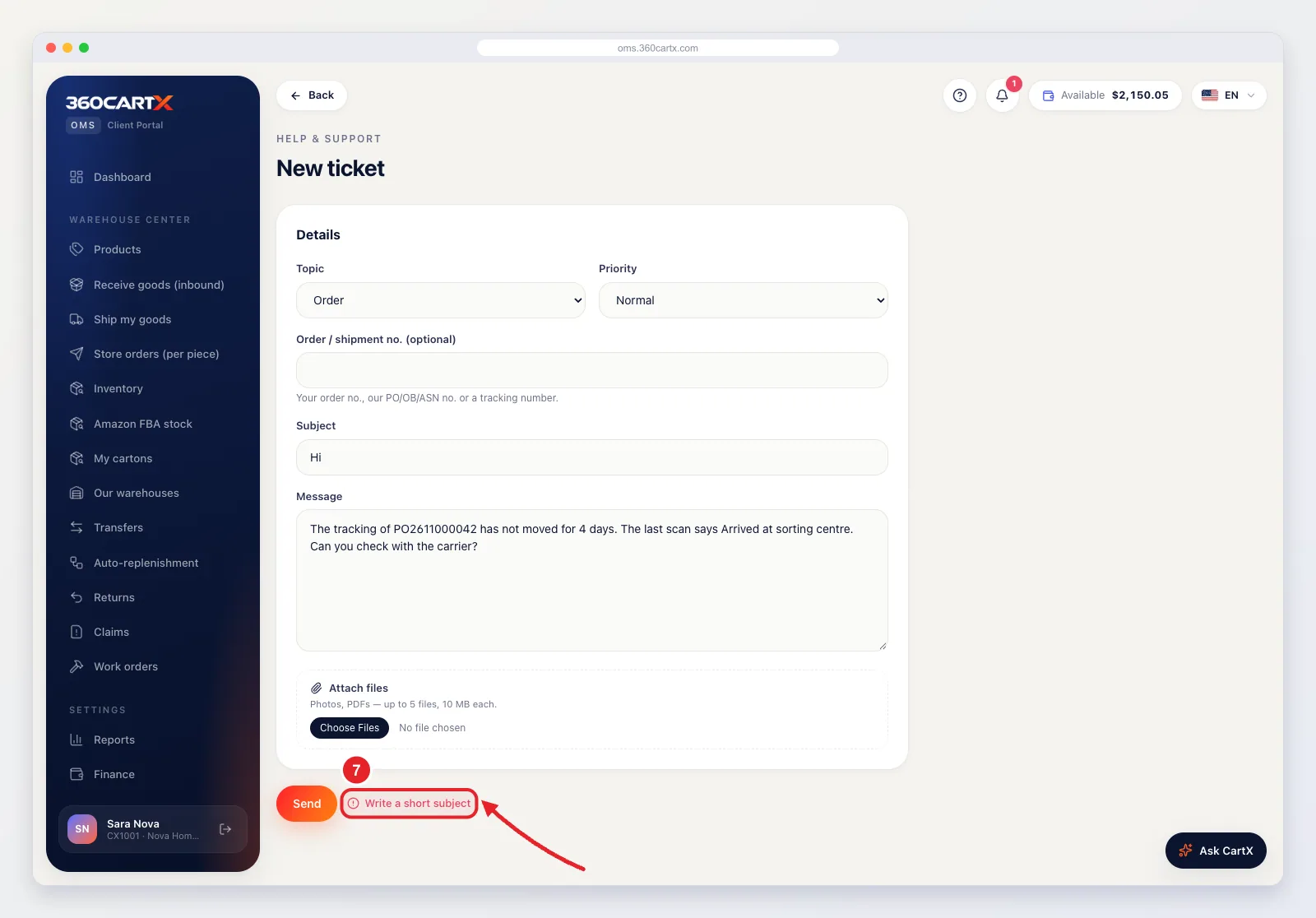
Click Send. A subject shorter than 4 characters is refused and the red message Write a short subject appears next to the button. The same happens with Describe the problem when the message has fewer than 5 characters. Nothing is sent and your text stays in the form, so just correct it and click Send again.
- 8
If a file is refused
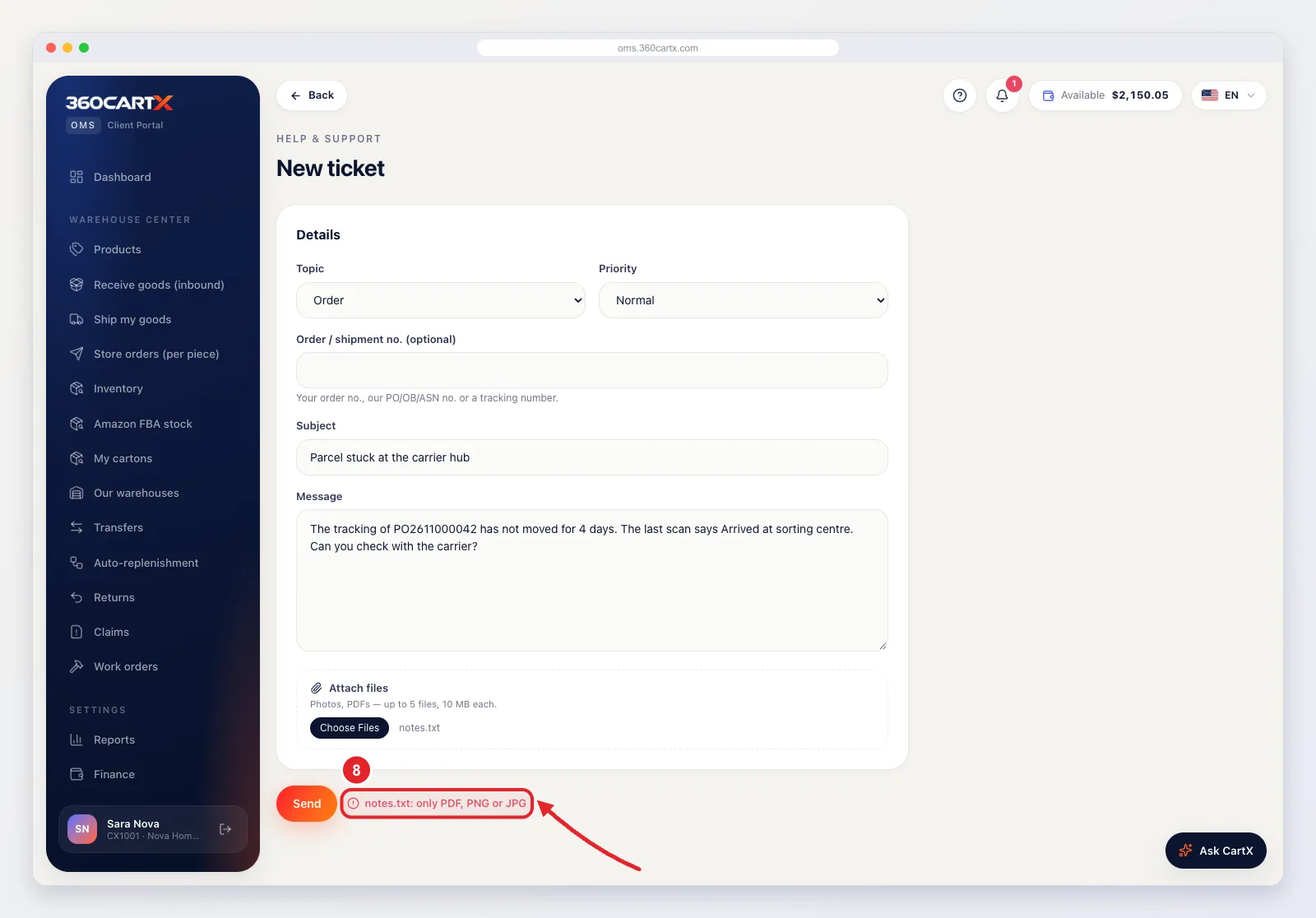
A file that is not a PNG, JPG or PDF is refused with its name, for example notes.txt: only PDF, PNG or JPG. Other file messages are: Up to 5 files per message, the file name followed by larger than 10 MB, and the file name followed by could not read this PDF (the PDF is damaged or password protected). Remove the file or replace it and click Send again.
- 9
After you click Send
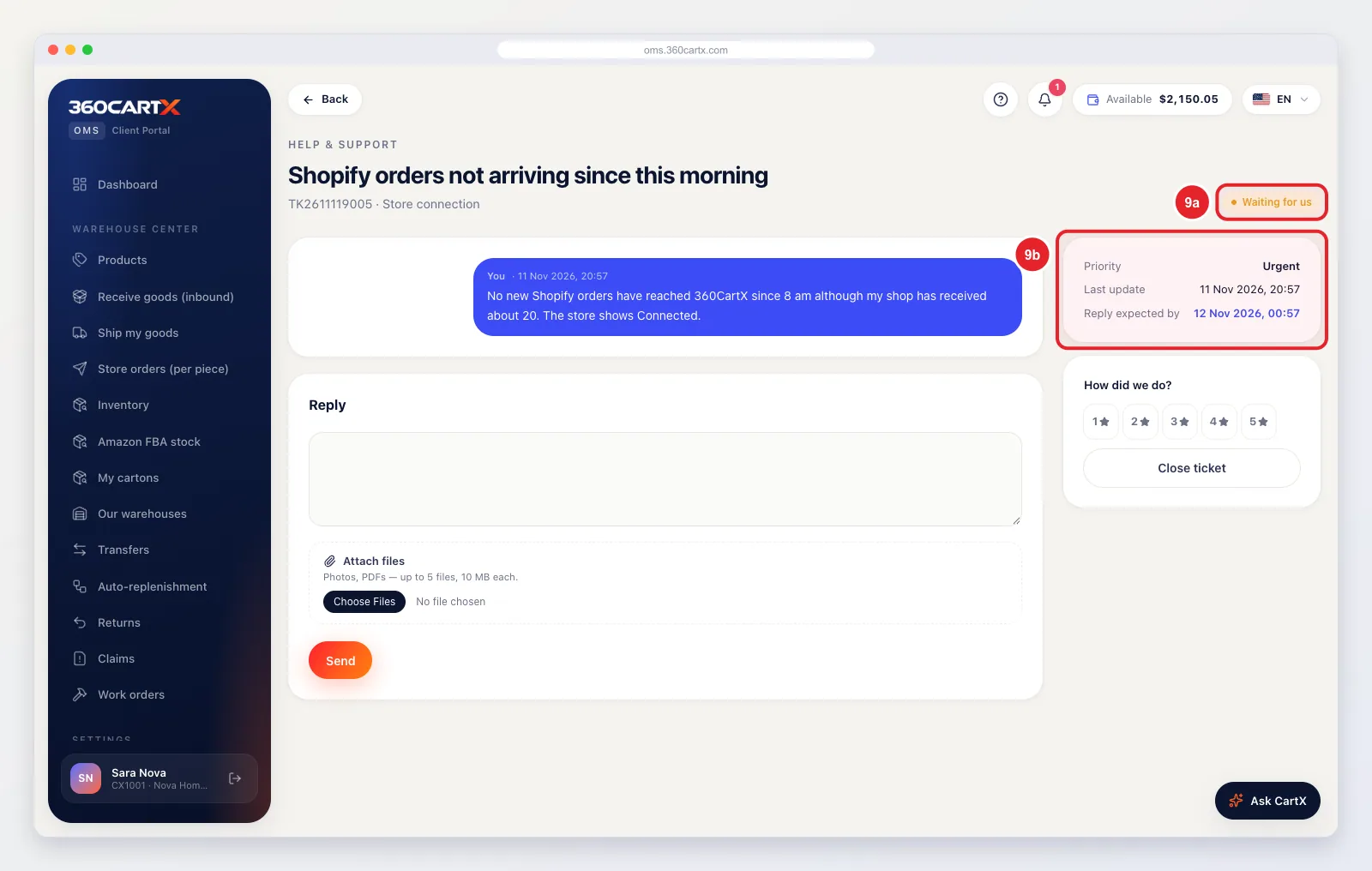
The ticket opens at once with your message, and the status Waiting for us. The right-hand box shows Priority, Last update and Reply expected by, the time we aim to answer (in this Urgent example, 4 hours after the message). Our team is told about the new ticket right away, and High and Urgent ones are flagged as warnings for them.
- 9a Status
- 9b Reply expected by
Tips
- One problem per ticket. If you write about two different orders in one ticket, the answer for one waits for the other.
- Put the order or tracking number in the Order / shipment no. box and again in the message. The box shows it next to the topic in your list; the message keeps it with the conversation.
- You can write to us again at any time on the ticket page. Our reply reaches you as a notification (the bell) as well.
- Do not put passwords, card numbers or API keys in a ticket or an attachment.
Common problems
Write a short subject
The subject has fewer than 4 characters. Write a short title that says what the ticket is about.
Describe the problem
The message is empty or has fewer than 5 characters. Write what happened.
Too big: expected string to have <=60 characters
The Order / shipment no. box holds up to 60 characters and this one is longer. Put only the number there, for example PO2611000042, and write the rest in the message.
name: only PDF, PNG or JPG
The file type is not accepted. Take a screenshot as PNG, a photo as JPG, or save the document as PDF.
name: larger than 10 MB
Reduce the photo size or send a PDF. The limit is 10 MB for each file.
Up to 5 files per message
Remove some files. If you need to send more, add them in a reply on the ticket page, up to 5 per message.
Read-only preview
You are looking at the portal as our team does when we help you (support access). Nothing can be sent in that view; sign in yourself to open a ticket.
Related articles
Updated 2026-11-11
Open a ticket from Support in your portal and our team will reply.