Steps
- 1
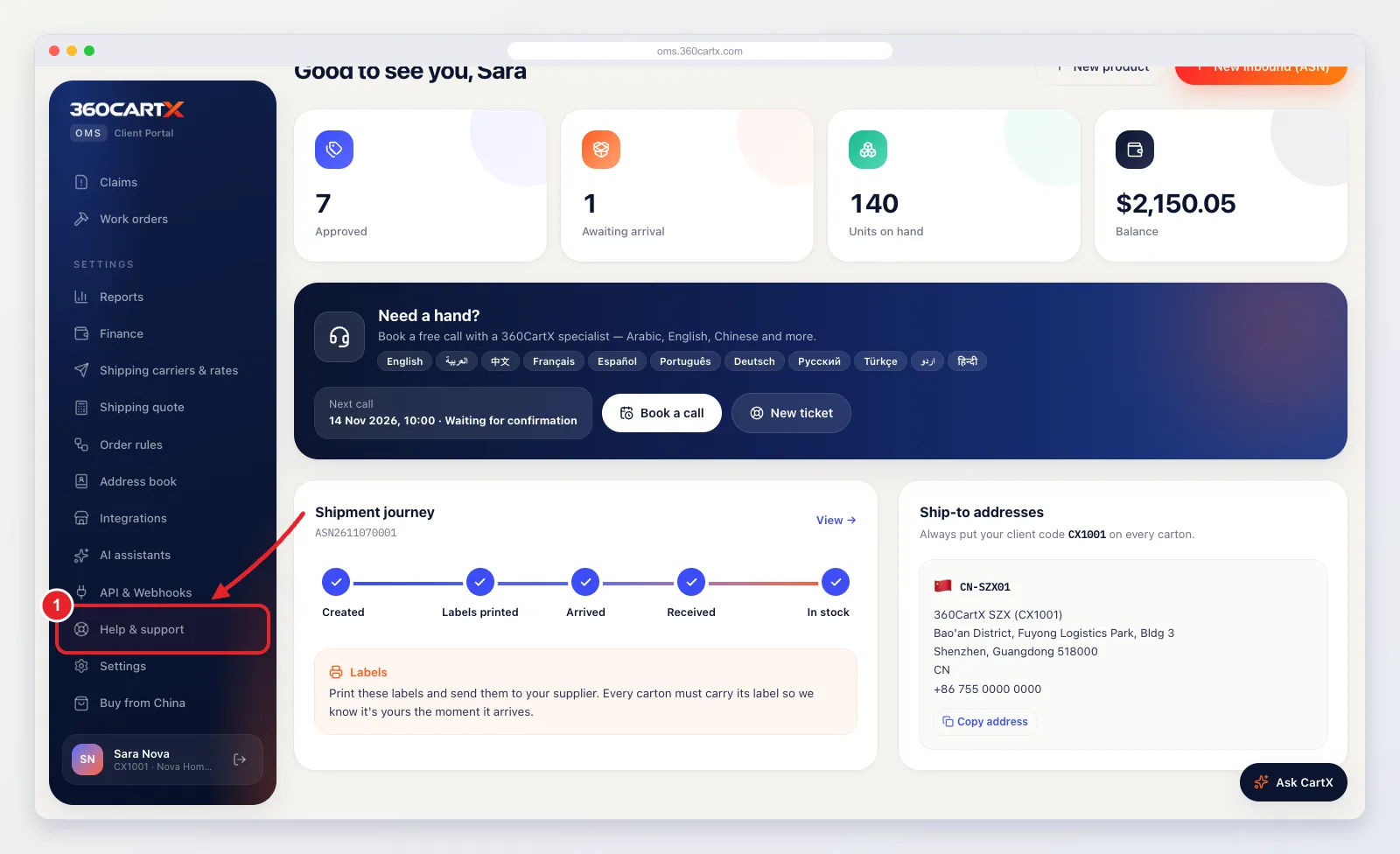
Open Help & support
In the left menu, in the last group, click Help & support. It sits just above Settings. The page is open to everyone in your team; if you were given a custom role, the Help & support section must be switched on for your role.
- 2
Know the page
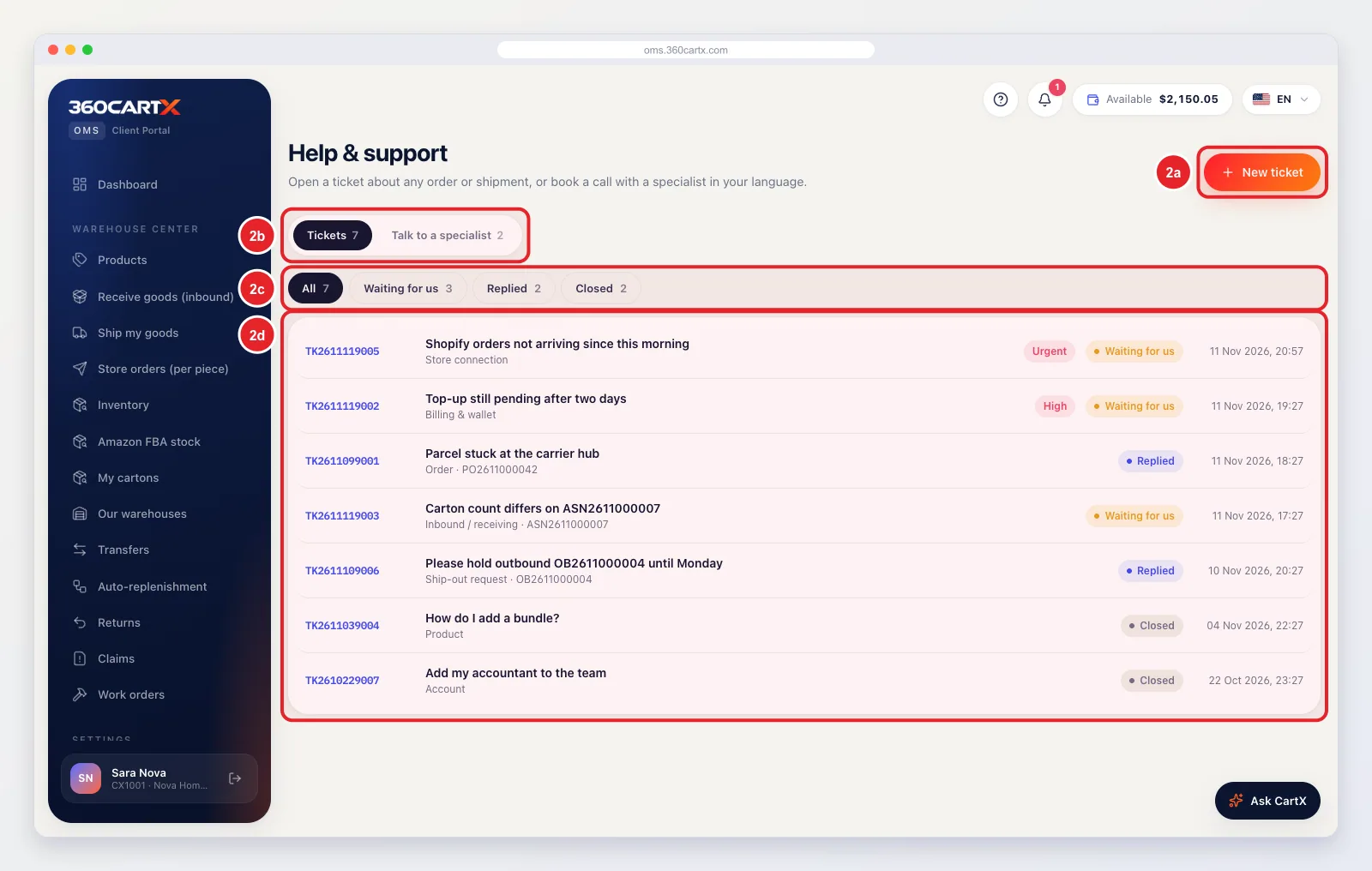
The title is Help & support and the line under it says: Open a ticket about any order or shipment, or book a call with a specialist in your language. The New ticket button at the top right opens the ticket form. Under it are two tabs, a row of filters and the list of your tickets, newest activity first.
- 2a New ticket
- 2b Tabs
- 2c Filters
- 2d Ticket list
- 3
The two tabs
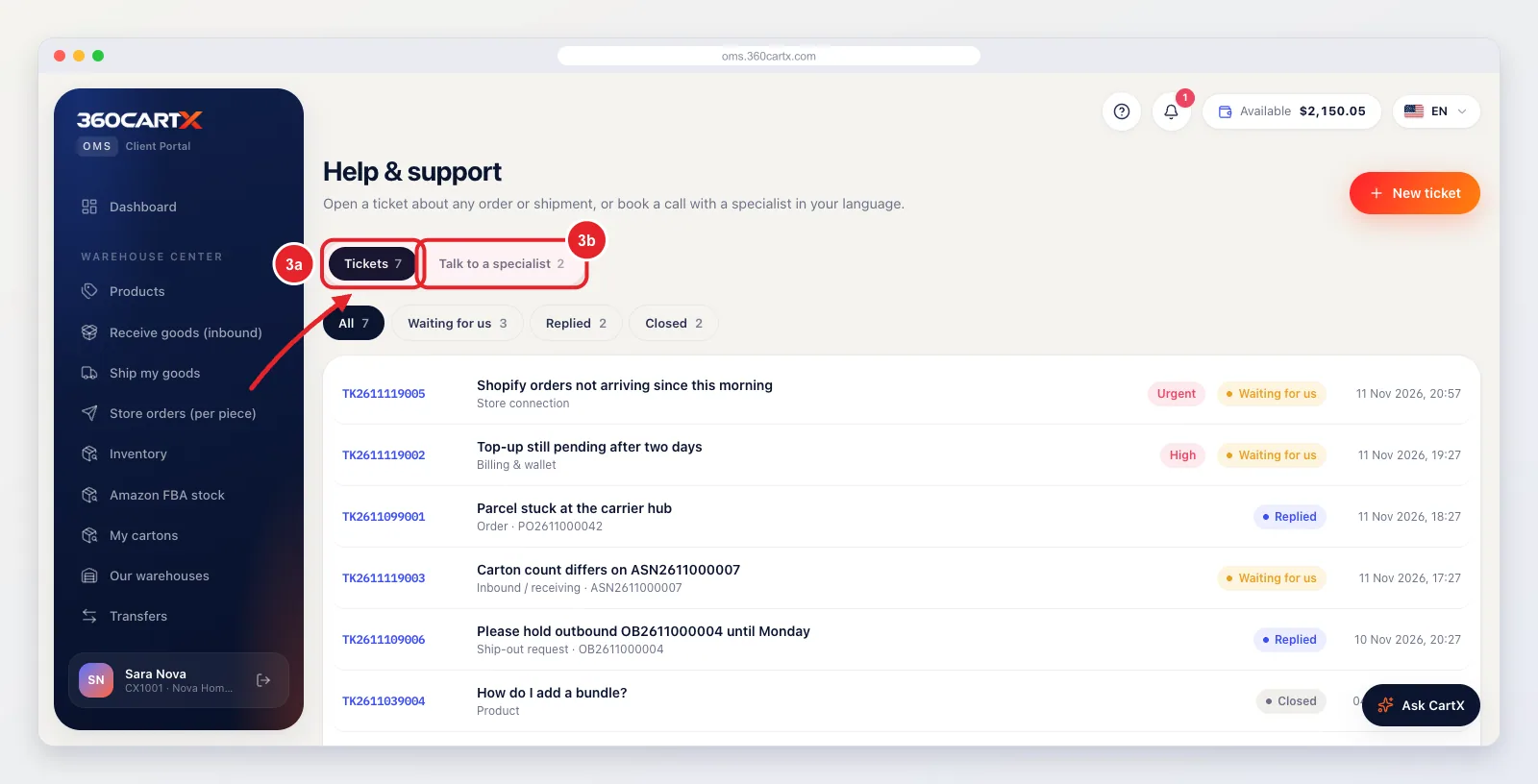
Tickets is the written conversation with our team. The number next to it counts all your tickets. Talk to a specialist is where you book a call and see your booked calls. The number next to it counts your upcoming calls, those that are waiting for confirmation or confirmed and not yet past.
- 3a Tickets
- 3b Talk to a specialist
- 4
Filter the list
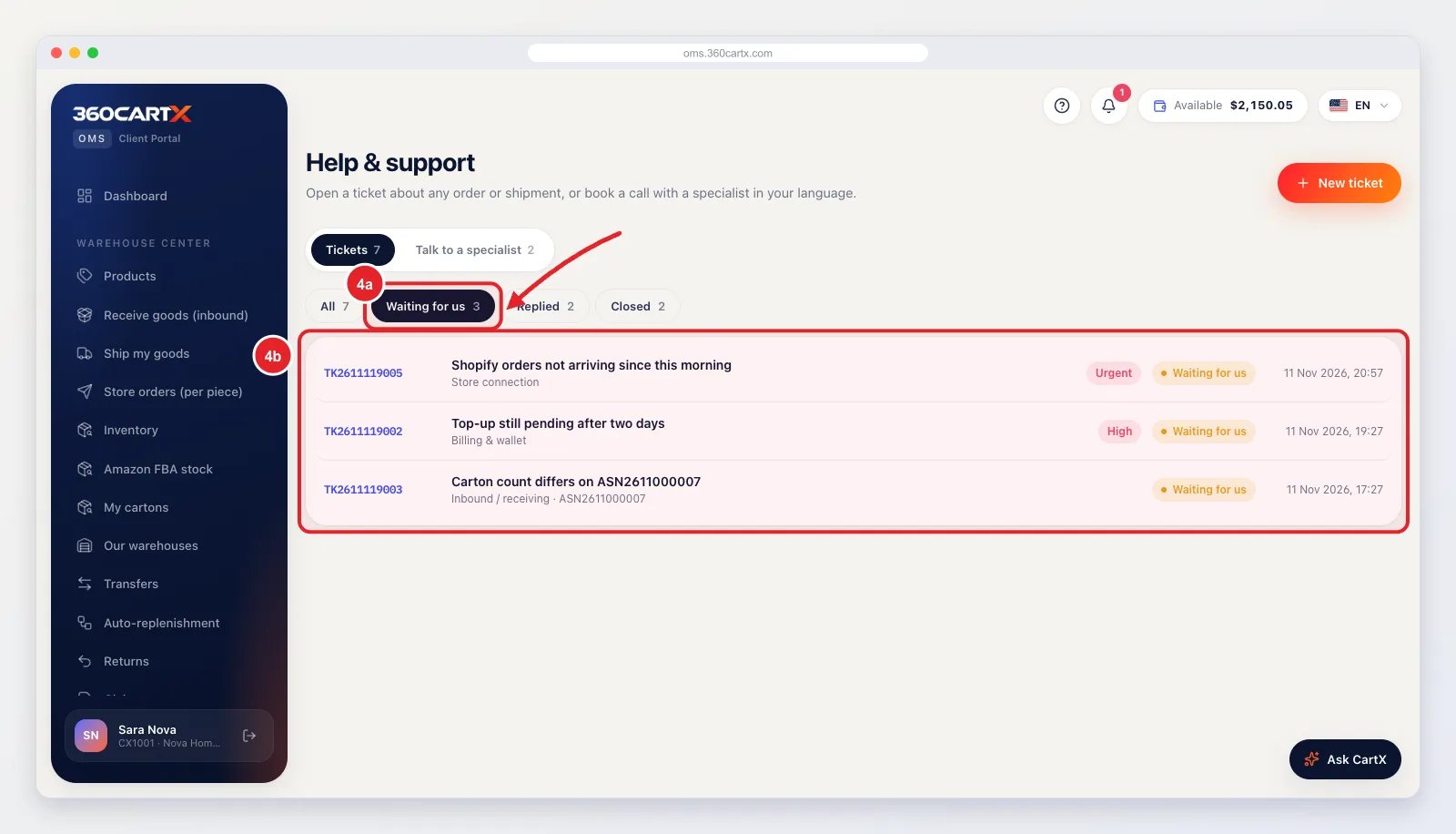
Under the tabs, four buttons filter the list: All, Waiting for us, Replied and Closed. Each shows how many tickets it holds, and the button you are on turns dark. In this example Waiting for us is selected and the list shows only the tickets that wait for our answer. The filter is part of the address (the s= part), so you can bookmark it.
- 4a Waiting for us
- 4b Filtered list
- 5
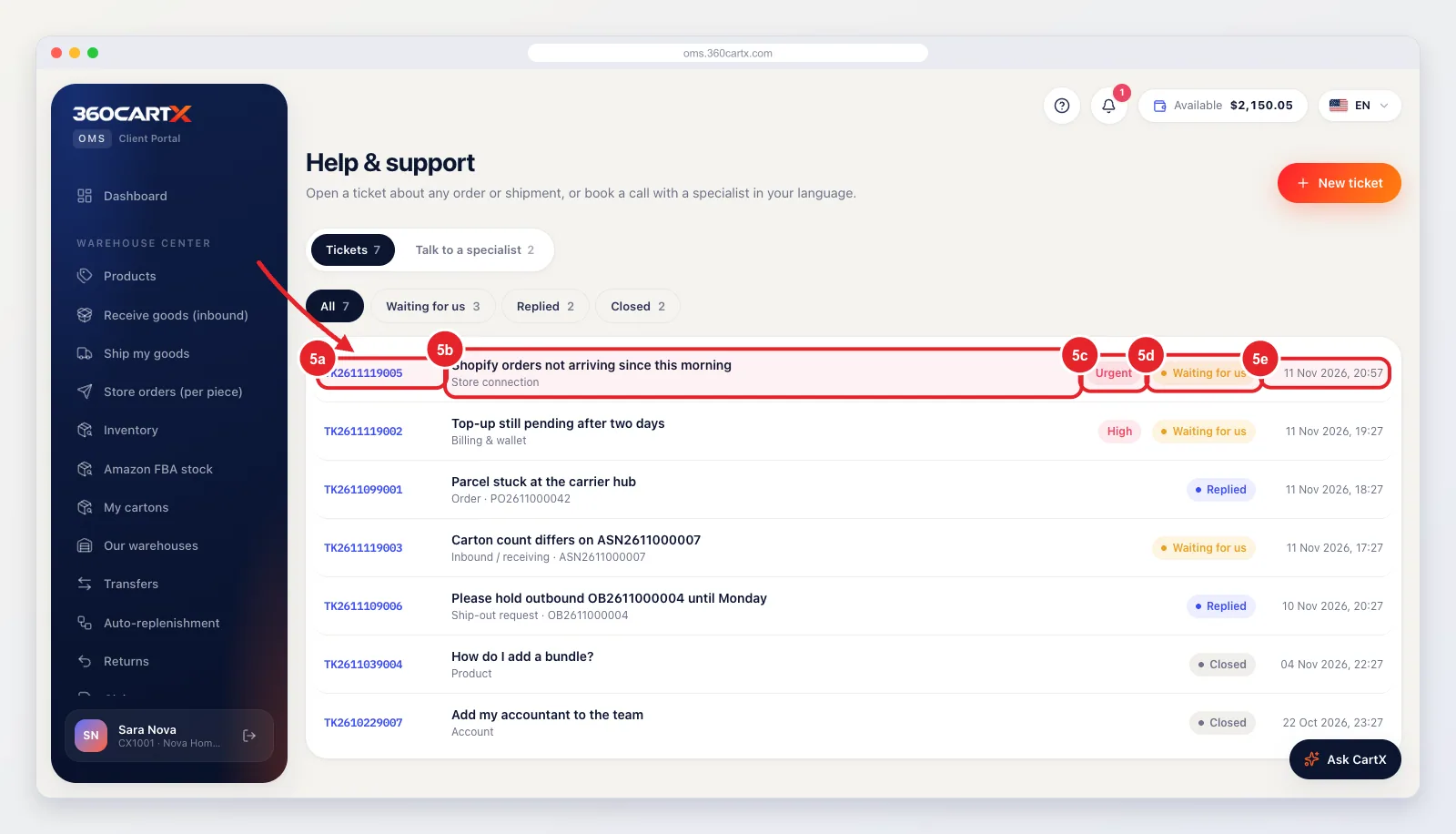
Read a row
Each ticket is one row; click it to open the conversation. From the left: the ticket number (for example TK2611119005, the number to quote when you write to us), then the subject in bold, and under it the topic and, when you gave one, the order or shipment number. A red High or Urgent badge appears only on tickets with those priorities. Next comes the status badge, and at the right the date and time of the last message. Times are China time (UTC+8), the same clock as your documents and statements.
- 5a Ticket number
- 5b Subject, topic and order
- 5c Priority badge
- 5d Status
- 5e Last message
- 6
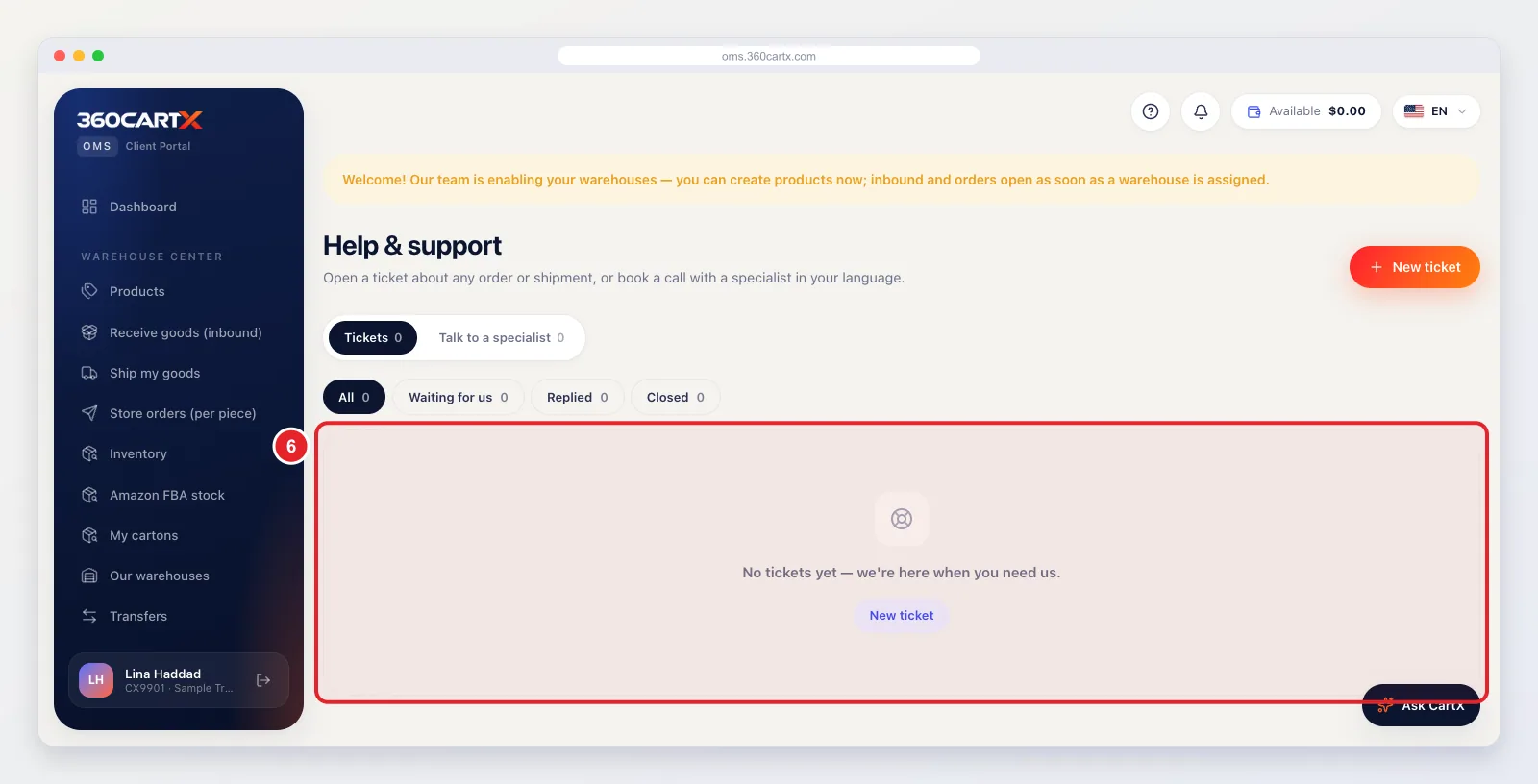
A new account has no tickets
Until you write to us the list shows No tickets yet and the line we're here when you need us, with a New ticket button in the middle. The filters still show 0 for every status.
Tips
- The list shows your 200 most recently updated tickets. Closed tickets stay in the list, so you can reopen one by writing again.
- If your account has brands (subaccounts), the tickets belong to the brand you are working in. Switch brand in the header to see the tickets of another brand.
- Replies from our team also reach you as a notification (the bell). The alert is called Support reply, and your alert settings say whether it also reaches you by e-mail.
- Need a quick answer on how to use the portal? Ask CartX (the assistant) first, then open a ticket if it points you to our team.
Common problems
The Help & support page does not open and I am sent to the dashboard
Your custom role does not include the Help & support section. Ask the account owner to switch it on in Settings, Team.
The error: You don't have permission for this, ask the account owner
Your custom role can view Help & support but not edit it. Opening tickets, replying and booking calls need the Edit level.
A ticket I opened is missing from the list
Check the filter: All shows everything. Also check which brand you are in, because each brand has its own tickets.
Related articles
Updated 2026-11-11
Open a ticket from Support in your portal and our team will reply.