Steps
- 1
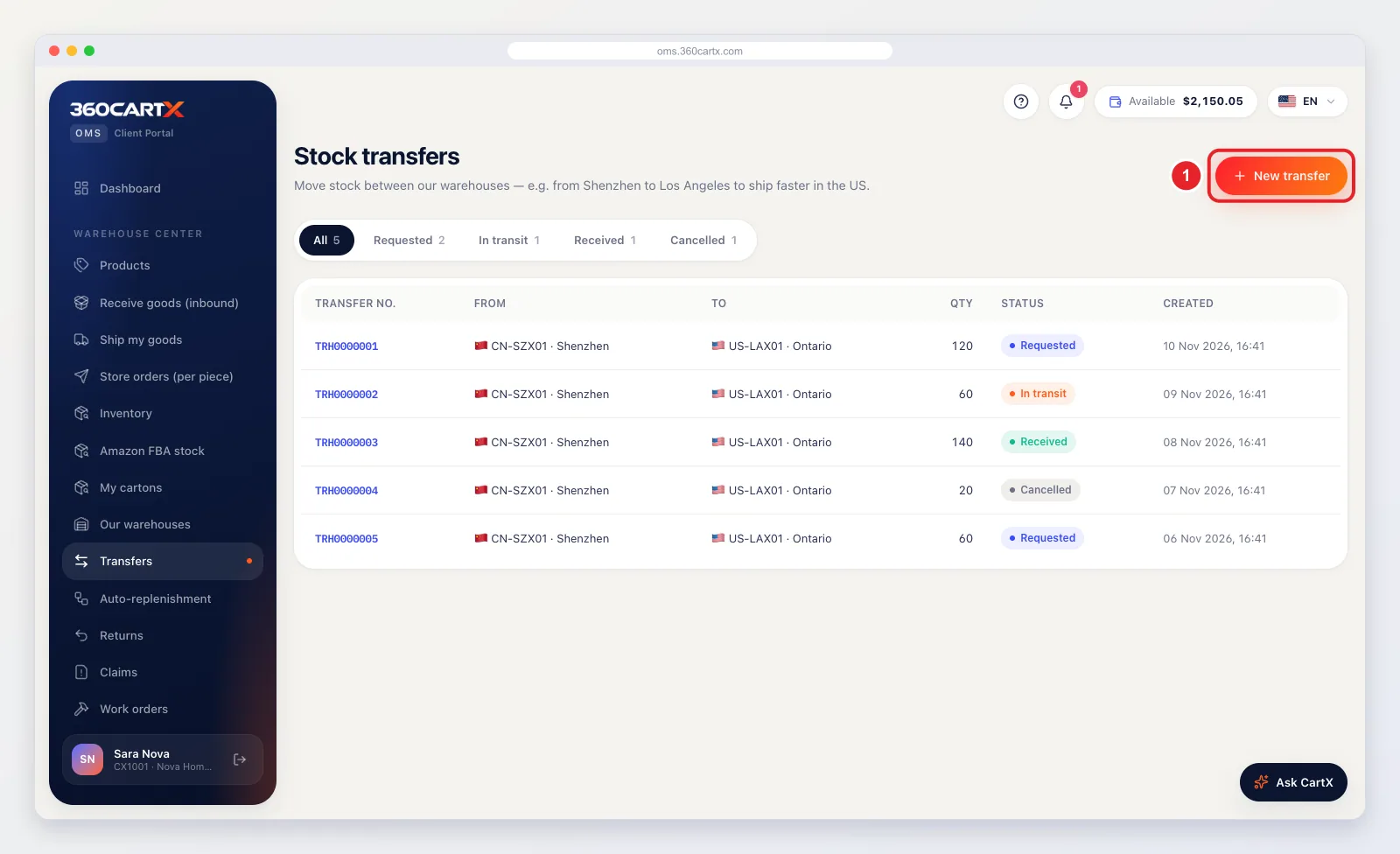
Click New transfer
On Stock transfers click New transfer at the top right. The button is there only when you have at least two warehouses enabled.
- 2
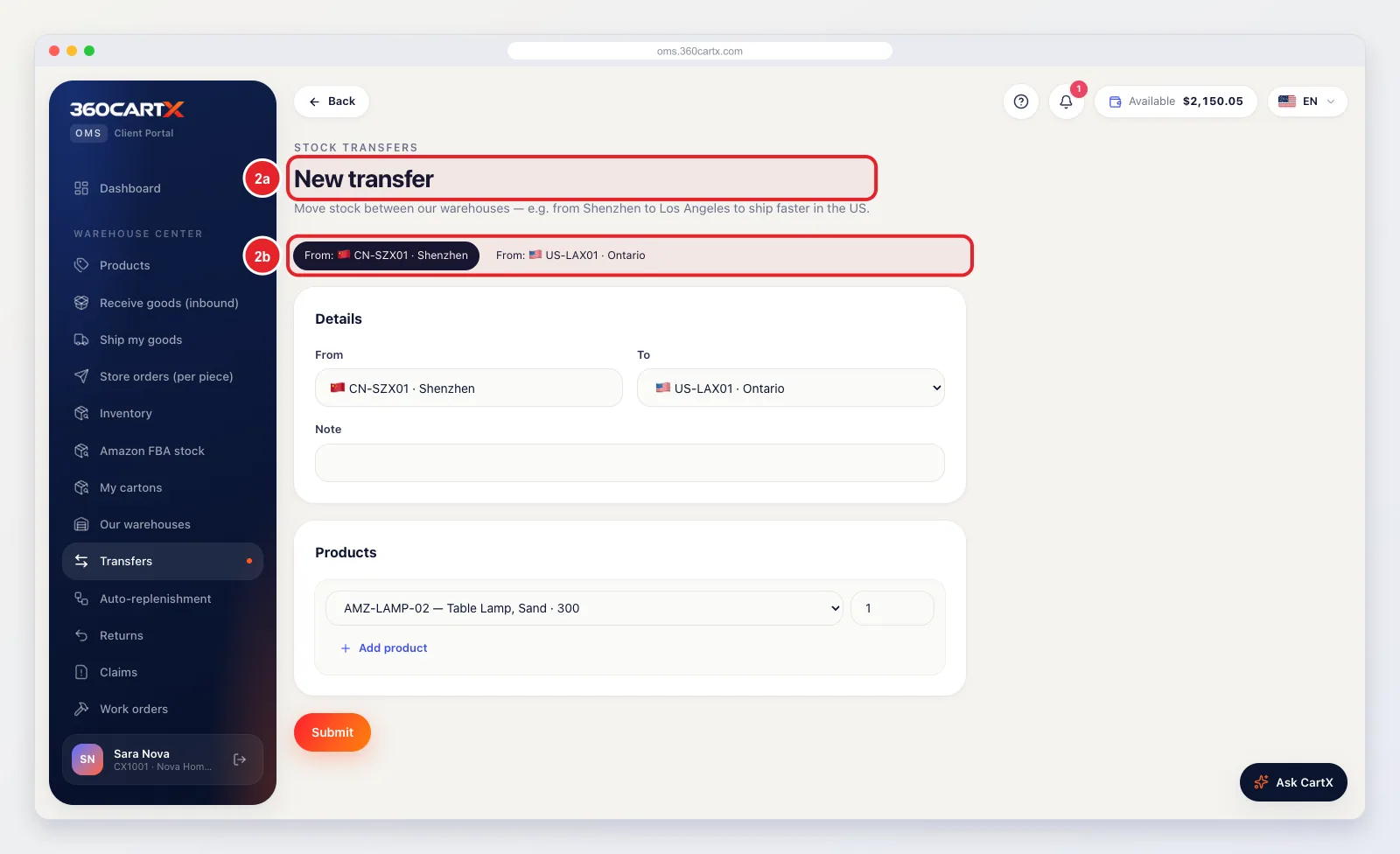
Choose the source warehouse
At the top, one button per warehouse starts with From:, for example From: US-LAX01 · Ontario. The dark one is the source. Click another to change it; the list of products below follows it and what you typed is kept.
- 2a Page title
- 2b From buttons
- 3
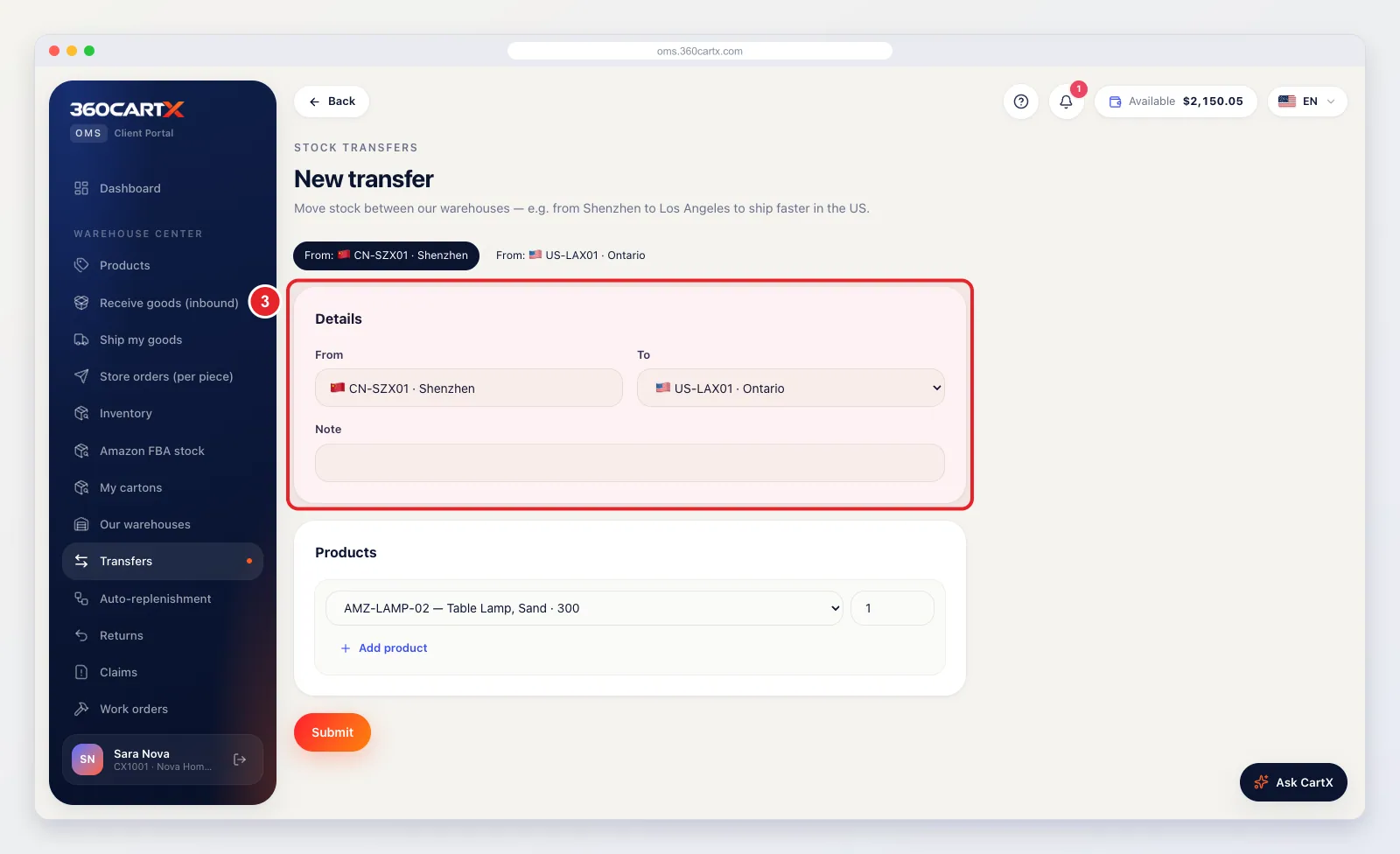
Source and destination
Under Details, From shows the source and To is a list of your other warehouses. Choose the destination, for example CN-SZX01 · Shenzhen as source and US-LAX01 · Ontario as destination. They must be different: otherwise you read Choose two different warehouses.
- 3a From
- 3b To
- 4
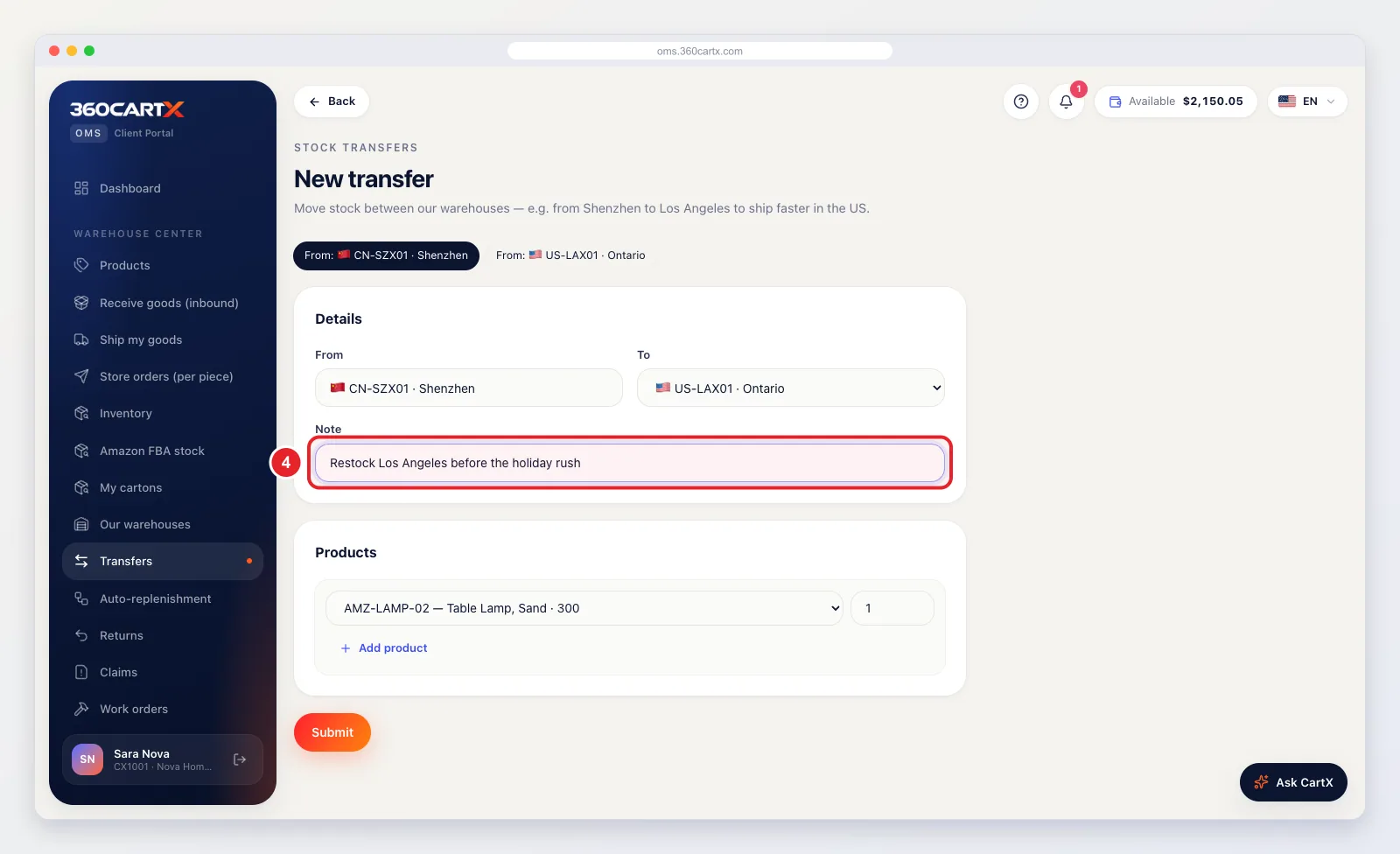
Note
Note is optional: tell us anything we must know, for example Restock Los Angeles before the holiday rush.
- 5
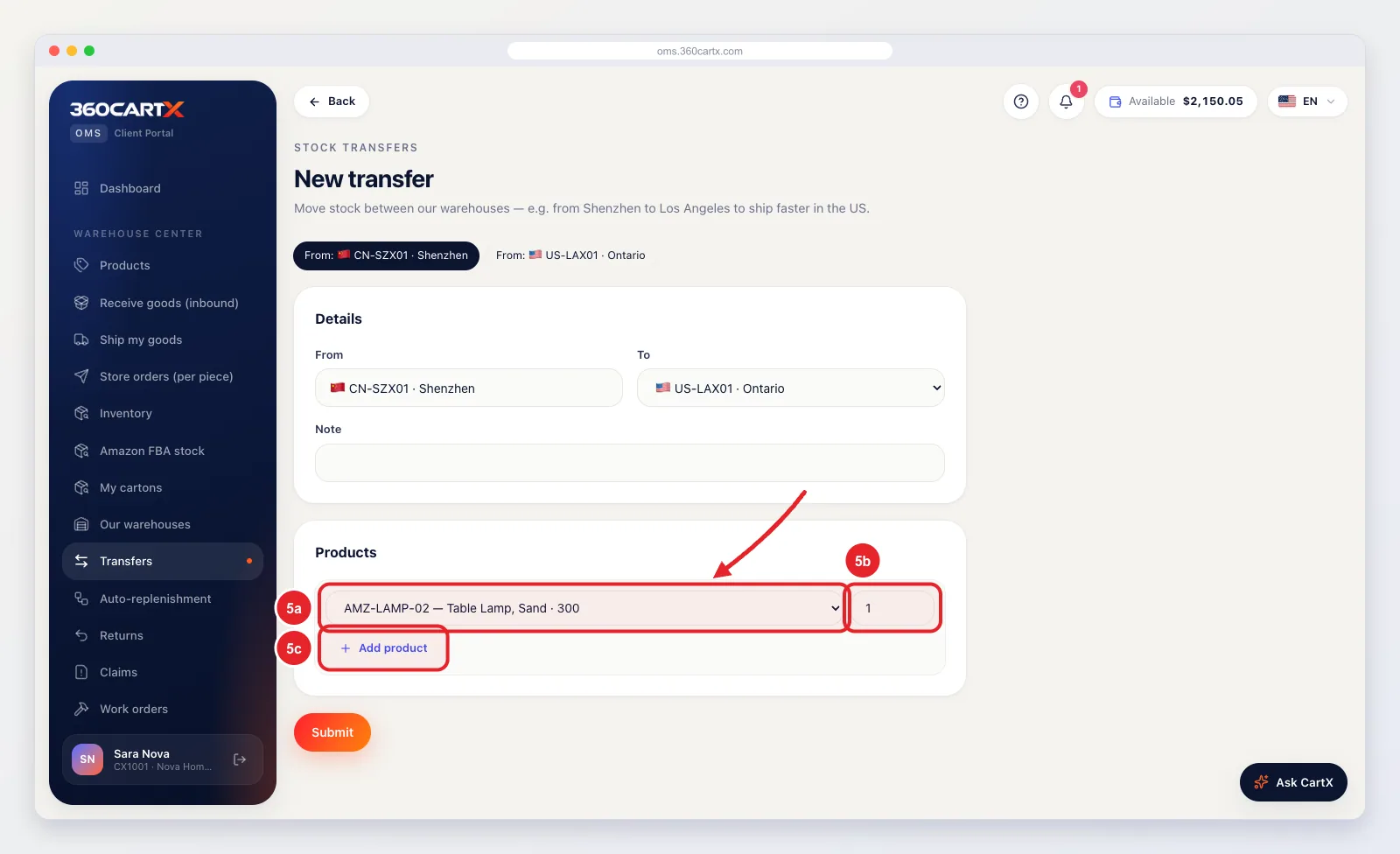
Products and quantities
Under Products choose the product and the quantity, for example AMZ-MUG-350 × 120. Only products with free stock in the source warehouse are listed. Add product adds another line and the bin removes one.
- 5a Product
- 5b Qty
- 5c Add product
- 6
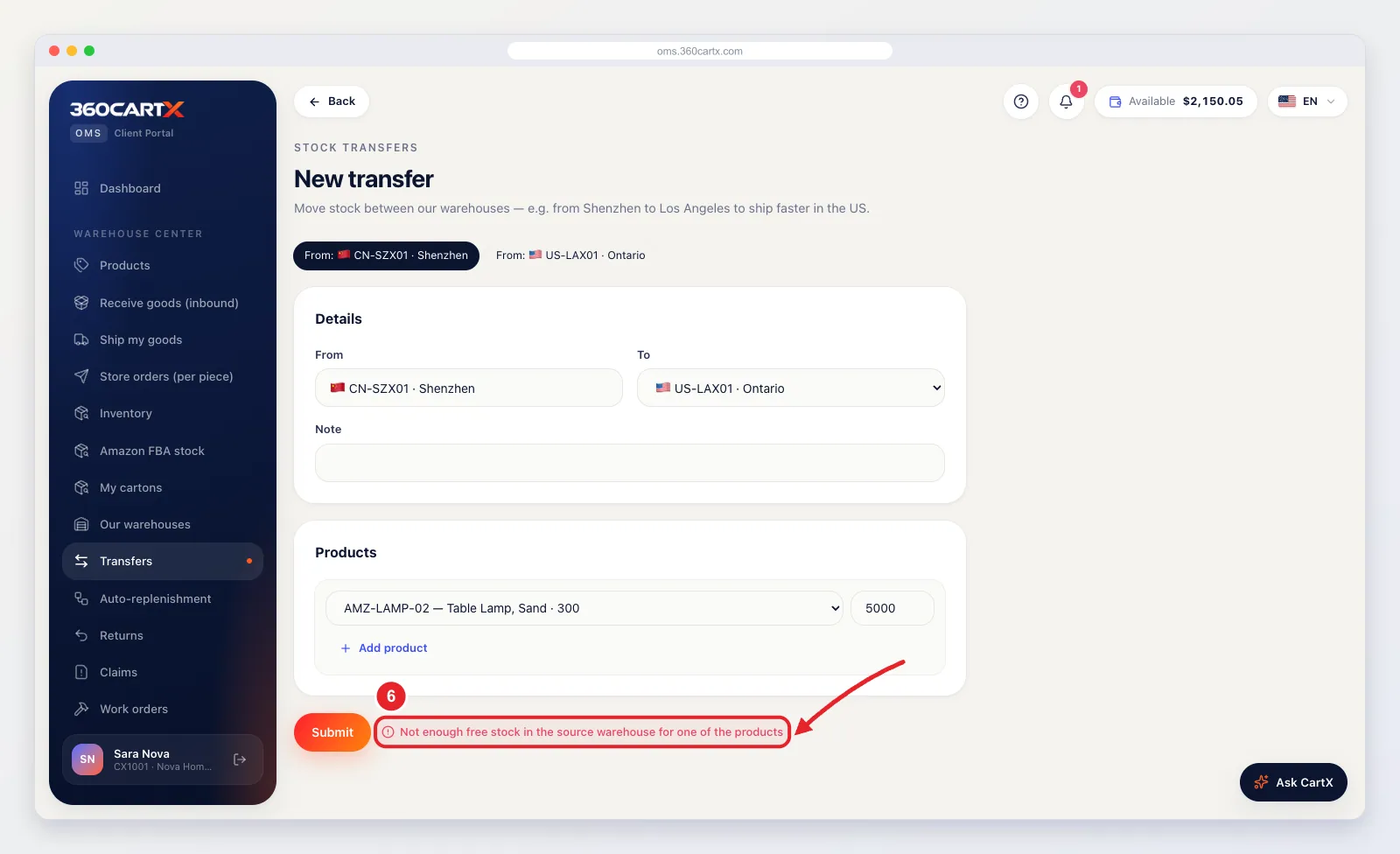
Submit and its errors
Click Submit. If a quantity is more than the free stock the red message says Not enough free stock in the source warehouse for one of the products. Other messages: Add at least one product, Choose two different warehouses and Warehouse not allowed.
- 7
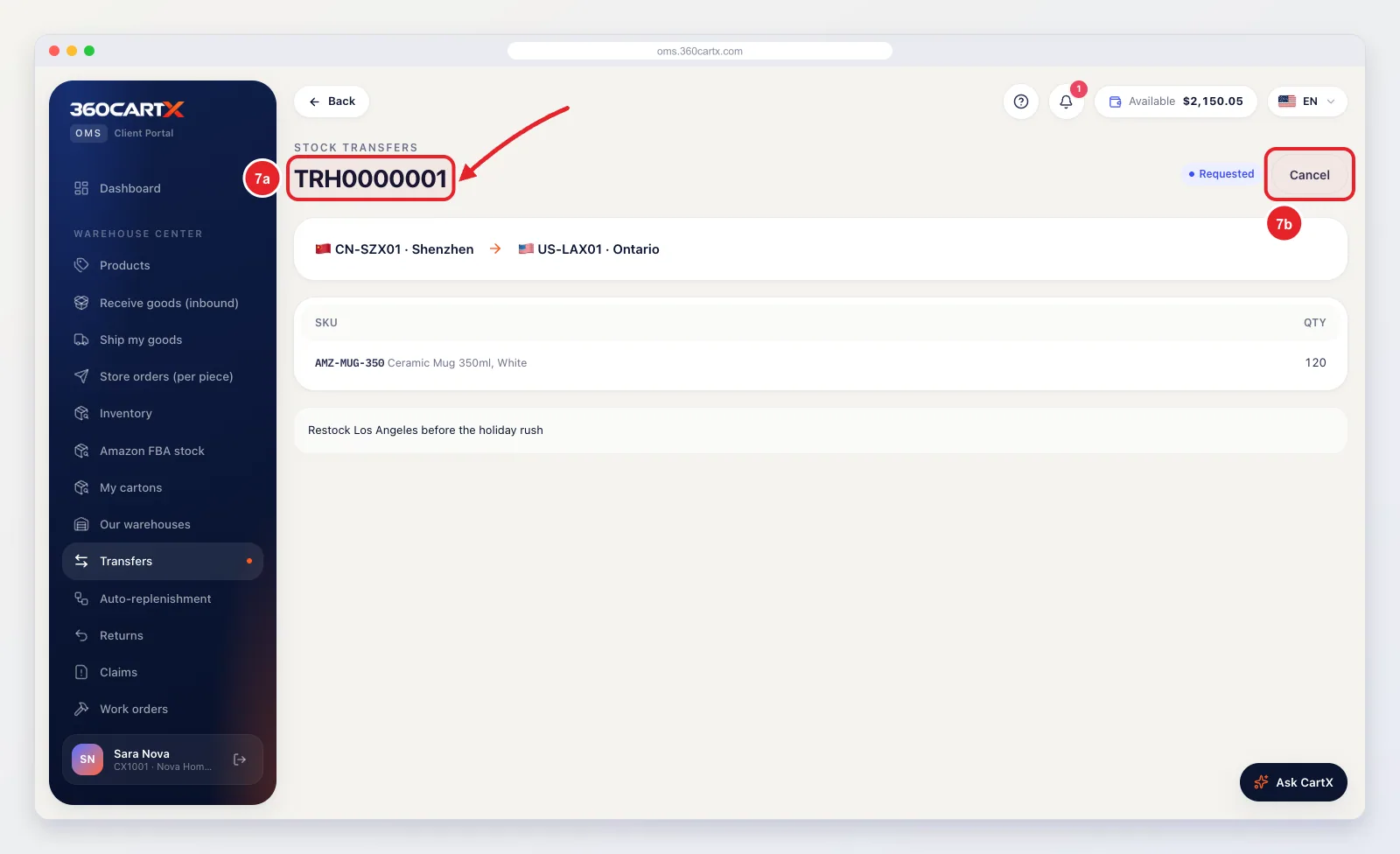
The transfer
You land on the transfer, for example TRH0000001, with the status Requested. Our team is told. The Cancel button is shown only while the status is Requested.
- 7a Transfer no.
- 7b Cancel
- 8
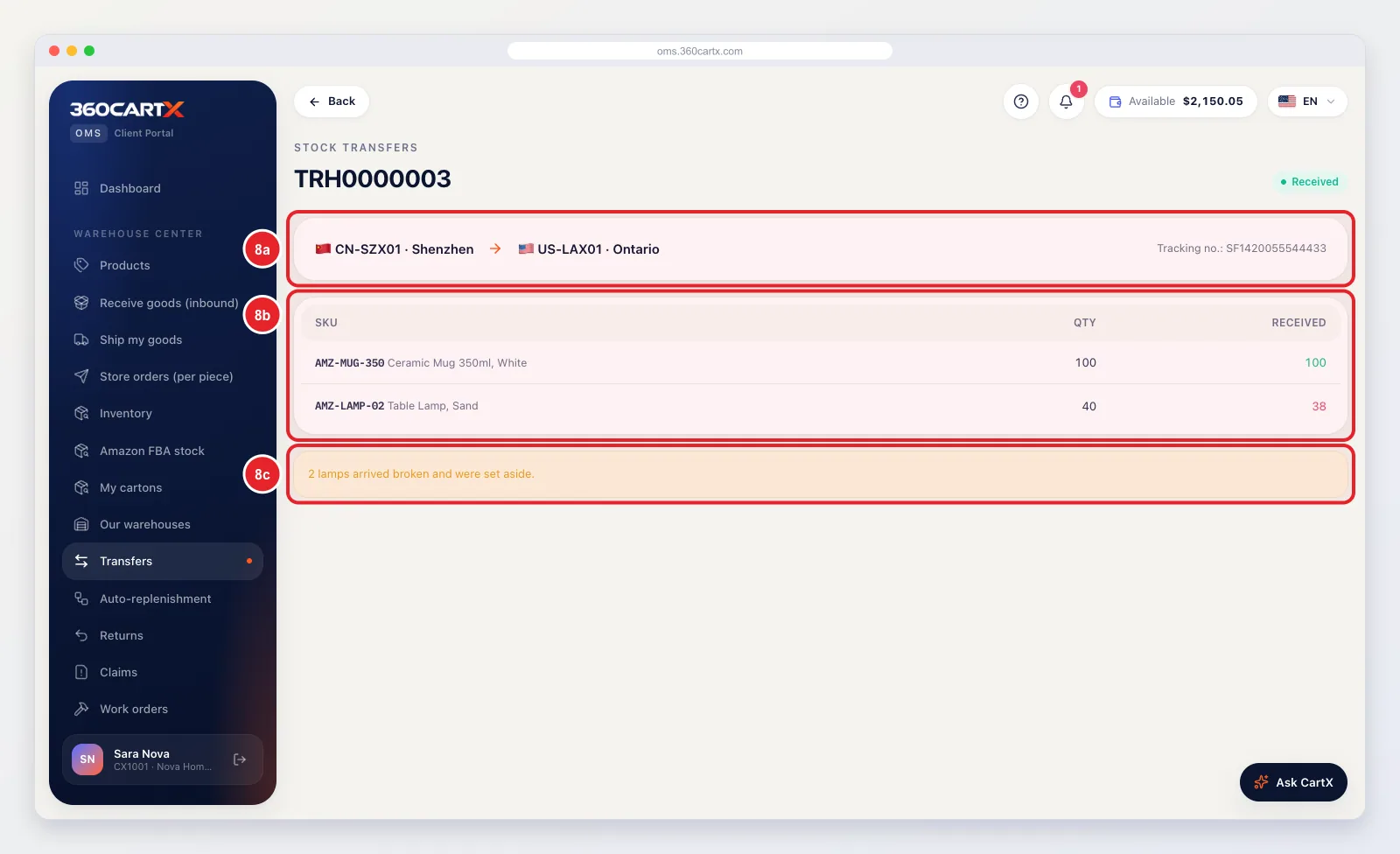
After it is received
When the transfer is Received the list of products shows a second number, the units counted at the destination. If fewer units arrived than were sent, our note under the table says what happened and we open an investigation. Both warehouses' stock is updated.
- 8a Sent
- 8b Received
- 8c Our note
Tips
- A cancelled transfer cannot be reopened: create a new one.
- Cancel has no confirmation: click it once only when you are sure.
- You are told when the transfer ships (with its tracking number) and when it is received.
Common problems
Not enough free stock in the source warehouse for one of the products
Some units are reserved for orders or less are on hand. Check Inventory and lower the quantity.
The product I want is not in the list
It has no free stock in the source warehouse, or it is not approved.
Related articles
Updated 2026-11-11
Open a ticket from Support in your portal and our team will reply.