Steps
- 1
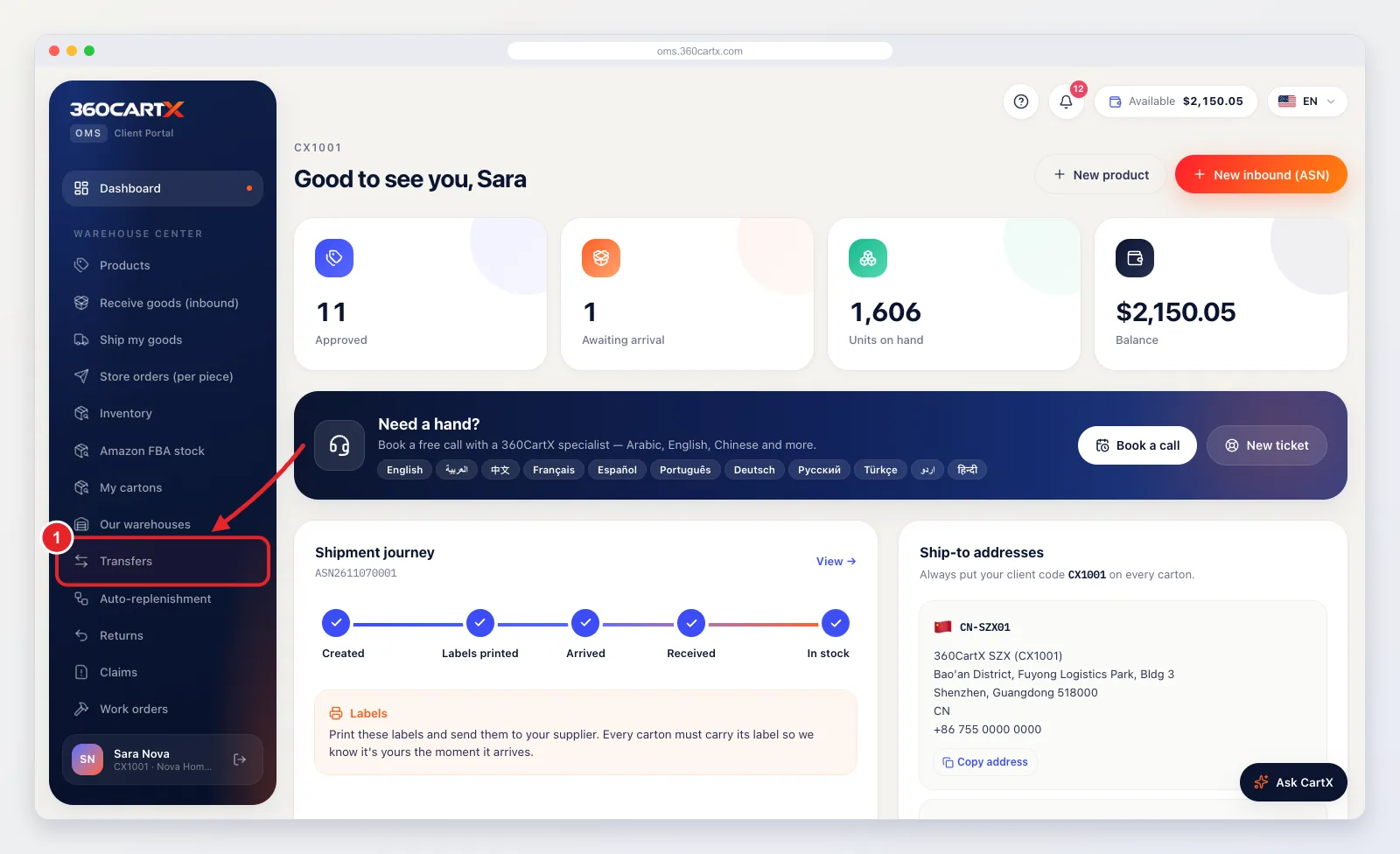
Open Transfers
Click Transfers under Warehouse Center in the left menu.
- 2
The page
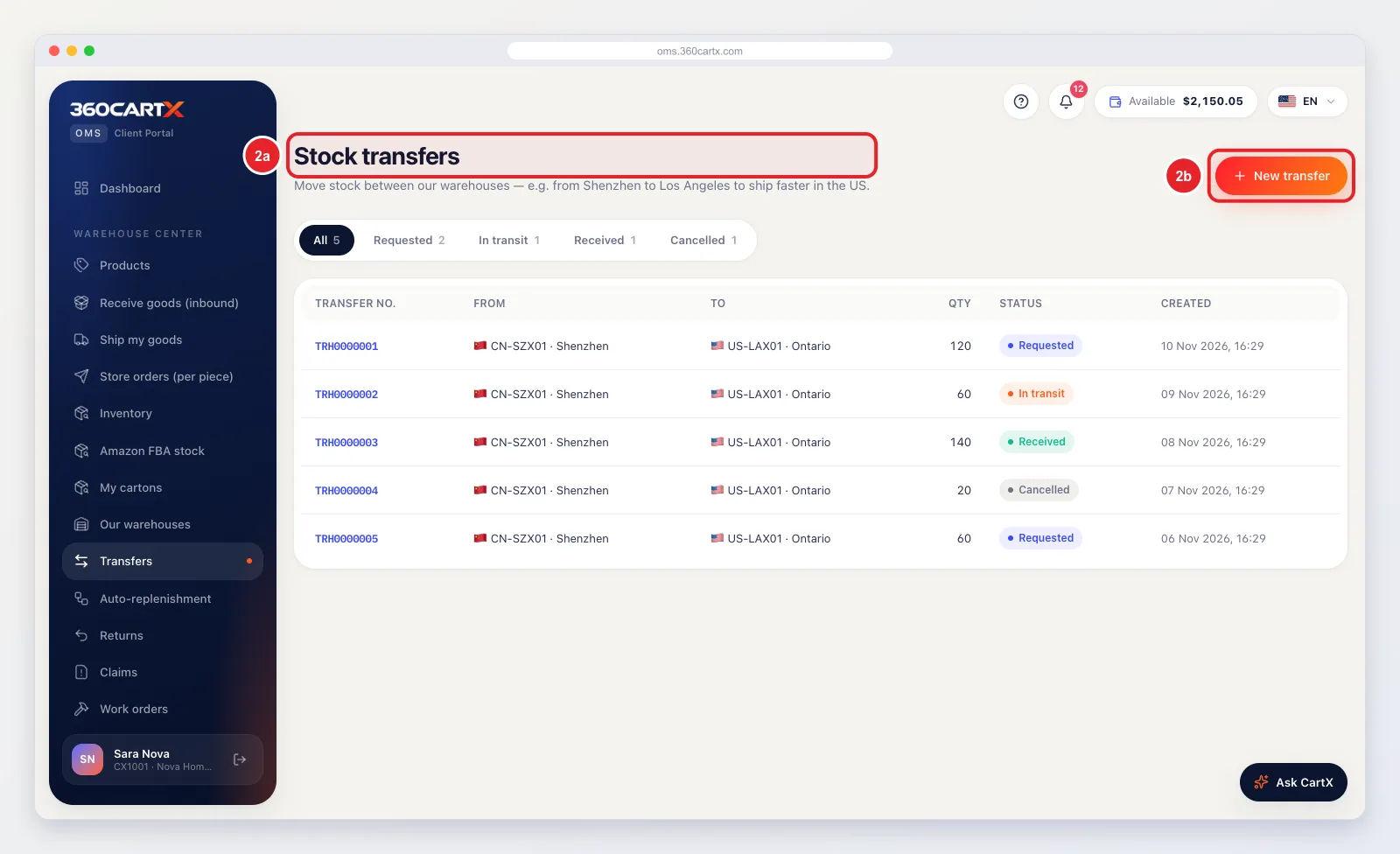
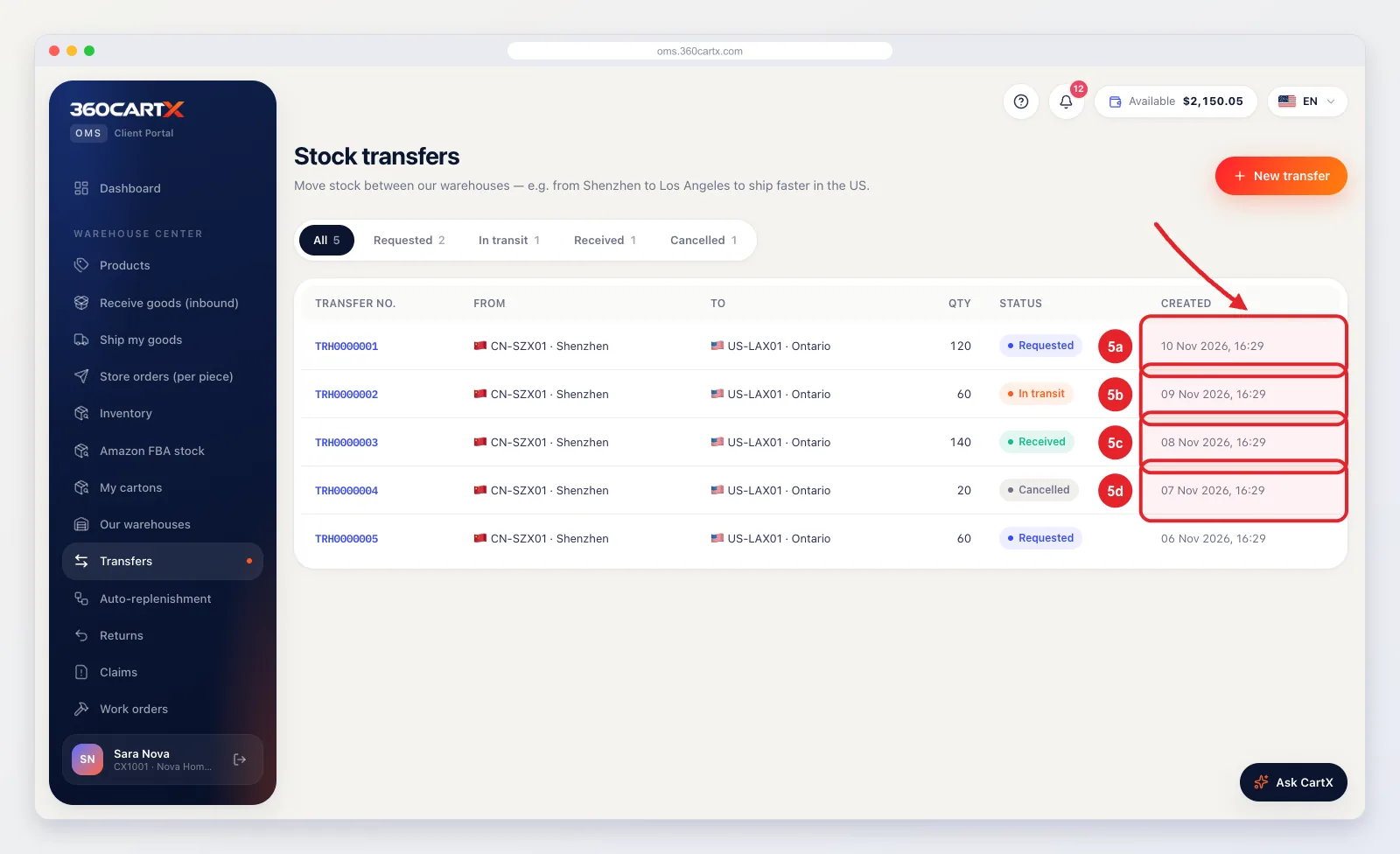
The page is called Stock transfers and says: Move stock between our warehouses — e.g. from Shenzhen to Los Angeles to ship faster in the US. New transfer at the top right starts a request.
- 2a Page title
- 2b New transfer
- 3
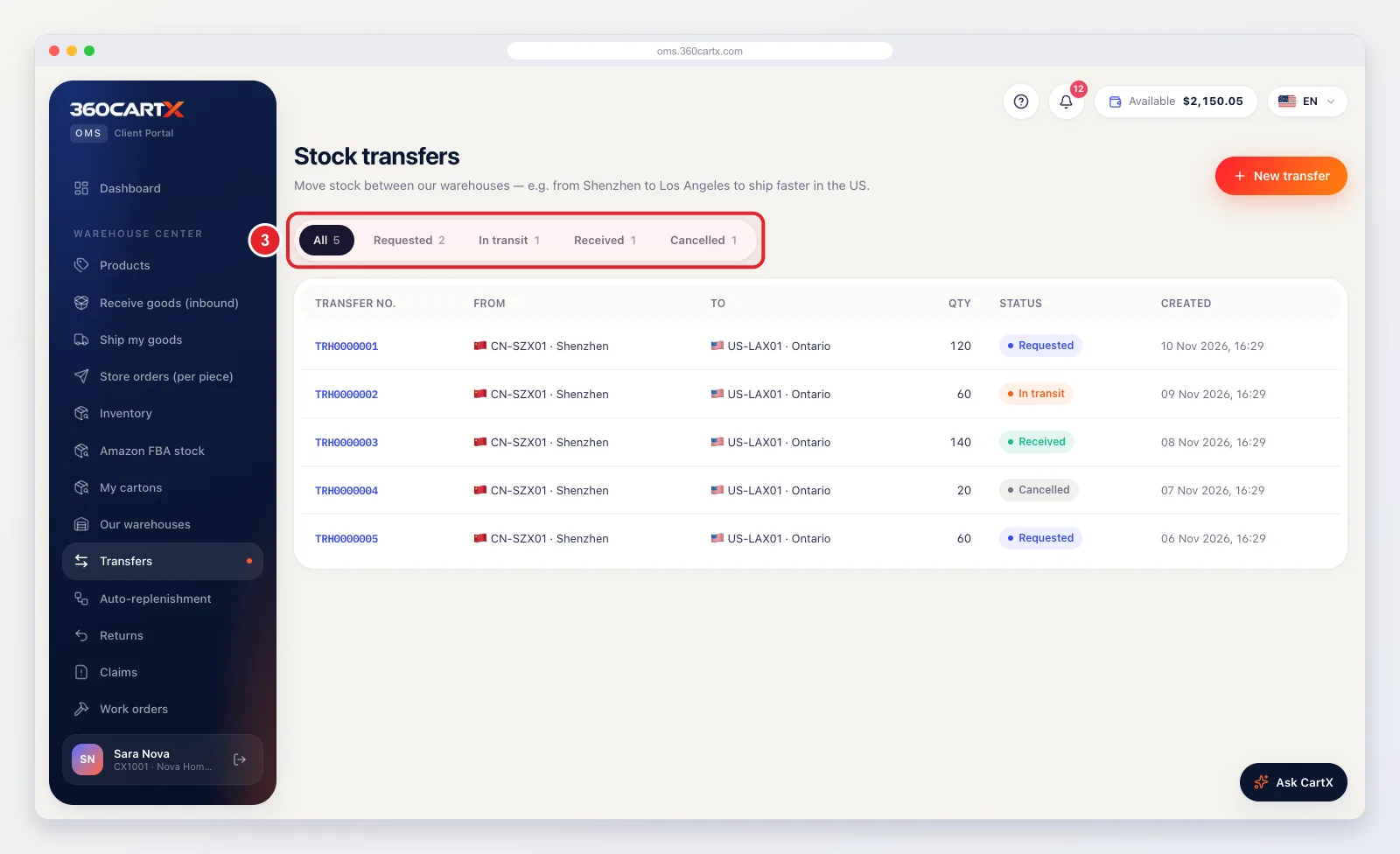
The tabs
All, Requested, In transit, Received and Cancelled, each with the number of transfers. Click a tab to filter.
- 4
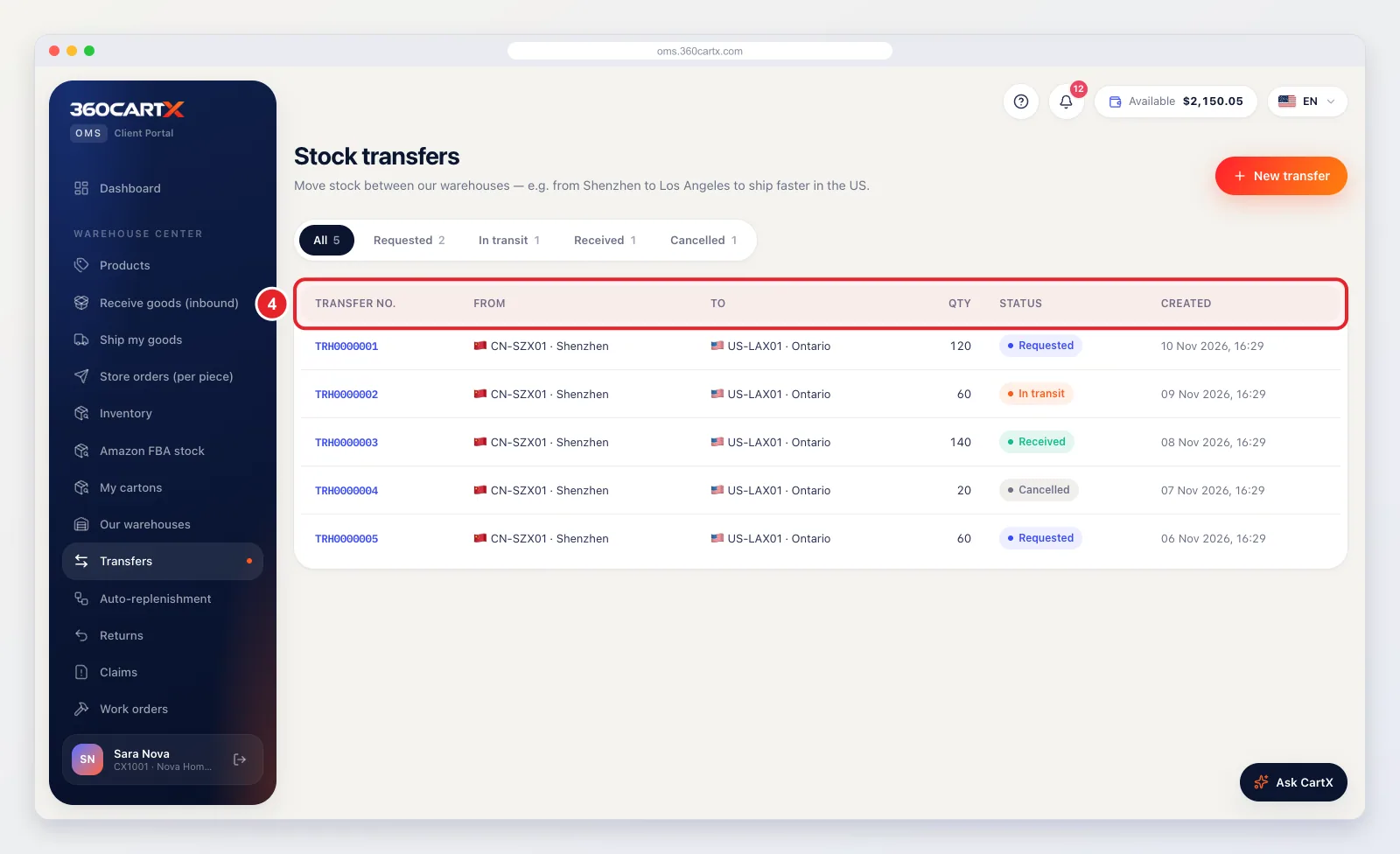
The columns
Transfer no. (click it to open the transfer), From, To, Qty (the total units), Status and Created. Newest first, up to 300.
- 5
The statuses
Requested: you asked; we have not shipped yet, and you can still cancel. In transit: the stock left the source warehouse (the tracking number is on the transfer). Received: our team counted it into the destination warehouse. Cancelled: you cancelled it before it shipped.
- 5a Requested
- 5b In transit
- 5c Received
- 5d Cancelled
- 6
You need two warehouses
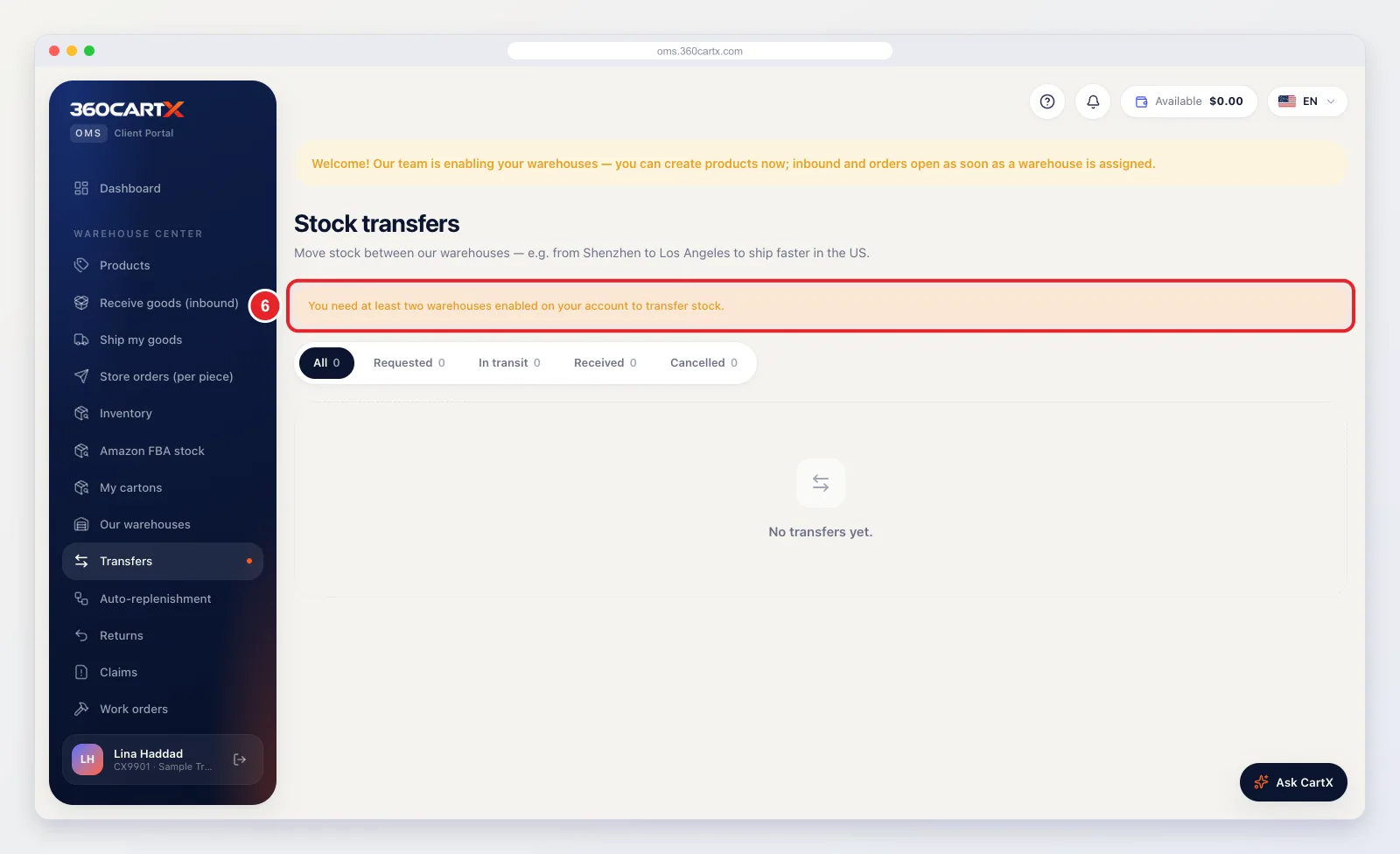
With only one warehouse enabled, the amber message says: You need at least two warehouses enabled on your account to transfer stock. The New transfer button is hidden. Enable another warehouse first.
Tips
- Stock leaves the source warehouse when we ship the transfer and is added to the destination warehouse when we receive it. In between it is on the way and not available in either warehouse.
- To keep a selling warehouse filled automatically, use Auto-replenishment.
Common problems
My transfer stays Requested
Our team has not picked it yet. Open a ticket in Help & support if it takes more than a working day.
Related articles
Updated 2026-11-11
Open a ticket from Support in your portal and our team will reply.