Steps
- 1
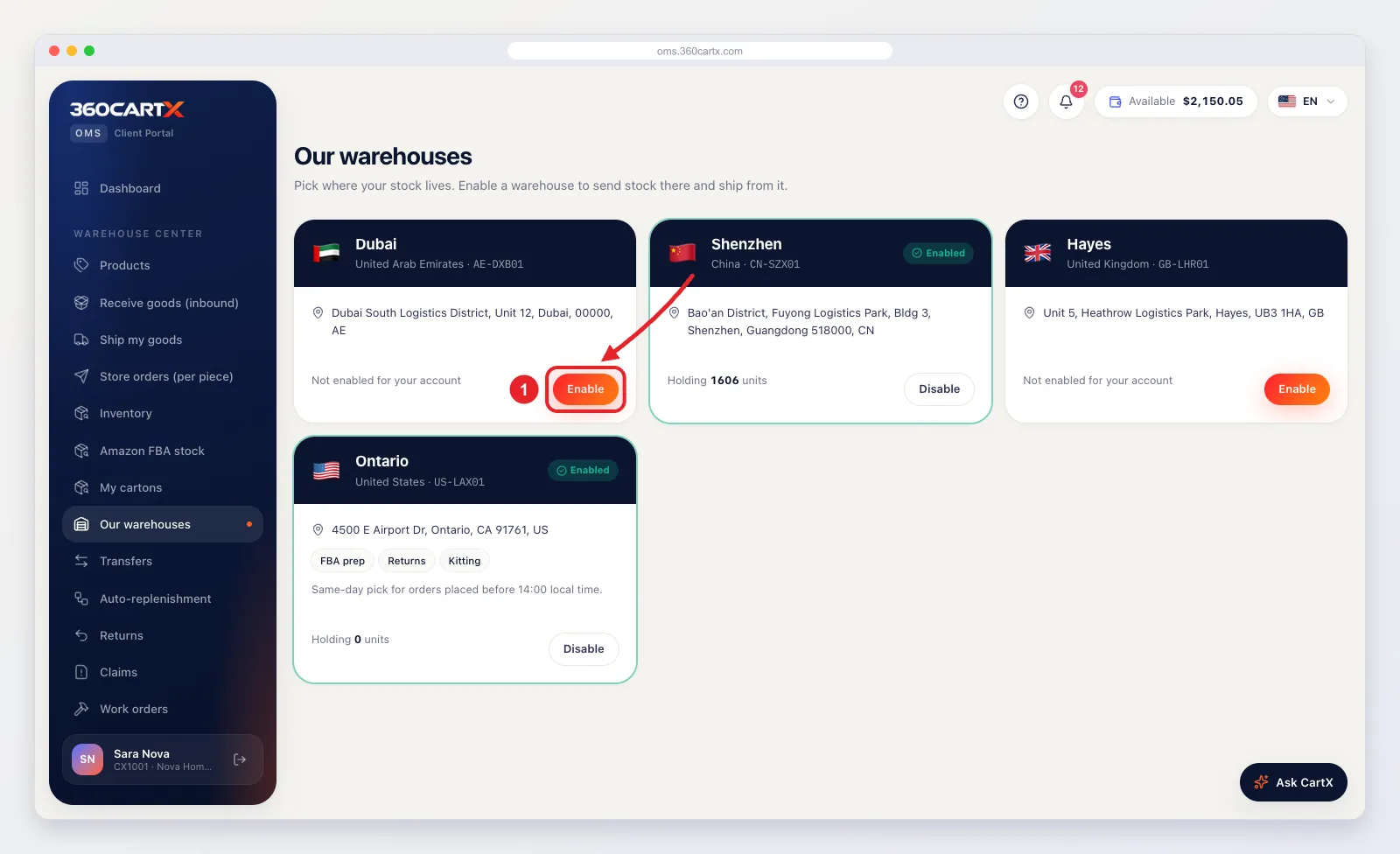
Click Enable
On Our warehouses find the warehouse, for example Dubai, and click Enable at the bottom right of its card. The button is on the cards you did not enable yet.
- 2
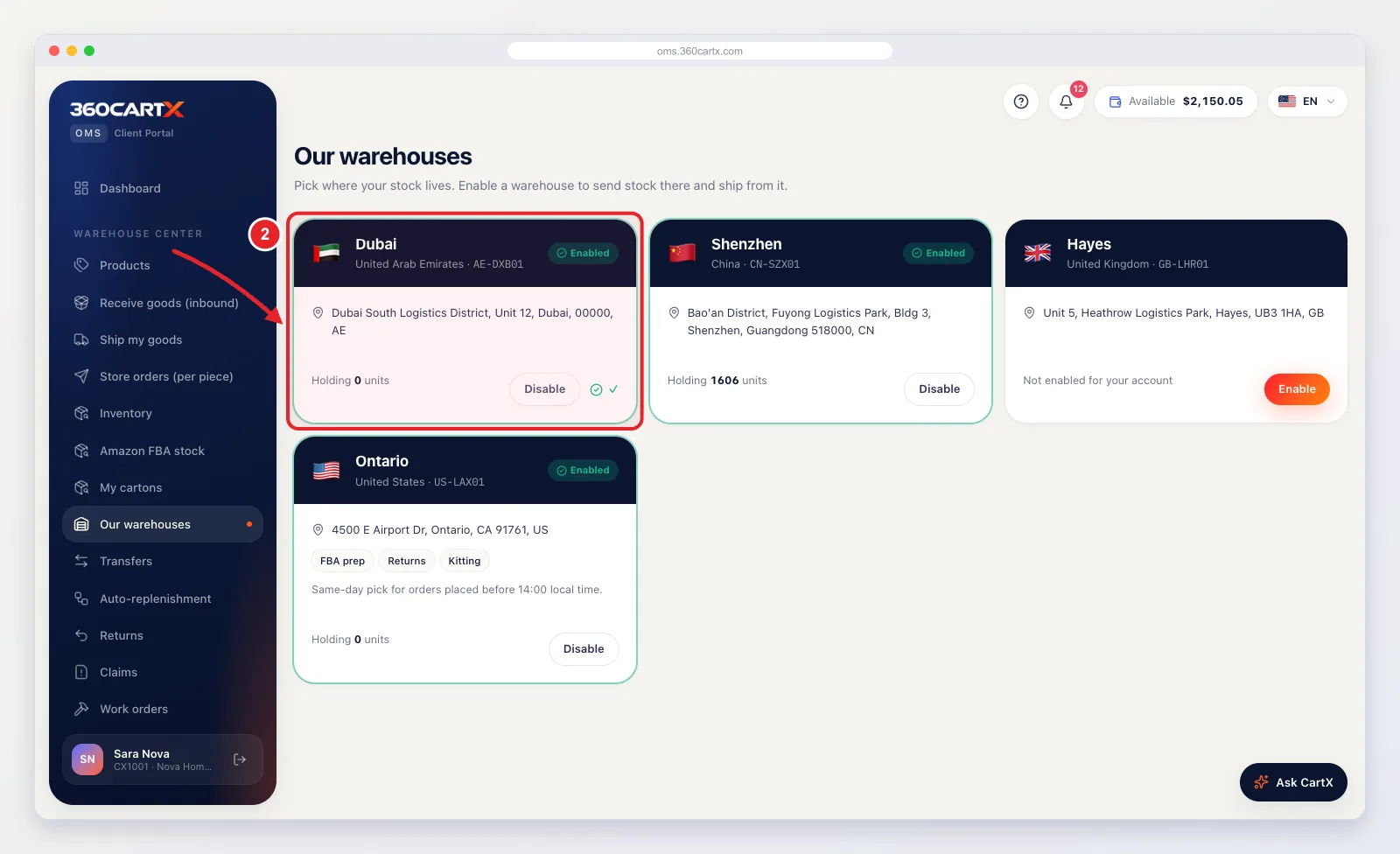
It is enabled at once
A warehouse that anyone can enable turns Enabled at once, with a green frame, and you can choose it when you send goods in or create orders. For a warehouse that needs our approval the button says Request access: click it and you see Request sent; our team enables it for you and you are told.
- 3
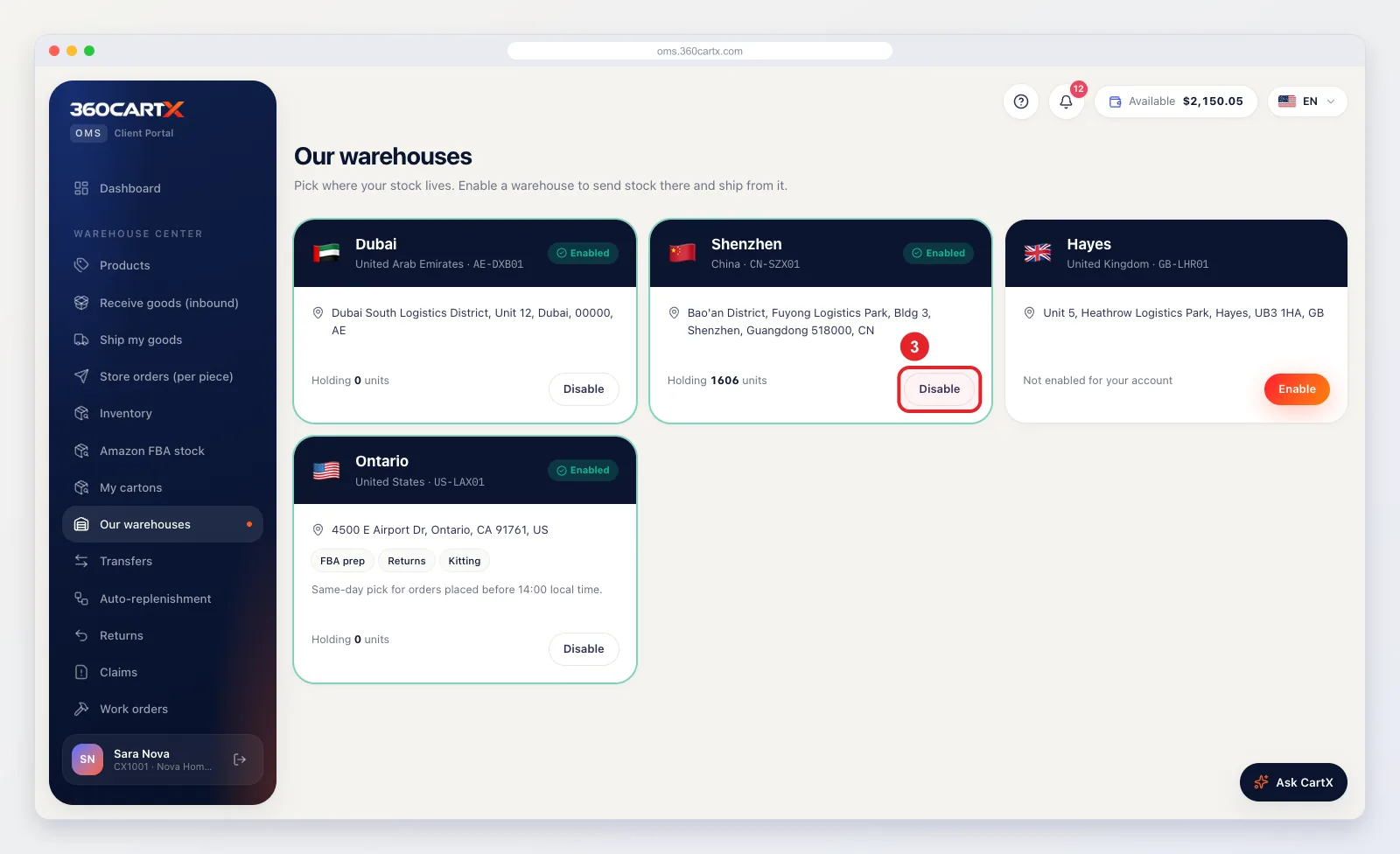
Disable a warehouse
An enabled warehouse has the button Disable. Use it when you no longer want to send stock there.
- 4
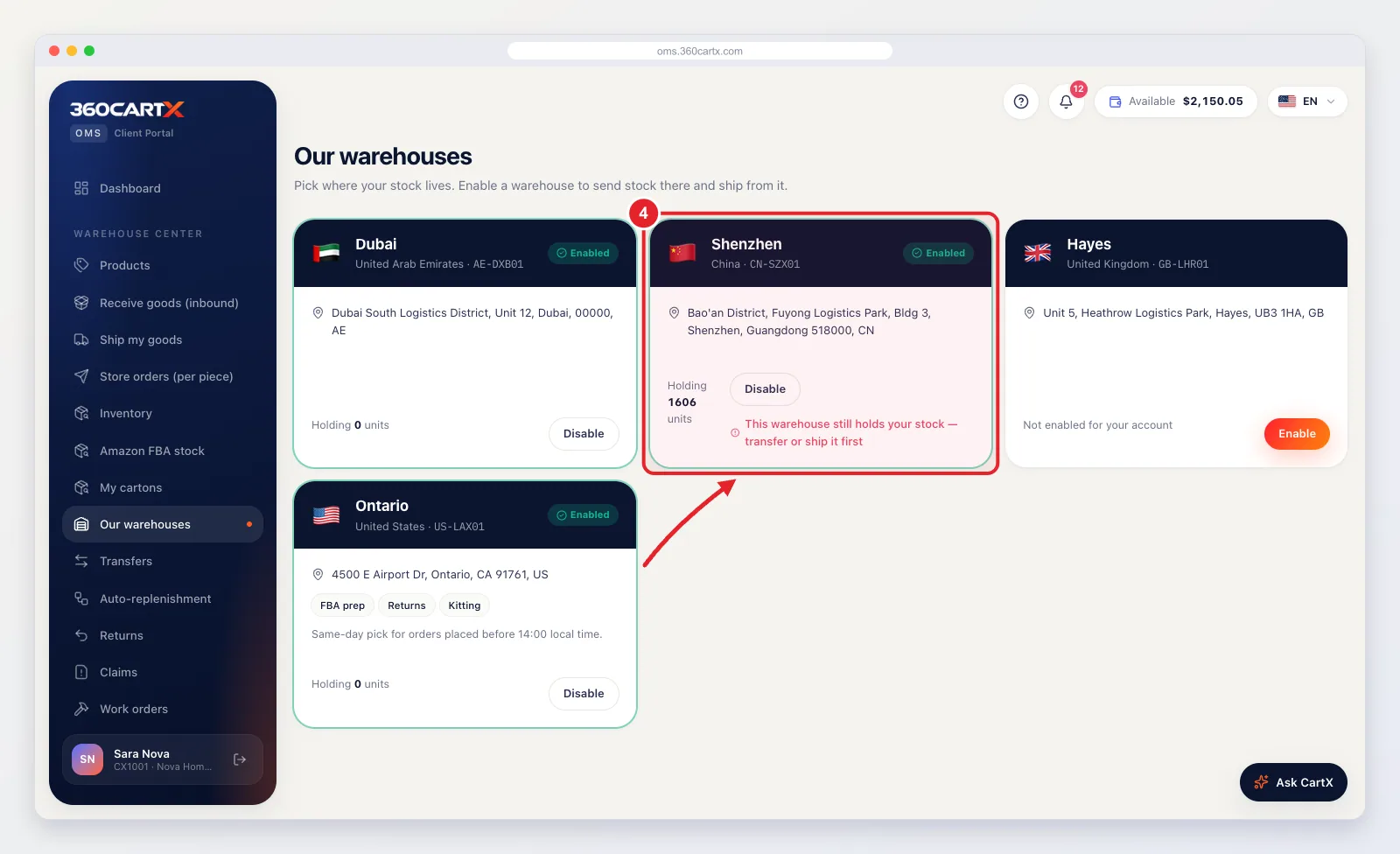
When it cannot be disabled
You see This warehouse still holds your stock — transfer or ship it first when units are still in it. Other messages: An inbound shipment is still on its way to this warehouse, and Keep at least one warehouse (the last enabled warehouse cannot be disabled).
Tips
- After you enable a warehouse, use it as Warehouse in Receive goods, in orders and in transfers.
Common problems
Warehouse not available
The warehouse is not open yet. Wait for it to open.
Nothing happens when I click Enable
Reload the page. If you are not an owner or admin the button is not shown.
Related articles
Updated 2026-11-11
Open a ticket from Support in your portal and our team will reply.