Steps
- 1
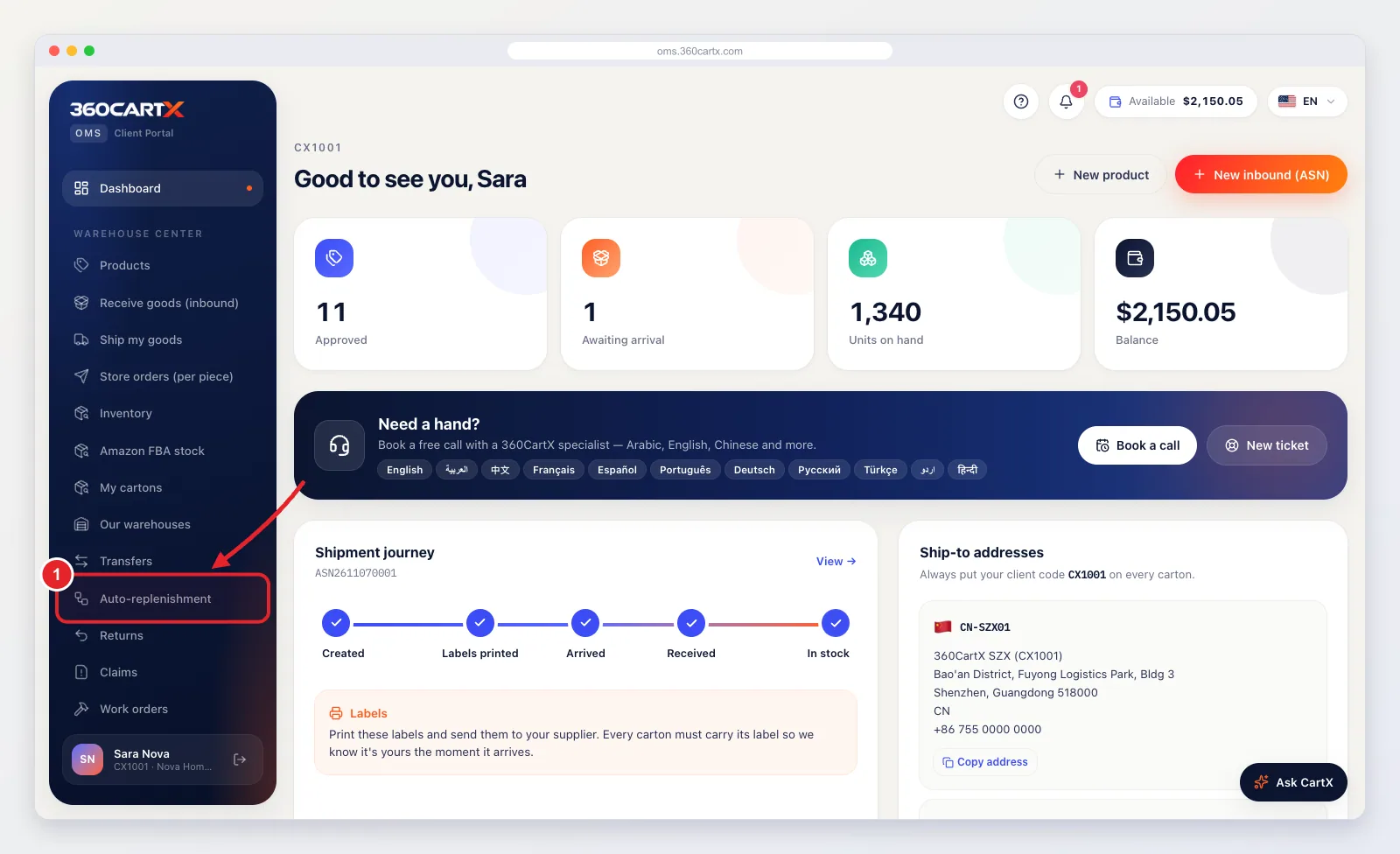
Open Auto-replenishment
Click Auto-replenishment under Warehouse Center in the left menu.
- 2
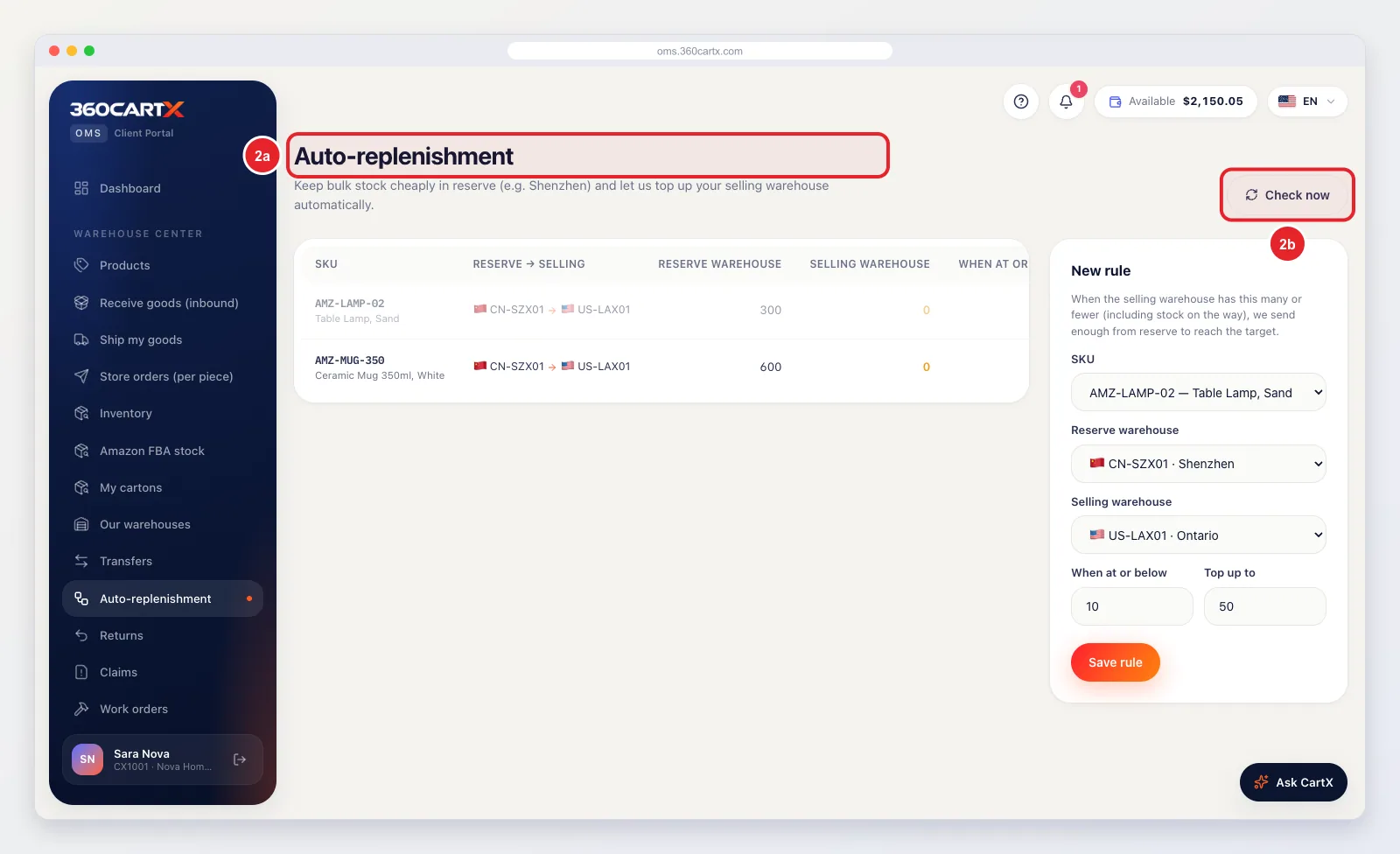
The page and Check now
The page says: Keep bulk stock cheaply in reserve (e.g. Shenzhen) and let us top up your selling warehouse automatically. Check now runs all your rules at once and tells you how many transfers it created (Transfers created: 1). Rules also run by themselves, and a rule fires at most every 6 hours.
- 2a Page title
- 2b Check now
- 3
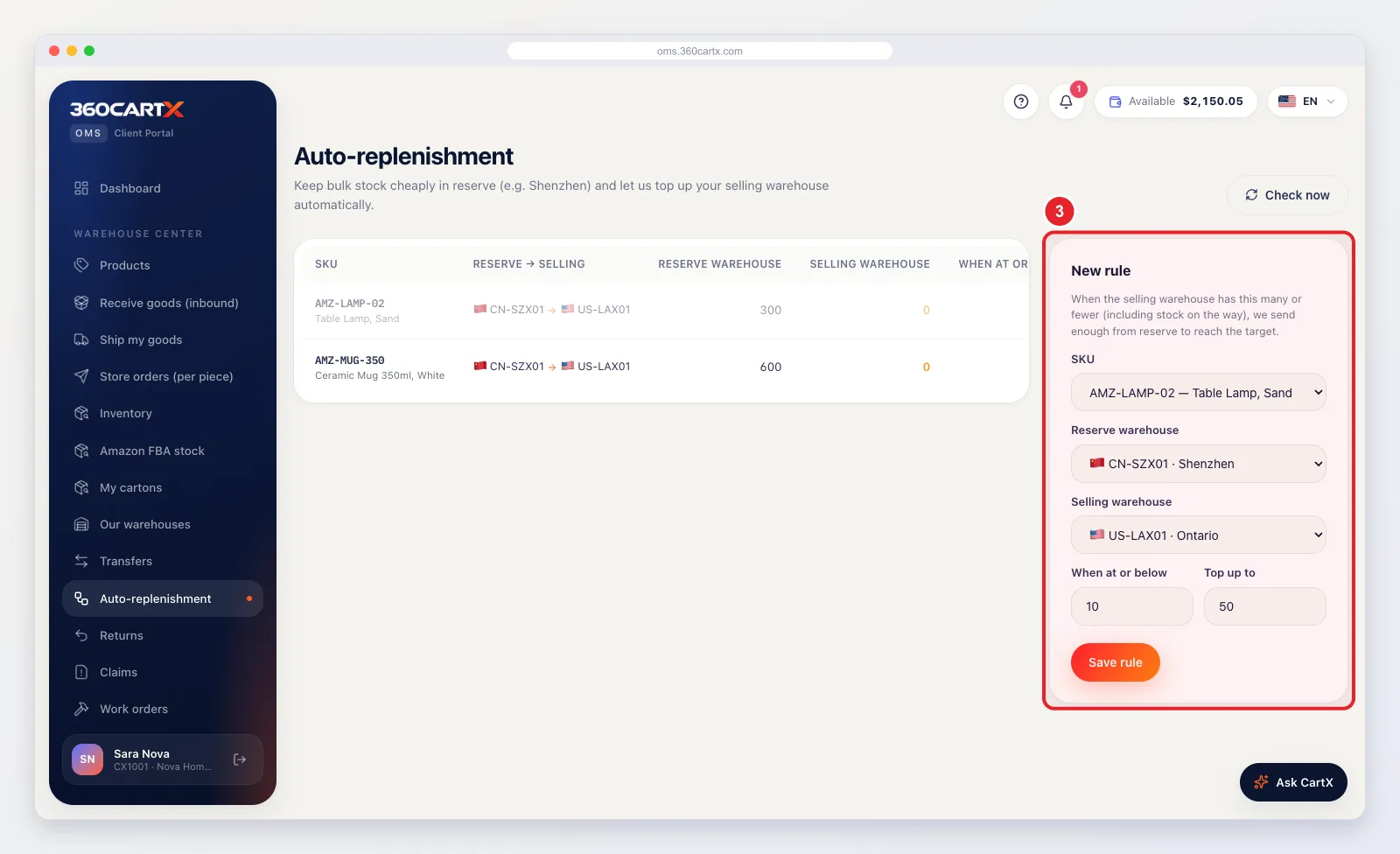
The New rule box
On the right, New rule: When the selling warehouse has this many or fewer (including stock on the way), we send enough from reserve to reach the target. You need at least two warehouses enabled; with one, an amber note says so.
- 4
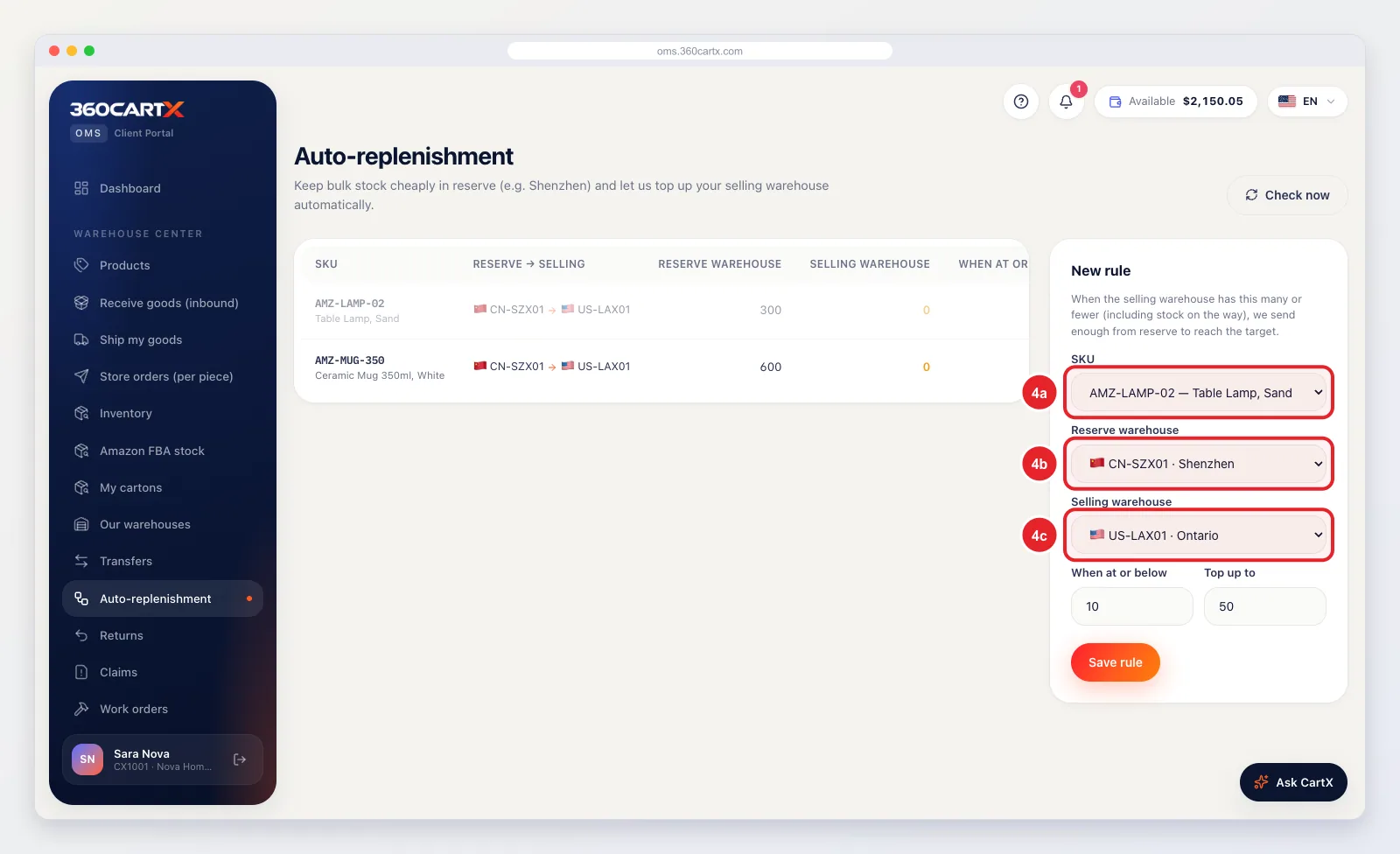
Product and warehouses
SKU: the product (approved products only). Reserve warehouse: where the bulk stock is, for example CN-SZX01 · Shenzhen. Selling warehouse: the one to keep filled, for example US-LAX01 · Ontario. They must be different, or you read Reserve and selling warehouse must be different.
- 4a SKU
- 4b Reserve warehouse
- 4c Selling warehouse
- 5
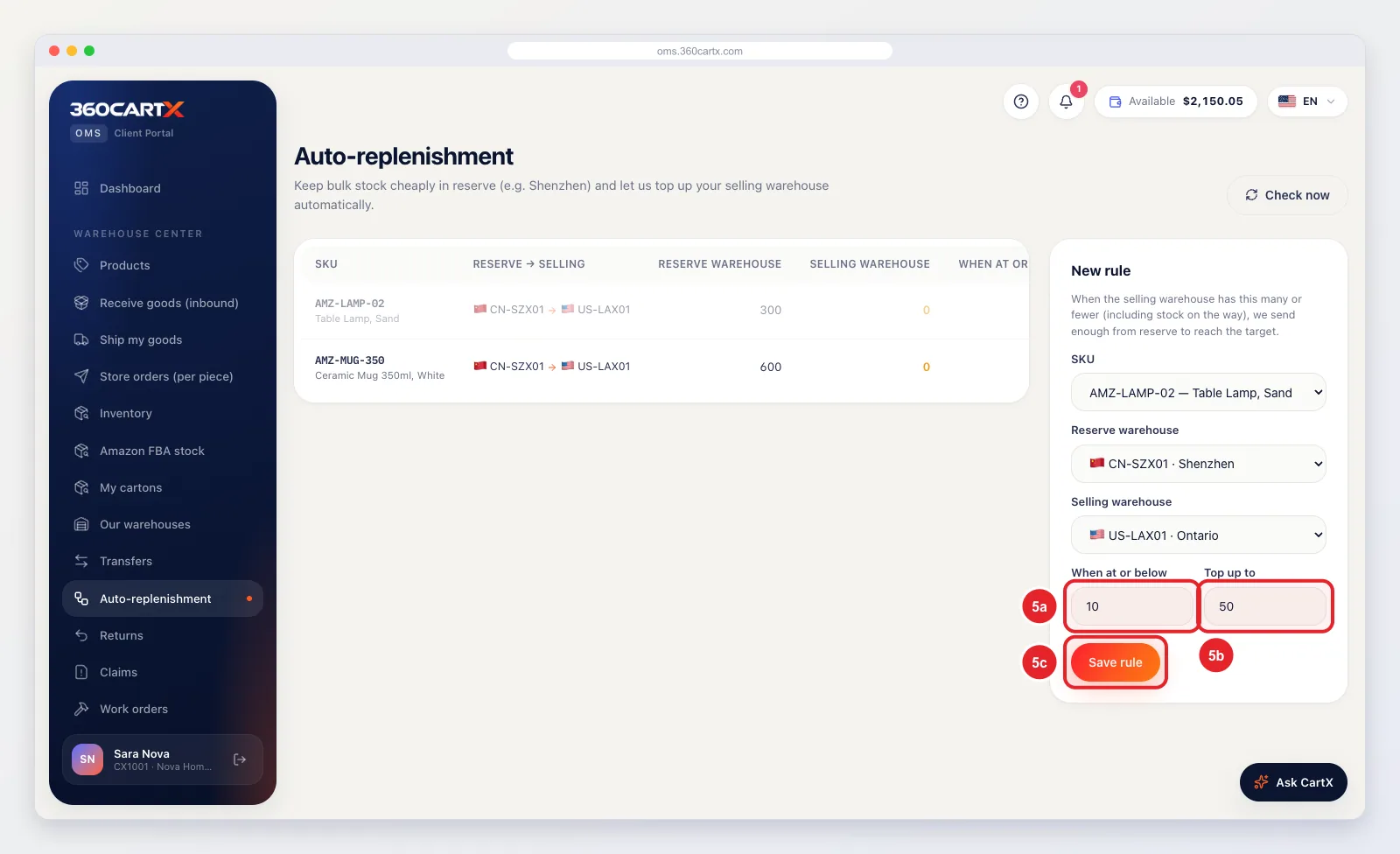
Minimum, target and save
When at or below: the minimum, for example 50 (default 10). Top up to: the target, for example 200 (default 50); it must be more than the minimum, otherwise you read Top up to must be more than the minimum. Click Save rule; you see Saved. Saving again for the same product and selling warehouse changes the rule and turns it on.
- 5a When at or below
- 5b Top up to
- 5c Save rule
- 6
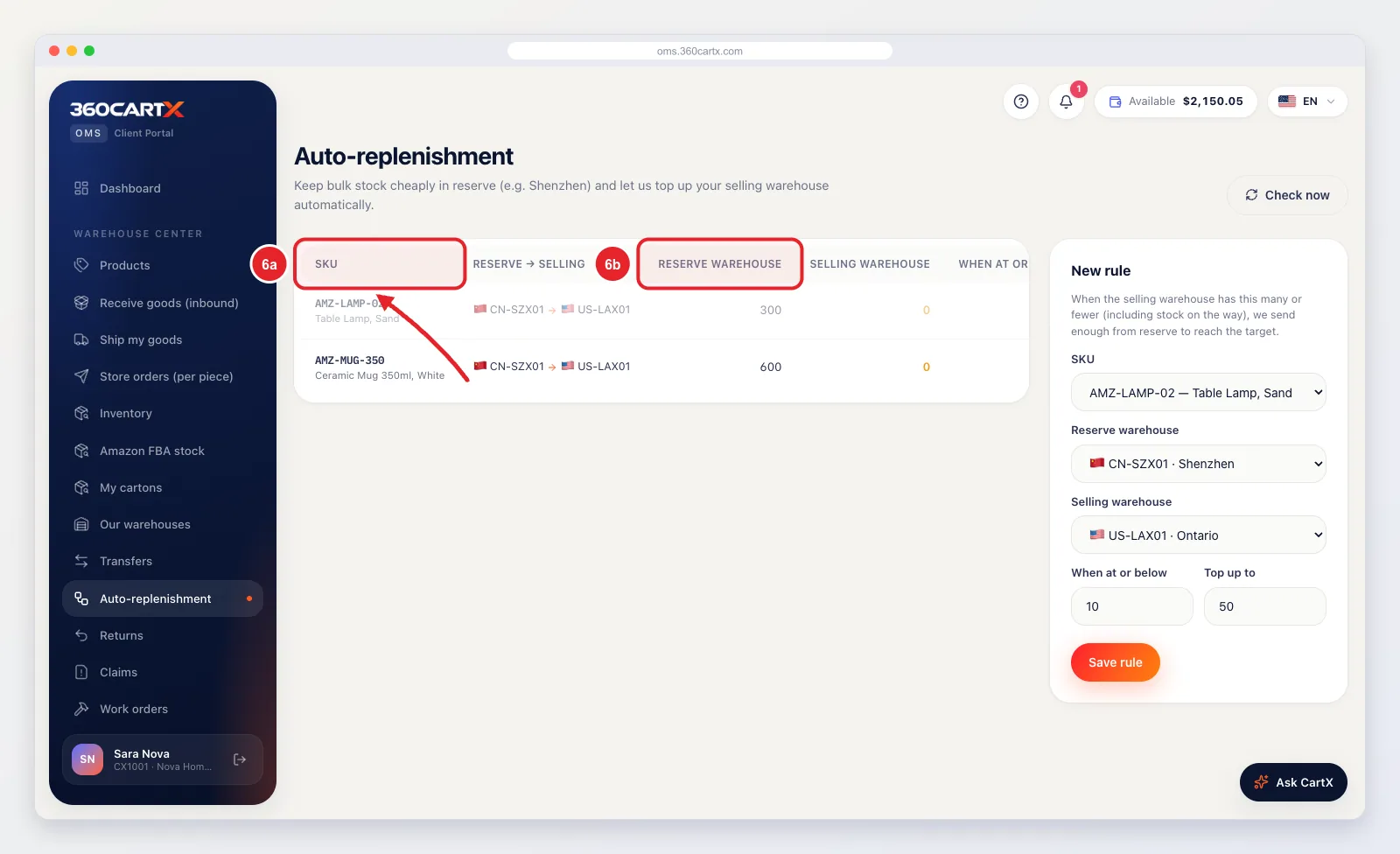
The rules table
Each rule is a row. The first columns are SKU, Reserve → selling (for example CN-SZX01 → US-LAX01) and the available units in the Reserve warehouse. The table is wider than its box: scroll it sideways to see the rest, the available units in the Selling warehouse, When at or below, Top up to, Last check and the buttons.
- 6a SKU
- 6b Reserve warehouse units
- 7
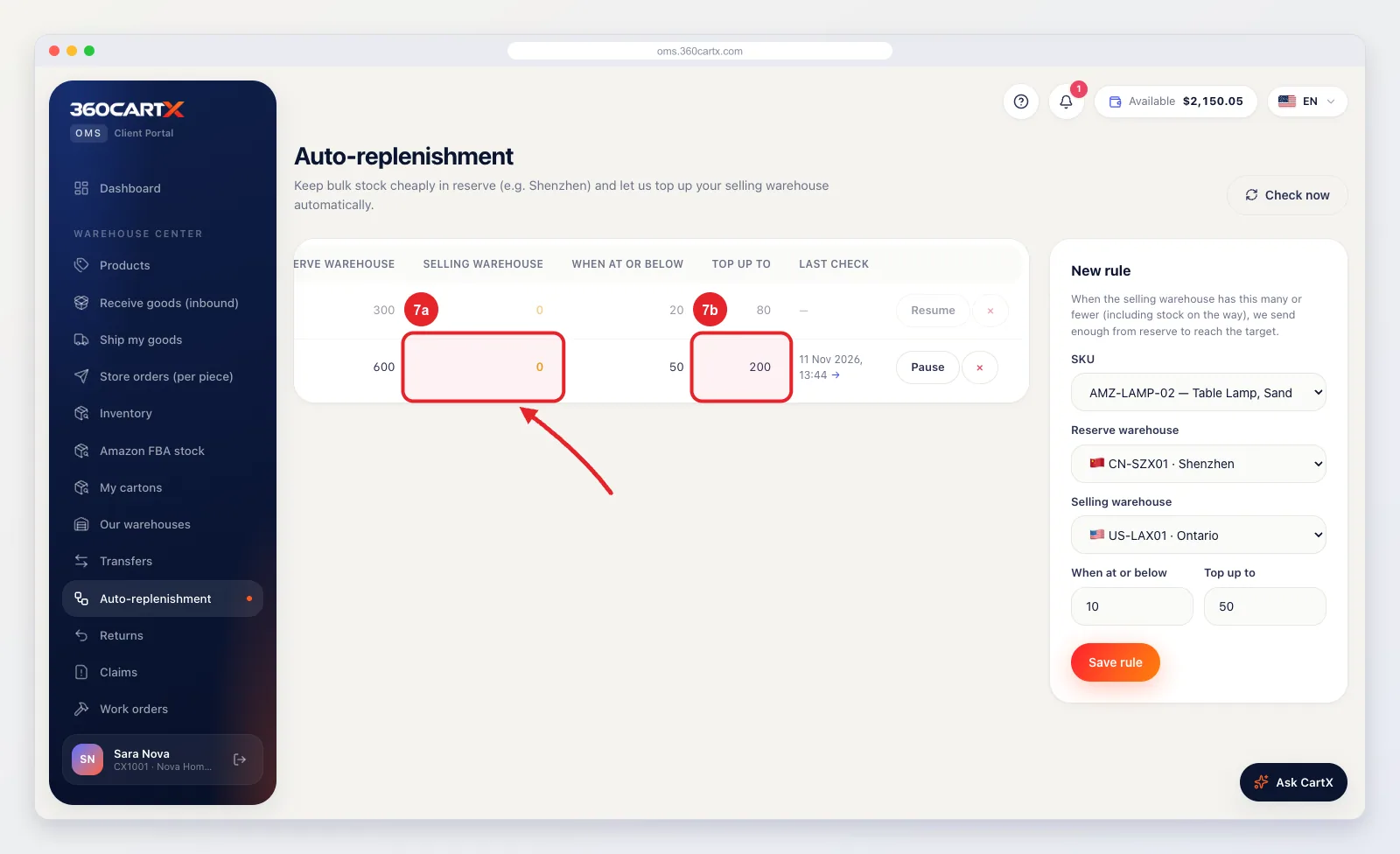
Read a row
The selling stock is amber when it is at or below the minimum and green above it. Example: AMZ-MUG-350 has 0 units in Los Angeles (amber), minimum 50 and target 200: when Los Angeles has 50 or fewer units (counting units already on the way), we request a transfer for the missing units up to 200, as far as the reserve stock allows.
- 7a Selling warehouse units
- 7b Top up to
- 8
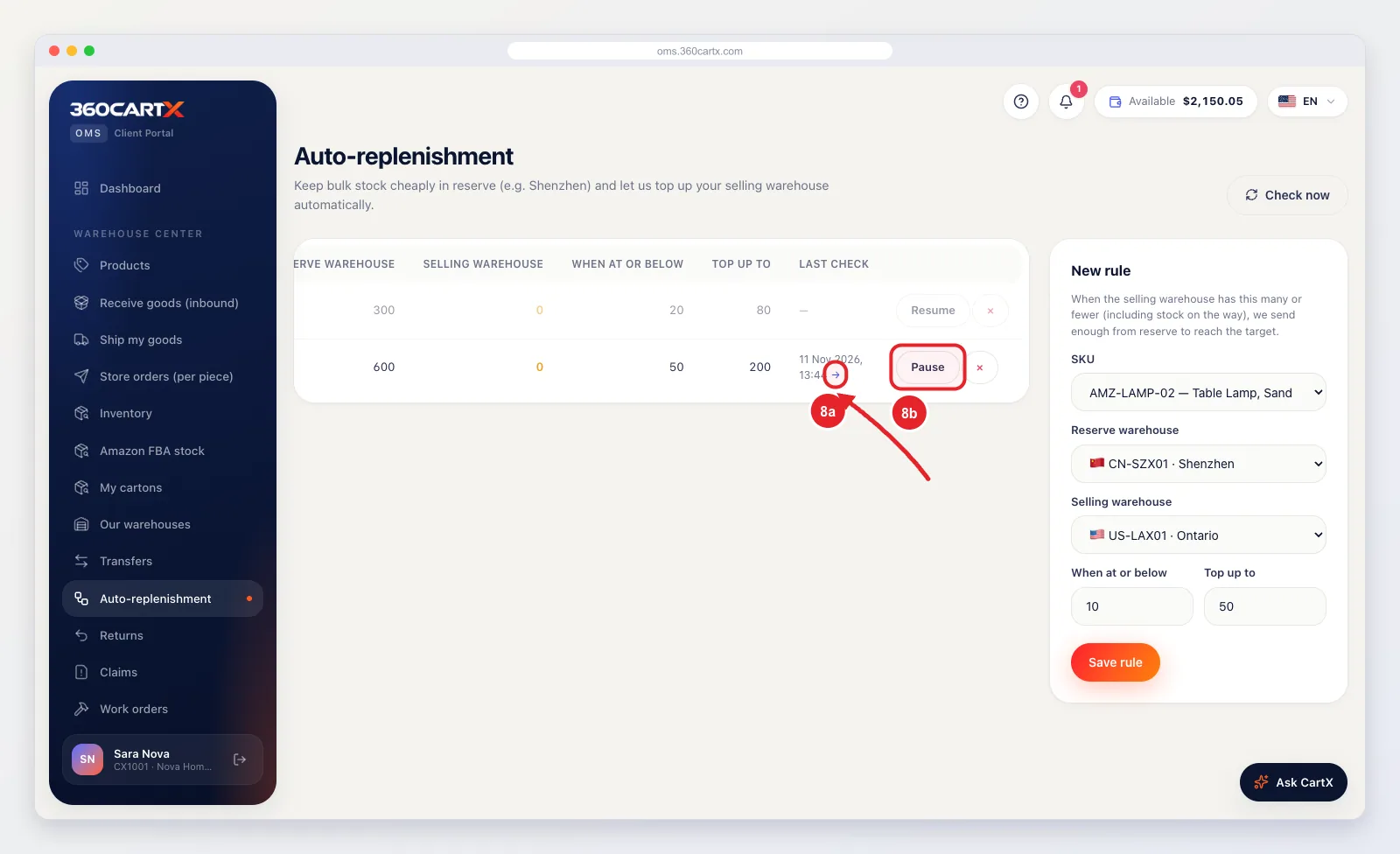
Last check and the transfer
Last check shows when the rule was checked and links to the transfer it created, for example TRH0000005. The transfer has the note Auto-replenishment and is processed like any other. You also get a notification.
- 8a Transfer link
- 8b Pause
- 9
Pause, resume or delete
Pause stops a rule without deleting it (the row turns grey and the button says Resume). The × deletes it. A new request is not created while an earlier transfer for the same product is still on its way: units on the way count as stock.
- 10
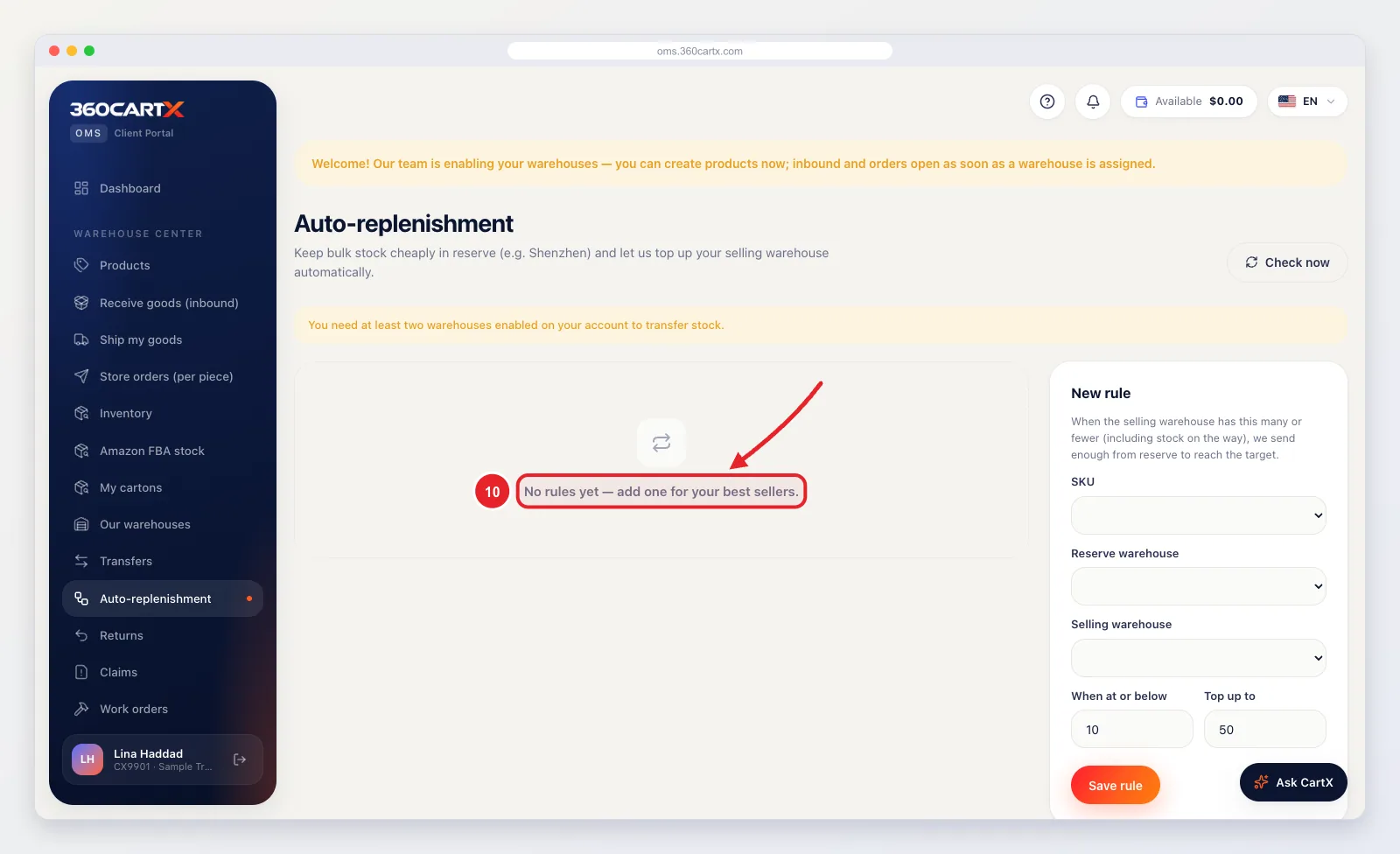
No rules yet
Before you add a rule the page says: No rules yet — add one for your best sellers.
Tips
- Set the minimum to what you sell during the transfer time between the two warehouses.
- If the reserve warehouse has no free stock for the product, nothing is created.
- One transfer per route is created per run, with all the products of the rules of that route.
Common problems
Unknown product
Only approved products can be used in a rule.
Warehouse not allowed
Both warehouses must be enabled for your account.
Check now says Transfers created: 0
No rule needed stock, or the reserve warehouse has none free.
Related articles
Updated 2026-11-11
Open a ticket from Support in your portal and our team will reply.