Steps
- 1
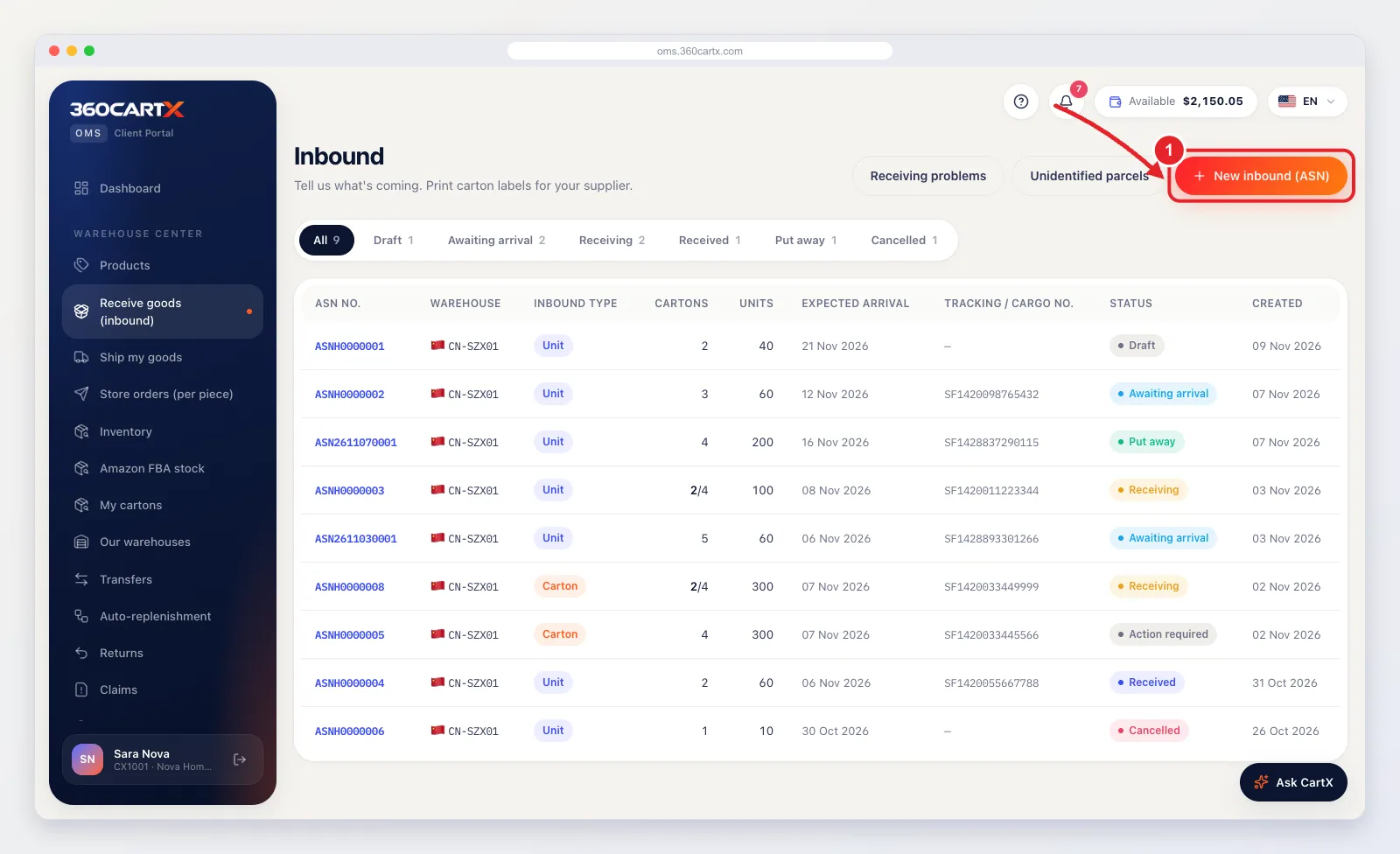
Click New inbound (ASN)
In Receive goods (inbound) click New inbound (ASN). You can also click New inbound (ASN) on the dashboard, or Send to warehouse next to an approved product (the form then starts with that product). The form only opens when you have at least one approved product.
- 2
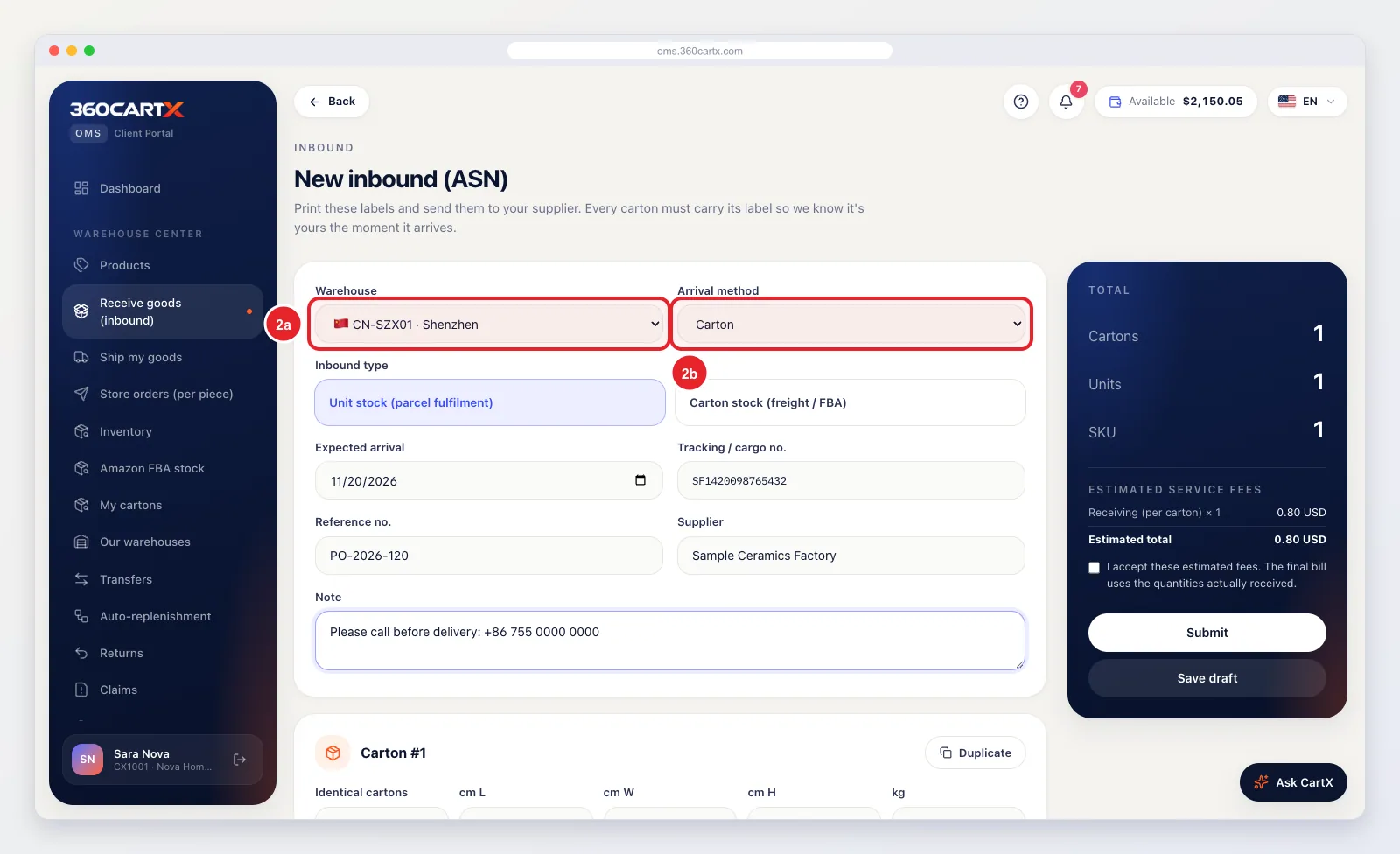
Warehouse and arrival method
Warehouse: the warehouse the goods go to, for example CN-SZX01 · Shenzhen. Only warehouses enabled for your account are listed. Arrival method: how the goods arrive: Carton (loose cartons by courier or truck), Parcel, Pallet, 20' container, 40' container, 40' HC container, 45' HC container or Other.
- 2a Warehouse
- 2b Arrival method
- 3
Date, tracking and references
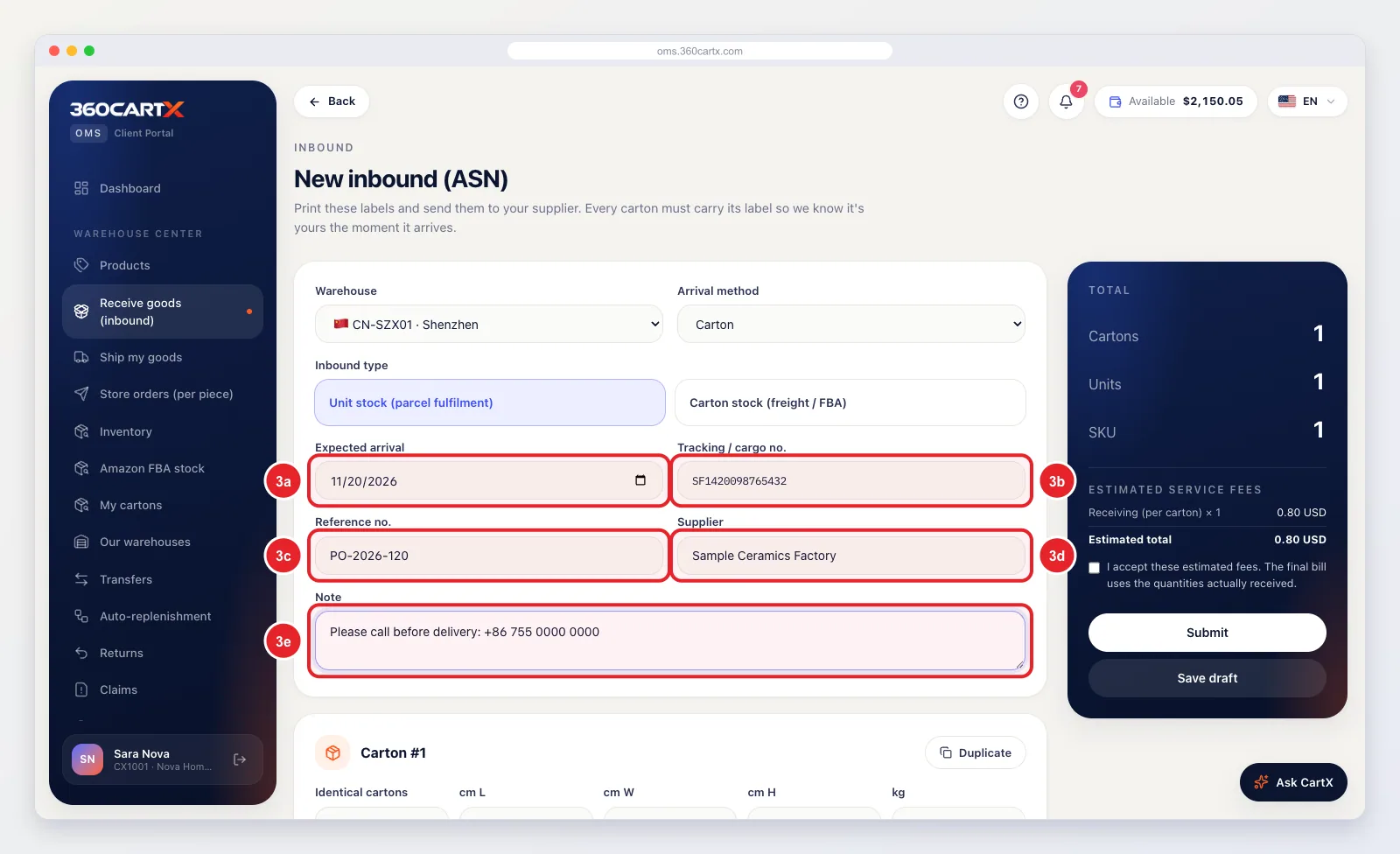
Expected arrival: the date you expect the goods, for example 20 Nov 2026. Tracking / cargo no.: the courier tracking or cargo number, for example SF1420098765432; it helps us match the delivery at the dock. Reference no.: your own order or PO number, for example PO-2026-120. Supplier: who ships it, for example Sample Ceramics Factory. Note: anything our team should know, for example a phone number to call before delivery. All five are optional but make receiving faster.
- 3a Expected arrival
- 3b Tracking / cargo no.
- 3c Reference no.
- 3d Supplier
- 3e Note
- 4
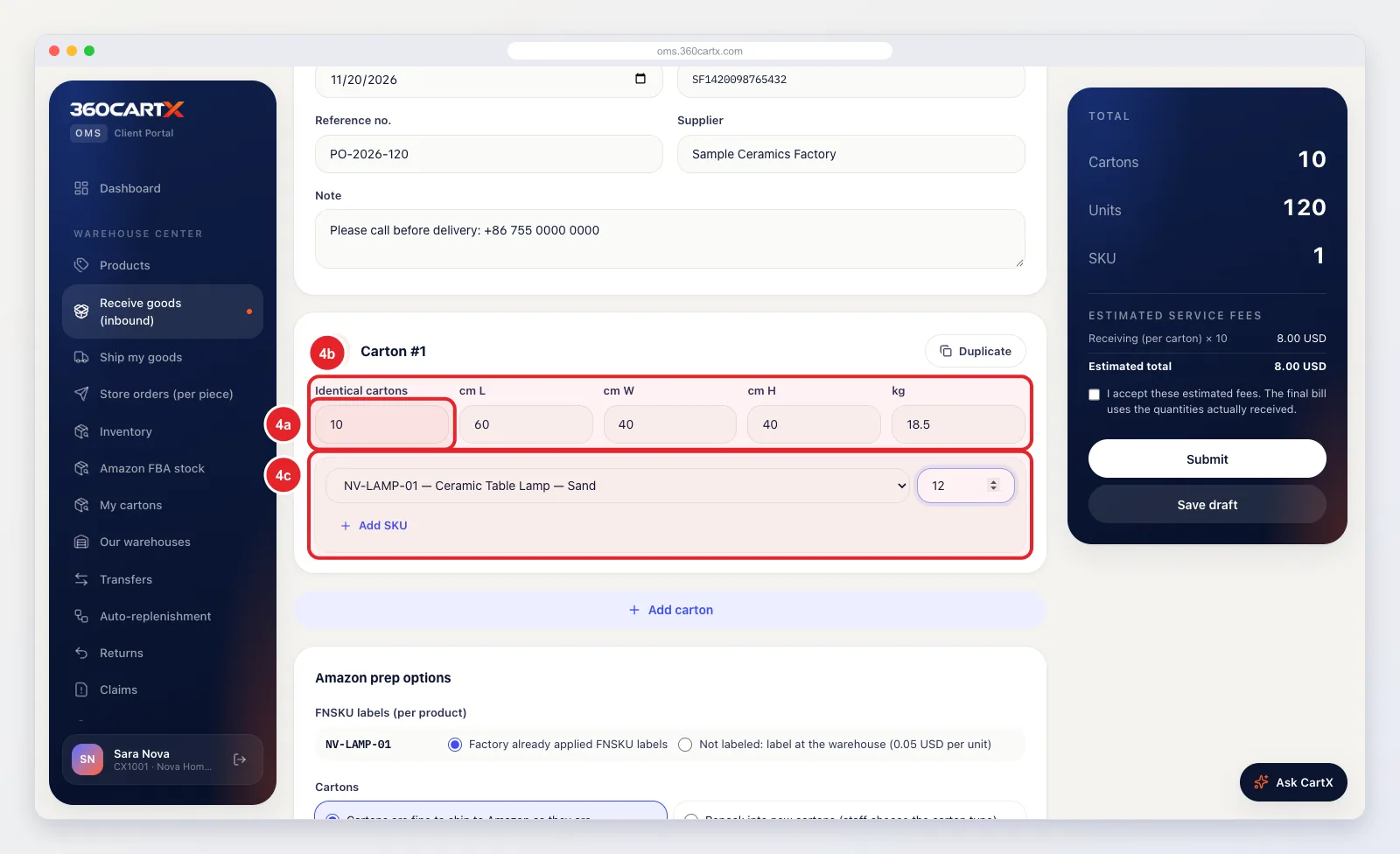
Describe the first carton
Each carton block describes a group of identical cartons. Identical cartons: how many cartons are exactly the same, for example 10. Then the outer size in cm (L 60, W 40, H 40) and the weight in kg (18.5) of one carton; they are optional but help us plan space. Below, choose the product inside and the number of units per carton, for example NV-LAMP-01 × 12. Ten identical cartons of 12 lamps are 120 lamps.
- 4a Identical cartons
- 4b Size and weight of one carton
- 4c Products in the carton
- 5
Add more cartons and mixed cartons
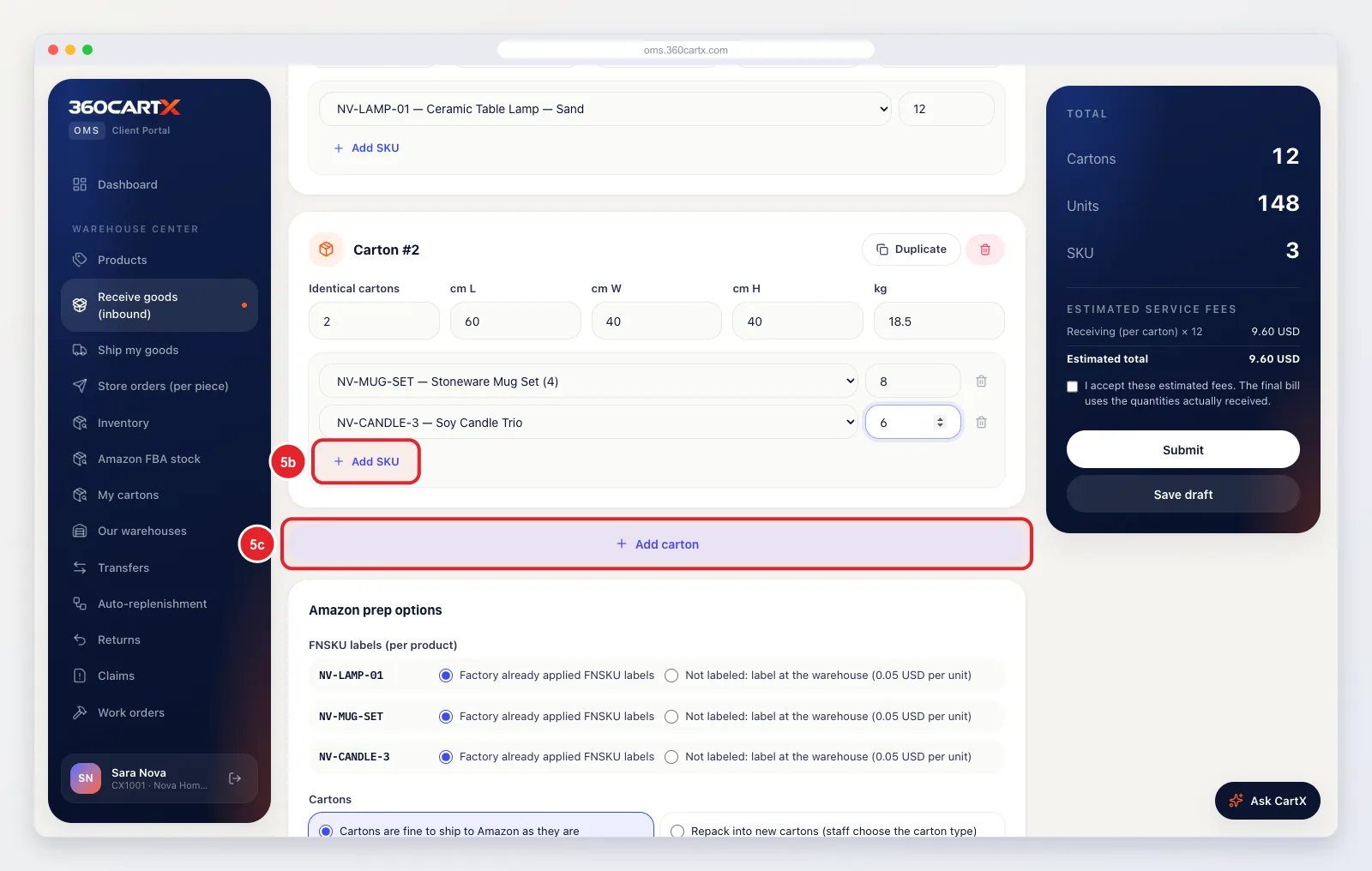
Duplicate copies a carton block with everything in it, then change what differs. Add SKU adds another product to the same carton (a mixed carton), for example 8 × NV-MUG-SET and 6 × NV-CANDLE-3. Add carton adds an empty block. The bin icon removes a block or a product line.
- 5a Duplicate
- 5b Add SKU
- 5c Add carton
- 6
Check the totals and the fees
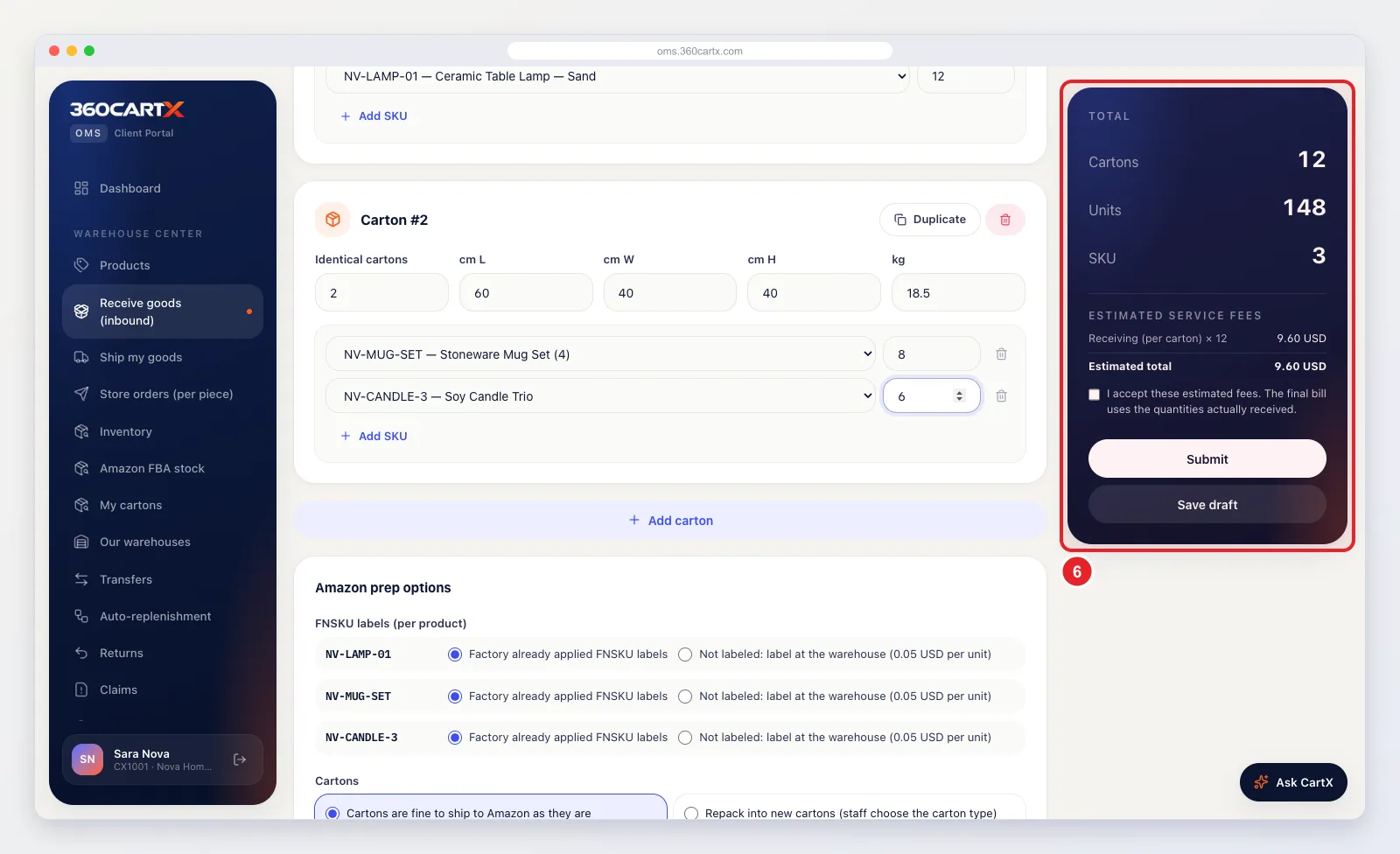
The dark panel on the right counts Cartons, Units and SKU as you type, here 12 cartons, 148 units and 3 SKUs. Below them, Estimated service fees shows what we will charge for receiving and labelling, worked out from the Amazon prep options under the cartons. See Amazon prep options and estimated fees.
- 7
Submit or save a draft
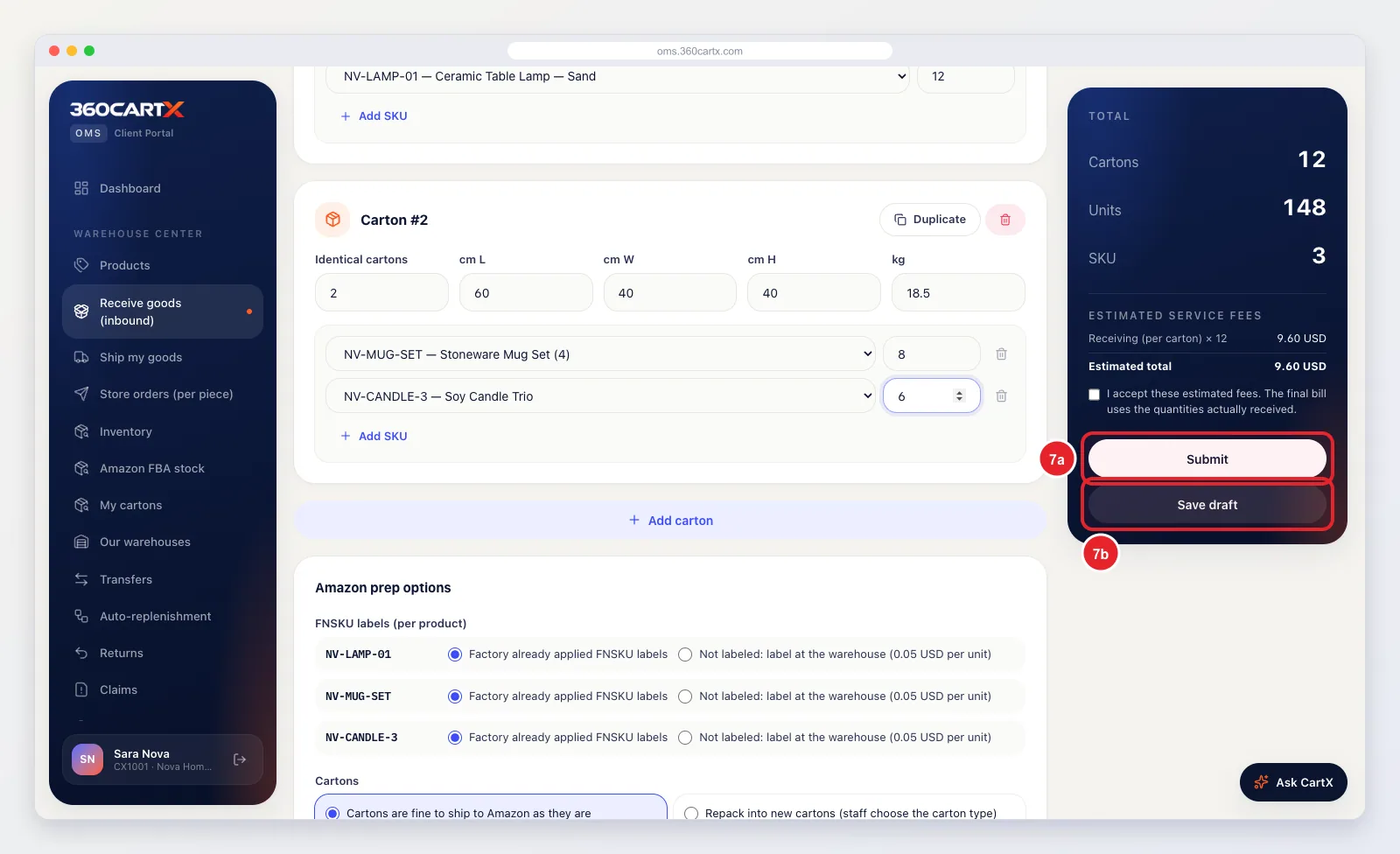
Click Submit to send the shipment to the warehouse: it gets an ASN number and the status Awaiting arrival. Click Save draft to finish it later; a draft is not sent to the warehouse. Either way the shipment page opens, where you print the carton labels.
- 7a Submit
- 7b Save draft
- 8
Submit a draft later
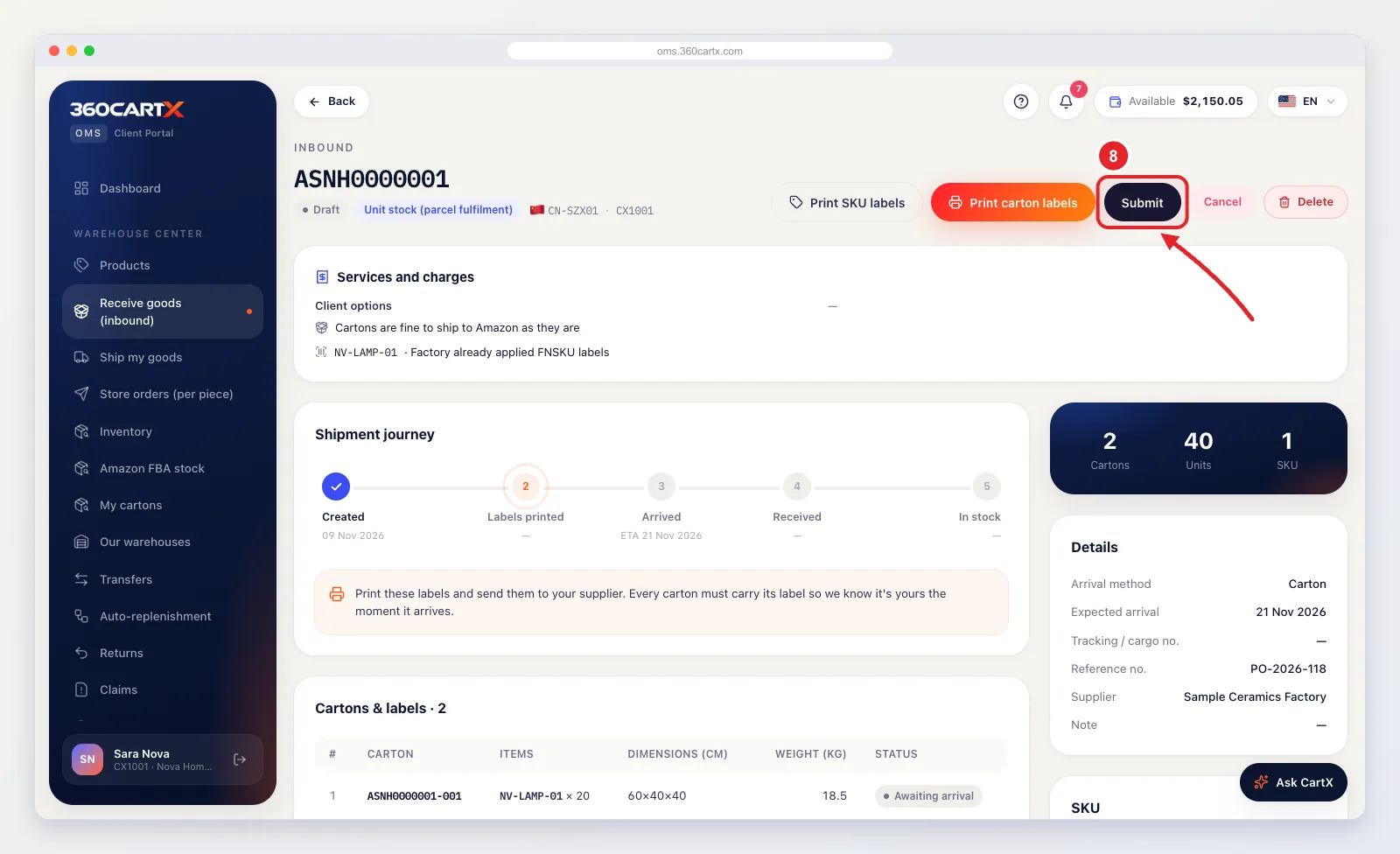
Open the draft from the inbound list and click Submit at the top of its page. If the draft has fees you have not accepted yet, the page first asks you to accept them.
Terms in this article
- ASN: Advance shipping notice: your inbound shipment record.
- Mixed box: A carton that holds more than one SKU.
- Client code: Your account code, written on every carton.
Tips
- One ASN can hold up to 2000 cartons, and up to 999 identical cartons per block.
- Mark every carton with its carton label so we know it is yours the moment it arrives. See Print carton labels for your supplier.
- Sending Amazon products? Each one needs its FNSKU and label file first. See Add the FNSKU and label file to an Amazon product.
Common problems
You need at least one approved product first.
Only approved products can be shipped in. Add a product and wait for its approval, or check its status in Products.
Every carton needs at least one SKU
A carton block has no product. Choose a product, or remove the block with the bin icon.
Only approved products can be shipped in
One of the products is not approved (any more). Check it in Products.
Needs FNSKU: add the FNSKU and upload the FNSKU label (3x5) for … first
An Amazon product in the shipment is missing its FNSKU or label file. Add them on the product, then submit again.
Max 2000 cartons per ASN
Split the shipment into two inbound shipments.
Tick the box to accept the estimated service fees
The shipment has service fees: tick I accept these estimated fees under the estimate, then click Submit.
Related articles
Updated 2026-11-09
Open a ticket from Support in your portal and our team will reply.