Steps
- 1
See the roles when you invite
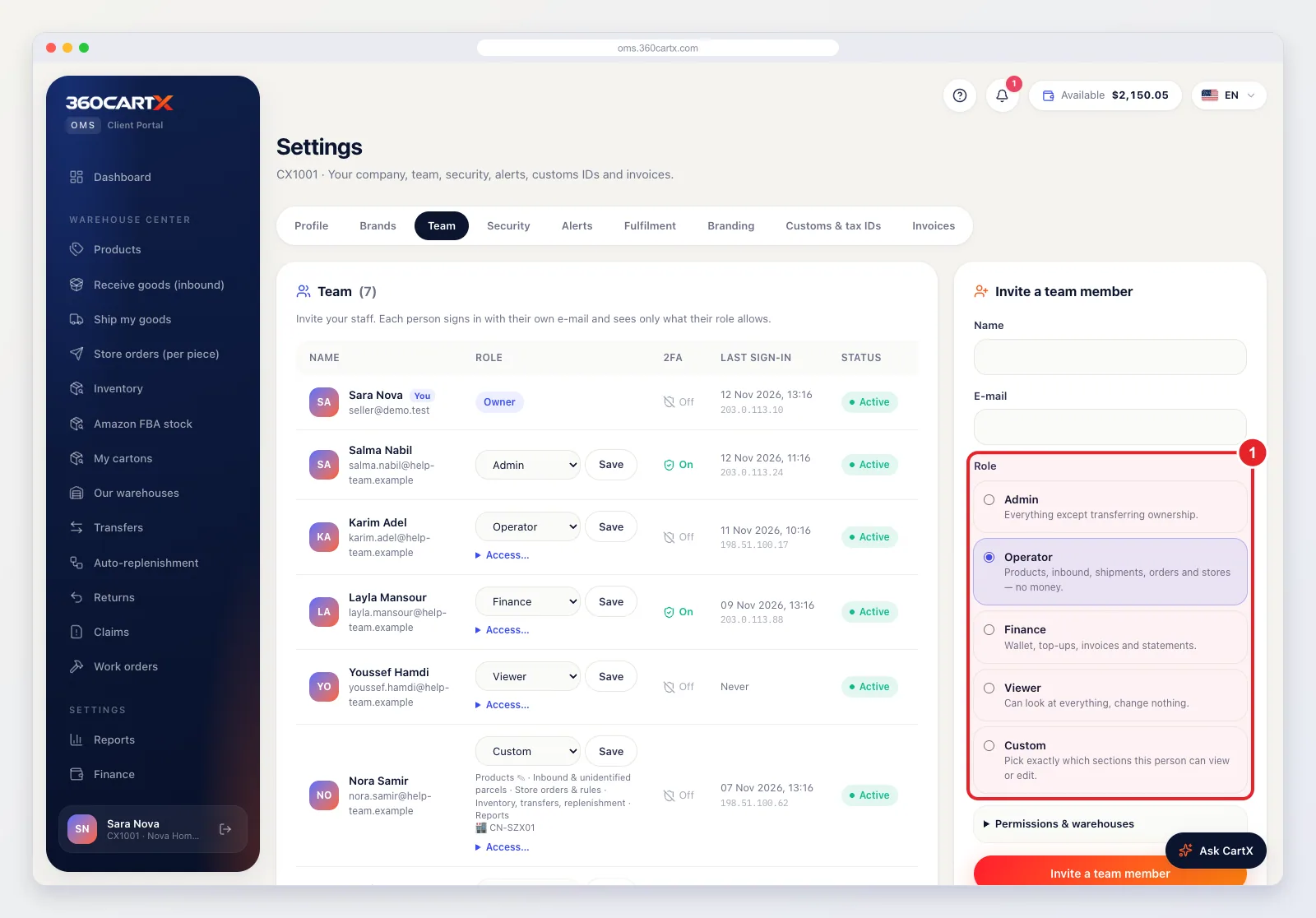
In Settings, Team the card Invite a team member lists the roles with a short description under each. Admin is shown only to the owner. Operator is selected to start with.
- 2
What each role can do
Owner: everything, including the team, security and ownership. There is one owner per account. Admin: everything except transferring ownership; only owners and admins manage the team, brands, API keys, connection of store apps, the warehouses of the account, alerts, branding and customs and tax IDs. Operator: products, inbound, shipments, orders, stores, returns, claims, transfers and work orders, and the Fulfilment tab (pause processing, shipping mapping). No money: an Operator cannot top up, pay a charge, ask for a refund or issue a statement. Finance: the wallet, top-ups, refunds, paying charges, invoices and statements, and the invoice details; a Finance user cannot change orders or goods. Viewer: can look at everything and change nothing. Custom: you choose the sections, each None, View or View + edit.
- 3
Build a custom role
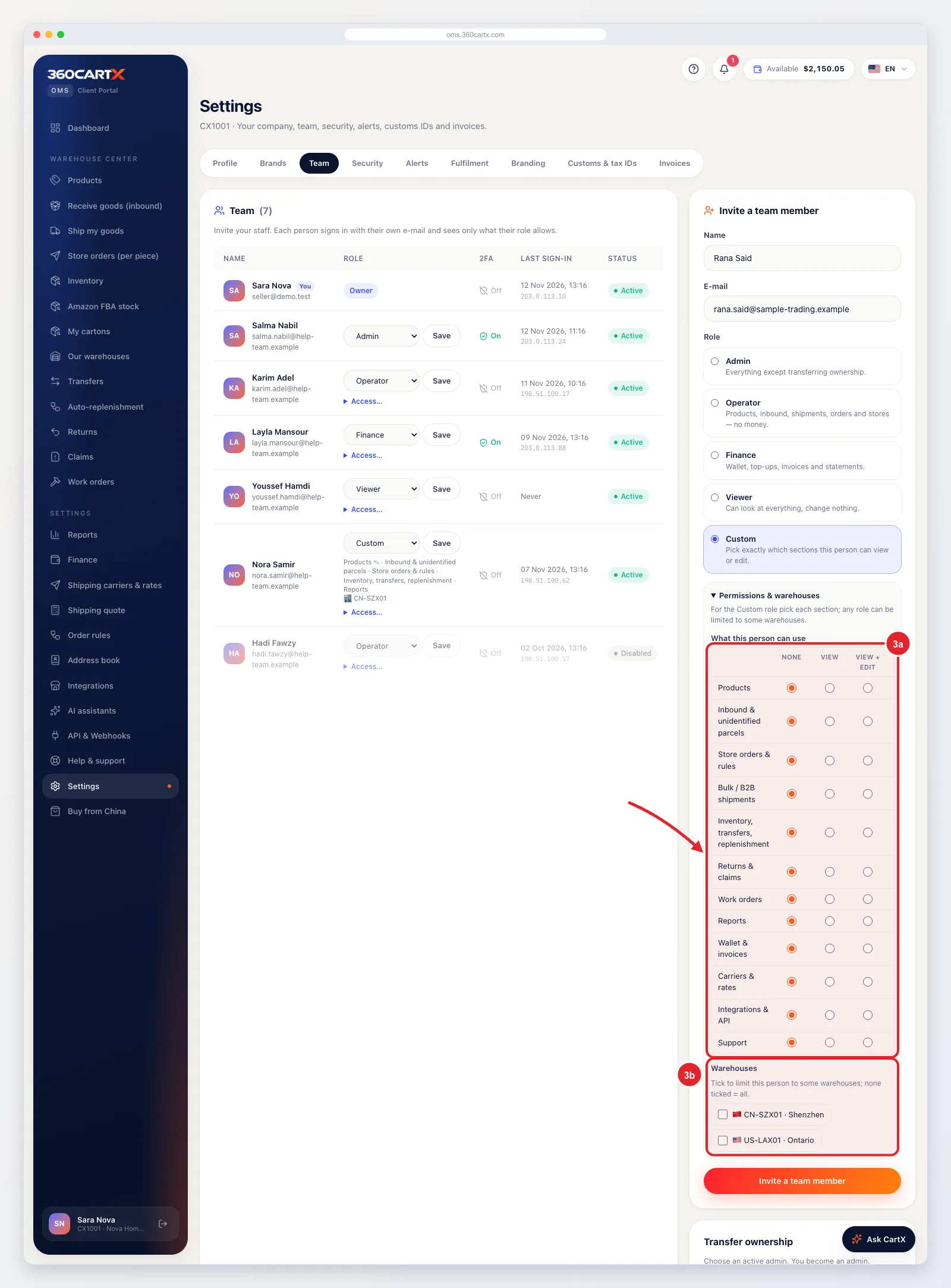
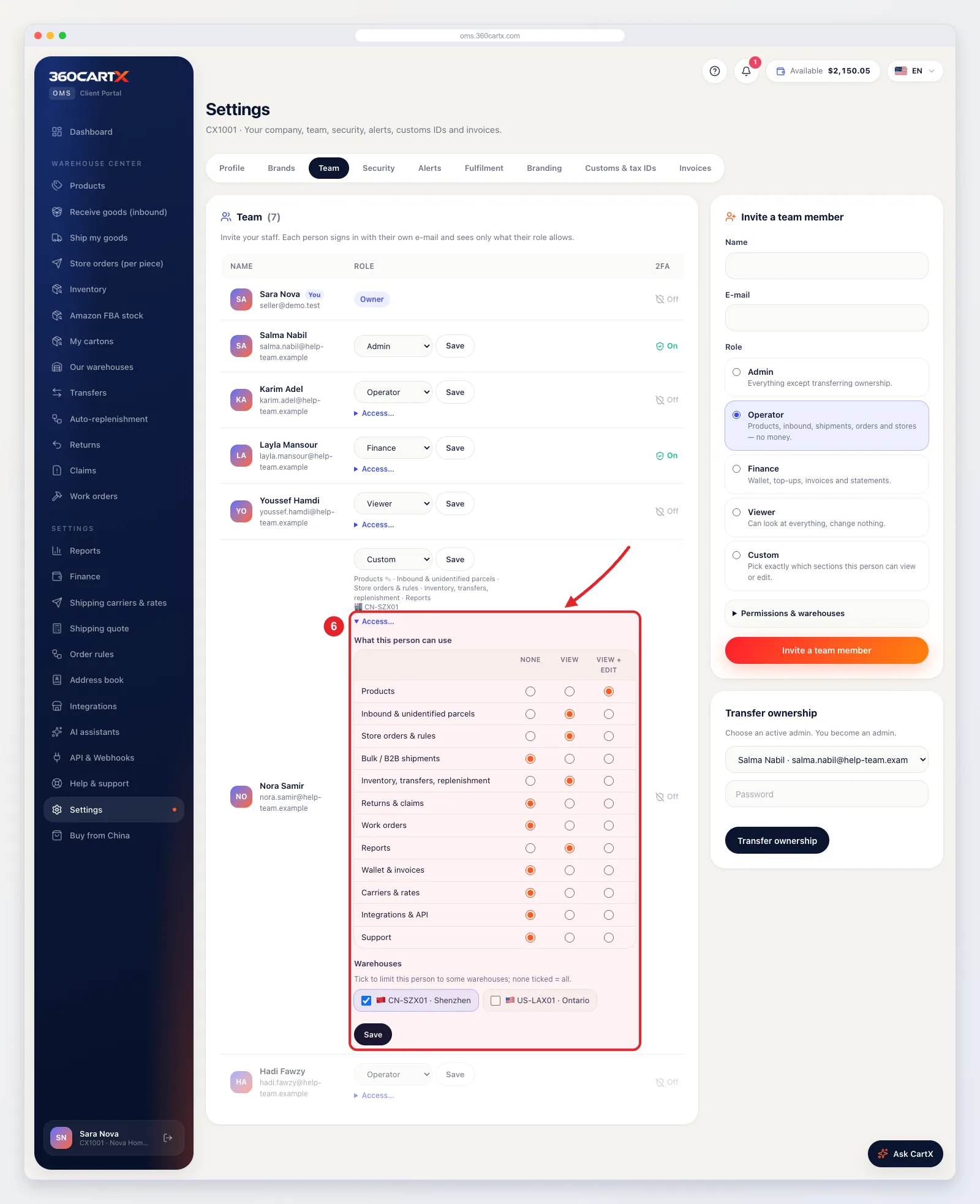
Choose Custom, then open Permissions & warehouses under the role list. The box What this person can use lists 12 sections, each with three buttons: None, View, View + edit. View lets the person open the pages of the section and look. View + edit also lets them change things there. The sections are Products; Inbound & unidentified parcels; Store orders & rules; Bulk / B2B shipments (Ship my goods and the address book); Inventory, transfers, replenishment (also Amazon FBA stock); Returns & claims; Work orders; Reports; Wallet & invoices; Carriers & rates; Integrations & API (stores, API and webhooks); and Support.
- 3a Sections
- 3b Warehouses
- 4
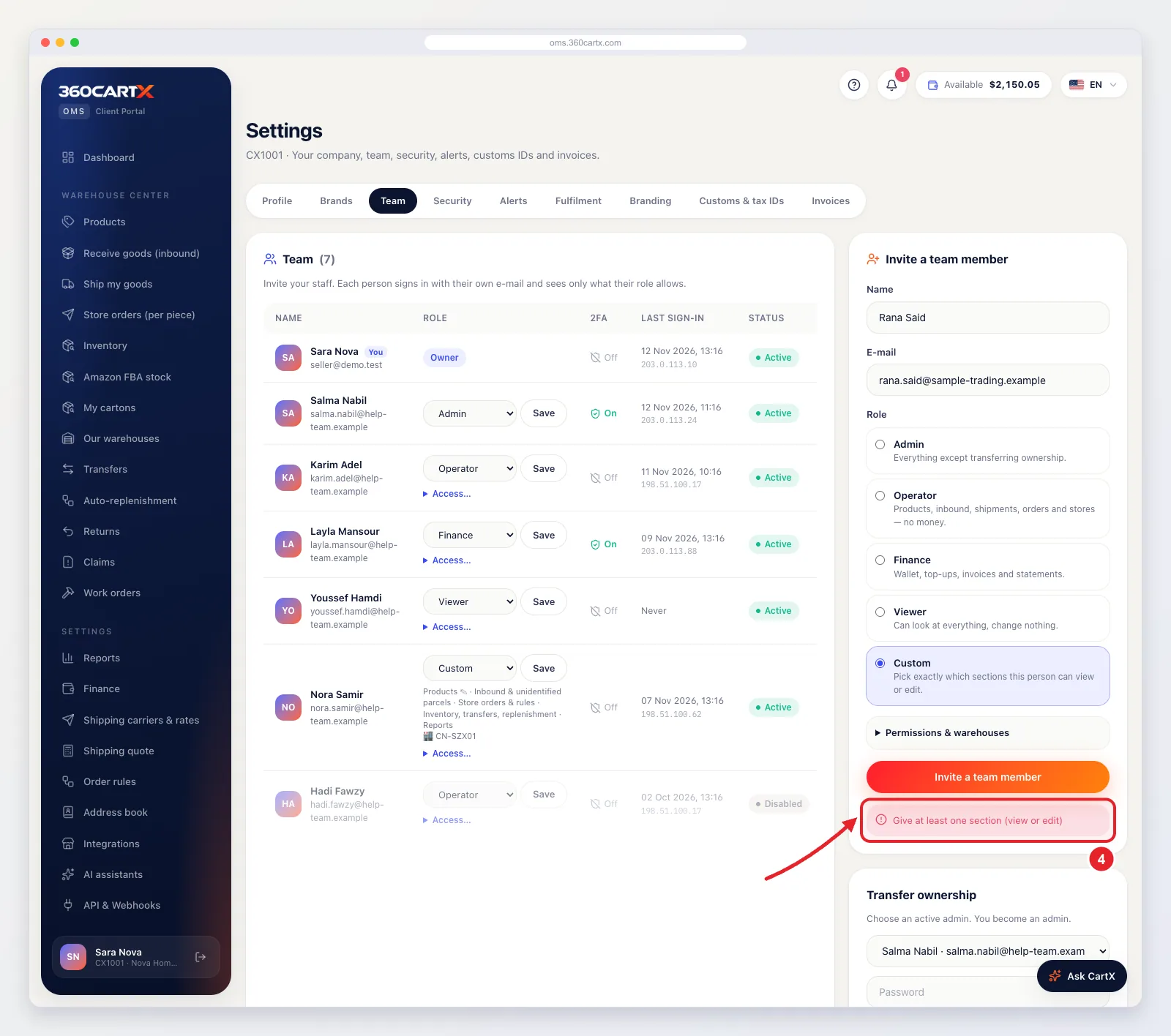
A custom role needs at least one section
If you invite someone as Custom and leave every section on None, the red message Give at least one section (view or edit) appears and nobody is invited. Tick View or View + edit for at least one section, then click Invite a team member again.
- 5
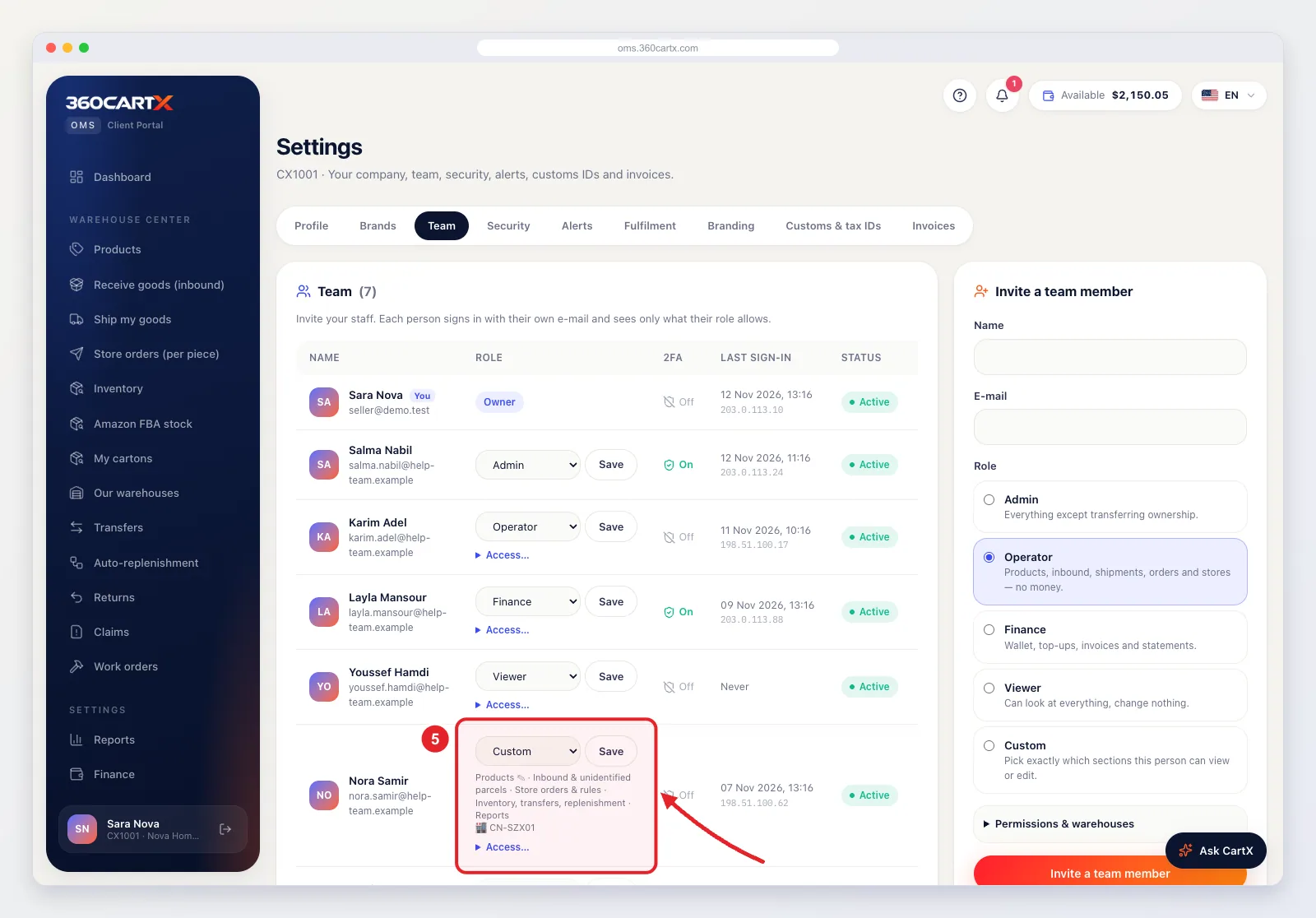
See the access in the team table
In the team table a Custom person shows, under the role, the list of the sections they can use. A pencil mark after a section means View + edit; no mark means View only. Here Nora Samir has Products with edit and view of Inbound, Store orders, Inventory and Reports. A line with a warehouse icon lists the warehouses she is limited to.
- 6
Change access later with Access
Under the role of every person except you, the owner and admins you find the link Access…. It opens the form Permissions & warehouses with Save: for a Custom role the section buttons and the warehouses, for any other role only the warehouses. Click Save, and Save ✓ confirms. If you turn someone into Custom with the role list, they can only open the pages that everybody can open until you choose their sections here. Warehouse limits apply when your account has more than one warehouse: tick the warehouses this person may use; none ticked means all of them. They do not apply to owners and admins.
- 7
What a custom person sees
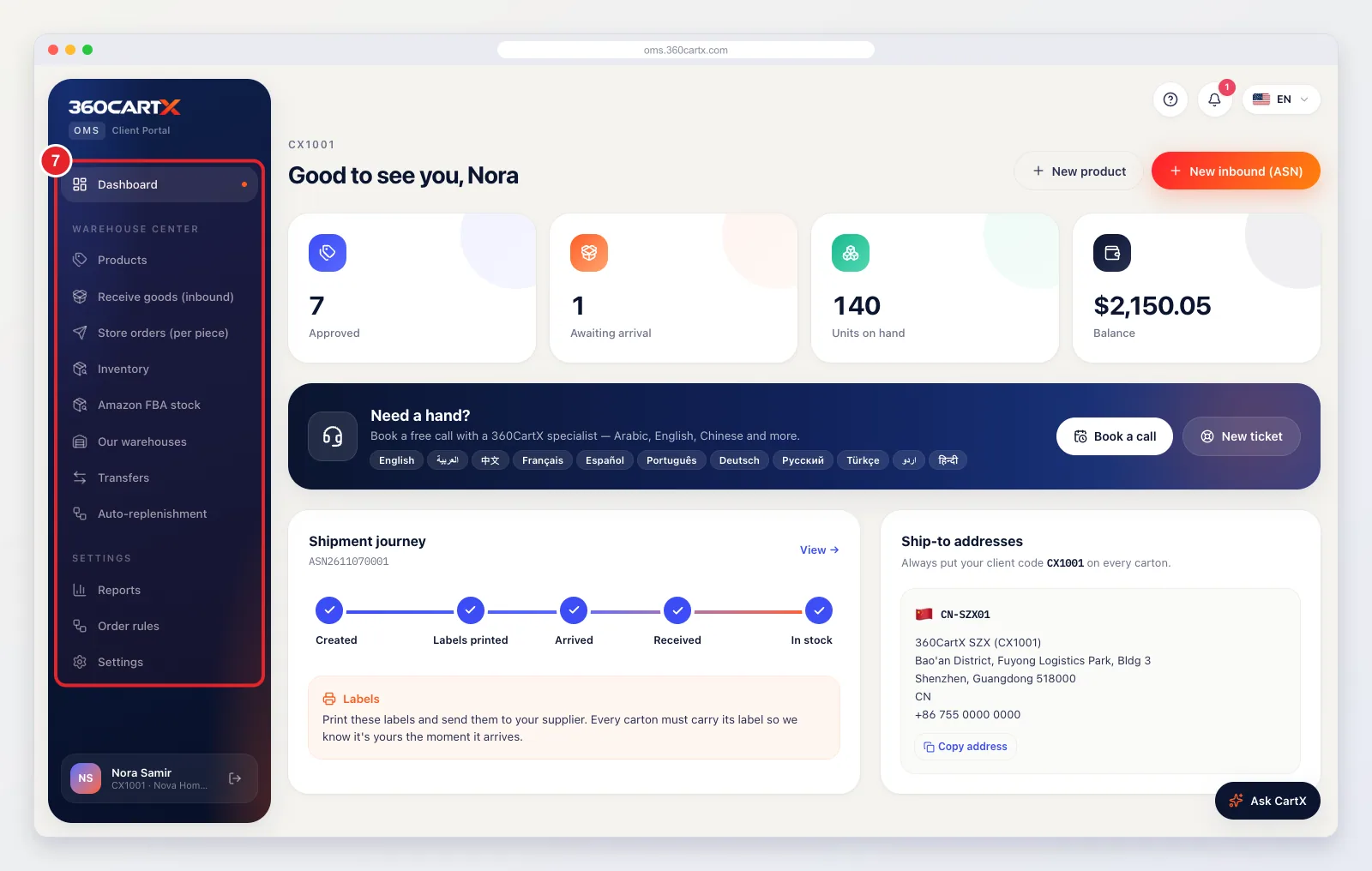
The left menu of a Custom person lists only the sections they were given, plus the pages everybody has: Dashboard, Our warehouses and Settings. The bell with Notifications and the Ask CartX button stay available too. Pages that belong to no section, such as My cartons, AI assistants and 360TradeX, are not available to Custom roles. In Settings they see Profile, Security and Alerts.
- 8
If they open a page without access
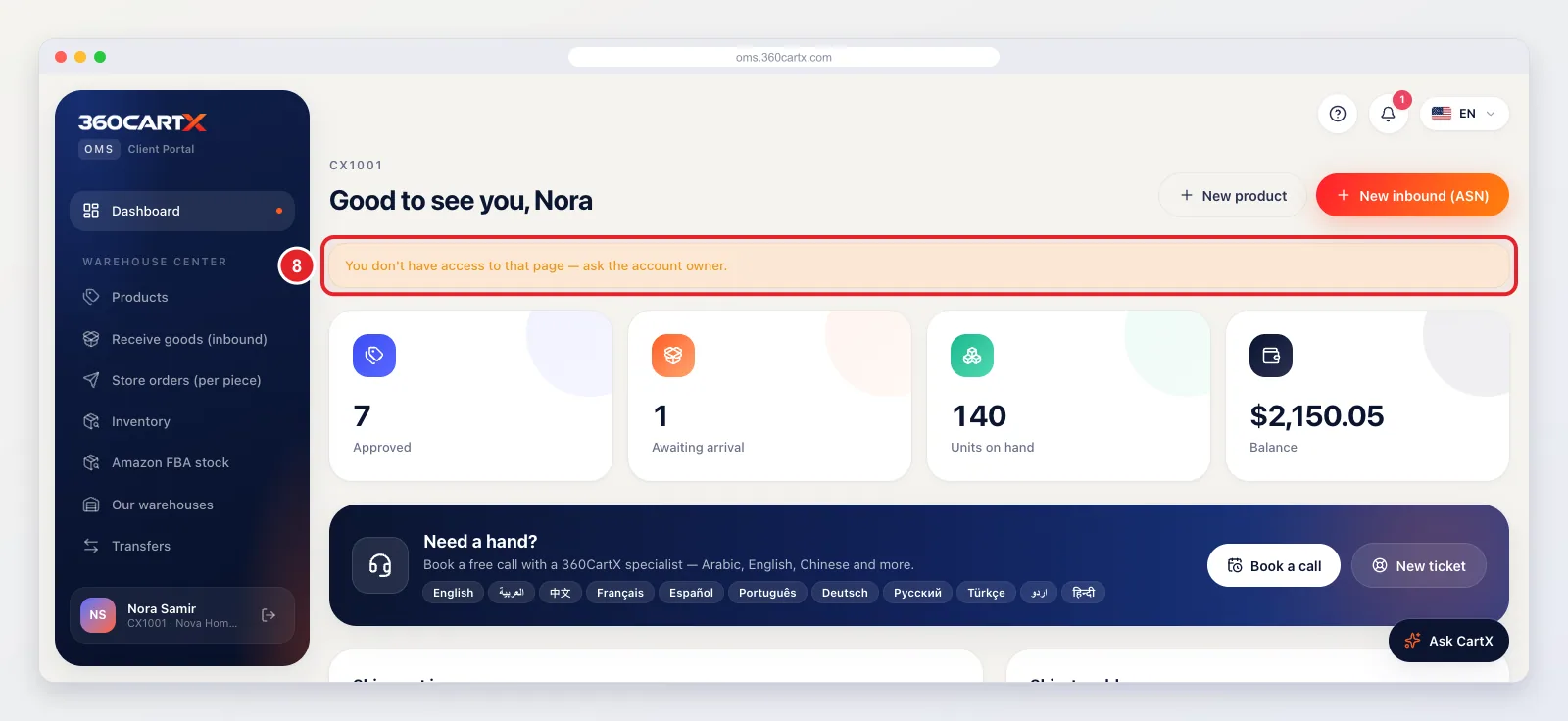
When a Custom person opens an address of a section they do not have, the portal sends them to the dashboard with the amber message You don't have access to that page, followed by ask the account owner. A person with View only who tries to change something gets You don't have permission for this, followed by ask the account owner.
Tips
- Start from the roles. Use Operator for people who run the warehouse side, Finance for your accountant and Viewer for managers who only look. Use Custom only when none of them fits.
- The role you see in the portal is shown on your own Profile tab, in the Role row.
- To limit someone to one warehouse, tick only that warehouse in Access…. The person then works with that warehouse only.
- Changes to a role apply at once. Nobody has to sign out and in again.
- Deactivate people who leave (Settings, Team). Their history stays but their sign-in stops.
Common problems
Give at least one section (view or edit)
A Custom role needs a section. Tick View or View + edit for at least one section and save again.
You don't have access to that page
The sections of this person's Custom role do not include that page. The owner or an admin can add the section in Settings, Team, Access….
You don't have permission for this
The person has View on the section but not View + edit. Change the section to View + edit in Access….
Your role can't do this
The action is for another role, for example a Viewer tried to change something, an Operator tried to pay, or someone who is not an admin tried to manage API keys. Ask the owner to change the role.
A new Custom person only sees the dashboard
No section has been chosen yet. Open Access… for that person and choose sections.
I cannot see the warehouse boxes
They appear only when your account has more than one warehouse.
Related articles
Updated 2026-11-12
Open a ticket from Support in your portal and our team will reply.