Steps
- 1
Open Settings, Security
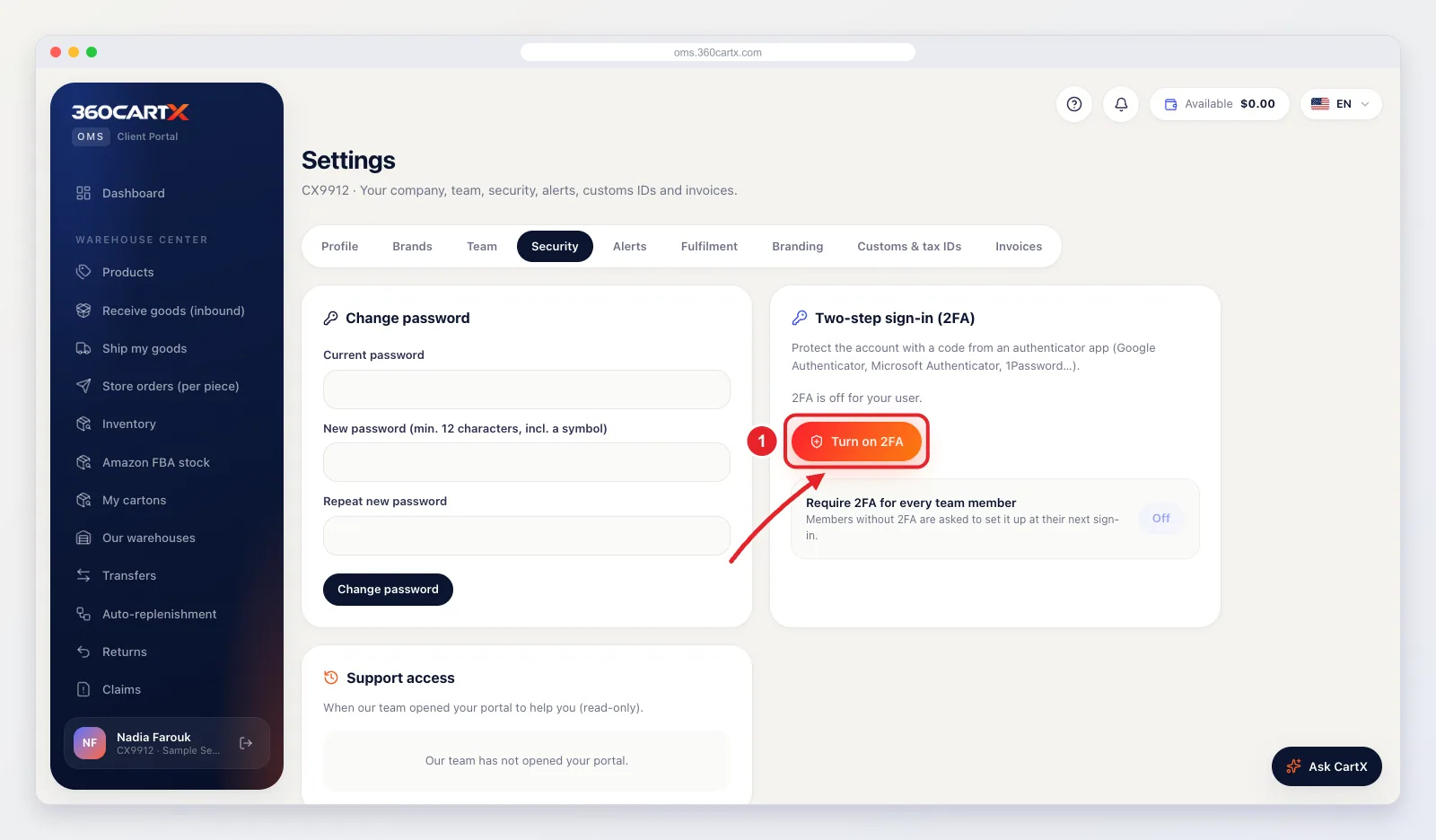
Click Settings in the left menu, then the Security tab. The card Two-step sign-in (2FA) says Protect the account with a code from an authenticator app (Google Authenticator, Microsoft Authenticator, 1Password) and, while it is off, the line 2FA is off for your user. Click Turn on 2FA. Before you click, install an authenticator app on your phone.
- 2
Scan the QR code and enter the first code
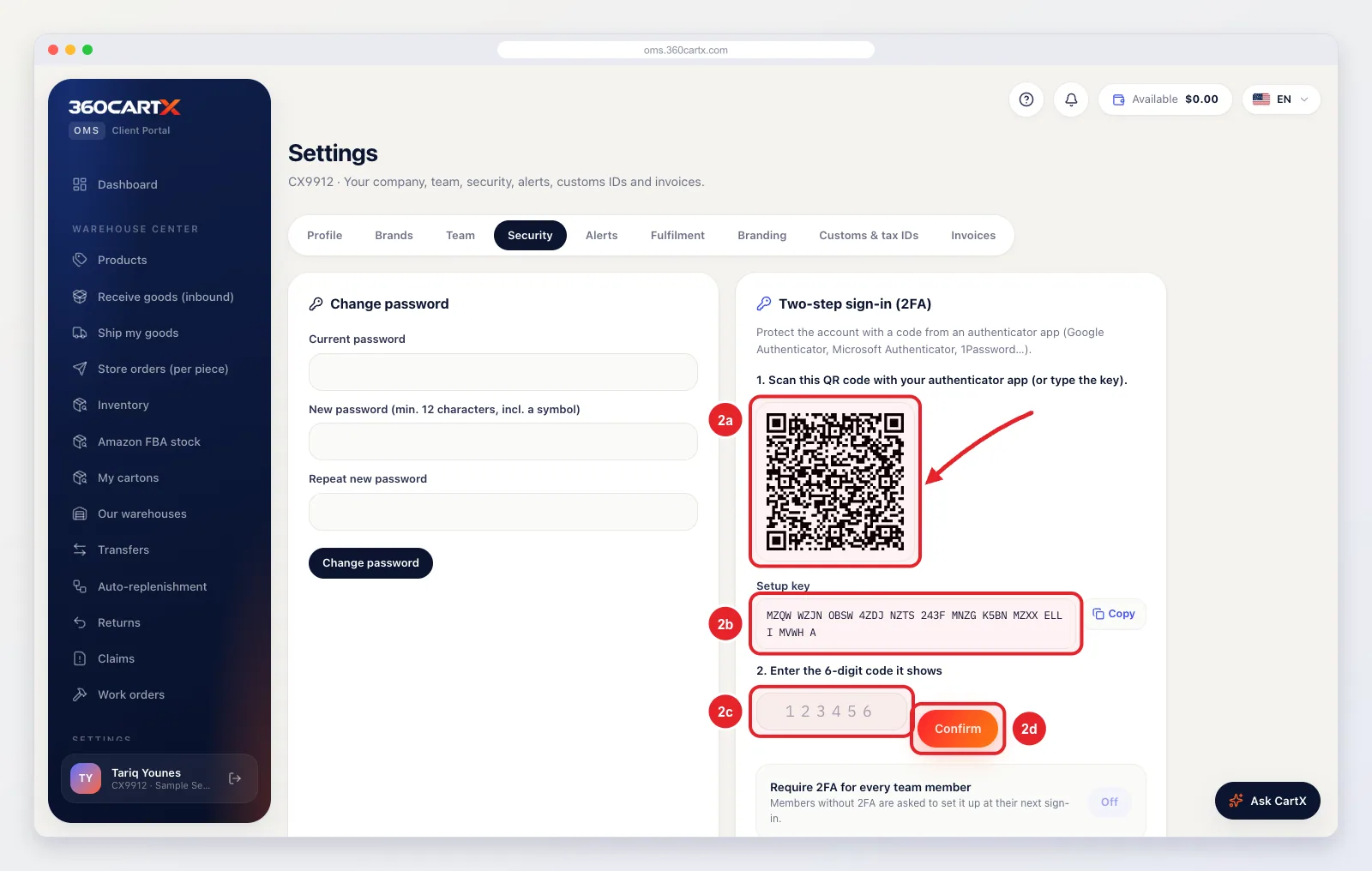
The card now shows two steps. Step 1: scan the QR code with your authenticator app, or type the Setup key (shown in groups of four letters and numbers, with a Copy button) if you cannot scan. Step 2: type the 6-digit code that the app shows now into the box and click Confirm. 2FA is not active yet at this point; it only starts when the code is accepted. If you leave the page and come back, the same QR code is still waiting for you. The values in this picture are made-up examples.
- 2a QR code
- 2b Setup key
- 2c 6-digit code
- 2d Confirm
- 3
If the code is not accepted
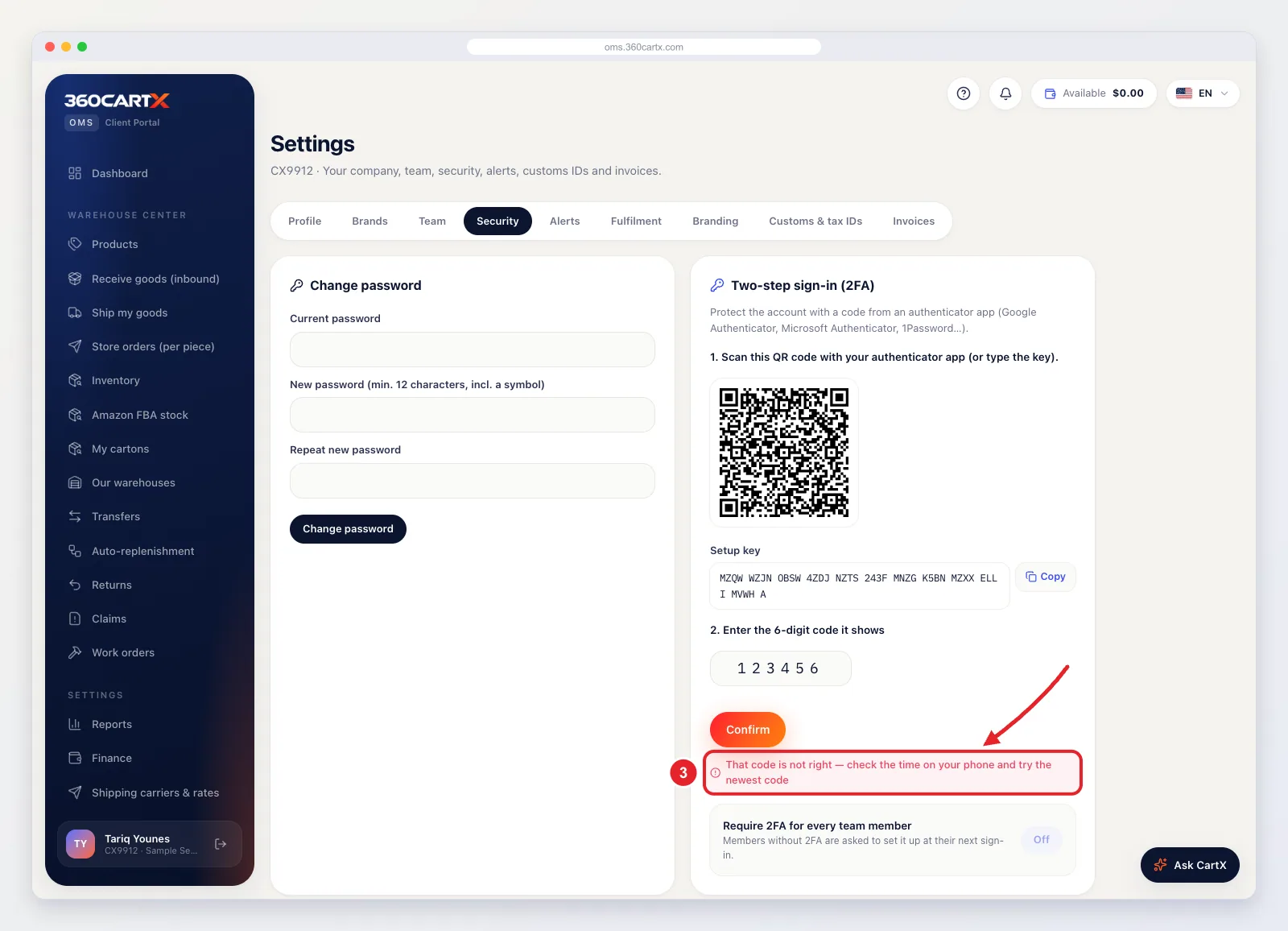
A code that is wrong or too old is refused with the red message That code is not right, followed by check the time on your phone and try the newest code. Wait for the next code in the app (it changes every 30 seconds) and type it at once. The server also accepts the code just before and just after the current one, to allow for small clock differences, but a phone with the wrong time will fail every time: set its date and time to automatic.
- 4
2FA is on
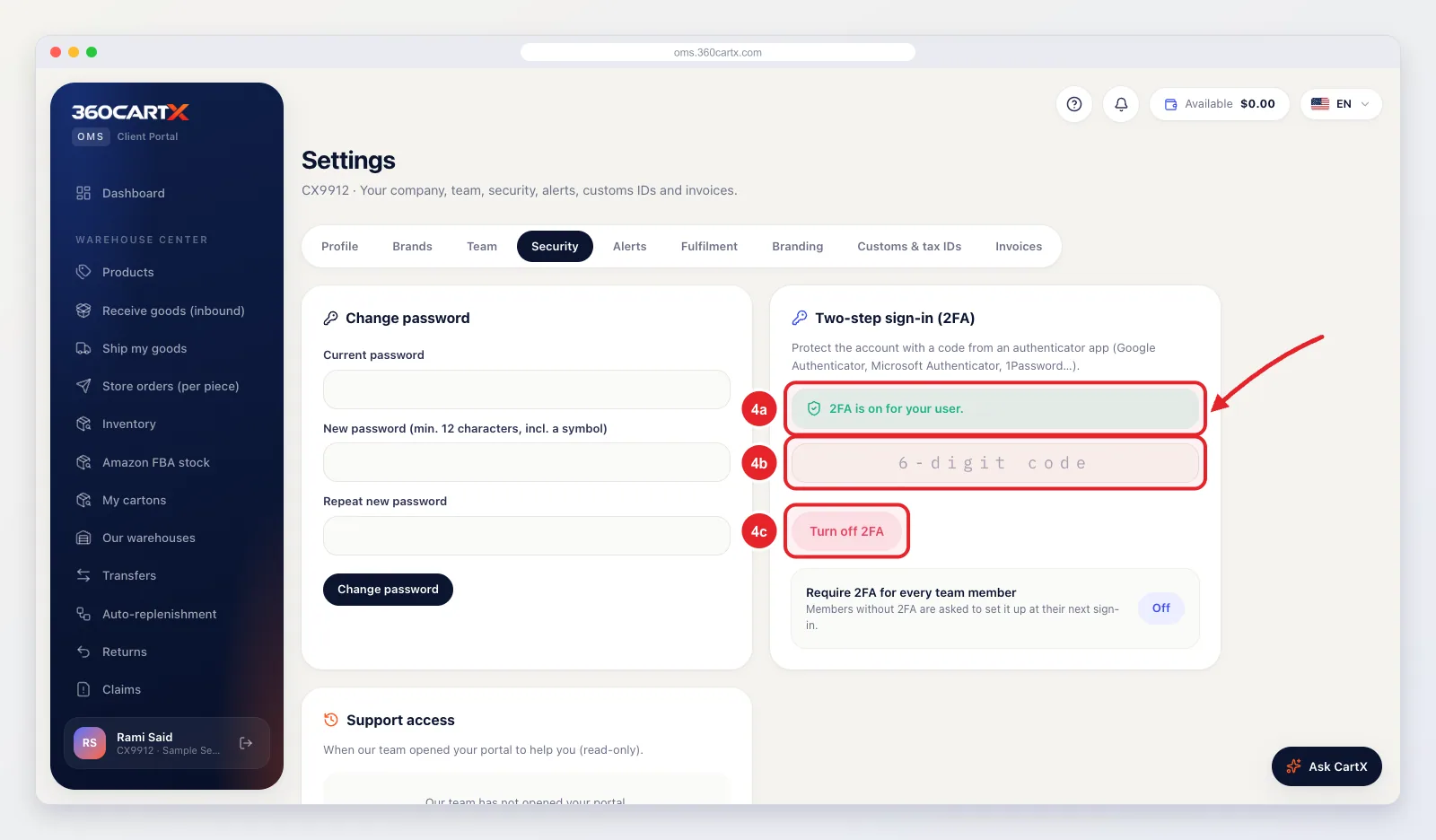
After the right code, the card shows a green box 2FA is on for your user. From now on, every sign-in asks for your password and then a 6-digit code (see Sign in with a two-step code). Under the green box is the box to turn it off again.
- 4a 2FA is on
- 4b Code box
- 4c Turn off 2FA
- 5
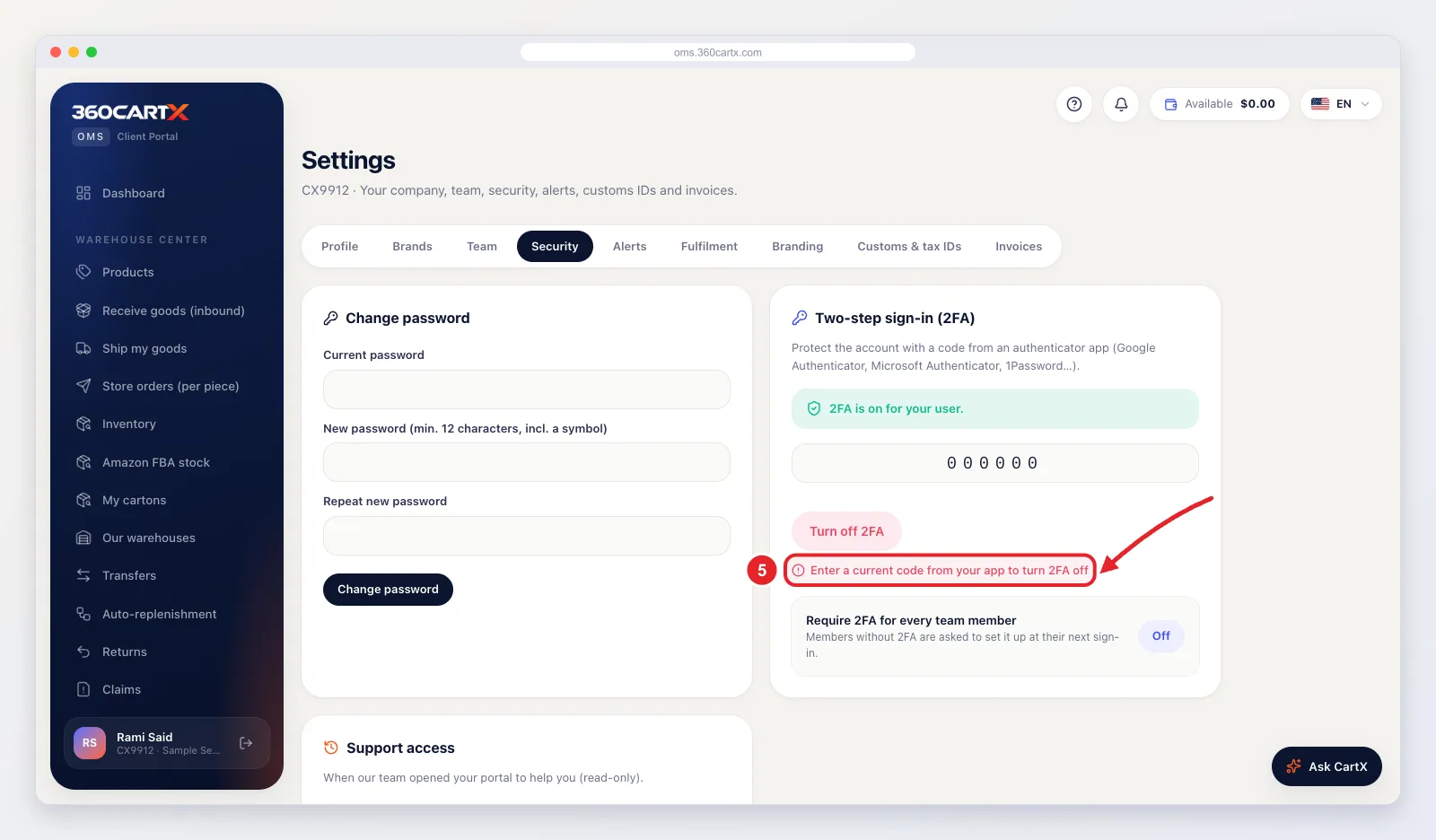
Turn 2FA off
To turn it off you must type a current code from your app and click Turn off 2FA. Without a right code you get the red message Enter a current code from your app to turn 2FA off, and it stays on. If your company requires 2FA for everybody, you cannot turn it off: the message is Your company requires 2FA, followed by an admin must turn that off first.
- 6
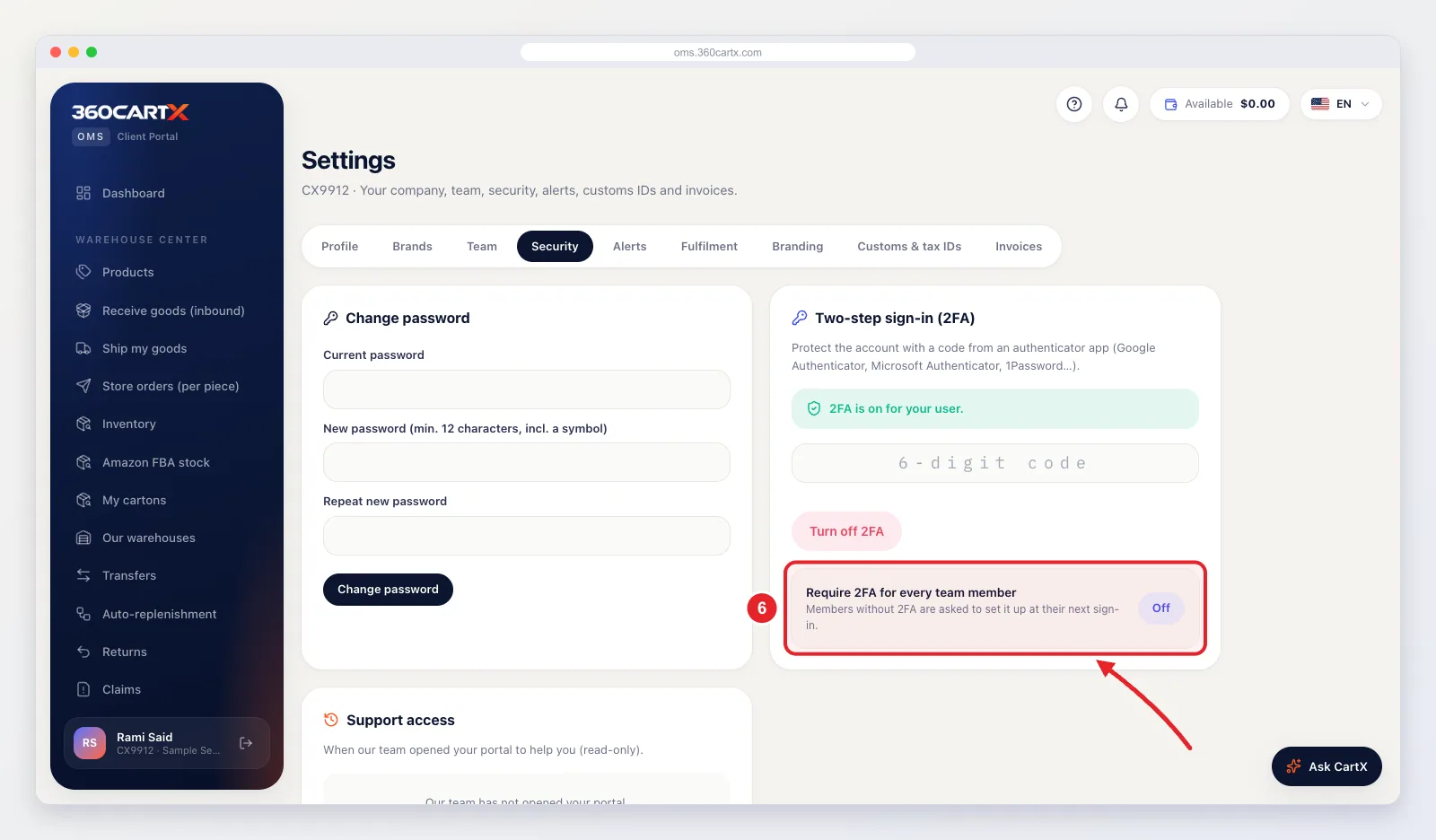
Require 2FA for every team member
The owner and admins also see the box Require 2FA for every team member with the hint Members without 2FA are asked to set it up at their next sign-in, and an Off button. You can switch it on only after you turned on 2FA for yourself; until then the button is greyed out. Click it and it changes to On. Click again to go back to Off.
- 7
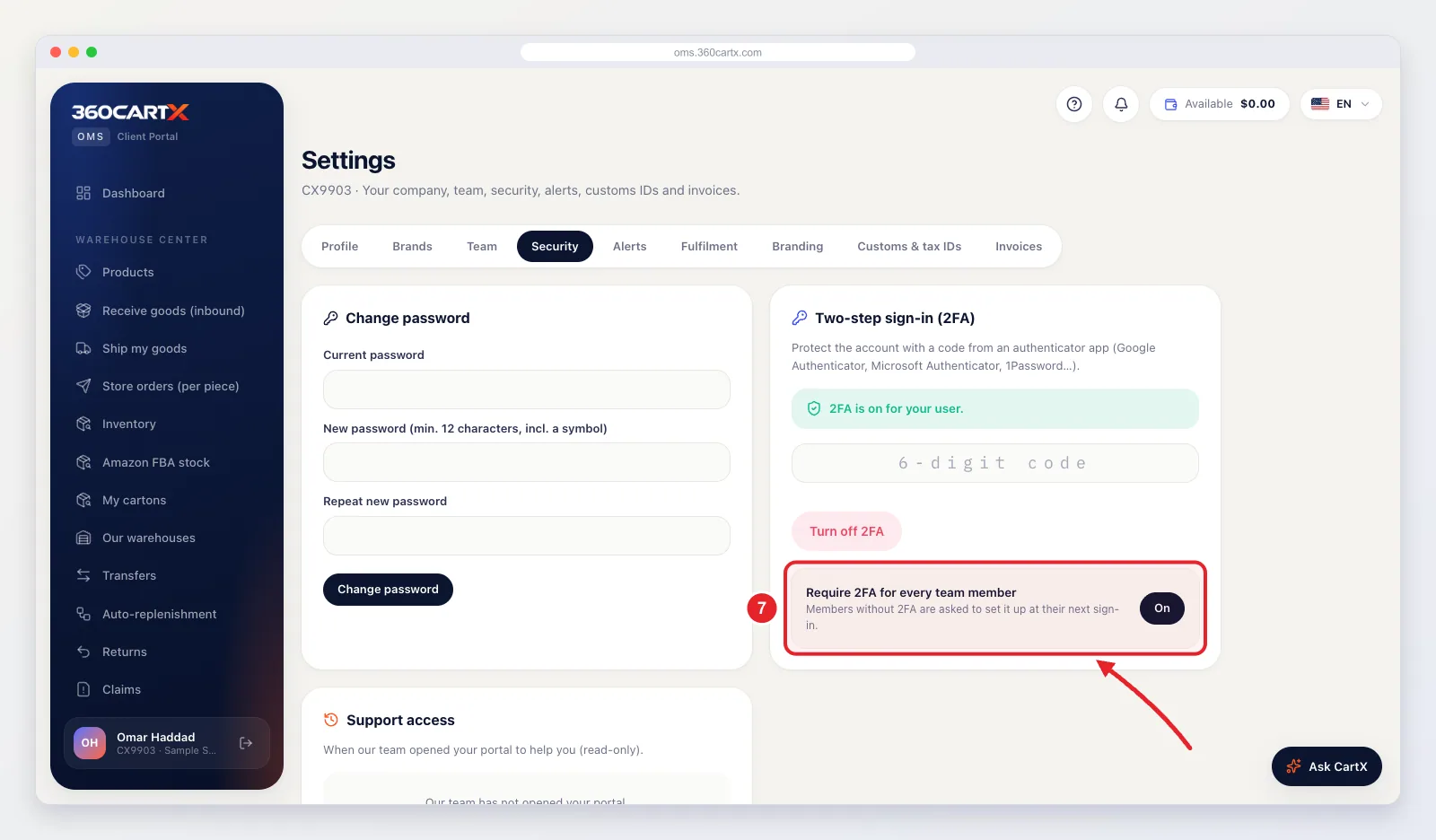
When it is required
With the switch On, the Security tab shows On in dark. Every person on the account who has not turned on 2FA now sees a message at the top of every page until they do. New brands you create also start with the requirement.
- 8
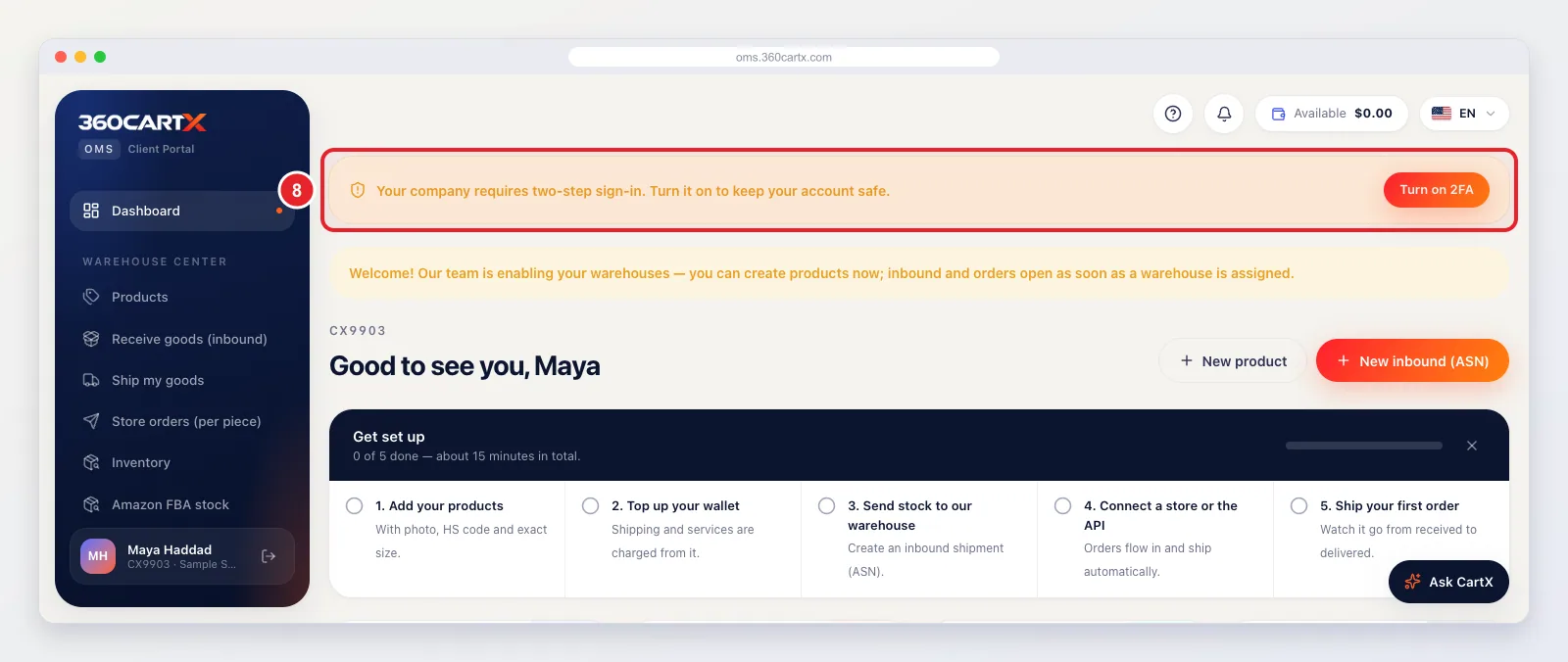
What your team sees
The message says Your company requires two-step sign-in. Turn it on to keep your account safe, and its button Turn on 2FA opens Settings, Security for that person. They do the same steps as above with their own phone. The message disappears once they have confirmed their first code.
- 9
Check who has 2FA
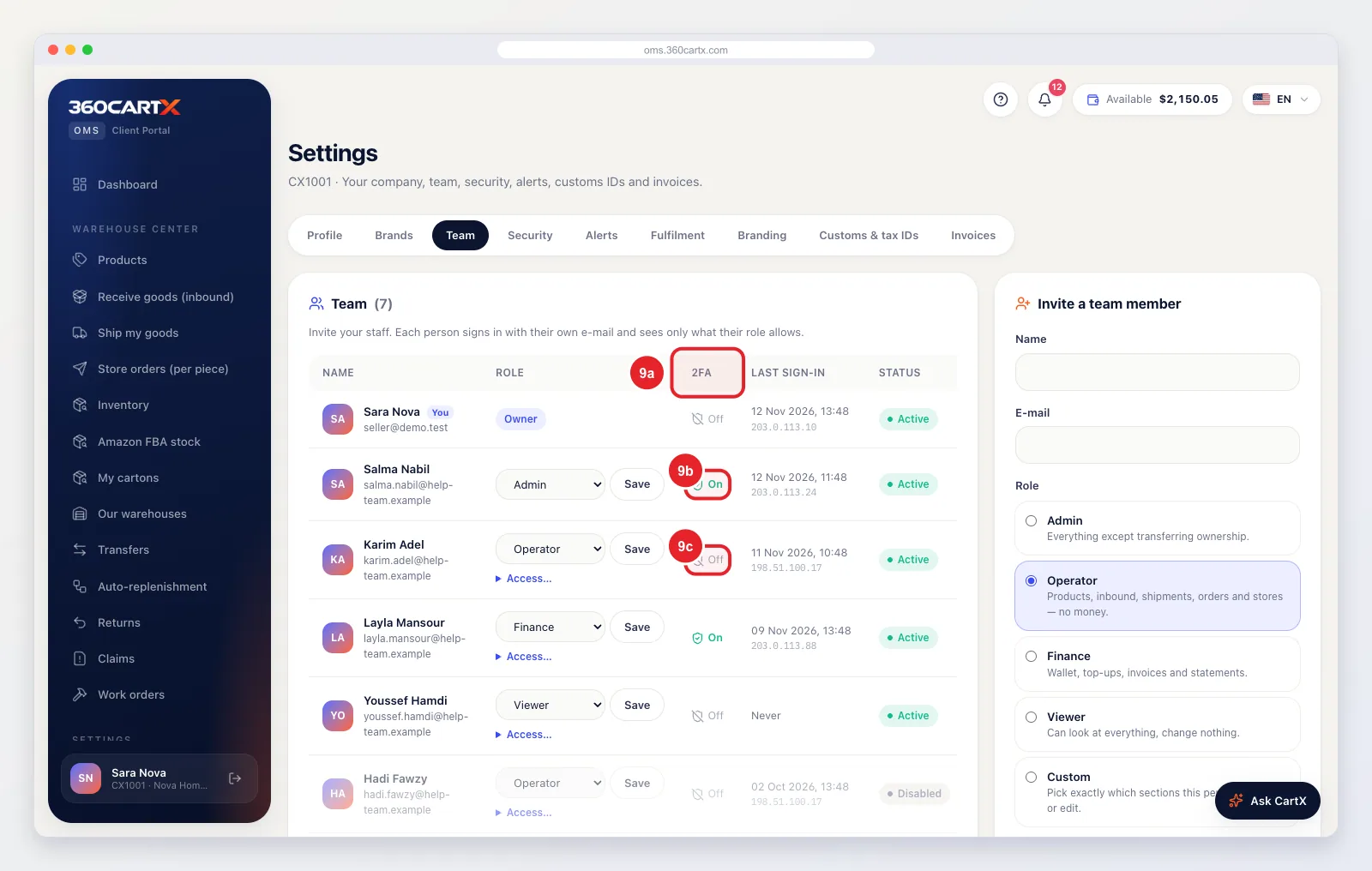
In Settings, Team the column 2FA shows On (green) or Off for each person, so you can see who still has to set it up.
- 9a 2FA column
- 9b On
- 9c Off
Tips
- Use an authenticator app on your phone, not SMS. Google Authenticator, Microsoft Authenticator, 1Password and similar apps all work.
- Moving to a new phone? Move your authenticator accounts first, before you reset or sell the old phone. If you lost the phone, contact support: they can turn two-step sign-in off for your login so you can set it up again.
- Make the owner's own 2FA the first one you set up: Require 2FA for every team member only works after your own is on.
- Signing in with Google? The same code is asked after Google, when 2FA is on.
- Never share the QR code or the setup key. Anyone with it can create the same codes.
Common problems
That code is not right
Use the newest code from the app, type it right away, and check that your phone's time is set automatically. Make sure you chose the 360CartX entry in the app.
Enter a current code from your app to turn 2FA off
Turning off needs a valid code. Open the app and type the code it shows now.
Your company requires 2FA: an admin must turn that off first
The owner or an admin has switched on Require 2FA for every team member. Ask them to switch it Off in Settings, Security, then turn off your own.
The Require 2FA button is greyed out
You have not turned on 2FA for yourself yet. Do that first.
I lost my phone and cannot get a code
Contact support. They can turn two-step sign-in off for your login, and then you set it up again in Settings, Security.
I do not see the Require 2FA box
Only the owner and admins see it.
Related articles
Updated 2026-11-12
Open a ticket from Support in your portal and our team will reply.