Steps
- 1
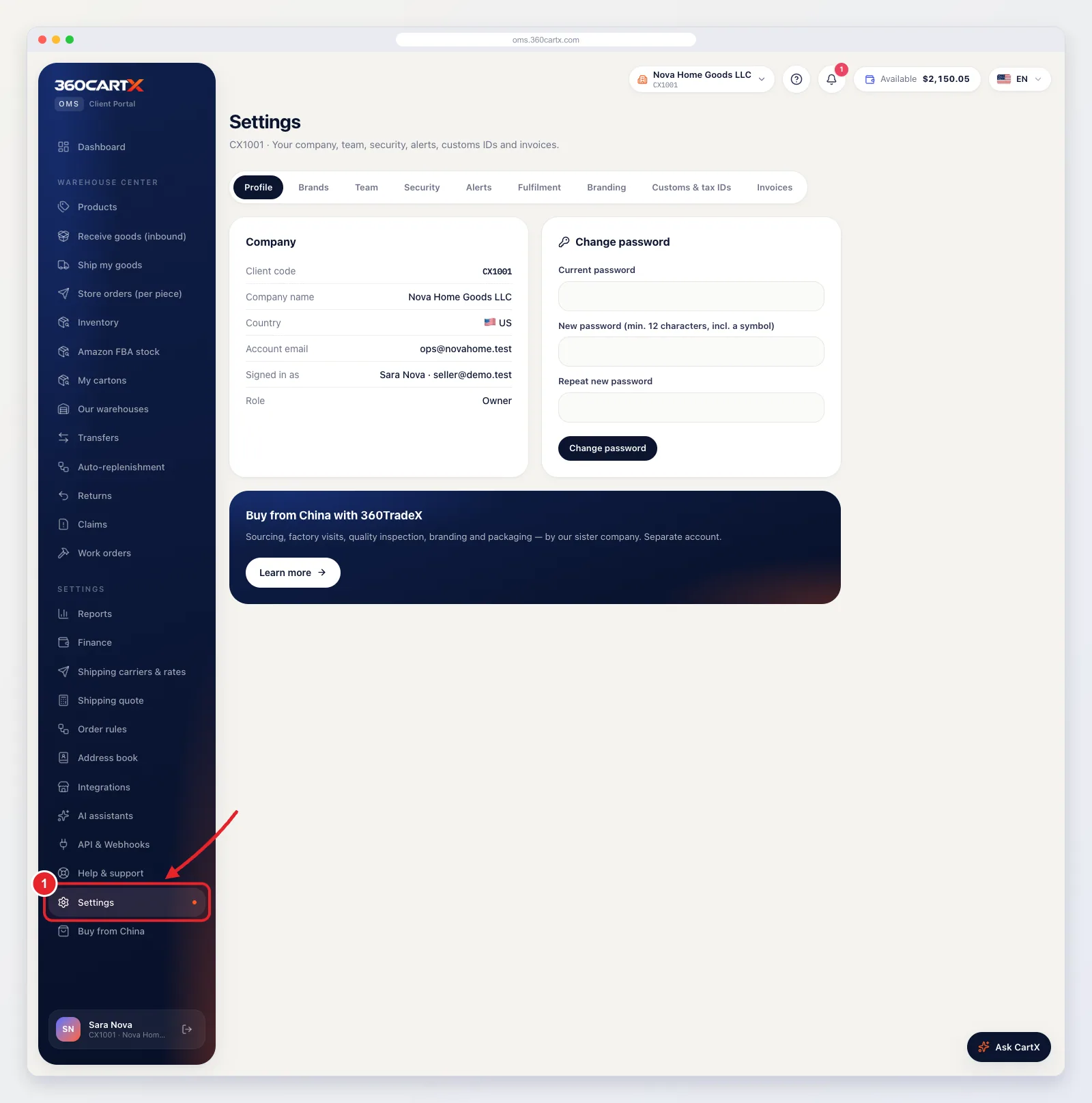
Open Settings from the left menu
Click Settings in the left menu (in the group that is also called Settings, between Help & support and Buy from China). The page opens on the Profile tab, and its title line shows your client code. The same menu item stays highlighted when you are on the Notifications page, because notifications belong to your account area as well. An old My account address that you may have bookmarked sends you here too.
- 2
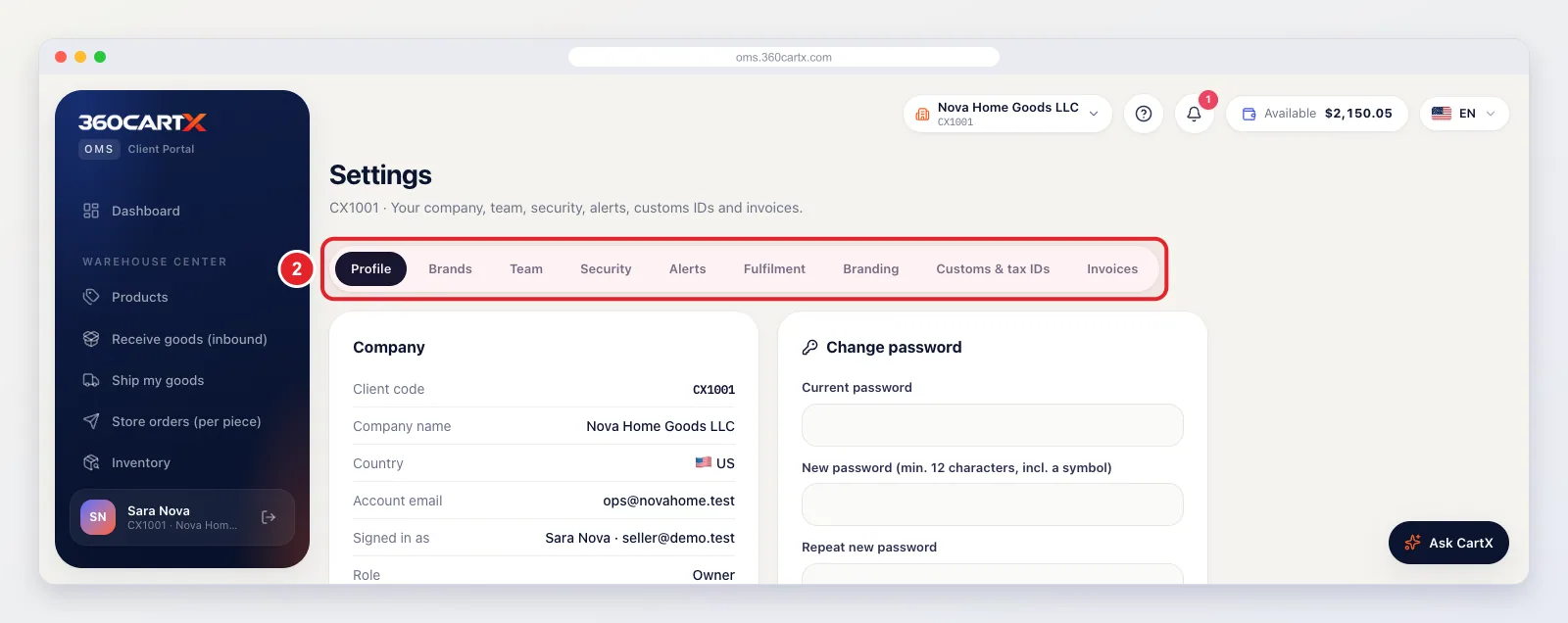
Choose a tab
The tabs sit under the page title: Profile, Brands, Team, Security, Alerts, Fulfilment, Branding, Customs & tax IDs and Invoices. Click one to open it; the open tab is dark. The address of each tab ends with ?tab= and a name, for example /oms/settings?tab=team, so you can bookmark a tab.
- 3
What each tab does
Profile shows your company and sign-in details and lets you change your password. Brands lists your brands (subaccounts) and creates new ones. Team invites colleagues and sets their roles. Security holds your password, two-step sign-in (2FA) and the list of times our team opened your portal. Alerts chooses which notifications reach you by e-mail and in the portal. Fulfilment pauses or resumes automatic order processing and maps your store's shipping option names to carriers. Branding sets your logo, colour, packing slip and gift notes. Customs & tax IDs stores IOSS, VAT, VOEC and CPF / CNPJ numbers and a default recipient phone. Invoices keeps your invoice details, your invoices and the monthly statement.
- 4
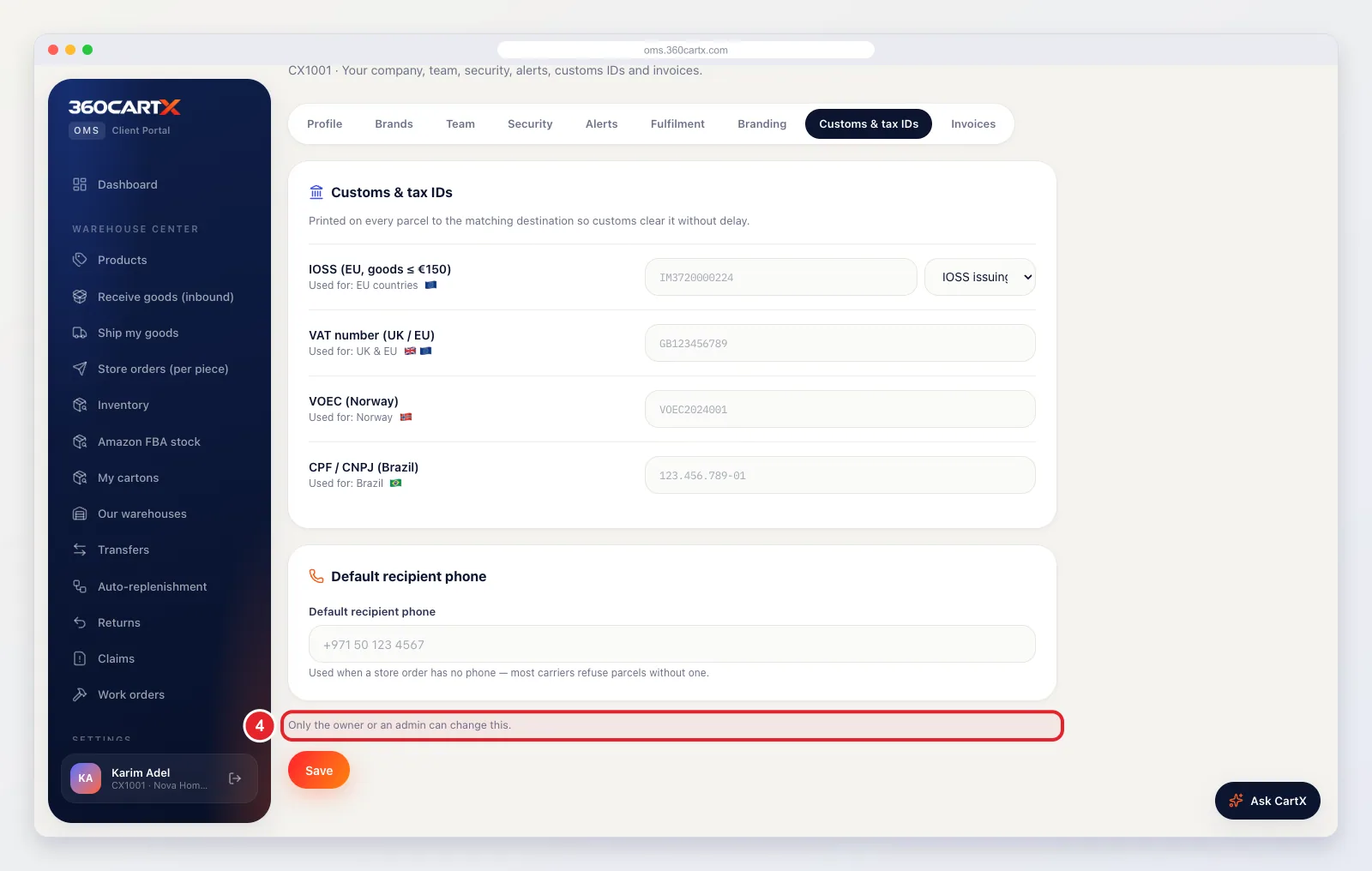
Tabs you can look at but not change
Some people may open a tab but not edit it. The tab then shows the notice Only the owner or an admin can change this. and the fields are greyed out. Here an Operator opened Customs & tax IDs. The rules: Brands, Team, Alerts, Branding and Customs & tax IDs are changed by the owner or an admin. Fulfilment can also be changed by an Operator. Invoices can also be changed by a Finance user. Profile and Security are always about your own login.
- 5
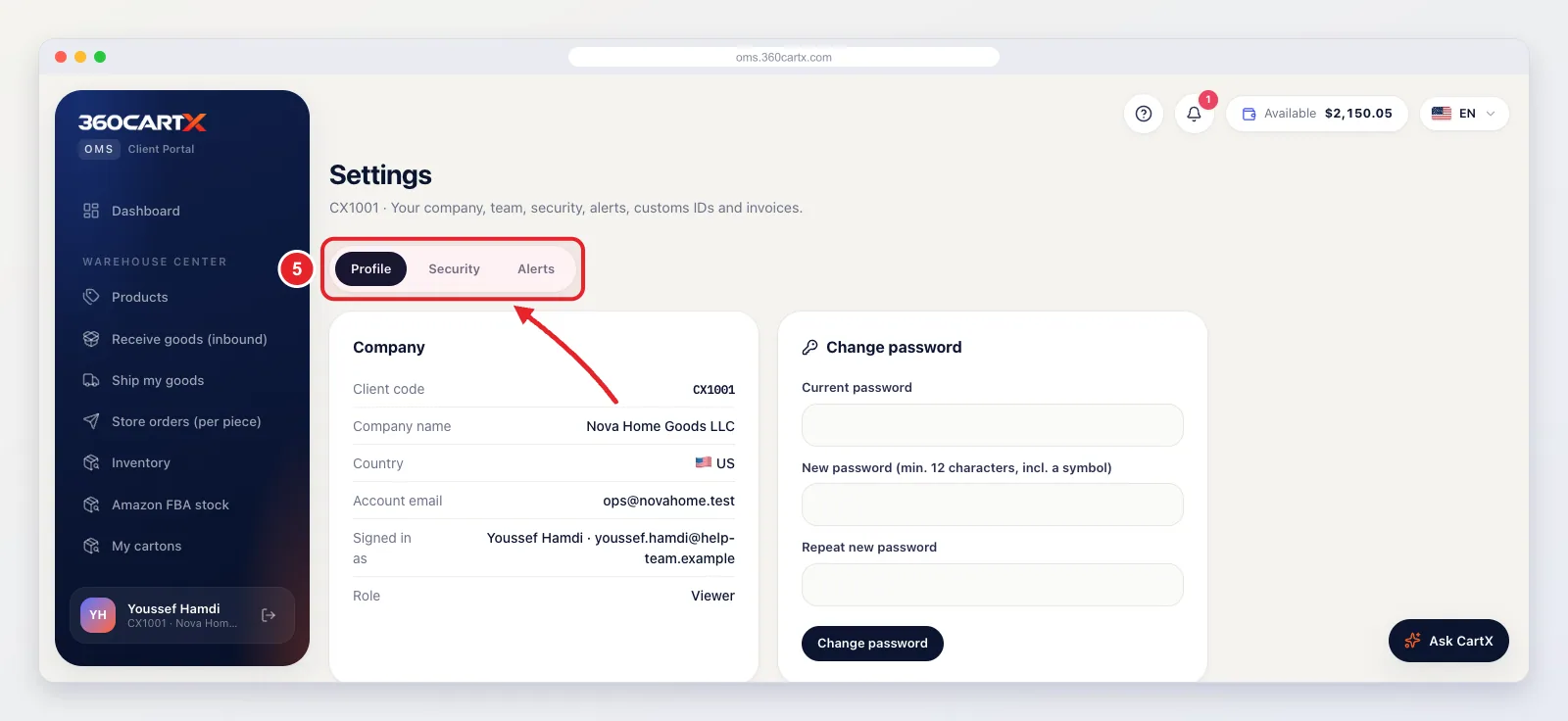
Viewers and custom roles see three tabs
People with the Viewer role or a Custom role see only Profile, Security and Alerts. This is the Settings page of a Viewer. They can change their own password and 2FA, and look at the alert settings. Everything else in Settings is hidden from them. Roles are explained in Team roles and permissions.
Tips
- Only the owner or an admin sees the buttons that change the team, the brands and the security rules of the whole company.
- Looking for notifications? The bell at the top opens the latest ones, and the Notifications page keeps them all. Alerts is where you choose which ones you get.
Common problems
I do not see a tab that my colleague has
Tabs depend on the role. Viewer and Custom roles see only Profile, Security and Alerts. Ask the account owner to change your role in Settings, Team if you need more.
The fields are greyed out and it says Only the owner or an admin can change this.
Your role may look at this tab but not change it. Ask the owner or an admin of your company to make the change, or to give you the Admin role.
You don't have access to that page
This message (followed by ask the account owner) appears on the dashboard when a Custom role opens a page that its sections do not include. Settings itself is always open to everyone who is signed in.
Related articles
Updated 2026-11-12
Open a ticket from Support in your portal and our team will reply.