Steps
- 1
The brand switcher appears when you have brands
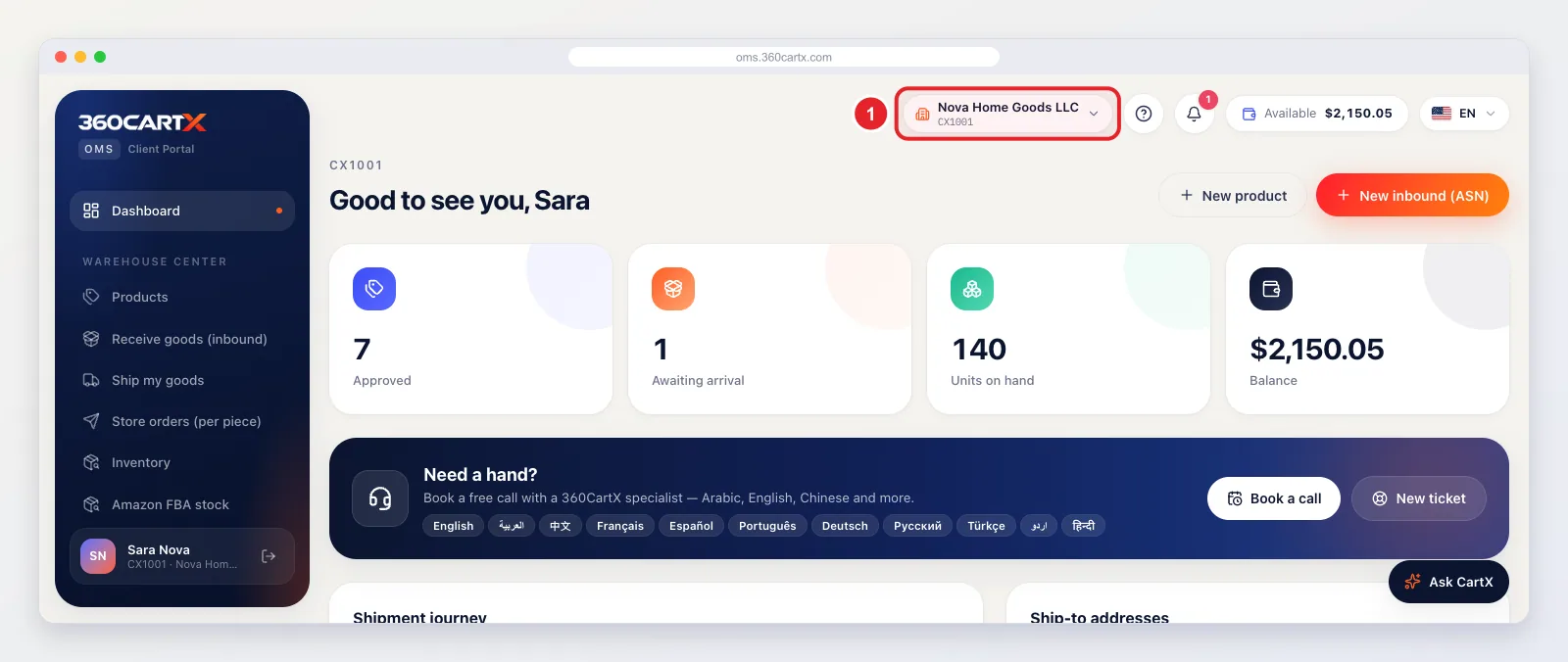
Once you have at least one brand, a button with a building icon appears at the top of every page, left of the help button. It shows the name of the account you are working in and, in small type under it, its client code. The button is only shown to the owner and admins, and not while our team previews your portal.
- 2
Switch brand
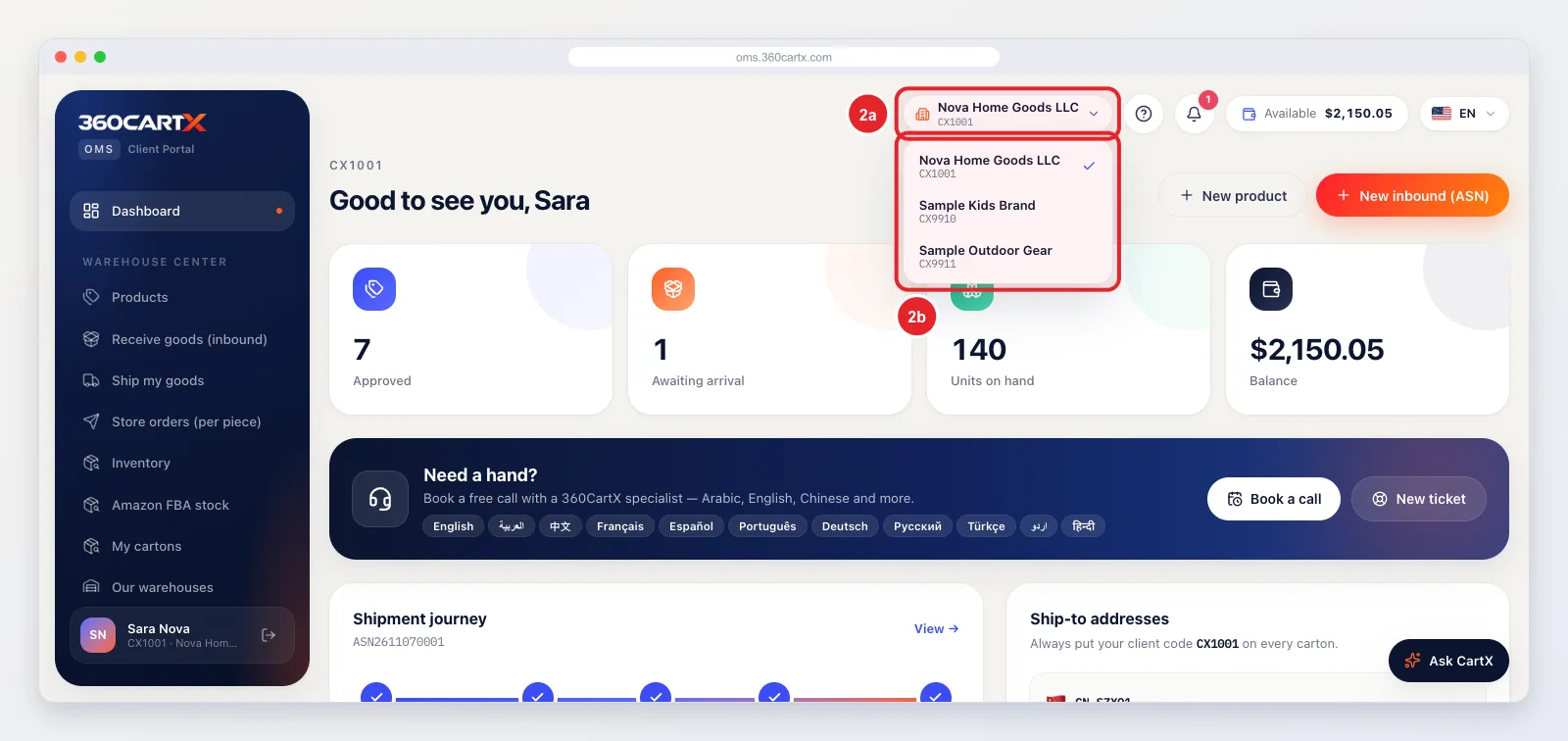
Click the button to open the list: your main account first, then your brands in client code order. The one you are in has a tick. Click another name and the portal reloads on the dashboard of that account. You stay signed in as the same person with the same role.
- 2a Current account
- 2b List of accounts
- 3
Know where you are
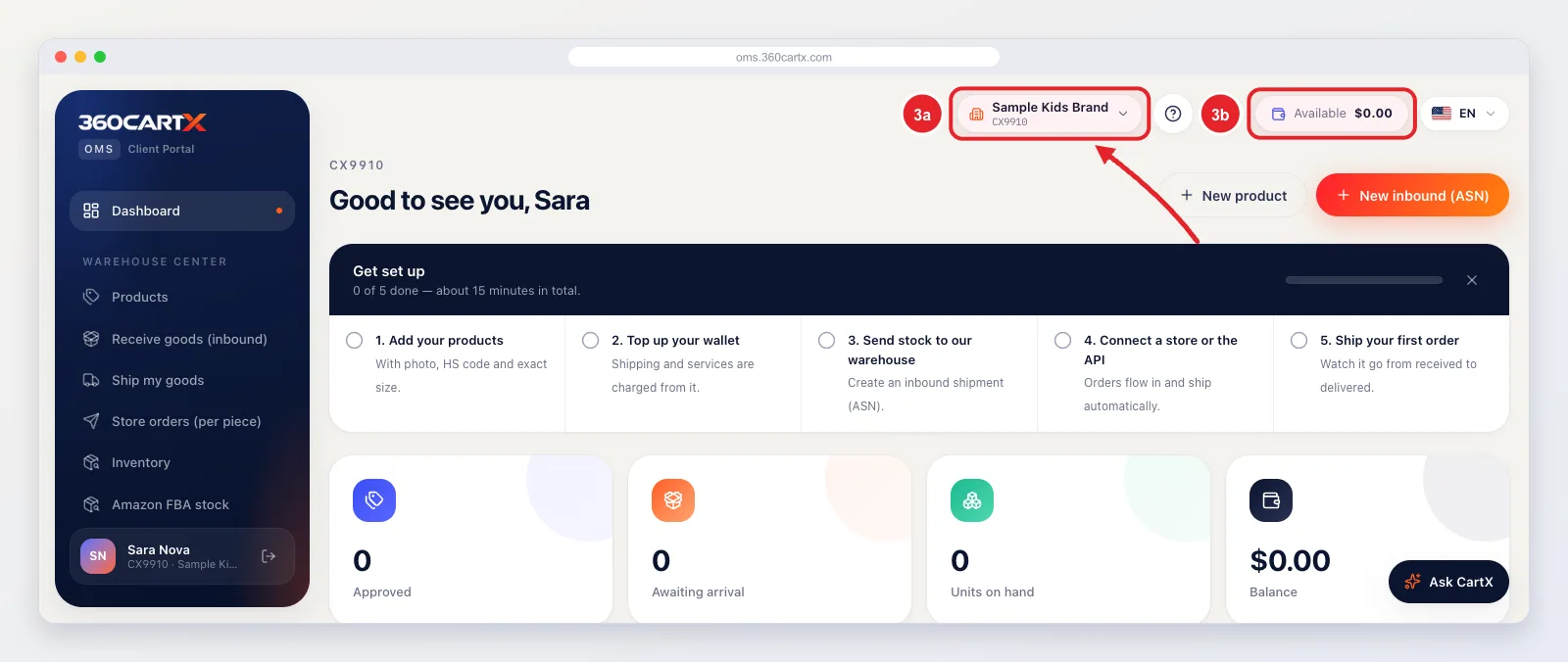
Inside a brand, the button shows the brand's name and code, and the Available chip next to the bell shows the brand's own wallet balance. Everything you open now (products, inbound, store orders, stores, finance) belongs to that brand. Look at the button before you create an inbound shipment or top up, so it goes to the right account.
- 3a Brand name and code
- 3b Brand wallet
- 4
Open Settings, Brands
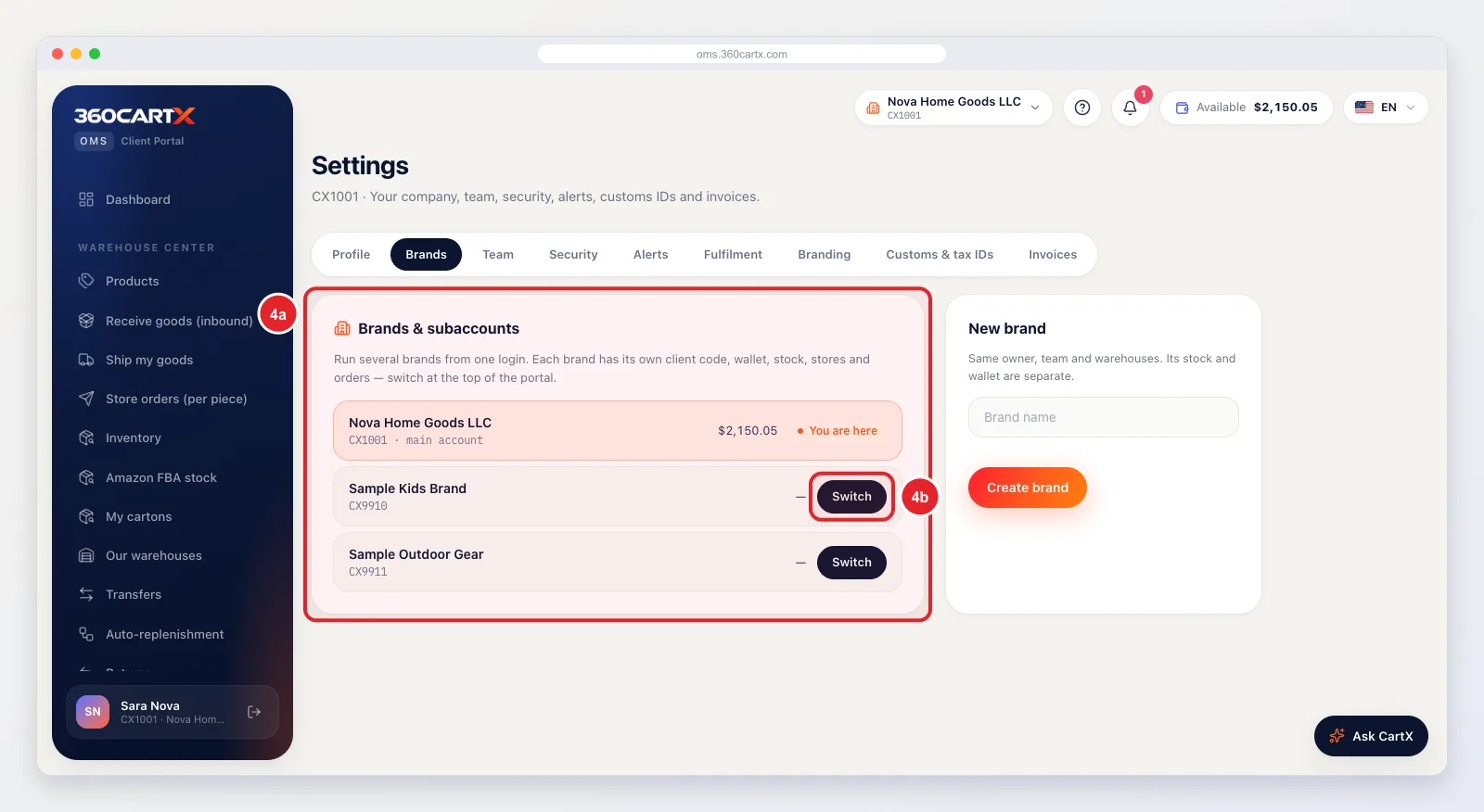
The Brands tab lists the main account and every brand. Each row shows the name, the client code (the main account says main account next to it), and the wallet balance (a dash when the wallet has never been used). The account you are in has the label You are here. Every other row has a Switch button, which does the same as the top switcher.
- 4a Brand list
- 4b Switch
- 5
Create a new brand
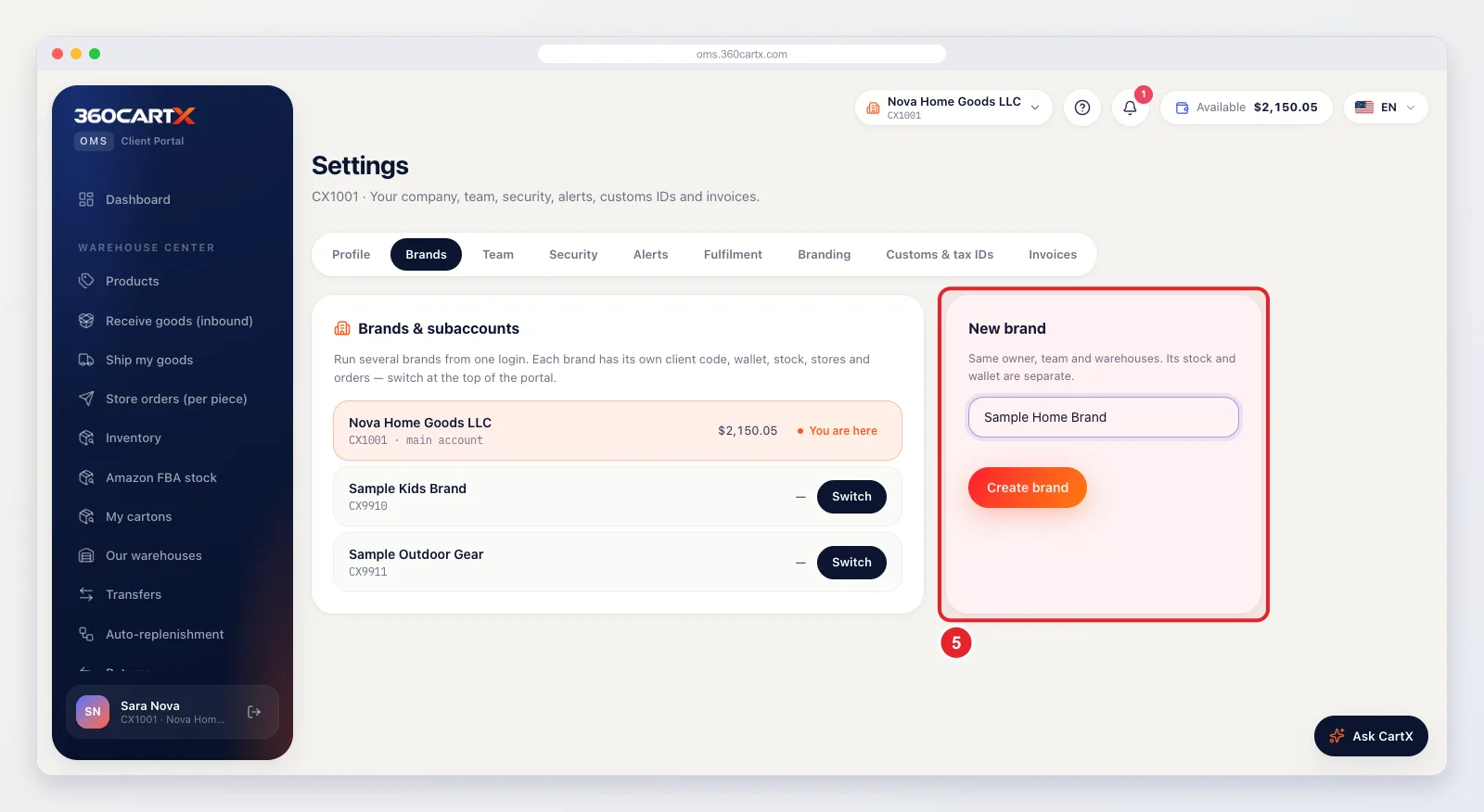
On the right, the card New brand says that the brand has the same owner, team and warehouses, and that its stock and wallet are separate. Type the Brand name, for example Sample Home Brand, and click Create brand. The new brand gets its own client code and the same country, billing currency and warehouses as your main account. After it is created the form shows Created and the new client code. Our team is told about the new brand.
- 6
If the brand name is too short
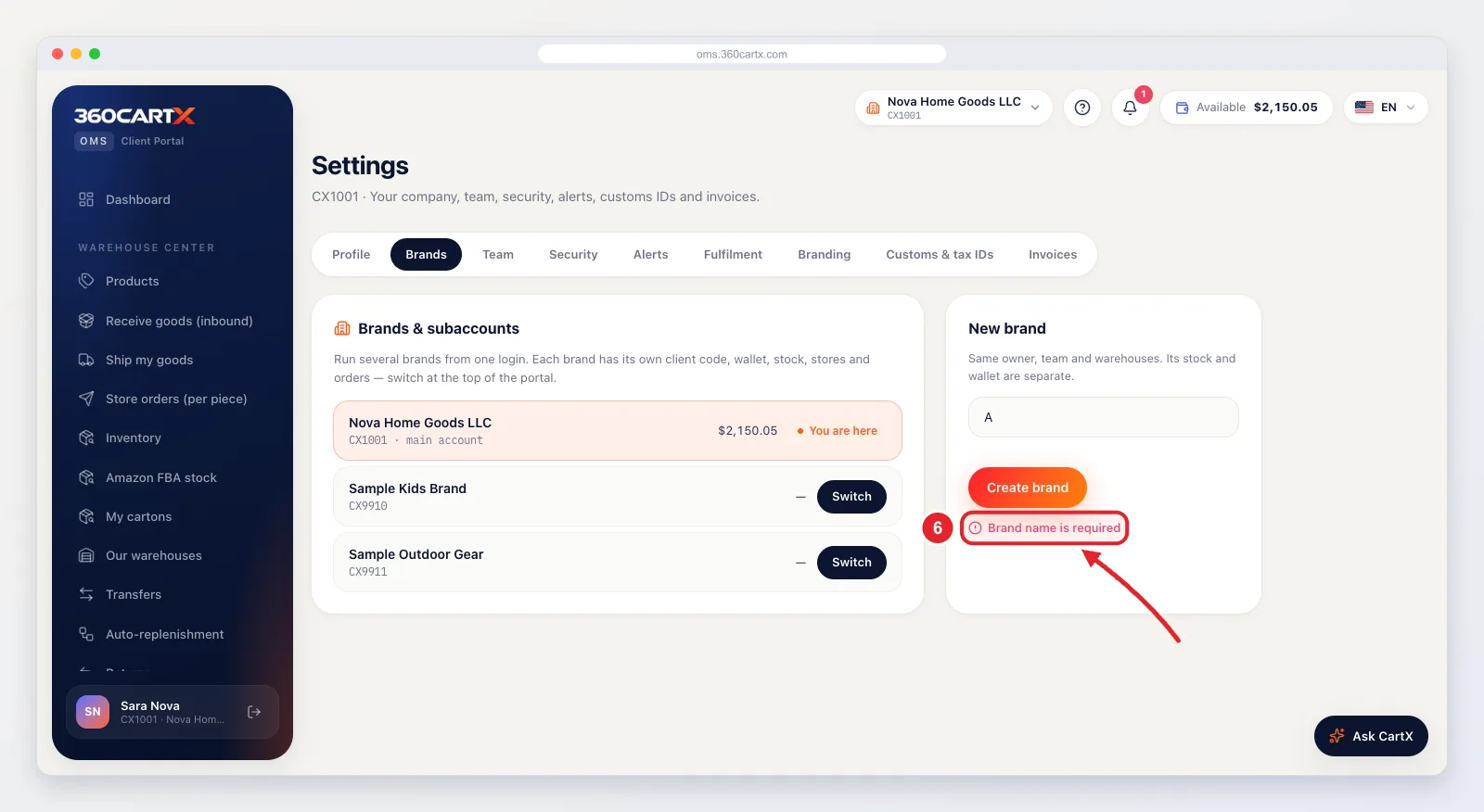
A brand name needs at least 2 characters and at most 120. With only one character the red message Brand name is required appears next to Create brand and nothing is created. The other limit is Up to 20 brands per account.
- 7
Switch back to the main account
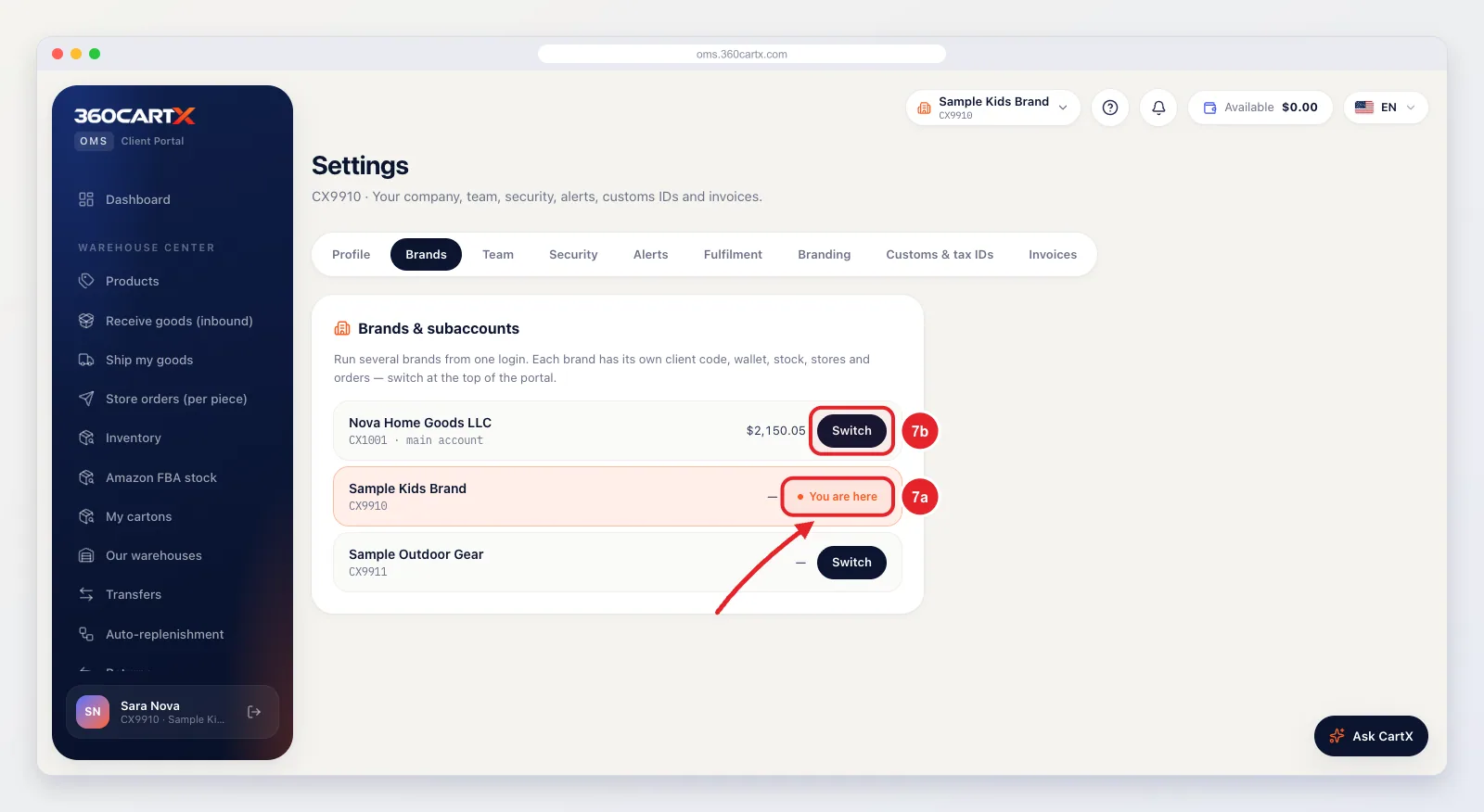
While you are inside a brand, the Brands tab marks the brand with You are here and offers Switch on the main account. The New brand card is hidden: new brands can only be created from the main account, and a brand cannot have brands of its own. Click Switch on the main account (or choose it in the top switcher) to go back.
- 7a You are here
- 7b Switch
Terms in this article
- Client code: Your account code, written on every carton.
Tips
- Top up each brand's wallet separately. A brand can only spend its own balance, and low-balance alerts, invoices and statements are per brand.
- Connect each brand's stores while you are inside that brand, so its orders arrive in the right account.
- Only the owner and admins can switch brands and create them. An Operator, Finance, Viewer or Custom user always works in the main account.
- A brand has no login of its own. You always reach it from your main login through the switcher.
Common problems
I do not see the brand switcher
It only appears when your account has at least one brand and you are the owner or an admin. Create a brand in Settings, Brands first.
I cannot see the New brand card
You are inside a brand. Switch back to your main account: new brands are created only there.
Brand name is required
The name has fewer than 2 characters. Type the full brand name.
Up to 20 brands per account
A main account can have 20 brands. Contact support if you need more.
My stock or orders are not where I expected
Each brand keeps its own stock, products, stores and orders. Check which account the switcher shows, and switch to the other one.
Related articles
Updated 2026-11-12
Open a ticket from Support in your portal and our team will reply.