Steps
- 1
Open Settings, Team
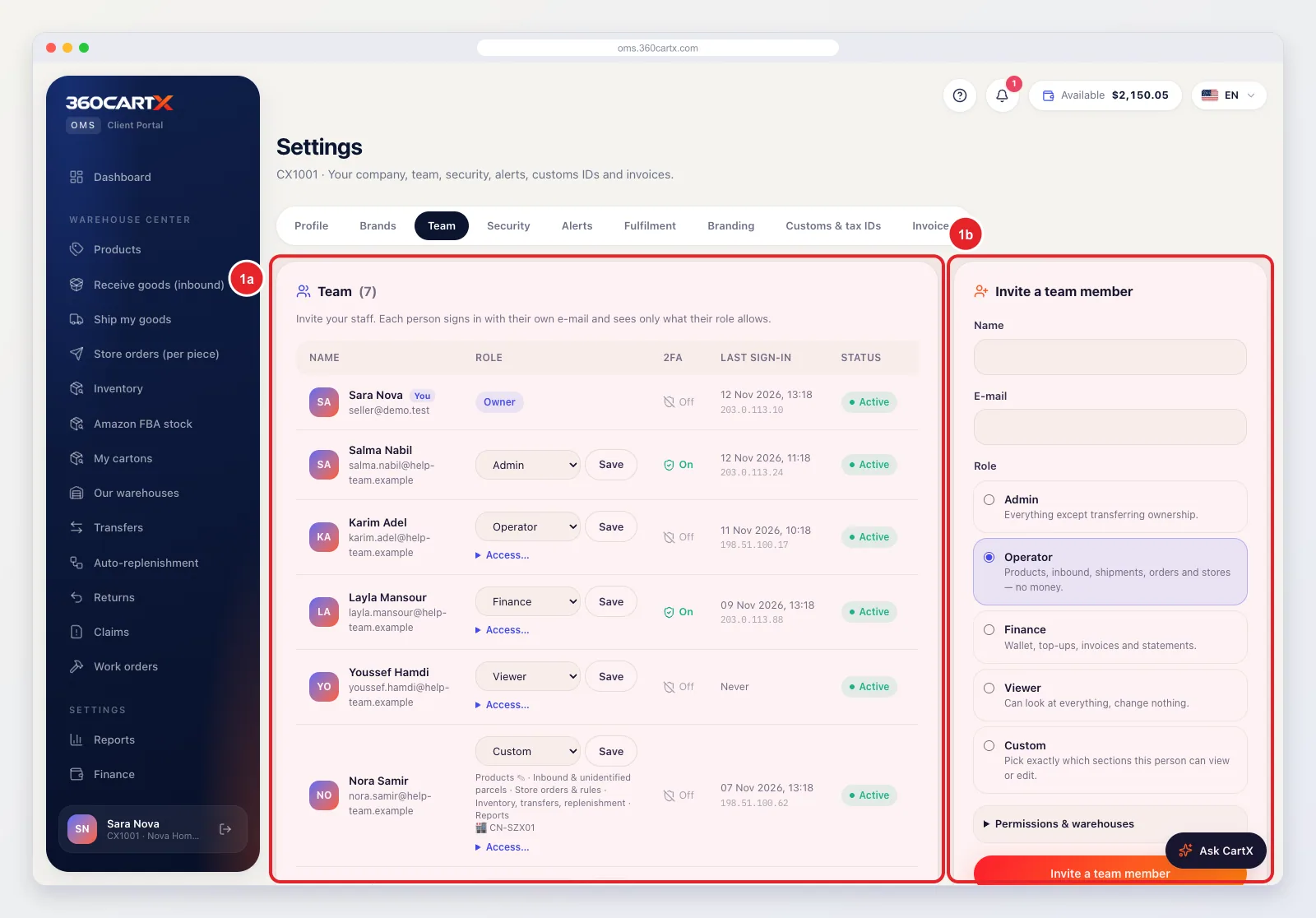
Click Settings in the left menu, then the Team tab. The table on the left lists everybody on the account with the count in brackets in its title. The card Invite a team member is on the right.
- 1a Team table
- 1b Invite a team member
- 2
Read the team table
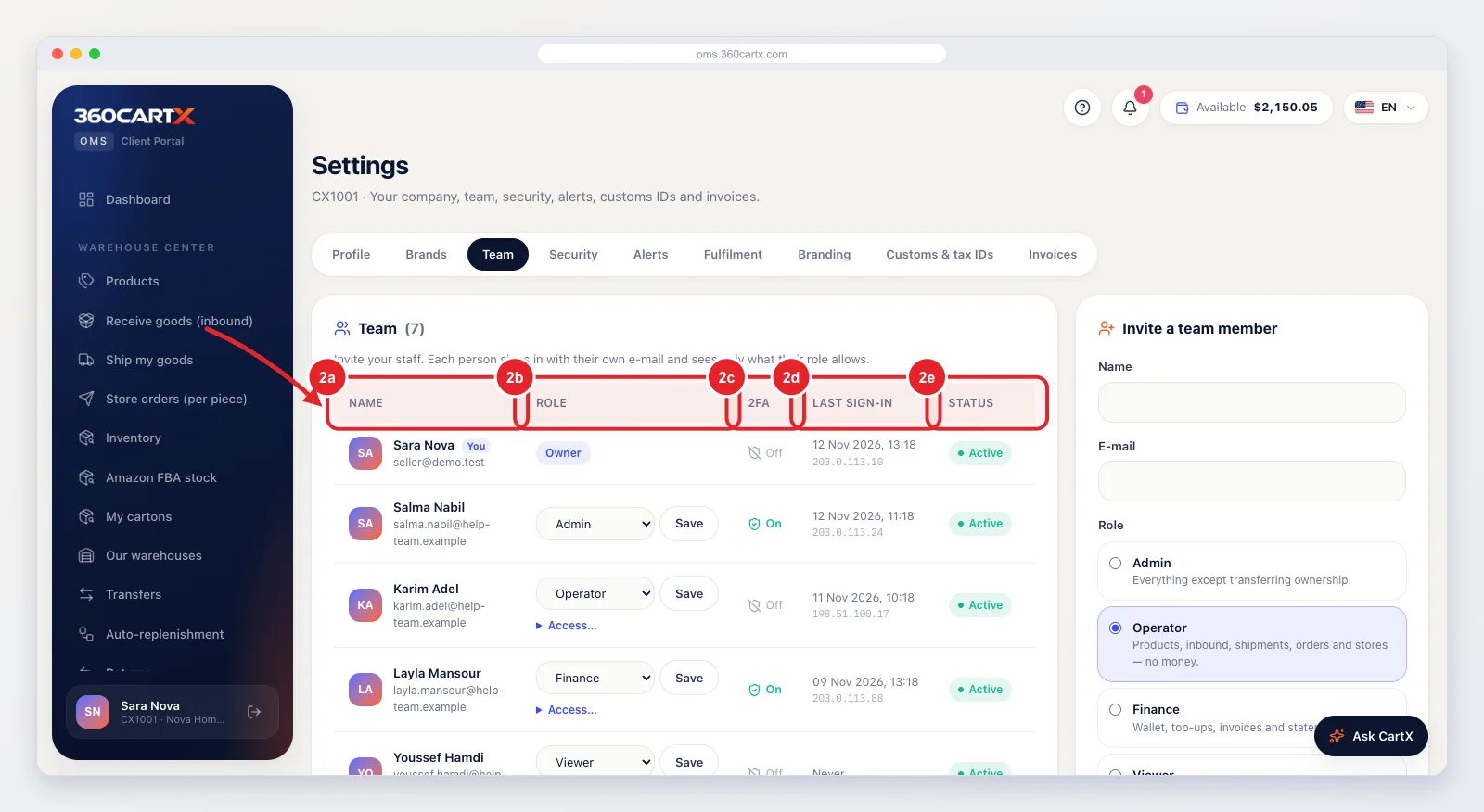
Name shows the person, with their e-mail under it and a blue You badge on your own row. Role is their role. 2FA says On or Off for two-step sign-in. Last sign-in shows the date and time and the IP address, or Never for someone who has not signed in yet. Status is Active or Disabled. The last column holds the buttons to deactivate a person. Rows of deactivated people are greyed out.
- 2a Name
- 2b Role
- 2c 2FA
- 2d Last sign-in
- 2e Status
- 3
Fill in name and e-mail
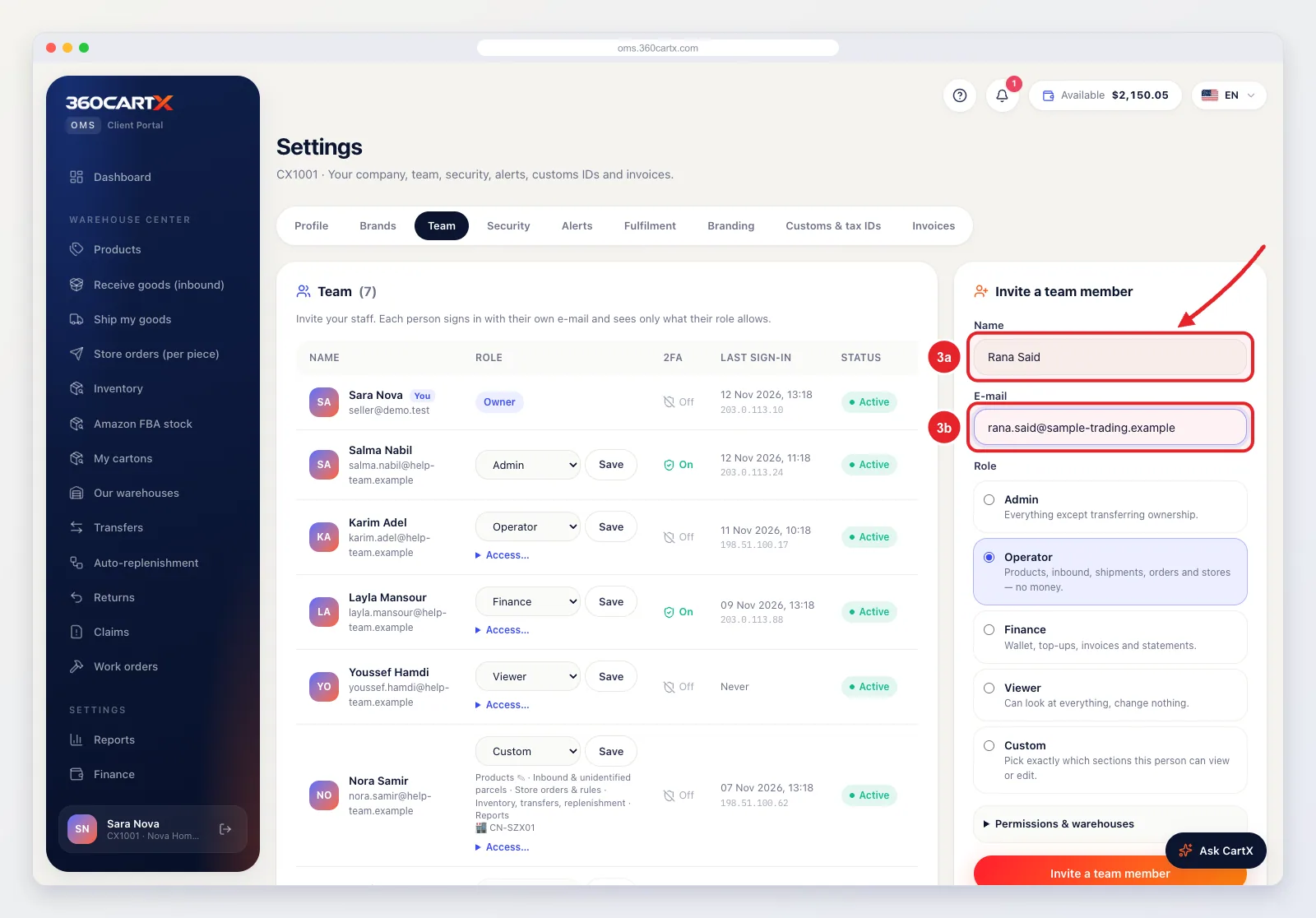
In the Invite a team member card type the person's Name (at least 2 characters) and E-mail, for example Rana Said and rana.said@sample-trading.example. Use the e-mail they will sign in with. An e-mail can have only one 360CartX account, so a colleague who already has an account somewhere else needs another address.
- 3a Name
- 3b E-mail
- 4
Choose a role
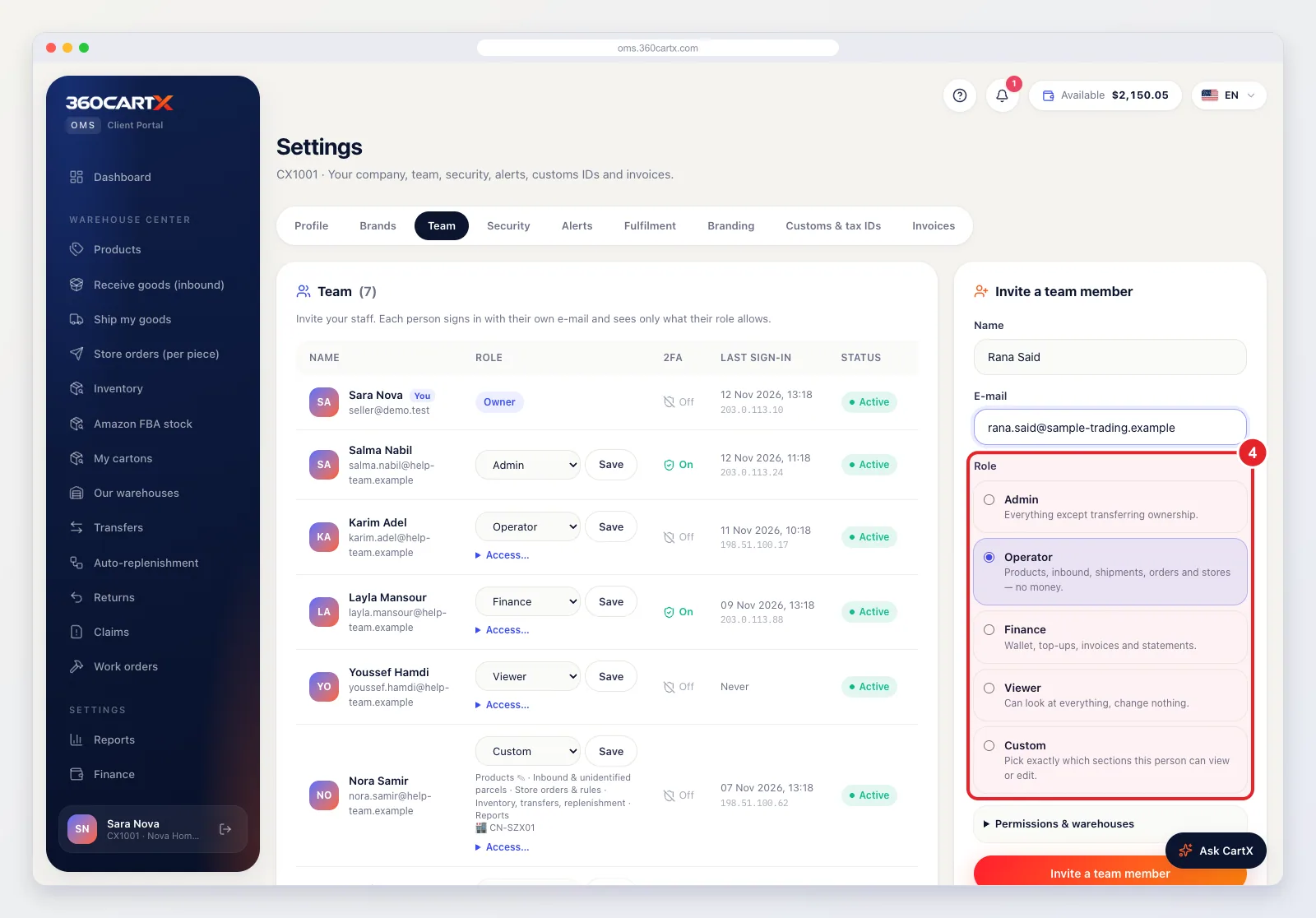
Under Role pick one of the options: Admin (only shown to the owner), Operator, Finance, Viewer or Custom. Operator is selected to start with. Each option has a one-line description. Roles are explained in Team roles and permissions. You can also open Permissions & warehouses to limit the person to some warehouses or sections before inviting.
- 5
Click Invite a team member
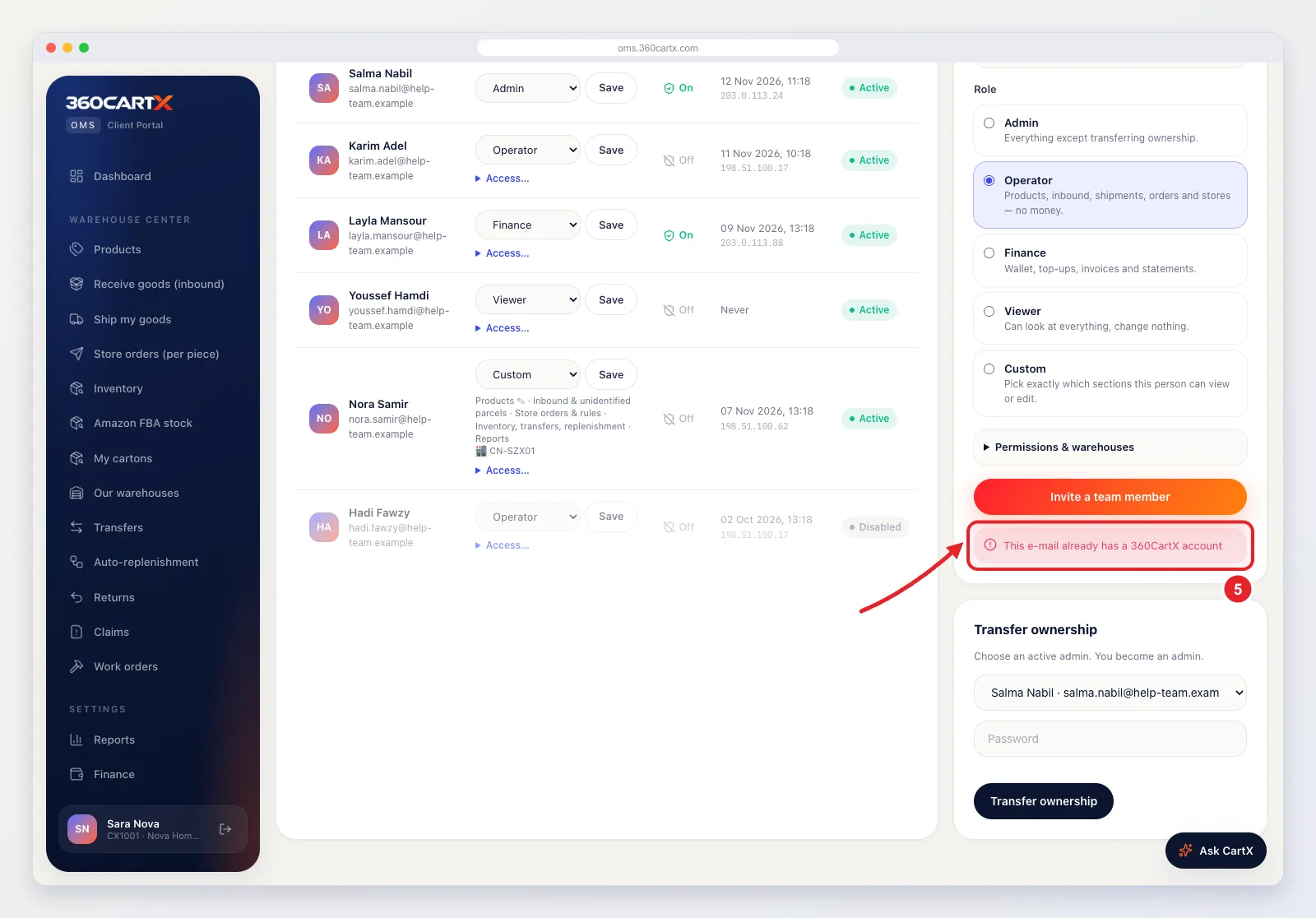
Click the button at the bottom of the card. We create the login with no usable password and send an e-mail from you: it says that you invited the person to the 360CartX client portal with their role, and has the button Set my password. The link is valid for 72 hours and works once. A green message confirms the invitation was sent. If our e-mail is not set up at that moment, the card shows the link instead (Share this one-time link) so that you can send it yourself. If the name is too short, or the person already has an account, nothing is created and a red message tells you why: here This e-mail already has a 360CartX account.
- 6
Deactivate and activate people
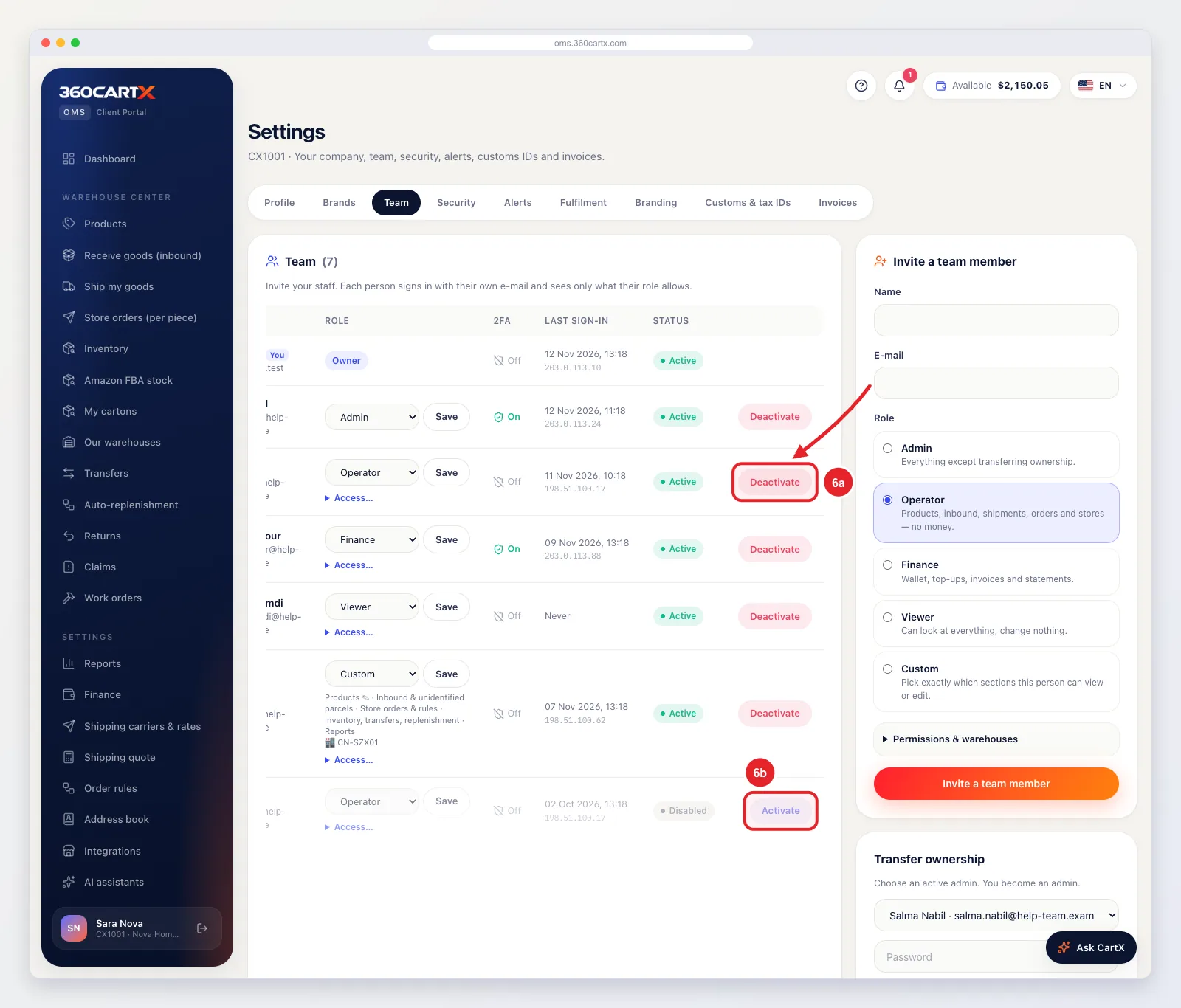
At the right end of each row (except yours and the owner's) a red Deactivate button stops that person's access at once: they cannot sign in and any open session ends with their next click. The row turns grey and the status changes to Disabled. Nothing is deleted. A deactivated person has the button Activate to switch the access on again.
- 6a Deactivate
- 6b Activate
- 7
Change a role
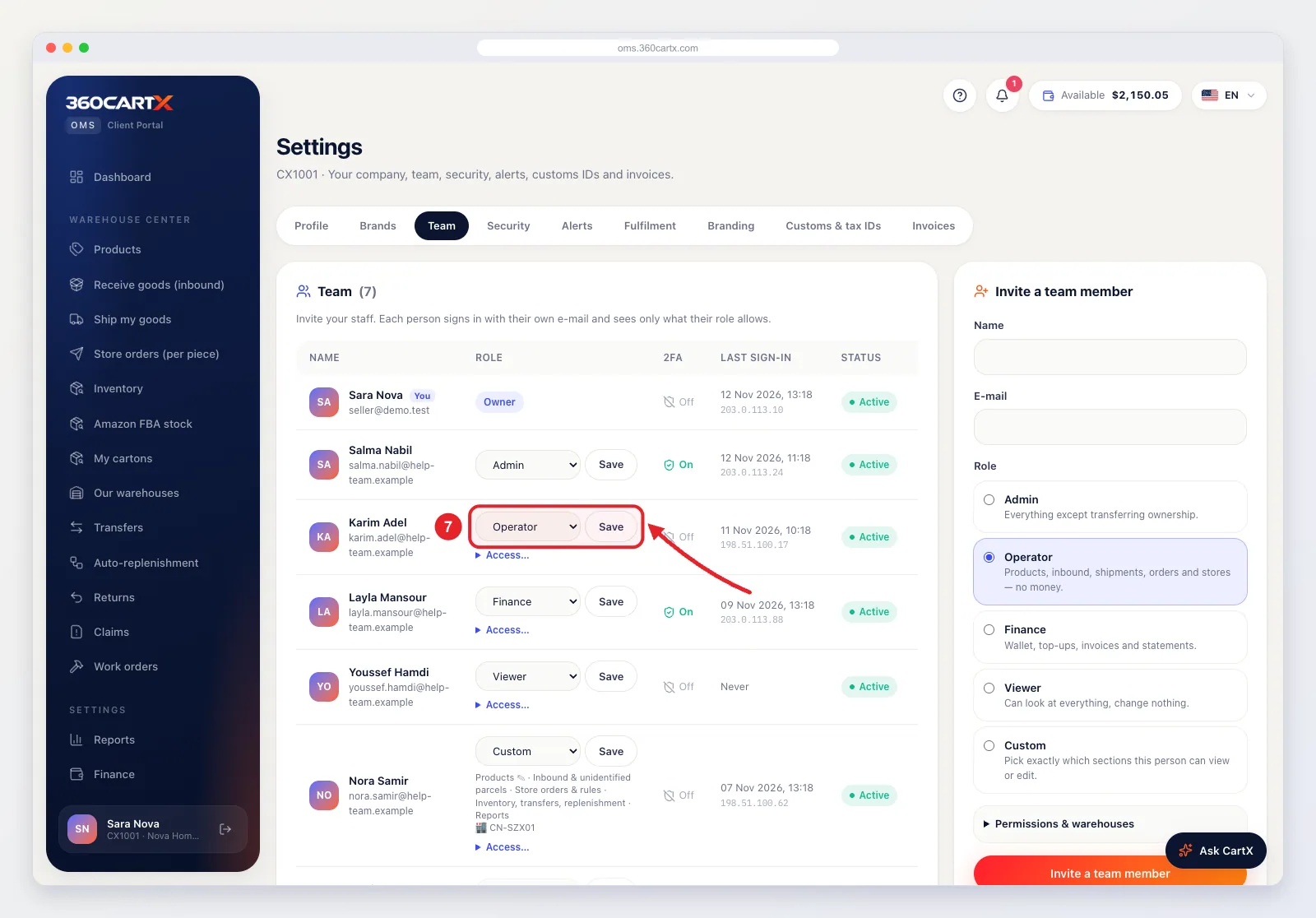
In the Role column of another person the role is a drop-down list with a Save button. Choose the new role and click Save. Only the owner can make someone an Admin. You cannot change your own role or the owner's.
- 8
Hand over ownership
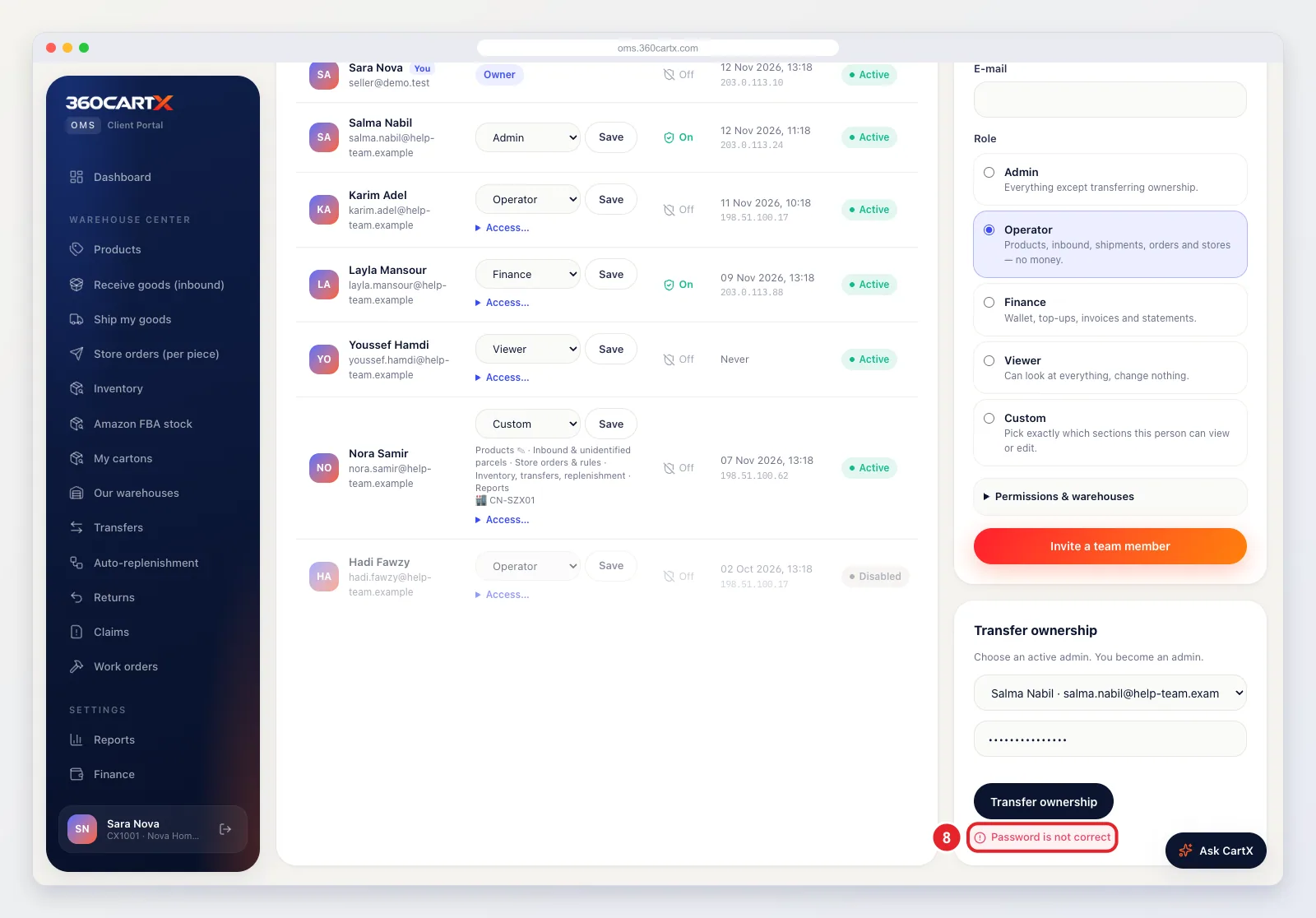
Only the owner sees the card Transfer ownership, when the team has at least one active admin. Choose the admin who becomes the owner, type your own password to confirm and click Transfer ownership. You then become an admin. With a wrong password the red message Password is not correct appears and nothing changes.
Tips
- Invite people with the smallest role that lets them do their job. Finance for your accountant, Viewer for someone who only checks stock, Operator for staff who handle orders.
- The invited person must open the link within 72 hours. If it expired, they can use Forgot password on the sign-in page with the invited e-mail to get a new link. Inviting the same e-mail again is refused because the login already exists.
- Turn on Require 2FA for every team member in Settings, Security to make everyone use a code from an authenticator app.
- Deactivate someone the day they leave. Their sign-in stops, and their history stays.
- People who are Operator, Finance or Admin receive notification e-mails. Viewers and Custom roles do not.
Common problems
This e-mail already has a 360CartX account
That address already belongs to a login on 360CartX, in your team or in another company. Use a different e-mail for this person.
Enter a valid e-mail
The e-mail is not written correctly. Check for a missing @ or a space.
Name is required
The name needs at least 2 characters.
Only the owner can invite an admin
Admins can invite every role except Admin. Ask the owner to invite another admin.
Up to 25 team members
The account has reached its limit. Deactivating a person does not free the place; contact support if you need more people.
Give at least one section (view or edit)
You chose the Custom role without any section. Pick at least one section in Permissions & warehouses.
The invited person says the link does not work
The link works once and for 72 hours. After that, or if it was already used, they can use Forgot password on the sign-in page with the invited e-mail.
Related articles
Updated 2026-11-12
Open a ticket from Support in your portal and our team will reply.