Steps
- 1
Find the Webhooks box
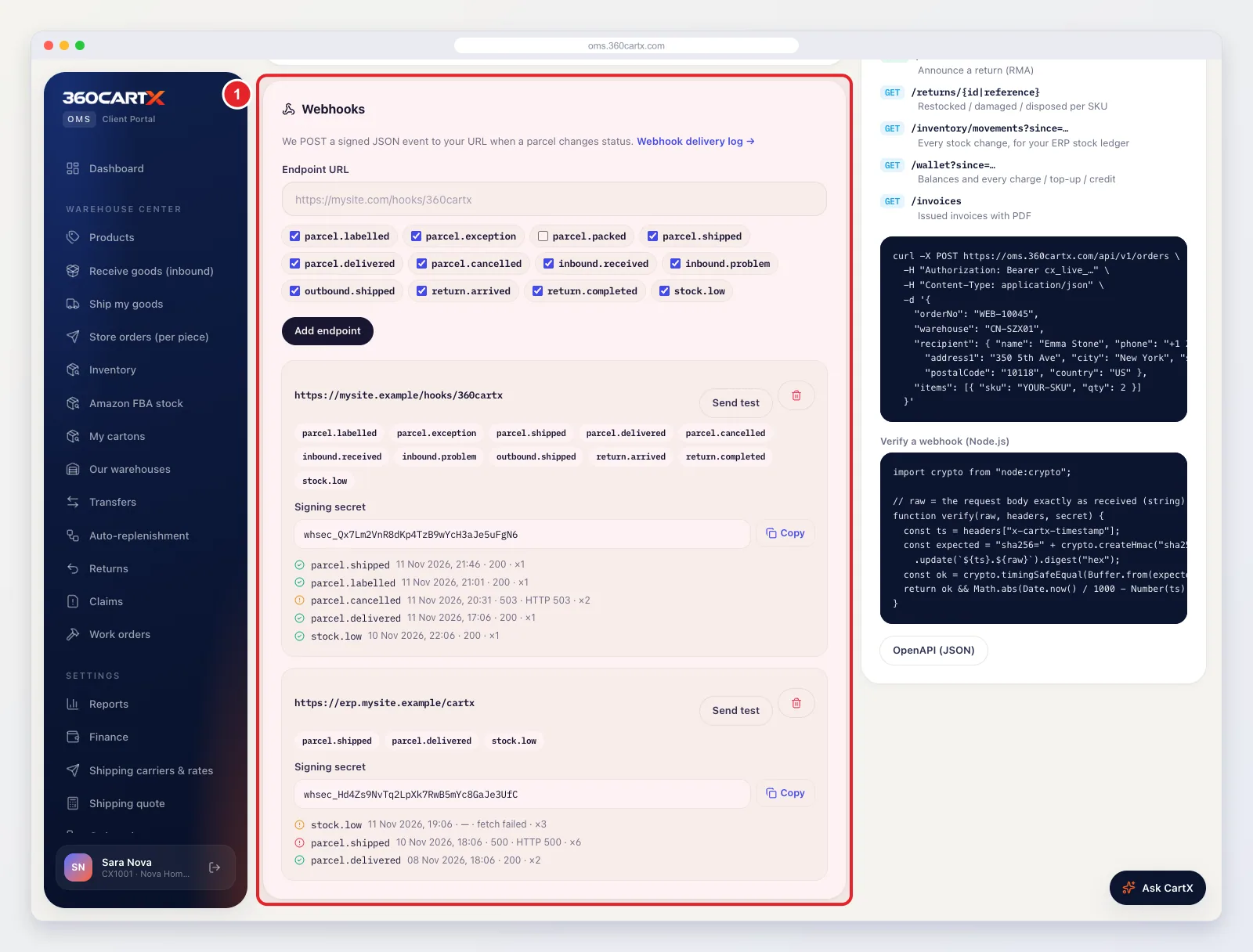
On API & Webhooks, below the API keys box, the box Webhooks says: We POST a signed JSON event to your URL when a parcel changes status. A link Webhook delivery log leads to the history of everything we sent (see Webhook delivery log and resend). The box holds the form to add an endpoint and one card for each endpoint you already added.
- 2
Enter the address and choose the events
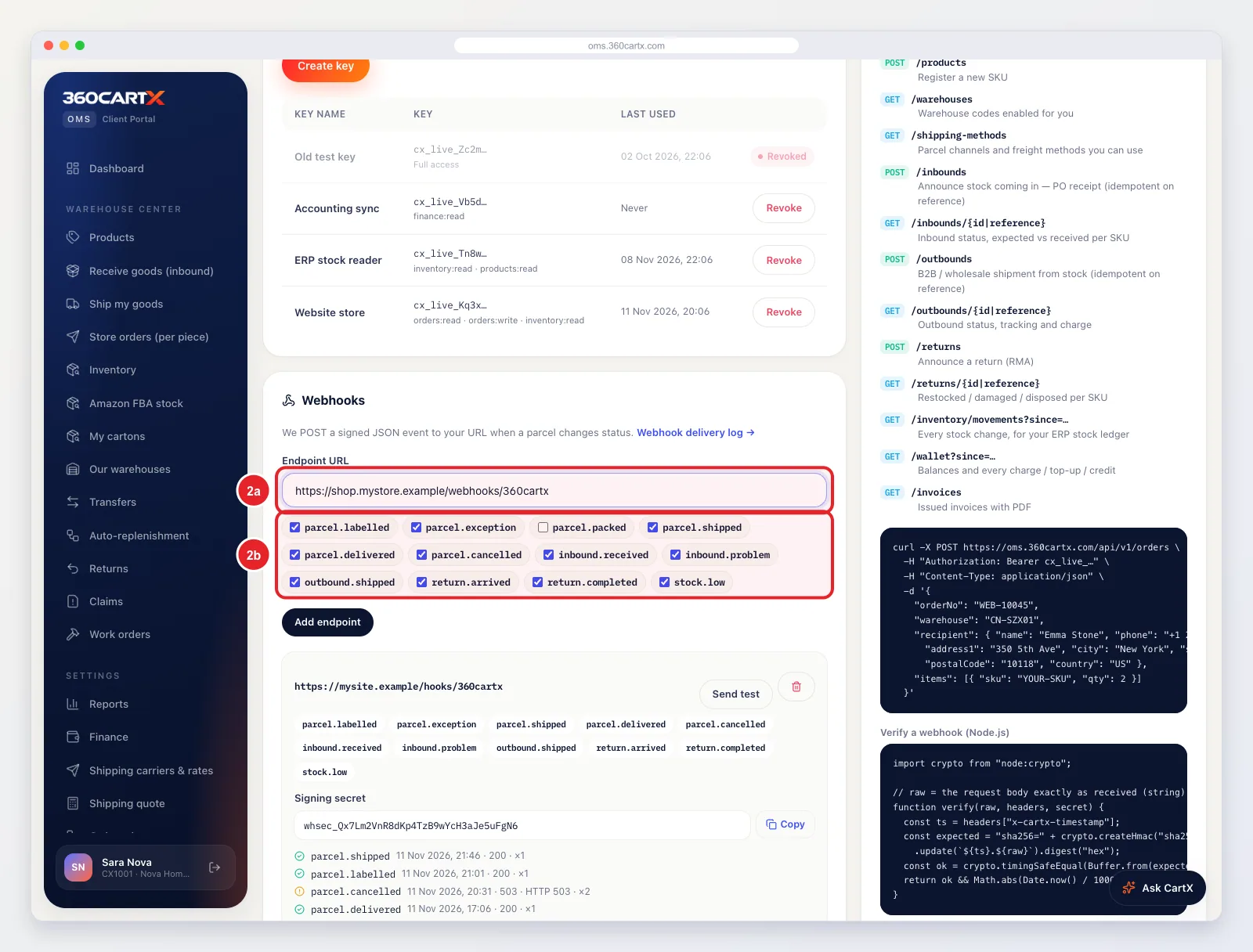
In Endpoint URL type the address of the page in your system that will receive the messages, for example https://shop.mystore.example/webhooks/360cartx. Below it every event has a tick box. All are ticked except parcel.packed, which is off by default because it fires for every parcel and most systems do not need it. Untick the events you do not want. Your system can ignore events it does not know, so new events never break it.
- 2a Endpoint URL
- 2b Events
- 3
If the form refuses the address
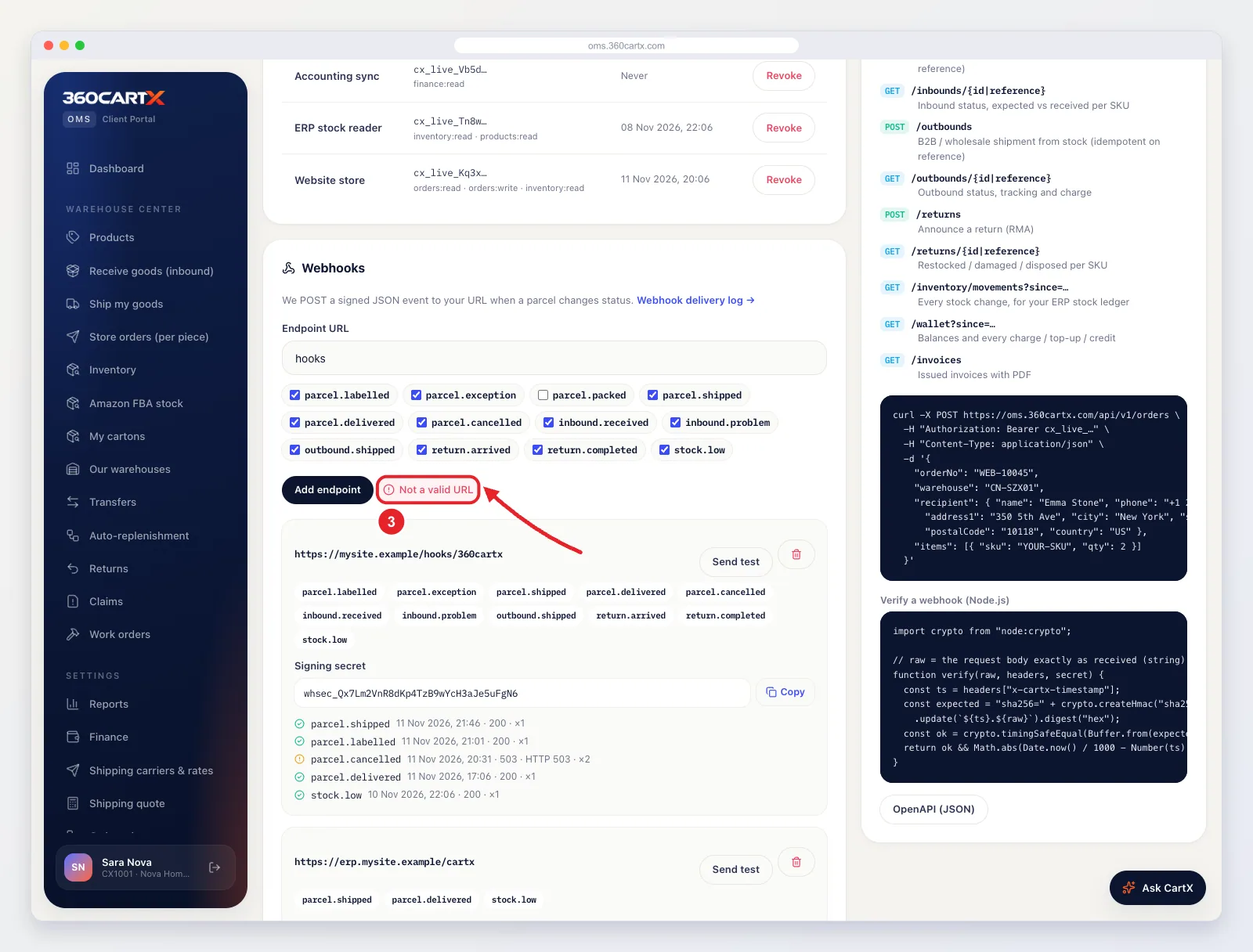
A text that is not an address gets Not a valid URL in red. On the live system the address must start with https:// (Webhook URL must use https://) and must be reachable from the internet: addresses such as localhost, 127.x, 10.x, 192.168.x or 172.16 to 31.x are refused with Private addresses are not allowed. If no event is ticked you get Pick at least one event, and when you already have 5 endpoints you get Max 5 webhook endpoints.
- 4
Add the endpoint
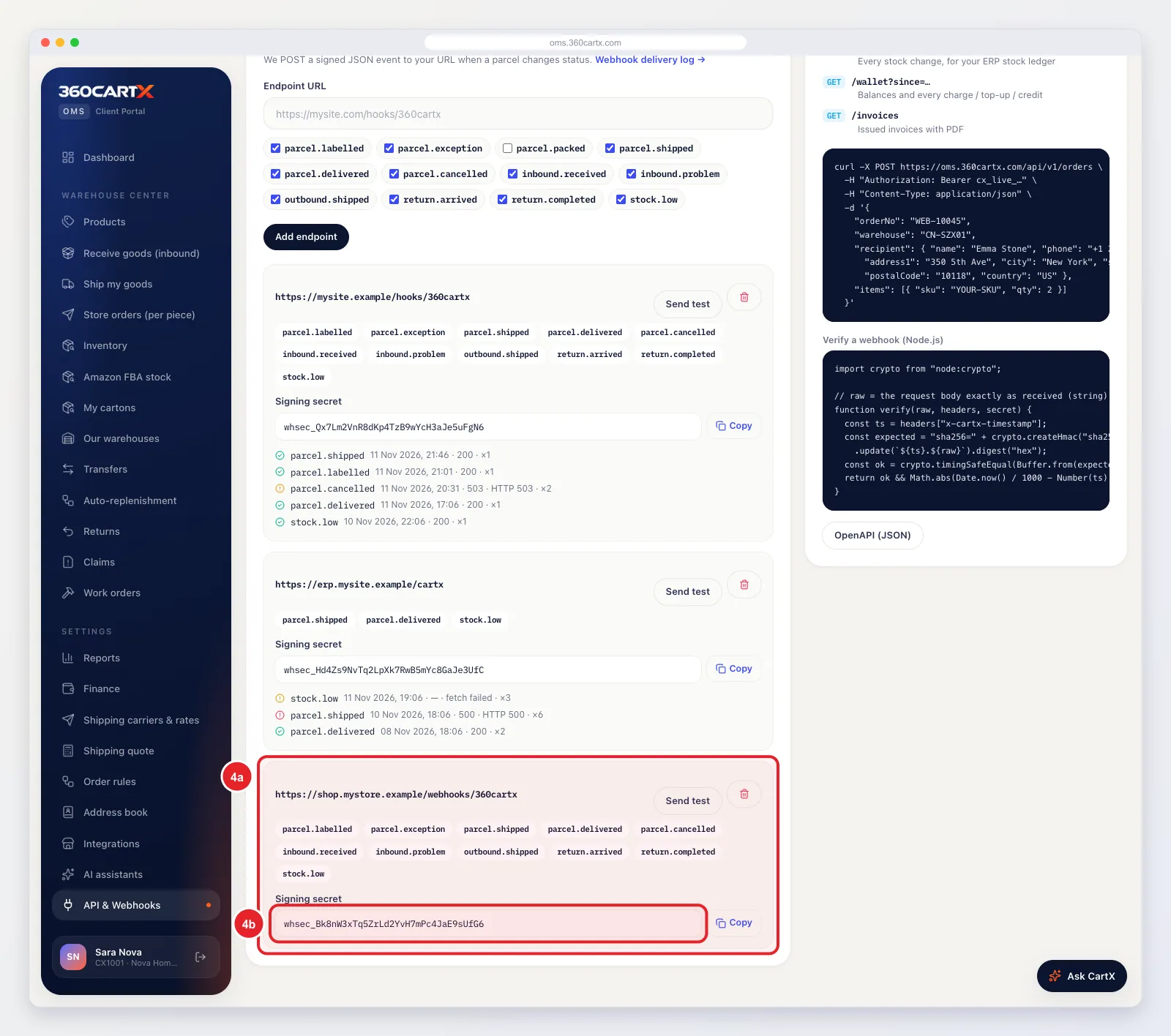
Click Add endpoint. The form empties and a new card appears below with the address, the events as small grey tags and a Signing secret that starts with whsec_ and has a Copy button. Copy the secret into your system: it is how you prove that a message really came from us (see Verify a webhook signature). The secrets in these screenshots are fake.
- 4a The new endpoint
- 4b Signing secret
- 5
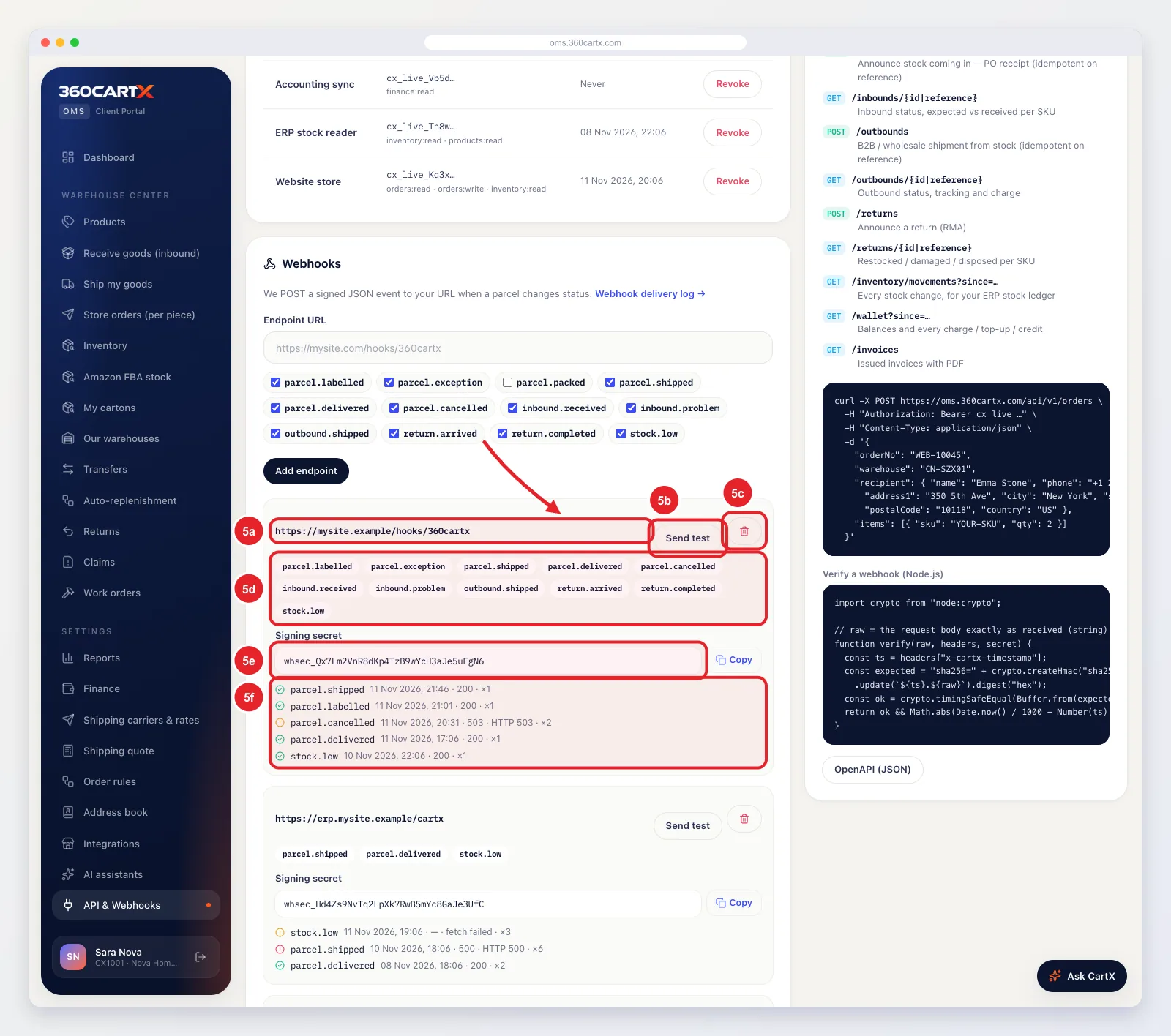
Read an endpoint card
At the top of the card: the address, the Send test button and a bin icon that deletes the endpoint. Under it the events this endpoint receives. Then the Signing secret with Copy. At the bottom, Recent deliveries lists the last 5 messages sent to this endpoint: a green tick for delivered, a red circle for failed, an amber circle for still retrying, then the event name, the date and time, the answer code of your system (a dash when it did not answer), an error text if any, and × and the number of tries.
- 5a Address
- 5b Send test
- 5c Delete
- 5d Events
- 5e Signing secret
- 5f Recent deliveries
- 6
The events you can subscribe to
parcel.labelled: a shipping label was made and the order goes to the warehouse. parcel.exception: an order needs attention; exceptionReason in the order says why. parcel.packed: the parcel was packed and weighed. parcel.shipped: the parcel left the warehouse; the tracking number is in the order. parcel.delivered: the carrier reports it delivered. parcel.cancelled: the order was cancelled and its stock is free again. These six cover every shipping order of your account, whether it came from a store, the API, Excel or the portal, and carry the full order in data.order. inbound.received: a whole inbound shipment was received (data.inbound with id and reference). inbound.problem: a receiving problem was opened, for example a shortage (data.problem and data.inbound). outbound.shipped: a bulk shipment left the warehouse (data.outbound with id, reference and trackingNumber). return.arrived: a returned parcel arrived (data.return). return.completed: a return was inspected, with received, restocked, damaged and disposed quantities per line. stock.low: a SKU fell to the low stock alert you set on the product (data with sku, available and alertAt); it is sent at most once a day for a SKU.
- 7
What we send
Each event is one POST with a JSON body and these headers: X-CartX-Event (the event name), X-CartX-Delivery (the id of this delivery), X-CartX-Timestamp (seconds since 1970) and X-CartX-Signature (sha256= and a hex code). The body holds data, event and createdAt. The fields can come in any order, so read them by name, and never rebuild the body before you check the signature. Your page must answer with any 2xx status within 10 seconds. Redirects are not followed and count as a failure. Do the real work after answering, not before.
POST /webhooks/360cartx HTTP/1.1 Content-Type: application/json User-Agent: 360CartX-Webhooks/1 X-CartX-Event: parcel.shipped X-CartX-Delivery: cmw8h2k3p0001kusb7q4d1xyz X-CartX-Timestamp: 1789122600 X-CartX-Signature: sha256=3f9a…c41e {"data":{"order":{"id":"PO2611000431","items":[{"qty":2,"sku":"AMZ-MUG-350"}],"orderNo":"WEB-10045", "status":"shipped","trackingNumber":"YT2611100042", … }}, "event":"parcel.shipped","createdAt":"2026-11-11T09:30:00.000Z"} - 8
Send a test
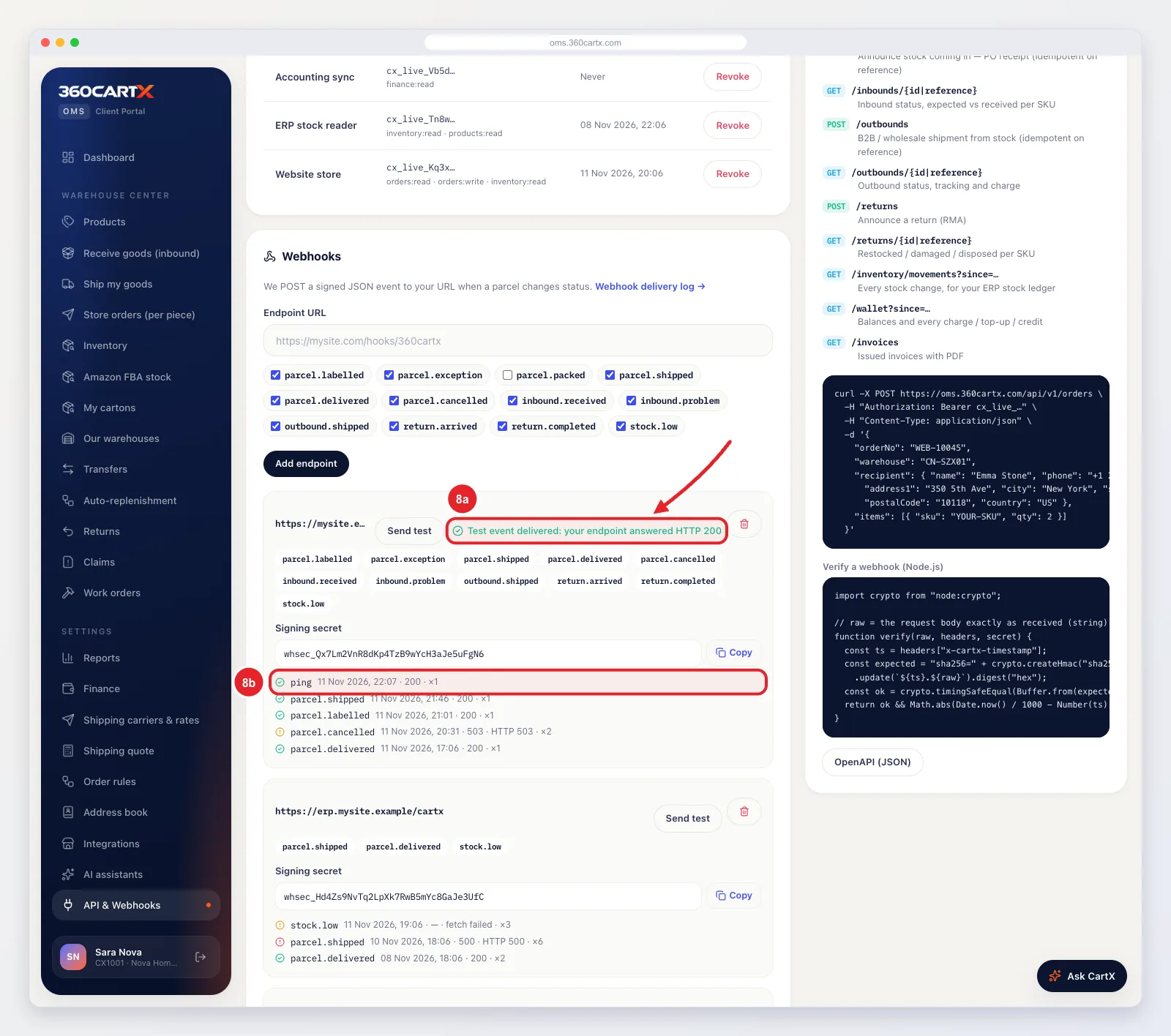
Click Send test on a card. We send a test message (event ping, with the text Hello from 360CartX) to that address, whatever events you ticked. When your system answers 2xx, a green line says Test event delivered: your endpoint answered HTTP 200, and the test shows at the top of Recent deliveries. Use it to check the address and your signature check before real events come.
- 8a Result
- 8b The test in the list
- 9
When the test fails
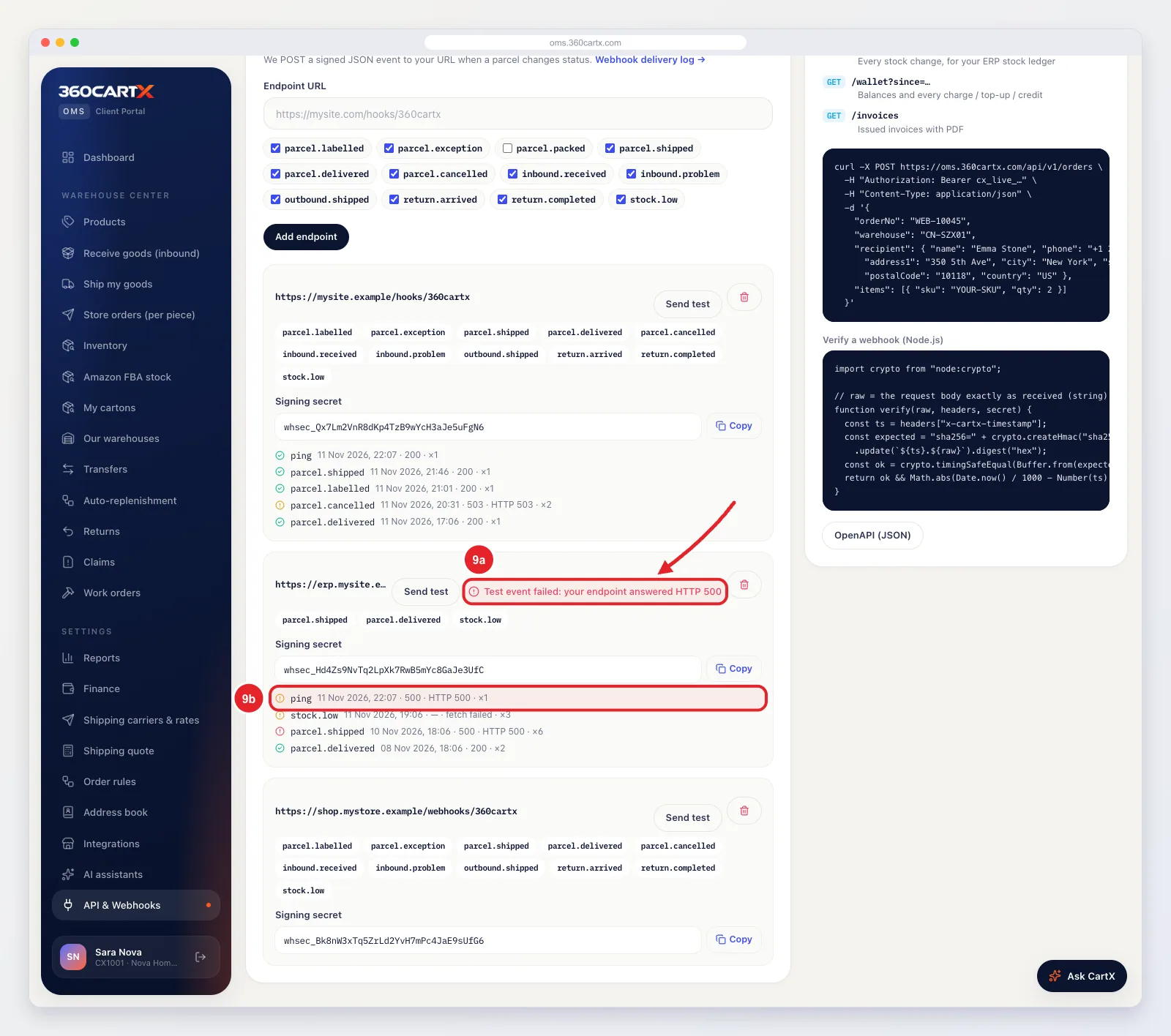
If your page answers with an error you see, in red, Test event failed: your endpoint answered HTTP 500 (with your code). If we could not reach it you see Test event failed: we could not reach your endpoint followed by the reason in brackets. Failed messages are tried again by themselves: after the first try we wait 1 minute, then 5 minutes, 30 minutes, 2 hours and 12 hours, so a message gets 6 tries over about 14 hours. A retry job runs about every 5 minutes, so a retry can come a few minutes later than these times. After the sixth failure the delivery is marked Failed; use Resend in the delivery log.
- 9a Error
- 9b The test in the list
- 10
Delete an endpoint
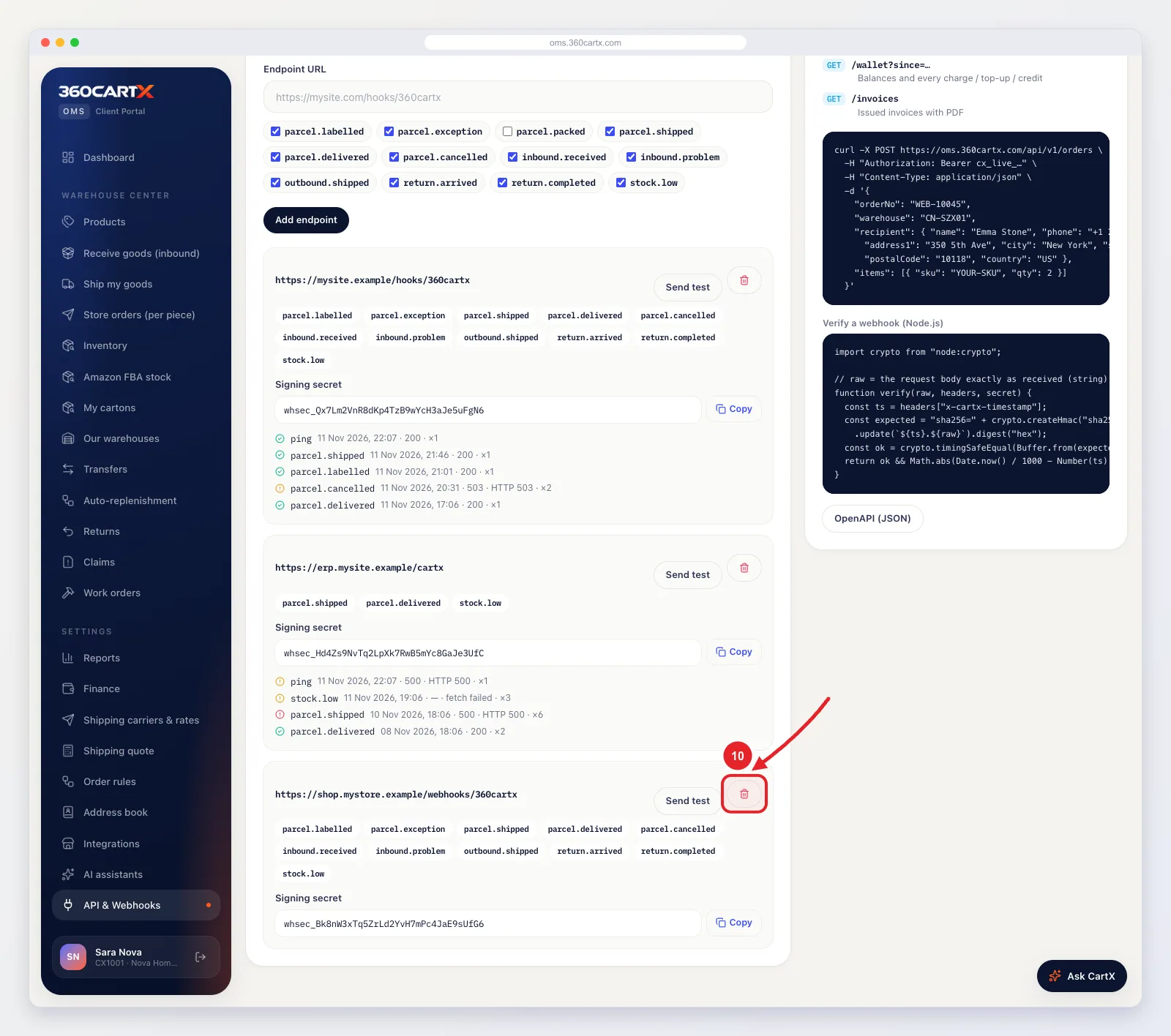
Click the bin icon on a card. The endpoint is removed at once, with no question, and so is its delivery history. We stop sending to it. An endpoint cannot be edited. To change the address or the events, delete it and add a new one (the signing secret changes too).
Terms in this article
- Webhook: A signed message we send to your URL when something changes.
Tips
- Answer fast and do the work later. Save the message, answer 200, then process it. A slow page makes us retry and you receive the same event twice.
- Expect duplicates and a different order. Use the order id and the event name to ignore a message you already handled; the X-CartX-Delivery id stays the same on retries but a Resend gets a new one.
- Always check the signature before you trust a message (see Verify a webhook signature).
- Use one endpoint per system (shop, ERP, chat alerts) so you can delete one without touching the others.
- You can test without a real server by using a request catcher website for the address while you build, then switch to your own address.
Common problems
Not a valid URL
Type the full address with https://, for example https://shop.mystore.example/webhooks/360cartx.
Webhook URL must use https://
The live system only sends to https addresses. Put a certificate on your page.
Private addresses are not allowed
Our servers cannot reach localhost or an address inside your office network. Use a public address; during development, expose your computer with a tunnel tool.
Pick at least one event
Tick at least one event before you click Add endpoint.
Max 5 webhook endpoints
Delete an endpoint you do not use and add the new one.
Test event failed: your endpoint answered HTTP 4xx or 5xx
Our message arrived but your page refused it. Look at your server log for the request, and check the page accepts POST with a JSON body.
Test event failed: we could not reach your endpoint
The address could not be opened from the internet (wrong name, firewall, certificate error or no answer within 10 seconds). Open the address from another network and fix it.
My system receives nothing
Check that the event is ticked on the endpoint card, and look in the Webhook delivery log for the event: it shows the answer code of your page.
Related articles
Updated 2026-11-11
Open a ticket from Support in your portal and our team will reply.