Steps
- 1
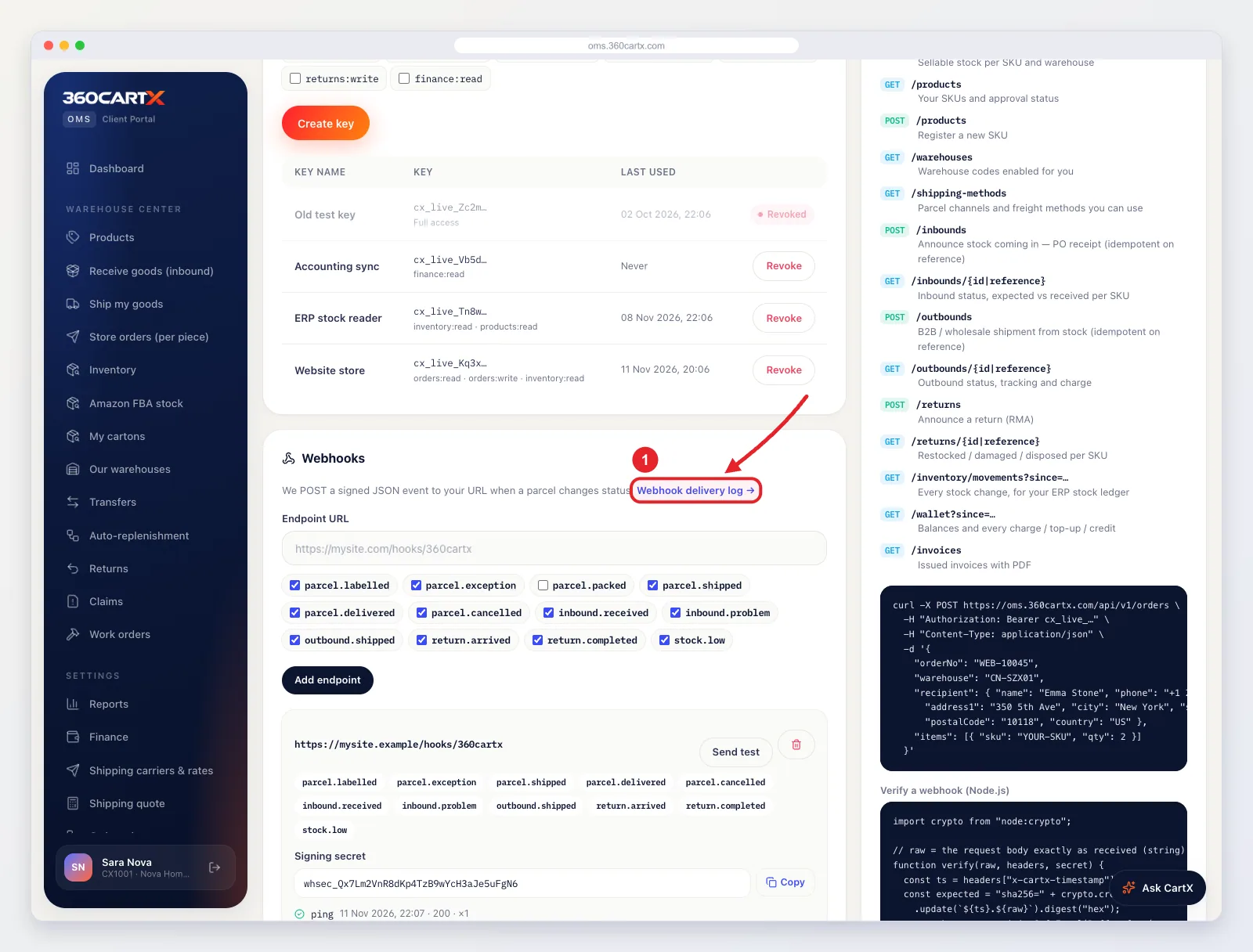
Open the log
On API & Webhooks, in the Webhooks box, click Webhook delivery log →. The page title is Webhook delivery log and the line under it says: Every event we sent to your endpoints, with the response, and that you can resend any that failed.
- 2
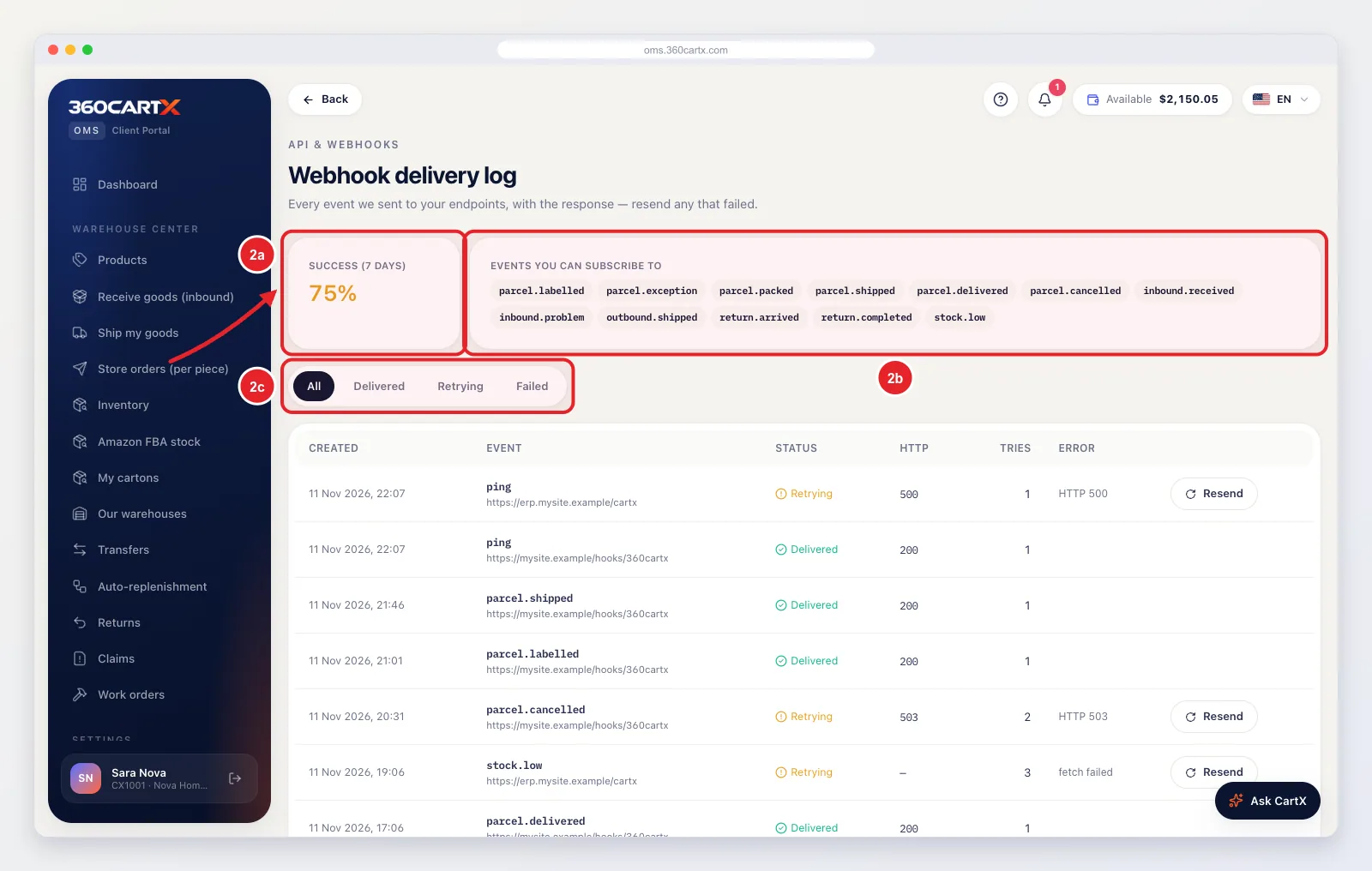
Read the top of the page
Success (7 days) is the share of deliveries of the last 7 days that your endpoints accepted, for example 76.2%. It turns amber below 95% and shows a dash when nothing was sent. The box Events you can subscribe to lists every event name you can tick on an endpoint. Under them are the tabs All, Delivered, Retrying and Failed.
- 2a Success rate
- 2b Event names
- 2c Tabs
- 3
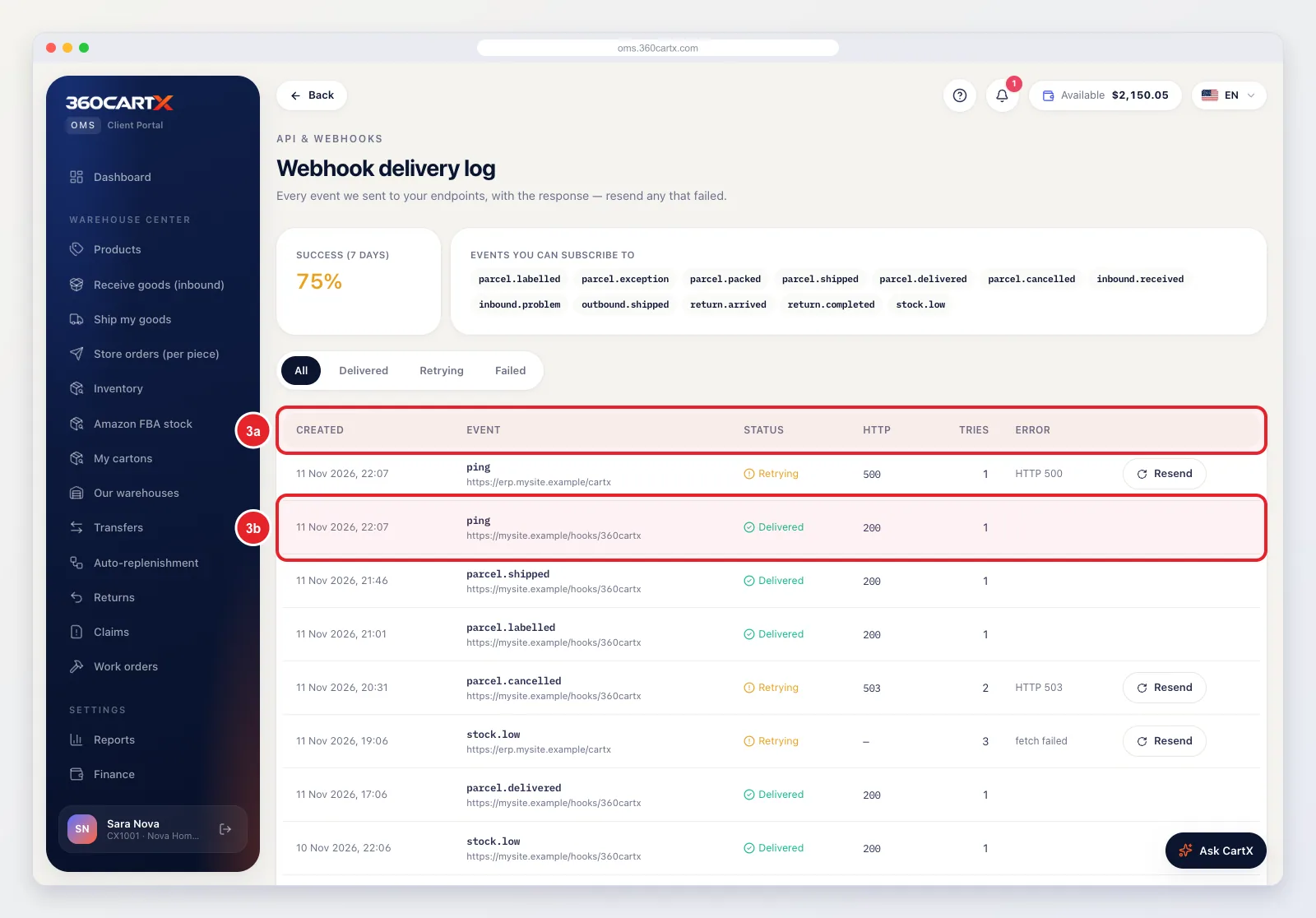
Read a row
Each row is one delivery. Created is the date and time (China time, UTC+8, like the rest of the portal). Event is the event name, with the address it went to in small text under it. Status is Delivered (green), Retrying (amber) or Failed (red). HTTP is the answer code of your system, or a dash when it did not answer. Tries is how many times we tried. Error holds the reason, for example HTTP 503 or fetch failed. The last column has a Resend button on every row that is not Delivered. A message you sent with Send test has the event name ping.
- 3a Column titles
- 3b A delivered row
- 4
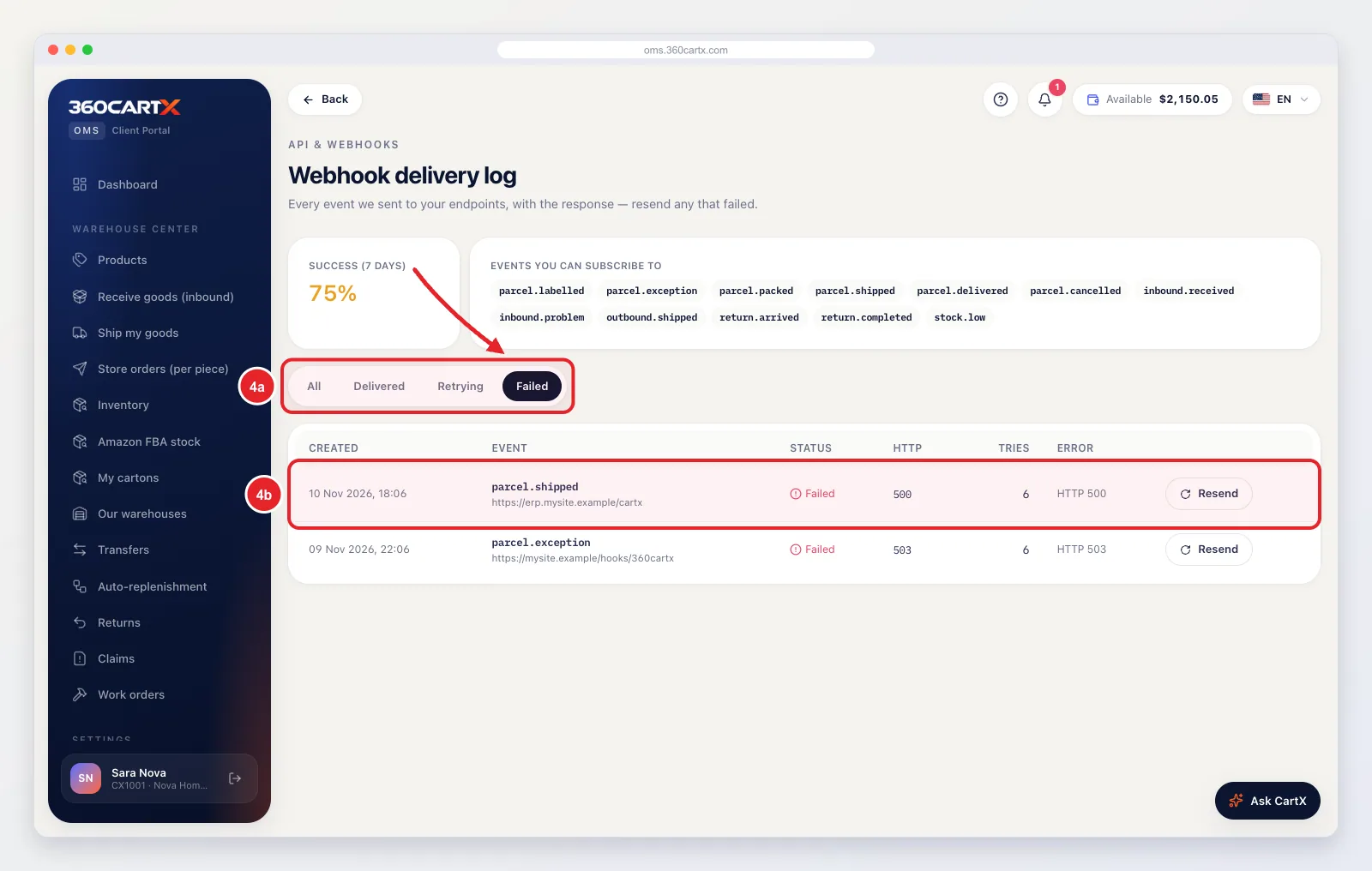
Filter Failed
Click the tab Failed to see only the deliveries we gave up on: all 6 tries failed. Nothing is sent for them any more by itself. This is the list to check after your system was down. The error shows the last answer, for example HTTP 503 when your server was busy or HTTP 500 for an error in your page.
- 4a Failed tab
- 4b A failed row
- 5
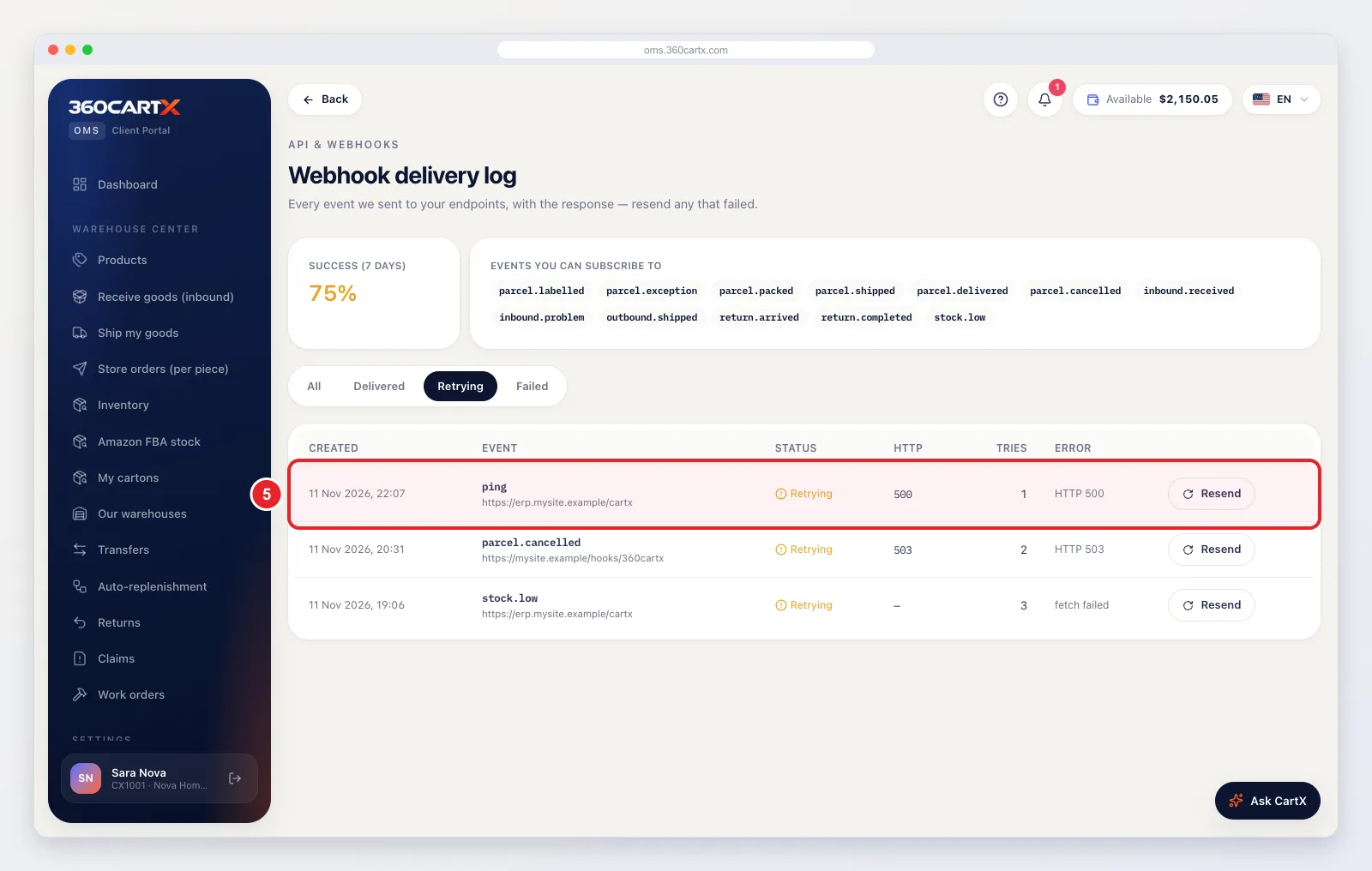
Filter Retrying
The tab Retrying shows deliveries that failed at least once and are still waiting for their next try. The Tries column shows how many were used. After a failed try we wait 1 minute, then 5 minutes, 30 minutes, 2 hours and 12 hours, and a retry job that runs about every 5 minutes starts the try that is due. After the sixth failed try the row moves to Failed. If the problem on your side is already fixed you do not have to wait: click Resend.
- 6
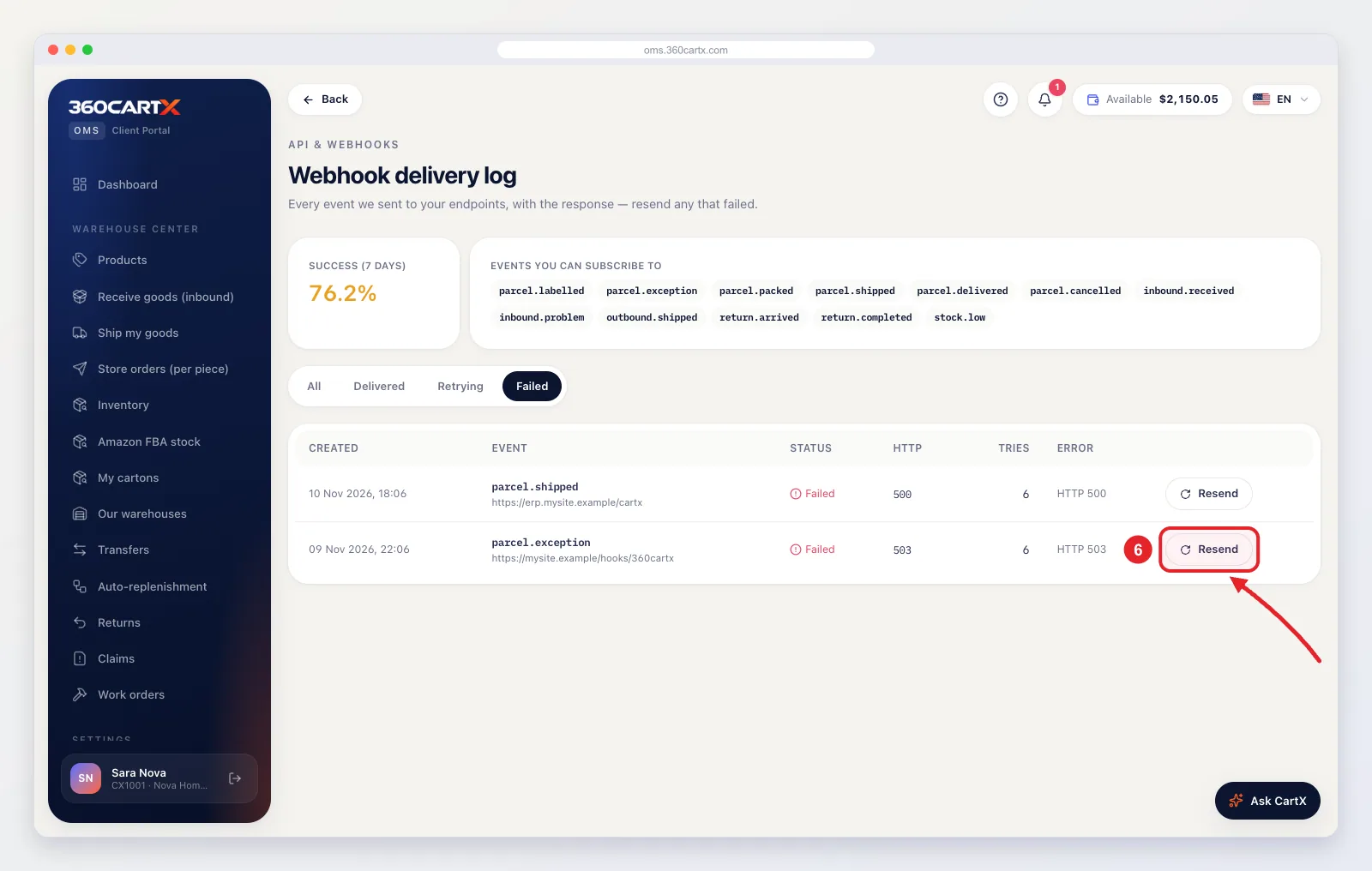
Resend a message
Click Resend on a Failed or Retrying row. We send the same message again right away as a new delivery: it has the same event and body, a new X-CartX-Delivery id and a new timestamp and signature. The row you clicked stays exactly as it was: resending does not clear Failed rows. If that row was still Retrying, it keeps its schedule and may send the message once more, so your system should ignore a message it already handled. Only the Owner and Admin roles can press Resend.
- 7
Find the new delivery
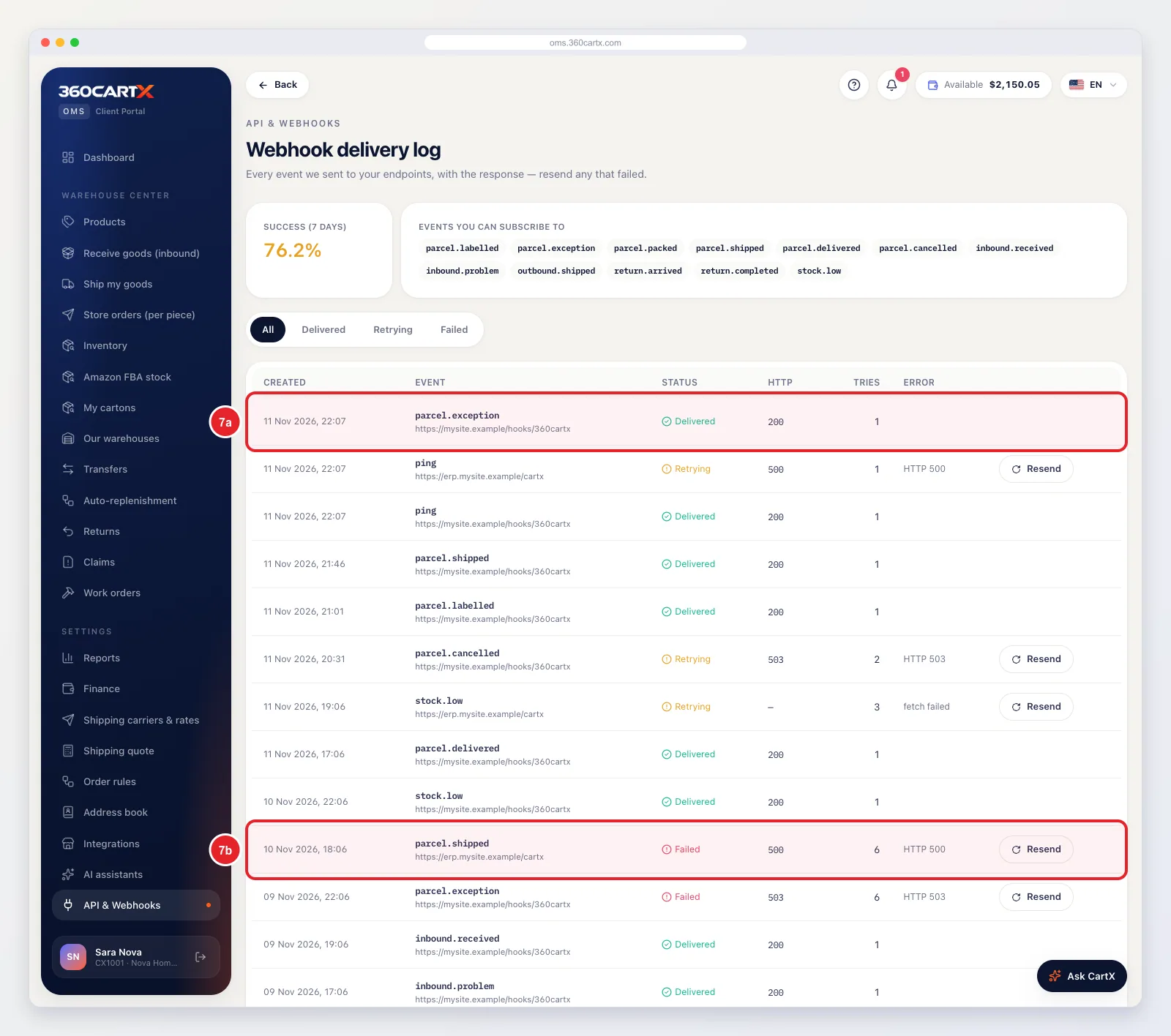
Open the tab All. The new delivery is the first row, with its own time, answer code and Tries. Delivered with a 200 in HTTP means your system accepted the resent message. If it shows Retrying or Failed again, the problem on your side is not fixed yet. The old Failed row is still in the list, further down.
- 7a The new delivery
- 7b The old row stays
- 8
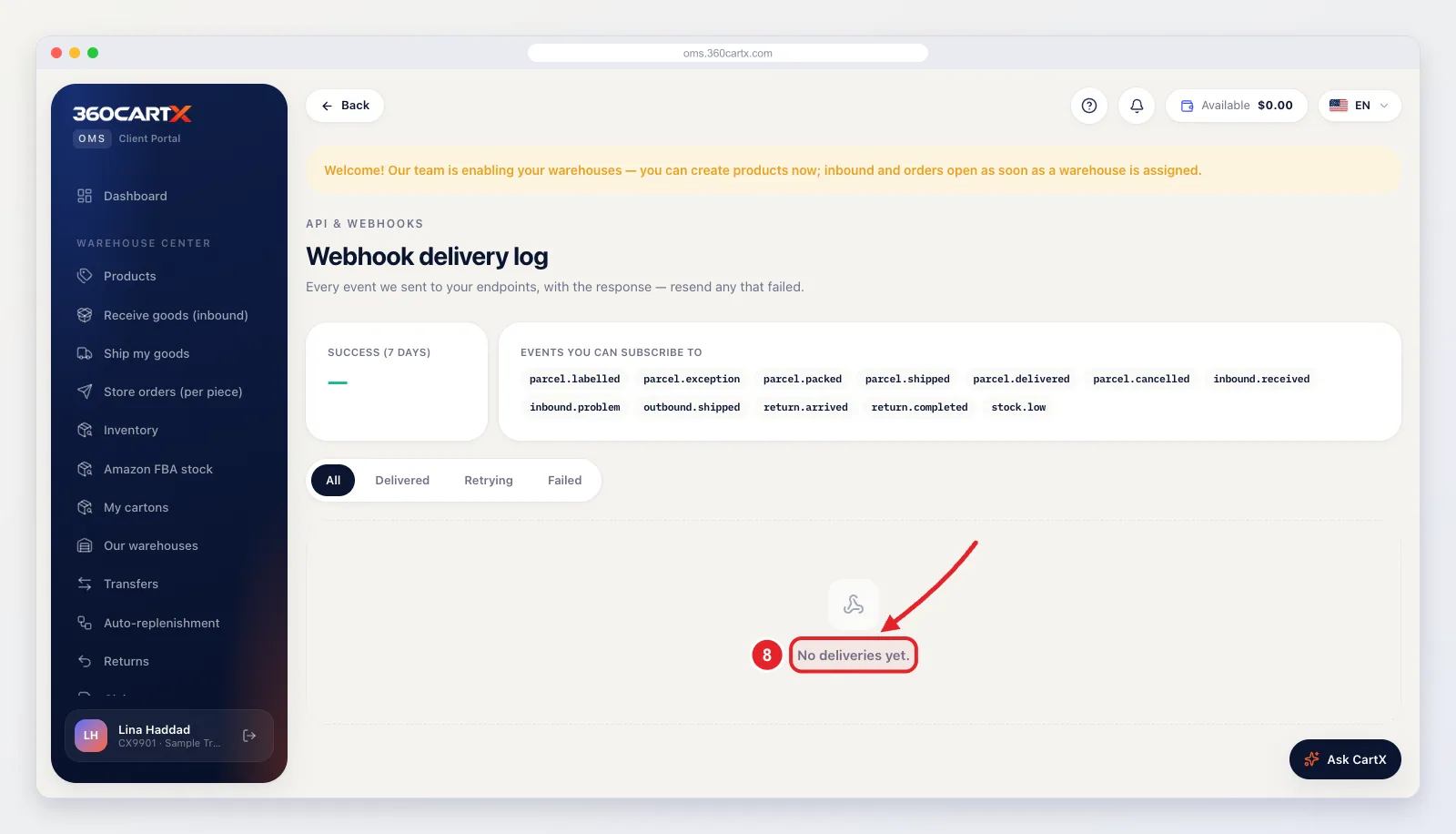
Before the first message
An account that never had a webhook, or whose endpoints have not received anything yet, sees No deliveries yet. and a dash for the success rate. Add an endpoint and click Send test to see the first row (see Receive webhooks).
- 9
What the log does not show
The log shows each delivery, not the message body. To see a body, log it in your own system or send a test and look at your server log. A deleted endpoint takes its deliveries with it.
Terms in this article
- Webhook: A signed message we send to your URL when something changes.
Tips
- Check the Failed tab after any downtime of your server, then Resend what you need.
- A low success rate usually means one endpoint is failing. The address under each event name tells which one.
- Resend sends the saved message as it was when the event happened, so the order data in it may be older than the order now. Read the current order with GET /orders/{orderNo} if you need the latest status.
- The log shows the latest 200 deliveries of your account.
Common problems
Everything says Retrying with HTTP 503
Your server is overloaded or down. Fix it; the next retries will go through, or click Resend.
Failed with fetch failed
We could not connect to your address (name not found, connection refused or certificate error). Open the address from the internet and fix it, then Resend.
Failed with HTTP 301 or 302
Your address redirects. We do not follow redirects. Put the final address in the endpoint (delete it and add it again).
Failed with HTTP 401 or 403
Your page refused the message. If your page checks the signature, check the secret and the raw body (see Verify a webhook signature).
I pressed Resend and nothing seems to have changed
Open the All tab: the new delivery is the first row. The old Failed row is not removed.
Related articles
Updated 2026-11-11
Open a ticket from Support in your portal and our team will reply.