Steps
- 1
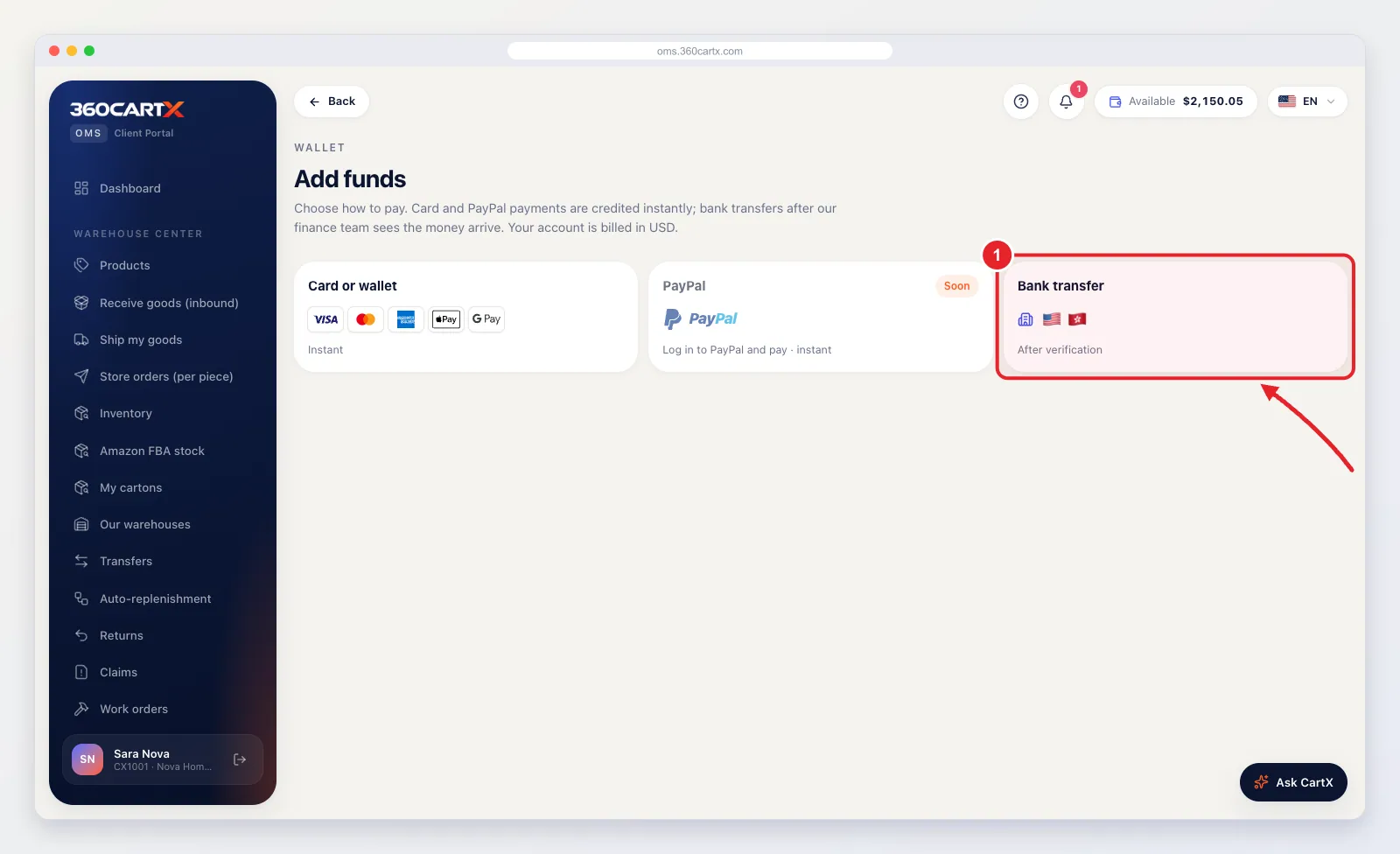
Choose Bank transfer
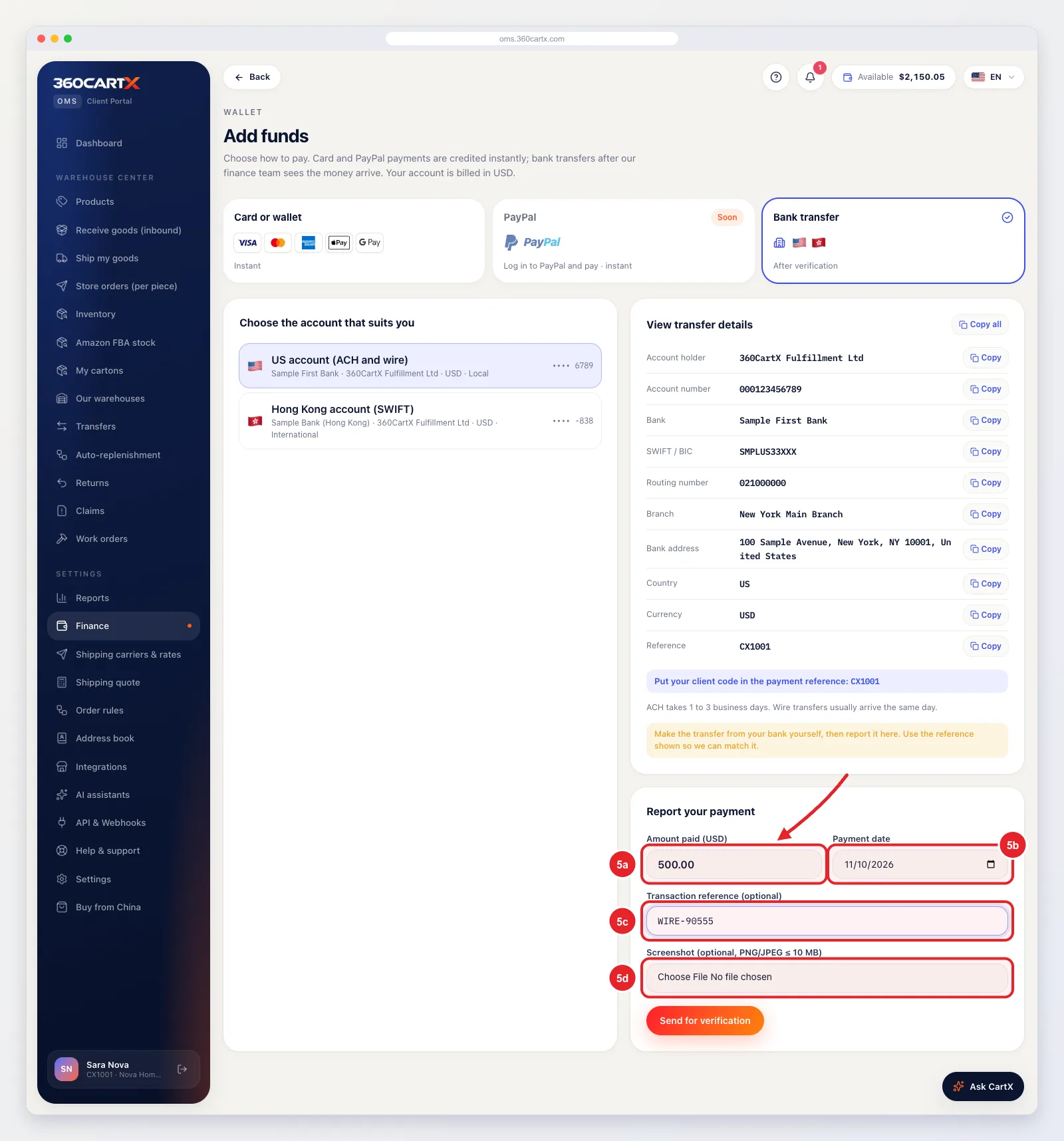
On Finance click Add funds, then click the Bank transfer box (After verification). The small flags in the box show the countries of our accounts. The page opens with a list of accounts and no details yet.
- 2
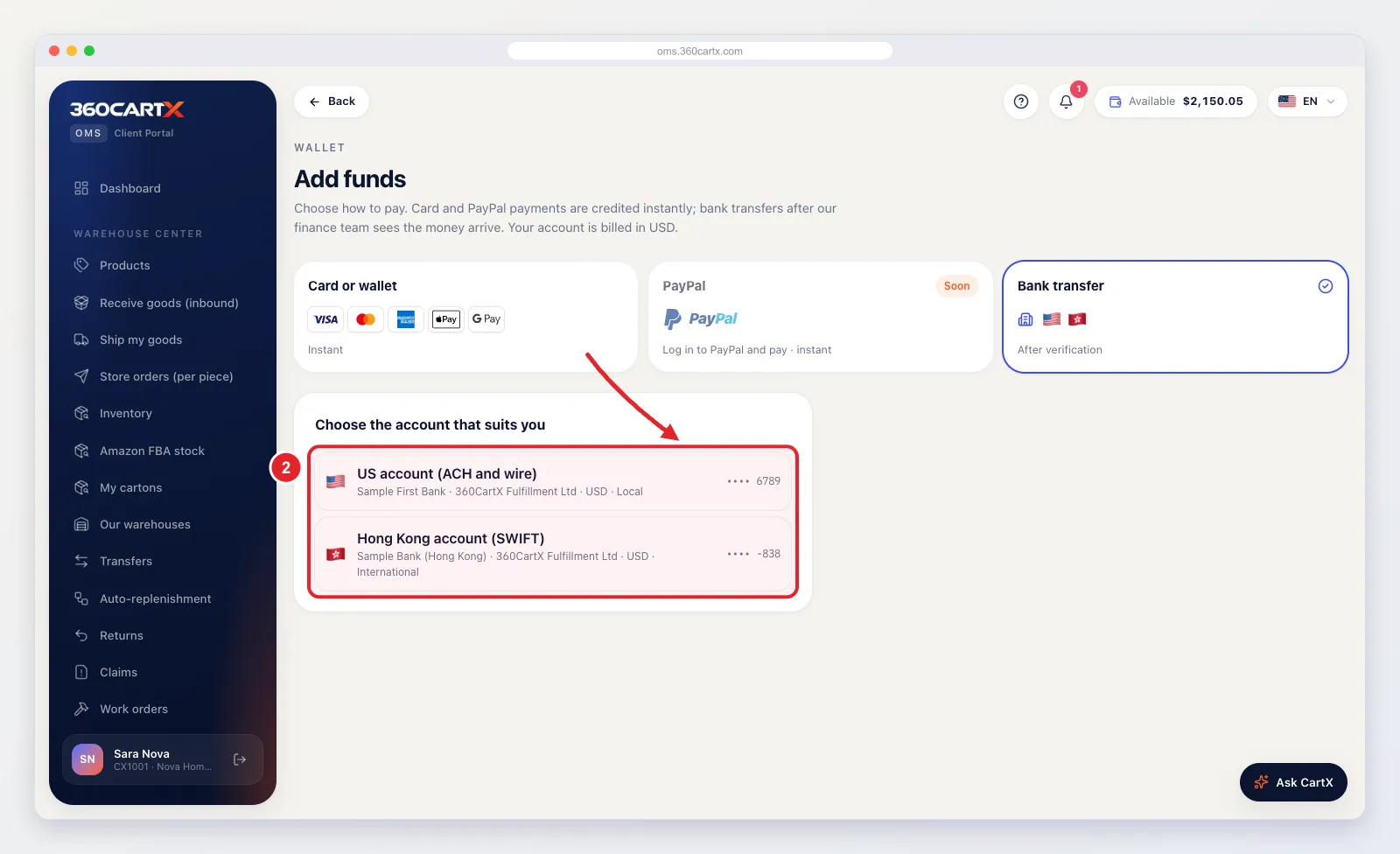
Choose the account that suits you
Under Choose the account that suits you every row is one of our bank accounts: a flag, its name (for example US account (ACH and wire)), the bank, the account holder, the currency, whether it takes Local, International or Local & international transfers, and the last 4 digits of the number. Pick the account that is easiest for your bank: a local account in your country may save you international fees. The wallet is credited in USD.
- 3
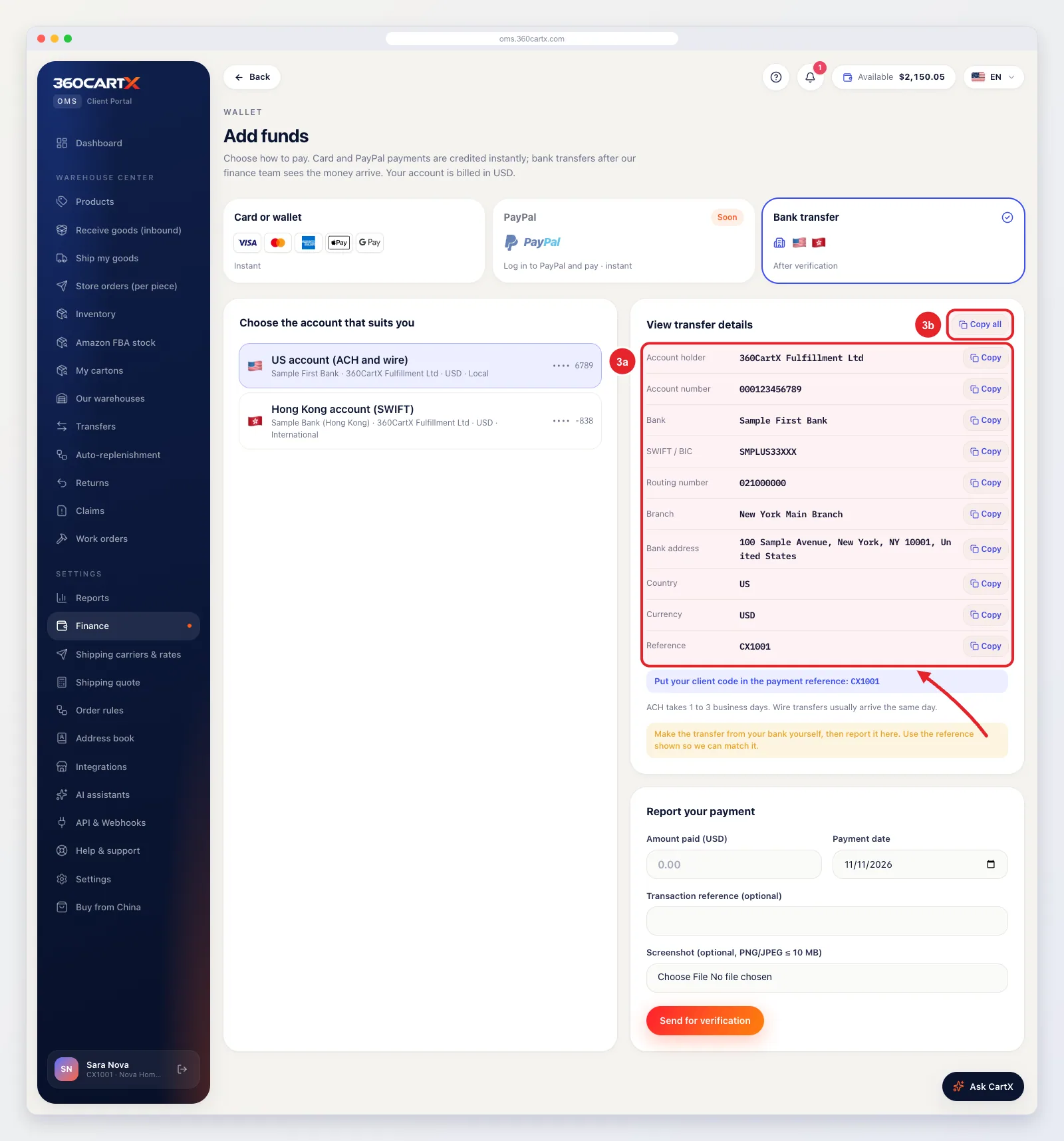
Copy the transfer details
After you click an account, View transfer details shows everything your bank needs: Account holder, Account number, Bank, IBAN, SWIFT / BIC, Routing number, CNAPS, Branch, Bank address, Country, Currency (only the details that account has) and the Reference. Click Copy next to a line to copy that value (the button says Copied), or Copy all at the top to copy all lines at once and paste them into your banking app.
- 3a Transfer details
- 3b Copy all
- 4
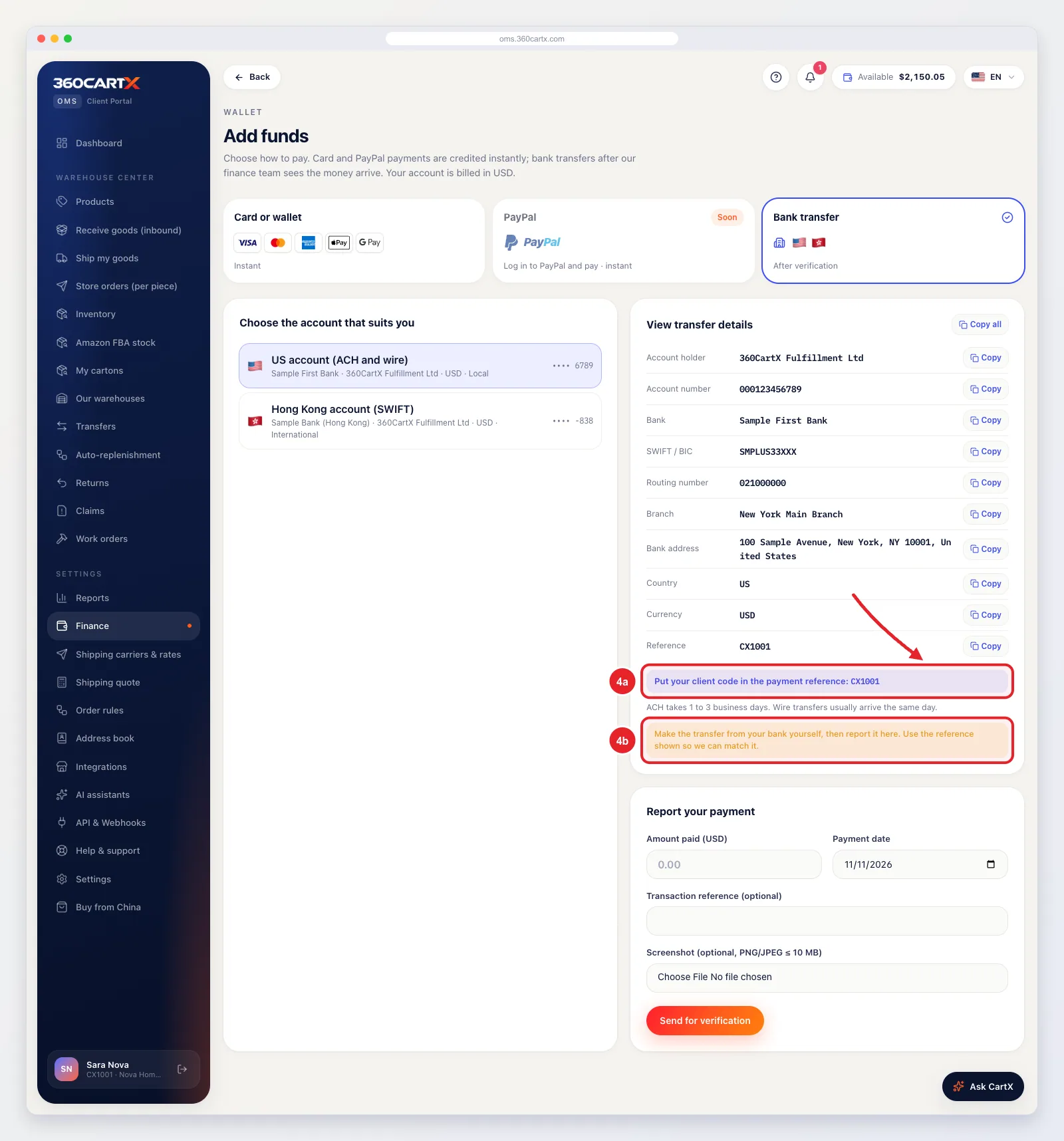
Use the reference
A blue line tells you what to write in the payment reference, your client code. It reads: Put your client code in the payment reference: CX1001. This is how we match the money to your account. Below it, an amber note says: Make the transfer from your bank yourself, then report it here. Use the reference shown so we can match it. Some accounts add instructions of their own under the reference, for example how long ACH takes.
- 4a Reference
- 4b Note
- 5
Make the transfer, then report it
Make the transfer from your own bank. 360CartX cannot start it for you. Then fill in Report your payment: Amount paid (USD), the amount you sent, with up to two decimals; Payment date, today or any day in the last 90 days; Transaction reference (optional), for example the wire or bank reference; and Screenshot (optional, PNG/JPEG ≤ 10 MB) of the bank confirmation. A screenshot helps us find the payment faster.
- 5a Amount paid
- 5b Payment date
- 5c Transaction reference
- 5d Screenshot
- 6
Messages when the report is not accepted
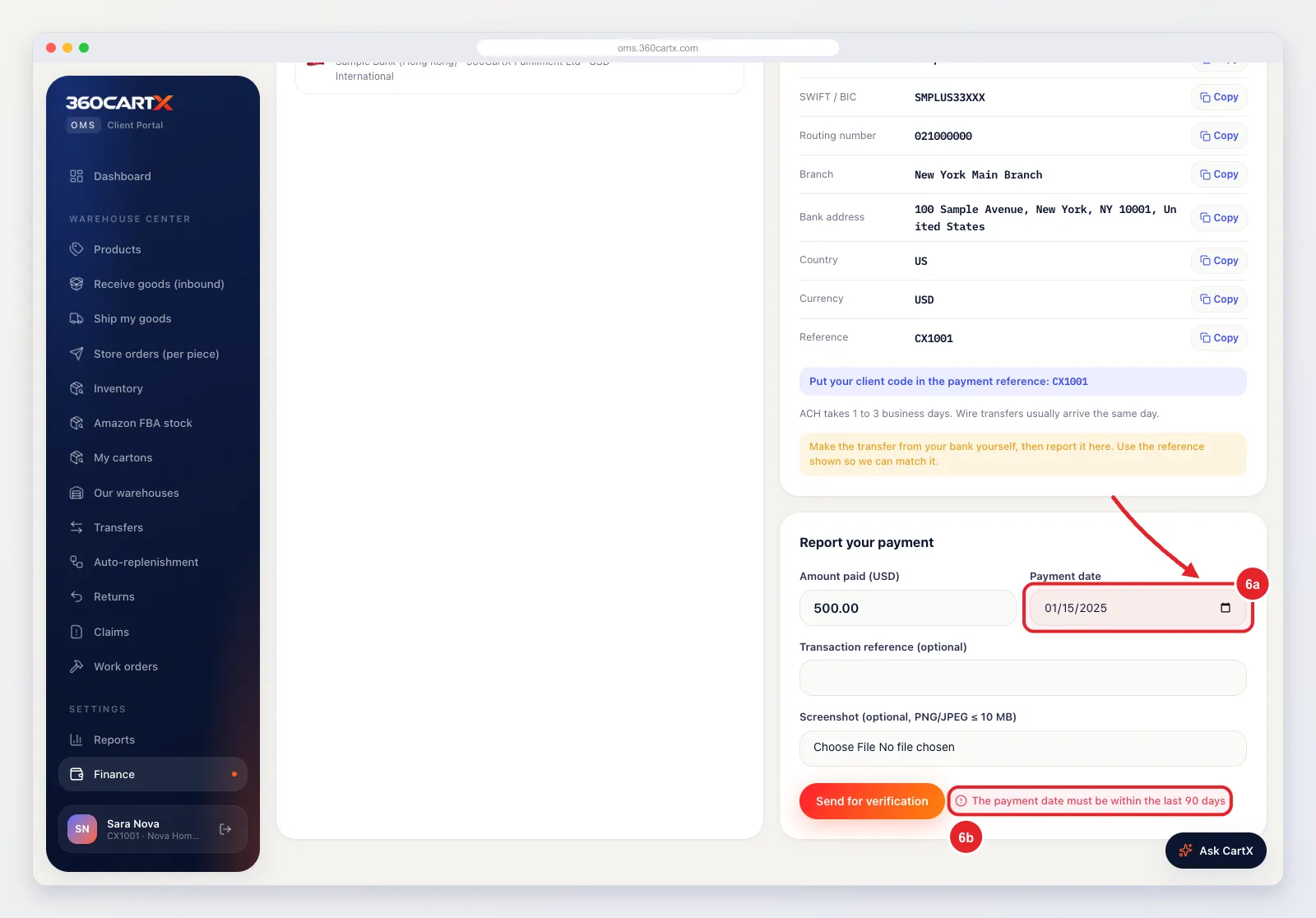
Click Send for verification. If something is wrong a red message appears and nothing is sent. Possible messages: Enter the amount you paid (up to 2 decimals); Enter the payment date; The payment date must be within the last 90 days (shown here for a date in 2025); Choose one of our active bank accounts (the account was turned off, go back and pick another); the screenshot message is the file name followed by only PNG or JPEG images or by larger than 10 MB.
- 6a Payment date
- 6b Red message
- 7
Report sent
When the report is accepted you see Received, followed by We check the payment and credit your wallet and the number of your request, for example Request TU2611110001. Our finance team is told right away. Nothing is added to your wallet yet: your report only starts the check.
- 8
Follow the check
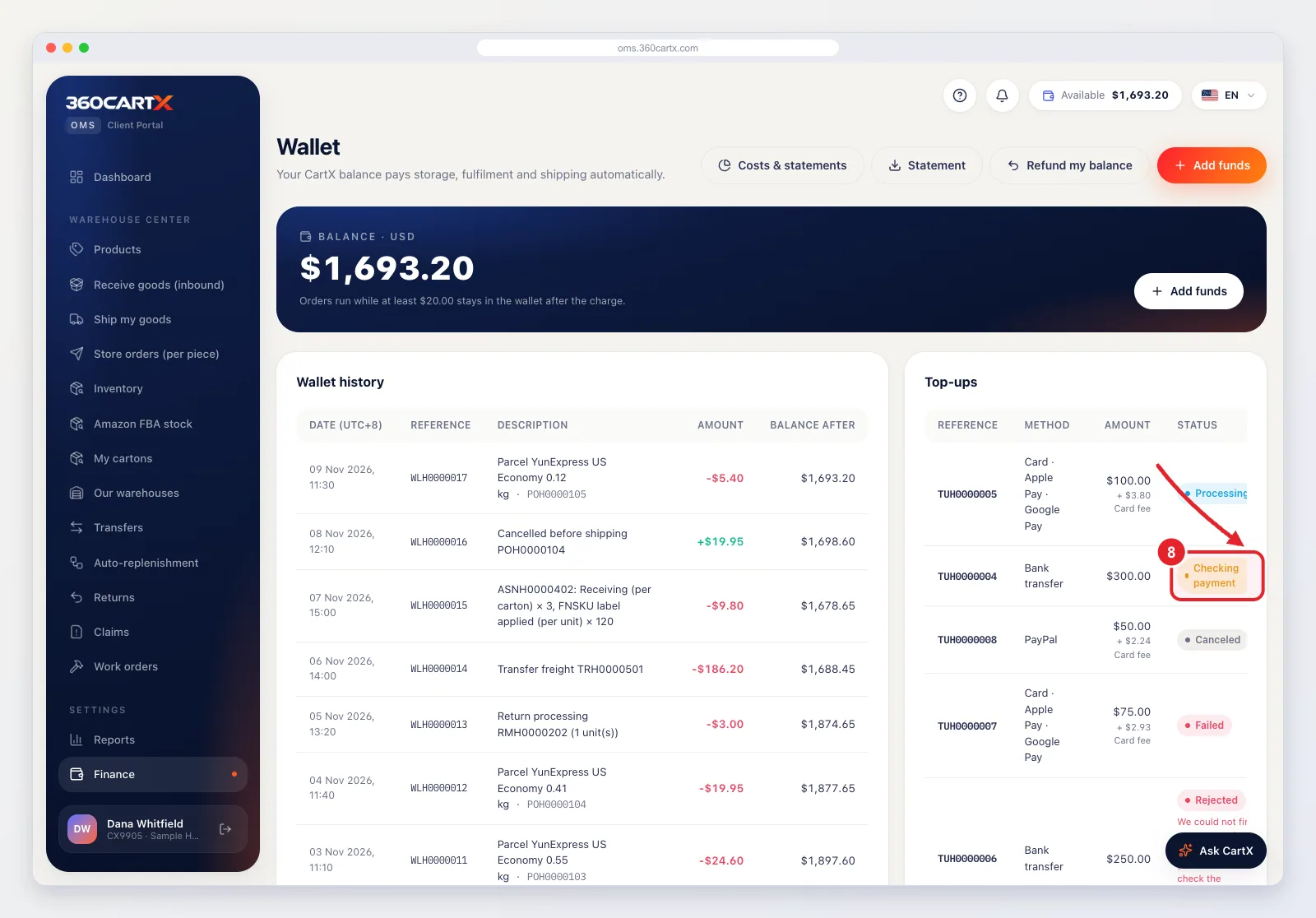
On Finance your request is in Top-ups with the status Checking payment. When our team confirms the money, the status becomes Credited, the wallet history gets a line Bank transfer top-up TU..., you receive the notification Top-up received, and an invoice is added in Settings, Invoices. We credit the amount that actually arrived in our account, and the invoice shows that amount. If we cannot find the payment the status becomes Rejected with the reason shown under it, and you can report again.
Tips
- Always write your client code in the reference. A transfer without it takes longer to find.
- Report the payment right after you send it, with the screenshot. Report each transfer once.
- You can only report transfers to our accounts that are listed here. The details are frozen when you report, so a later change of our account does not affect your request.
- Your own bank may charge a fee or convert currency. Send enough so that the amount you want arrives.
Common problems
Bank transfer details are not configured yet.
There is no active bank account for your billing currency yet. Use another method or contact support.
The payment date must be within the last 90 days
A transfer older than 90 days cannot be reported here. Open a support ticket and attach the proof of payment.
Choose one of our active bank accounts
The account you looked at has been turned off since you opened the page. Go back to Choose the account that suits you and pick another.
My top-up is Rejected
The reason is shown under the status, for example that we could not find a payment of that amount. Check the amount, date and reference on your bank statement and report the payment again, or open a support ticket.
It is still Checking payment after several days
We credit only after the money is in our account. International transfers can take several business days. If your bank shows the transfer as completed, open a support ticket with the TU number and your bank confirmation.
Your role can't do this
Only owners, admins and finance team members can report payments. Ask one of them.
Related articles
Updated 2026-11-11
Open a ticket from Support in your portal and our team will reply.