Steps
- 1
Choose PayPal
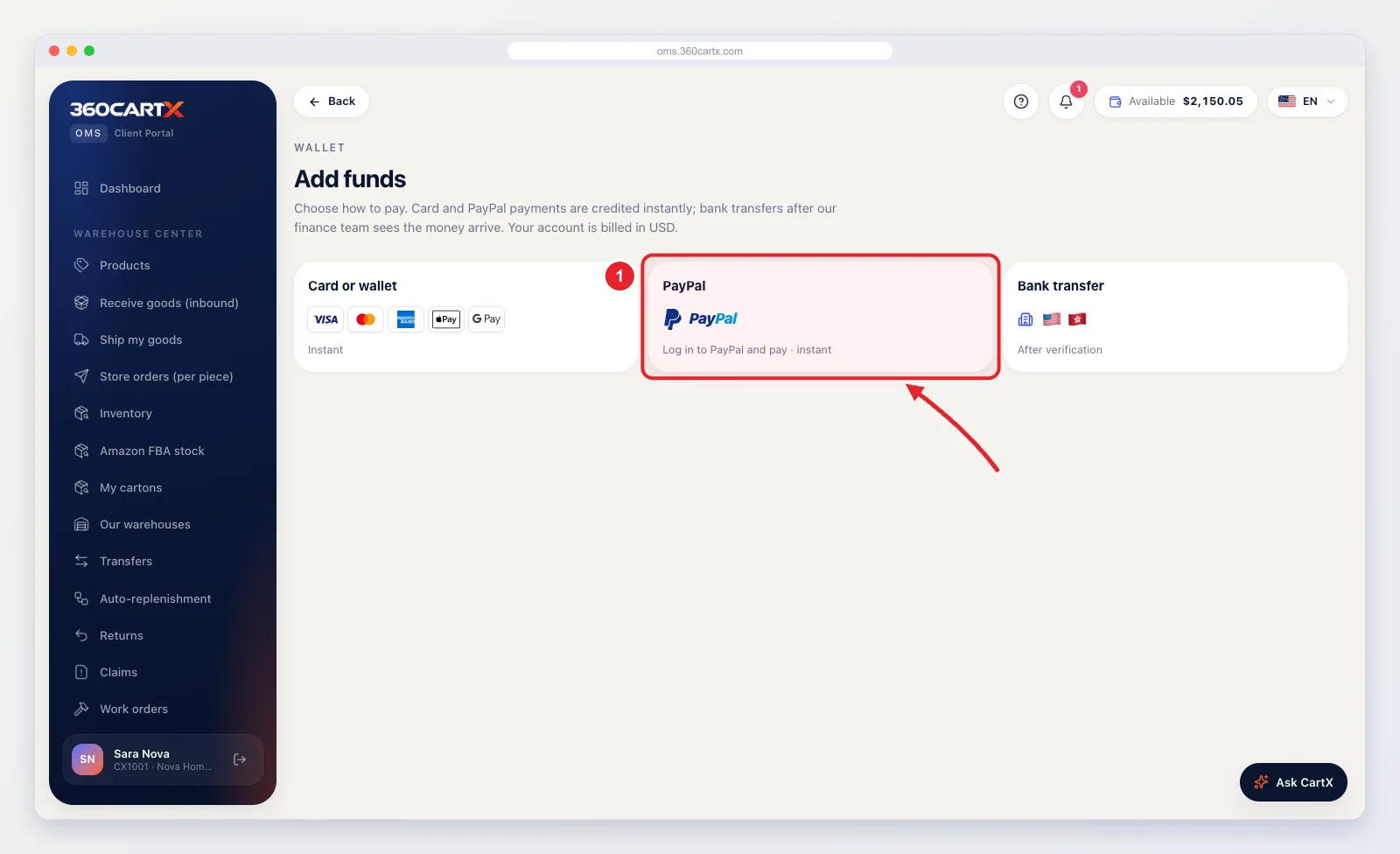
On Finance click Add funds, then click the PayPal box (Log in to PayPal and pay · instant). The box gets a blue frame and the PayPal form opens below it. PayPal top-ups are in USD only.
- 2
Type the amount
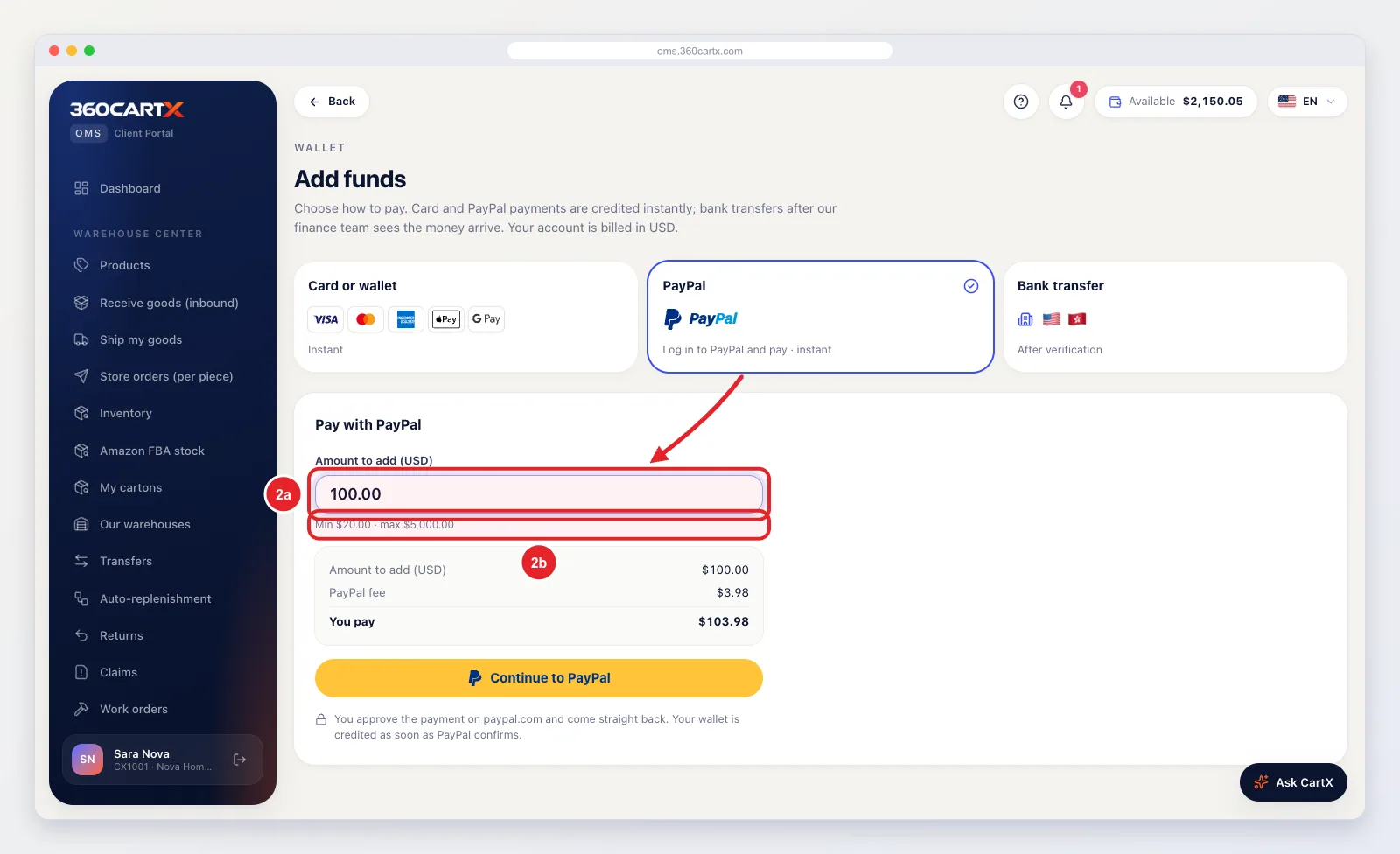
Under Pay with PayPal type Amount to add (USD), for example 100.00. Use digits only with up to two decimals, and no thousands comma. Under the box you read the limits, for example Min $20.00 · max $5,000.00.
- 2a Amount to add (USD)
- 2b Limits
- 3
Check the PayPal fee and the total
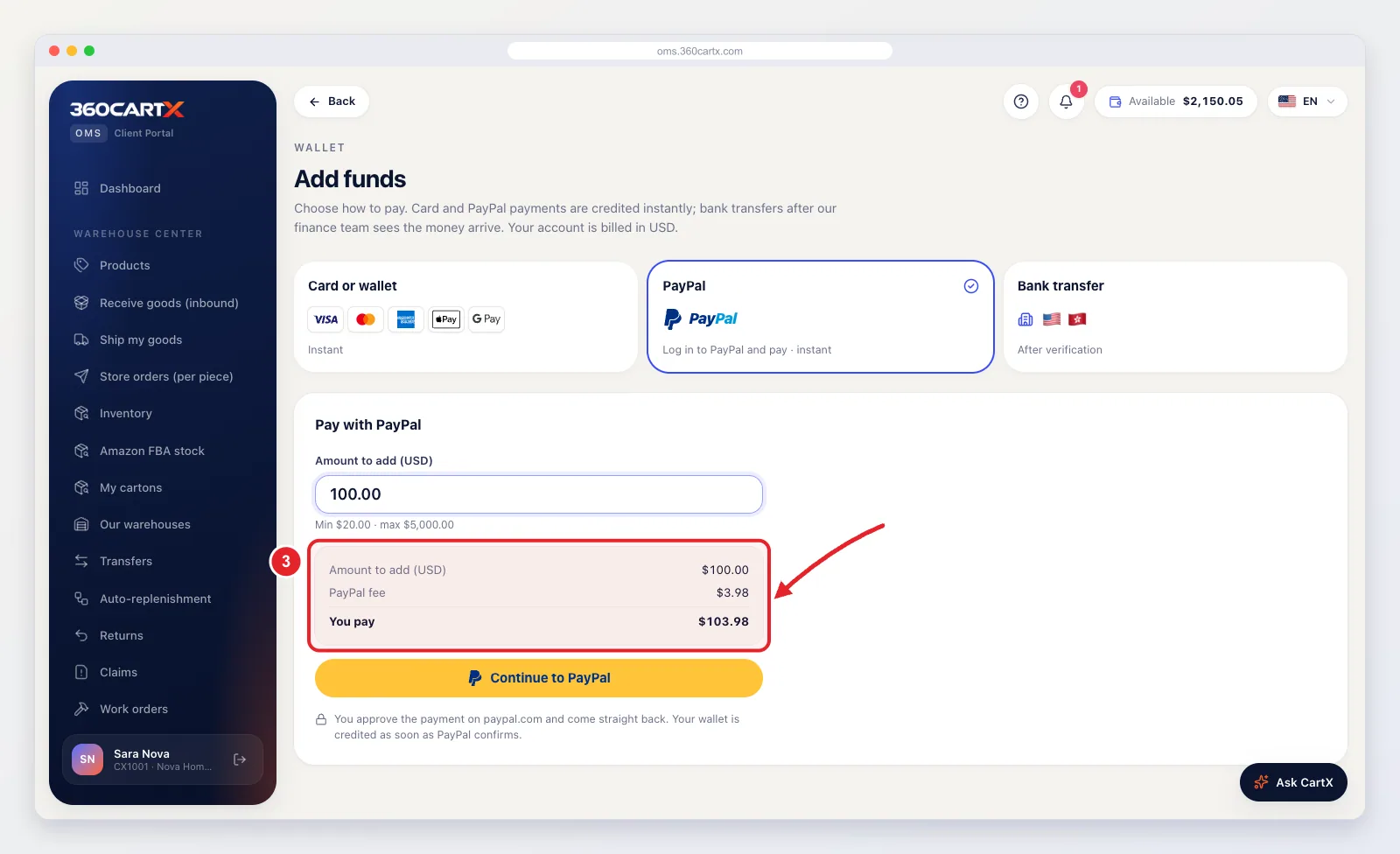
A small table shows Amount to add (USD) $100.00, PayPal fee $3.98 and You pay $103.98. You pay the fee on top, and the full $100.00 is credited to your wallet. The fee is a percentage plus a fixed part (at the time of writing 3.49% + $0.49) and is shown before you leave the page.
- 4
Continue to PayPal
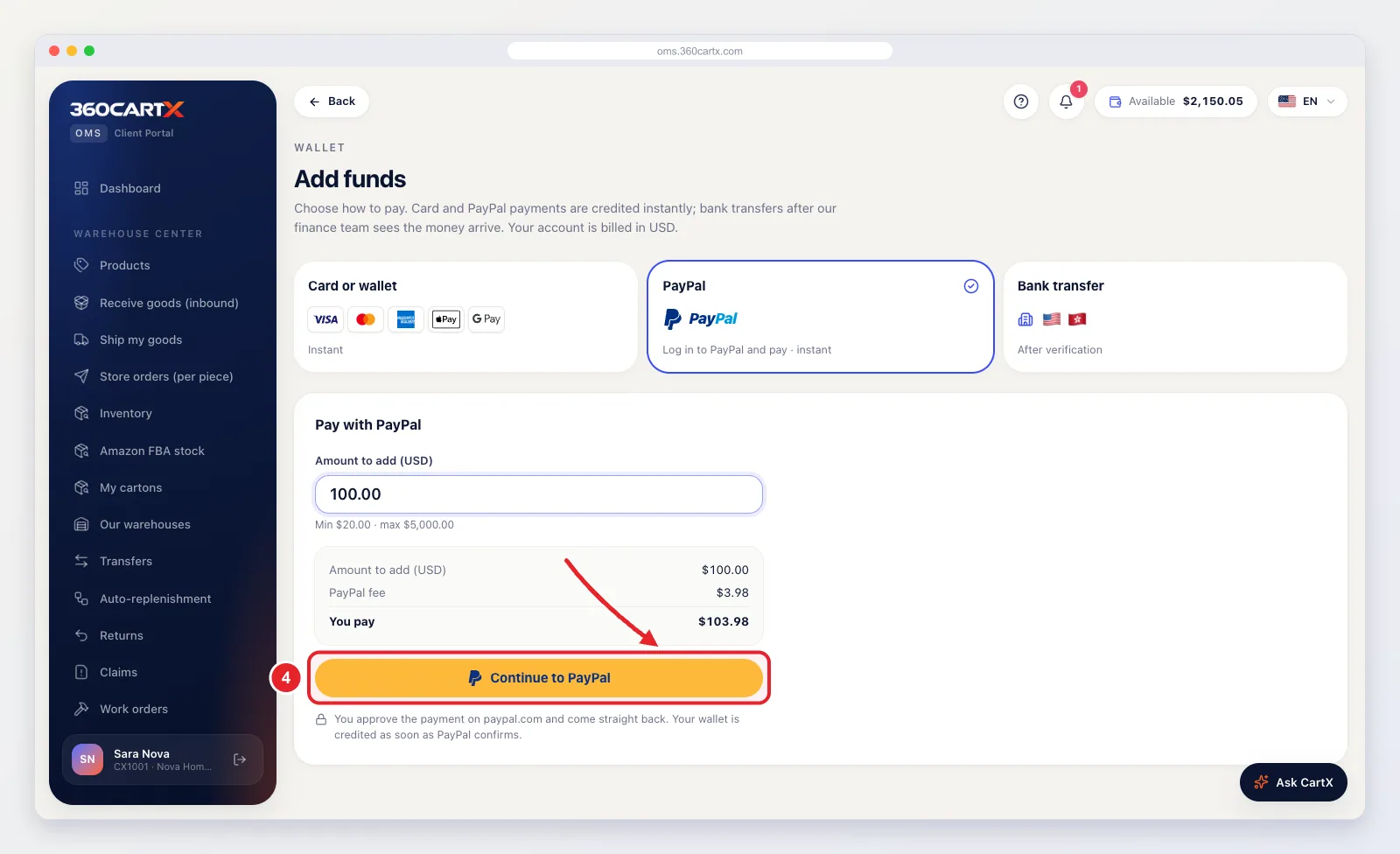
Click the yellow Continue to PayPal button. It stays greyed out until the amount is valid and inside the limits. A note under it says: You approve the payment on paypal.com and come straight back. Your wallet is credited as soon as PayPal confirms.
- 5
Approve the payment on paypal.com
You are taken to paypal.com. Log in, check the total (amount plus fee) and approve the payment. 360CartX never sees your PayPal password. PayPal then sends you back to the Add funds page.
- 6
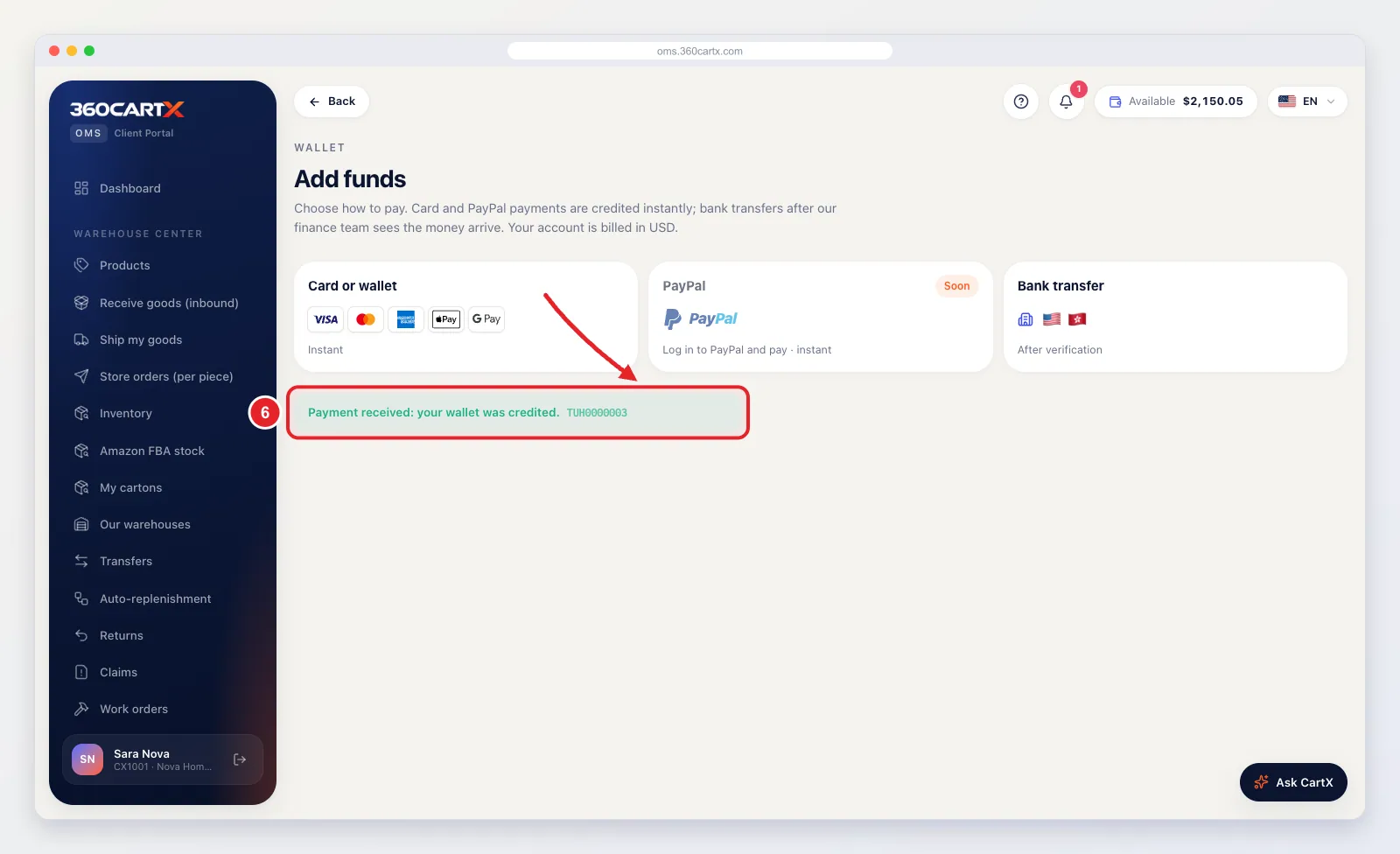
Payment received
When PayPal confirms, a green message tells you: Payment received: your wallet was credited. The number of the top-up (for example TUH0000003) is shown at the end of the message. In Top-ups it shows as Credited, the wallet history gets a line PayPal top-up TU..., you receive the notification Top-up received, and an invoice is added in Settings, Invoices. Orders waiting for money are released.
- 7
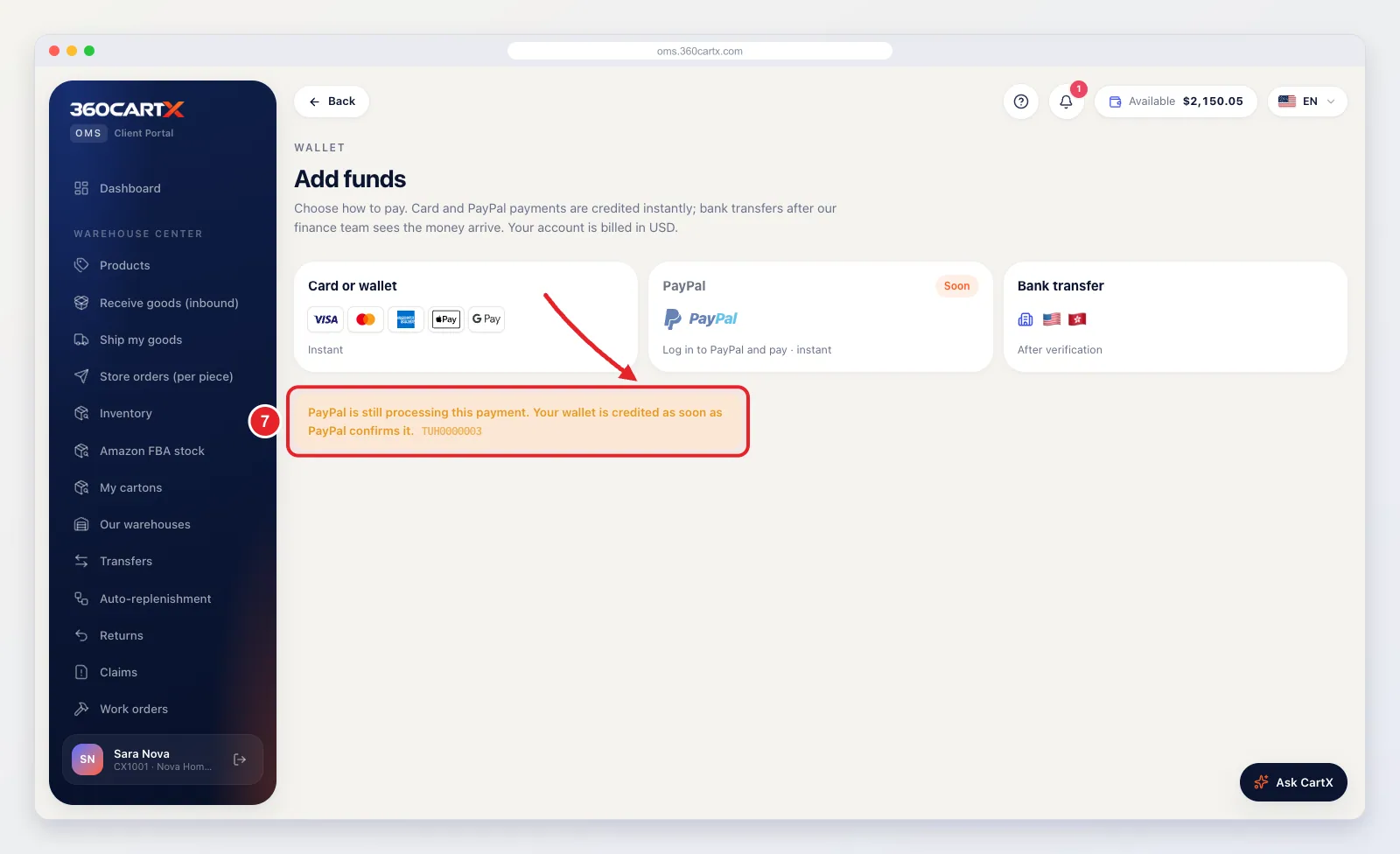
PayPal is still processing
Sometimes PayPal needs time, for example to review a payment. You then see an amber message: PayPal is still processing this payment. Your wallet is credited as soon as PayPal confirms it. You do not have to do anything: when PayPal confirms, your wallet is credited and the status changes from Processing to Credited.
- 8
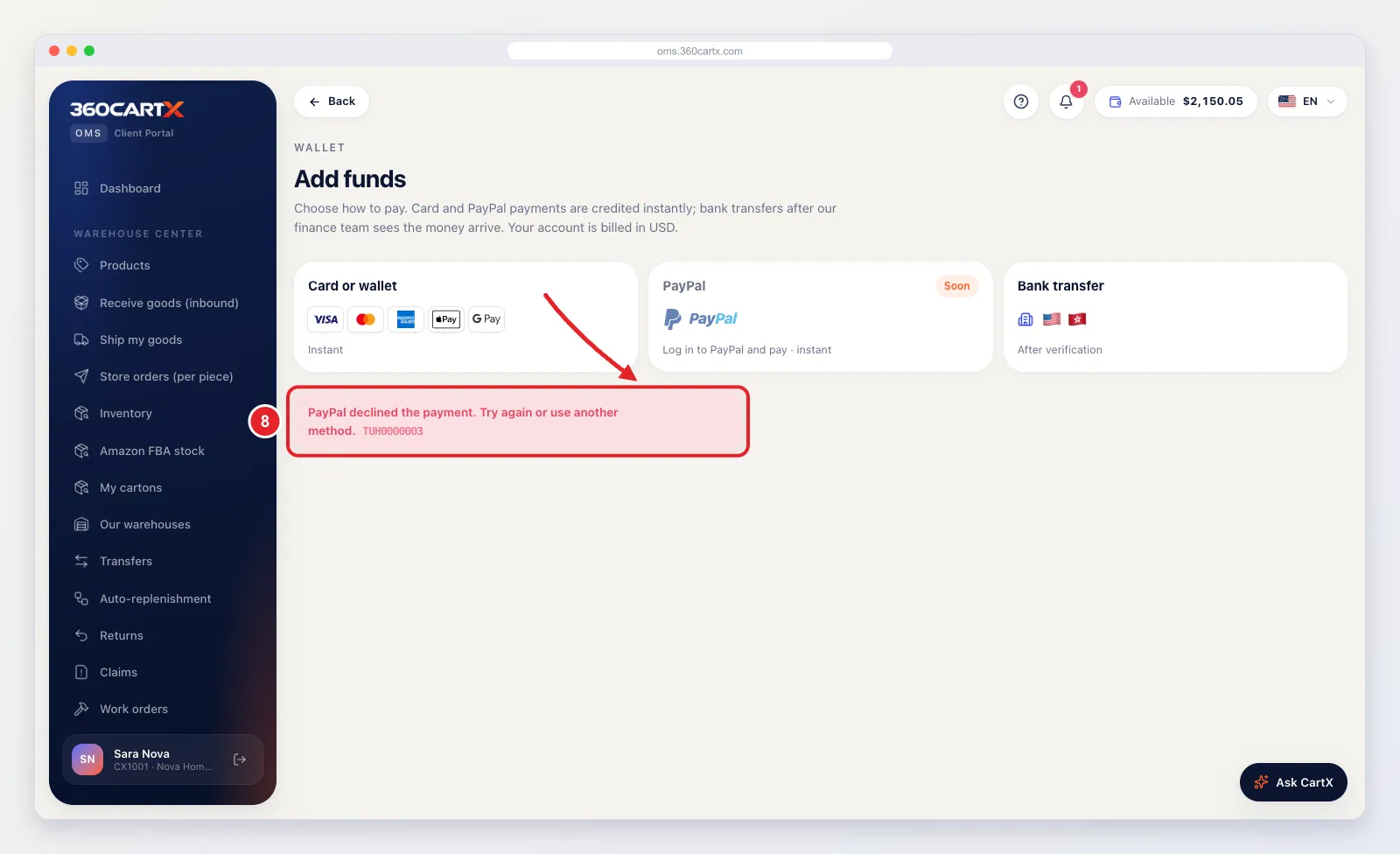
PayPal declined the payment
A red message says: PayPal declined the payment. Try again or use another method. Nothing was charged and the top-up shows Failed. The other two messages you may see are grey, Payment cancelled. Nothing was charged. (you closed or cancelled on paypal.com), and red, We could not confirm the payment. If money left your PayPal account it will be credited automatically; otherwise try again.
Tips
- Leave the PayPal window by clicking Cancel on paypal.com if you change your mind: nothing is charged and the top-up shows Canceled.
- If you see We could not confirm the payment and money did leave your PayPal account, do not pay again straight away. The payment is credited automatically when PayPal reports it. Check Top-ups first.
- The PayPal fee is not credited to your wallet and is not refunded when you later ask for your balance back.
Common problems
The PayPal box shows Soon and I cannot click it
PayPal is not switched on for the portal yet. Use Card or Bank transfer meanwhile. This article describes how it works once it is on.
Continue to PayPal is greyed out
The amount must be a number with up to two decimals between the minimum and the maximum shown under the box, with no comma.
PayPal is unavailable right now
A temporary problem at PayPal or on our side, or your team role is not allowed to move money (only owners, admins and finance team members are). Try again in a minute.
PayPal is being set up
PayPal is not switched on yet. Use another method.
PayPal still shows Processing
PayPal is still reviewing the payment. It is credited as soon as PayPal confirms it, and the status changes to Credited. If it stays Processing for a long time, open a support ticket with the TU number.
Related articles
Updated 2026-11-11
Open a ticket from Support in your portal and our team will reply.