Steps
- 1
Choose Card or wallet
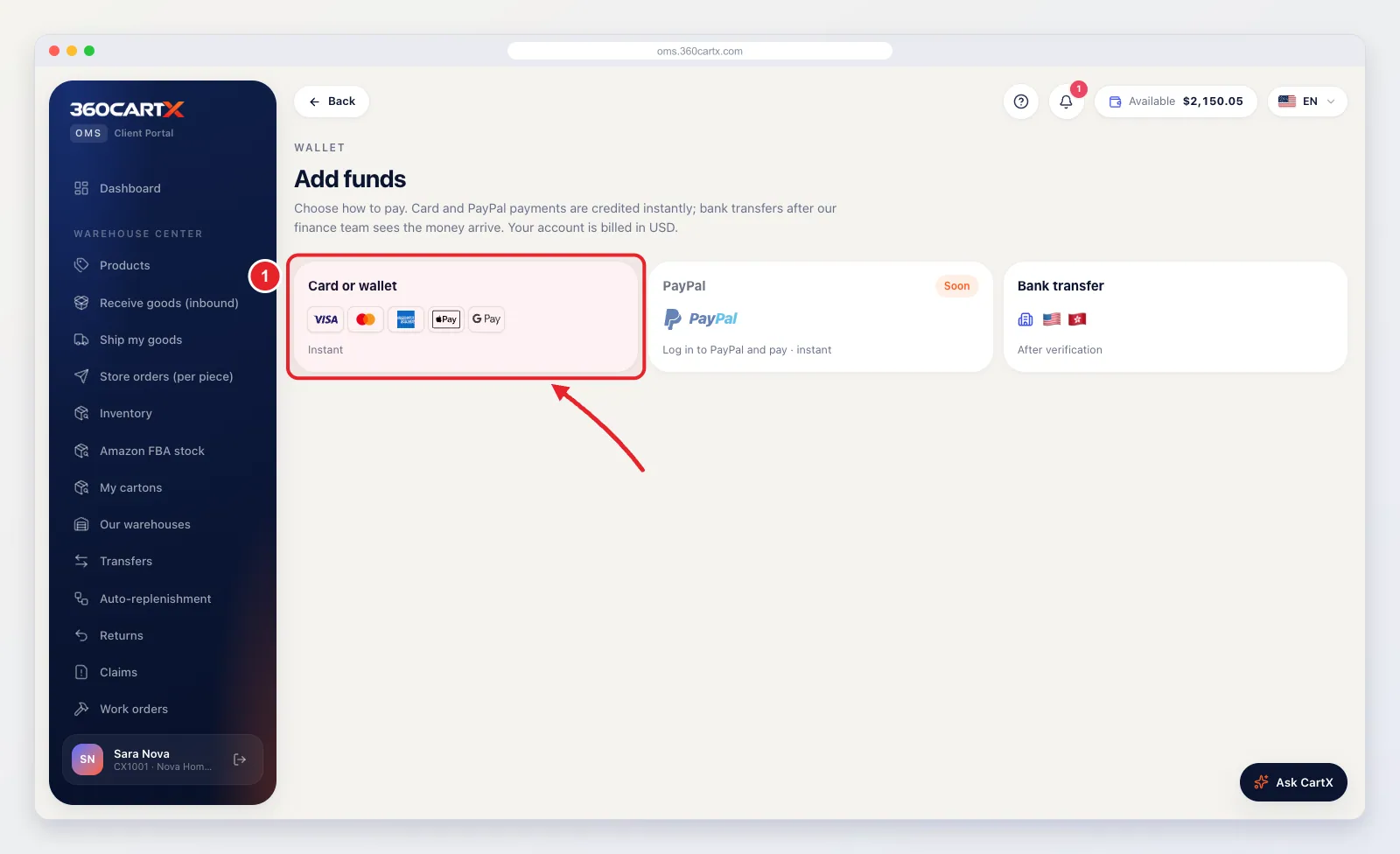
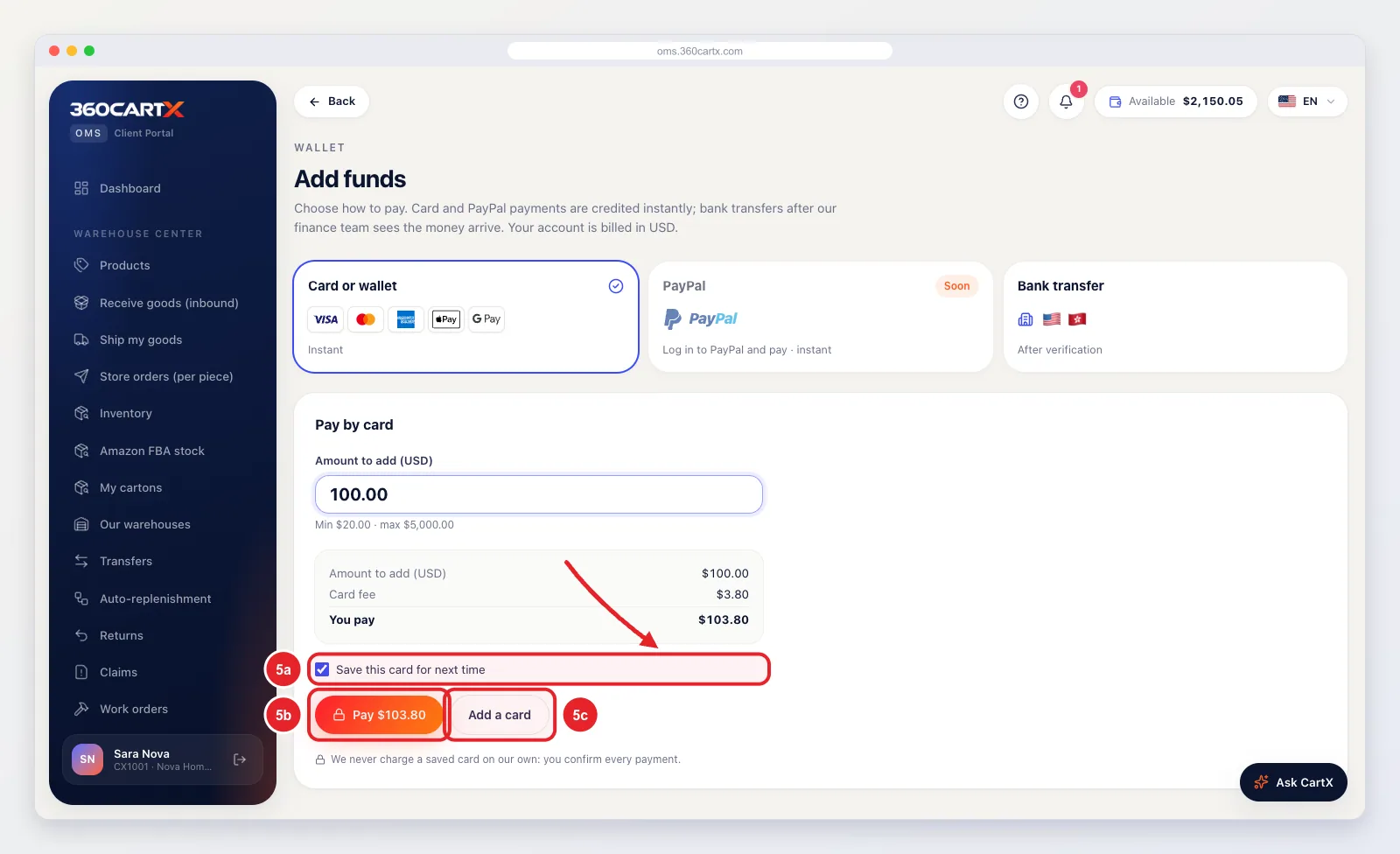
On Finance click Add funds, then click the Card or wallet box (Card · Apple Pay · Google Pay). The box gets a blue frame and the payment form opens below it.
- 2
Type the amount
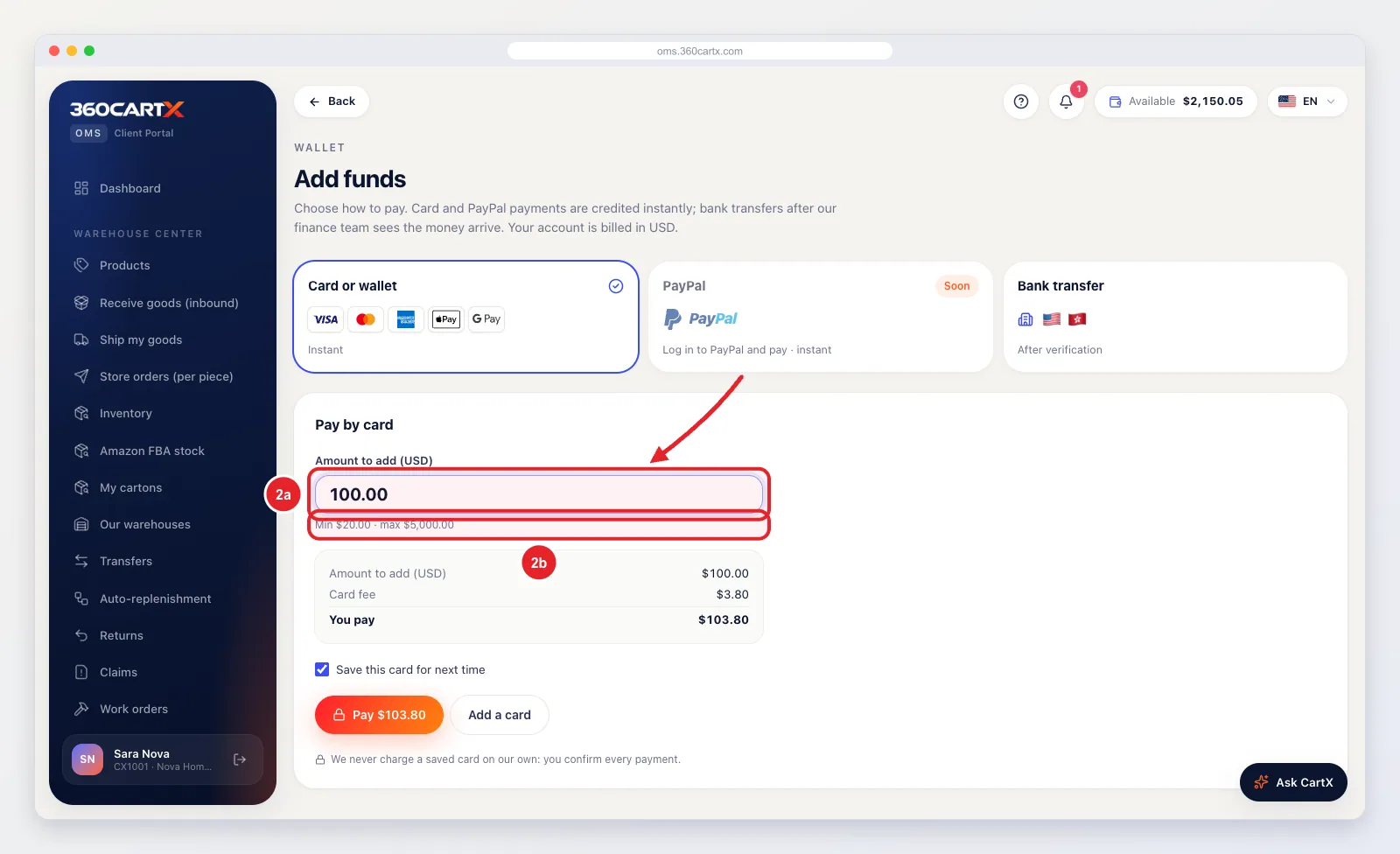
Under Pay by card type Amount to add (USD), for example 100.00. Use digits only with up to two decimals: no dollar sign and no thousands comma (type 1000, not 1,000). Under the box you read the limits: Min $20.00 · max $5,000.00 per top-up.
- 2a Amount to add (USD)
- 2b Limits
- 3
Check the card fee and the total
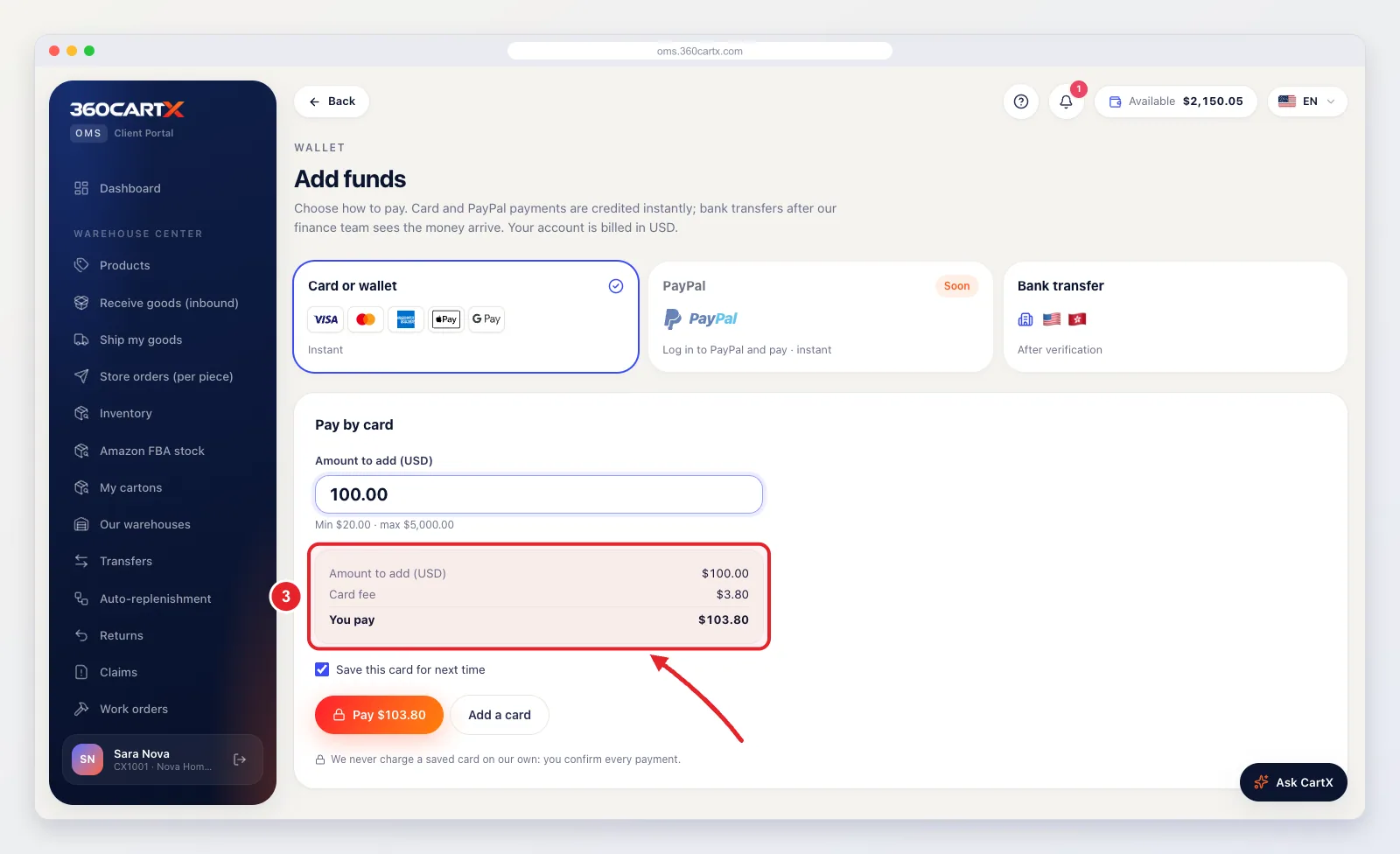
As soon as you type an amount, a small table appears: Amount to add (USD) $100.00, Card fee $3.80 and You pay $103.80. You pay the fee on top; the full $100.00 is credited to your wallet. The fee is a percentage plus a fixed part (at the time of writing 3.5% + $0.30) and is always shown here before you pay.
- 4
Amounts outside the limits
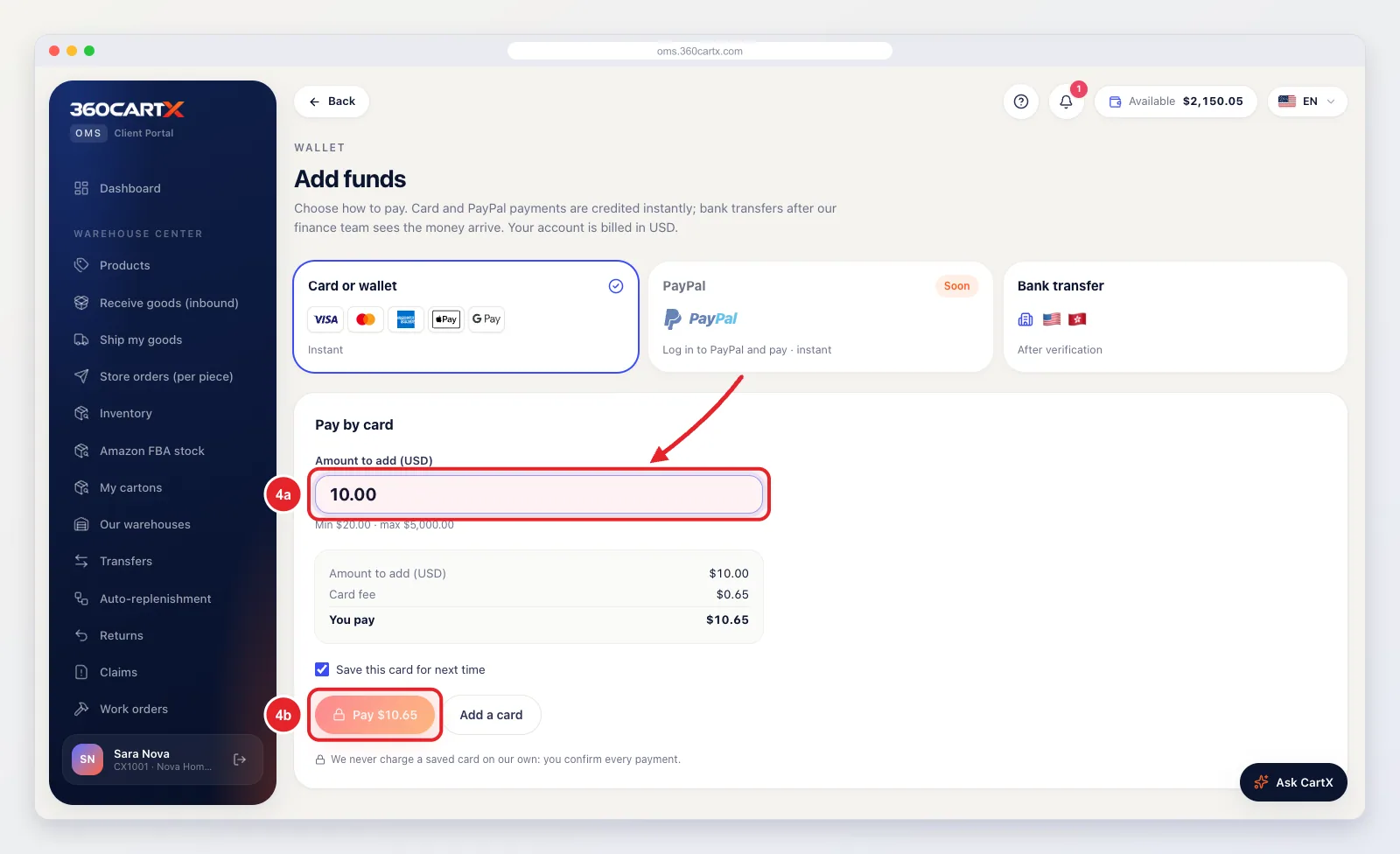
If the amount is below the minimum or above the maximum, or is not a valid amount, the Pay button stays greyed out. Here $10.00 is below the $20.00 minimum. Change the amount and the button turns solid orange. It is also greyed out for a second or two while the secure payment script loads.
- 4a Amount
- 4b Pay (greyed out)
- 5
Save this card, Pay, or Add a card
Save this card for next time is ticked by default: the card is kept with our payment provider so you can pay faster next time. Untick it to pay without saving. Pay $103.80 (the button shows the total) starts the payment. Add a card saves a card without paying anything: the secure form asks for the card and a tick confirms it is saved.
- 5a Save this card
- 5b Pay
- 5c Add a card
- 6
Pay with a saved card
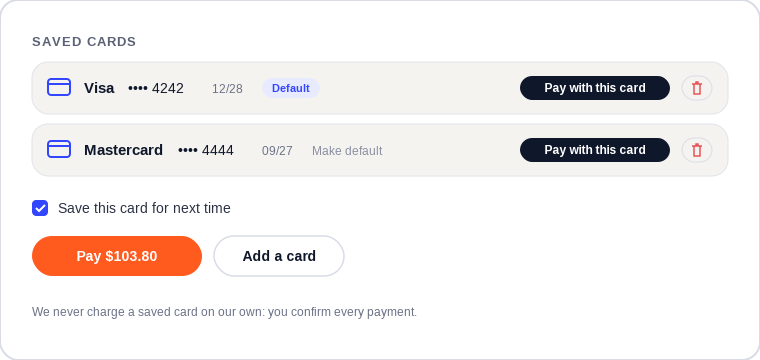
Once you have saved a card, a Saved cards list appears above the buttons: the card brand, its last 4 digits and expiry (MM/YY). The first card is marked Default; click Make default on another one to change it. Type the amount first, then click Pay with this card to pay with that card, or the bin to Remove it. If your bank wants to check you (3-D Secure) a confirmation window opens. We never charge a saved card on our own: you confirm every payment.
- 7
Enter your card and confirm
When you click Pay, the amount fields are replaced by a secure payment form from Stripe. It offers what your device and country support: card number, expiry and security code, and Apple Pay, Google Pay or Link when available. Fill it in and click the Pay button under it (it shows the same total, for example Pay $103.80). Your bank may ask you to confirm the payment (3-D Secure). If you click Pay again for the same amount while a payment is still open, the open payment is continued instead of a second one being started.
- 8
After you pay
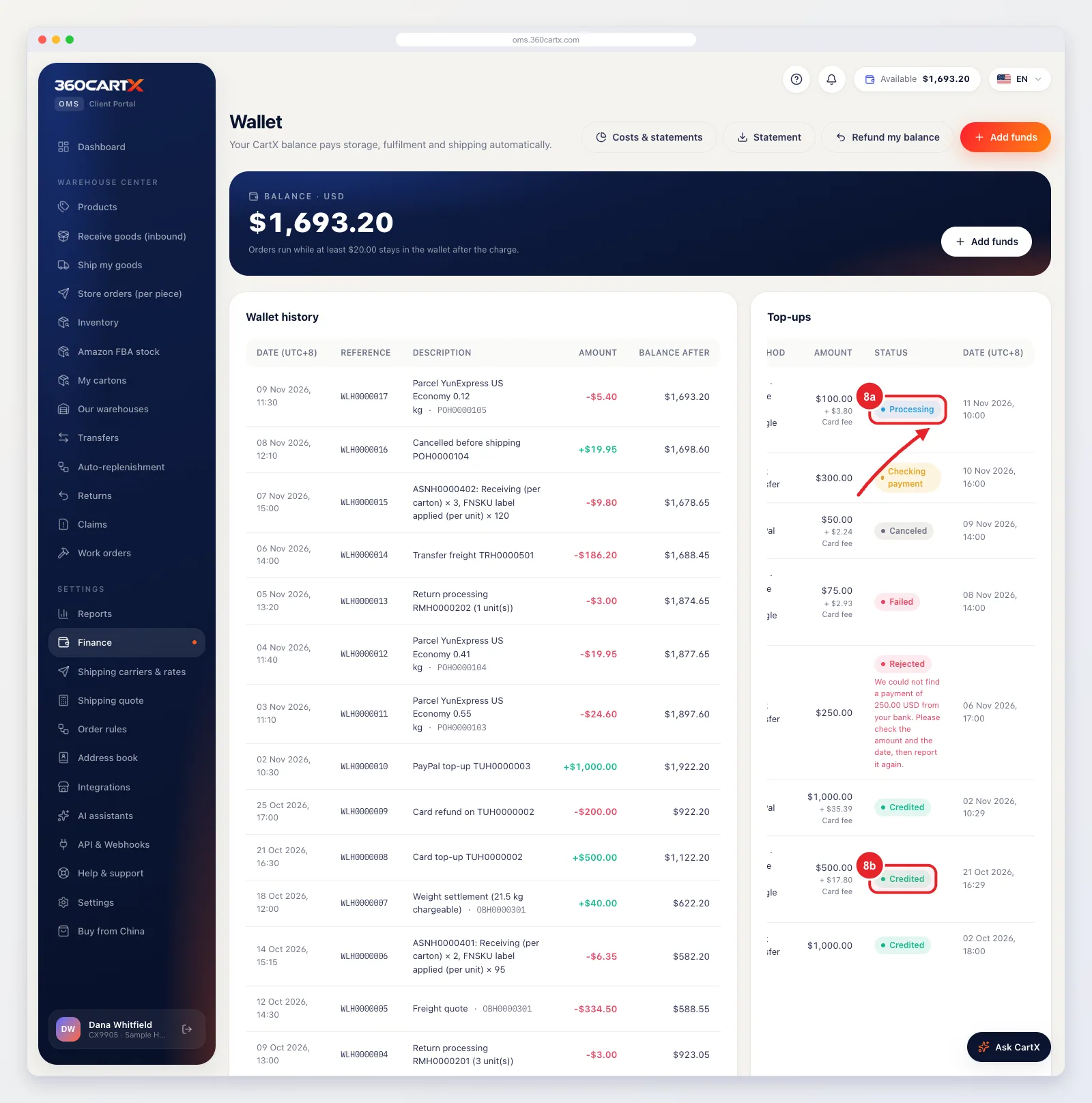
You see Payment received: your wallet is credited once the card network confirms, a matter of seconds. On Finance the top-up appears in Top-ups: Processing while we wait for the confirmation, then Credited. The wallet history gets a line Card top-up TU... and you receive the notification Top-up received plus an invoice in Settings, Invoices that shows the amount and the card fee as separate lines. Orders that were waiting for money are released automatically.
- 8a Processing
- 8b Credited
Tips
- Add a little more than you need: the minimum balance of $20.00 stays in your wallet after every charge.
- The card fee is not credited to your wallet and is not refunded if you later ask for your balance back.
- Apple Pay and Google Pay appear inside the secure payment form when your device and browser support them. There is no separate button to look for.
- Your card statement shows the total you paid ($103.80 in the example), not the credited amount.
Common problems
The Pay button is greyed out
Check the amount: it must be a number with up to two decimals between the minimum and the maximum shown under the box, with no comma. If the amount is right, wait a moment: the button is also off while the secure payment script loads. If it stays off, reload the page and check that a browser extension is not blocking js.stripe.com.
Payment failed
Your bank or card was declined, or the payment was not confirmed. The reason from the card network is shown in red under the buttons. Check the card details and the limit with your bank, or use another card. The top-up then shows Failed in Top-ups and nothing is charged.
Card payments are being set up
Card payments are not switched on for the portal yet. Use Bank transfer for now.
Card payments are unavailable right now
A temporary problem on our side or at the payment provider, or your team role is not allowed to pay (only owners, admins and finance team members are). Try again in a minute, or ask an owner or admin.
Amount must be between 20.00 and 5000.00 USD
The amount is outside the limits. Type an amount inside them, or split a larger top-up into several or use a bank transfer.
I paid but my wallet is not credited
Wait a minute: the card network confirms within seconds. Open Finance and look at Top-ups. Processing means we are still waiting. A payment you start but do not finish is closed after one hour and shows Canceled; nothing is charged. If your bank shows the charge and the top-up still is not Credited after a few minutes, open a support ticket with the TU number.
My payment window closed halfway
Open Add funds, choose Card or wallet, type the same amount and click Pay again: the open payment is continued. After one hour it is cancelled automatically.
Account suspended
Your account cannot take card payments while it is suspended. Contact support.
Related articles
Updated 2026-11-11
Open a ticket from Support in your portal and our team will reply.