Steps
- 1
Open the BigCommerce card
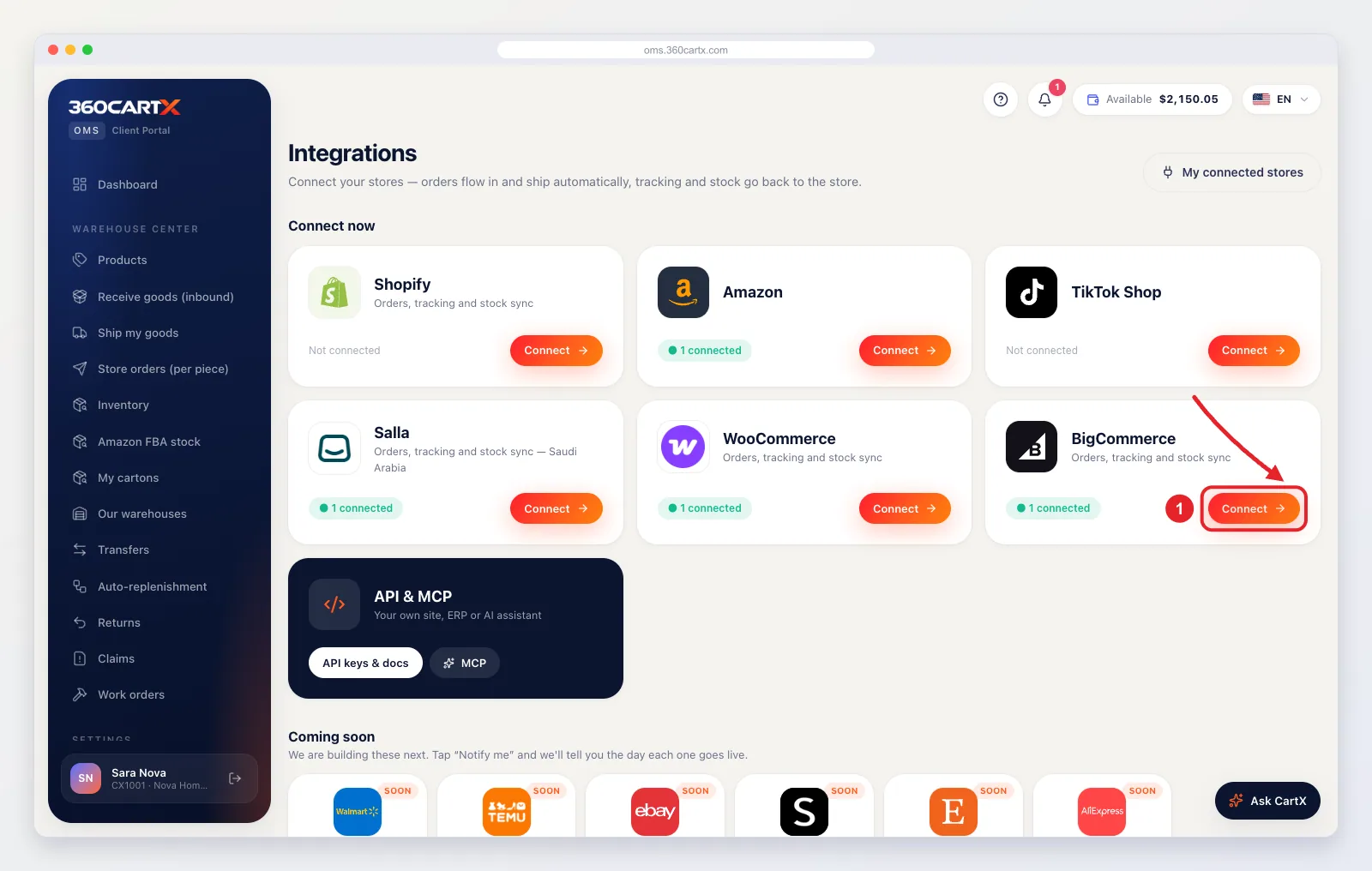
Go to Integrations and click Connect on the BigCommerce card, or open Connect a store and click the BigCommerce tile.
- 2
Create the API account in BigCommerce
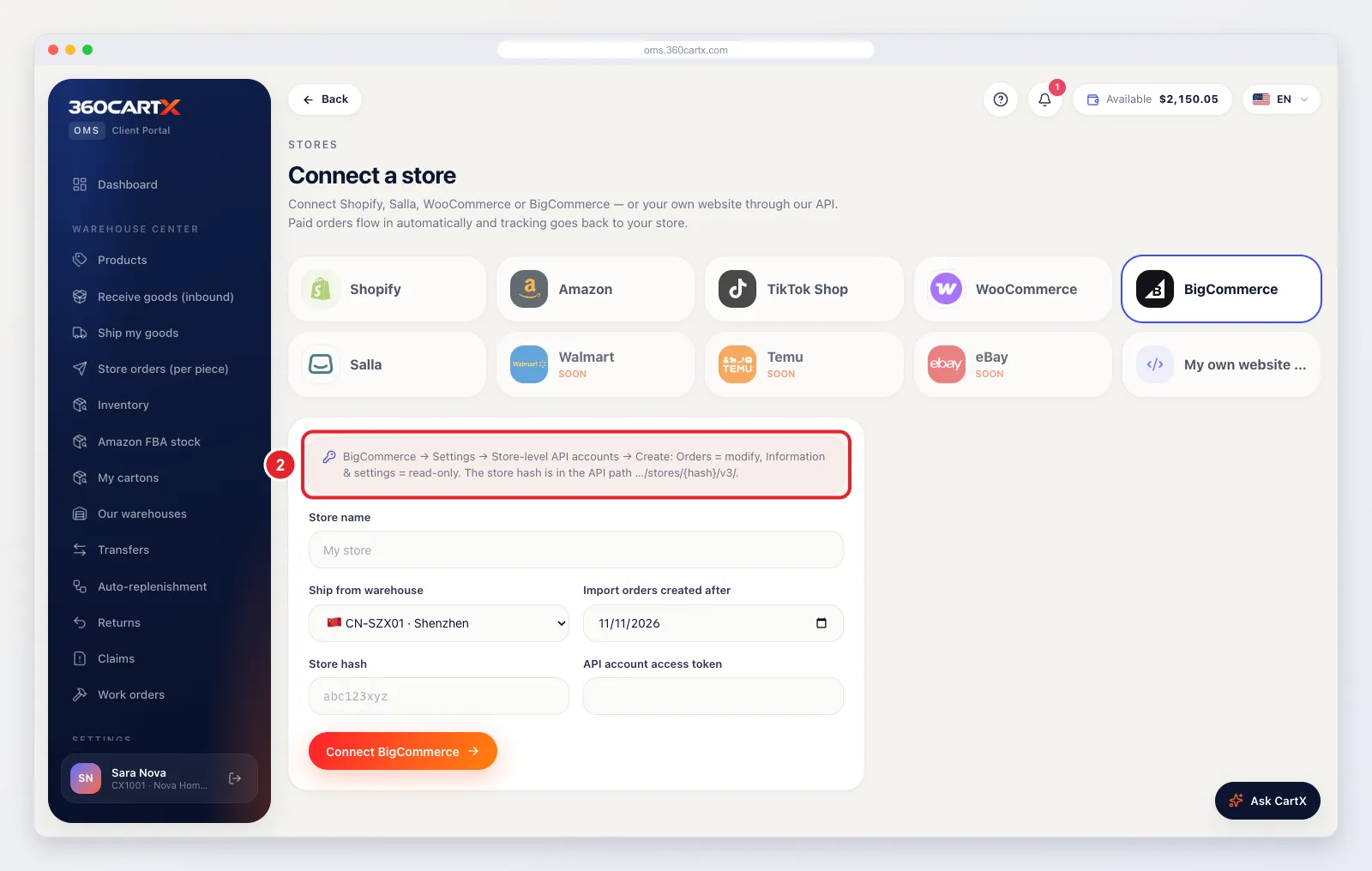
The page tells you how: BigCommerce, Settings, Store-level API accounts, Create. Set Orders to modify and Information & settings to read-only. The store hash is in the API path: https://api.bigcommerce.com/stores/{hash}/v3/. To import products add Products read-only, and to keep stock in sync give Products modify. Save, then copy the Access token that BigCommerce shows once.
- 3
Fill in the form
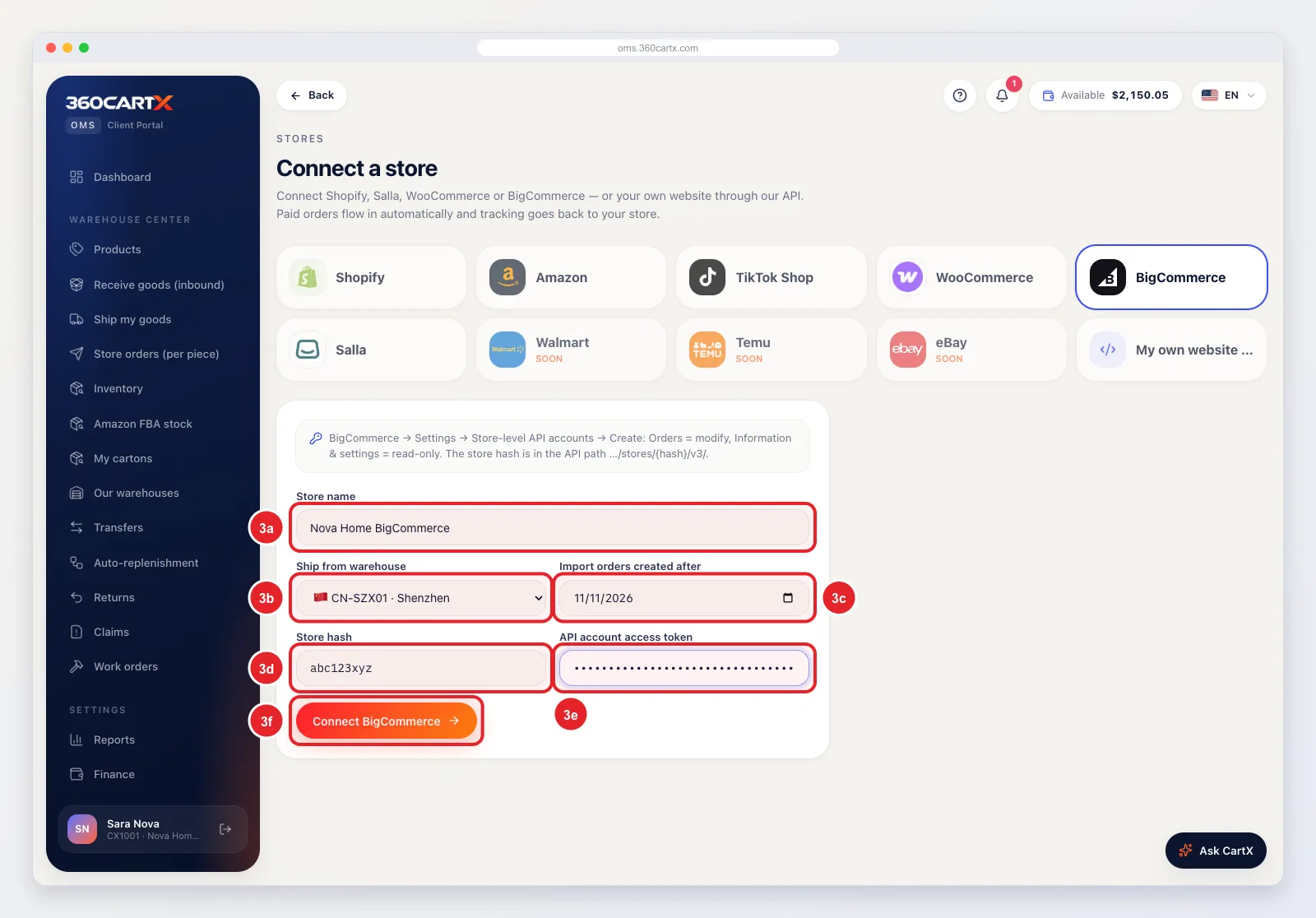
Store name (for example Nova Home BigCommerce), Ship from warehouse and Import orders created after (today by default; older orders are ignored). Store hash is the short code from the API path, for example abc123xyz. You can also paste the whole API path or the address of your control panel and we take the hash from it. API account access token is the token you copied. Click Connect BigCommerce.
- 3a Store name
- 3b Ship from warehouse
- 3c Import orders created after
- 3d Store hash
- 3e API account access token
- 3f Connect BigCommerce
- 4
Checks and messages
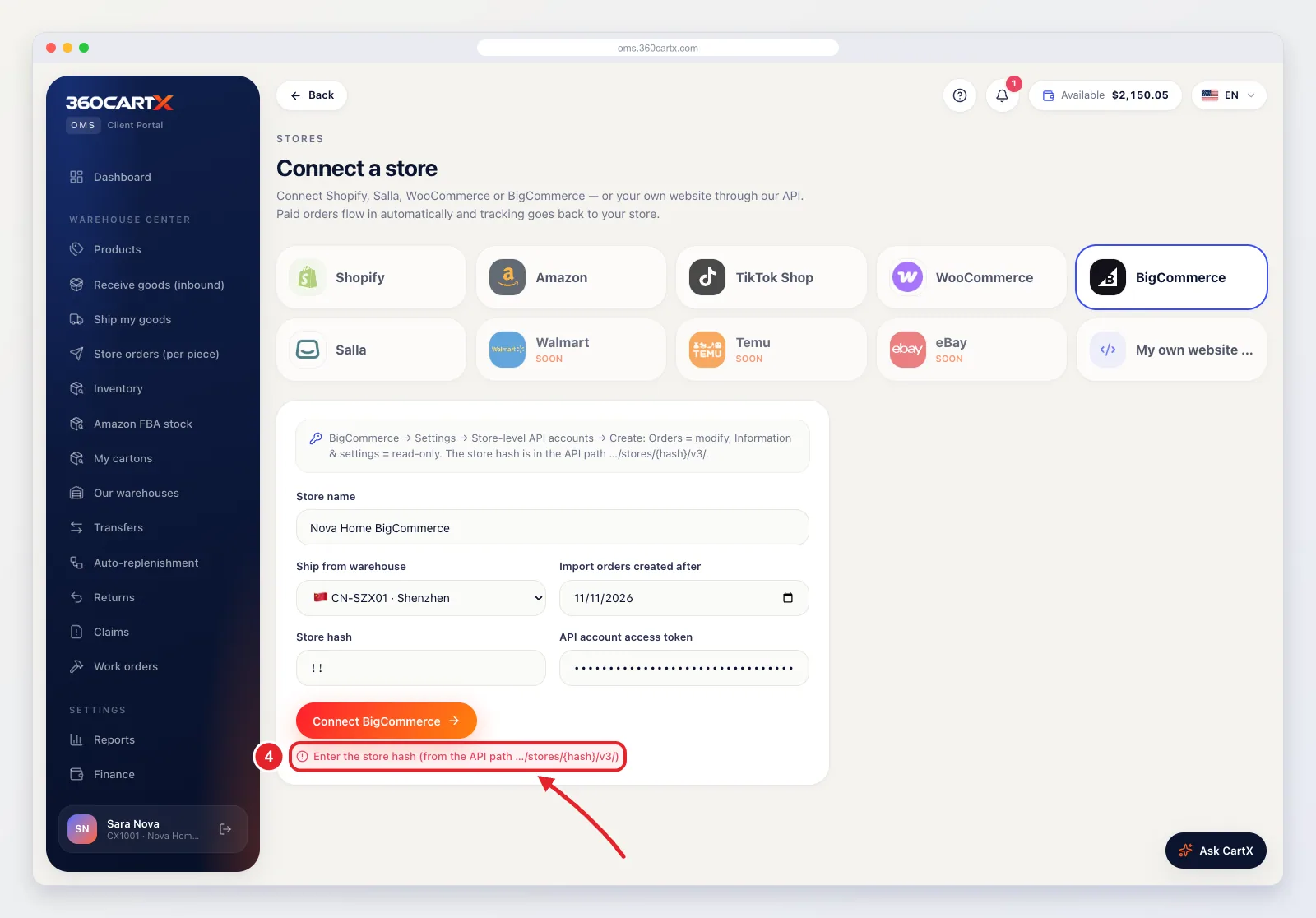
The hash and the token are checked first. A hash we cannot read gives Enter the store hash (from the API path …/stores/{hash}/v3/), a token shorter than 10 characters gives Access token is required. Then BigCommerce is asked once; if it refuses you read Access token rejected (401), check the store hash and the API account scopes, or Store not found, check the store hash. Nothing is saved until the test passes.
- 5
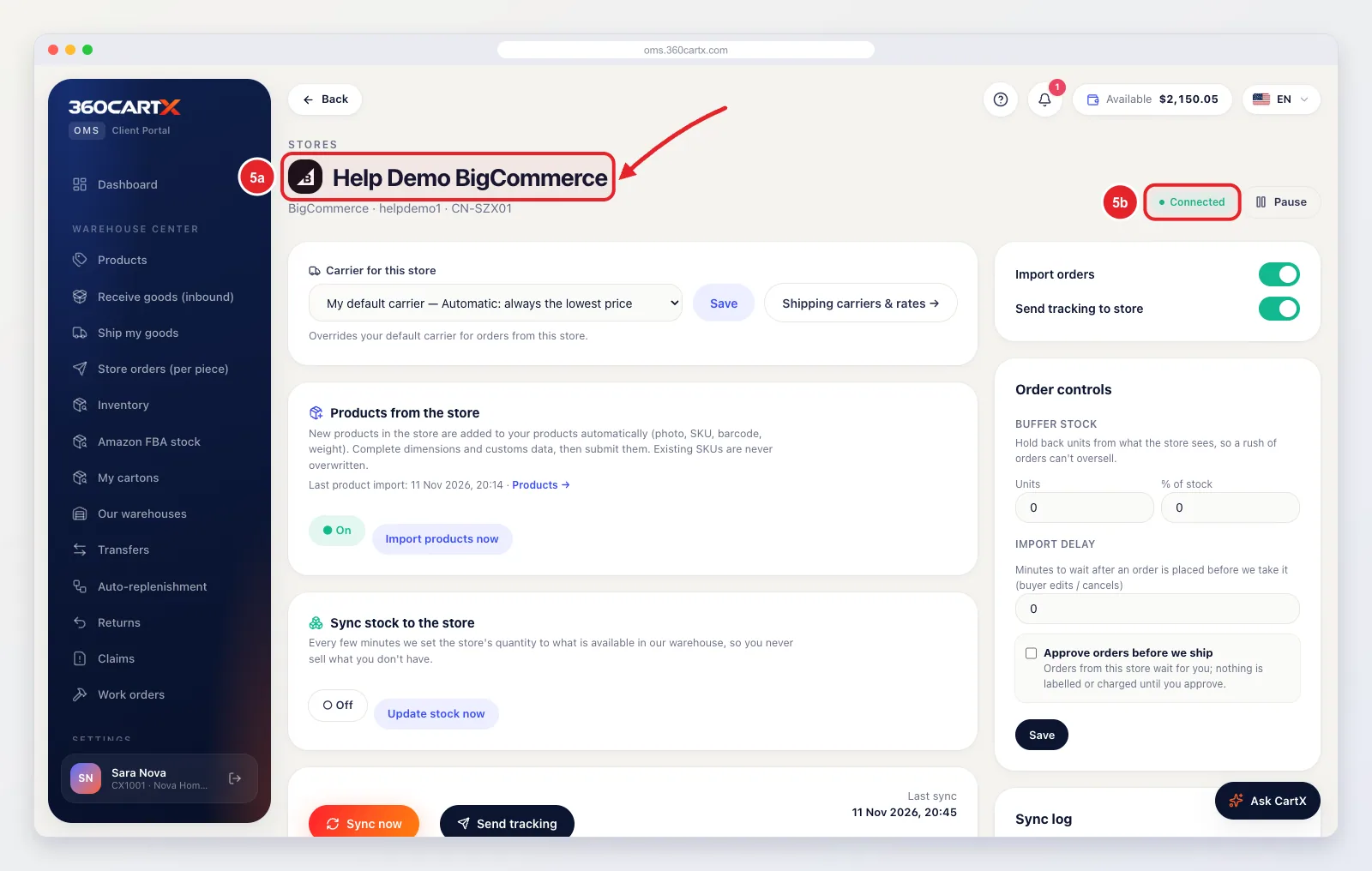
You land on the store page
The store page opens with the store name and the status Connected, and the first product import starts at once. Connecting the same store again updates it instead of adding a second one.
- 5a Store name
- 5b Connected
- 6
What flows after you connect
Orders in the status Awaiting Shipment or Awaiting Fulfillment are imported, digital items and items already shipped are left out. Refunded, Cancelled and Declined orders cancel the parcel here while that is still possible. When we ship, a shipment with the tracking number is created on the BigCommerce order. Products come in as Draft with their variants, and stock sync updates the inventory level of each SKU.
Tips
- Use a store-level API account, not a personal login. The token is shown only once, so copy it before leaving BigCommerce.
- If product import or stock sync fails with a permission message later, add the Products scope to the API account and connect again.
Common problems
Enter the store hash (from the API path …/stores/{hash}/v3/)
The hash cannot be read. Copy the part between /stores/ and /v3/ of the API path.
Access token is required
The token field is empty or shorter than 10 characters. Paste the full token.
Access token rejected (401/403), check the store hash and the API account scopes
BigCommerce refused the token. Check that the hash belongs to that store and that the API account has Orders: modify and Information & settings: read-only.
Store not found, check the store hash
No BigCommerce store has that hash. Re-copy it from the API path.
Cannot reach BigCommerce: ...
BigCommerce did not answer. Try again in a minute.
Choose a warehouse
Pick a Ship from warehouse.
Related articles
Updated 2026-11-11
Open a ticket from Support in your portal and our team will reply.