Steps
- 1
Open the WooCommerce card
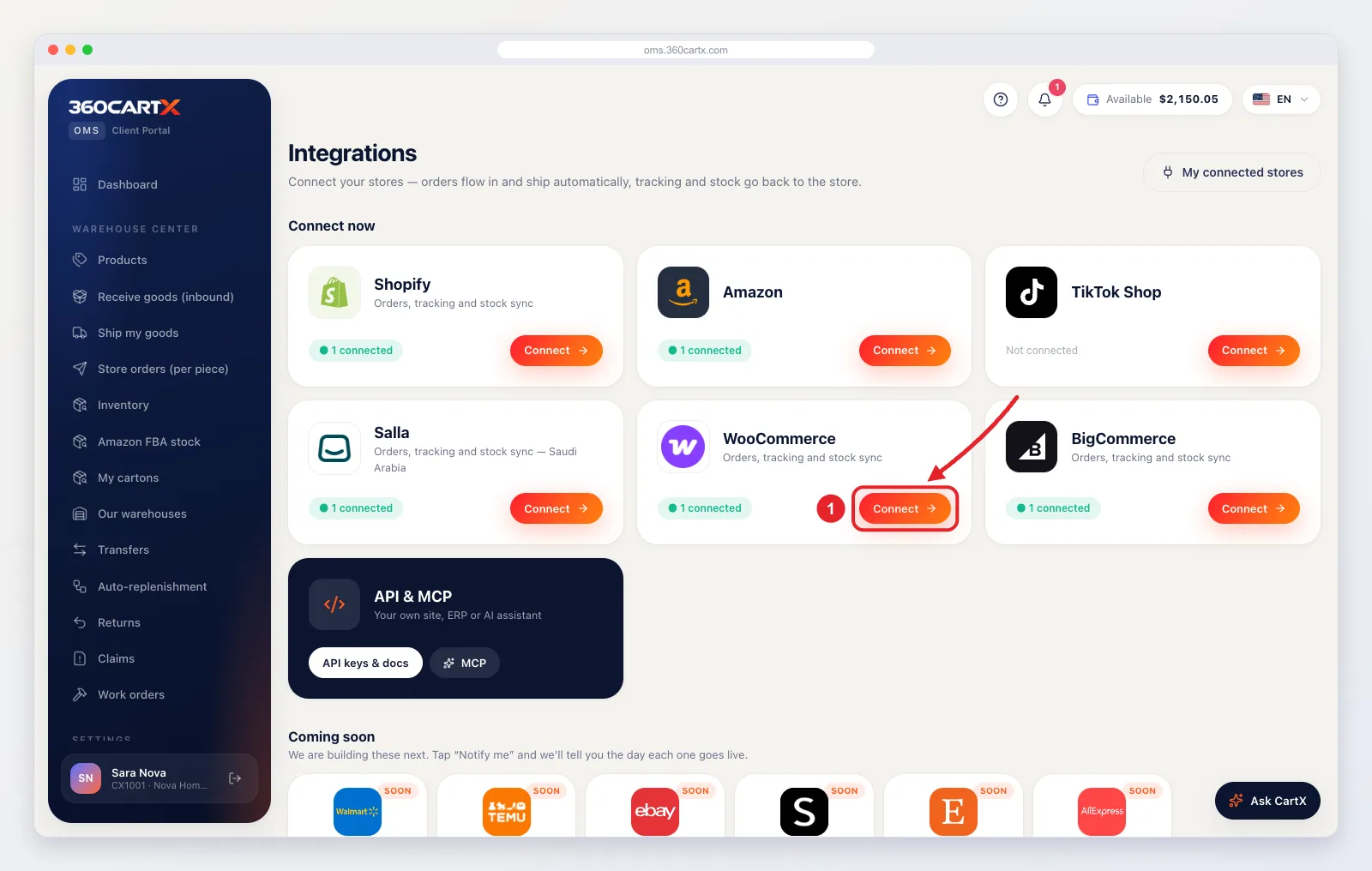
Go to Integrations and click Connect on the WooCommerce card, or open Connect a store and click the WooCommerce tile.
- 2
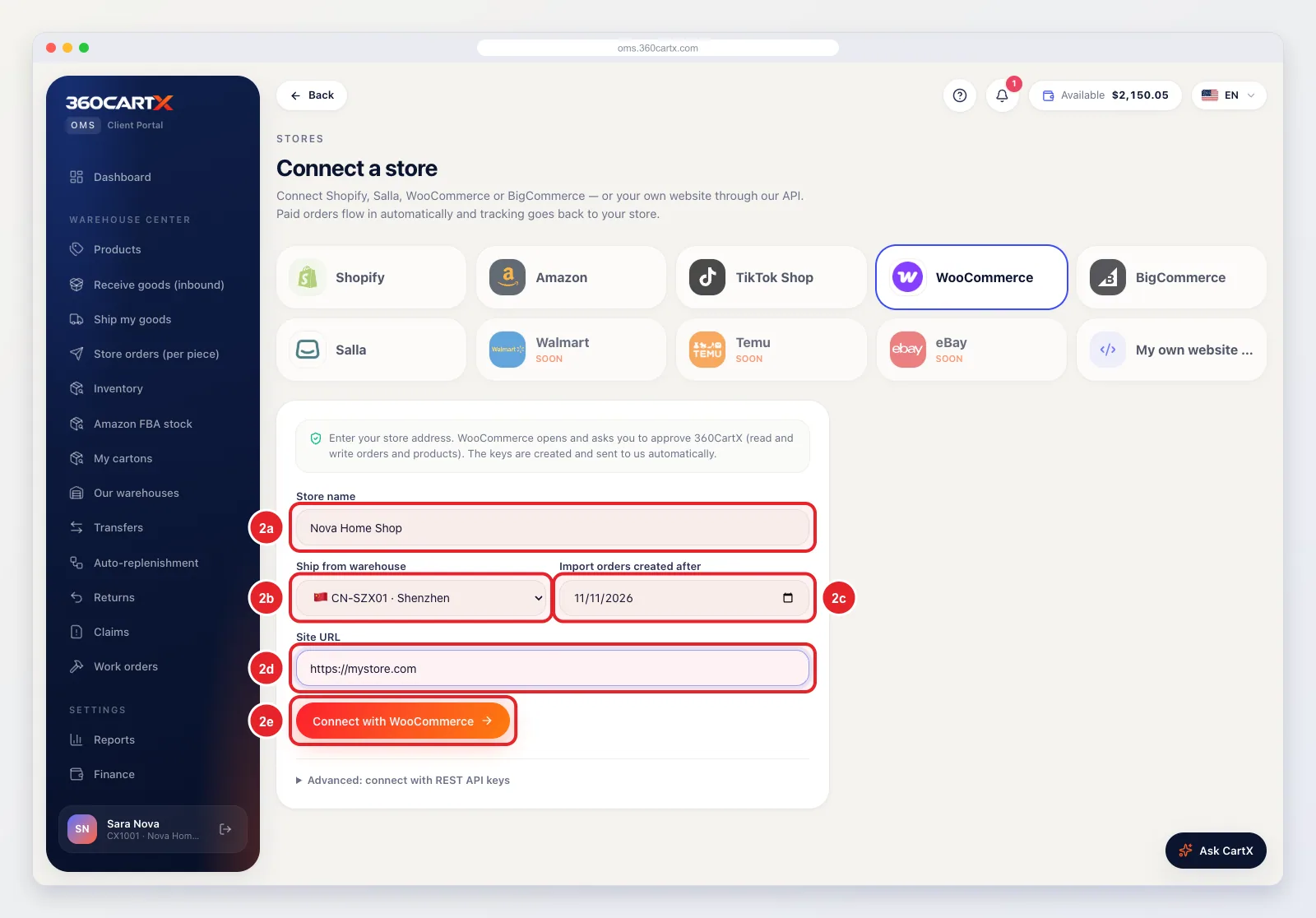
One click: fill in the form
The page says: Enter your store address. WooCommerce opens and asks you to approve 360CartX (read and write orders and products). The keys are created and sent to us automatically. Fill in Store name (for example Nova Home Shop), Ship from warehouse, Import orders created after (today by default) and Site URL (for example https://mystore.com). Click Connect with WooCommerce.
- 2a Store name
- 2b Ship from warehouse
- 2c Import orders created after
- 2d Site URL
- 2e Connect with WooCommerce
- 3
Approve 360CartX in WooCommerce
Your browser goes to your own store, to the WooCommerce page that asks to give the app 360CartX read and write access. Sign in to the store admin if asked and approve. WooCommerce then creates the keys and sends them straight to 360CartX; they never pass through your browser. You have 30 minutes to approve.
- 4
Declined or not finished
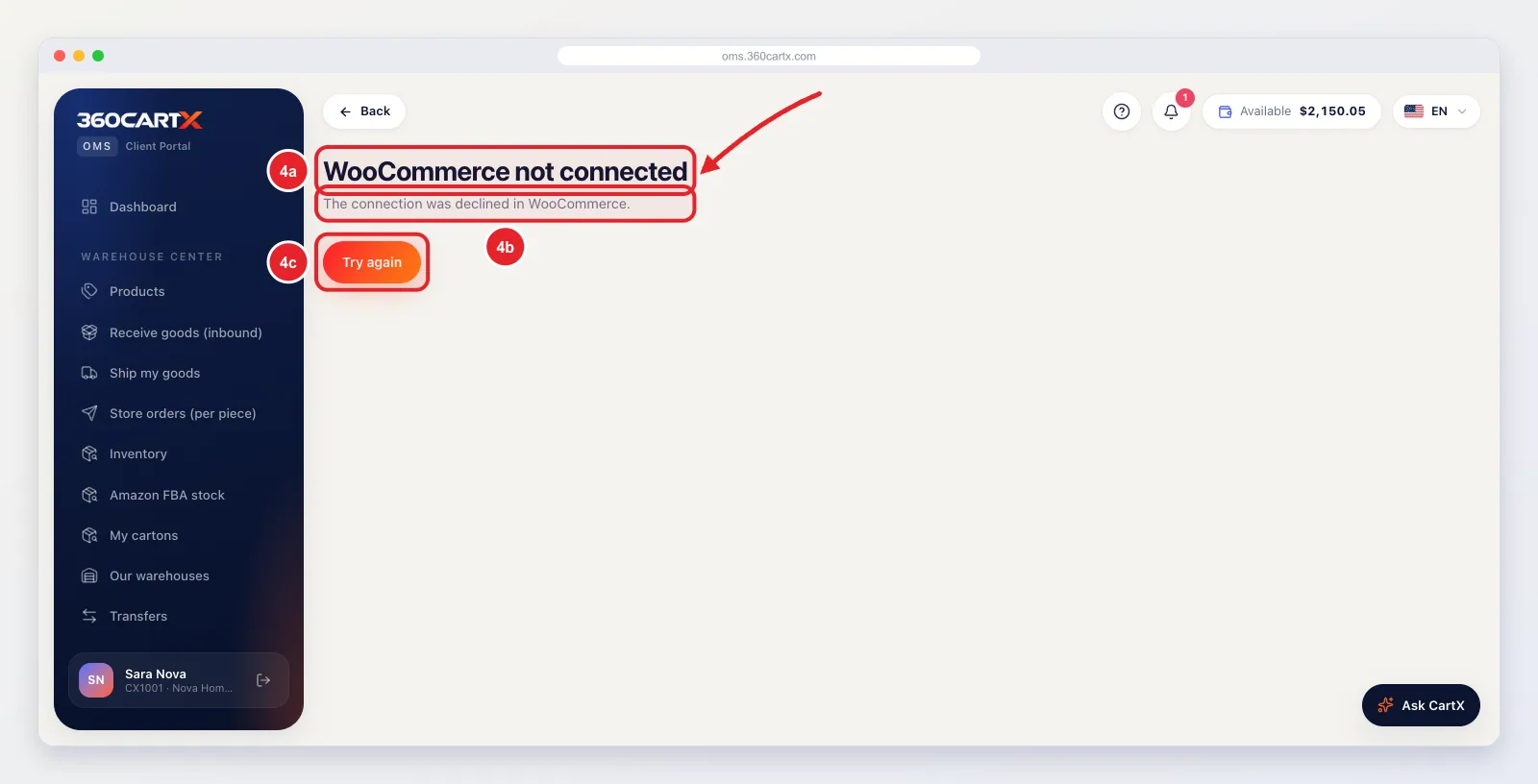
WooCommerce sends you back to 360CartX. If the keys arrived you go straight to the store page. If you declined, the page WooCommerce not connected says The connection was declined in WooCommerce. Click Try again to start over.
- 4a Title
- 4b Reason
- 4c Try again
- 5
No keys arrived
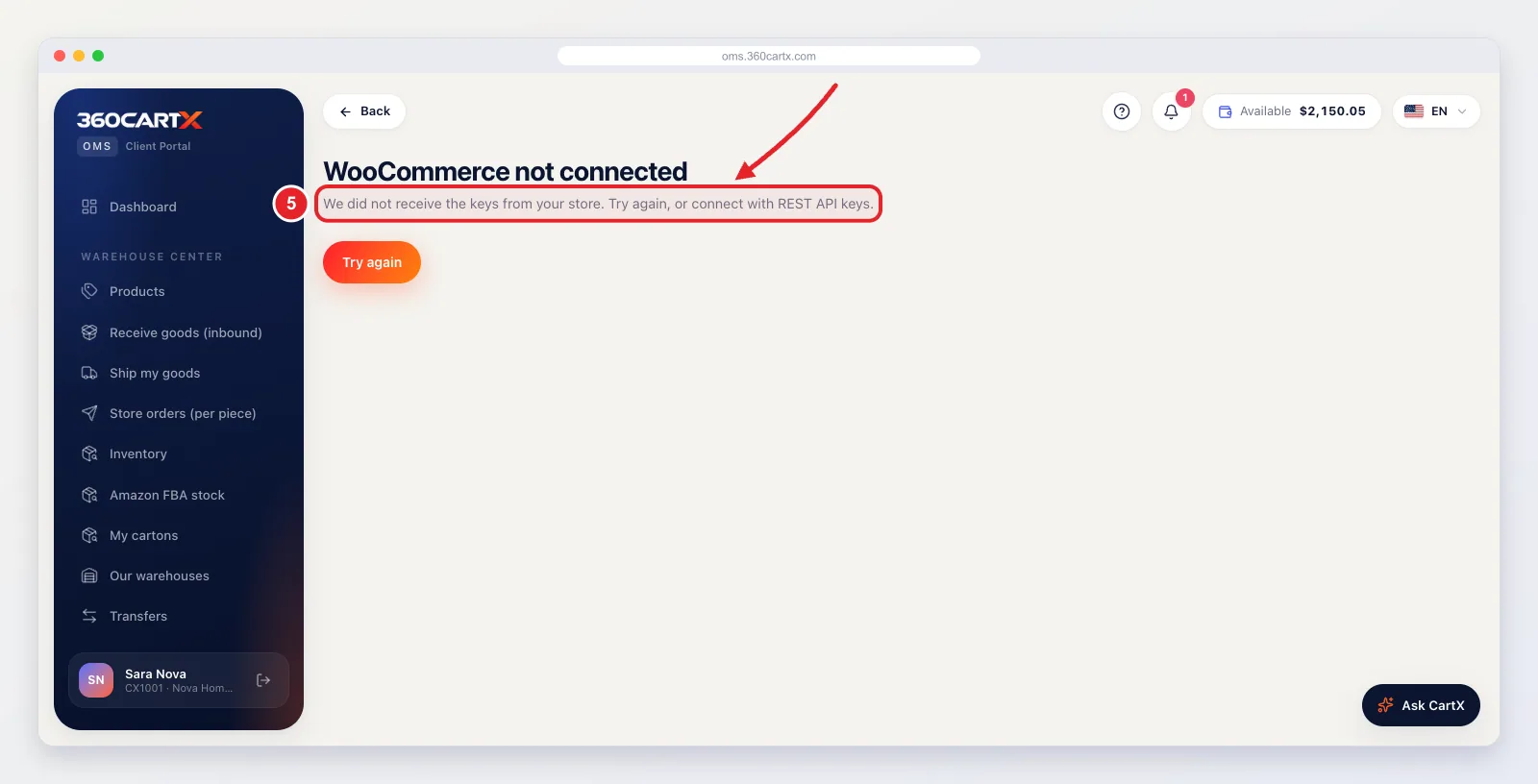
If WooCommerce sent you back but the keys did not reach us, the same page says We did not receive the keys from your store. Try again, or connect with REST API keys. Try again once; if it repeats, use the REST API keys below.
- 6
Advanced: connect with REST API keys
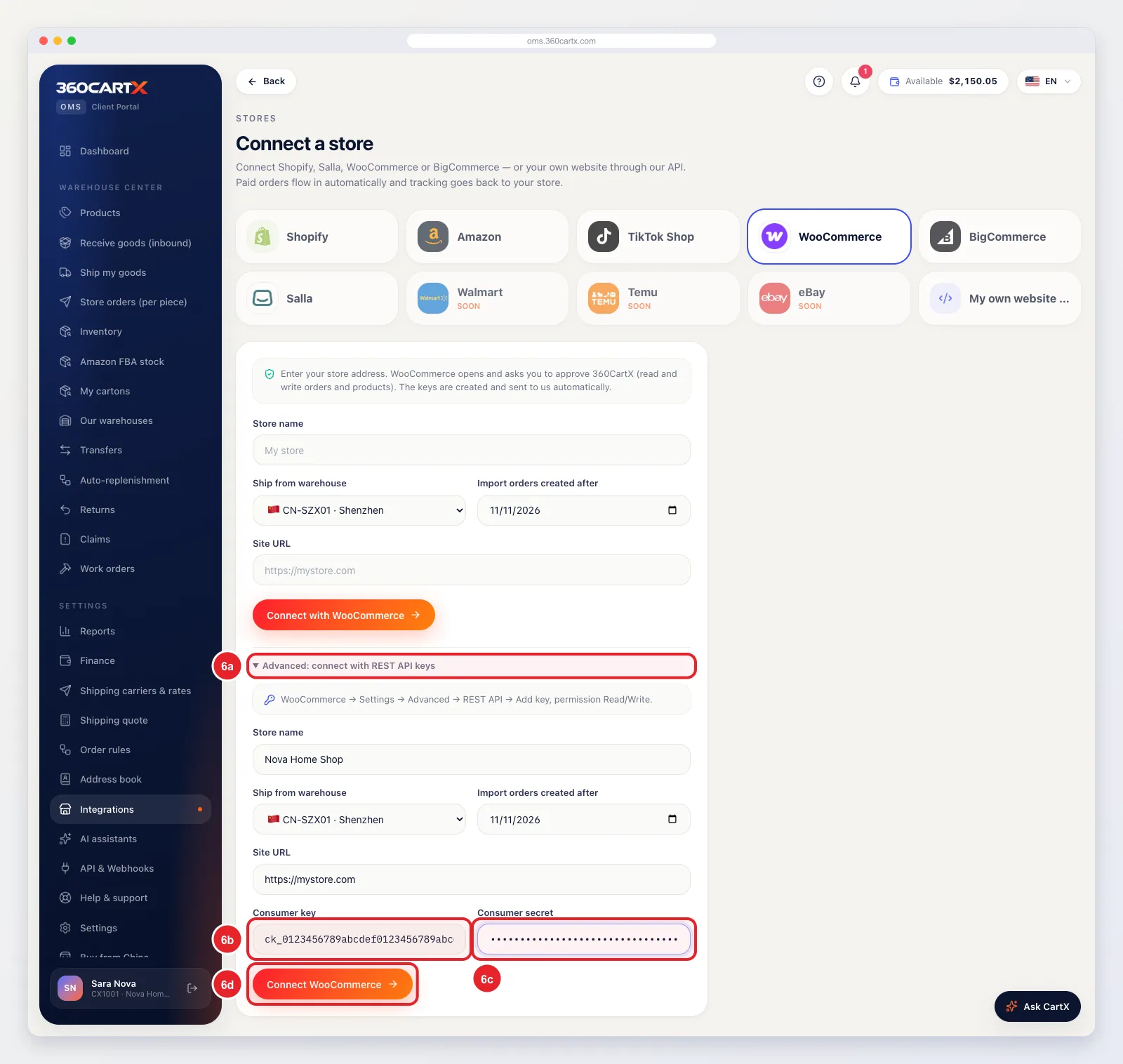
Click Advanced: connect with REST API keys under the form. In WooCommerce open Settings, Advanced, REST API, Add key, choose a user and the permission Read/Write, and copy the keys. Back here fill in the name, warehouse, date and Site URL, then Consumer key (starts with ck_) and Consumer secret (starts with cs_), and click Connect WooCommerce.
- 6a Advanced
- 6b Consumer key
- 6c Consumer secret
- 6d Connect WooCommerce
- 7
Messages from the key form
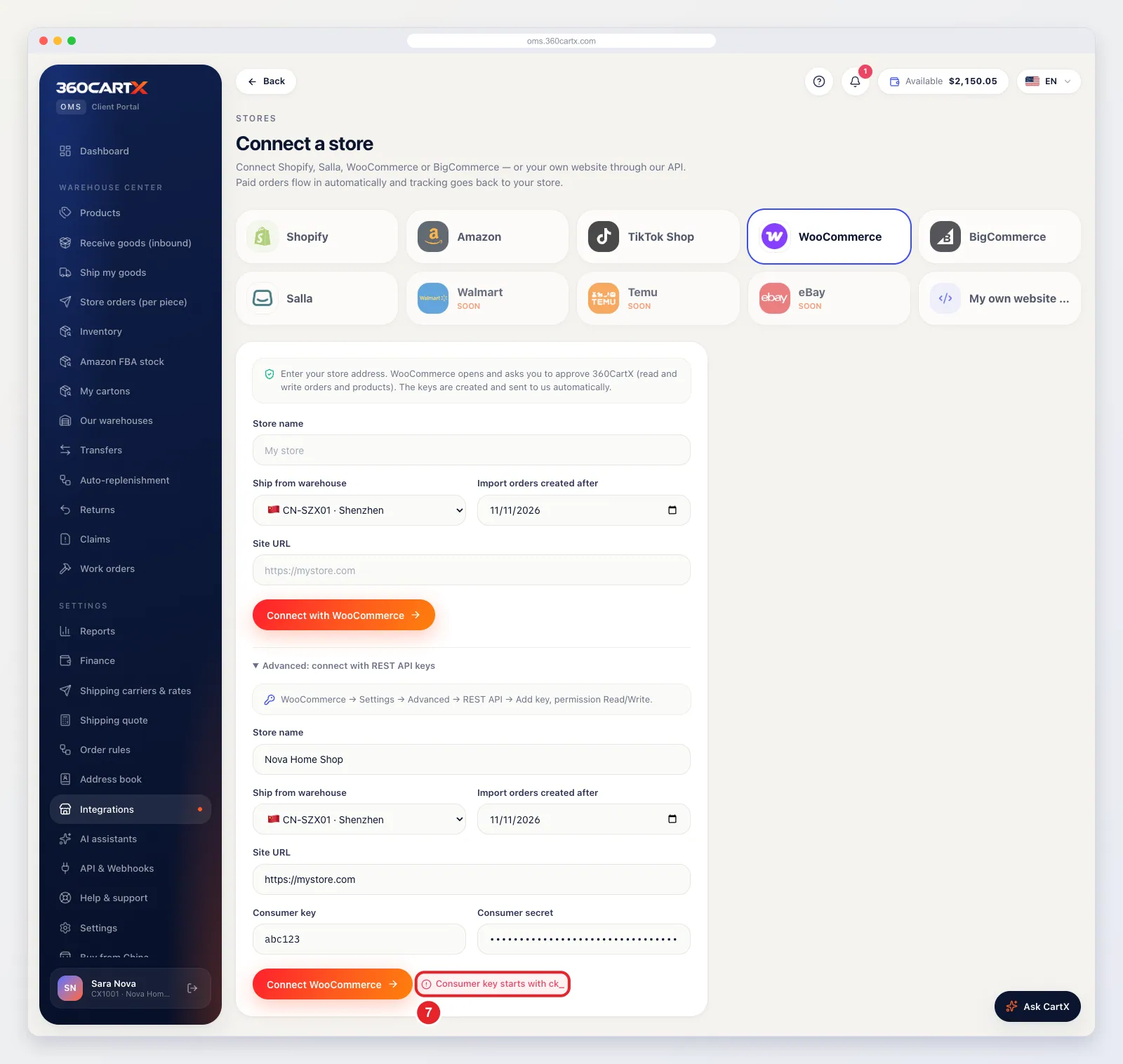
Keys are checked before anything is saved. A key that does not start with ck_ gives Consumer key starts with ck_, and a secret without cs_ gives Consumer secret starts with cs_. The site must start with https:// (otherwise Site must use https://) and be reachable. When the keys are accepted you land on the store page.
- 8
The order webhook
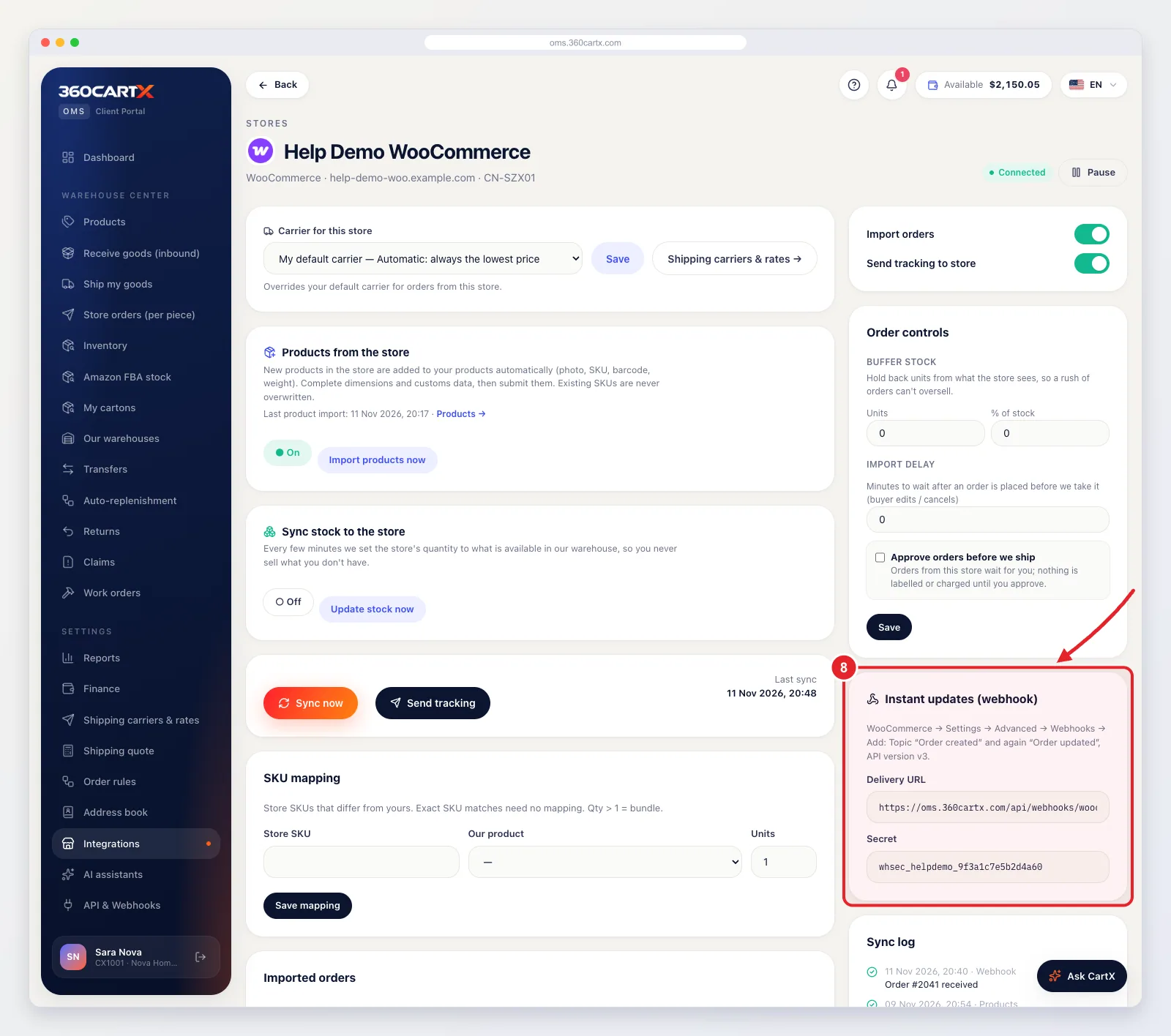
On the store page the box Instant updates (webhook) shows the Delivery URL and the Secret of the store. On connect we register two webhooks for you in WooCommerce, order created and order updated, and the sync log says Order webhooks registered (2). If the log instead says Could not register order webhooks (orders still arrive every 5 minutes), add them yourself: WooCommerce, Settings, Advanced, Webhooks, Add webhook, Topic Order created and again Order updated, API version v3, with this Delivery URL and Secret.
- 9
What flows
Orders with the status Processing are imported (cancelled ones cancel the parcel here while that is still possible), the webhook delivers them at once and a pull every 5 minutes is the safety net. When we ship, the tracking is written as a note to the customer, the order becomes Completed and the tracking number is saved on the order. Published simple and variable products (not virtual or downloadable) come in as Draft, and stock sync can keep the WooCommerce quantity equal to ours.
Tips
- The store must be on https:// and reachable from the internet. Local or private addresses are refused.
- WooCommerce needs pretty permalinks (not Plain) for the REST API to answer.
- Connecting the same site again updates the existing connection instead of adding a second one.
Common problems
Site URL is required
Type the full address of the store, for example https://mystore.com.
Site must use https://
Use the https address of the store. Keys are never sent over plain http.
This store address cannot be found / This address cannot be used
The name does not exist, or it points to a private or local address. Use the public address of the store.
Keys rejected (401), check the consumer key/secret have Read/Write access
WooCommerce refused the keys. Create a new key with the permission Read/Write and connect again.
WooCommerce REST API not found, check the site URL and that permalinks are enabled
The address is wrong or the REST API is off. Check the URL and enable pretty permalinks in WordPress.
Cannot reach <site>: ...
We could not connect to the store. Check that it is online and not behind a login or firewall.
WooCommerce not connected
You came back from WooCommerce without keys: the connection was declined or the keys did not arrive. Try again, or use the REST API keys.
Related articles
Updated 2026-11-11
Open a ticket from Support in your portal and our team will reply.