Steps
- 1
Open My connected stores
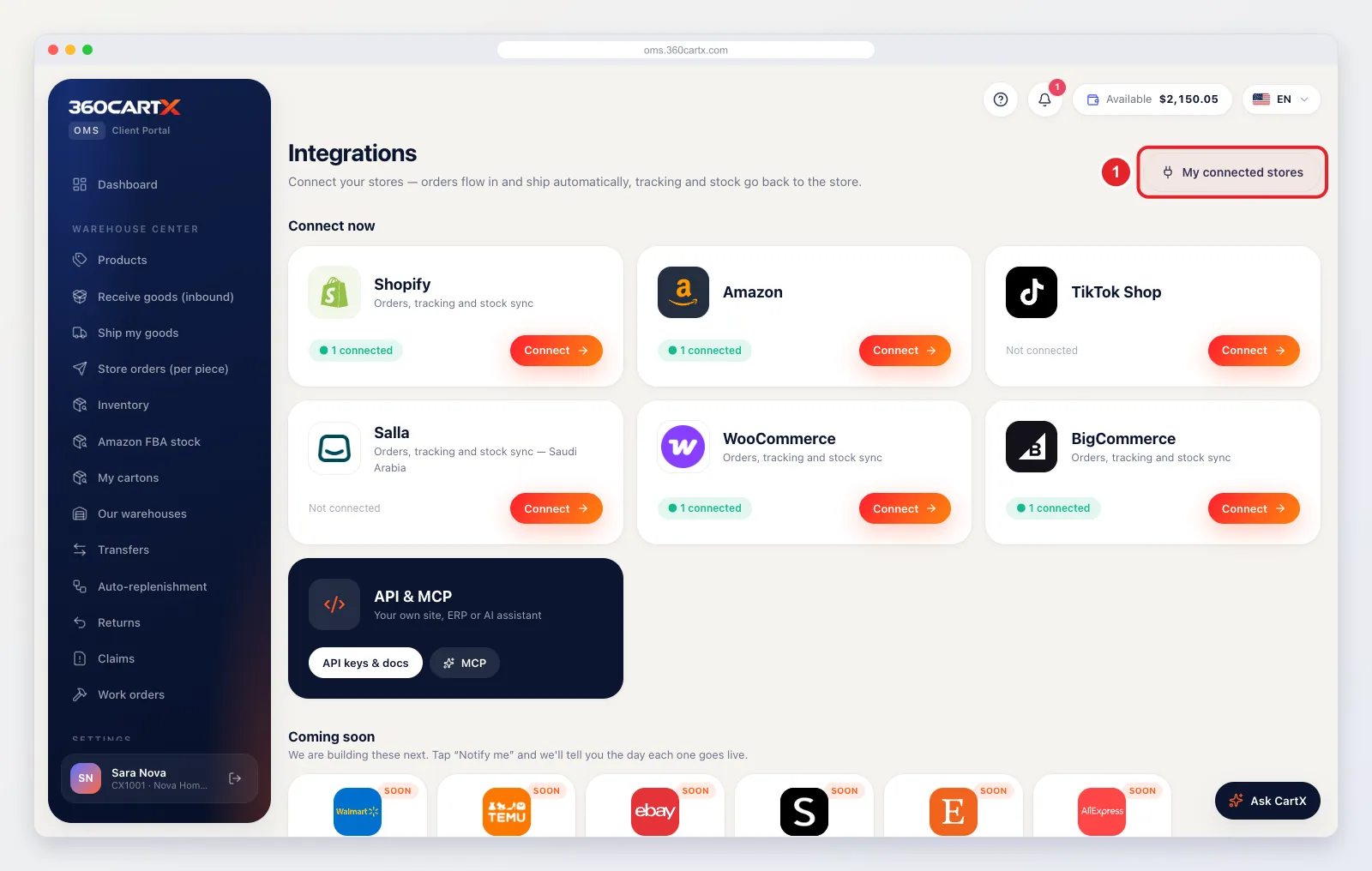
Click Integrations in the left menu, then My connected stores at the top right of the page. The Integrations menu item stays highlighted while you are on Stores.
- 2
The Stores page
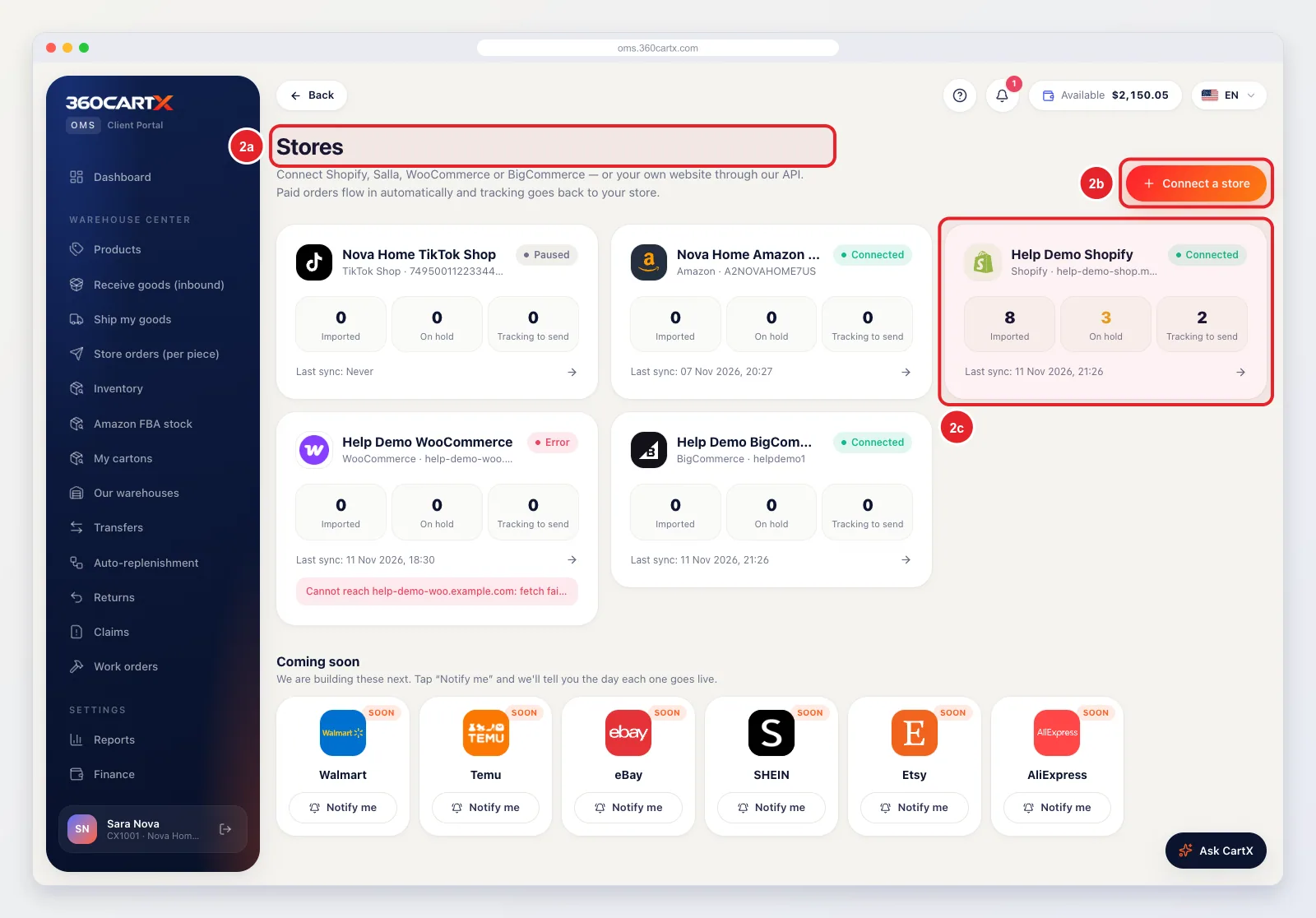
The page is called Stores. Every connected store is a card; click a card to open its store page. Connect a store (top right) opens the connect page, see the overview article. With no store yet the page says No stores connected yet and offers the same button. If you installed 360CartX from the Shopify App Store and have not finished, a card Stores waiting to be connected appears at the top: see Finish an install from the Shopify App Store. Under the cards there is a Coming soon section.
- 2a Page title
- 2b Connect a store
- 2c A store card
- 3
Read a store card
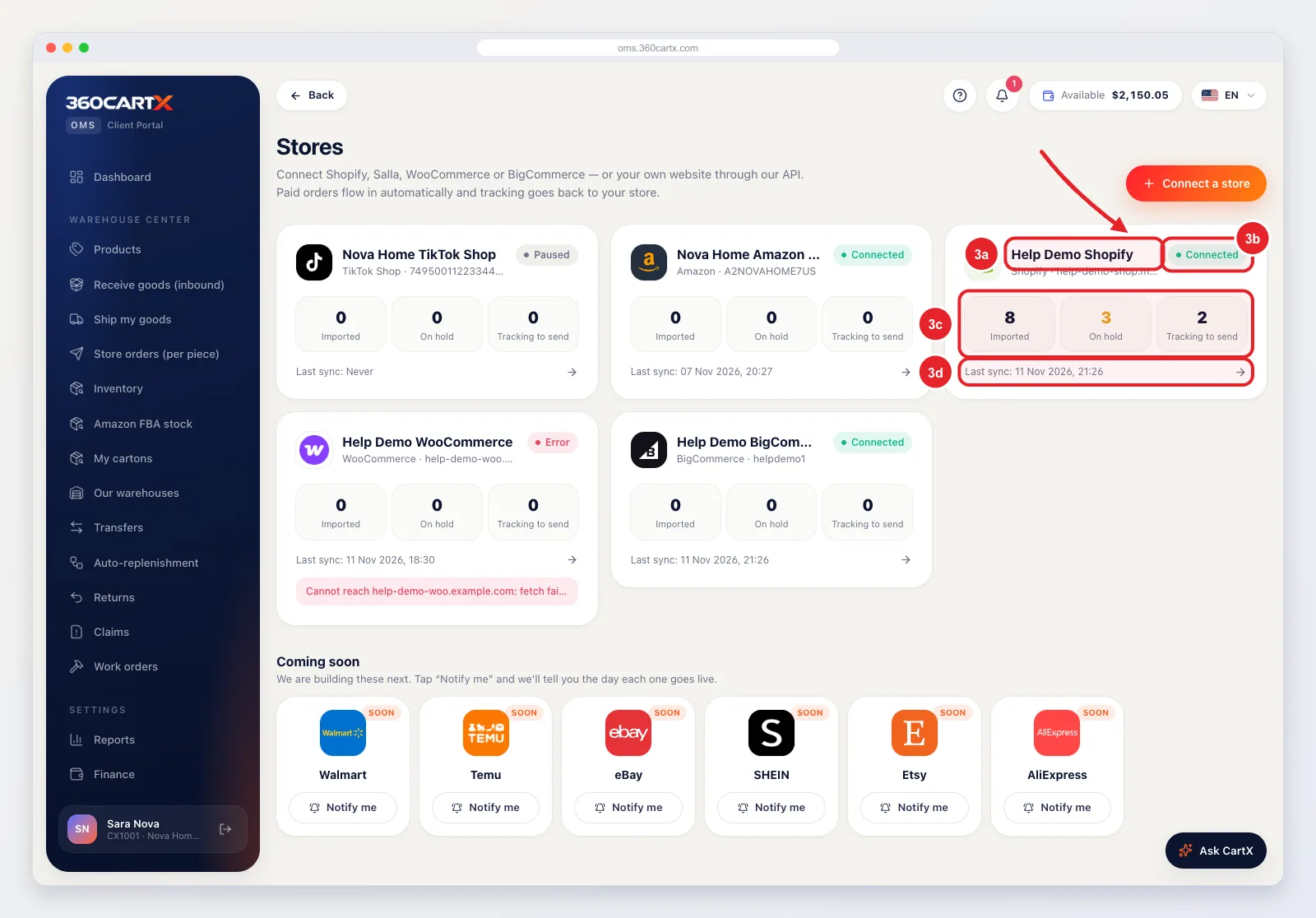
The first line is the store name, for example Help Demo Shopify, and under it the platform and the store address. On the right is the status. The three boxes count Imported (all orders brought in from this store so far), On hold (orders waiting because a SKU is not matched, in amber when above 0) and Tracking to send (shipped orders whose tracking number has not reached the store yet). The last line is Last sync: the date and time of the last successful order pull, or Never.
- 3a Store name
- 3b Status
- 3c The three counters
- 3d Last sync
- 4
The three statuses
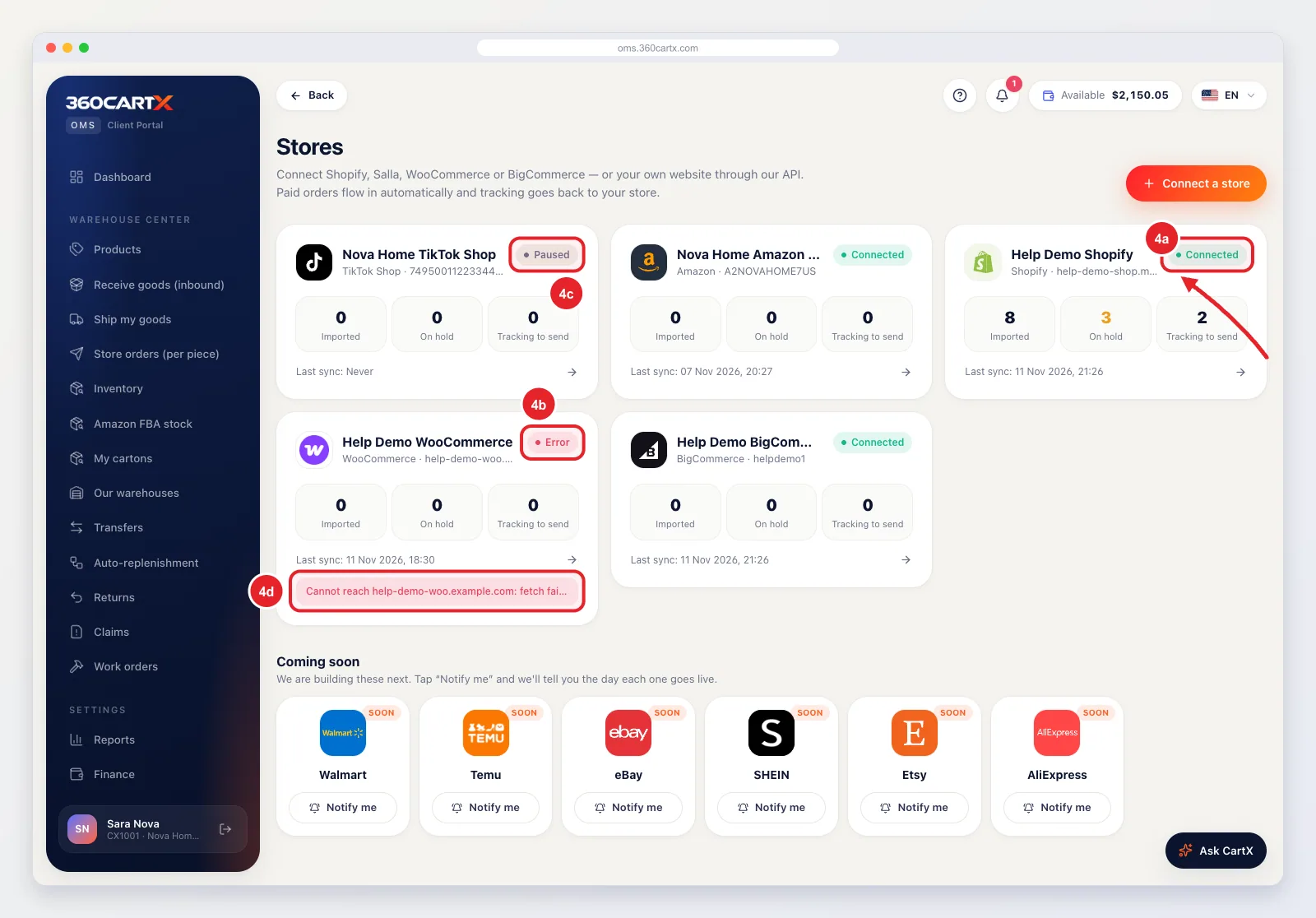
Connected means the store works. Error means the last sync failed: the card shows the message in red, for example Cannot reach help-demo-woo.example.com: fetch failed. The status goes back to Connected by itself after the next sync that works. Paused means you paused the store or disconnected it, and nothing is pulled or sent for it.
- 4a Connected
- 4b Error
- 4c Paused
- 4d Error message
- 5
Open the store page
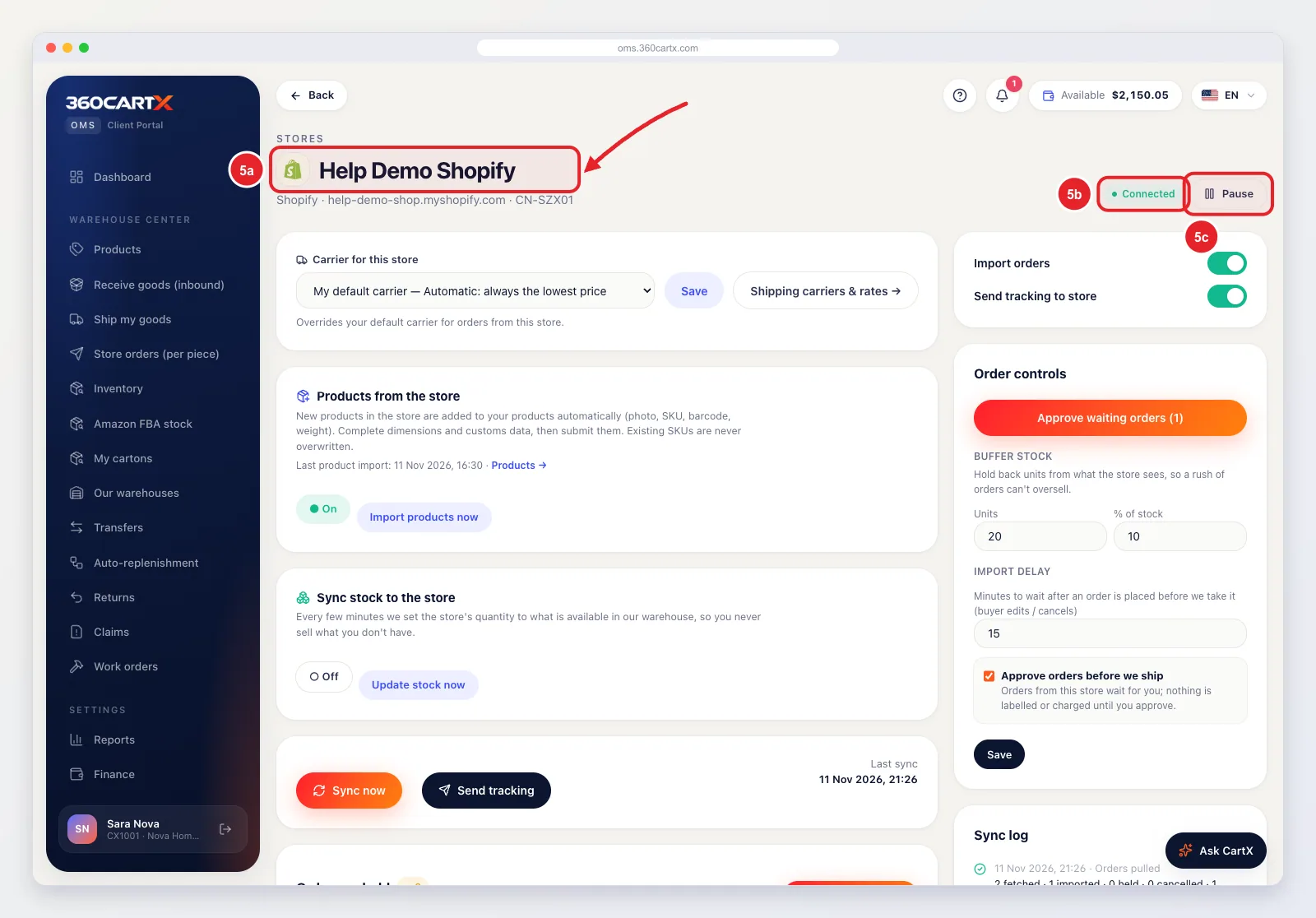
The header shows the store name, then the platform, the store address and the code of the warehouse that ships this store's orders, for example Shopify · help-demo-shop.myshopify.com · CN-SZX01. On the right are the status and the Pause button. While something is still missing, a box How your orders start shipping lists four steps: Connect your store, Complete your products and submit them for approval, Create an inbound and send your goods to our warehouse, and We receive and put away the goods, then orders from your store ship automatically. Done steps are crossed out, and the box disappears when all four are done.
- 5a Store name
- 5b Status
- 5c Pause
- 6
When the store shows an error
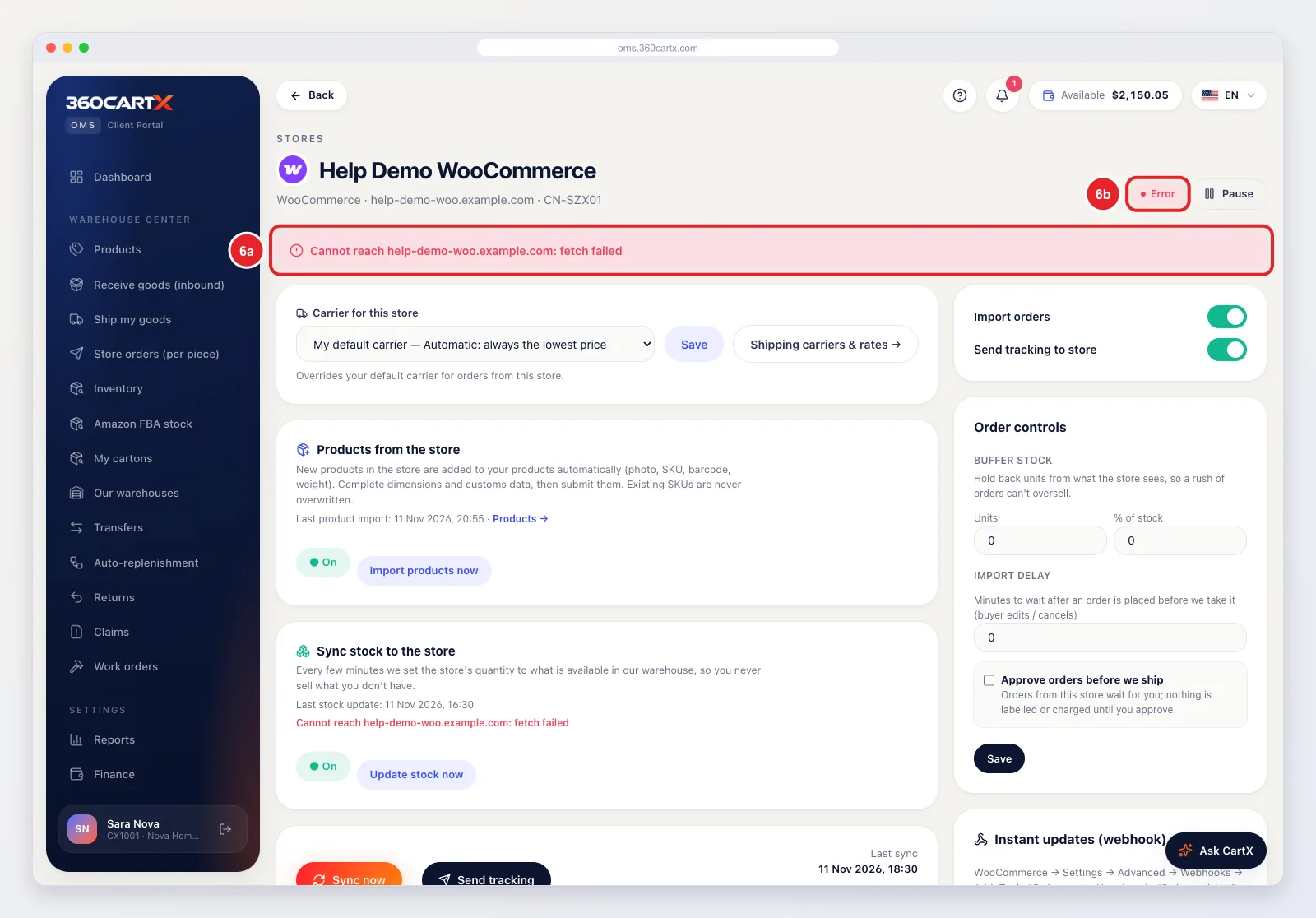
A red bar at the top of the page repeats the last error and the status reads Error. Typical messages: Cannot reach <address> followed by the reason (the store is down, the address changed or the network failed), Access token rejected (401) (the token was revoked or the app was uninstalled: connect the store again with the same address and the connection is updated), and Amazon refused this request, check the app's approved roles or connect the store again. Each failed sync also sends you a notification, for example Help Demo WooCommerce: orders are not coming in, and tells our team.
- 6a Error message
- 6b Error status
- 7
Carrier for this store
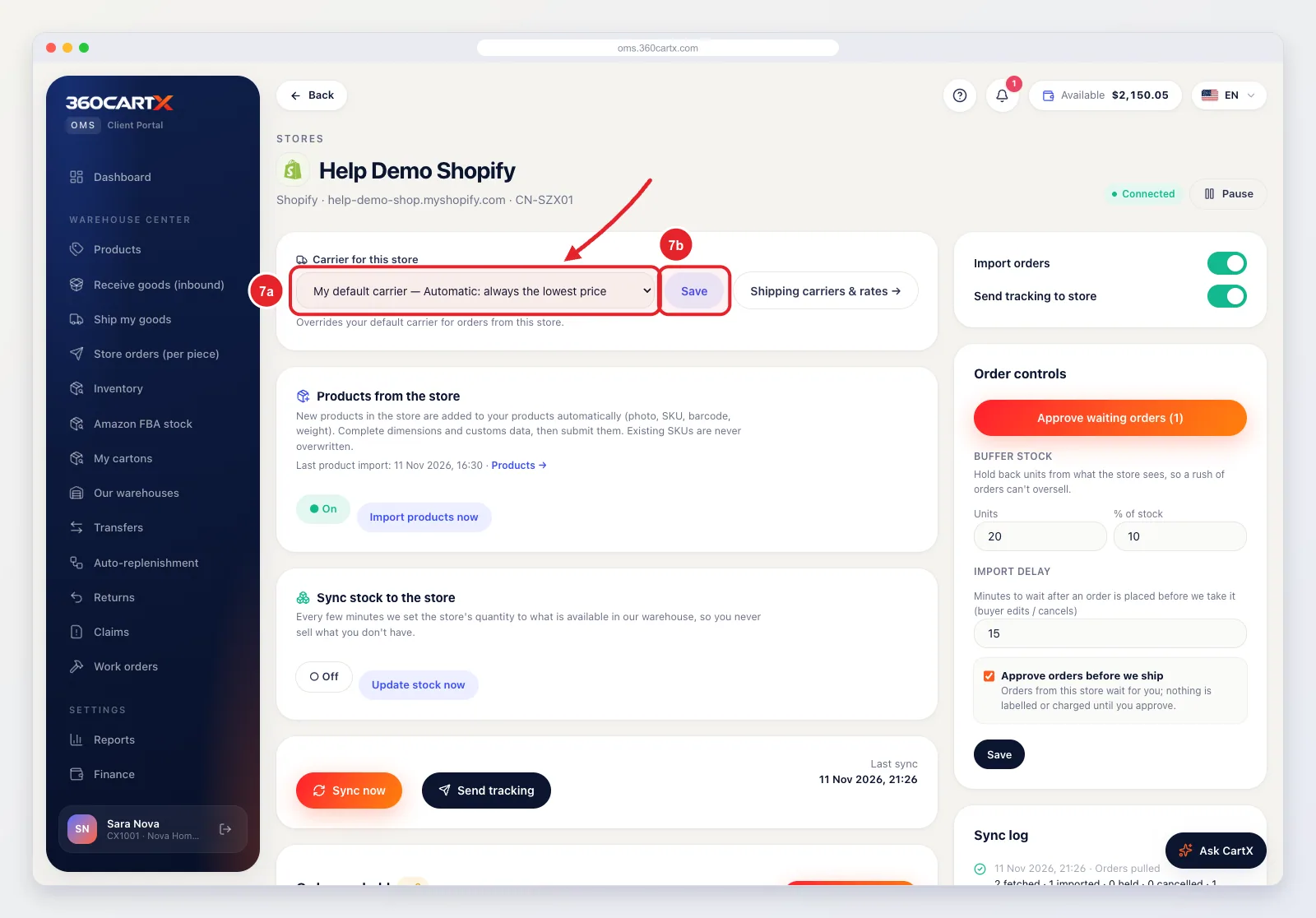
The first box lets you choose one carrier for all orders of this store. Leave it on My default carrier (Automatic: always the lowest price) to follow your normal setting, or pick a carrier service, then click Save. The list shows the carriers that are active and priced in your billing currency. The link Shipping carriers & rates opens the carriers page. See Choose how your orders are shipped.
- 7a Carrier list
- 7b Save
- 8
Sync now and Send tracking
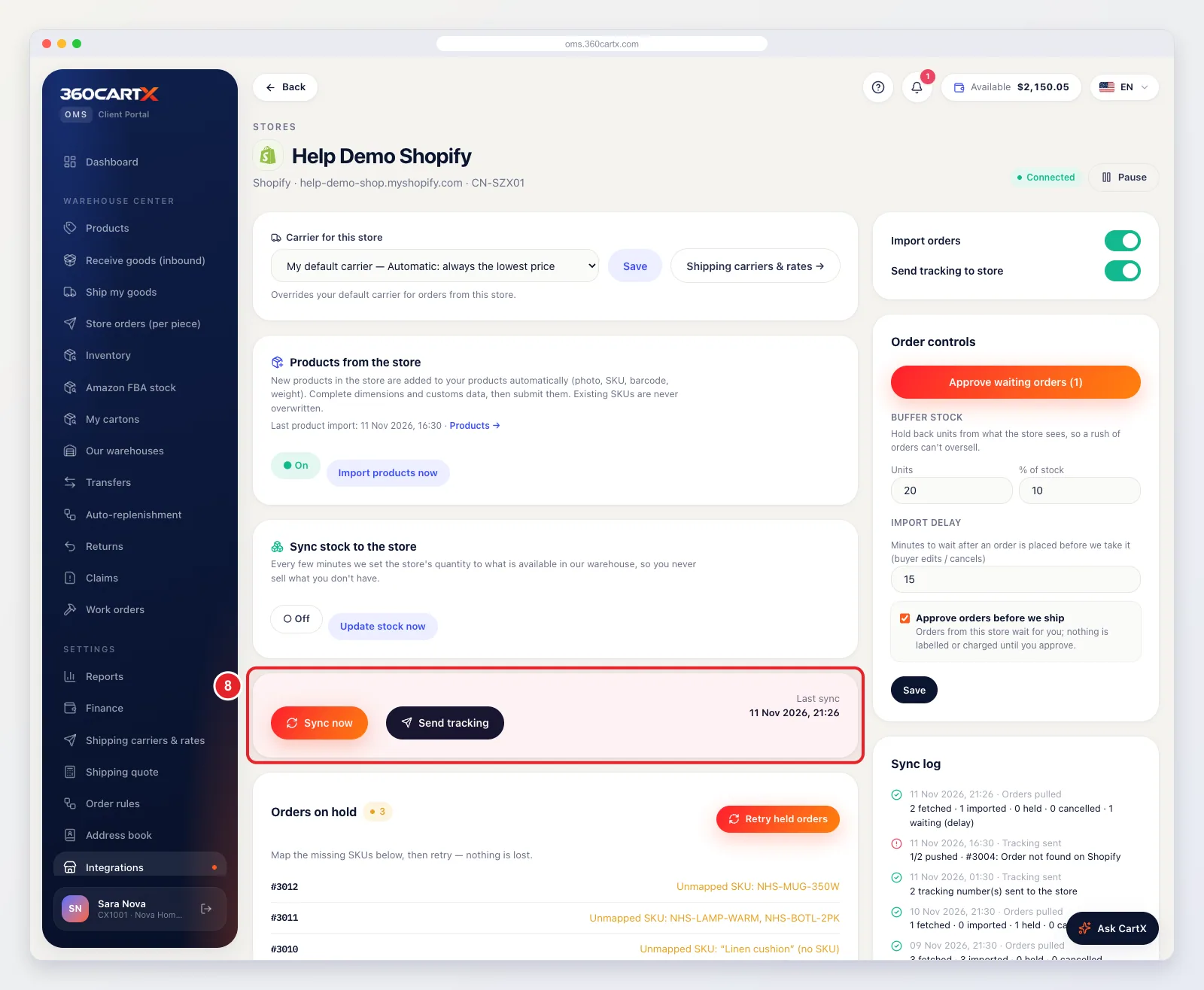
Orders are pulled automatically about every 5 minutes (and at once on platforms that send webhooks), and tracking is sent back when a parcel ships. These two buttons do it now. Sync now pulls new paid orders from the store. Send tracking sends the tracking numbers of shipped orders that have not been sent yet. On the right you see the time of the Last sync.
- 9
Read the result of Sync now
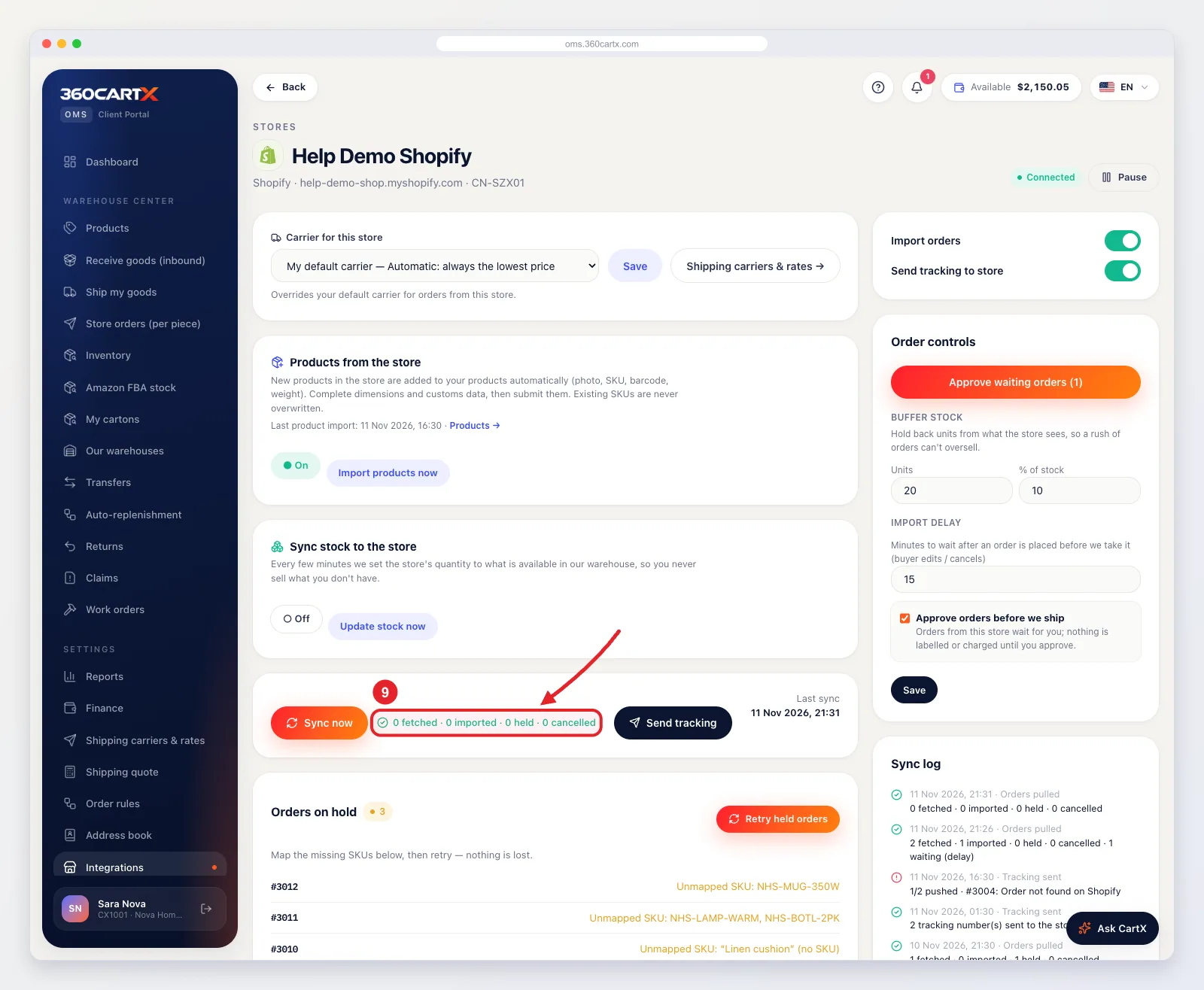
Next to the button a green line appears, for example 0 fetched · 0 imported · 0 held · 0 cancelled. Fetched is how many orders the store returned (we read back a little before the last sync, so orders already imported are counted too), imported is how many new orders were created here, held is how many wait for a SKU match (see Map store SKUs and release held orders), and cancelled is how many were cancelled here because they were cancelled in the store. When the import delay is on you may also see, for example, 1 waiting (delay). A red line shows the problem instead, for example Connection is paused when the store is Paused or the Import orders switch is off.
- 10
The two switches
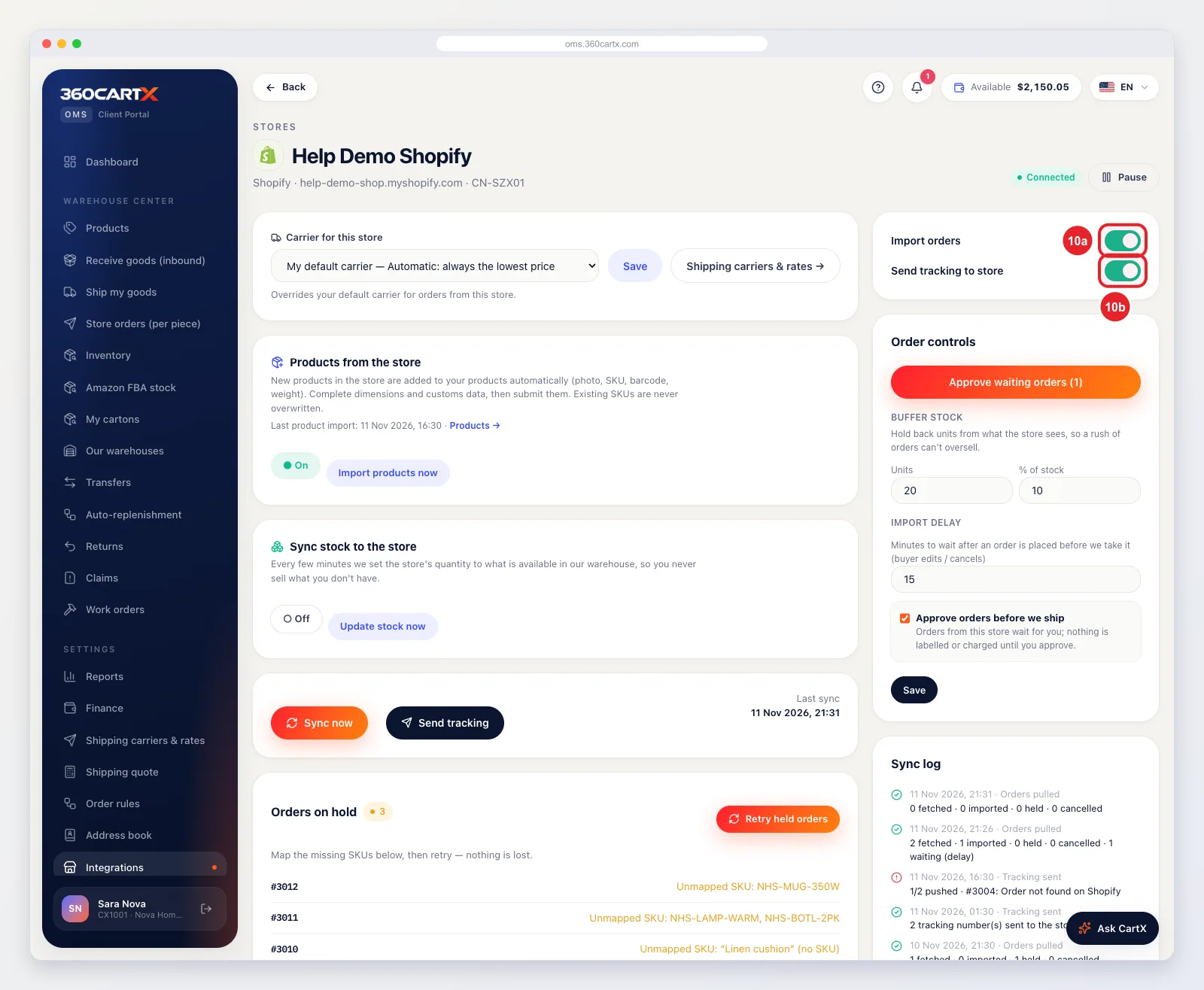
In the top box on the right, Import orders turns automatic pulling on or off and Send tracking to store turns the automatic return of tracking on or off. Click a switch to flip it. With Import orders off, Sync now answers Connection is paused. With Send tracking to store off, tracking numbers are not sent and the Tracking to send counter on the card grows. Both switches are locked after you disconnect the store.
- 10a Import orders
- 10b Send tracking to store
- 11
Imported orders
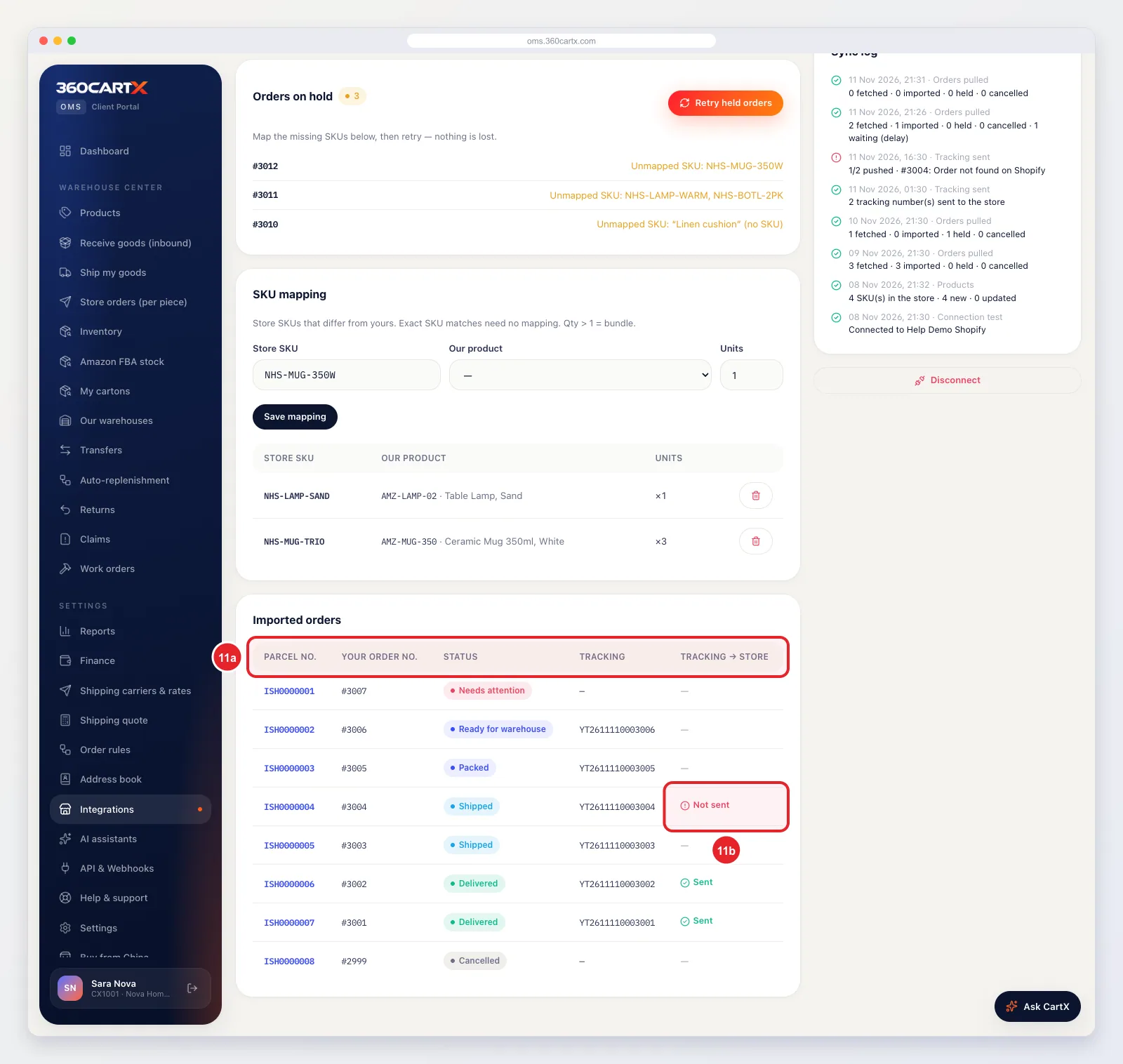
The table lists the 15 newest orders imported from this store. Parcel no. is our number and opens the order, Your order no. is the order number in your store, Status is the status in 360CartX (see Order statuses), and Tracking is the tracking number once there is one. The last column, Tracking → store, says Sent in green once the number has reached the store, Not sent in red when the store refused it (hold the pointer on it to read why), and shows a dash while there is nothing to send yet.
- 11a Columns
- 11b Not sent
- 12
Send tracking
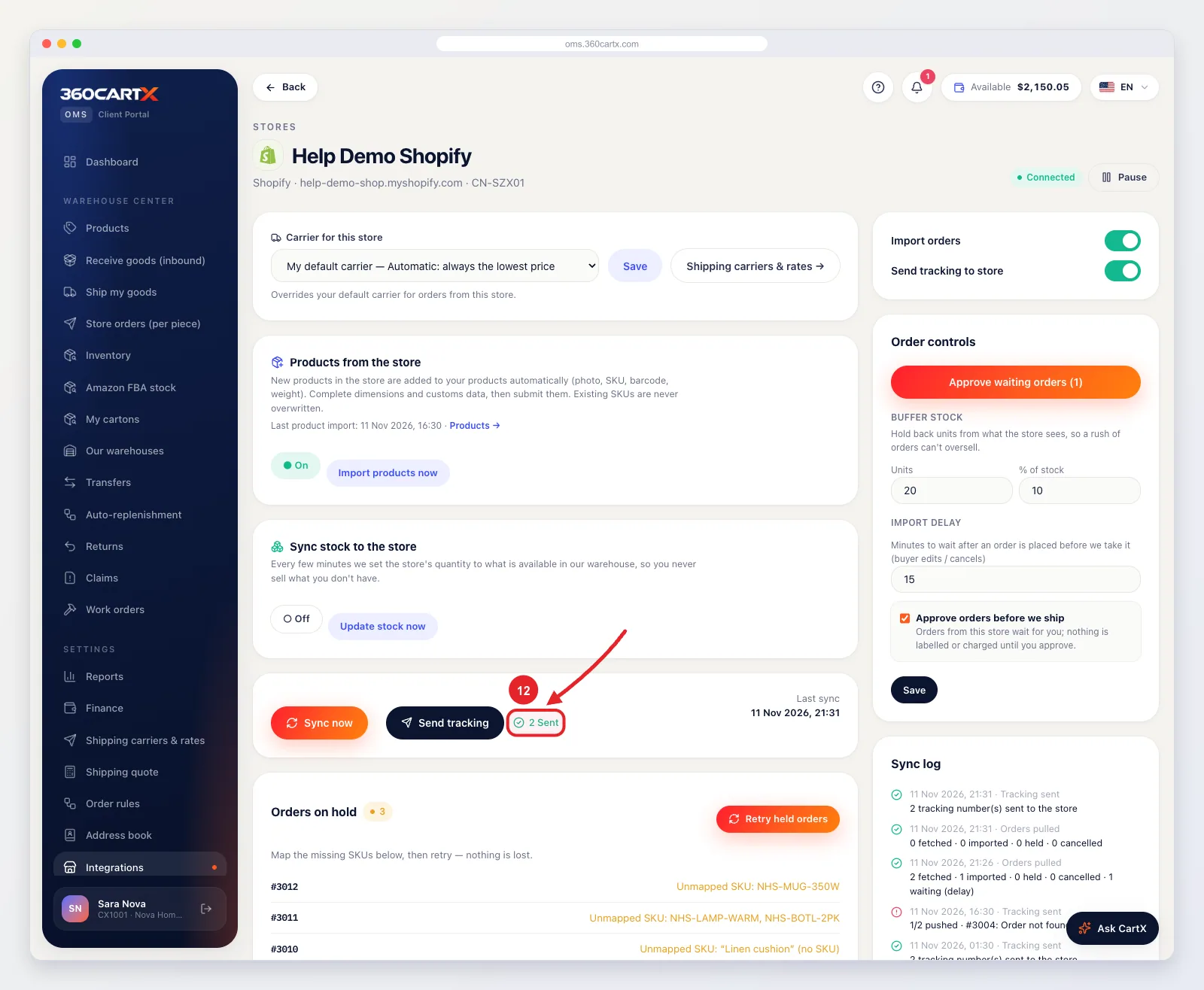
Click Send tracking to send the waiting tracking numbers now. The answer is the number sent, for example 2 Sent. The orders that were refused are tried again every time, so after you fix the cause (for example the order was removed in the store) they go out on the next try. Each attempt is written in the sync log.
- 13
The sync log
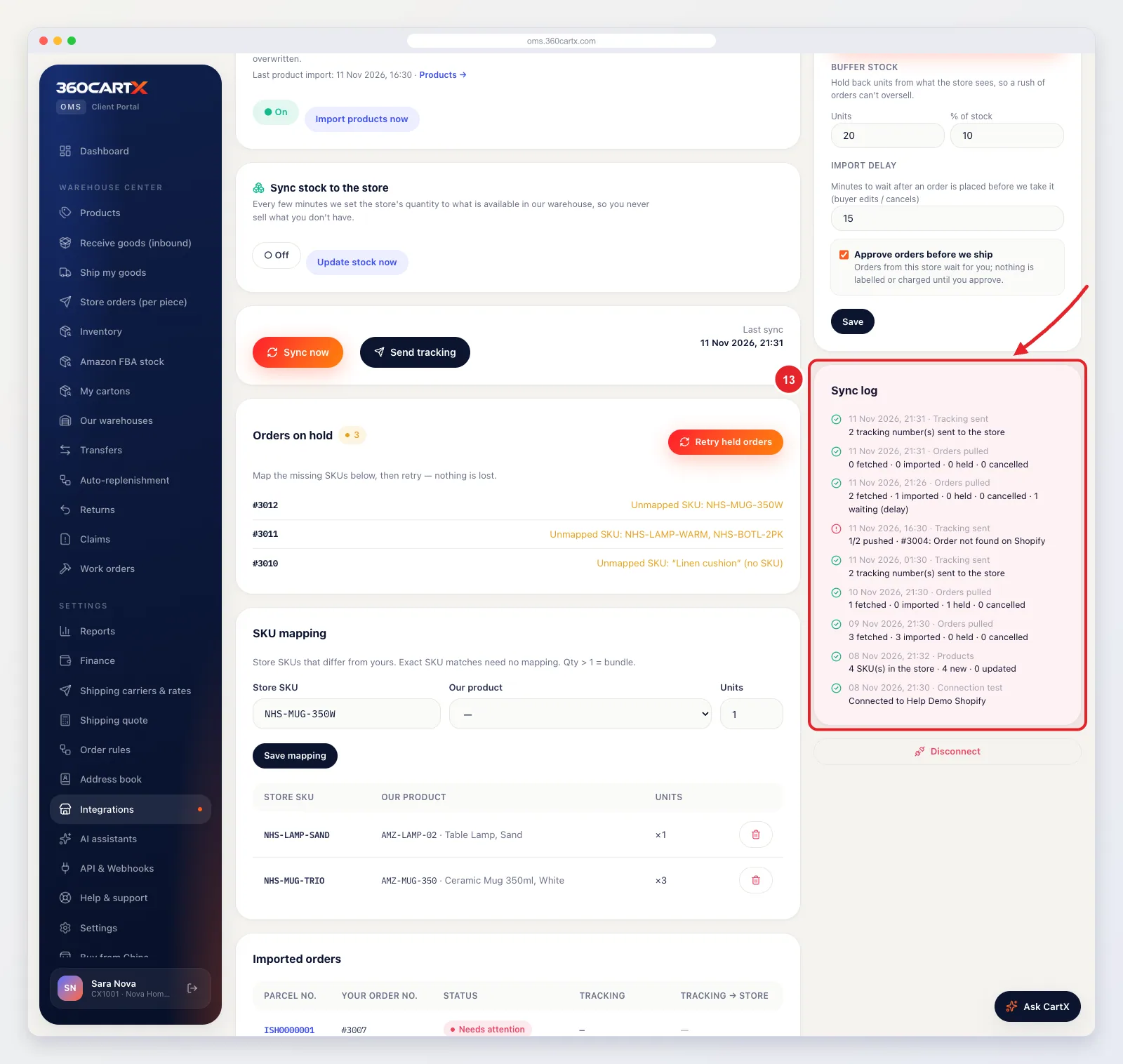
The Sync log box shows the last 25 events: the date, the kind (Orders pulled, Tracking sent, Webhook, Connection test, Products) and the message. A green tick is a success. A red circle is a failure and its message tells why, for example 1/2 pushed · #3004: Order not found on Shopify. When someone asks you what happened to an order, this is the first place to look.
- 14
Pause and Resume
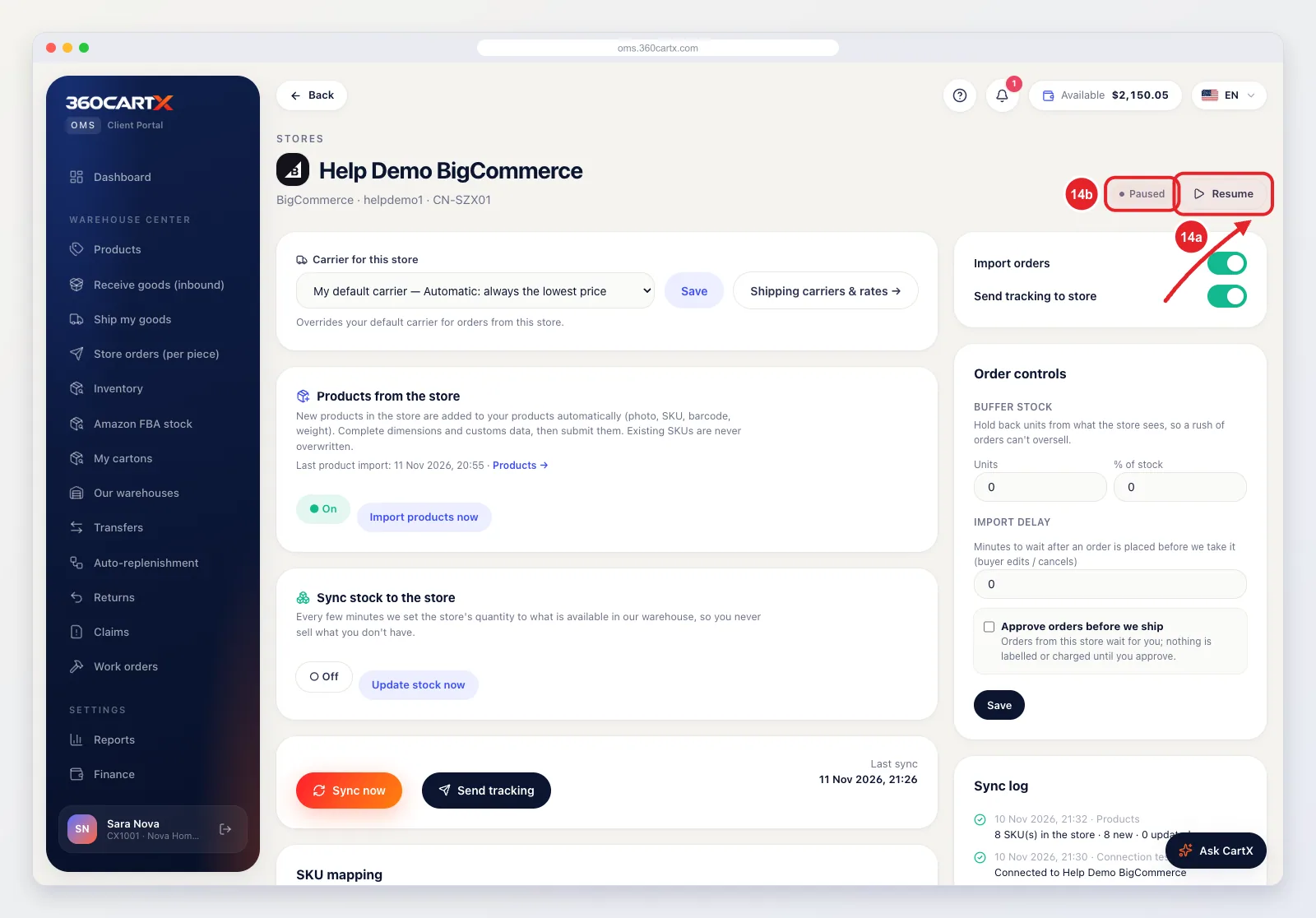
Pause (top right of the store page) stops the connection: the status becomes Paused and the button becomes Resume. While paused we do not pull orders, send tracking, update stock or import products, and Sync now answers Connection is paused. Nothing is deleted. Click Resume to switch it on again: the status goes back to Connected and the old error is cleared. The next sync reads back from the last successful sync, so orders placed while paused are not lost, as long as they are newer than your import date.
- 14a Resume
- 14b Paused
- 15
Disconnect
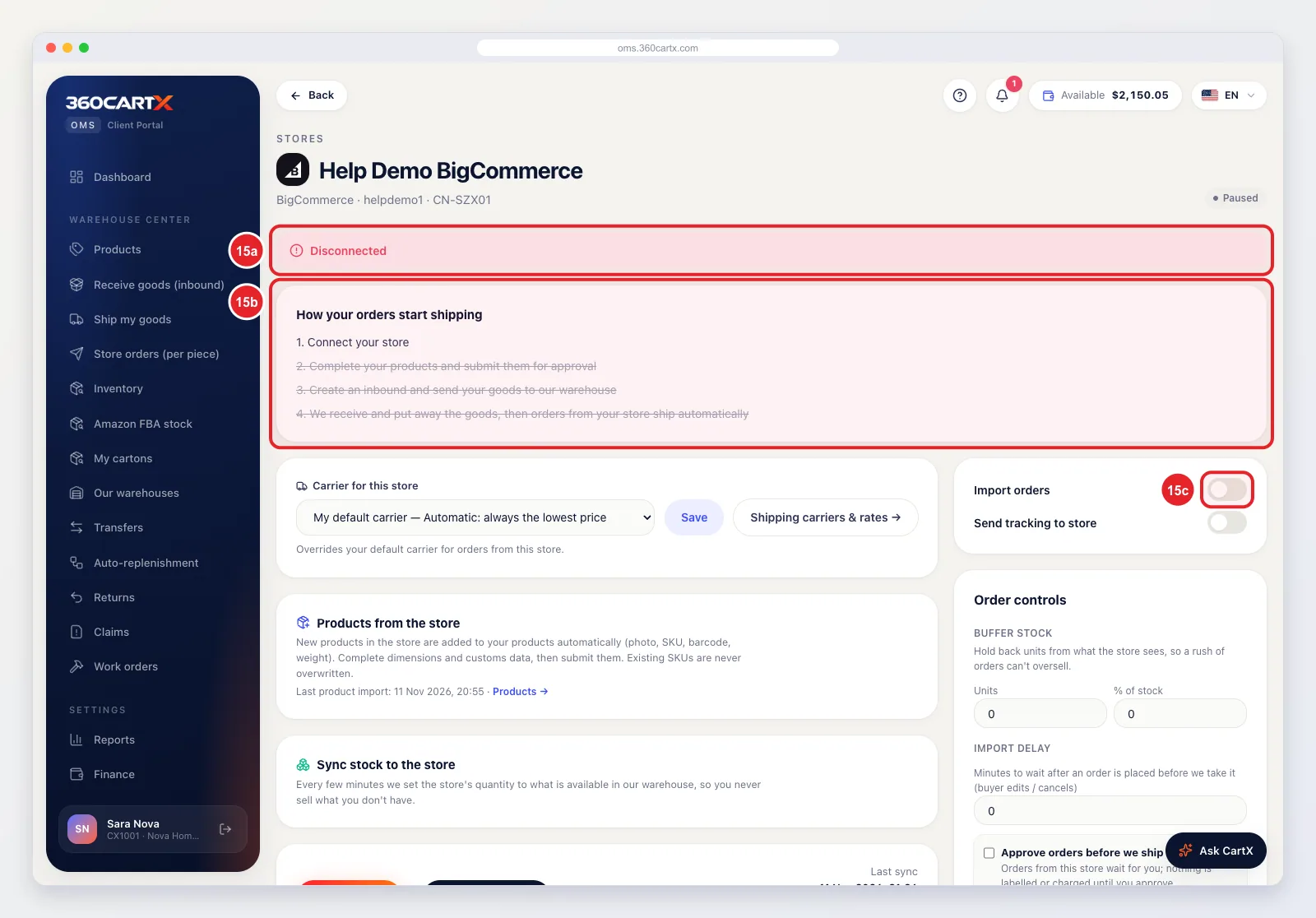
Disconnect (the last button in the right column) removes the saved keys of the store at once. There is no question before it happens. The store stays in your list as Paused with the red message Disconnected, both switches are turned off and locked, Pause and Resume disappear, and the box How your orders start shipping shows Connect your store as open again. Orders already imported and the log stay. To connect again, use Connect on the Integrations page with the same store address: the existing store is updated and its history is kept. The two switches stay off after a reconnect, so turn them on again. Disconnect does not remove the 360CartX app in your store: do that in your store admin too if you want to end its access.
- 15a Disconnected message
- 15b How your orders start shipping
- 15c Locked switch
Tips
- Use Pause, not Disconnect, for a short break (a sale you want to handle by hand, a store move). Disconnect deletes the keys and you must connect again.
- A store in Error often fixes itself: a one-minute outage of the platform clears at the next sync. Act when the message stays the same for hours.
- Orders waiting for your approval show Needs attention in the table. See Buffer stock, import delay and manual approval and Approve orders before they ship.
- Connecting the same store address twice never makes a second store: the existing connection is updated.
Common problems
Connection is paused
Sync now refuses to run because the store is Paused or the Import orders switch is off. Click Resume, or turn the switch on.
The card says Error and the message does not change
The platform refuses us (token revoked, app removed, store closed or address changed). Connect the store again from Integrations with the same address. The error clears at the next good sync.
Not sent in the last column
The store refused the tracking number, for example Order not found on Shopify when the order was deleted there. Fix the cause in your store and click Send tracking again.
Tracking to send keeps growing
Send tracking to store is off, the store is Paused or the store refuses the numbers. Check the switch, the status and the Not sent rows.
My Resume button is gone
The store was disconnected, so there are no keys left. Connect it again from the Integrations page.
Related articles
Updated 2026-11-11
Open a ticket from Support in your portal and our team will reply.