Steps
- 1
Open the Shopify card
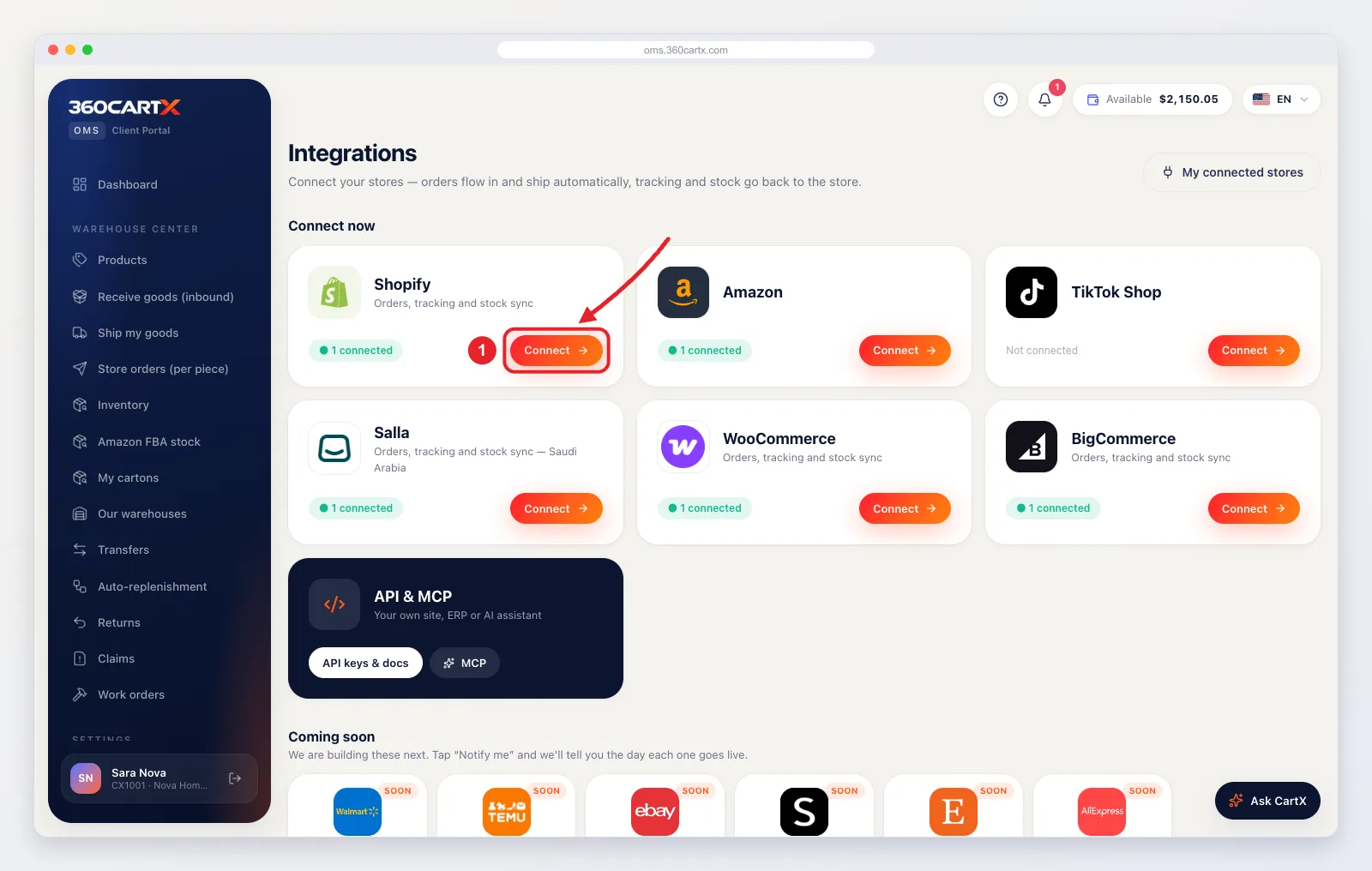
Go to Integrations and click Connect on the Shopify card. You can also open Connect a store and click the Shopify tile.
- 2
Two ways to connect
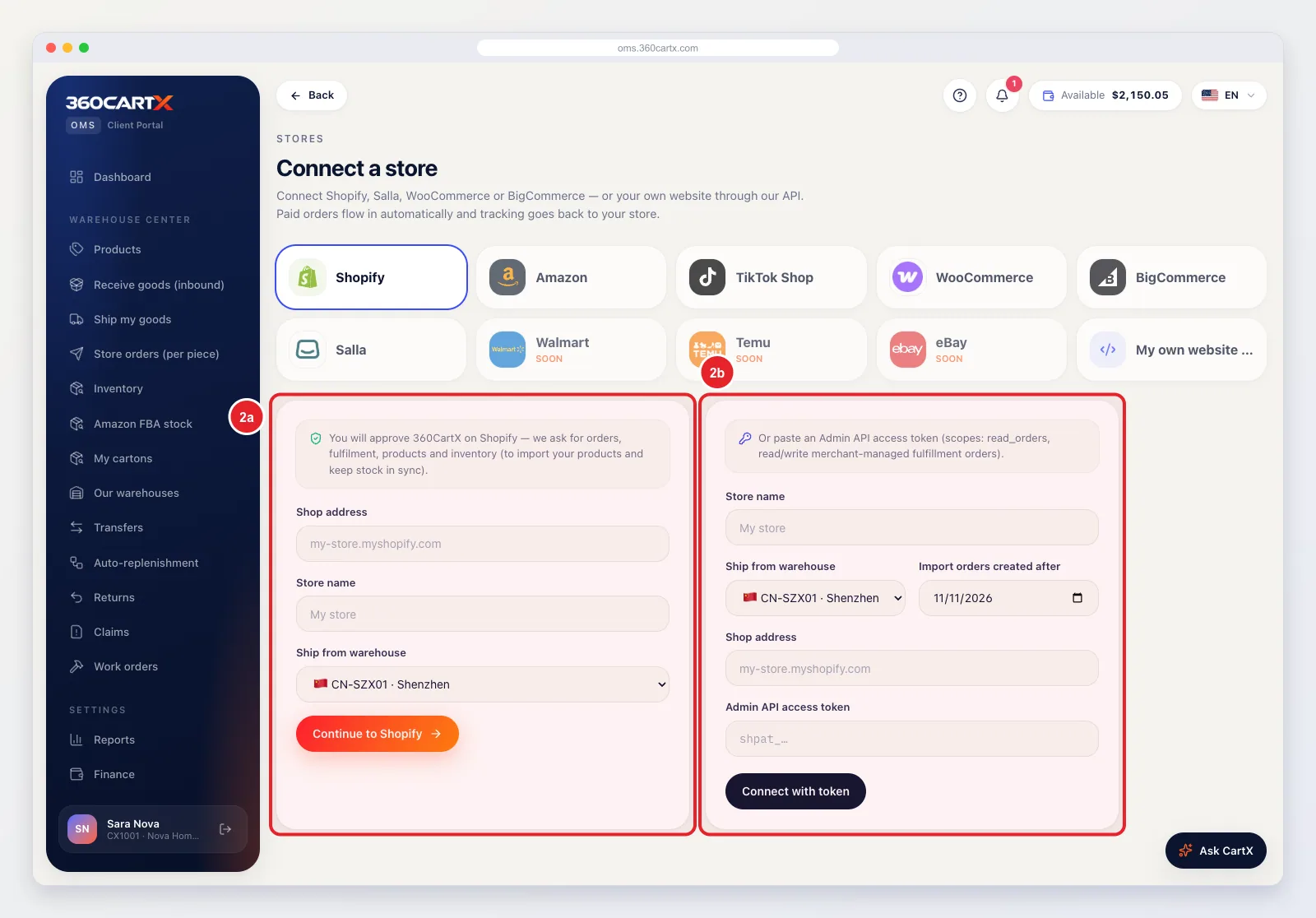
The Shopify page shows two boxes side by side. Left: one-click connection, with the note You will approve 360CartX on Shopify, we ask for orders, fulfilment, products and inventory (to import your products and keep stock in sync). Right: Or paste an Admin API access token.
- 2a One click
- 2b Access token
- 3
One click: fill in the left box
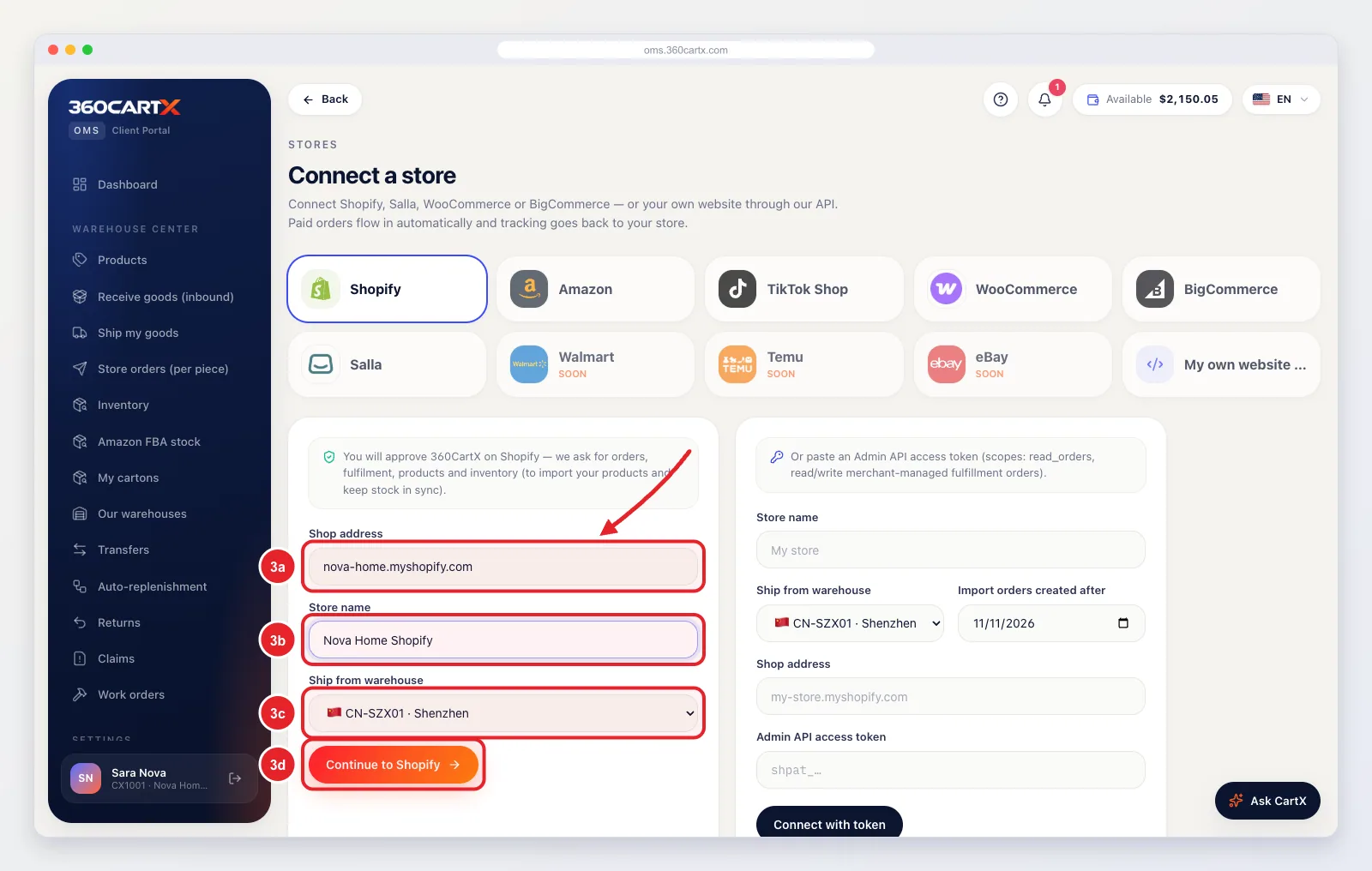
Shop address is your store's .myshopify.com address, for example nova-home.myshopify.com. Writing only nova-home works too, and so does the address of your Shopify admin (admin.shopify.com/store/nova-home). Store name is optional here (if you leave it empty the shop address is used), for example Nova Home Shopify. Choose Ship from warehouse, then click Continue to Shopify.
- 3a Shop address
- 3b Store name
- 3c Ship from warehouse
- 3d Continue to Shopify
- 4
Approve 360CartX on Shopify
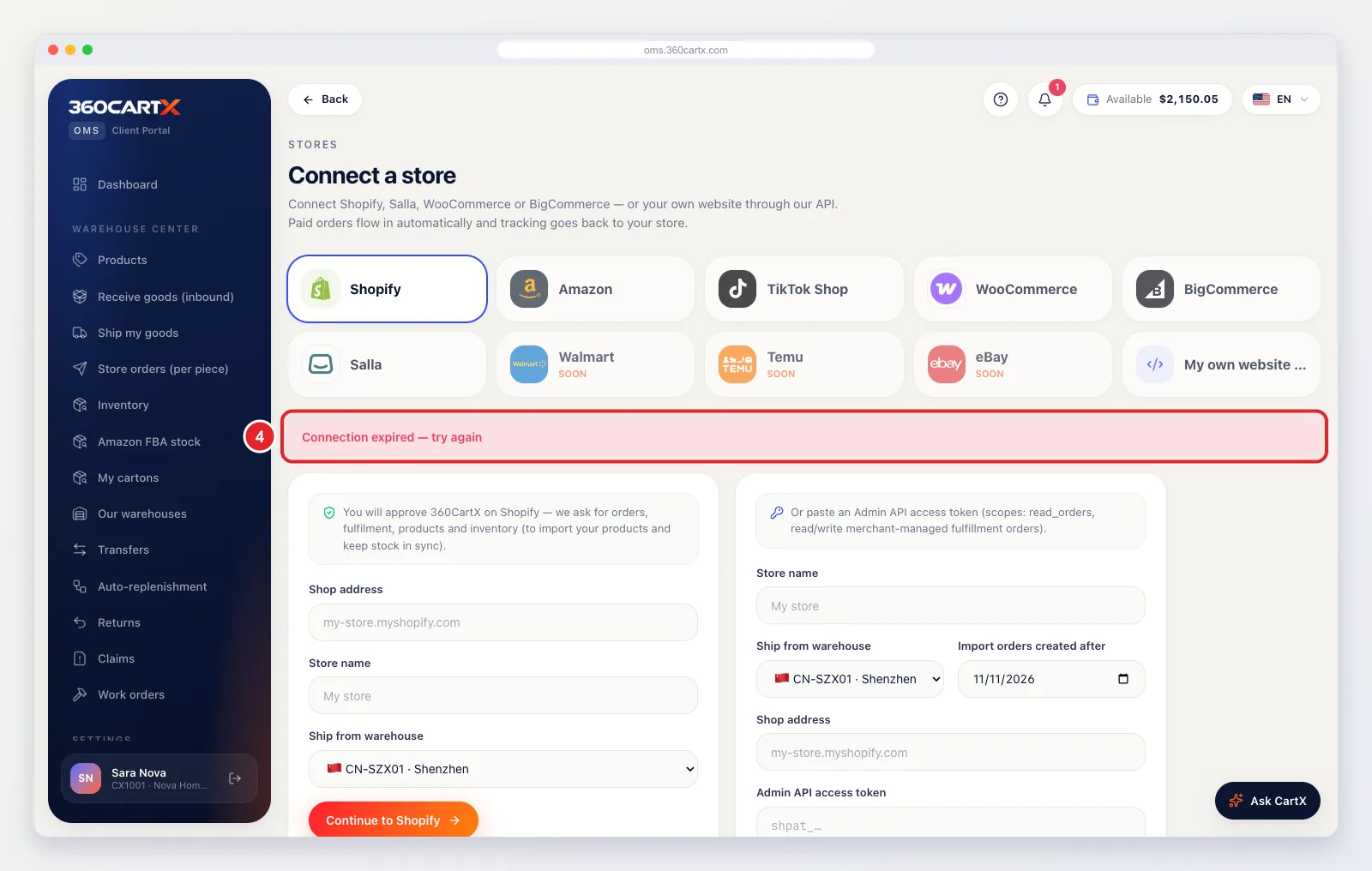
Shopify opens its own screen and lists what 360CartX asks for: read orders, read and write fulfilment of orders you fulfil yourself, read products, read and write inventory, and read locations. Sign in to the store if Shopify asks, and approve. Shopify sends you back to 360CartX and you land on the store page. If anything fails you come back to the connect page with a red message, for example Connection expired, try again (you have 10 minutes to approve).
- 5
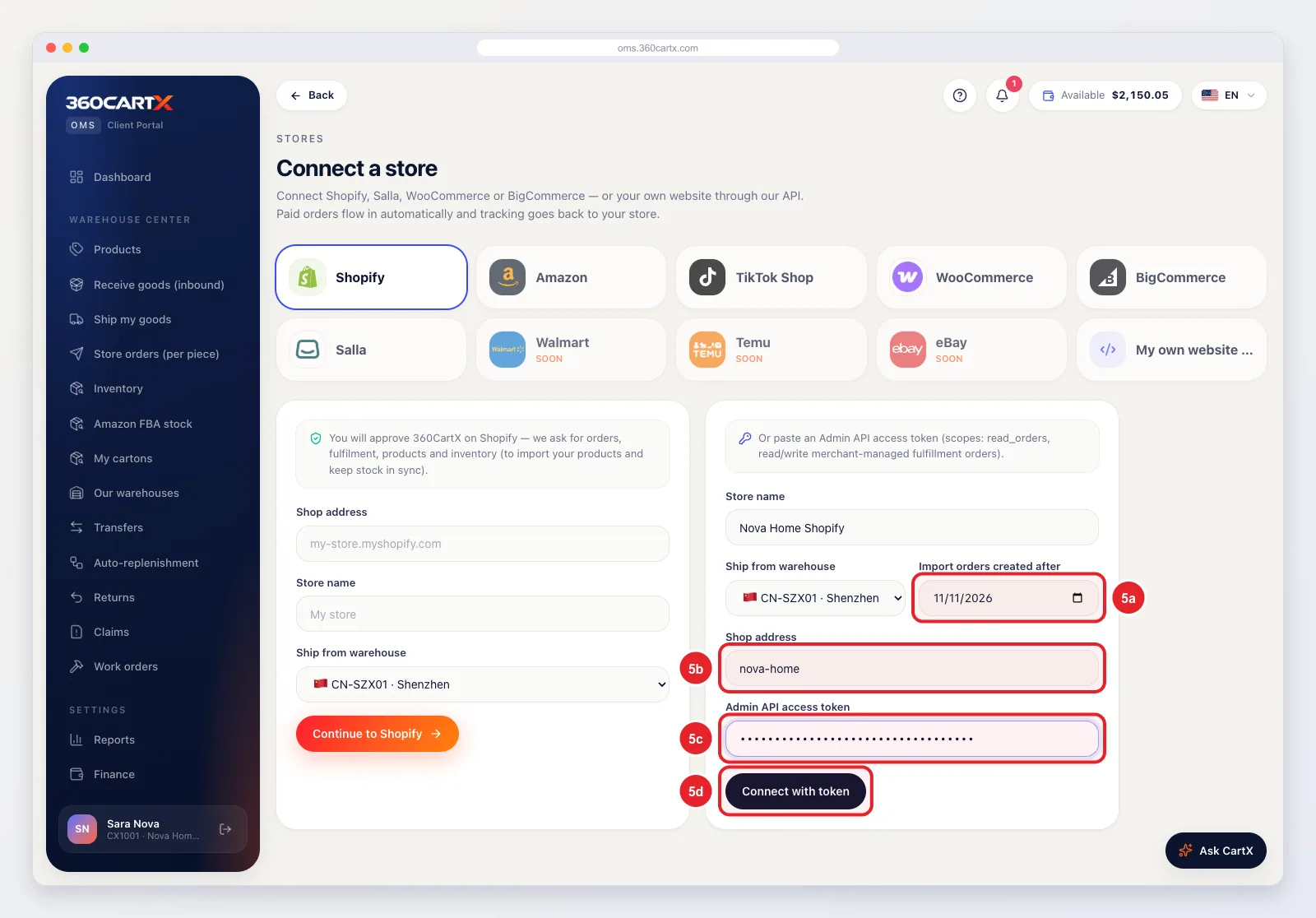
Token: fill in the right box
Store name, Ship from warehouse and Import orders created after (today by default; older orders are ignored), then Shop address (nova-home.myshopify.com) and Admin API access token (starts with shpat_). To get the token create a custom app in your Shopify admin, give it the Admin API scopes read_orders, read_merchant_managed_fulfillment_orders and write_merchant_managed_fulfillment_orders, and add read_products, read_inventory, write_inventory and read_locations if you want product import and stock sync. Install the app and copy the Admin API access token. Click Connect with token.
- 5a Import orders created after
- 5b Shop address
- 5c Admin API access token
- 5d Connect with token
- 6
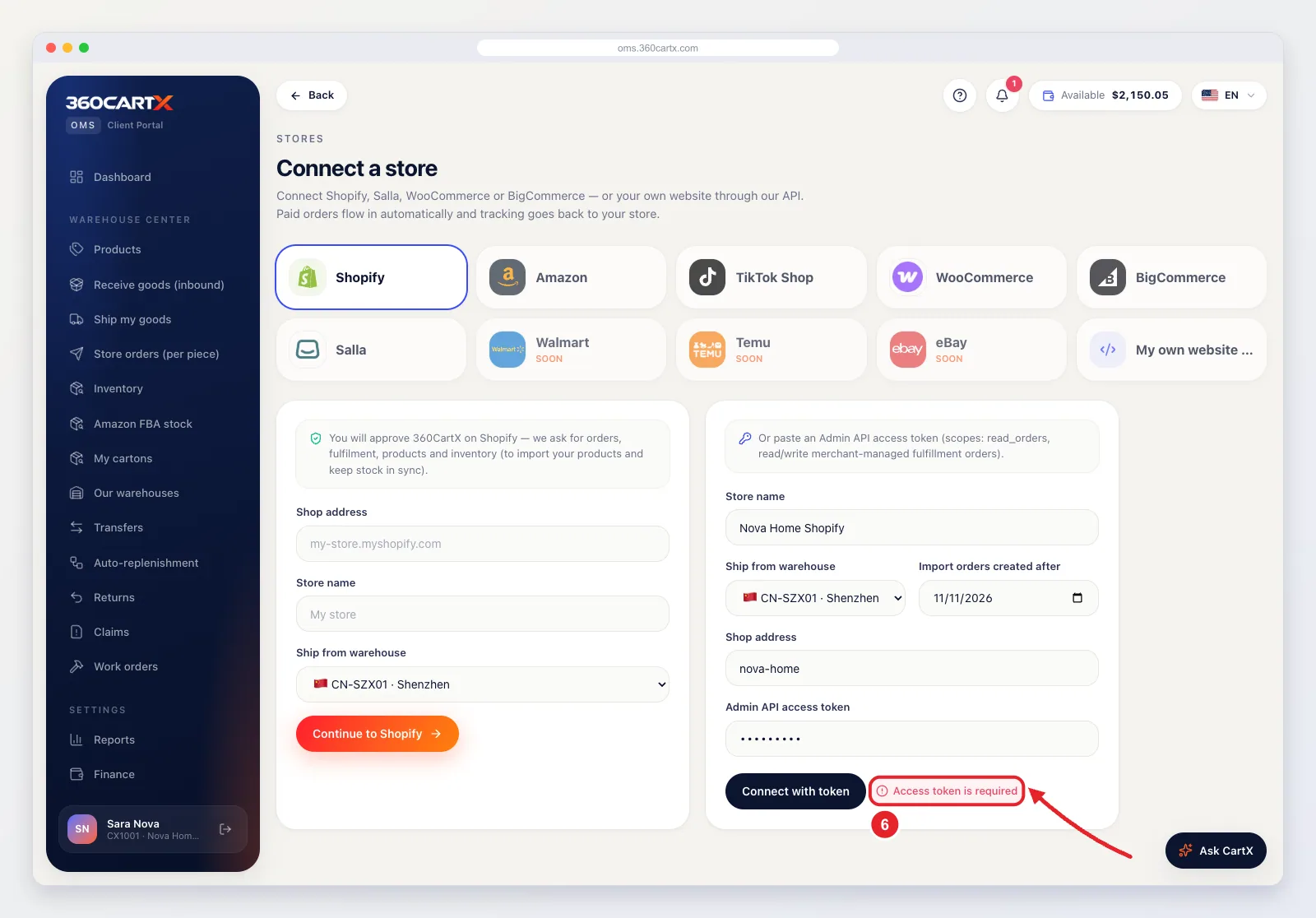
Checks before anything is saved
A token that is too short gives Access token is required, a store name under 2 characters gives Store name is required, and an address that is not a Shopify store gives Enter the store's .myshopify.com address. The token is also tested against your store. Nothing is saved if the test fails.
- 7
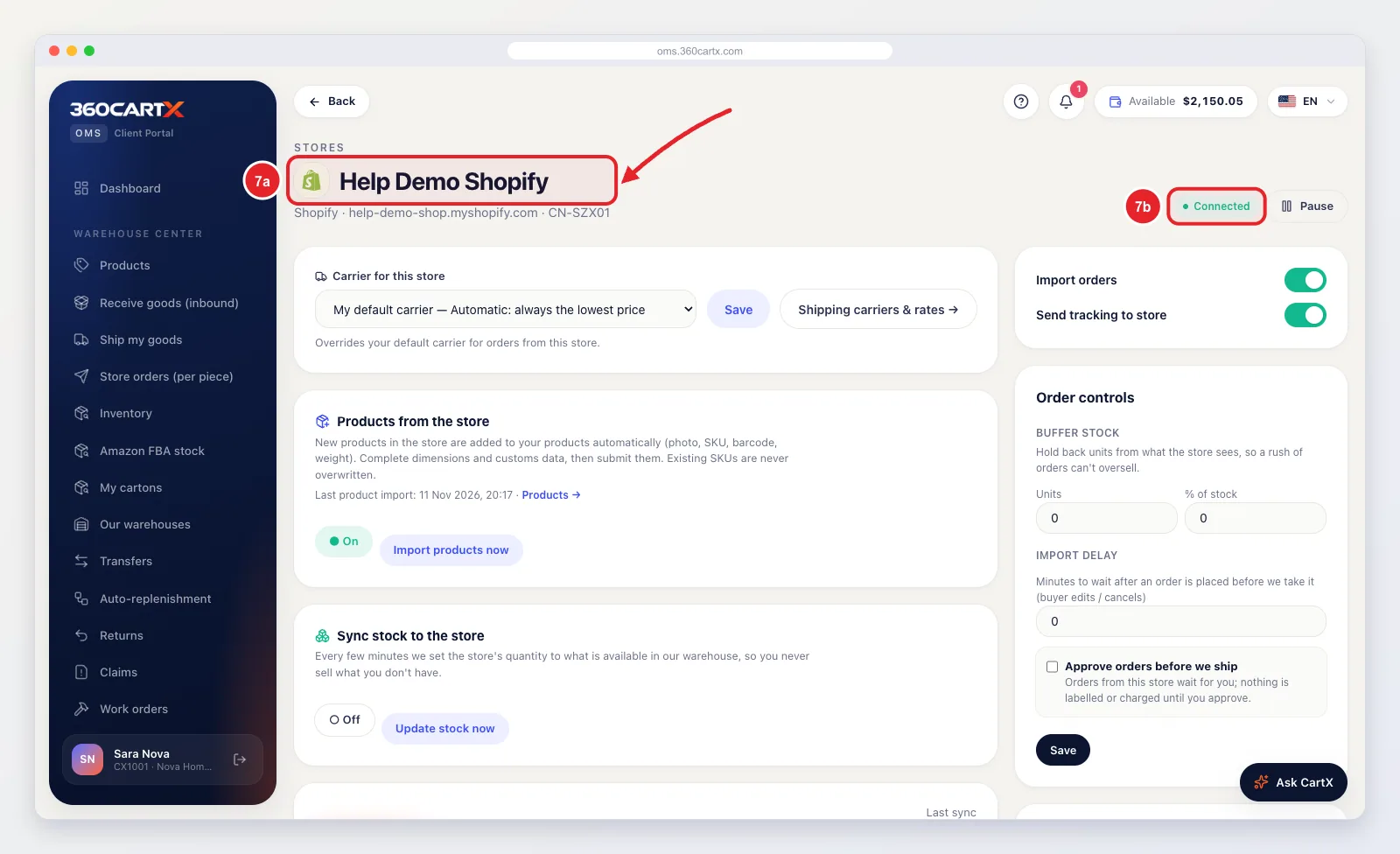
You land on the store page
After a successful connection the store page opens with the store name and the status Connected. The first product import starts at once, and a first line in the sync log reads Connected to <store>. With one click, 360CartX also registers Shopify webhooks so orders reach us at once.
- 7a Store name
- 7b Connected
- 8
What happens next
Paid orders that are unfulfilled, partly fulfilled, scheduled or on hold, and need shipping, are imported from the moment you connected (or from your date for a token connection). Orders for SKUs we do not know wait on hold until you map them. When we ship, the tracking number goes back as a Shopify fulfilment. Your products come in as Draft, and Sync stock to the store can keep the Shopify quantity equal to what is available here. Managing the store, mapping and stock sync have their own articles.
Tips
- Use one click when you can: the permissions are right and, because Shopify's token renews itself, you never paste anything.
- A pasted Admin API token never expires, but it only has the scopes you gave the custom app. Missing scopes show up later as errors on product import or stock sync.
- Connecting the same store again updates the existing connection instead of adding a second one.
Common problems
Enter the store's .myshopify.com address
The shop address is not a Shopify address. Use the one that ends in .myshopify.com, not your own domain.
Access token is required
The token field is empty or too short. Copy the full Admin API access token (it starts with shpat_).
Access token rejected (401), reconnect the store
Shopify refused the token: it was revoked or the custom app was uninstalled. Create a new token and connect again.
Cannot reach <shop>: ...
We could not reach the store. Check the address and try again in a minute.
Connection expired, try again
More than 10 minutes passed between Continue to Shopify and your approval. Start again.
Shopify response could not be verified / Shop mismatch
The answer did not match the connection you started (for example you approved a different shop). Start again and approve the same store.
Sign in again
Your 360CartX session ended while you were on Shopify. Sign in and connect again.
Shopify token: ... connect the store again
Shopify refused to give 360CartX the token. Connect again; if it repeats, contact support.
Choose a warehouse
Pick a Ship from warehouse in the box you are using.
Related articles
Updated 2026-11-11
Open a ticket from Support in your portal and our team will reply.